Oracle PIVOT and UNPIVOT Clauses:
A Guide with Examples
Oracle Pivot Table functionality helps rearrange rows and columns of data to a simplified table for the user to better understand data relations and dependencies.
This page provides a brief overview of the pivot table feature in dbForge Studio for Oracle
and describes the process of creating pivot tables.
Become a data management guru with dbForge Studio for Oracle, now featuring Oracle Pivot Table.
The Oracle Pivot Table function converts large amounts of data into compact
and informative summaries - pivot tables. In an intuitive and easy-to-use visual Query Builder,
pivoting a table without crosstab becomes a quick and simple task: drag-and-drop tables,
select columns, create JOINS, and set up filtering, grouping or sorting relations between tables
in the tabbed editor, as well as sum, store, and generate data into a report.
With a few clicks, you can aggregate the data and pivot rows into columns.
-
Simplify data representation
-
Summarize data in an easy and flexible way
-
Customize totals for column or row values
-
Highlight the most important information in a report
-
Use a bunch of metrics to build pivot tables effectively and efficiently
-
Improve data analysis
What is the PIVOT function in Oracle?
Oracle Database delivers PIVOT functionality designed to help summarize and analyze volumes of data
in your database. The feature enables Oracle database users to transpose rows to columns and present
any type of query in the crosstab format using a pivot operator. Before Oracle 11g, you could obtain
similar results by means of the DECODE function or CASE expressions, but the technique was quite
cumbersome and time-consuming. The pivot feature saves you extra effort writing complex SQL and allows
reorganizing your data and viewing it in a concise format. Let's review the basic functions in Oracle
related to the PIVOT operator.
Pivot multiple columns
Using the Oracle SQL Pivot statement, you can accomplish transposing multiple columns.
The SQL syntax will be a bit more complex as you will need to use several aggregate functions
in the pivot clause. Note that you will need to provide aliases for each function because, otherwise,
the query may result in an error.
Dynamic columns
Considering the change that occurs frequently within the columns, you can use dynamic SQL when dealing
with the PIVOT function in your Oracle database. Dynamic queries are queries whose full text is not
available until runtime. In this case, pivot values will be generated in the process,
and you will need to apply the LISSTAG function. This solution, however, might turn out rather tedious,
and hold up your process if you work with a complex query.
XML format
Occasionally, you may not be well aware of what values are available in the column. In such cases,
you can add the XML keyword to the PIVOT operator and gain the possibility to generate pivot results
in the XML format. The XML notation allows you more flexibility as you will be able to indicate a
special clause, ANY, or a subquery instead of having to enter precise values.
UNPIVOT operator
It is often necessary to represent column-based data as rows, which leads to the use of the reverse
command to PIVOT. Oracle provides the UNPIVOT operator, which allows us to break up the columns into
separate rows by adding the columns you intend to unpivot in the IN clause. Note that although the
UNPIVOT operator may be the opposite of PIVOT, you should not use it to reverse the result of pivoting
as you risk losing the necessary details.
Oracle PIVOT clause example
A pivot table can be created visually in a dedicated IDE for Oracle databases (e.g., dbForge Studio for Oracle).
Alternatively, you can write a corresponding query using the PIVOT clause in SQL.
Let's have an overview of both options.
Creating a pivot table visually using an IDE for Oracle
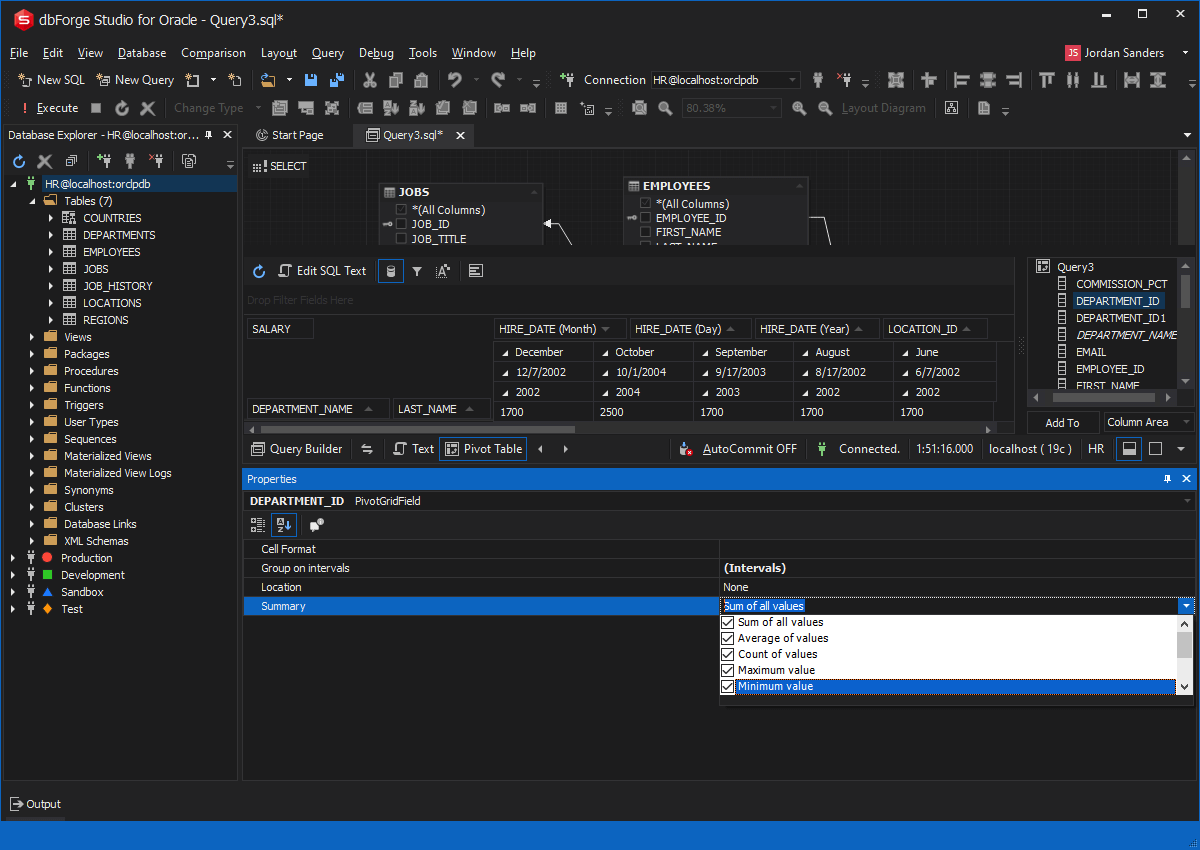
In dbForge Studio for Oracle, pivot tables are created from the built-in Query Builder.
Open a query document to select it as a data source for a pivot table. In Database Explorer,
select required tables from your database and drag-and-drop them to the query document.
They are displayed as boxes with columns. Next, select the columns you need for your future pivot table.
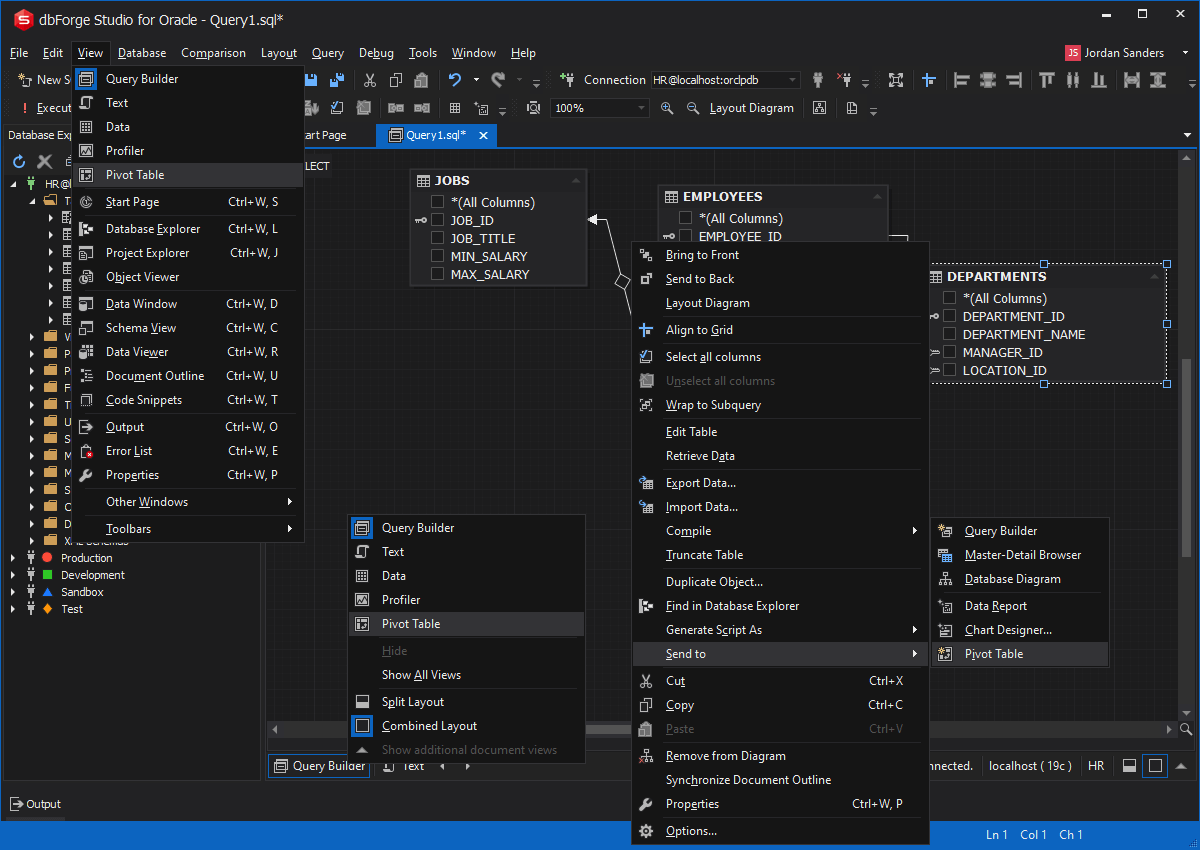
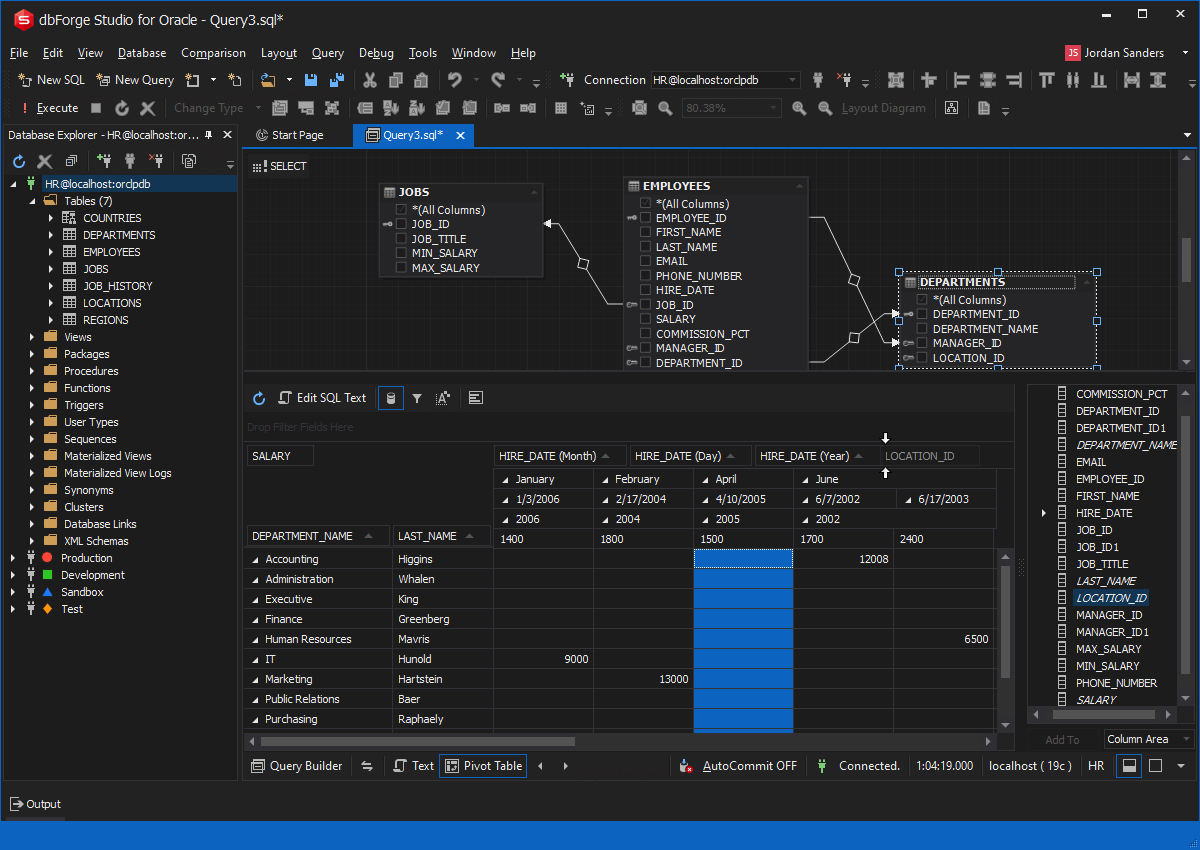
Switch to the Pivot Table view to see the pivot table template. The Data Source view opens automatically
with the fields specified in our query document. To add fields to the pivot table, simply
drag-and-drop them from the Data Source view to a required pivot table area.
Example of a PIVOT query in SQL
The second option is to write and execute queries manually in the same dbForge Studio for Oracle.
Let's illustrate it with a few examples that will have a very clear subject matter: car sales.
And for a good start, let's make a selection of sales managers that will also show us
the car models that they have sold, as well as respective prices and payment dates.
SELECT P.PAYMENT_ID,
       CM.TITLE,
       M.FIRST_NAME || ' ' || M.LAST_NAME MANAGER_NAME,
       P.PAYMENT_DATE,
       P.AMOUNT
  FROM CARS_SALE.CAR_MODEL CM,
       CARS_SALE.MANAGERS M,
       CARS_SALE.PAYMENT P
  WHERE CM.CAR_ID = P.CAR_ID
    AND M.MANAGER_ID = P.MANAGER_ID
;
The PIVOT clause will help us select managers who sold cars of several specific brands, for instance, AMC, Buick, Datsun, and Chrysler.
SELECT *
  FROM (SELECT P.PAYMENT_ID,
               CM.TITLE,
               M.FIRST_NAME || ' ' || M.LAST_NAME MANAGER_NAME,
               P.AMOUNT
      FROM CARS_SALE.CAR_MODEL CM,
           CARS_SALE.MANAGERS M,
           CARS_SALE.PAYMENT P
      WHERE CM.CAR_ID = P.CAR_ID
        AND M.MANAGER_ID = P.MANAGER_ID) PIVOT (SUM(AMOUNT) FOR TITLE IN ('AMC', 'Buick', 'Datsun', 'Chrysler'))
;
Aliasing PIVOT columns
Now let's see how to add aliases to PIVOT columns. For instance, here's a case when we want to output the total car sales by department; and in this case, to every department alias, we add a SUM alias.
SELECT *
  FROM (SELECT CM.TITLE CAR_MODEL,
               P.DEPARTMENT_ID DEPT,
               P.AMOUNT
      FROM CARS_SALE.CAR_MODEL CM,
           CARS_SALE.MANAGERS M,
           CARS_SALE.PAYMENT P
      WHERE CM.CAR_ID = P.CAR_ID
        AND M.MANAGER_ID = P.MANAGER_ID) PIVOT (SUM(AMOUNT) SUM
        FOR DEPT IN (1 AS DEPT_1, 2 AS DEPT_2, 3 AS DEPT_3))
;
Pivoting multiple rows to columns in Oracle
What if we want to calculate the sum of payments and the individual quantity of sales by each department? For this purpose, we can apply another useful feature - pivoting multiple rows to columns.
SELECT *
  FROM (SELECT CM.TITLE CAR_MODEL,
               P.DEPARTMENT_ID DEPT,
               P.AMOUNT
      FROM CARS_SALE.CAR_MODEL CM,
           CARS_SALE.MANAGERS M,
           CARS_SALE.PAYMENT P
      WHERE CM.CAR_ID = P.CAR_ID
        AND M.MANAGER_ID = P.MANAGER_ID) PIVOT (SUM(AMOUNT) SUM, COUNT(DEPT) COUNT_DEPT FOR DEPT IN (1 AS DEPT_1, 2 AS DEPT_2, 3 AS DEPT_3))
;
Using PIVOT with subqueries
We can add a subquery to our PIVOT query. For instance, let's select unique departments using a subquery
and then limit the selection to these departments in the main query that contains the PIVOT function.
SELECT *
  FROM (SELECT CM.TITLE CAR_MODEL,
               P.DEPARTMENT_ID DEPT,
               P.AMOUNT
      FROM CARS_SALE.CAR_MODEL CM,
           CARS_SALE.MANAGERS M,
           CARS_SALE.PAYMENT P
      WHERE CM.CAR_ID = P.CAR_ID
        AND M.MANAGER_ID = P.MANAGER_ID) PIVOT (SUM(AMOUNT) SUM FOR DEPT IN (SELECT DEPT_ID
      FROM CARS_SALE.DEPT))
;
Example of an UNPIVOT function in Oracle
To show you an example of UNPIVOT, let's first create a pivot view showing the total sales by department.
CREATE VIEW CARS_SALE.PIVOTED_SALES_DEPT AS
    SELECT *
      FROM (SELECT CM.TITLE CAR_MODEL,
                   P.DEPARTMENT_ID DEPT,
                   P.AMOUNT
          FROM CARS_SALE.CAR_MODEL CM,
               CARS_SALE.MANAGERS M,
               CARS_SALE.PAYMENT P
          WHERE CM.CAR_ID = P.CAR_ID
            AND M.MANAGER_ID = P.MANAGER_ID) PIVOT (SUM(AMOUNT) SUM FOR
            DEPT IN (1 AS DEPT_1, 2 AS DEPT_2, 3 AS DEPT_3))
Now let's fetch the pivoted data from this view.
SELECT * FROM CARS_SALE.PIVOTED_SALES_DEPT
Finally, we can unpivot our view.
SELECT * FROM
CARS_SALE.PIVOTED_SALES_DEPT
UNPIVOT (total_sales FOR DEPT IN (DEPT_1_SUM,DEPT_2_SUM,DEPT_3_SUM))
How to use Oracle PIVOT without an aggregate
Although Oracle PIVOT only works with aggregate functions, we can try using MAX or MIN for the same purpose.
For instance, this is how we can select a manager and the highest amount paid for a specific car model.
SELECT *
  FROM (SELECT CM.TITLE,
               M.FIRST_NAME || ' ' || M.LAST_NAME MANAGER_NAME,
               P.AMOUNT
      FROM CARS_SALE.CAR_MODEL CM,
           CARS_SALE.MANAGERS M,
           CARS_SALE.PAYMENT P
      WHERE CM.CAR_ID = P.CAR_ID
        AND M.MANAGER_ID = P.MANAGER_ID) PIVOT (MAX(AMOUNT) FOR TITLE IN ('AMC', 'Buick', 'Datsun', 'Chrysler'))
That's it! Now that we have shown you actual code examples, let's go back to the visual mode in dbForge Studio and learn more about reordering, sorting, grouping, and filtering fields.
Reordering fields
Reordering fields is the key point in finding the best table layout to clearly understand data dependencies and benefit from them.
Simply drag-and-drop a field from one area of a pivot table to another in order to design its layout and rearrange their data the way you need. You can easily swap row and column fields to display row field values in columns and column field values in rows.
Sorting and grouping fields
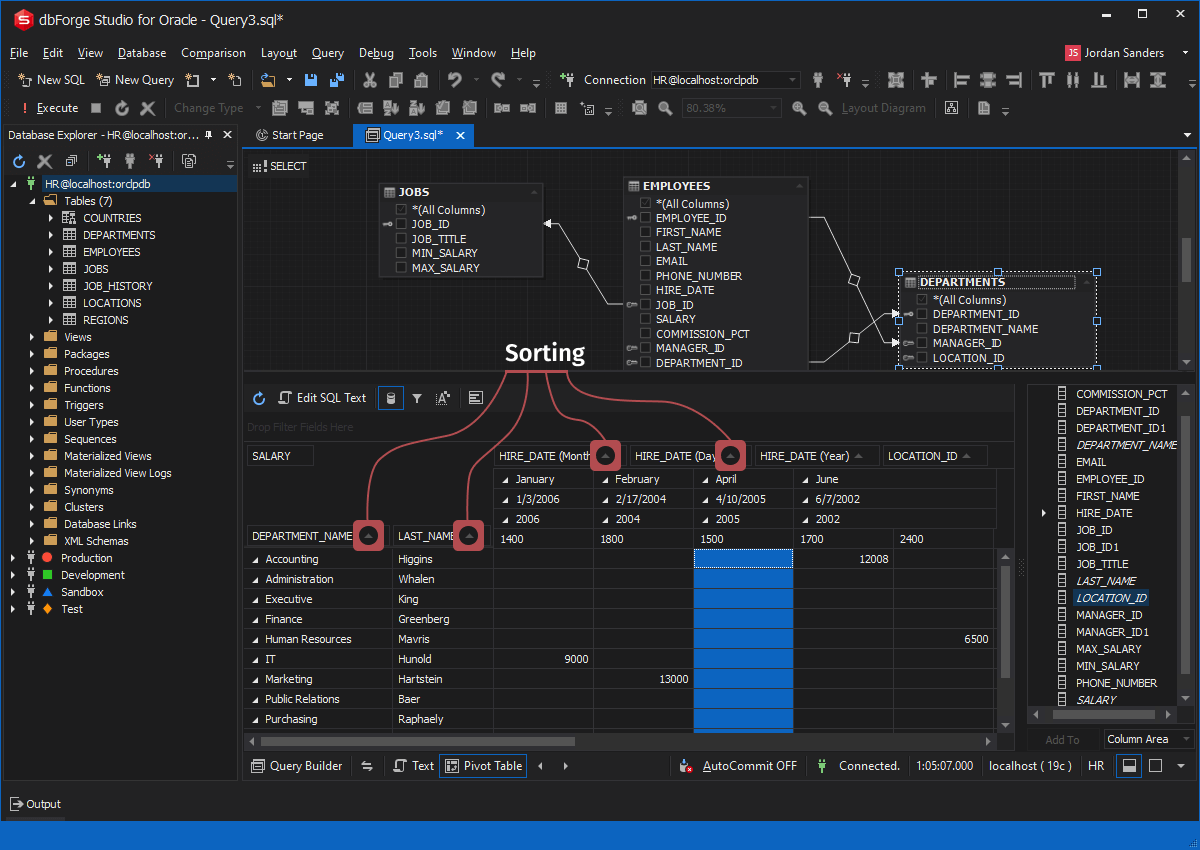
Sorting data in a pivot table allows displaying it in ascending or descending order.
You can group data in an Oracle pivot table using various predefined group modes. Grouping values of some field is done with a single click of your mouse. It will appear as a new sub-field, and you will be able to add it to a required area of your pivot table.
Values of date and time type can be grouped by years, months, quarters, weeks, days, etc. Numeric data can be grouped into numeric ranges. Text data can be grouped by the first letter.
Besides predefined group modes, you can create your own group criteria using the Collection Editor dialog.
Filtering fields
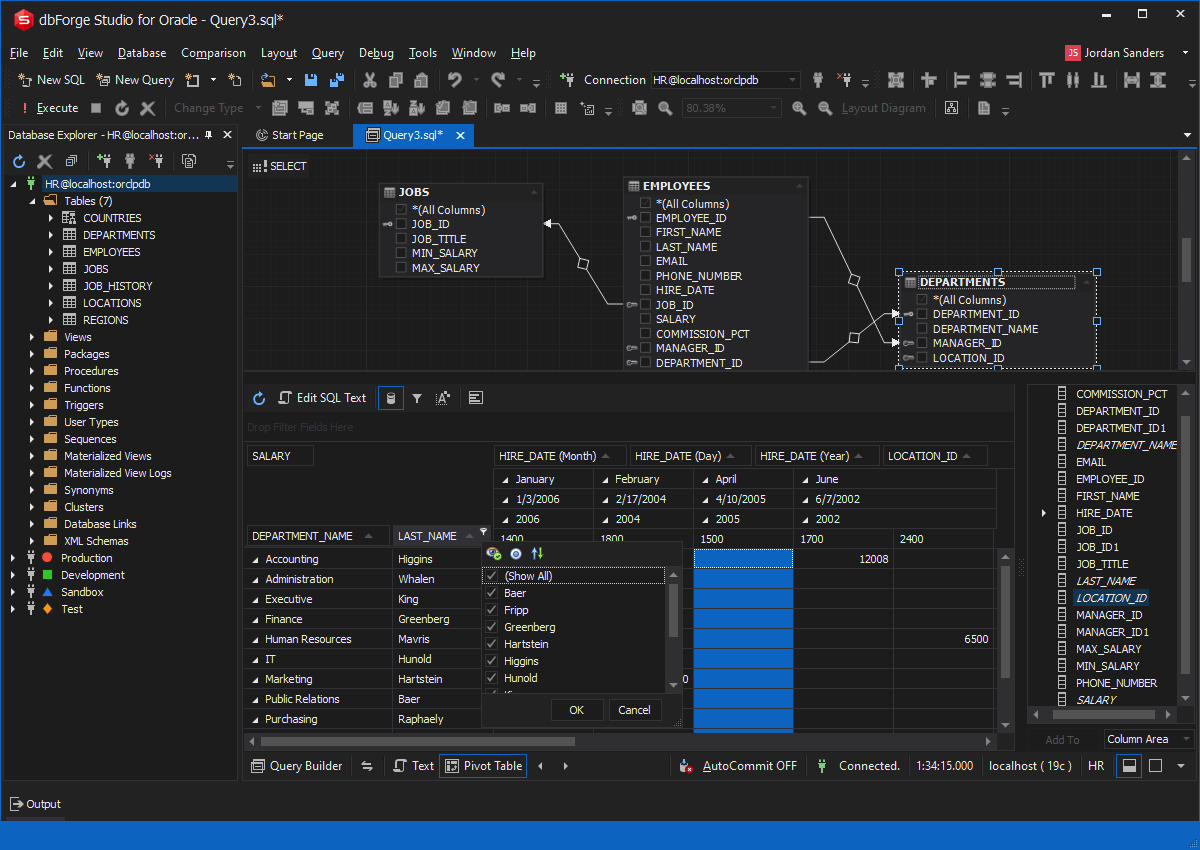
Various types of filtering can be applied to display the required data in a pivot table.
To filter values of any field, click Filter on the field header, and in the opened dialog box, select only required values that you want to display. The data will be filtered according to the selected criteria.
You can add a filter field to filter all data in the pivot table. Drag-and-drop a required field from the Data Source view to the Filter area of the pivot table.
Using summary functions to calculate custom totals
Pivot Table offers multiple summary functions that can be applied to calculate custom totals for column or row values. Custom totals are displayed in additional rows or columns highlighted in grey.
The Oracle pivot function counts the numeric values in the report using the SUM function by default. However, you can choose a different summary function:
- Sum of all values
- Average of values
- Count of values
- Maximum value
- Minimum value
Video tutorial: create PIVOT and UNPIVOT tables
This video demonstrates the creation of a pivot table using Oracle's PIVOT and UNPIVOT operators, and compares their abilities to a more efficient and practical pivot table tool provided by dbForge Studio for Oracle.
Conclusion
Pivot tables are invaluable for easy and agile manipulation and processing of large data sets.
dbForge Studio for Oracle helps you improve data analysis efficiency,
get deeper into relations and dependencies,
extract the most useful information from your data, and generate reports.
Along with pivot tables, dbForge Studio offers a rich collection of other database management
and development features.