Queries and Data
When designing and especially when debugging model, it is often necessary to view and edit table and view data or fill tables with some test data. Entity Developer allows viewing and editing data of tables, views, and model entities, create and execute LINQ to SQL, Entity SQL and HQL queries against the model, eliminating the need for additional applications and reducing time for accessing these operations.
Preparing Test Data
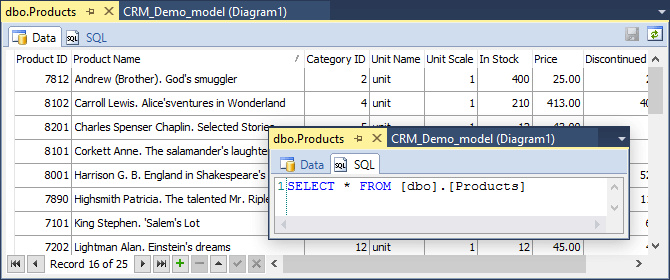
Suppose, you have a database for your model, and want to fill your database with some test data. You can do it right in Entity Developer, without any external application. Set up the model connection in Database Explorer if you haven't done it yet. Then simply right-click a table or view in Database Explorer and choose Retrieve Data from the shortcut menu. This will open a grid where you can view and edit table data.
Verifying Mapping
After you have created entities for your model and mapped them to the database, you may want to verify the mapping of your entities. Especially it may be useful for complex mappings, such as inheritance relationships.
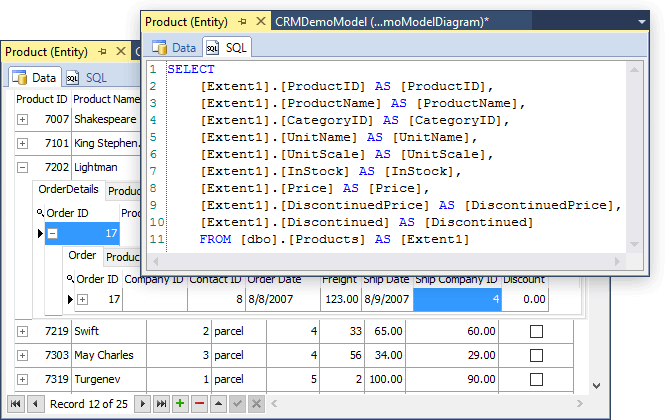
Right-click an entity on the diagram or in Model Explorer and choose Retrieve Data from the shortcut menu. This will open a document with two tabs: the SQL tab, containing the generated SQL query, and the Data tab with the grid where you can view and edit entity data.
When you retrieve data from an entity, that have associations, you may view not just the entity data, but also the data from the entities, connected with the current by associations.
Entity data is retrieved through the generated DataContext and entity classes. So you may see how the generated classes in work right in your Visual Studio without the need for writing test code.
Entity data is retrieved through the generated DataContext and entity classes. So you may see how the generated classes in work right in your Visual Studio without the need for writing test code.
Designing and Debugging LINQ Queries
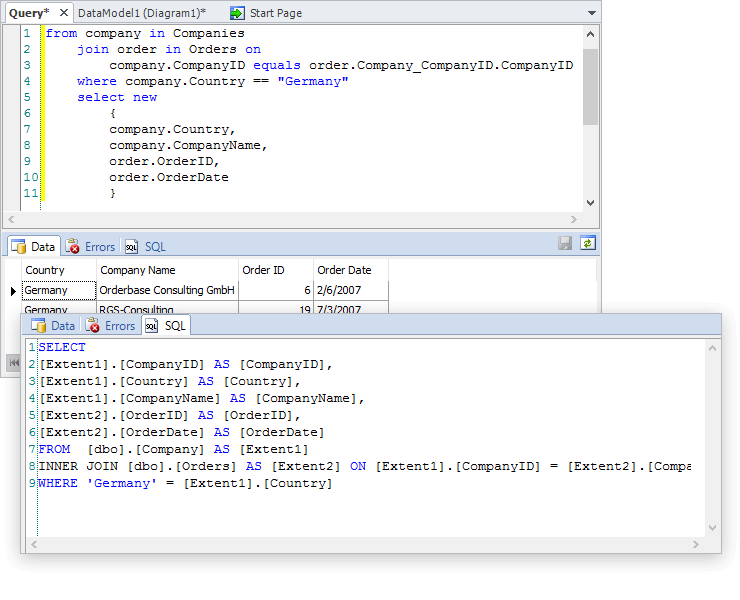
When designing an ORM model, it is often necessary to quickly design and debug a LINQ (or Entity SQL, or HQL) query. Entity Developer allows you to execute LINQ, HQL, or Entity SQL queries directly against the model without the need to write sample application. You can use our built-in query editor, which is similar to LINQPad, to design queries.
After executing query, the results are displayed in the tabs below the query text. If the query executed successfully, Data tab contains the data returned by the query. SQL tab contains SQL code that was executed for the query. Error information is available in the Error tab if errors occurred when executing query.
Query data is retrieved through the generated DataContext and entity classes too.
Queries can be saved for future use.