
You can install the provider by using the Windows installer.
After you receive the license key, add it to your connection strings to connect to the data source.
MongoDB is a popular document database that stores data as flexible JSON-like documents grouped into collections. To access this data from a .NET application, developers usually need to learn the MongoDB driver API and work with documents instead of rows and columns.
In this article, we'll explore how to connect to MongoDB and work with its data in a C# application using dotConnect for MongoDB through SQL queries, native MongoDB commands, and Entity Framework Core (EF Core).

dotConnect lets .NET applications query MongoDB collections with SQL as if they were tables or run native MongoDB commands in JSON when you need full control.

Using familiar ADO.NET components, dotConnect for MongoDB allows developers to work with data through standard .NET data access patterns such as connections, commands, and data readers.

dotConnect works with EF Core, Dapper, and NHibernate, enabling flexible object-relational mapping and efficient interaction with MongoDB data in .NET applications.

Encrypt connections with SSL/TLS, validate the server with a certificate authority, and authenticate with client certificates. Connect to standalone servers, replica sets, and clusters.

Devart implements the standard ADO.NET provider model in dotConnect solutions, ensuring consistent behavior and compatibility with existing .NET frameworks and development tools.

Devart provides professional technical assistance, comprehensive documentation, and ongoing product enhancements, helping developers maintain stable and reliable integrations with MongoDB.
You can try dotConnect for MongoDB free for 30 days. Choose one of the following installation options:
You can install the provider by using the Windows installer.
After you receive the license key, add it to your connection strings to connect to the data source.
Before you connect, make sure you know the hostname and port of your MongoDB server, the name of the target database, and the credentials of a MongoDB user. For supported .NET platforms and Visual Studio versions, see Features & compatibility.
Create a console application, then use the code below to check that the connection to MongoDB is successful.
using System;
using Devart.Data.MongoDB;

namespace MongoDBConsoleApp
{
    class Program
    {
        static void Main(string[] args)
        {
            string connectionString =
                "Host=localhost;" +
                "Port=27017;" +
                "User Id=your_username;" +
                "Password=your_password;" +
                "Database=your_database;" +
                "License Key=**********";

            try
            {
                using (MongoDBConnection connection = new MongoDBConnection(connectionString))
                {
                    connection.Open();
                    Console.WriteLine("Connection successful.");
                }
            }
            catch (Exception ex)
            {
                Console.WriteLine("An error occurred: " + ex.Message);
            }
        }
    }
}
If the user is defined in a database other than admin, specify it in the Auth Database parameter. The example uses placeholder values for brevity. In your application, do not hardcode passwords: store them securely using a secret manager or protected configuration.
| Name | Description |
|---|---|
| Host | The hostname or IP address of the MongoDB server; with Connection Format=DnsSeedList, the hostname of its DNS SRV record |
| Port | The port the MongoDB server listens on; the default value is 27017 |
| Database | The database the connection works with; by default, its collections are available as tables |
| User Id, Password | The MongoDB login account and its password |
| Auth Database | The database the user is defined in; the default value is admin |
| Connection Format | Standard (mongodb://) or DnsSeedList (mongodb+srv://, the servers come from the DNS SRV record of Host) |
| Url | The MongoDB connection string URI (mongodb:// or mongodb+srv://); if you also specify User Id, Password, Host, Port, or Additional Servers, their values override the corresponding parts of the URI, and other parameters are added as options |
| Additional Servers, Replica Set | Additional servers in a replica set or sharded cluster in the host[:port],host[:port] format, and the name of the replica set |
| SSL Mode | Whether the connection is encrypted with TLS/SSL: Disable or Require |
| SSL CA Cert, SSL Cert | The PEM file containing the certificate authority certificate that validates the server certificate, and the PEM file with the client certificate and its private key. SSL CA Cert is not supported on Windows: opening a connection with this parameter raises an error; import the CA certificate into the Windows certificate store instead. On Windows, the private key in SSL Cert must be an unencrypted PKCS#1 RSA key |
| Sql Engine | True: commands are SQL and collections are tables (the default); false: commands are native MongoDB commands in JSON |
| License Key | The license key for dotConnect for MongoDB |
MongoDB Atlas and other hosted deployments usually provide a mongodb+srv:// connection string. To use it, set Connection Format=DnsSeedList and specify the hostname from that string in the Host parameter. The servers of the cluster are taken from its DNS SRV record. Enable encryption with SSL Mode=Require.
Connection Format=DnsSeedList;Host=cluster0.example.mongodb.net;User Id=your_username;Password=your_password;Database=your_database;SSL Mode=Require;License Key=**********To connect to a replica set with a standard connection string, list its other members in the Additional Servers parameter and specify the name of the replica set in the Replica Set parameter.
Host=mongo1.example.com;Additional Servers=mongo2.example.com:27017,mongo3.example.com:27017;Replica Set=rs0;User Id=your_username;Password=your_password;Database=your_database;License Key=**********You can also pass the whole MongoDB connection string URI in the Url parameter.
By default, dotConnect for MongoDB works with collections as tables, so you can query them with SQL using MongoDBCommand and read the results with MongoDBDataReader. Document fields are represented as columns. The example below reads documents from the customers collection. The code continues the first example and uses its connectionString variable.
using System;
using Devart.Data.MongoDB;

...

using (MongoDBConnection connection = new MongoDBConnection(connectionString))
{
    connection.Open();

    using (MongoDBCommand command = new MongoDBCommand("SELECT name, city, email FROM customers LIMIT 10", connection))
    using (MongoDBDataReader reader = command.ExecuteReader())
    {
        while (reader.Read())
        {
            Console.WriteLine($"{reader["name"]}, {reader["city"]}, {reader["email"]}");
        }
    }
}
Nested fields of embedded documents and arrays are represented as separate columns. To retrieve an embedded document or array as a single column containing JSON, use the Complex As String or Json Fields connection string parameter.
When you need the full power of the MongoDB query language, disable the SQL engine with the Sql Engine=false connection string parameter. In this mode, the command text is a MongoDB database command in JSON, such as find or insert. By default, the reader returns a separate column for each document field. The example below uses MongoDBConnectionStringBuilder to turn off the SQL engine in the connection string from the first example.
MongoDBConnectionStringBuilder builder = new MongoDBConnectionStringBuilder(connectionString)
{
    SqlEngine = false
};

using (MongoDBConnection connection = new MongoDBConnection(builder.ConnectionString))
{
    connection.Open();

    string findCommand = "{\"find\": \"customers\", \"filter\": {\"city\": \"London\"}, \"limit\": 10}";

    using (MongoDBCommand command = new MongoDBCommand(findCommand, connection))
    using (MongoDBDataReader reader = command.ExecuteReader())
    {
        while (reader.Read())
        {
            Console.WriteLine($"{reader["name"]}, {reader["email"]}");
        }
    }
}
To retrieve each document as a single value instead, set Reader Type=Document.
You can also connect to MongoDB using Server Explorer in Visual Studio. Right-click Data Connections and select Add Connection from the context menu. In the Add Connection dialog, click Change and select MongoDB Database from the list of data sources.
Fill in the connection properties: the host, port, database, and the user credentials. For MongoDB Atlas, select Use DNS seed list (mongodb+srv://) and set SSL Mode to Require. Do not select Allow saving password if you share the project or the connection string. Then click Test Connection to verify the settings.
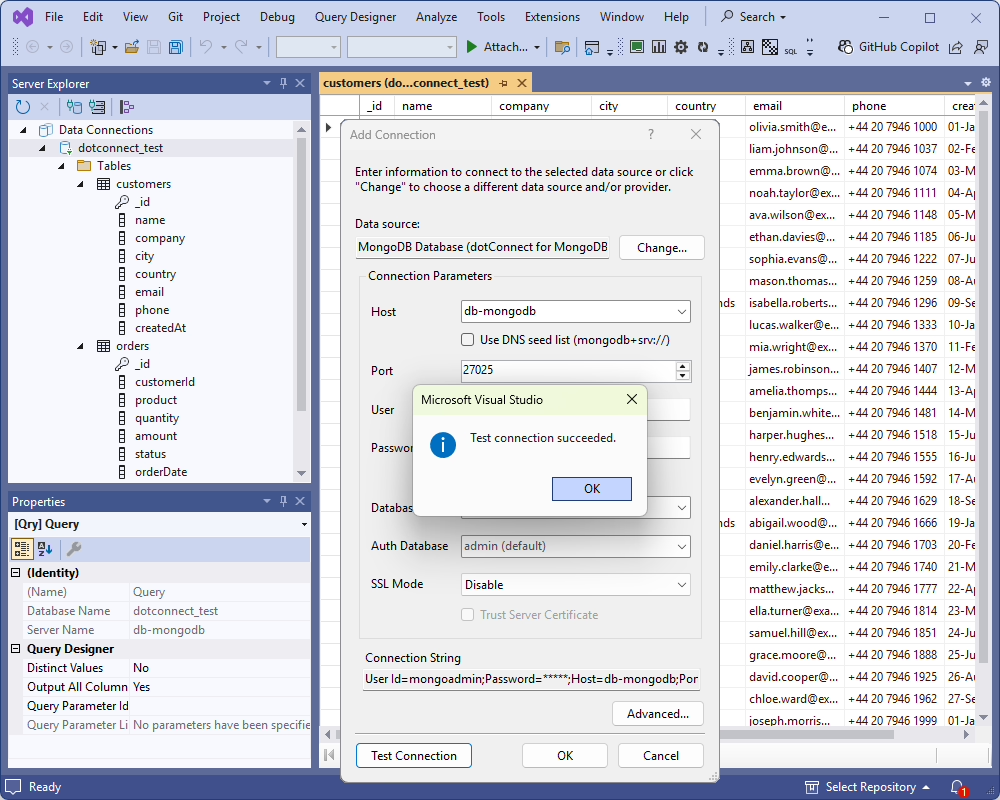
Click OK and expand the new data connection in Server Explorer. You can view the collections of the database as tables, together with their fields. To display data from a collection, right-click it and select Retrieve Data. To write your own query, select New Query.
Entity Developer allows you to visually design and generate EF Core models, simplifying database application development. If Entity Developer is not installed, close Visual Studio, download Entity Developer, and install it following the on-screen instructions.
Then follow the illustrated step-by-step guide to create your model using Entity Developer. When connecting, select dotConnect for MongoDB as the provider and specify the same connection properties as in Server Explorer. The collections of the database become entities of the model.
MongoDB has no foreign keys, so the generated model does not include associations between entities. You can add them manually in the model designer, for example, between the _id field of one collection and the field that references it in another collection, to use navigation properties in your code.
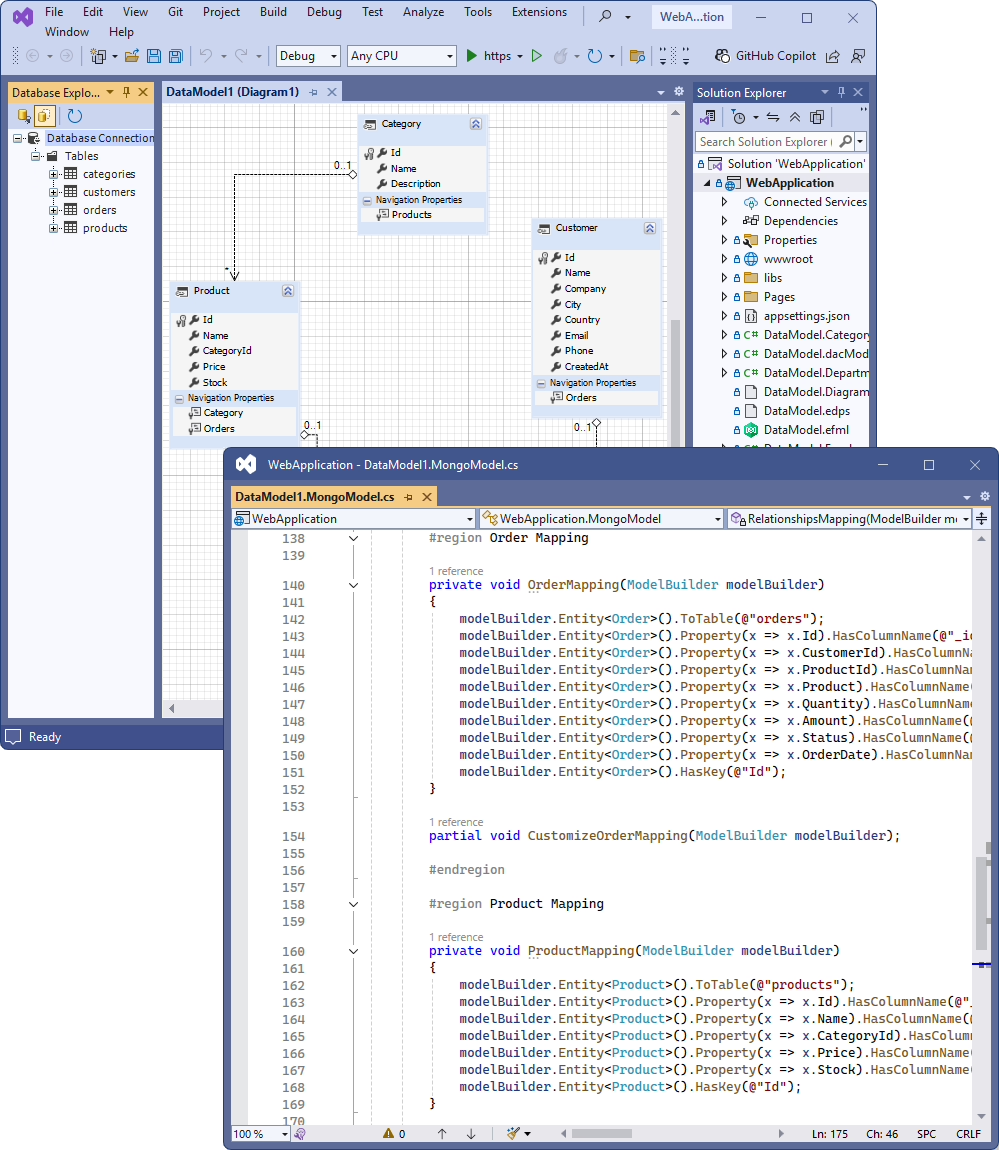
You can see the generated DbContext and entity classes in Visual Studio under the model. Entity Developer saves the connection string in the OnConfiguring method of the generated context, in the UseMongoDB call; add the License Key parameter to this connection string. To read MongoDB data using EF Core, execute the code below. Replace MongoModel and Customers with the names of your generated context class and its DbSet property.
using System;
using System.Linq;

namespace MongoDBEFCore
{
    class Program
    {
        static void Main(string[] args)
        {
            using (var context = new MongoModel())
            {
                var customers = context.Customers
                    .Where(c => c.City == "London")
                    .OrderBy(c => c.Name)
                    .Take(10)
                    .ToList();

                foreach (var customer in customers)
                {
                    Console.WriteLine($"{customer.Name}, {customer.Email}");
                }
            }
        }
    }
}You can also use the EF Core Scaffold-DbContext command to generate a model from your MongoDB database. This command generates the DbContext class and entity classes based on the collections of your database.
First, install the following NuGet packages using the NuGet Package Manager in Visual Studio:
The Devart.Data.MongoDB.EFCore package is released in several builds, one for each supported EF Core version. Package versions without a suffix (X.Y.Z) target EF Core 3.1, and package versions ending in .8, .9, .10, and .11 target EF Core 8, 9, 10, and 11, respectively. Select the build that matches the EF Core version of your project.
After that, open the Package Manager Console via Tools > NuGet Package Manager > Package Manager Console and run the following command to scaffold the DbContext and entity classes from your database.
Scaffold-DbContext "Host=localhost;Port=27017;User Id=your_username;Password=your_password;Database=your_database;License Key=**********" Devart.Data.MongoDB.EFCore -OutputDir ModelsThe -OutputDir Models parameter specifies where to save the generated model classes. The command contains the password and the license key, so they may remain in the command history of the console; use a test account or clear the history after scaffolding.
After running the scaffold command, EF Core generates the DbContext class and entity classes in the specified output directory. Review the generated code to ensure it reflects your MongoDB collections.
This tutorial has demonstrated several methods for connecting to MongoDB and accessing its data. You can choose the approach that best fits your project requirements: SQL queries over collections, native MongoDB commands, Server Explorer for exploring data in Visual Studio, or EF Core for working with MongoDB data as .NET objects.
dotConnect for MongoDB provides a fast and straightforward way to connect to standalone servers, replica sets, and MongoDB Atlas clusters. Entity Developer allows you to visually design data models and work with MongoDB data through EF Core.
Both dotConnect for MongoDB and Entity Developer offer fully functional free trials, allowing you to integrate them into your workflow and evaluate their capabilities firsthand.
Connection Format=DnsSeedList, specify the host name from the mongodb+srv:// connection string of your cluster in the Host parameter, and enable encryption with SSL Mode=Require. You can also pass the whole connection string URI in the Url parameter.
Sql Engine=false in the connection string.

Elena Zemliakova

I'm a technical writer with a PhD in Linguistics and a focus on databases, data connectivity, and software development technologies. I enjoy turning complex technical topics into clear, practical, and easy-to-understand content.

