In 2026, Visual Studio Code has evolved from a lightweight free-to-use code editor into a comprehensive IDE with support for
multiple languages, AI assistance, database management features, source control,
testing, and many other convenient capabilities. This variety of features is largely due to the broad ecosystem of extensions that allow you to enhance the basic functionality of VS Code with the tools
you need for your work.
Today, Visual Studio Marketplace offers thousands of extensions, most of them free and open-source, that add useful features to the familiar environment of Visual Studio
Code. From simple spell checkers to advanced AI-powered coding assistants, Visual Studio Marketplace has something for everyone. In this guide, we explore some of the popular VS Code extensions across three common
areas: database development, day-to-day programming, and web and DevOps workflows.
Why VS Code extensions for developers matter
Out of the box, VS Code is a lightweight, general-purpose code editor. Extensions are what turn it into a workflow-specific environment tailored to a certain technology stack. They add tools and
capabilities that extend VS Code's functionality beyond the core editor.
Extensions can provide programming-language support, debuggers, database clients, Git utilities, API clients, testing tools, cloud and container integrations, and environment enablement.
This allows developers to bring more of their daily workflow into a single development environment instead of switching between separate tools. VS Code-based IDEs, created and customized using
various extensions, can be adapted to specific projects, languages, and roles, providing convenient and flexible workspaces.
Such a variety of extensions may seem overwhelming. In order to choose the extensions you need for your work, focus on the goals you want to achieve and your role in the development process.
Moreover, because most VS Code extensions are free, you almost never have to commit to something immediately. Choose one and take it for a test drive; if it does not fully meet your
requirements, try another one.
To help you get started, we grouped some of the most popular extensions according to the type of work they support.
| Database management |
Programming |
Web / DevOps / other |
| DBCode |
GitHub Copilot |
REST Client |
| Database Client |
GitLens |
Dev Containers |
| SQL Server (mssql) |
Prettier |
Container Tools |
| MongoDB for VS Code |
ESLint |
Remote Development Extension Pack |
| SQLTools |
Error Lens |
Live Server |
dbForge Edge
Experience effortless database development and administration across SQL Server, MySQL, Oracle, PostgreSQL, and cloud databases
Best VS Code extensions for database developers
This section is for developers, DBAs, and database engineers who use VS Code to connect to databases, browse schemas, write SQL, run queries, edit data, or inspect database objects without leaving the editor.
These VS Code plugins, or extensions as they are called in the VS Code ecosystem, are genuinely useful for lightweight database operations: querying tables, editing data and schemas, and validating schemas alongside application code. However, advanced administration tasks, deep schema comparisons,
or full database lifecycle management may call for a dedicated database tool.
DBCode
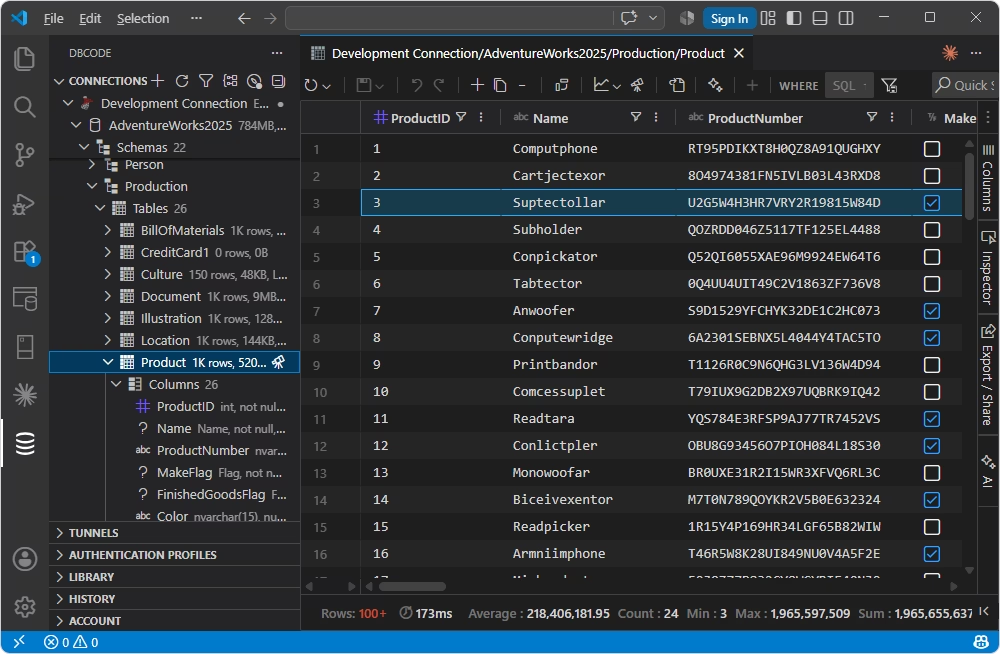
DBCode is a database client and IDE extension that brings database management directly into VS Code, Cursor, and Windsurf. It is designed for developers who want to browse schemas, write and execute SQL,
edit data, visualize relationships and query results, and administer databases without switching to a separate application for each task. DBCode also integrates with GitHub Copilot and provides
an MCP server for AI agents, allowing database context and operations to be incorporated into AI-assisted development workflows.
Pros
- Support for VS Code, Cursor, and Windsurf
- Copilot and MCP integration for AI-assisted database operations
- Visual database management capabilities
- Broad database coverage
Cons
- Some advanced features require the paid Pro edition
- Not a substitute for a dedicated database administration tool
Features
- Schema and table explorer
- Data editor
- SQL editor with autocompletion
- Interactive ER diagrams
- Data visualization
- Copilot and MCP integration
Compatibility
Price
- Free: Core database management features
- Paid: Pro edition starting from $4 per month for individuals and from $8 per month for teams and organizations
Database Client
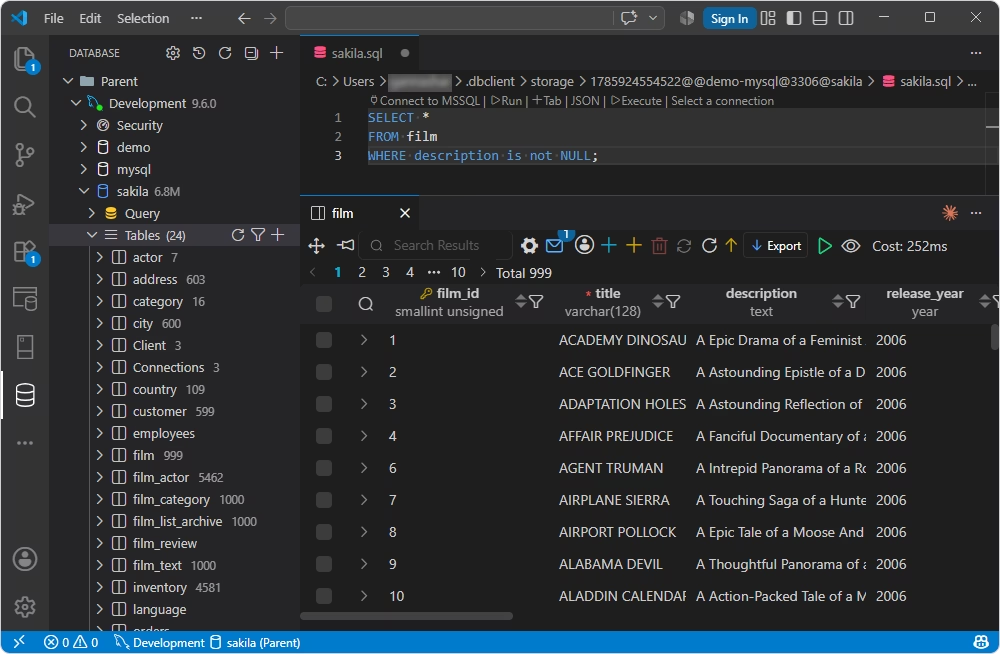
Database Client is an all-in-one database management extension for VS Code that covers both SQL and NoSQL workflows. It allows you to connect to databases, browse schemas and objects, view and edit data,
and write and execute queries without leaving your development environment. Database Client also supports working with SSH servers, Docker, and remote files, which makes it a good choice
if you need one client for a mixed database environment. The extension is compatible with a broad range of database technologies, including MySQL/MariaDB, PostgreSQL, SQLite, Redis, ClickHouse,
Kafka, MongoDB, Snowflake, and Elasticsearch.
Pros
- Broad SQL and NoSQL database coverage
- SQL IntelliSense
- Integrated remote access via SSH, port forwarding, remote files, and Docker support
- Free version
Cons
- Some advanced capabilities are limited compared to dedicated database clients
- VS Code-dependent
- Some features may require additional configuration
Features
- Connections to a wide range of SQL and NoSQL databases
- Data browsing and editing
- SQL editing and execution with IntelliSense
- Schema design and ER diagrams
- Backup and recovery
- SSH server and Docker support
Compatibility
Price
- Free: Starter edition is limited to 3 connections and includes basic database management features
- Paid: Premium edition subscription: $42 per year; perpetual license: $300. Enterprise subscription: $150 per year; perpetual license: $1,500.
SQL Server (mssql)
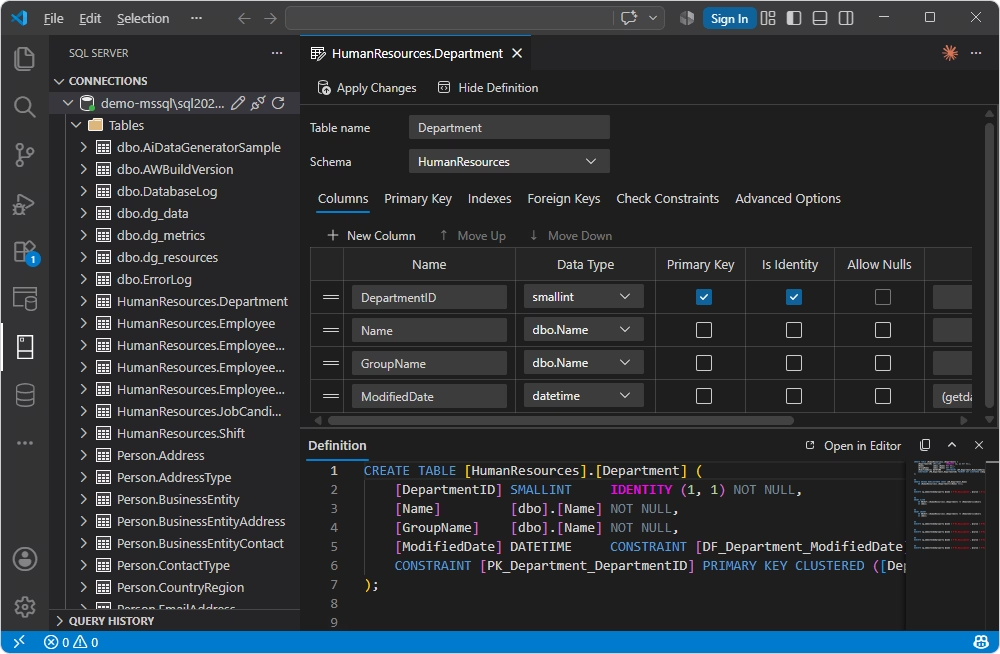
SQL Server (mssql) is
Microsoft's official Visual Studio Code extension for working with SQL Server and T-SQL directly from the editor. It is aimed at developers who need to write and run T-SQL queries,
explore databases and objects, inspect query results, and work with SQL Server-related development tasks without leaving VS Code. The extension also integrates with VS Code features such as IntelliSense
and supports SQL Server projects, which is especially relevant for developers who maintain database code alongside their application source code. It is one of
the best extensions for Visual Studio Code when you need reliable SQL Server database management.
Pros
- Official Microsoft extension
- T-SQL support
- Integrated development workflow
- Free availability
Cons
- Focused on SQL Server, not a multi-database solution
- Not a full database administration tool: lacks data comparison and generation, database design, and other advanced features
Features
- T-SQL editor with IntelliSense
- SQL query editing and execution
- Object Explorer for browsing databases
- Connection management
- T-SQL debugging
- SQL Server database projects
- Schema and database development workflows
- Integration with source control and VS Code development workflows
Compatibility
Price
MongoDB for VS Code
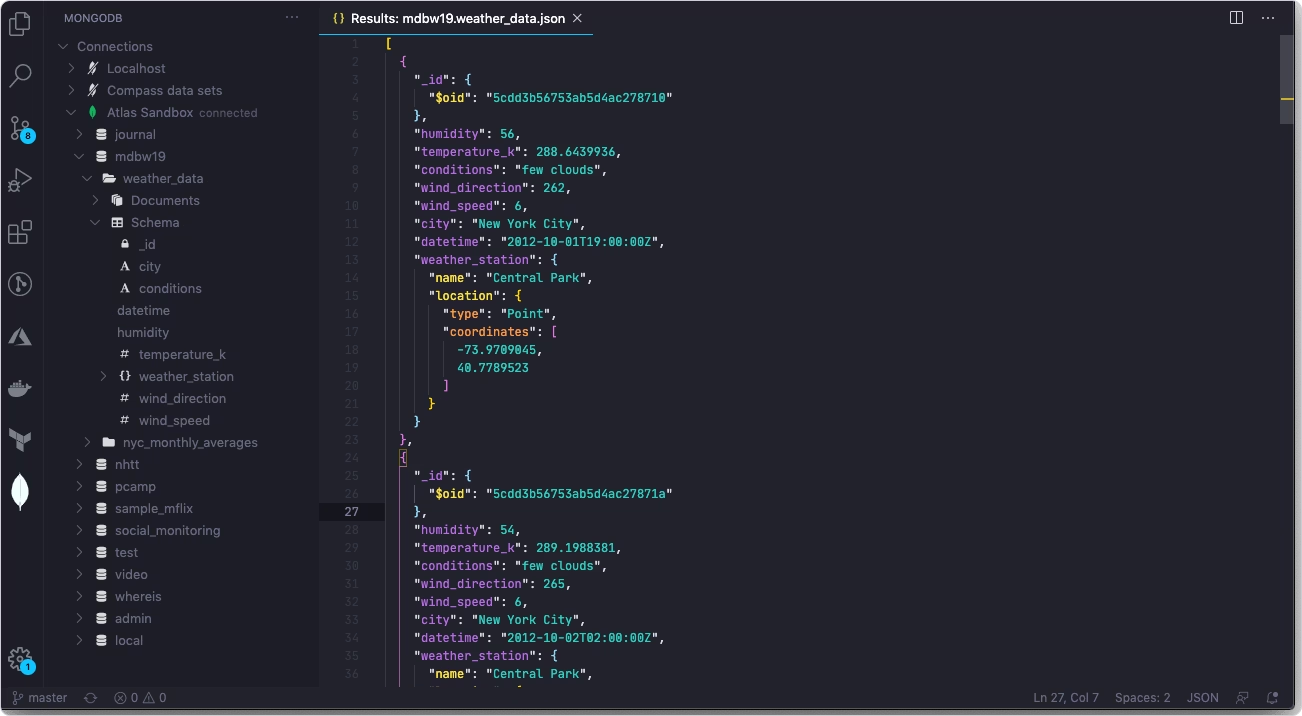
MongoDB for VS Code is MongoDB's official extension for working with MongoDB deployments and MongoDB Atlas directly from Visual Studio Code. It lets developers navigate databases and collections,
inspect document schemas and indexes, browse and edit documents, and prototype queries and aggregation pipelines using JavaScript-based MongoDB Playgrounds. The extension is designed to keep database
work close to application code rather than requiring developers to switch to a separate database client.
Pros
- Official extension maintained by MongoDB
- Playgrounds simplifying writing queries and aggregations
- Direct MongoDB and Atlas integration
- AI capabilities
- Free and open-source availability
Cons
- MongoDB-specific with no multi-database support
- Limited administration features
Features
- MongoDB and MongoDB Atlas connectivity
- Schema inspection
- Document browsing and editing
- JavaScript-based MongoDB Playgrounds
- IntelliSense/autocompletion for MongoDB queries
- GitHub Copilot integration
- MongoDB MCP Server for AI-assisted database interactions
Compatibility
Price
SQLTools
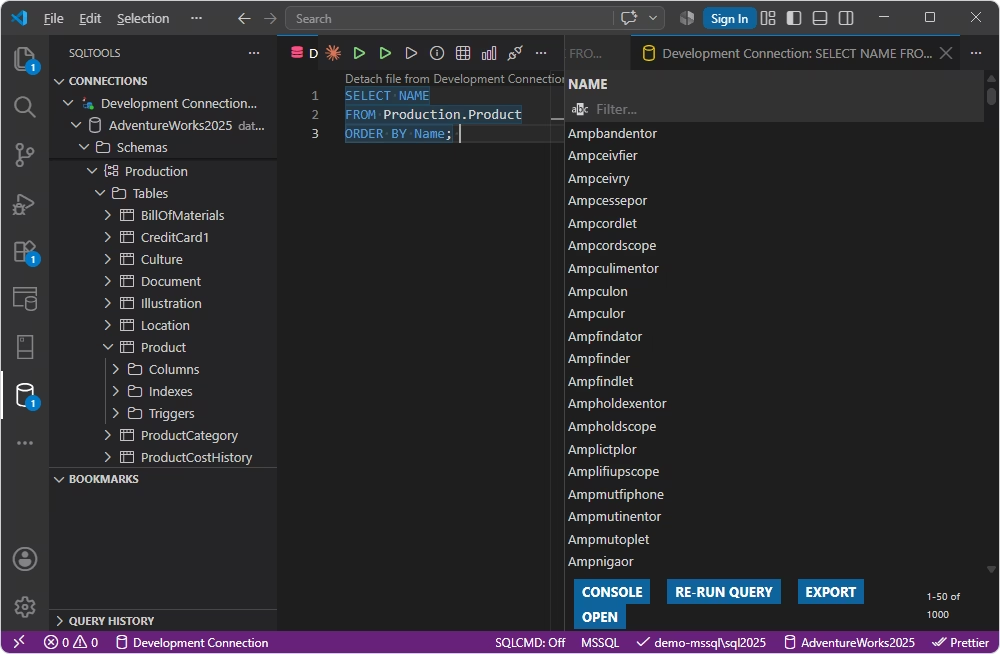
SQLTools is a lightweight SQL workspace for Visual Studio Code that lets you
connect to databases through database-specific drivers, write and execute SQL queries, and view results directly inside the editor.
It's a good fit for developers who want lightweight SQL query execution and result display without leaving the editor, rather than a full database management suite.
Pros
- Lightweight, modular design
- Clean query results panel
- Driver-based architecture
- Multiple database connections
- SQL IntelliSense
- Open-source availability
Cons
- Requires installing a separate driver extension per database
- Fewer visual and administration tools than full database clients
- Database-specific functionality dependent on the driver
Features
- Database connection management
- SQL query editing, execution, and formatting
- SQL IntelliSense/autocomplete
- Database/schema/object browsing
- Query history
- Import/export capabilities
Compatibility
Price
- Free: Core extension and most drivers
- Paid: Some drivers offer optional paid tiers for extra features
Best VS Code extensions for programmers
Beyond database work, most developers considering the best extensions for VS Code are after the same thing: tools that improve daily coding workflows.
In this section, we explore useful VS Code extensions that provide code assistance, Git history, formatting, linting, and diagnostics that make everyday development faster and less error-prone.
GitHub Copilot
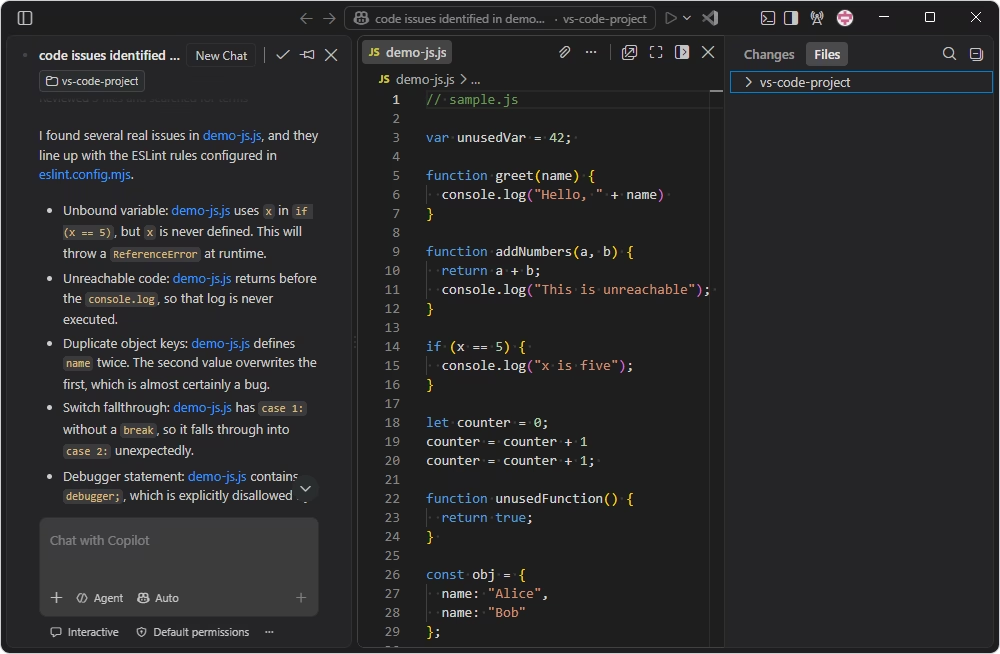
GitHub Copilot is an AI coding assistant that provides inline code suggestions, chat-based assistance, and agent capabilities, making it useful for everything from completing boilerplate to exploring
unfamiliar code and working through more complex development tasks. Copilot Spaces enable context-based assistance, increasing the relevance of AI-generated answers. GitHub Copilot is best suited for
developers who want AI assistance integrated into their everyday coding workflow, from quick code suggestions and explanations to more involved, multi-step development tasks.
Pros
- Multiple AI models
- Chat and agent mode for debugging and refactoring
- MCP support
- Free tier
Cons
- AI output requires developer judgment
- Usage limits and AI credits
Features
- Inline code suggestions
- Chat-based coding assistance
- Code explanation
- Agent mode for multi-step tasks
- Custom instructions
- MCP integration
- Command-line assistance
- Integration with GitHub workflows and pull requests
Compatibility
Price
- Free: Limited monthly usage
- Paid: Subscription-based: Pro plan starting from $10 per month, Business plan at $19 per seat per month, Enterprise plan at $39 per seat per month
GitLens
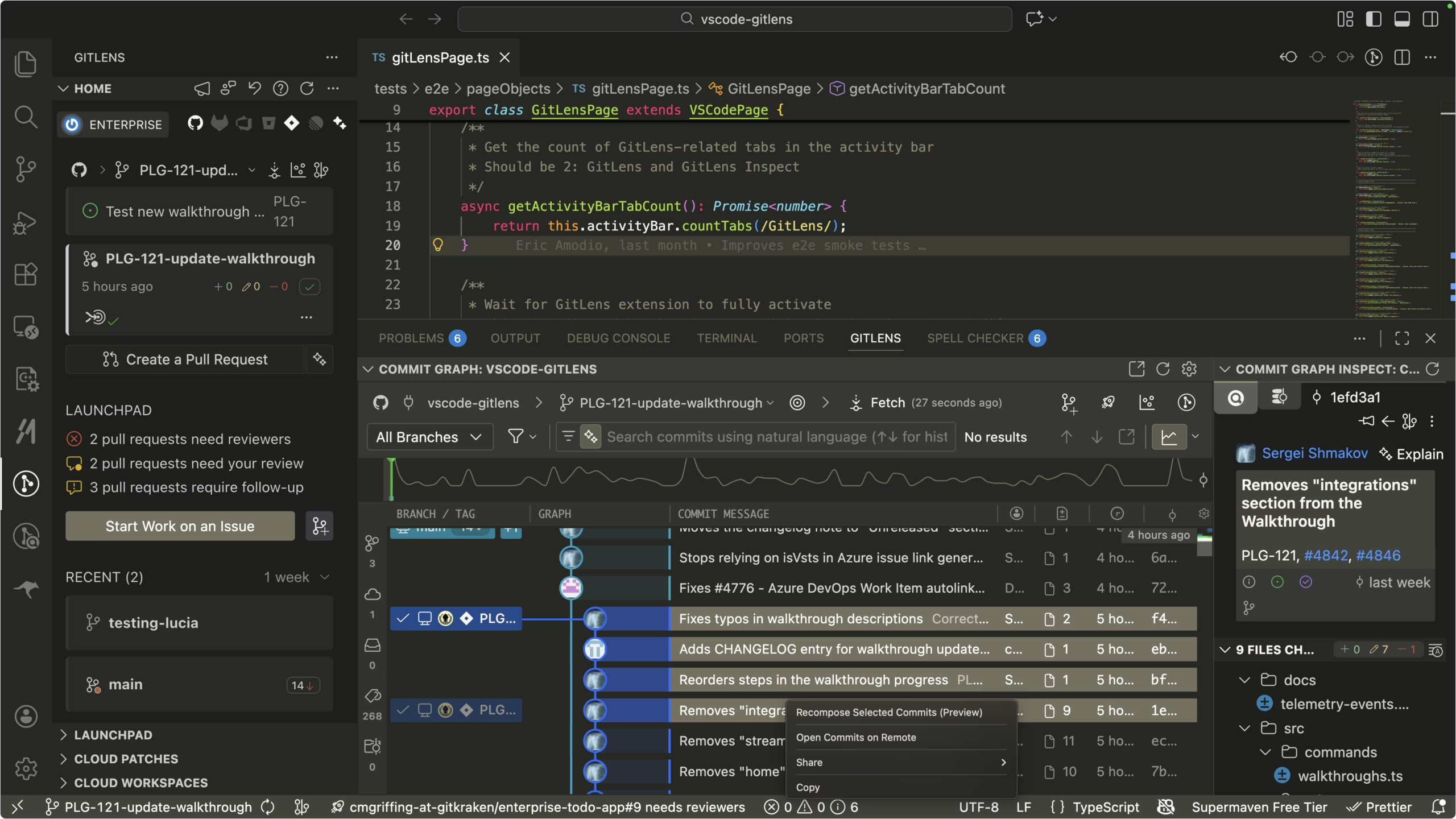
GitLens is a Git extension that adds deeper repository history, authorship, and collaboration tools to the development
environment. It helps developers see who changed a line, when it changed, which commit introduced it, how a file evolved, and how branches and commits relate to one another.
These capabilities make GitLens useful when reviewing code, investigating regressions, understanding unfamiliar code, and collaborating on projects with multiple contributors.
It is often one of the first choices for developers looking for the best Git extension for Visual Studio Code.
Pros
- Good code history visibility
- Visual repository context
- Convenient code review
- Strong collaboration features
- Free Community edition
Cons
- Some advanced features require a paid GitLens Pro plan
- Can add complexity to VS Code
Features
- Inline blame annotations
- Commit and file history exploration
- Branch and repository visualization
- Revision comparison
- Commit Graph
- Interactive rebase tools
- Worktree support
- Code review tools
Compatibility
Price
- Free: Community edition (core Git history and authorship features)
- Paid: GitLens Pro from $6 per seat per month
Prettier
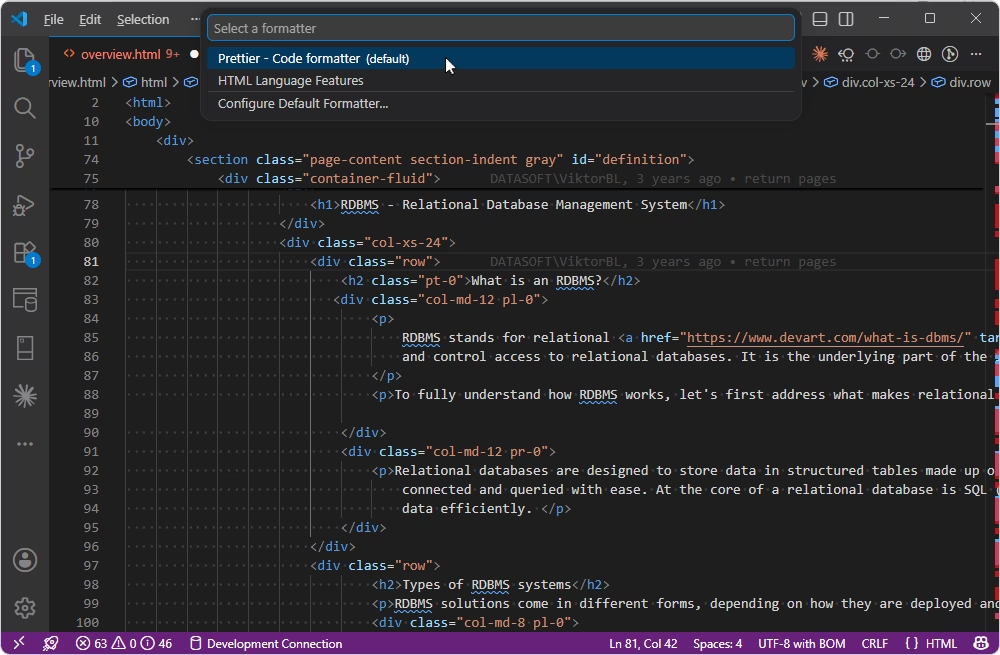
Prettier is an opinionated code formatter that helps you maintain a consistent formatting style across files and projects.
The official VS Code extension automatically formats supported code according to Prettier's rules, taking factors such as line length into account rather than preserving the original formatting.
Prettier supports a broad range of languages and file formats, including JavaScript, TypeScript, JSX, JSON, CSS, SCSS, Less, HTML, Vue, Angular, Markdown, YAML, and GraphQL, among others.
This makes it particularly useful for teams working across multiple languages and technologies that want formatting to be handled consistently rather than relying on individual developers' editor settings.
Pros
- Consistent formatting with minimal configuration
- Automatic formatting
- Broad language support
- Automation support
Cons
- Opinionated style, which limits customization
- Can create large diffs when first applied to an existing codebase
Features
- Format-on-save support
- Consistent formatting across projects
- Shared configuration files for team-wide consistency
- Language-specific VS Code settings
- Plugin support
- Command-line formatting
Compatibility
Price
ESLint
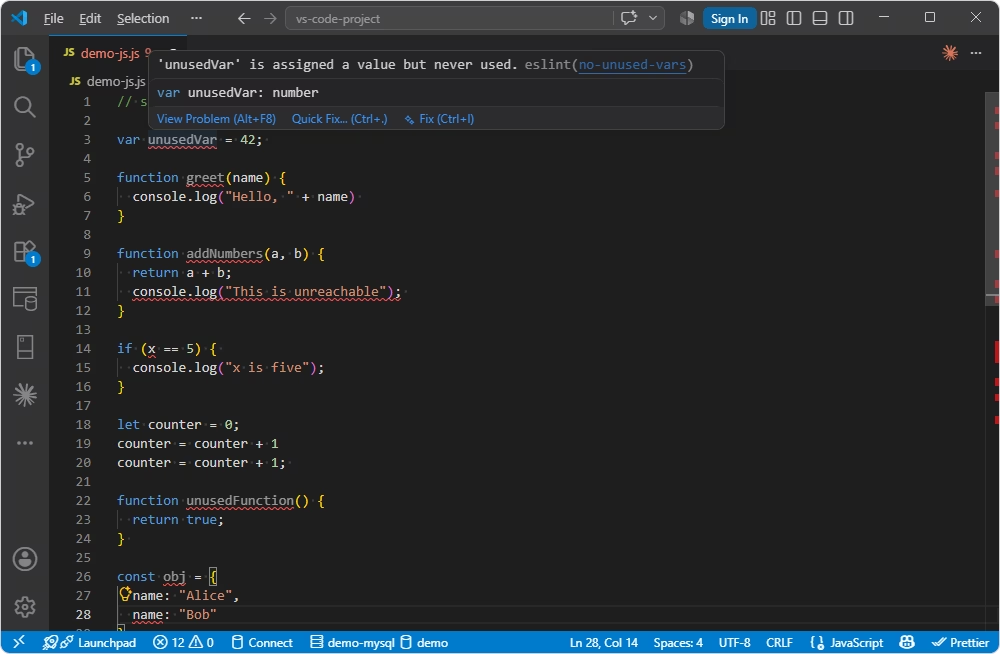
ESLint is a key extension for JavaScript and TypeScript projects. It integrates ESLint diagnostics directly into VS Code, highlighting rule violations, potential problems, and style issues
to help teams identify issues earlier rather than waiting until a later build, test, or CI stage. ESLint is highly configurable, so you can define rules that match your project's coding
standards and development practices.
Pros
- Detection of linting issues directly in the editor
- High customization and configurability
- Strong JavaScript and TypeScript ecosystem
- Automation readiness
Cons
- TypeScript setup requires additional tooling
- Configuration can be complex for teams new to ESLint
- Some rules require significant project knowledge
Features
- Real-time ESLint diagnostics in VS Code
- Configurable linting rules
- Automatic and manual fixes
- Quick Fix actions from the editor
- JavaScript and TypeScript support
- Custom ESLint configurations
- CI/CD integration
- Integration with other VS Code development tools
Compatibility
Price
Error Lens
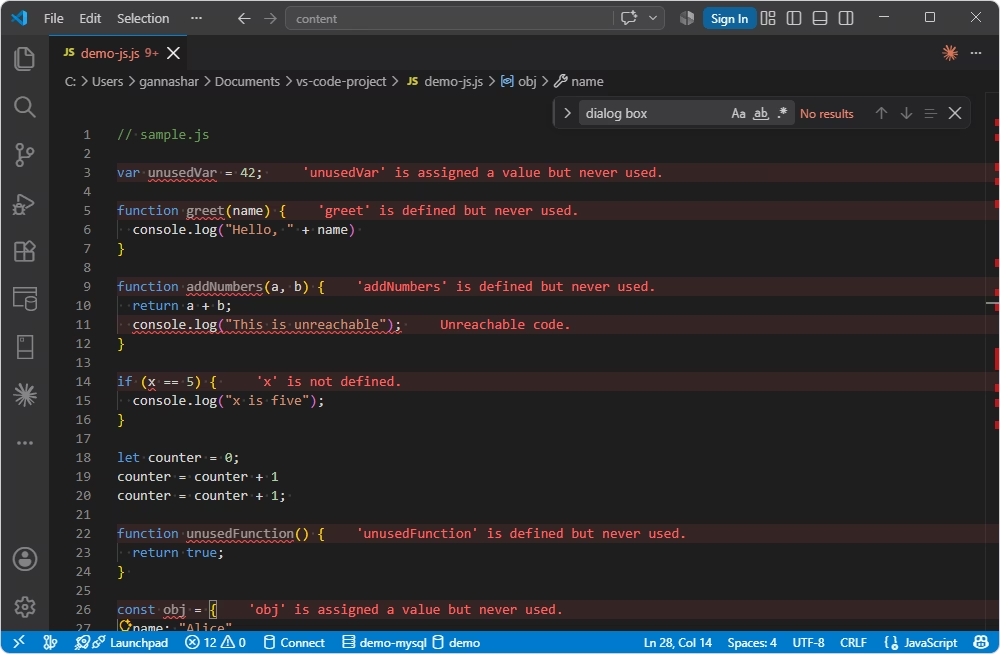
Error Lens is a Visual Studio Code extension that makes existing errors,
warnings, information messages, and other diagnostics much more visible directly in the editor. Note that Error Lens does not generate the diagnostics itself. It displays diagnostics
produced by other tools, such as language servers, the TypeScript compiler, ESLint, and other compilers or analyzers. This makes it useful as a visibility layer that works across different
programming languages and development workflows.
Pros
- Errors and warnings displayed directly alongside the code
- Support for many diagnostic sources
- High configurability
- Multi-language support
Cons
- Not a standalone diagnostic tool, but rather a highlighting tool
- Can feel visually noisy in files with many warnings
Features
- Inline error and warning highlighting
- Support for errors, warnings, information, and hints
- Customizable colors and severity levels
- Support for many languages and linters
- Configurable diagnostic levels
Compatibility
Price
Best VS Code extensions for web, DevOps, and other workflows
To complete our list of top VS Code extensions, let's look at the tools that turn VS Code into a practical workspace for DevOps and infrastructure-related development.
Such tools help developers work with APIs, preview web applications, manage containers and remote environments, and use Windows Subsystem for Linux (WSL). For backend developers,
database engineers, and DevOps teams, these extensions can reduce context switching and bring more of the development and operational workflow directly into VS Code.
REST Client
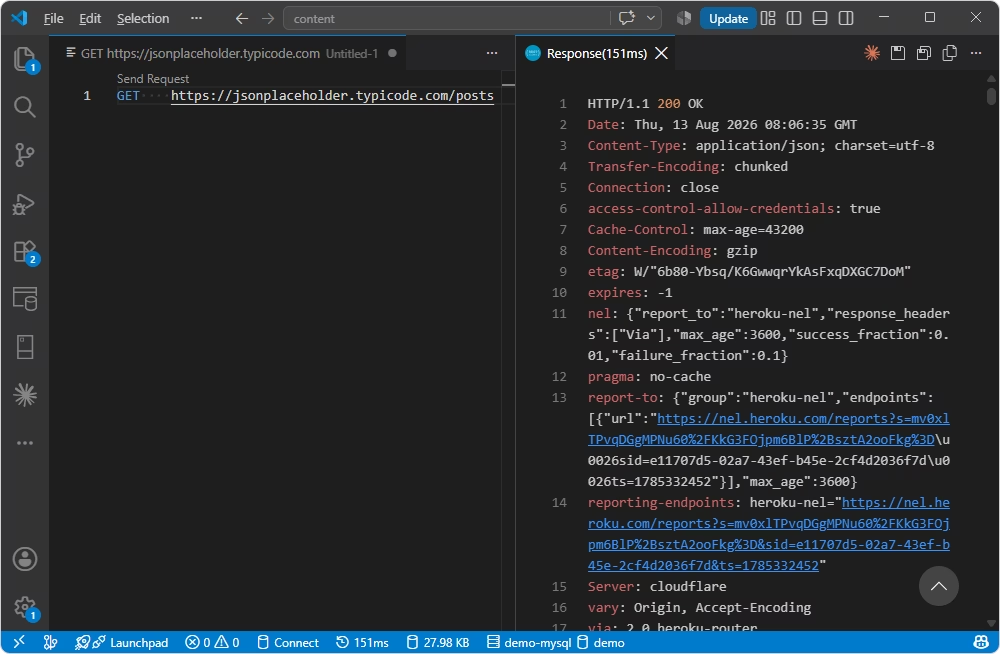
REST Client is a lightweight VS Code extension
for sending HTTP requests and inspecting responses directly from the editor. It is particularly useful for backend developers and DevOps teams who need to test APIs, debug
endpoints, and keep reusable HTTP requests alongside their source code. It supports REST and GraphQL requests, multiple requests in a single .http or .rest file, environments
and variables, authentication, and response inspection.
Pros
- Lightweight API testing
- Storage of requests alongside the code in the same repository
- Support for HTTP, GraphQL, and cURL syntax
- Advanced authentication methods
Cons
- Less visual than dedicated API clients
- Not a full API management platform
- VS Code-specific workflow
Features
- HTTP, GraphQL, and cURL request support
- Support for GET, POST, PUT, DELETE, and other HTTP methods
- Request history
- Multiple requests defined in a single file
- Environment variables for different setups
- Syntax-highlighted response bodies
- Code snippet generation
- Proxy support
Compatibility
Price
Dev Containers
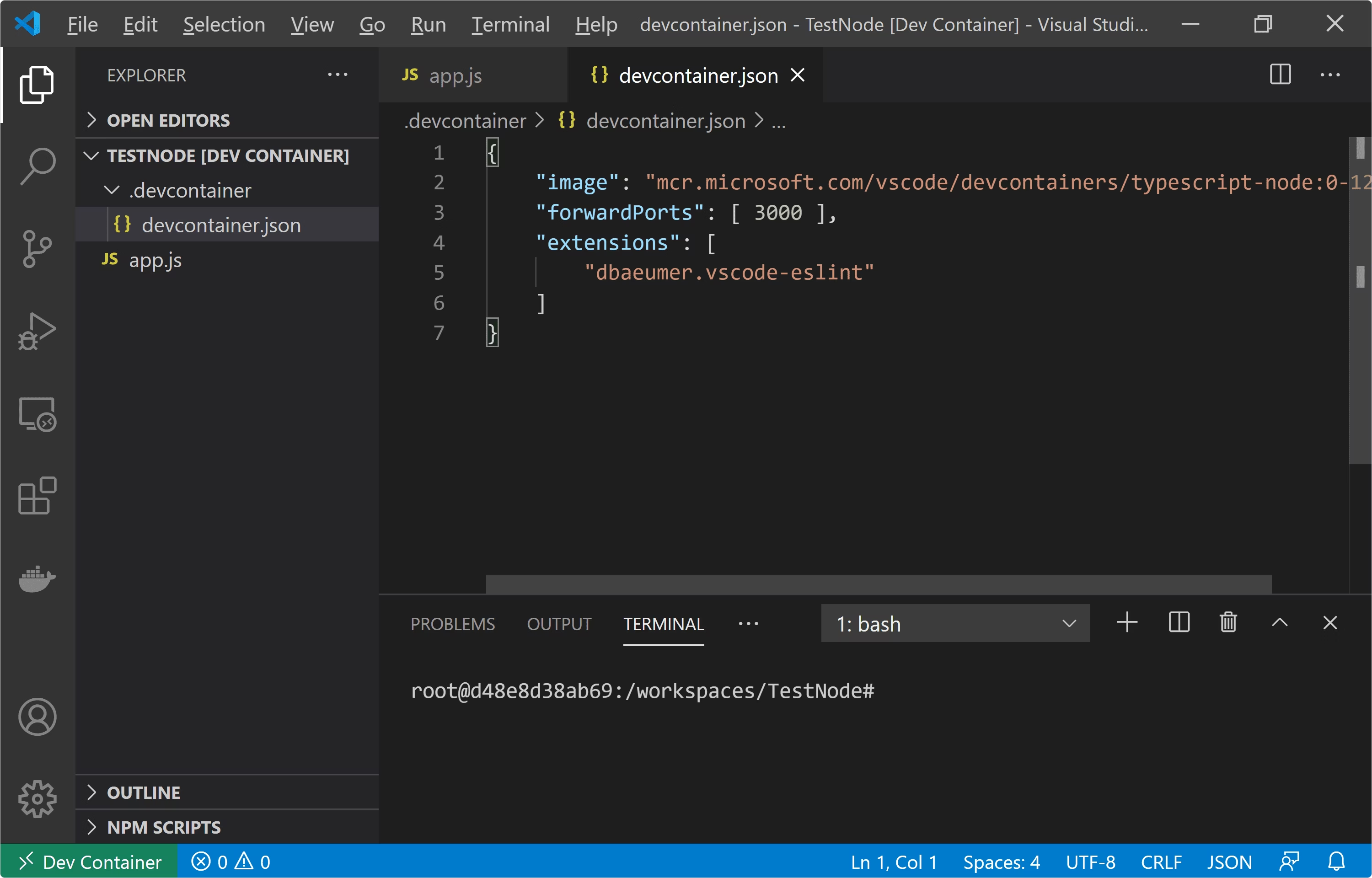
Dev Containers is a Visual Studio Code extension that lets
developers use a Docker container as a full-featured development environment. Instead of installing project-specific runtimes, libraries, and tools directly on the local machine,
the development environment can be defined in the project and recreated consistently for the whole team. VS Code provides its usual editing, IntelliSense, debugging, and extension capabilities
while connected to the container.
Pros
- Consistent and reproducible development environments
- Fast onboarding for new contributors
- Project isolation
- Full VS Code experience
- Good performance with backend services and databases
Cons
- Requires Docker to be installed and running
- Initial container build can be slow on larger projects
- Container-specific issues
- Additional resource usage
Features
- Container-based development environments
- Configuration via a devcontainer.json file
- Support for prebuilt and custom container images
- Dockerfiles or Docker Compose configurations
- Reusable Dev Container Features for additional tools and runtimes
- Full IntelliSense, code navigation, debugging, and terminal access inside the container
Compatibility
Price
Container Tools
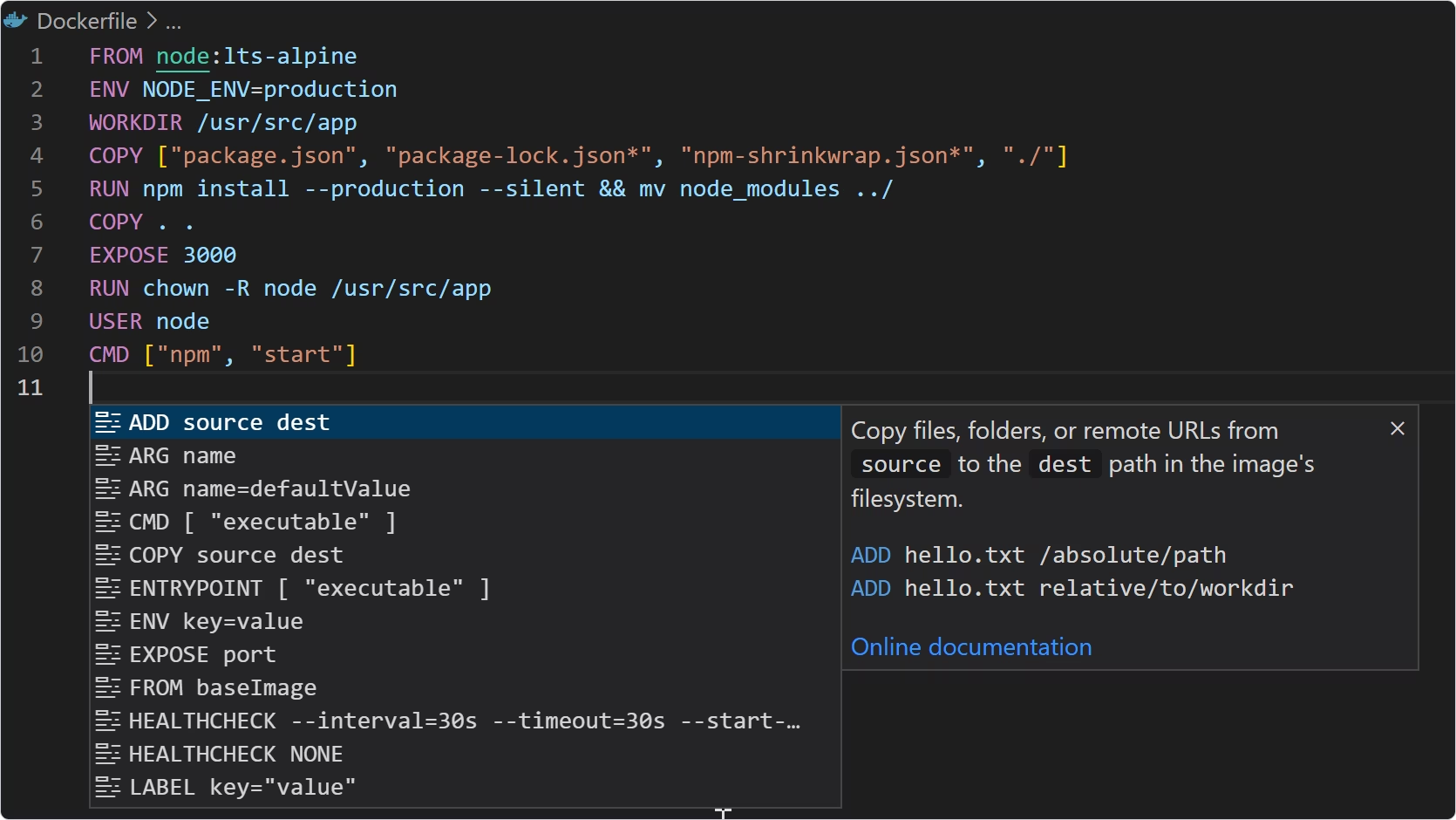
Container Tools is a Microsoft extension for Visual Studio Code that brings Docker-based
development workflows directly into the editor. It helps developers build, run, manage, and deploy containerized applications while also providing tools for working with Dockerfiles,
Docker Compose, images, containers, volumes, networks, and container registries.
Pros
- Docker workflows inside VS Code
- Strong backend support
- Microsoft-backed tool
- Integrated debugging
- Docker Compose support
Cons
- Requires a working Docker or container runtime setup
- Container debugging can be more complicated
- Adds complexity to development workflows
Features
- Image, container, and registry management
- Container debugging for Node.js, Python, and .NET
- Docker Compose support
- Dockerfile IntelliSense and editing assistance
- Dockerfile generation
- Container Explorer
- Support for building and running multi-container applications
Compatibility
Price
Remote Development Extension Pack
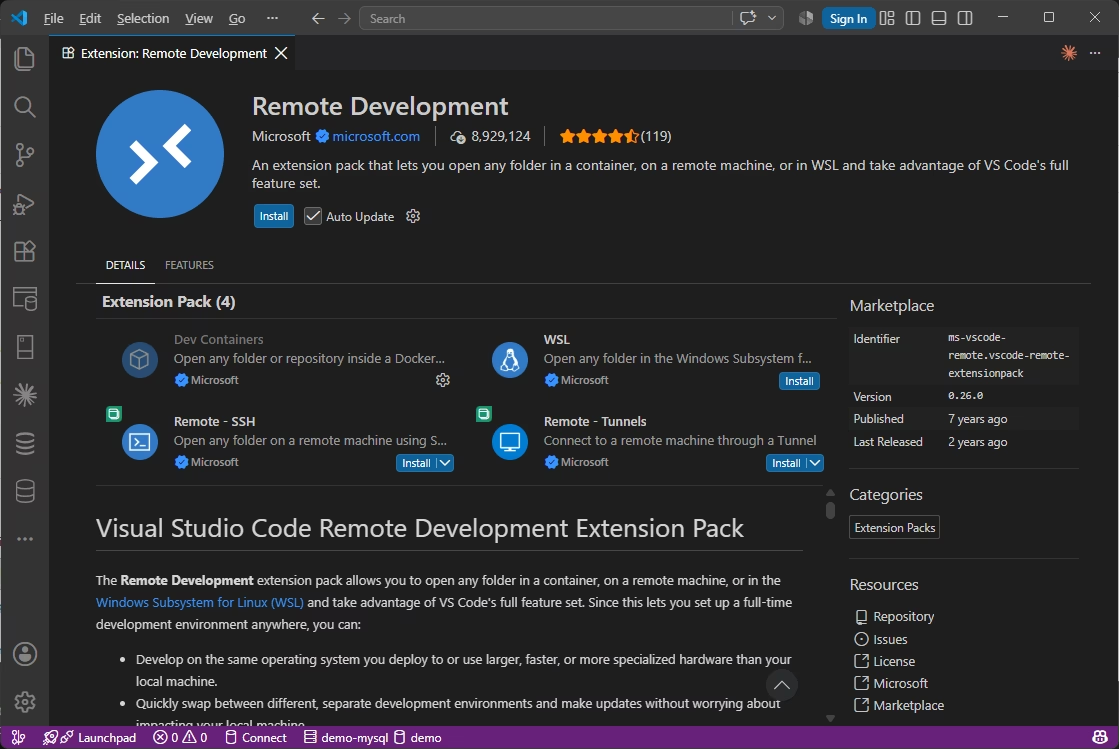
Remote Development Extension Pack is a Microsoft extension pack for VS Code that brings several
remote development capabilities together. It allows developers to work with code in WSL environments, containers, and remote machines while continuing to use the familiar VS Code interface on their local
computer. This makes it useful when a project requires a Linux environment, a remote server, a cloud VM, or a container-based workspace.
The pack includes extensions for WSL, Dev Containers, and Remote - SSH, so developers can open a remote environment and use VS Code features such as IntelliSense, debugging, extensions,
and the integrated terminal in that environment. For DevOps and backend teams, this can simplify working with Linux-based development environments and remote infrastructure without leaving VS Code.
Pros
- Local VS Code experience
- Multiple remote development options
- Good performance with remote servers and cloud VMs
- Convenient installation
- Suitability for Linux development
Cons
- Not a single technology but a collection of extensions
- Performance depends on the remote connection quality
- Additional setup is required
Features
- Remote SSH: connection to remote Linux or other SSH-accessible machines
- Dev Containers: Docker containers serving as development environments
- WSL: Windows Subsystem for Linux
- VS Code IntelliSense and code navigation in remote environments
- Remote debugging
- Support for development on remote servers and cloud VMs
- Integration with VS Code's Remote Development workflow
Compatibility
Price
Live Server
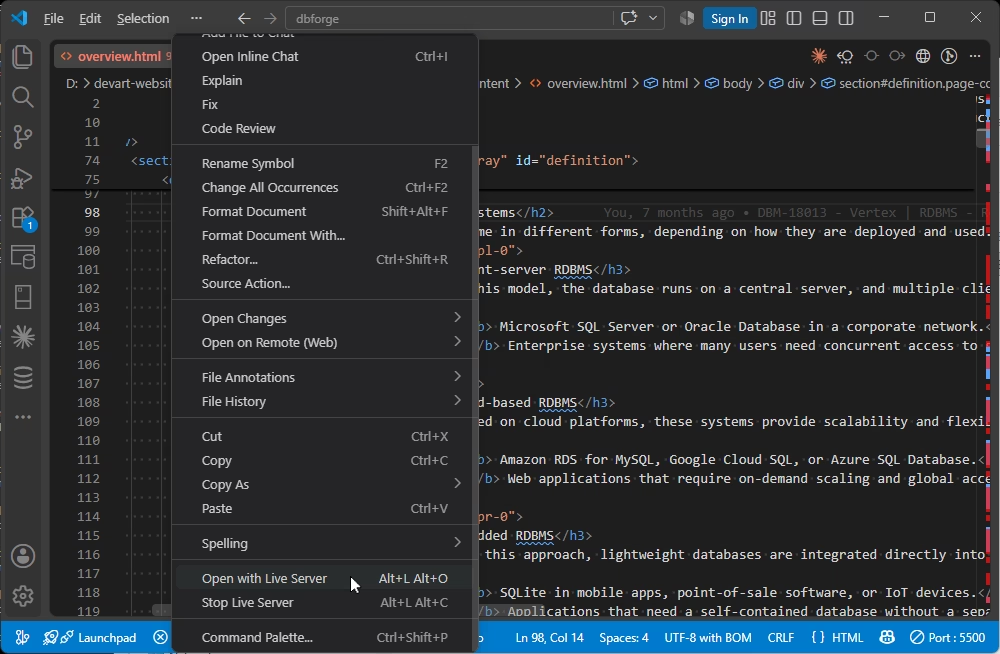
Live Server is a lightweight VS Code extension that starts a local development
server with automatic browser reload. It is designed primarily for web development, letting developers open HTML pages in a browser through a local URL and see changes reflected quickly as they edit
their files. The extension supports static pages and can also work with dynamic pages through its web extension.
For frontend testing and local web development, Live Server is particularly convenient for previewing static sites, documentation, dashboards, and admin panels. Instead of repeatedly opening HTML
files manually in a browser and refreshing them after every change, developers can start the server from VS Code and let the browser reload automatically when files change.
Pros
- Very simple setup
- Automatic live reload
- No separate server configuration required
- Customization options
Cons
- Browser-based preview rather than application preview
- Not suitable for backend development
Features
- Local HTTP development server
- Automatic browser reload on save
- Direct opening of HTML files
- Custom port and browser configuration
- HTTPS and proxy support
- Multi-root workspace support
Compatibility
Price
VS Code extension comparison table: Best fit, category, and main use case
Use the table below to quickly see where each extension fits, what it's best suited for, and the type of developer or team it typically serves.
| Extension |
Category |
Best for |
Main use case |
Best fit |

DBCode |
Database |
Multi-database development |
Querying, schema browsing, data editing |
Database developers working with several DBMSs |

Database Client |
Database |
SQL and NoSQL work |
Database connections, browsing, editing |
Developers who need one database client in VS Code |

SQL Server (mssql) |
Database |
SQL Server development |
T-SQL, queries, SQL Server projects |
SQL Server developers |

MongoDB for VS Code |
Database |
MongoDB and Atlas |
Collections, documents, playgrounds |
MongoDB developers |

SQLTools |
Database |
Lightweight SQL workspace |
Driver-based SQL connections and queries |
Developers who prefer modular SQL tooling |

GitHub Copilot |
Programming |
AI coding assistance |
Suggestions, chat, code help |
Developers who want AI support in VS Code |

GitLens |
Programming |
Git history |
Blame, commits, authorship, repository context |
Teams with active code review |

Prettier |
Programming |
Code formatting |
Format-on-save and shared formatting rules |
Web and full-stack teams |

ESLint |
Programming |
JS/TS linting |
Code rules, warnings, quick fixes |
JavaScript and TypeScript teams |

Error Lens |
Programming |
Inline diagnostics |
Visible errors and warnings |
Developers who want faster feedback |

REST Client |
Web / API |
API testing |
HTTP requests and responses |
Backend and API developers |

Dev Containers |
DevOps |
Reproducible environments |
Container-based development setup |
Teams with complex dependencies |

Container Tools |
DevOps |
Docker workflows |
Build, run, manage, and debug containers |
Containerized application teams |

Remote Development Extension Pack |
DevOps |
Remote workspaces |
SSH, WSL, containers |
Developers working outside local environments |

Live Server |
Web |
Local web preview |
Static page preview and reload |
Frontend and documentation workflows |
How to choose the best VS Code extensions for your workflow
The best Visual Studio Code extensions aren't necessarily the ones with the most downloads or the longest feature lists. Instead of installing every popular
VS Code extension, developers should choose tools based on their actual workflow, technology stack, and day-to-day needs. A backend developer may
benefit more from database and API tools, while a DevOps engineer may prioritize extensions that provide container, remote development, and
infrastructure capabilities.
It's also worth considering the cost of extension overload. Installing too many extensions can increase VS Code's resource usage,
introduce conflicts, and make the development environment harder to manage. Security is another consideration, since extensions can have
access to files and other resources on your machine. For professional teams, extension policies, licensing, and compatibility may also matter.
Finally, check whether an extension is actively maintained, receives recent updates, supports your current VS Code version,
and has a trustworthy publisher and community. A smaller set of well-maintained extensions that directly support your workflow is usually more valuable than a large collection of tools you rarely use.
Choose database extensions for SQL and data management
For database-related development, extensions can bring query execution, schema browsing, data editing, and other database tasks directly
into VS Code. DBCode, Database Client, SQL Server (mssql), MongoDB for VS Code, and SQLTools cover a range of SQL and NoSQL workflows,
from working with individual queries to exploring schemas and managing data alongside application code. The right choice depends
largely on the databases you use and whether you need a lightweight SQL workspace or a more complete database client.
If your work is primarily focused on database management and maintenance, the best option is to choose one of the dedicated
database tools for developers rather than a VS Code extension. Advanced database IDEs
provide all the features you need to manage the entire database lifecycle within a unified environment.
Choose programming extensions for code quality and daily development
For everyday coding, a small set of focused extensions can improve productivity without overwhelming the editor. GitHub Copilot provides AI-assisted
code suggestions and explanations, while GitLens adds Git history, authorship, and repository context. Prettier helps keep code formatting consistent,
ESLint identifies JavaScript and TypeScript rule violations, and Error Lens makes errors and warnings more visible directly in the editor.
Together, these extensions cover several core aspects of daily development: writing code, understanding changes, maintaining a consistent style,
and catching problems early.
Choose web and DevOps extensions for APIs, containers, and remote environments
Developers working with backend services and DevOps workflows can extend VS Code with tools for API testing, local web development, containers,
and remote environments. REST Client makes it possible to send HTTP requests and inspect responses directly from the editor, while Live Server
provides a convenient local preview for web pages and static interfaces. Dev Containers and Container Tools support different aspects of containerized
development, from creating reproducible development environments to building, managing, and debugging Docker applications. Remote Development Extension
Pack adds support for working with WSL, SSH-connected machines, and container-based environments. Together, these extensions can reduce context
switching when developing APIs, working with Docker, testing web interfaces, or accessing remote and Linux-based environments.
Build a practical VS Code extension setup
The best VS Code extension setup depends on what you do most often. Instead of installing every popular extension, start with a small
core set that supports everyday coding, Git, and code quality. Then add specialized extensions as your workflow requires them—whether that's database
development, API testing, web development, containers, or remote environments.
A focused extension setup can keep VS Code fast, easier to manage, and less cluttered while still giving you the tools you need for specific tasks.
As your projects and responsibilities change, you can add or remove extensions as needed, letting your VS Code environment evolve
with your workflow.
At the same time, even the most useful VS Code extensions often do not provide the level of functionality required for development tasks.
In such cases, you might benefit from a dedicated tool designed for a specific purpose: programming, API management, remote development, or
container-based workflows. For comprehensive database management, consider dbForge Edge,
a multi-database IDE that has everything you need to manage and administer all the major databases and cloud services.
dbForge Edge
Experience effortless database development and administration across SQL Server, MySQL, Oracle, PostgreSQL, and cloud databases