How to Install and Set Up SSH on a Server: A Complete Guide
Secure Shell (SSH) is a cryptographic network protocol that enables secure communication between a client and a remote server over an unsecured network. By setting up an SSH server, you can guarantee security, facilitate remote administration, and allow encrypted connections for safe data transfers. Whether you're a system administrator or a developer, having SSH configured correctly is crucial for efficient server management.
This guide will walk you through the step-by-step process of installing and setting up an SSH server to ensure a secure and reliable connection to your system.
Fig 1. How SSH works.
What is SSH, and why do you need it?
SSH is a security protocol that uses encryption and authentication mechanisms to provide secure remote access. It replaces older, less secure protocols like Telnet and FTP. A key feature of SSH is its encrypted communication between computers, which makes it suitable for use on unsecured networks.
SSH is widely used for managing remote servers, allowing administrators and developers to execute commands, configure systems, and automate tasks securely. It also plays a key role in secure file transfers through protocols like SCP (Secure Copy Protocol) and SFTP (Secure File Transfer Protocol).
When discussing SSH, it's important to mention SSH keys—a pair of cryptographic keys used for secure authentication between a client and a server in SSH connections. They provide a more secure and convenient alternative to password-based authentication by using public-key cryptography.
An SSH key pair consists of:
A public key - Stored on the remote server and is used for encryption. It is publicly accessible and does not require protection.
A private key - Stored securely on the client machine and is used for decryption and authentication. It must remain protected and never be shared.
Fig 2. Understanding SSH keys mechanism.
Prerequisites before installing SSH on a server
Before installing SSH on a server, ensure the following prerequisites are met:
Access to the server - You need administrative or root access to the server where SSH will be installed.
Compatible operating system - SSH is supported on most UNIX-based systems (Linux, macOS) and can be installed on Windows (via OpenSSH or third-party tools).
Availability of the package manager - Make sure your system's package manager is available for installing SSH (e.g., apt for Debian/Ubuntu, yum or dnf for CentOS/RHEL, pacman for Arch Linux).
Network configuration - The server should have a stable network connection, and port 22 (default SSH port) should be open in the Firewall unless you plan to configure a custom port.
User account - At least one user account should be available for SSH access.
Sudo or root privileges - If installing SSH on a system that requires elevated permissions, you need sudo or root access.
How to install SSH server on Linux
Installing an SSH server on Linux allows secure remote access to the system. Most Linux distributions use OpenSSH, the most common SSH implementation. Follow these steps to install and enable SSH on your Linux server.
Fig 3. Setting up SSH server on Linux.
1. Update system packages.
Before installing, update your package lists to ensure you get the latest version.
For Debian/Ubuntu
sudo apt update
sudo apt upgrade -y
For CentOS/RHEL
sudo yum update -y
For Fedora
sudo dnf update -y
For Arch Linux
sudo pacman -Syu
2. Install OpenSSH Server.
Depending on your Linux distribution, install the OpenSSH server package.
For Debian/Ubuntu
sudo apt install openssh-server -y
For CentOS/RHEL
sudo yum install openssh-server -y
For Fedora
sudo dnf install openssh-server -y
For Arch Linux
sudo pacman -S openssh
3. Start and enable SSH service.
Once installed, start and enable the SSH service to ensure it runs on system startup.
From another machine, attempt to connect to the server via SSH.
ssh username@server-ip
Configuring SSH on Linux servers
Once SSH is installed on your Linux server, you can configure its security and functionality settings. The SSH configuration file is located at: /etc/ssh/sshd_config.
Note
You can open the SSH configuration file for editing in a text editor like Nano. To do this, use the following
command:
sudo nano /etc/ssh/sshd_config
Change the default SSH port
By default, SSH listens on port 22, making it a common target for attacks. It is recommended to change the port number to something less obvious.
1. Locate the line: #Port 22.
2. Uncomment it (remove #), change the port number, for example: #Port 2222, and save the file.
Most modern Linux distributions, including Ubuntu, Debian, CentOS, RHEL, Fedora, and Arch Linux, support ss:
sudo ss -tulnp | grep ssh
Fig 5. SSH port output on Ubuntu.
Important
Before logging out, ensure the new SSH port is working to avoid getting locked out of your server!
Disable root login (for security purposes)
Disabling root login improves security by preventing direct access to the system as the root user.
1. In the SSH configuration file, locate the following line: PermitRootLogin yes
2. Change it to: PermitRootLogin no
Important
If the line is commented out, remove the # to enable the setting.
3. Restart SSH service for changes to take effect.
For Debian/Ubuntu
sudo systemctl restart ssh
For Fedora/CentOS/RHEL/Arch Linux
sudo systemctl restart sshd
4. Verify the changes
To confirm that root login is disabled, try logging in as root via SSH from another machine.
ssh root@server-ip
You should see a "Permission denied" message if the setting is applied correctly.
Enable key-based authentication
Using SSH key-based authentication improves security by replacing password-based logins with cryptographic keys. Follow these steps to enable SSH key authentication on your Linux server.
1. Generate an SSH key pair on the client machine.
On your local machine (not the server), generate a new SSH key pair.
3. Configure the SSH server to allow key authentication.
3.1 On the server, open the SSH configuration file.
sudo nano /etc/ssh/sshd_config
3.2 Make sure the following lines are set (uncomment them if necessary).
PubkeyAuthentication yes
PasswordAuthentication no
This enables key-based authentication and disables password logins for better security.
4. Restart SSH service to apply changes.
For Debian/Ubuntu
sudo systemctl restart ssh
For Fedora/CentOS/RHEL/Arch Linux
sudo systemctl restart sshd
5. Test SSH key authentication.
From your local machine, try logging in.
ssh username@server-ip
If successful, SSH will authenticate using the private key without prompting for a password.
Fig. 7. Successful SSH connection via SSH keys on Ubuntu.
How to install and set up SSH server on Windows
Windows has built-in support for OpenSSH, allowing users to set up SSH without third-party software. Follow these steps to install, configure, and start an SSH server on Windows 10, Windows 11, or Windows Server.
Fig 8. Setting up SSH server on Windows.
Install the OpenSSH server on Windows
Using Windows settings (recommended for GUI users)
1. Navigate Settings → Apps → Optional features.
2. Click Add a feature and search for OpenSSH Server.
3. Select OpenSSH Server, click Next, and then click Add.
Fig 9. Adding the OpenSSH Server on Windows via GUI.
Note
If the Optional features section is not available under Apps in Settings, press Win + R,
enter the following command ms-settings:optionalfeatures and press Enter.
Using PowerShell (recommended for advanced users)
1. Run PowerShell as Administrator and execute the following command for Windows Server.
Add-WindowsFeature-Name OpenSSH-Server
For Windows 10 and 11 use the following command.
Get-WindowsCapability-Online | Where-Object Name -like'OpenSSH*'
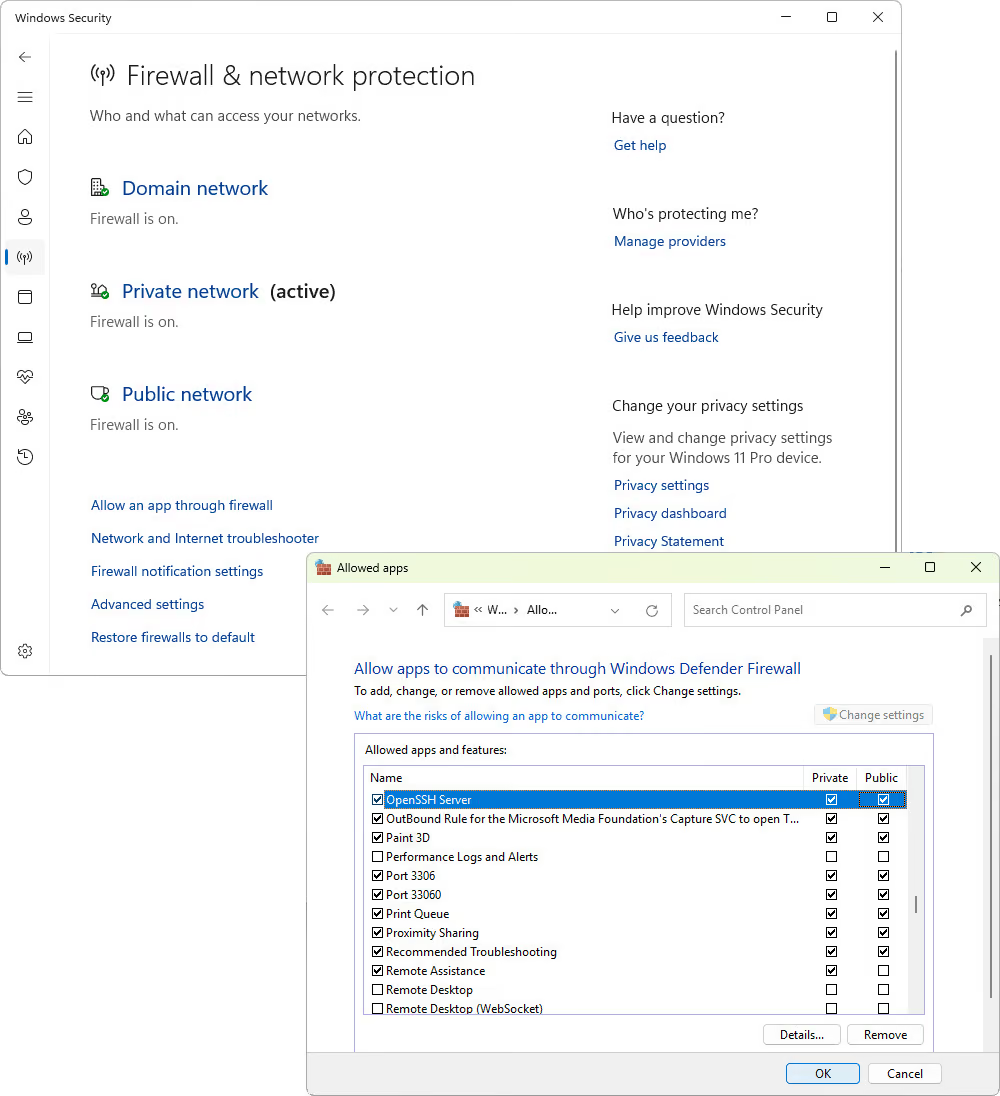
1. Open Windows Security and go to Firewall & network protection.
2. Select Allow an app through firewall.
3. In the window that opens, click Change settings and find OpenSSH Server in the Allowed apps and features list.
4. Select both Private and Public network options.
5. Click OK to apply the changes.
Fig 12. Configuring Windows Firewall to allow SSH connections using GUI.
Setting up SSH keys on Windows
SSH key authentication enhances security by replacing password-based logins with cryptographic keys. Follow these steps to generate and configure SSH keys on a Windows machine.
When prompted, press Enter to save the key in the default location: C:\Users\YourUsername\.ssh\id_rsa
1.3 Optional: Set a passphrase for additional security.
2. Copy the public key to the remote server
To enable key-based authentication, transfer the public key to the remote server.
ssh-copy-id username@server-ip
If ssh-copy-id is not installed, you can copy the key manually.
1. Display the public key in PowerShell using the following command.
Get-Content$env:USERPROFILE\.ssh\id_rsa.pub
2. Copy the output and manually add it to the ~/.ssh/authorized_keys file on the remote server.
3. Test SSH key authentication
Once the key is added, test the SSH connection.
ssh username@server-ip
If successful, you will log in without a password.
Fig 13. Successful SSH connection via SSH keys on Windows.
Enhancing workflows with dbForge Edge
Secure and efficient database management is essential, and dbForge Edge—all-in-one database management solution designed for MySQL, PostgreSQL, SQL Server, and Oracle, simplifies it by offering secure SSH connections for remote database access. Whether using password authentication, public key authentication, or PuTTY via the command-line interface, dbForge Edge provides a flawless and user-friendly experience.
With password authentication, users can easily establish an SSH connection by specifying the host, port, user credentials, and security settings directly in the Database Connection Properties dialog. For those prioritizing security, SSH key authentication enables access using private keys and passphrases, ensuring a more secure connection method. Additionally, dbForge Edge supports PuTTY-based SSH connections, allowing integration with plink.exe for users who prefer command-line tools.
Once the SSH connection is established, dbForge Edge makes it effortless to manage MySQL and PostgreSQL databases securely. Users can configure connection properties, select authentication methods, and test connections—all within an intuitive interface. With its comprehensive SSH tunneling support, dbForge Edge eliminates complexity and ensures secure database access in any environment.
Fig 14. Configuring SSH connections in dbForge Studio for MySQL.
Note
The screenshot above displays the Database Connection Properties window in dbForge Studio for MySQL, a tool included in the dbForge Edge multi-database solution. Another IDE in the dbForge Edge toolkit that supports SSH connections is dbForge Studio for PostgreSQL. Its GUI closely resembles the one shown in the screenshot.
Common SSH server errors and how to fix them
When setting up an SSH server, you may encounter various issues that prevent successful connections. Below are some solutions for resolving the Connection Refused error.
Incorrect port configuration
Issue: SSH is not listening on the correct port.
Fix: Check the SSH configuration file (/etc/ssh/sshd_config) and ensure the port setting matches the
intended port. Then restart SSH. If you are using a non-default port, specify it when connecting:
ssh -p username@server-ip.
Firewall restrictions
Issue: The Firewall is blocking SSH connections.
Fix: Open port 22 (or your custom SSH port) in the firewall.
Issue: SSH key authentication fails due to incorrect file permissions.
Fix: Ensure the SSH directory and files have the correct permissions.
chmod 700 ~/.ssh
chmod 600 ~/.ssh/authorized_keys
Then restart SSH and try connecting again.
SSH isn't installed on the server
Issue: The SSH server is not installed, causing connection attempts to fail.
Fix: You can check if the SSH server is running using the following command: systemctl status ssh.
SSH access is disabled
Issue: SSH is disabled on the server, preventing remote connections. Some administrators disable SSH entirely as a security measure to prevent unauthorized access.
Issue: Firewalls are often configured to block incoming connections as a security measure against cyber attacks.
Fix: If the server's Firewall is blocking SSH connections, you need to modify the Firewall settings to allow
access. This typically involves adding a rule to permit traffic on the SSH port (default: 22). The command varies
based on the Firewall software—for example, on Ubuntu with UFW, use: sudo ufw allow 22/tcp.
Conclusion
Setting up an SSH server is essential for secure remote access and server management. In this guide, we covered the key steps to install, configure, and troubleshoot SSH to ensure a stable and secure connection. By using SSH, you improve server security, protect sensitive data, and enable encrypted communication between clients and servers.
To streamline server management and optimize your workflow, consider using dbForge Edge - a comprehensive database management tool that simplifies SSH configuration for quick and secure database connectivity.
FAQ
How to install SSH server with cmd?
1. Open CMD as Administrator: Press Win + R, type cmd, press Ctrl + Shift + Enter.
5. Configure the SSH server for key authentication
5.1 Open the SSH configuration file on the server for editing.
sudo nano /etc/ssh/sshd_config
5.2 Ensure the following settings are enabled.
PubkeyAuthentication yes
PasswordAuthentication no
5.3 Restart SSH to apply changes.
sudo systemctl restart sshd
Does dbForge Edge support SSH tunneling for secure remote database management?
Yes, dbForge Edge supports SSH tunneling, enabling secure remote access to databases without exposing them
to the internet. It allows users to authenticate using SSH keys or passwords while encrypting data
transmissions to prevent unauthorized access.
Ready to get started?
Download dbForge Edge for a free trial today!
Get a free trial of dbForge Edge to evaluate all of its capabilities hidden under a sleek user interface.