How to show databases in MySQL: List all databases
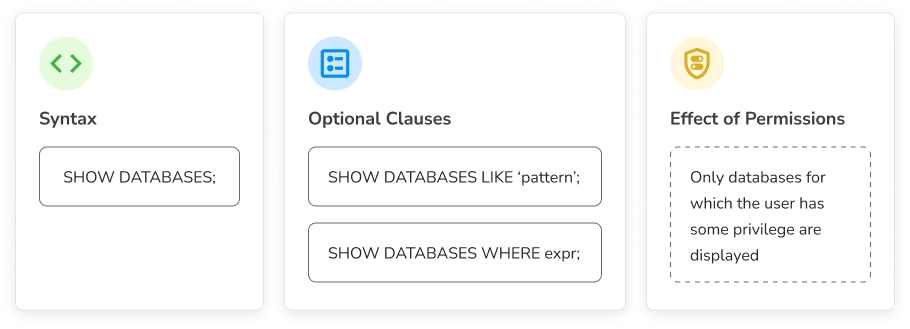
Run SHOW DATABASES; or SHOW SCHEMAS; to list the databases visible to the current MySQL user. The output depends on that user's privileges, which may restrict the list of available databases.
Getting a list of MySQL databases hosted on a server may be useful for various reasons. For example, developers can use it to explore the current environment, and DBAs need it to carry out routine server maintenance.
This article presents a comprehensive guide on how to show databases in MySQL and filter them according to certain criteria. Read on to find out about the following:
- How to list databases in MySQL
- The syntax of SHOW DATABASES in MySQL
- The SHOW SCHEMAS command to view MySQL databases
- Permissions required to list all databases in MySQL
- How to filter the database list
- How to list all databases in MySQL from the command line
- How to view databases in MySQL with a GUI tool
Quick reference
| Task | Command |
|---|---|
| Show databases visible to the current user | SHOW DATABASES; |
| Use a synonym command | SHOW SCHEMAS; |
| Filter databases by name | SHOW DATABASES LIKE 'app%'; |
| Filter with a condition | SHOW DATABASES WHERE LENGTH(`Database`) > 7; |
| Query metadata | SELECT schema_name FROM information_schema.SCHEMATA; |
| List databases from CLI | mysql -u user -p -e "SHOW DATABASES;" |
| Check user privileges | SHOW GRANTS FOR 'user'@'host'; |
Common use cases for listing MySQL databases
Listing MySQL databases is a common administrative task with several practical use cases. Here are the most common ones.
- Database exploration and auditing, where you may need to check what databases exist on a server. It helps you understand which databases are hosted on a server you have just connected to, audit resource usage, or validate environment setups.
- Permission and access checks, where you verify which databases a user has access to. This is important for enforcing data security and confirming that access control policies are working correctly.
- Backup and recovery, where you need to determine which databases need to be backed up or restored. Since backup tools may require specific database names, listing them helps automate and validate these operations.
- Database development and testing, where you need to get lists of databases in order to prevent, for instance, accidental operations on production databases. Additionally, scripts often include lists of databases to iterate over. With the said list always at hand, you can easily apply schema updates across multiple databases or run consistency checks.
- Maintenance, where you may need to identify old, unused, or temporary databases, and clean them up to free up space and improve performance. A quick way to see all databases will definitely be useful here.
How to show databases in MySQL with the SHOW DATABASES command
Run the following query to show all MySQL databases visible to the current user.
SHOW DATABASES;You can run this statement from the MySQL Command-Line Client, MySQL Shell, or any GUI tool that supports SQL (for example, dbForge Studio for MySQL).
MySQL returns the results as a single-column table.
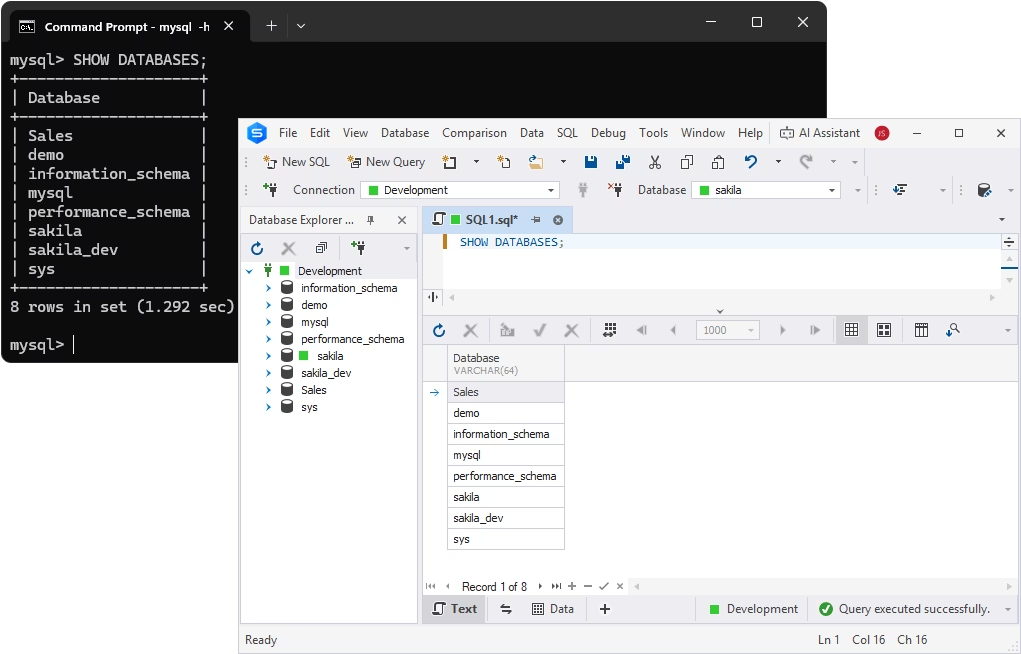
Unless you have the global SHOW DATABASES privilege, you will see only the databases you are permitted to see. You can also grant a user all privileges in MySQL so that they can view all the databases on a server.
How to see databases in MySQL with SHOW SCHEMAS
SHOW SCHEMAS is an alternative MySQL command that helps get a list of existing databases on a server.
SHOW SCHEMAS;Similar to the MySQL SHOW DATABASES statement, SHOW SCHEMAS can be run from the MySQL Command-Line Client, MySQL Shell, and dbForge Studio for MySQL.
The outputs returned by MySQL will be identical.
Filtering the database list using SHOW DATABASES LIKE
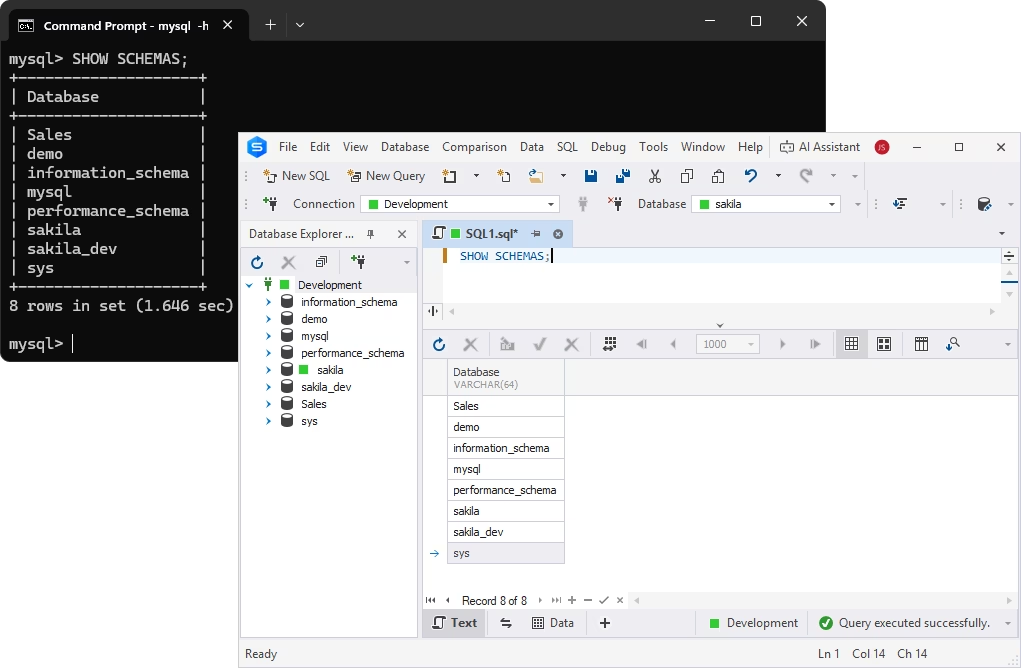
There might be a lot of databases on the server, and the list can be quite large. In this case, you may benefit from using the LIKE operator along with the MySQL SHOW DATABASES command.
SHOW {DATABASES | SCHEMAS}
[LIKE 'pattern' | WHERE expression]
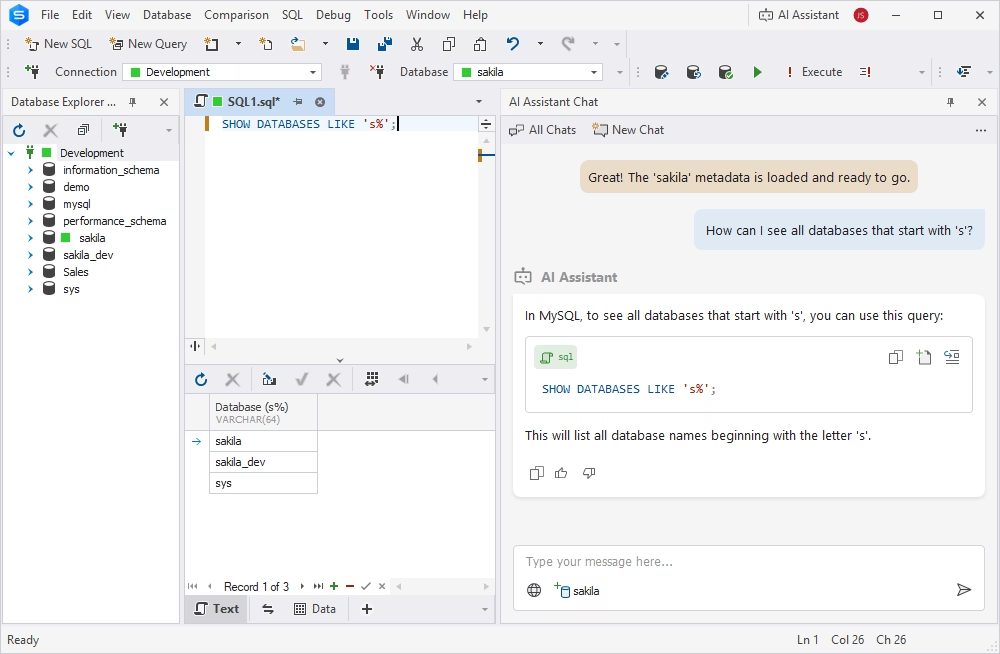
Suppose we need to get the list of all databases that start with 'S'. The query will look as follows.
SHOW DATABASES LIKE 's%';And if we need to list all databases whose names are more than 7 characters long, we can run the following query.
SHOW DATABASES WHERE LENGTH(`Database`) > 7;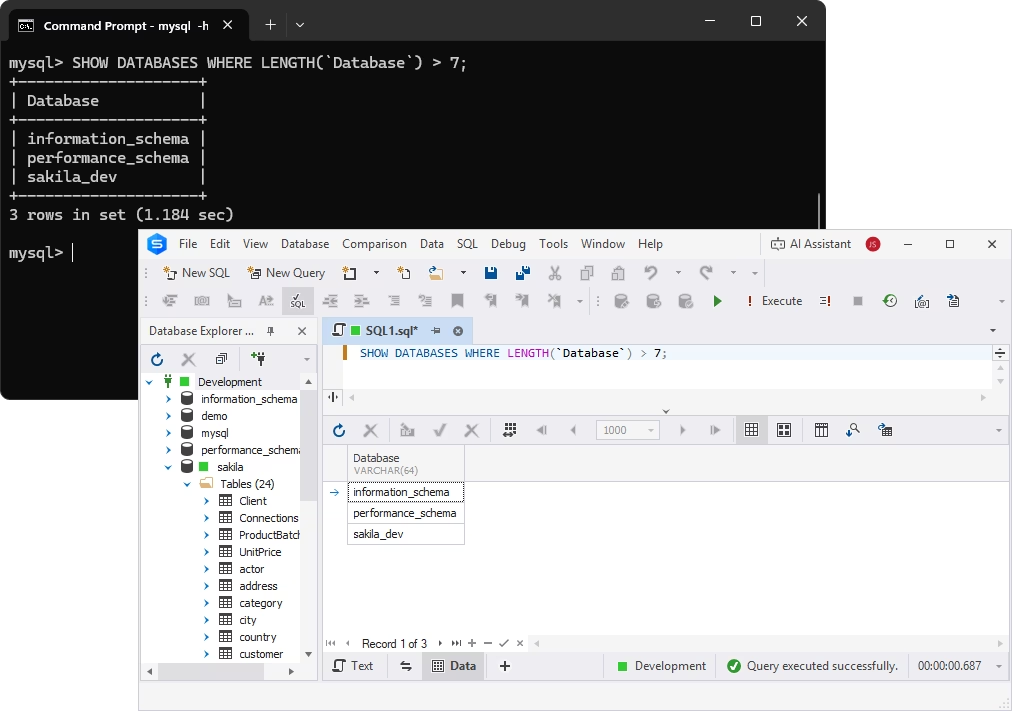
How to get a list of all databases in MySQL from the command line
In MySQL, you can also list databases from the command line. There are three common methods for this.
- Open the Command Prompt and navigate to the bin folder of your MySQL Server installation directory. Then connect to the server using the mysql -u root -p command. Enter the password and run the SHOW DATABASES command.
- Open the Command Prompt, navigate to the bin folder of your MySQL Server installation directory, and run the following query.
In this syntax:
- -h is the IP address or domain of the remote MySQL server
- -u is your MySQL username
- -p will prompt you for the password
- -e will execute SHOW DATABASES directly from the command line
- Alternatively, from the same bin folder of your MySQL Server installation directory, run the following query.
List databases in MySQL by information_schema
There is another popular way to show databases in MySQL: to query the required information directly from the SCHEMATA table of the MySQL information_schema database. This table contains system metadata with one row per database on the MySQL server. To get a list of databases from the SCHEMATA table, execute a MySQL SELECT query as follows.
For example, the following query returns the same result as the SHOW DATABASES command: a list of all database names.
SELECT SCHEMA_NAME
FROM information_schema.SCHEMATA;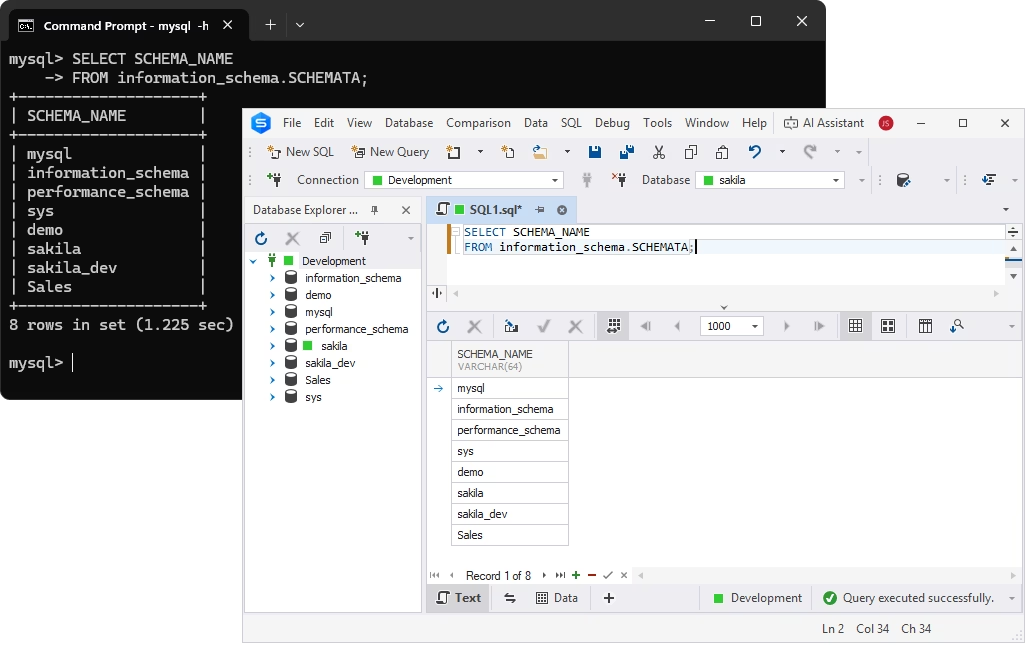
To get full information on the hosted databases (names, default character sets and collations), execute the following query against the SCHEMATA table.
SELECT
  SCHEMA_NAME,
  DEFAULT_CHARACTER_SET_NAME AS CHARSET,
  DEFAULT_COLLATION_NAME AS COLLATION
FROM information_schema.SCHEMATA
ORDER BY SCHEMA_NAME;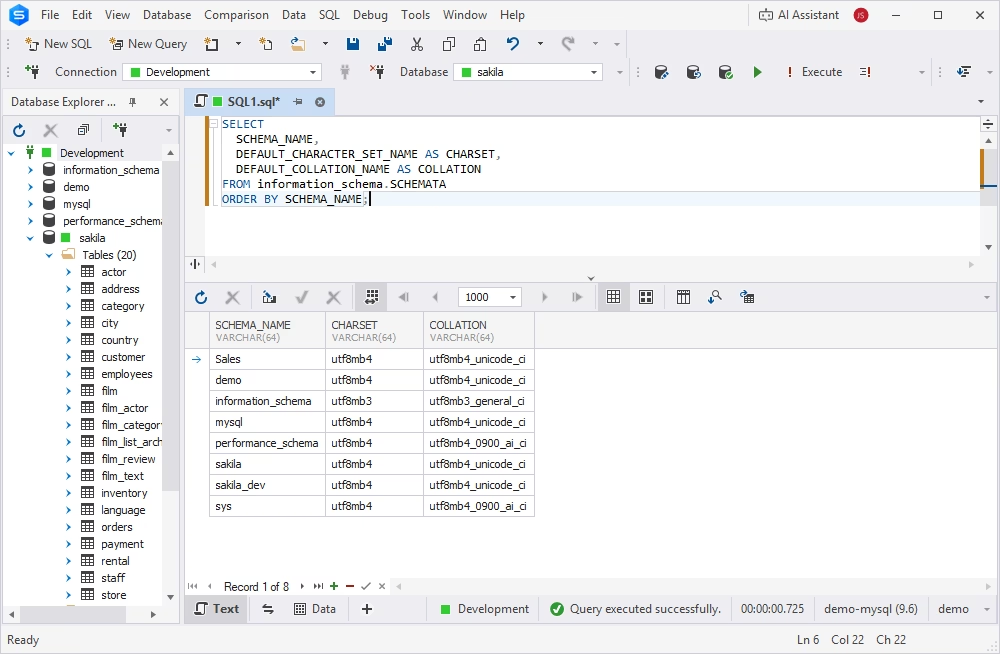
Using the SCHEMATA table, you can retrieve a list of all user-created databases on a MySQL server by excluding all built-in system databases.
SELECT
  SCHEMA_NAME
FROM information_schema.SCHEMATA
WHERE SCHEMA_NAME NOT IN ('information_schema', 'mysql', 'performance_schema', 'sys')
ORDER BY SCHEMA_NAME;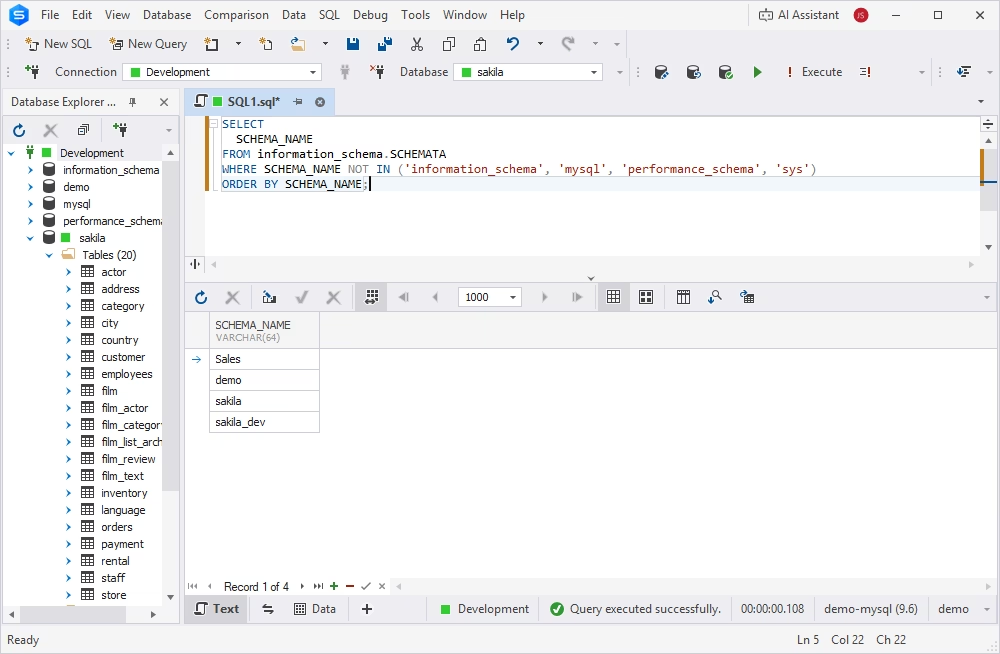
All these queries can be run from the MySQL Command-Line Client, MySQL Shell, or dbForge Studio for MySQL.
How to view MySQL databases in dbForge Studio
dbForge Studio for MySQL is a universal all-in-one GUI tool designed to support the entire database management lifecycle, from design to deployment. The Studio provides an intuitive, GUI-based flow of listing databases.
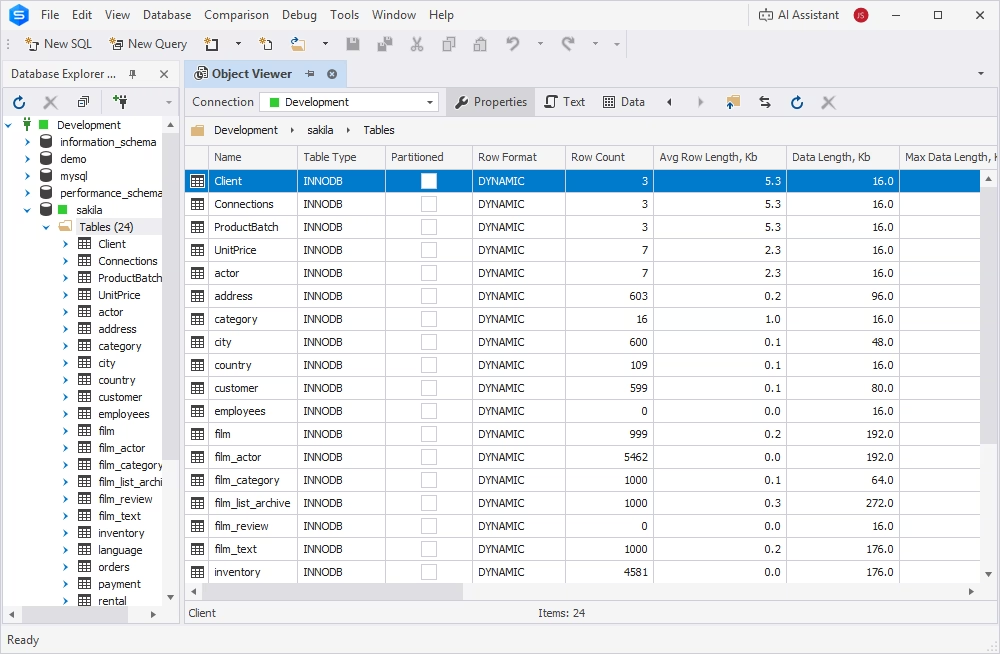
View databases in Database Explorer
After you connect to the server, the databases that are hosted on it are displayed in Database Explorer. The Explorer allows you to browse tables, views, procedures, triggers, and other objects for each database, as well as to view their details in a grid.
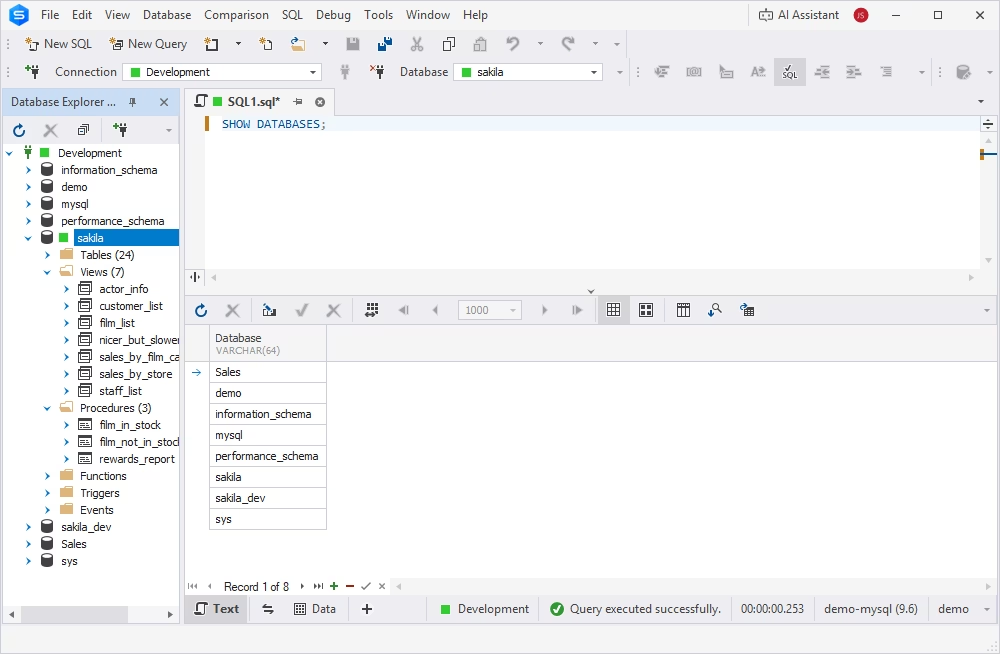
Run SHOW DATABASES in SQL Editor
You can run all the above-mentioned commands from the Studio's integrated SQL Editor equipped with context-sensitive code completion and instant syntax validation.
Export the database list
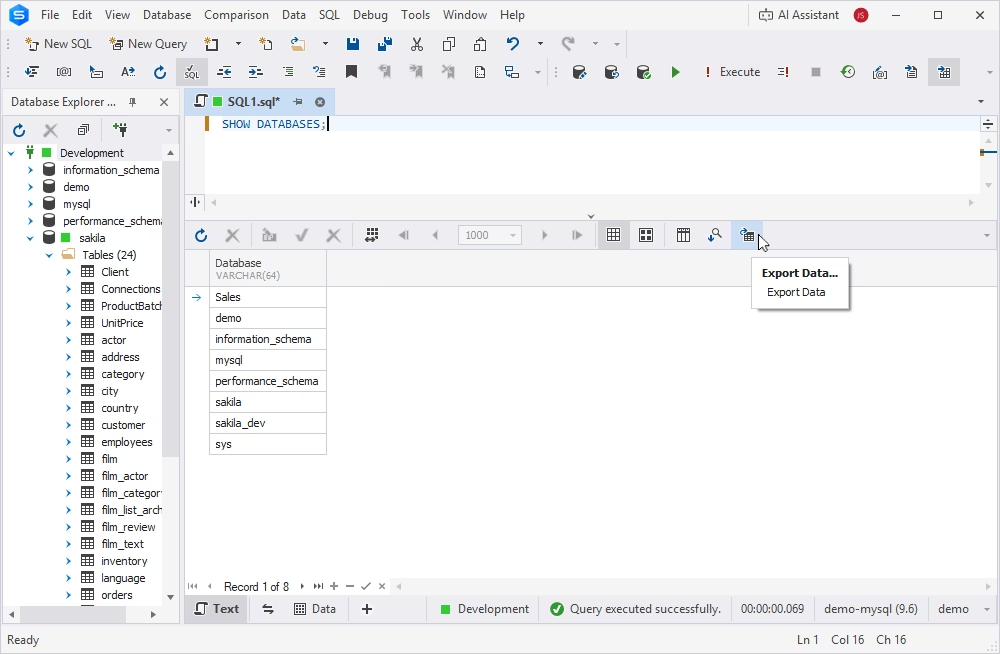
You can export the output of any query directly from the results grid of the Studio's SQL Editor. Simply click Export Data on the toolbar, select any of the available 14 file formats, and follow the wizard's instructions to export your database list to a file.
Check user access with Security Manager
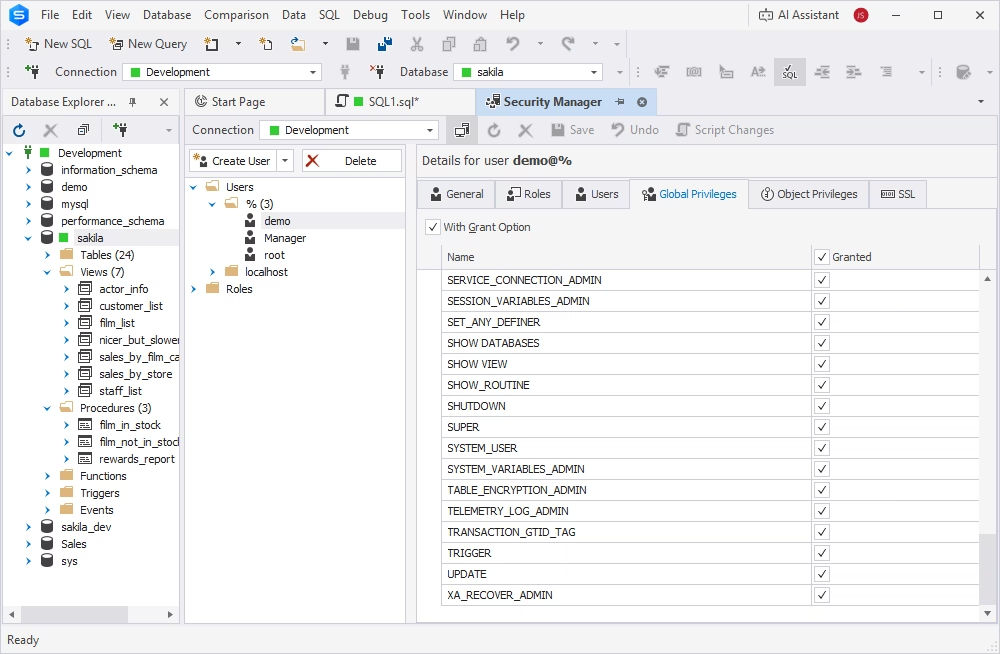
dbForge Studio comes with a Security Manager that helps set up user accounts, their roles, and privileges (including access to specific databases). To view and modify user privileges for a database, right-click its name in Database Explorer and select Edit Privileges. This opens the Security Manager window with all the privileges for each user.
Use dbForge AI Assistant
With dbForge Studio for MySQL, you can speed up database management and reduce errors using the AI Assistant, your reliable companion in writing, optimizing, and troubleshooting SQL queries. You can simply explain what you need to achieve in plain language, and the Assistant will translate your prompt into clean and efficient SQL.
SHOW DATABASES in MySQL: Useful tips and best practices
To find out which database is currently selected, use the following query.
SELECT DATABASE();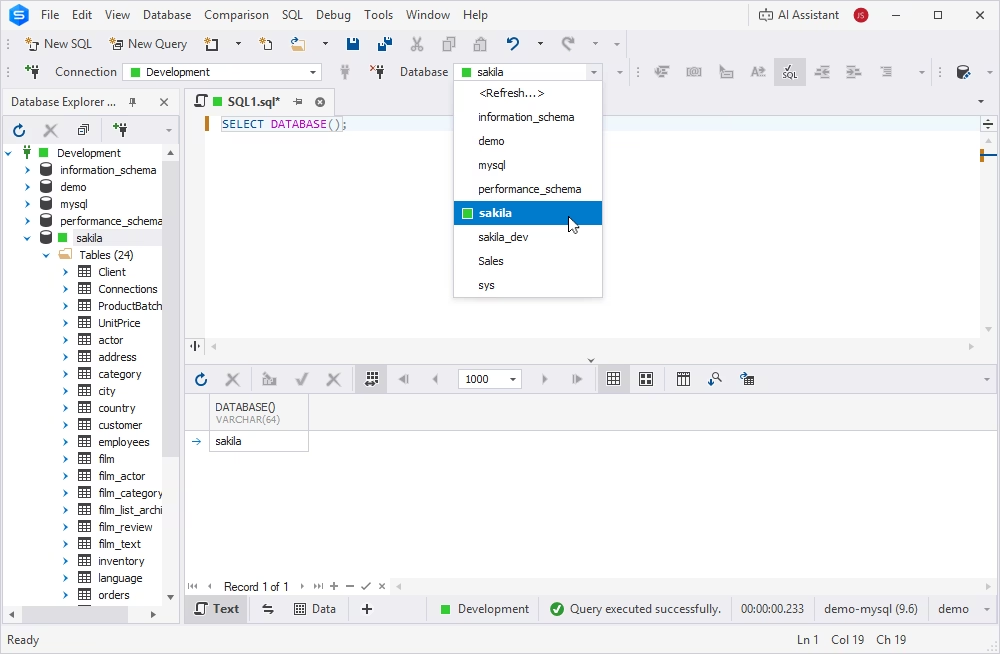
You can read more about this statement on the MySQL Select Database page. In dbForge Studio, the selected database will be shown in the menu ribbon. You can easily switch between the databases using the dropdown.
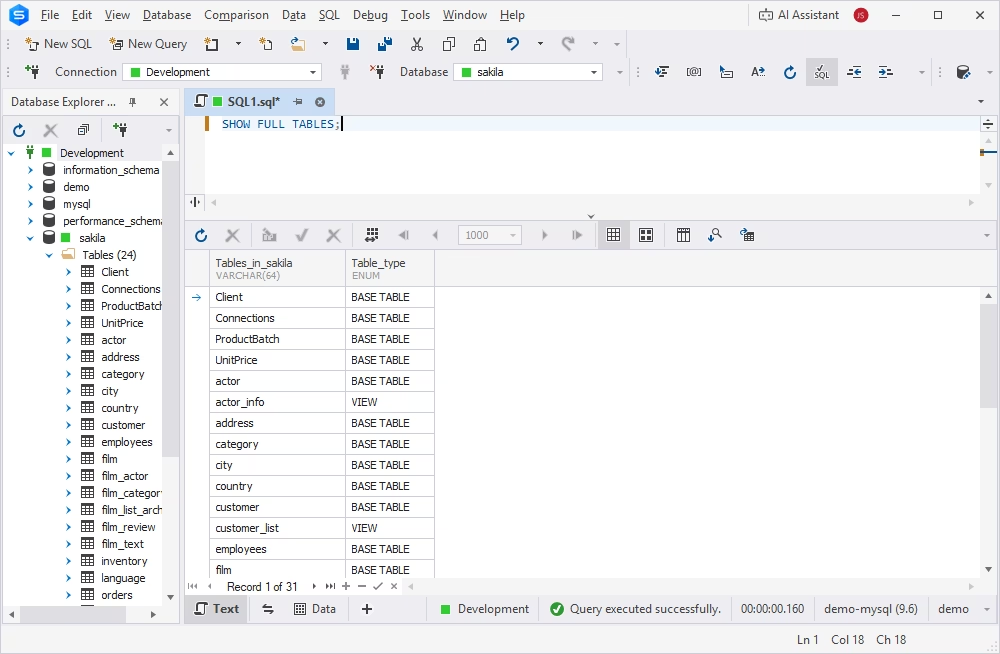
To see the tables from a selected database, run this query.
SHOW FULL TABLES;Also note that in dbForge Studio, database tables can be displayed by expanding nodes in Database Explorer.
Why SHOW DATABASES might not display all databases
There are several reasons why the SHOW DATABASES command might not display all databases on your server. These reasons are mostly related to permissions, configuration settings, or server issues.
| Problem | Likely reason | What to check |
|---|---|---|
| Some databases are missing | User has limited privileges | Run SHOW GRANTS FOR 'user'@'host'; |
| SHOW DATABASES returns too few items | No global SHOW DATABASES privilege | Ask the admin to review grants |
| Only system databases appear | User has no access to app databases | Grant database-level privileges |
| Command does not work | Server started with --skip-show-database | Check MySQL configuration |
| Remote command fails | Host, port, firewall, or bind address issue | Verify connection settings |
Insufficient permissions
In most cases, if your queries do not return all the expected databases, the reason is insufficient user privileges. Users can only see databases for which they have permissions. To check your privileges, you can run the following command.
SHOW GRANTS FOR 'username'@'host';In this command, username refers to your MySQL user, and host refers to the hostname or IP address from which you connect.
You can grant more permissions to your current user from a user with broader privileges, e.g., a root user.
Here is a brief recap of key user types with the databases they are permitted to access.
| User type | Available databases | Example output | Notes |
|---|---|---|---|
| Administrator (root user) | All databases on the server | mysql, information_schema, test, app_db, etc. | Full access, including system and user-created databases |
| Normal user | Only databases that can be accessed according to the user's privileges | app_db, reporting_db | Hidden databases will not appear, even if they exist |
| Guest user or new user (no privileges) | Nothing (or, in some cases, system databases) | An empty set | Requires GRANT permissions on at least one database to display any names |
| User with revoked access | information_schema or nothing | information_schema or an empty set | May vary based on the skip-show-database setting |
The skip-show-database option
If your MySQL has been started with the skip-show-database option, it may prevent you from seeing databases unless you have the SHOW DATABASES privilege granted explicitly.
To see whether this option is on, you can inspect the MySQL configuration file (my.cnf or my.ini) or check the command-line options used to start MySQL.
Databases hidden by design
Some internal or temporary databases may not be listed by default depending on your MySQL version or configuration.
Connection issues
If your SQL queries fail, the problem is often related to the host, port, or bind address. Check these settings to verify that your connection is properly configured.
- Host name: Verify that you are connecting to the right host. In dbForge Studio for MySQL, check the database connection properties. If you are using the MySQL Command-Line Client, run the following command.
- Port: The default MySQL port is 3306. However, in some cases, a custom port may be used. To find which port is being used, check the my.ini file or execute the following query.
SHOW VARIABLES LIKE 'port';- Bind address: Check that your bind address allows connections from any network interface. In the my.ini file,
verify that the bind address is set to
0.0.0.0, which accepts connections from any network interface, or, in some cases, to a specific IP address. - Firewall: Verify that your firewall allows incoming connections via port 3306 or your custom port.
Listing databases remotely or using scripts
You can just as well access a MySQL server remotely and list the databases it contains using scripts.
Using the MySQL CLI
We have previously mentioned that SHOW DATABASES can be executed from the MySQL CLI as follows.
Using a bash script
You can also create a bash script (list_dbs.sh) as shown below.
#!/bin/bash

HOST="192.168.1.10"
USER="username"
PASS="password"

mysql -h "$HOST" -u "$USER" -p"$PASS" -e "SHOW DATABASES;"
Then make it executable.
chmod +x list_dbs.sh
./list_dbs.sh
Using Python with mysql-connector-python
First, install the connector.
The Python script for that will be as follows.
import mysql.connector

conn = mysql.connector.connect(
    host='192.168.1.10',
    user='username',
    password='password'
)

cursor = conn.cursor()
cursor.execute("SHOW DATABASES")

for db in cursor:
    print(db[0])

cursor.close()
conn.close()
Tips for listing MySQL databases remotely
- Use the -h flag to specify the remote host. Here's what a command with the -h flag looks like.
In this syntax, <remote_host> can be a hostname or IP address (e.g., mysql.example.com or 192.168.1.100). Also note that if you omit -h, the client will try to connect to the local socket.
-
Make sure remote access to the server is enabled. Check whether your MySQL server is listening on a public IP (not just 127.0.0.1). You can set
bind-address = 0.0.0.0or the server's IP in my.cnf or mysqld.cnf. - Get remote privileges for your user account. For instance, here's how a root user can grant remote access with all privileges.
- Store your credentials in the hidden my.cnf file. It is going to look as follows.
[client]
user=<username>
password=<password>
host=<remote_host>
Now you can run the familiar SHOW DATABASES command in the following simple way.
This method helps keep credentials out of the shell history and scripts.
Conclusion
The easiest way to see the list of databases in MySQL involves dbForge Studio for MySQL, one of the best MySQL IDEs on the market today. It encompasses dozens of useful features that allow you to perform any database-related tasks: create a database in MySQL, back up a MySQL database, conduct MySQL performance monitoring, and much more. However, a picture is worth a thousand words, so we welcome you to download a FREE fully functional trial of dbForge Studio for MySQL and check it in action!
FAQ
Some databases may appear to be hidden or skipped for a few reasons, including permission restrictions, configuration settings, or specific filters.
1. To see all databases (if you have sufficient privileges), you should log in as a root user or a user with the SHOW DATABASES privilege.
The SHOW DATABASES privilege can be granted by a root user with the following command.
2. You can query information_schema.SCHEMATA to list the databases visible to your account. Unlike SHOW DATABASES, it can be filtered and combined with other metadata queries.
SELECT
  SCHEMA_NAME
FROM information_schema.SCHEMATA;
The result follows the same database visibility rules as SHOW DATABASES: users without the SHOW DATABASES privilege see only databases for which they have privileges.
3. You can check the MySQL configuration file (my.cnf or my.ini) for the --skip-show-database or --skip-name-resolve options.
- --skip-show-database disables SHOW DATABASES entirely for users without the SHOW DATABASES privilege.
- --skip-name-resolve doesn't hide databases but disables DNS lookup; it is useful in some troubleshooting contexts.
No, SHOW DATABASES does not strictly require admin privileges. A SHOW DATABASES privilege, granted to the user you are logged in under, will be enough to let you see the list of databases on your MySQL server.
In MySQL, SHOW DATABASES and SHOW SCHEMAS are functionally identical.
When skip_show_database is enabled, users without the SHOW DATABASES privilege cannot execute the SHOW DATABASES statement at all. When it is disabled (the default status), they can execute the statement but see only databases for which they have privileges.
Yes, you can view hidden or system databases in dbForge Studio, but you must have sufficient privileges for that.
dbForge Studio has an integrated SQL Editor, which lets you run all kinds of SQL queries against your database. Just run the SHOW DATABASES command and get the output right away.
dbForge Studio offers an intuitive Database Explorer that helps you conveniently navigate across all database objects on your MySQL server. You can also perform a number of operations with those objects using the Explorer's context menu.
Yes, you can export the output of any query directly from the results grid of the Studio's SQL Editor. Simply click Export Data on the toolbar, select any of the available 14 file formats, and follow the wizard's instructions to export your database list to a file.
To retrieve a list of databases from the MySQL Command-Line Client, open the Command Prompt and execute the following command.
Enter your password when prompted. This command returns a list of all databases available to you based on your privileges.
To filter databases by name, use the LIKE operator. It can restrict the list to databases whose names meet the specified criteria. For example, the following query returns the list of databases whose names start with 'S'.
SHOW DATABASES LIKE 's%';In MySQL, to list all databases created by users, run the following query that excludes system databases.
SELECT
  SCHEMA_NAME
FROM information_schema.SCHEMATA
WHERE SCHEMA_NAME NOT IN ('information_schema', 'mysql', 'performance_schema', 'sys')
ORDER BY SCHEMA_NAME;Absolutely. MySQL GUI tools, such as dbForge Studio for MySQL, provide all the features needed to list and view databases, filter database lists, and export them in one of the multiple supported formats.
