
You can install the driver by using the Windows installer.
After you receive the license key, add it to your connection strings to connect to the data source.
.NET MAUI (Multi-platform App UI) is a cross-platform framework for building desktop and mobile applications with C# and XAML. With its help, developers can create applications running on Windows, Mac, iOS, and Android operating systems, all from one codebase.
MySQL is one of the most popular databases for building web applications. It is also open-source, allowing everyone to establish a database instance and connect to it. Database connectivity is essential because the application requires a reliable data source. Therefore, developers must ensure a quick and smooth connection to the database, as well as efficient data retrieval and management within the application.
In this tutorial, we will explore the integration of MySQL with a MAUI application, allowing us to design and manage the database directly from the C# code.

Fully supports EF Core, Dapper, NHibernate, LinqConnect, and other technologies for efficient data management.

Conforms to the latest ADO.NET standards and innovations for seamless integration with .NET applications.

Offers many MySQL-specific features and fully supports all unique data types for accurate and complete data representation.

Provides robust security with support for SSL/SSH connections, connecting via proxy servers, embedded servers, and HTTP tunneling.

Features native integration with Visual Studio and complete design-time support for accelerated development.

Includes priority support, detailed documentation, and regular updates for continuous improvement.
You can start using dotConnect for MySQL immediately with a 30-day free trial. Choose one of the following installation options:
You can install the driver by using the Windows installer.
After you receive the license key, add it to your connection strings to connect to the data source.
To connect to MySQL using the built-in Data Explorer, click Tools and select Connect to Database.
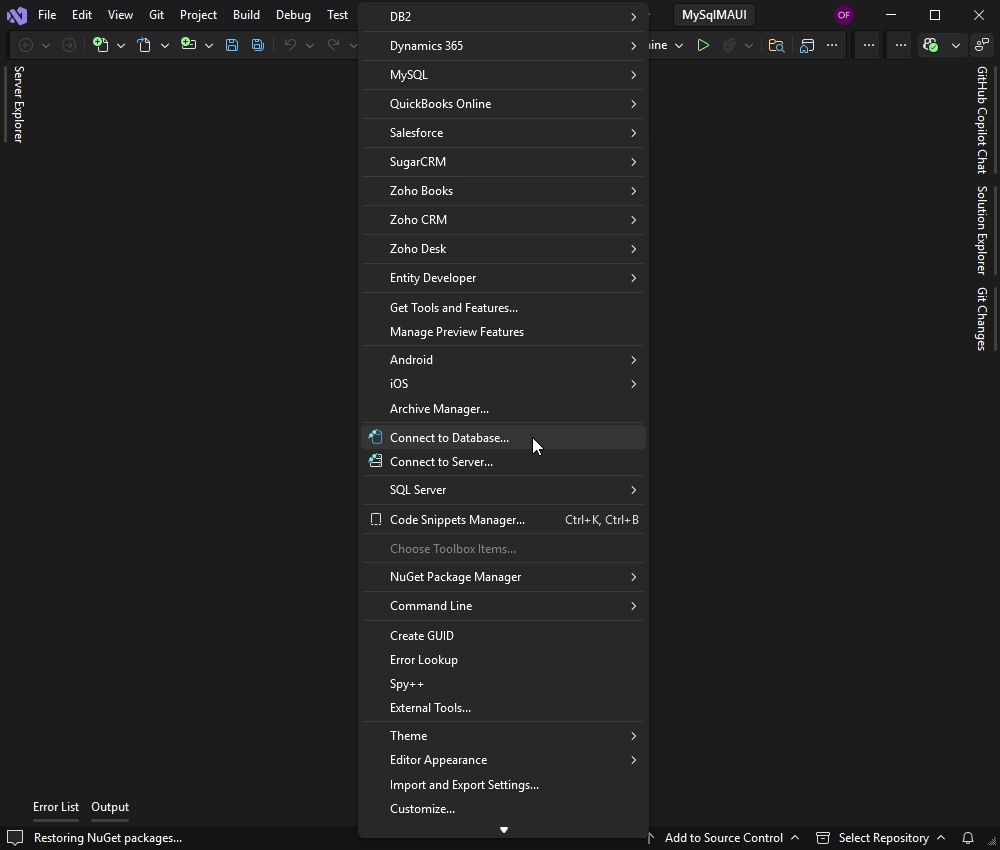
Choose MySQL as the data source, enter your server details and credentials, and click Connect.
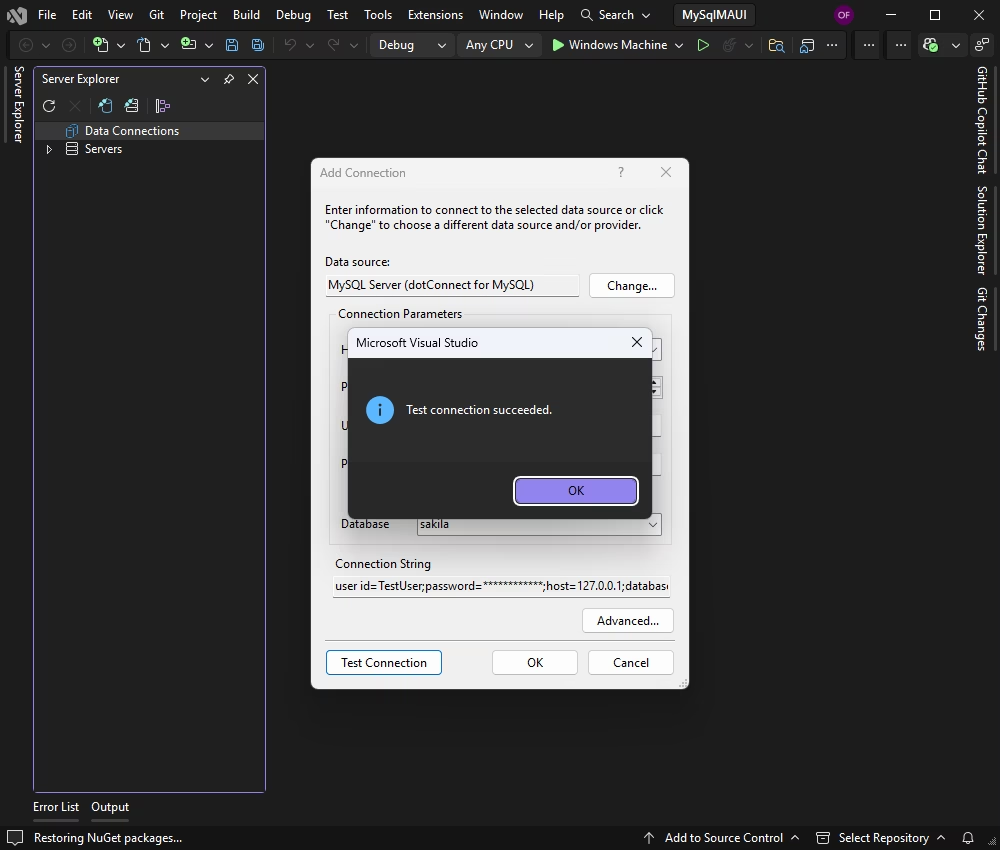
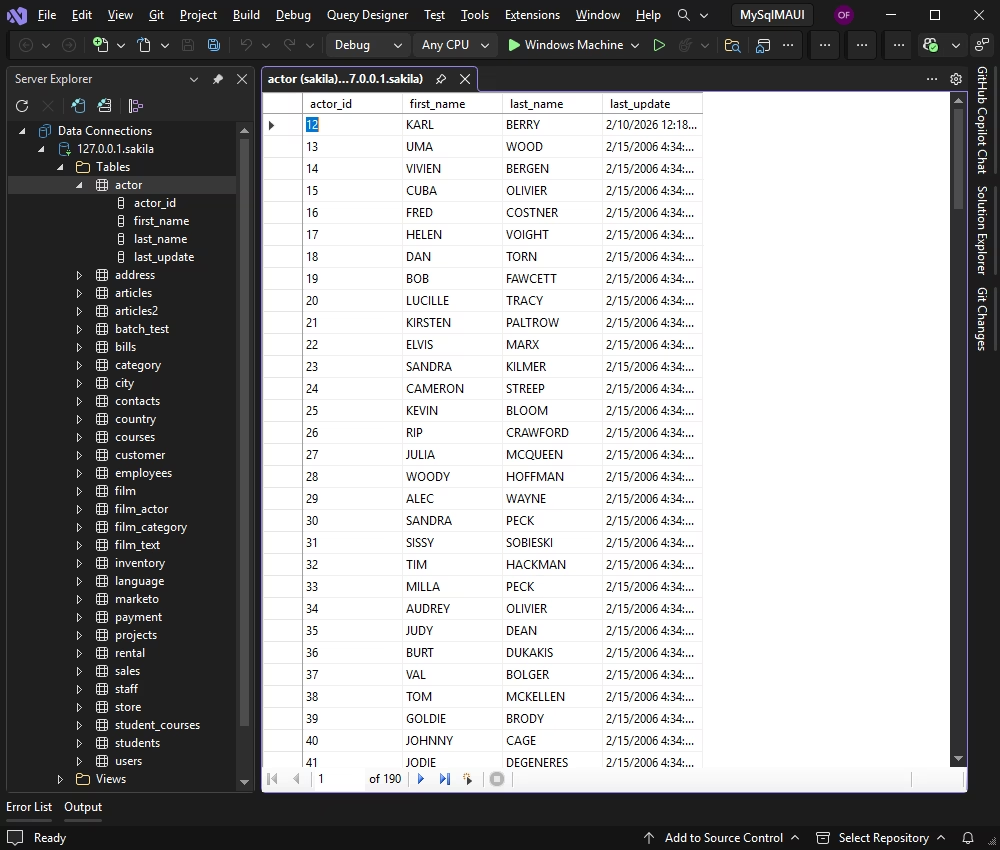
Once connected, you can browse tables, execute queries, and manage data directly within Data Explorer.
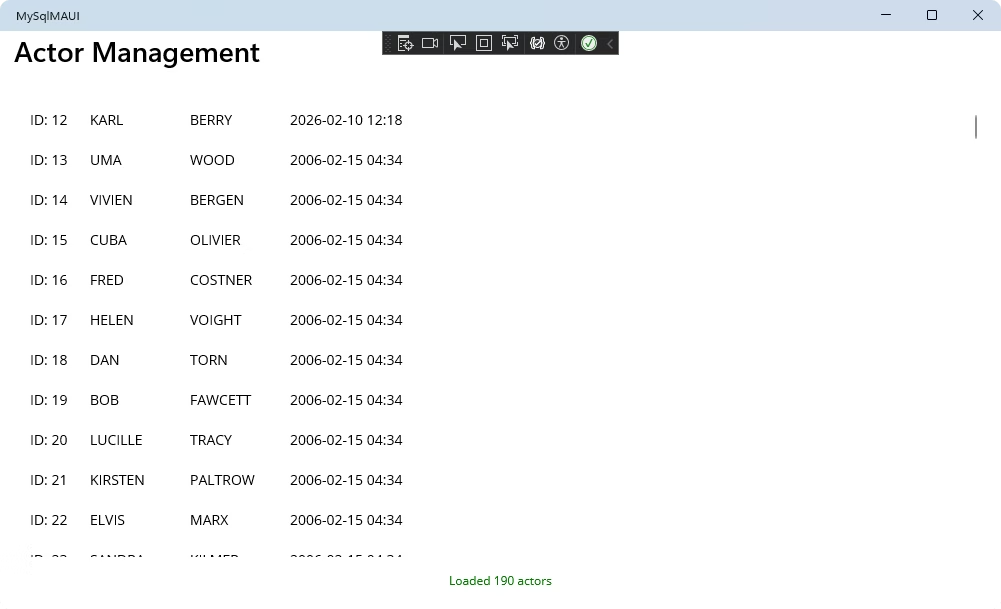
In this foundational step, our goal is to establish a connection to the MySQL database and display data in a read-only list. This ensures our database connection is correctly configured and provides the base, upon which we will build the other CRUD operations.
First, create a new C# class file named Actor.cs. This class will act as a model to hold the data for each actor record retrieved from the database.
namespace MySqlMAUI;

public class Actor
{
    public int ActorId { get; set; }
    public string FirstName { get; set; } = string.Empty;
    public string LastName { get; set; } = string.Empty;
    public DateTime LastUpdate { get; set; }
}Next, create the DatabaseConnection.cs file. This class centralizes our connection string, making it easy to manage.
using Devart.Data.MySql;

namespace MySqlMAUI;

public class DatabaseConnection
{
    private const string ConnectionString =
        "Host=127.0.0.1;Port=3306;User Id=TestUser;Password=TestPassword;Database=sakila;License key=**********";

    public static MySqlConnection GetConnection()
    {
        return new MySqlConnection(ConnectionString);
    }
}Create an ActorService.cs file. We will start by adding a single method, GetAllActors, which will be responsible for querying the database and returning a list of all actors.
// MySqlMAUI/ActorService.cs
using Devart.Data.MySql;
using System.Collections.Generic;

namespace MySqlMAUI;

public class ActorService
{
    public static List<Actor> GetAllActors()
    {
        // ... (code as provided in the previous turn)
    }
}Modify MainPage.xaml to contain a ListView for displaying the actors and a Label for status messages. At this stage, there are no input fields or buttons.
<?xml version="1.0" encoding="utf-8" ?>
<ContentPage xmlns="http://schemas.microsoft.com/dotnet/2021/maui"
             xmlns:x="http://schemas.microsoft.com/winfx/2009/xaml"
             x:Class="MySqlMAUI.MainPage"
             Title="Actor Management">
    <Grid RowDefinitions="*,Auto" Padding="20" RowSpacing="15">
        <!-- Actor List -->
        <ListView x:Name="ActorListView" Grid.Row="0">
            <ListView.ItemTemplate>
                <DataTemplate>
                    <ViewCell>
                        <HorizontalStackLayout Padding="10">
                            <Label Text="{Binding ActorId, StringFormat='ID: {0}'}" WidthRequest="60" />
                            <Label Text="{Binding FirstName}" WidthRequest="100" />
                            <Label Text="{Binding LastName}" WidthRequest="100" />
                            <Label Text="{Binding LastUpdate, StringFormat='{0:yyyy-MM-dd HH:mm}'}" HorizontalOptions="EndAndExpand" />
                        </HorizontalStackLayout>
                    </ViewCell>
                </DataTemplate>
            </ListView.ItemTemplate>
        </ListView>
        <!-- Status Bar -->
        <Label x:Name="StatusLabel" Grid.Row="1" Text="Connecting..." HorizontalOptions="Center" />
    </Grid>
</ContentPage>Update the code-behind file MainPage.xaml.cs. The code will call the LoadActors method from the constructor, ensuring the data is fetched immediately upon application launch.
namespace MySqlMAUI;

public partial class MainPage : ContentPage
{
    public MainPage()
    {
        InitializeComponent();
        LoadActors();
    }

    private void LoadActors()
    {
        try
        {
            var actors = ActorService.GetAllActors();
            ActorListView.ItemsSource = actors;
            StatusLabel.Text = $"Loaded {actors.Count} actors";
        }
        catch (Exception ex)
        {
            StatusLabel.Text = $"Error: {ex.Message}";
        }
    }
}
You have now built a functional, read-only .NET MAUI application that connects to a MySQL database and displays the data. This confirms that your core setup is working correctly.
We will now enhance the application by adding the ability to create new records. This involves adding input fields and a button to the UI and implementing the logic to execute an INSERT SQL statement.
Modify MainPage.xaml to add Entry fields for the first and last name, and an Insert button. The main Grid layout is adjusted to accommodate these new elements.
<!-- MySqlMAUI/MainPage.xaml -->
<!-- ... (XML header) ... -->
    <Grid RowDefinitions="Auto,*,Auto" Padding="20" RowSpacing="15">
        <!-- Input Form -->
        <Grid Grid.Row="0" ColumnDefinitions="*,*" ColumnSpacing="10" RowDefinitions="Auto,Auto">
            <Entry x:Name="FirstNameEntry" Placeholder="First Name" Grid.Row="0" Grid.Column="0" />
            <Entry x:Name="LastNameEntry" Placeholder="Last Name" Grid.Row="0" Grid.Column="1" />
            <Button Text="Insert" Clicked="OnInsertClicked" Grid.Row="1" Grid.ColumnSpan="2" />
        </Grid>
        <!-- ... (Rest of the XAML remains the same) ... -->
    </Grid>
<!-- ... (XML footer) ... -->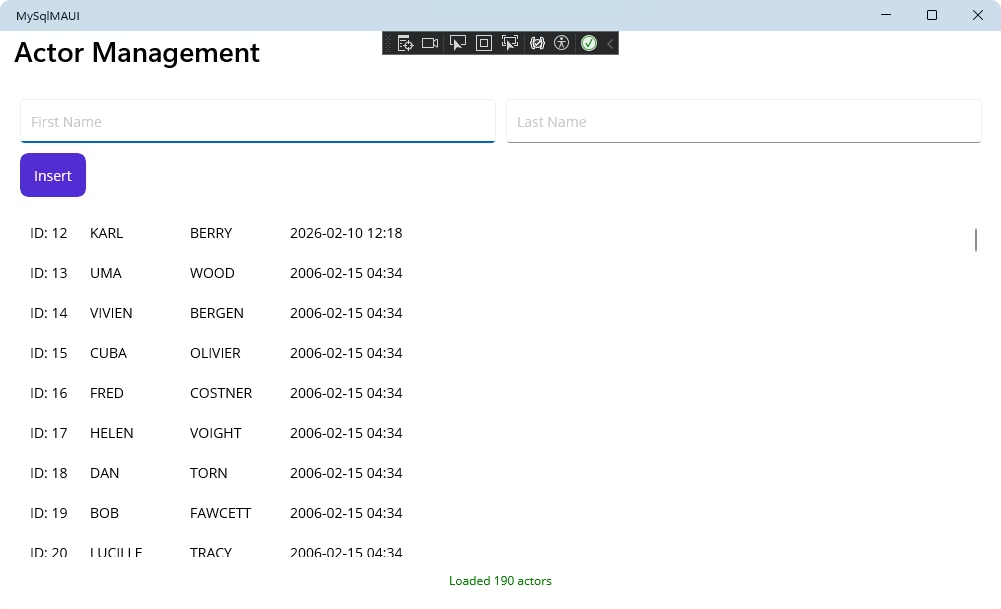
Add the InsertActor method to your ActorService.cs file. This method takes the first and last names, connects to the database, and executes a parameterized INSERT query.
// MySqlMAUI/ActorService.cs
// ... (add this method inside the ActorService class)
    public static void InsertActor(string firstName, string lastName)
    {
        // ... (code as provided in the previous turn)
}Modify MainPage.xaml.cs to handle the new functionality. Add a private field _selectedActor (which we'll use more in the next steps) and create the OnInsertClicked and ClearForm methods.
// MySqlMAUI/MainPage.xaml.cs
// ... (add this field at the top of the MainPage class)
    private Actor? _selectedActor;

// ... (add these methods inside the MainPage class)
    private async void OnInsertClicked(object? sender, EventArgs e)
    {
        // ... (code as provided in the previous turn)
    }

    private void ClearForm()
    {
        // ... (code as provided in the previous turn)
    }
The application can now add new records to the database. Users can enter data, press the Insert button, and the list updates immediately to reflect the new entry.
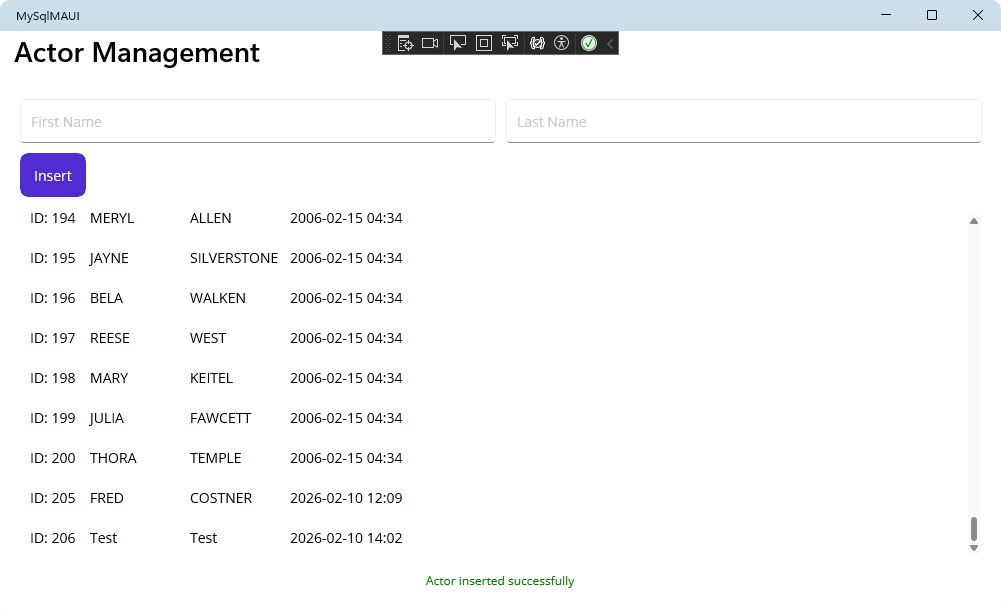
In this step, we will implement the ability to edit existing records. This requires logic to select an item from the list, populate the input fields with its data, and then save the changes with an UPDATE SQL command.
In MainPage.xaml, add an Update button next to the Insert button and attach an ItemSelected event handler to the ListView.
<!-- MySqlMAUI/MainPage.xaml -->
<!-- ... (inside the input form Grid, update the button layout) ... -->
            <Grid Grid.Row="1" Grid.ColumnSpan="2" ColumnDefinitions="*,*">
                <Button Text="Insert" Clicked="OnInsertClicked" Grid.Column="0" />
                <Button Text="Update" Clicked="OnUpdateClicked" Grid.Column="1" />
            </Grid>
<!-- ... (in the ListView tag) ... -->
        <ListView x:Name="ActorListView" Grid.Row="1" ItemSelected="OnActorSelected">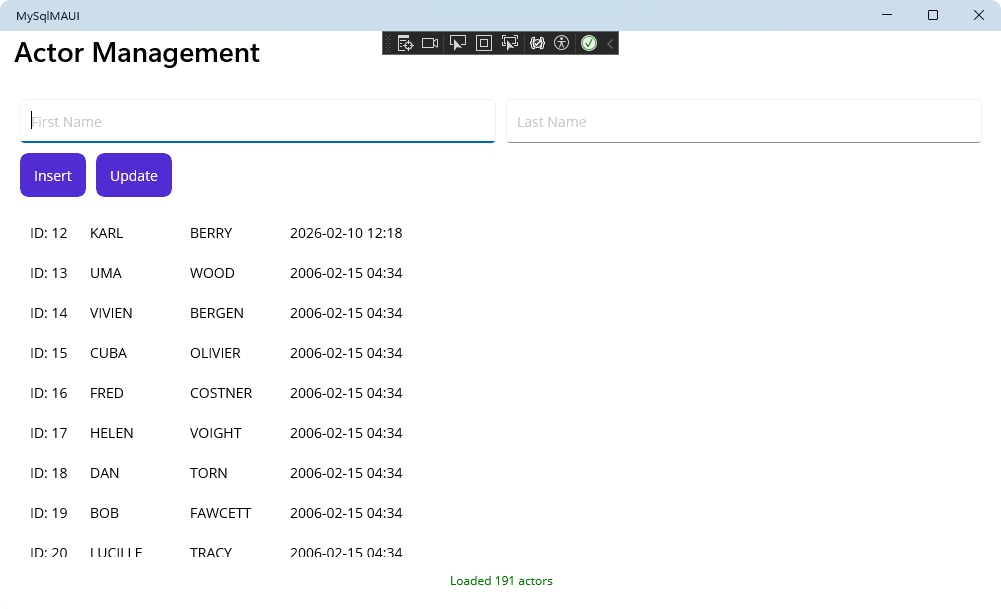
Add the UpdateActor method to ActorService.cs. This method executes a parameterized UPDATE query using the actor's ID.
// ... (add this method inside the ActorService class)
    public static void UpdateActor(int actorId, string firstName, string lastName)
    {
        // ... (code as provided in the previous turn)
}Add the OnActorSelected and OnUpdateClicked methods to MainPage.xaml.cs. OnActorSelected will populate the form when a user taps an item in the list. OnUpdateClicked will save the changes.
// ... (add these methods inside the MainPage class)
    private void OnActorSelected(object? sender, SelectedItemChangedEventArgs e)
    {
        // ... (code as provided in the previous turn)
    }

    private async void OnUpdateClicked(object? sender, EventArgs e)
    {
        // ... (code as provided in the previous turn)
    }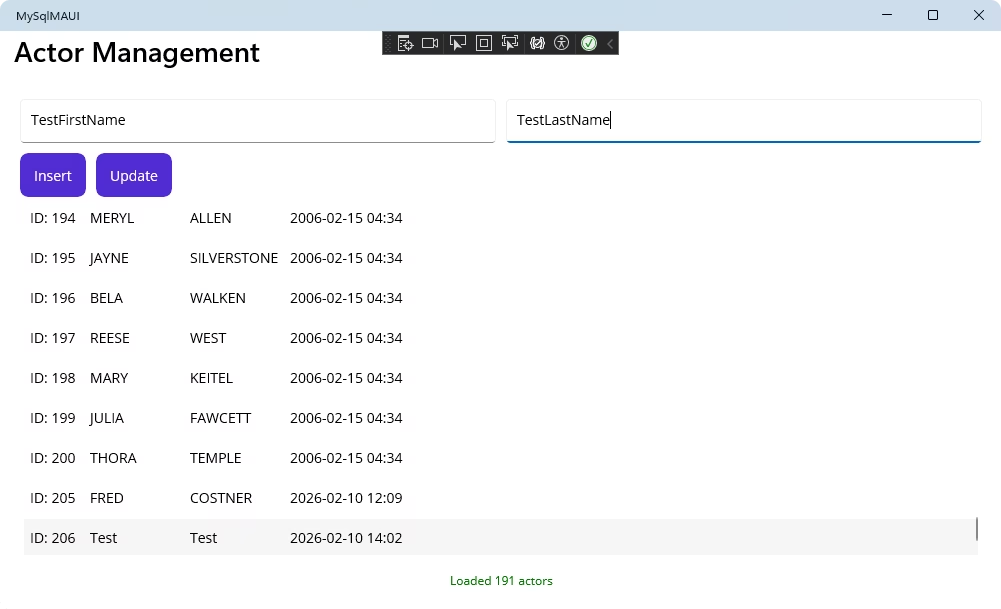
The application now supports editing data. Users can select an actor, change their details in the input form, and save the changes back to the database.
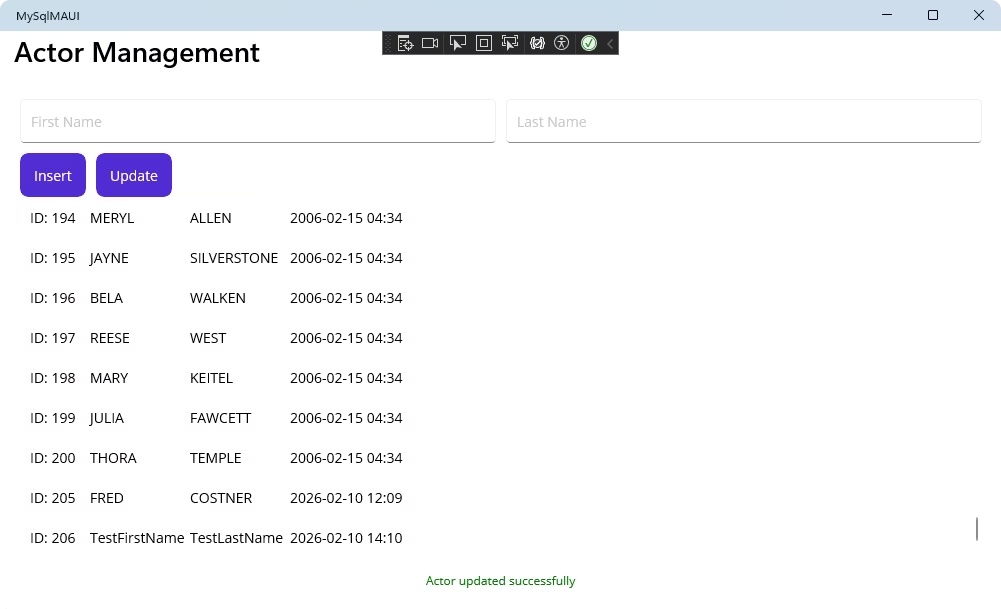
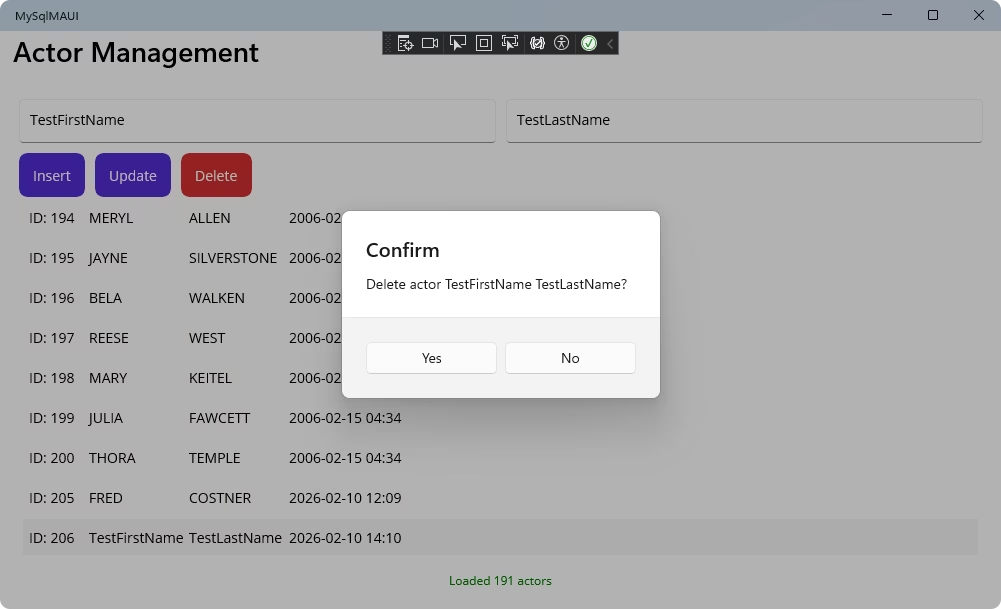
In the final step, we will implement the delete functionality. This involves adding a Delete button and the logic to execute a DELETE SQL command, including a confirmation step to prevent accidental data loss.
Modify MainPage.xaml to include a Delete button, completing our CRUD controls set.
<!-- MySqlMAUI/MainPage.xaml -->
<!-- ... (inside the input form Grid, update the button layout) ... -->
            <Grid Grid.Row="1" Grid.ColumnSpan="2" ColumnDefinitions="*,*,*">
                <Button Text="Insert" Clicked="OnInsertClicked" Grid.Column="0" />
                <Button Text="Update" Clicked="OnUpdateClicked" Grid.Column="1" />
                <Button Text="Delete" Clicked="OnDeleteClicked" Grid.Column="2" BackgroundColor="#D32F2F" />
            </Grid>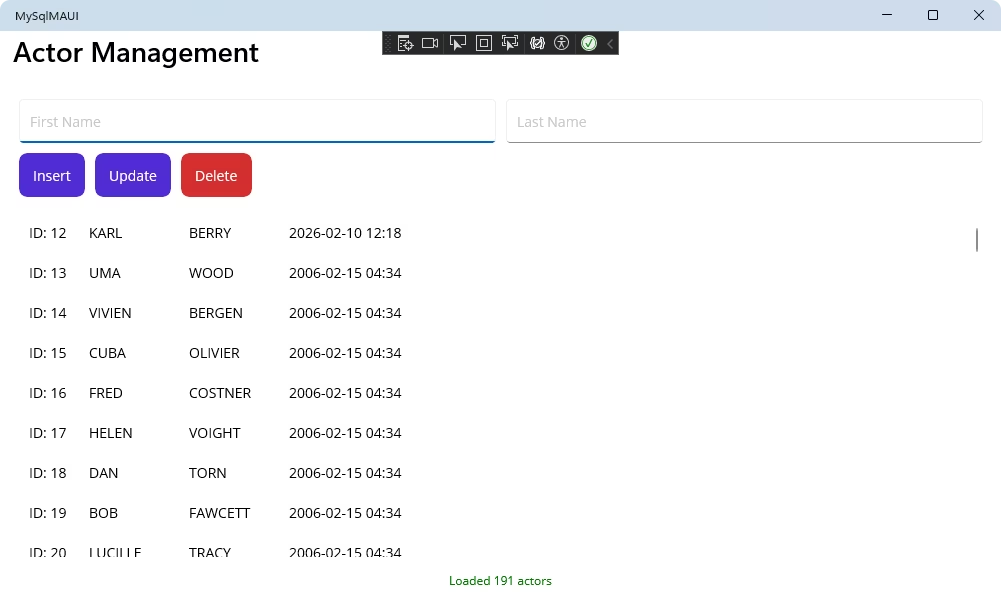
Add the DeleteActor method to ActorService.cs. This method executes a DELETE query targeting a specific actor by their ID.
// MySqlMAUI/ActorService.cs
// ... (add this method inside the ActorService class)
    public static void DeleteActor(int actorId)
    {
        // ... (code as provided in the previous turn)
}Finally, add the OnDeleteClicked method to MainPage.xaml.cs. This method first confirms the user's action with a pop-up dialog before proceeding with deletion.
// MySqlMAUI/MainPage.xaml.cs
// ... (add this method inside the MainPage class)
    private async void OnDeleteClicked(object? sender, EventArgs e)
    {
        // ... (code as provided in the previous turn)
    }
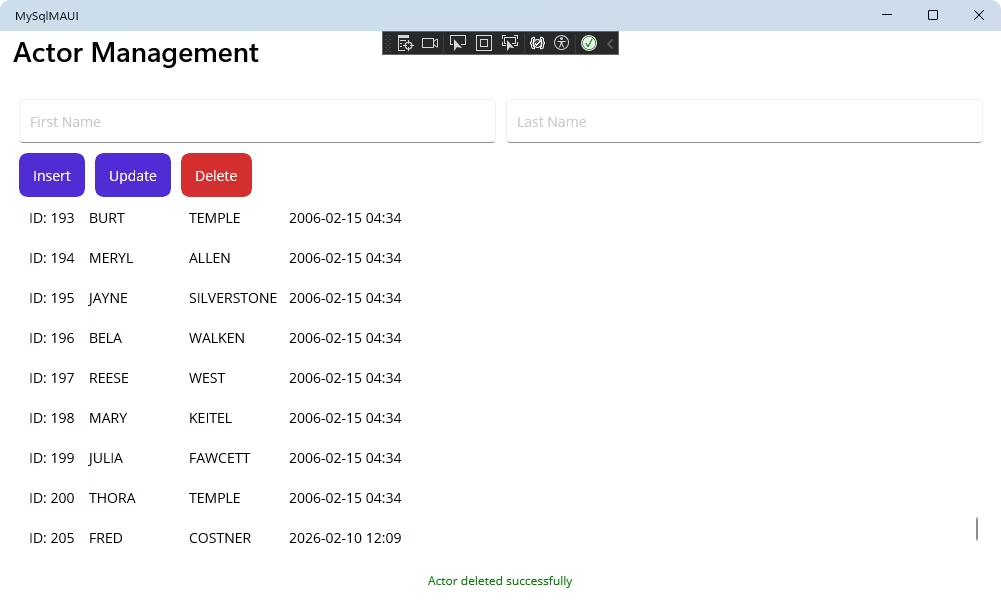
You have now completed the application. It has full CRUD functionality, allowing users to read, create, update, and delete records from the MySQL database in a user-friendly way.
This tutorial describes how to connect a .NET MAUI application to a MySQL database using dotConnect for MySQL and demonstrates how to manage the database. We explored how to create tables, insert data, read from the tables, and update or delete records.
Using the dotConnect for MySQL data provider greatly simplifies tasks by supporting database-specific features and integrating seamlessly with Visual Studio. This allows you to leverage your preferred IDE for application development with enhanced functionality.
Download a free trial to test the solution's functionality under real-world workloads and evaluate its efficiency within your workflows.
License key parameter for a working connection.
License key value, then create a MySqlConnection instance with this string and call Open() for it inside a try-catch block to test and handle connection errors.
Protocol=SSL and specify the SSL CA Cert, SSL Cert, and SSL Key file paths in the connection string, then open the MySqlConnection connection to establish an encrypted SSL/TLS connection.
Scaffold-DbContext with a dotConnect connection string (including the License key) to generate the DbContext and entity classes.

I'm a technical content writer who loves turning complex topics — think SQL, connectors, and backend chaos–into content that actually makes sense (and maybe even makes you smile). I write for devs, data folks, and curious minds who want less fluff and more clarity. When I'm not wrangling words, you'll find me dancing salsa, or hopping between cities.

