
You can install the driver by using the Windows installer.
After you receive the license key, add it to your connection strings to connect to the data source.
SugarCRM is a widely used customer relationship management (CRM) platform known for its robust functionality, flexibility, and high level of customization. It is an enterprise-grade system available both on-premises and in the cloud, designed to meet the needs of businesses of all sizes.
SugarCRM is often used as part of the backend infrastructure for many data-driven applications. With modern development technologies, building such applications has become faster and more efficient. However, one of the main challenges for developers is establishing a stable, secure, and reliable connection to access and manipulate data in SugarCRM from their applications. This tutorial will guide you through the process of connecting to SugarCRM from .NET applications using C# and dotConnect for SugarCRM.

dotConnect provides a simple way to connect .NET applications to SugarCRM, enabling access to CRM modules and records without dealing directly with the underlying web service implementation.

The provider allows developers to work with SugarCRM entities using standard SQL queries, making it easier to retrieve and manage CRM data without writing complex API requests.

dotConnect is built around familiar ADO.NET architecture, allowing standard connections, commands, and data reader classes to interact with CRM data in a .NET programming style.

Support for popular .NET ORM technologies (EF Core, Dapper, and NHibernate) enables easy modeling of SugarCRM entities and simplifies data access.
Implements established ADO.NET provider standards, ensuring predictable behavior and smooth compatibility with existing .NET tools, libraries, and frameworks.

Professional technical support, detailed product documentation, and continuous updates help developers maintain stable integrations with SugarCRM.
You can start using dotConnect for SugarCRM immediately with a 30-day free trial. Choose one of the following options:
You can install the driver by using the Windows installer.
After you receive the license key, add it to your connection strings to connect to the data source.
After creating the console application, use the code below to ensure the connection to SugarCRM is successful.
using System;
using Devart.Data.Sugar;

namespace SugarConsoleApp
{
    class Program
    {
        static void Main(string[] args)
        {
            string connectionString = "" +
                "Host=https://test.sugaropencloud.eu;" +
                "User Id=TestUser;" +
                "Password=TestPassword;" +
                "License Key=**********";

            try
            {
                using (var conn = new SugarConnection(connectionString))
                {
                    conn.Open();
                    using (var cmd = (SugarCommand)conn.CreateCommand())
                    {
                        cmd.CommandText = "SELECT Id, Name FROM Accounts";
                        using (var reader = cmd.ExecuteReader())
                        {
                            int count = 0;
                            while (reader.Read() && count < 15)
                            {
                                Console.WriteLine($"Id: {reader["Id"]}");
                                Console.WriteLine($"Name: {reader["Name"]}");
                                Console.WriteLine();
                                count++;
                            }
                        }
                    }
                }
            }
            catch (Exception ex)
            {
                Console.WriteLine("Error: " + ex.Message);
            }
        }
    }
}
When connected, the application fetches the first eight rows from the role table and displays them in the console.
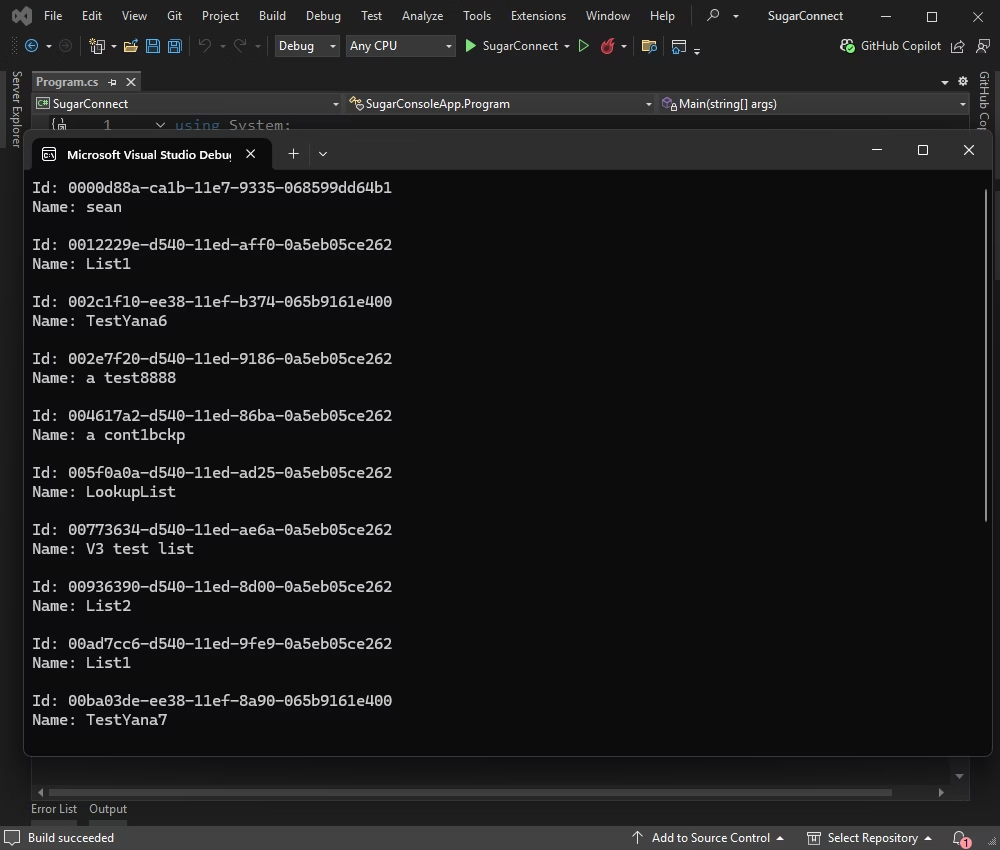
The following table explains the values used in connection strings.
| Name | Description |
|---|---|
| Server or Host | The login URL to SugarCRM service |
| User ID | The SugarCRM login account to login with |
| Password | The password for the SugarCRM login account |
| License Key | The license key |
For detailed information about all valid names for values within the ConnectionString, refer to the official documentation.
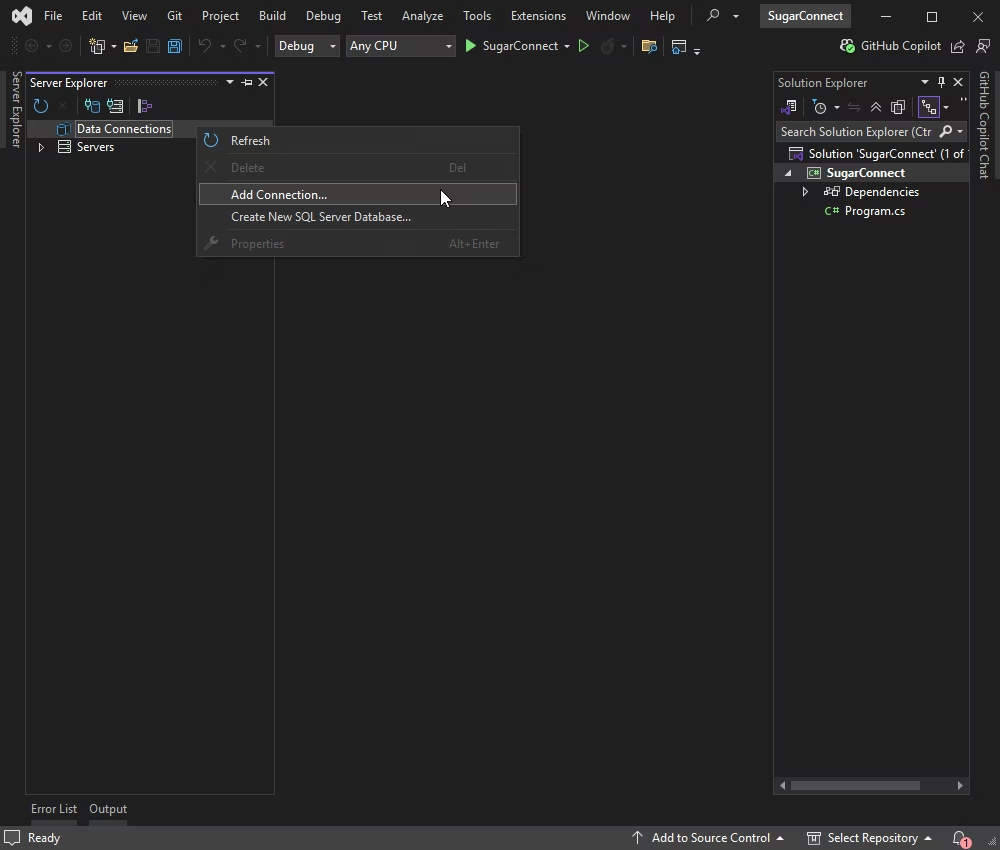
Another option available for connecting to SugarCRM is via the Server Explorer in Visual Studio. Right-click Data Connections and select Add Connection from the context menu.
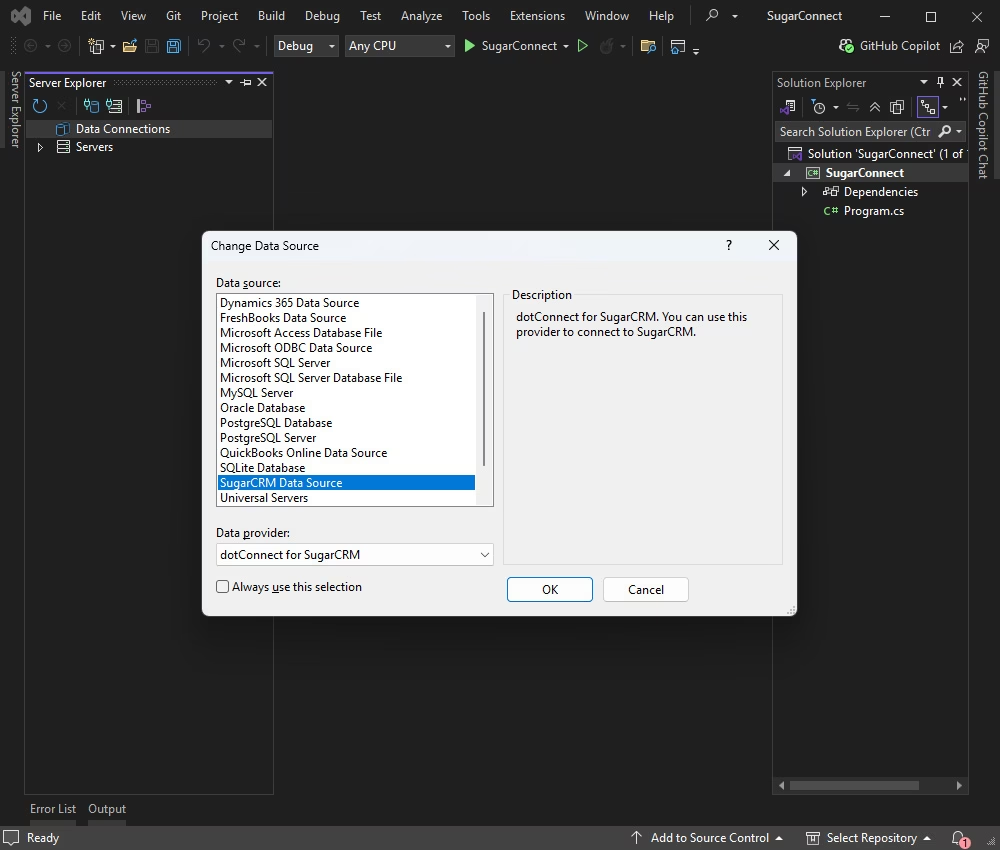
The Change Data Source dialog window opens. Select dotConnect for SugarCRM from the list of data providers.
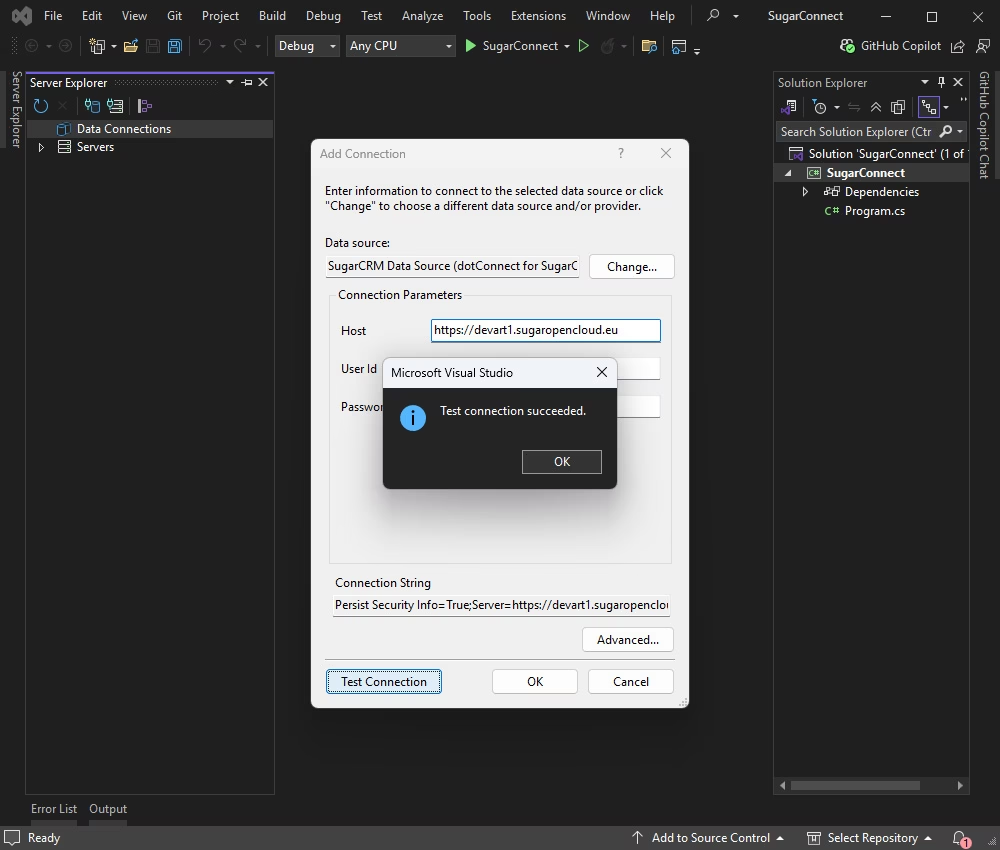
Fill in the required connection properties and click Test Connection to verify them. Now you can connect to SugarCRM.
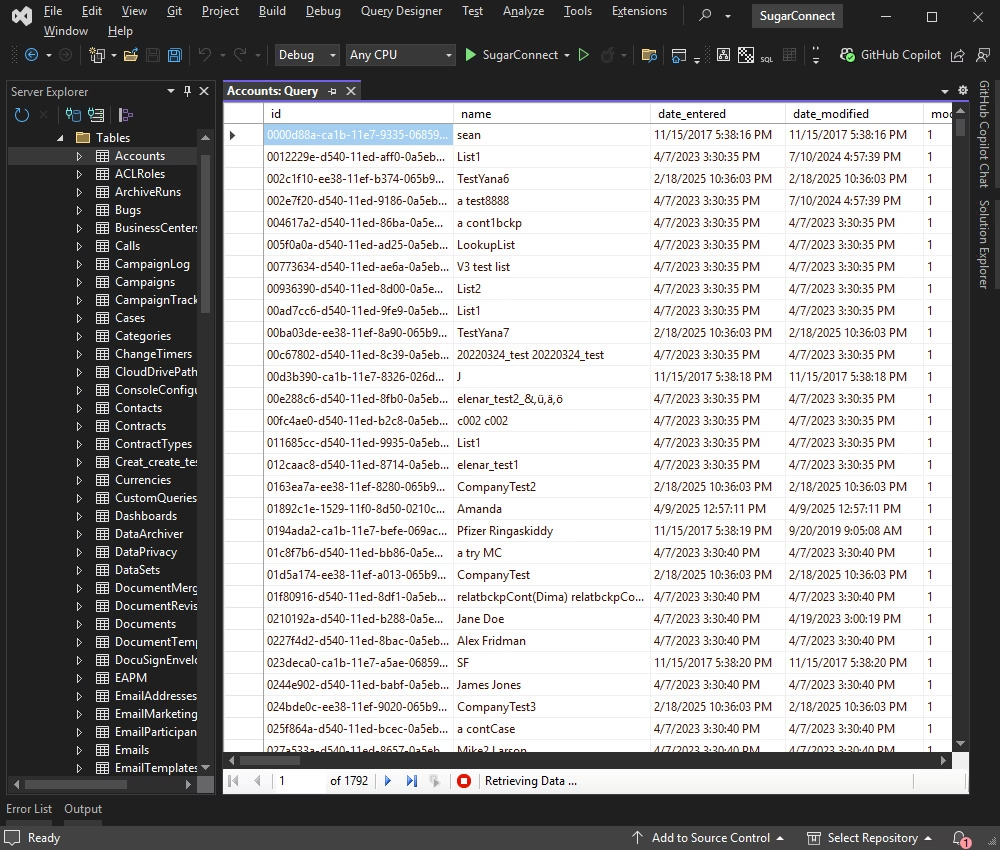
Expand the newly created data connection in the Server Explorer. You can view the data source structure, including all tables and table columns. To display data from a particular table, right-click it and select Retrieve Data from Table. This opens a new query window with a SELECT statement.
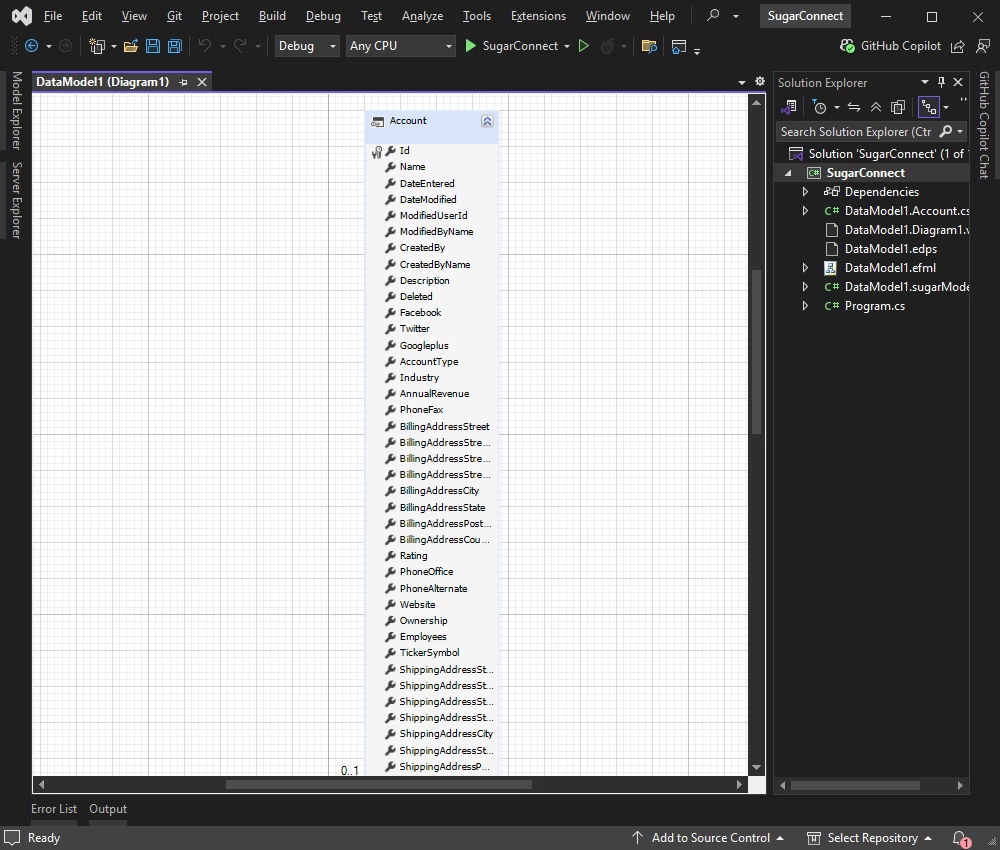
Entity Developer allows you to visually design and generate EF Core models, making database application development faster, easier, and more efficient. If you don't have it already installed, close your Visual Studio instance, download Entity Developer, and install it following the on-screen instructions.
After that, follow the detailed illustrated guide to create your database model using Entity Developer. When this process is complete, the model you created will open. You can start working with it immediately.
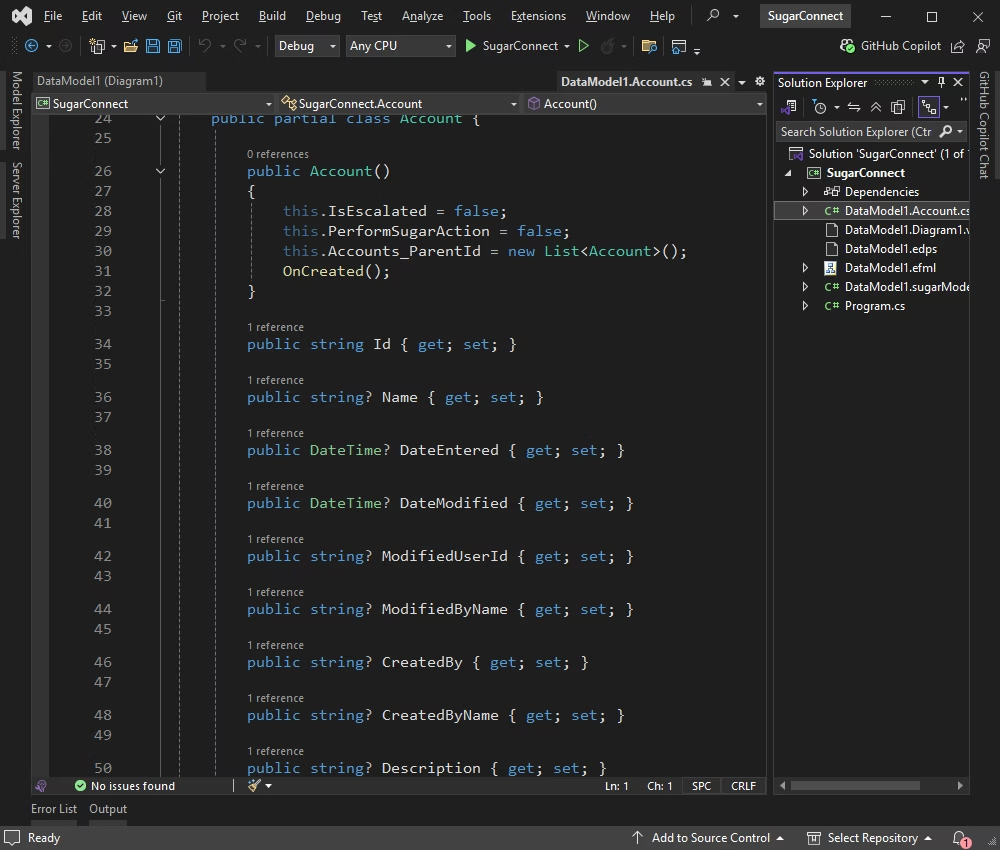
Also, you can see the generated DbContext files in Visual Studio under the model.
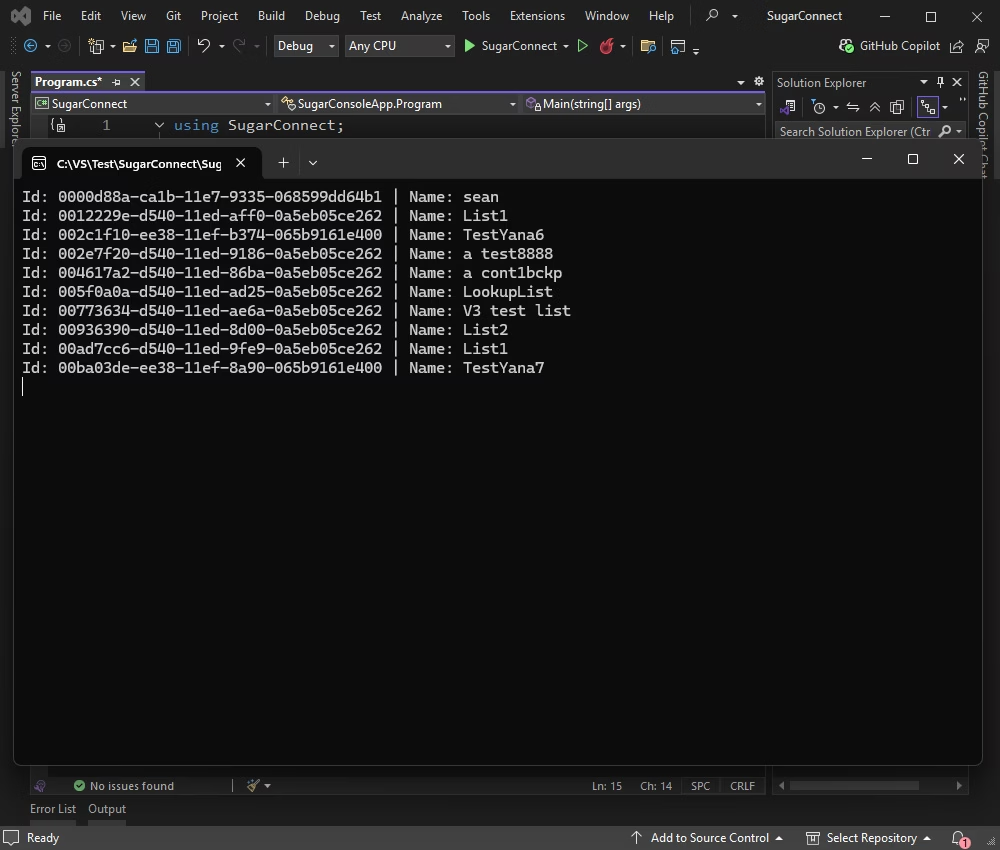
To read the SugarCRM data using EF Core, execute the code below.
using SugarConnect;
using Devart.Data.Sugar;
using Microsoft.EntityFrameworkCore;

namespace SugarConsoleApp
{
    class Program
    {
        static void Main(string[] args)
        {
            var optionsBuilder = new DbContextOptionsBuilder();
            optionsBuilder.UseSugar(ConfigurationHelper.ConnectionString);

            using (var context = new sugarModel(optionsBuilder.Options))
            {
                var query =
                    from acc in context.Accounts
                    orderby acc.Name
                    select acc;

                foreach (var account in query.Take(10).ToList())
                {
                    Console.WriteLine($"{account.Id} | {account.Name}");
                }
            }

            Console.ReadLine();
        }
    }
}
You can view the result in your console application.
One more connection method you can use to access your SugarCRM data is via Entity Framework Core (EF Core) and the Scaffold-DbContext command. We will generate the necessary EF Core model classes and DbContext based on the existing database schema.
First of all, let us install the required NuGet packages via the Solution Explorer in Visual Studio as described earlier:
After that, open the Package Manager Console: Tools > NuGet Package Manager > Package Manager Console and run the following command to scaffold the DbContext and entity classes from your data source. Ensure to replace the connection string with your actual connection details.
Scaffold-DbContext "Host=https://test.sugaropencloud.eu;User Id=TestUser;Password=TestPassword;License Key=******;" Devart.Data.Sugar.Entity.EFCore -OutputDir ModelsNotice that the -OutputDir Models parameter specifies the output directory to store the generated model classes (in this case, it is Models).
After running the scaffold command, EF Core will generate the DbContext class and entity classes in the specified output directory. Review the generated code and check how it matches your database schema.
This tutorial has demonstrated several methods for connecting to SugarCRM and accessing its data. You can choose the approach that best fits your project requirements and development scenarios when building applications that use SugarCRM as part of their backend.
dotConnect for SugarCRM provides a fast and straightforward way to establish a connection, while Entity Developer allows you to visually design data models and take full advantage of popular ORM frameworks with ease.
Both dotConnect for SugarCRM and Entity Developer offer fully functional free trials, allowing you to integrate them into your workflow and evaluate their capabilities firsthand.
Scaffold-DbContext with the Devart.Data.SugarCRM.EFCore package and a dotConnect connection string (including License Key) to create the DbContext and entity classes.

I'm a technical content writer who loves breaking complex tech topics into clear and helpful content that's enjoyable to read. With a solid writing background and growing skill in software development and database tools, I create content that's accurate, easy to follow, and genuinely useful. When I'm not writing, you'll probably find me learning something new or sweating it out at the gym.

