Getting started with Devart ODBC Driver for Google Sheets
To connect ODBC-compatible applications to Google Sheets, you need an ODBC Driver and an active Google account.
Devart ODBC Driver for Google Sheets enables high-performance access to Google Sheets data from Windows-based applications and tools. The Driver connects BI and reporting platforms, IDEs, spreadsheets, programming environments, and other ODBC-compatible applications to Google Sheets, allowing you to access and manage data stored in your spreadsheets using standard SQL.
The Driver communicates with Google Sheets over a secure HTTPS connection and can also connect through a proxy server.
This guide shows you how to install and activate the Driver, configure an ODBC data source (DSN), connect to Google Sheets using a DSN or connection string, and troubleshoot common connection issues.
Quick start: Connect to Google Sheets with ODBC
To connect to Google Sheets using the Devart ODBC Driver:
- Download and install the Driver.
- Activate the Driver using your activation key, or continue with the 30-day trial.
- Create an ODBC data source (DSN) and select Devart ODBC Driver for Google Sheets.
- Authenticate by signing in to your Google account and granting the necessary permissions.
- Select the spreadsheet to which you need to connect.
- Use the DSN in your ODBC-compatible application to access Google Sheets and work with its data.
The following sections provide detailed instructions for installing and configuring the ODBC Driver.
Prerequisites
Before you begin, make sure your environment meets the following requirements:
- Operating system: Windows Vista or later (32-bit or 64-bit), including Windows Terminal Server.
- Connection details: Active Google account.
- Data source: Google spreadsheet name.
- Activation key: For a purchased version of the Driver or a full-featured 30-day trial, use the activation key you received in the registration email or through the Customer Portal.
- Administrator rights: Required to install the Driver.
For a complete list of supported platforms and third-party tools, see the ODBC Driver for Google Sheets compatibility page.
Install the Driver
Installing the Devart ODBC Driver for Google Sheets is straightforward. All you need to do is download the package and follow the installation instructions.
1. Download the ODBC Driver for Google Sheets from the Devart website, open it, and click Next.
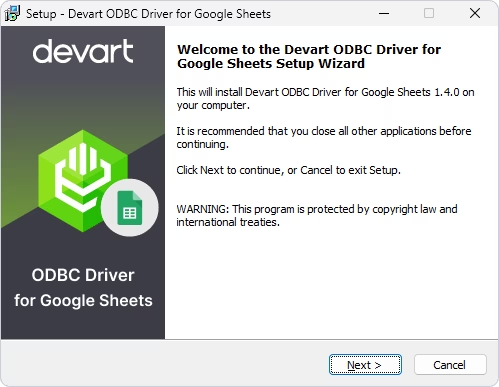
2. Read the License Agreement, select I accept the agreement, and click Next.
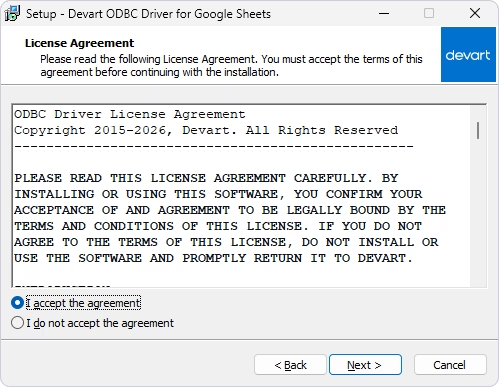
3. On the Select Destination Location page, keep the default folder or click Browse to choose another one, and click Next.
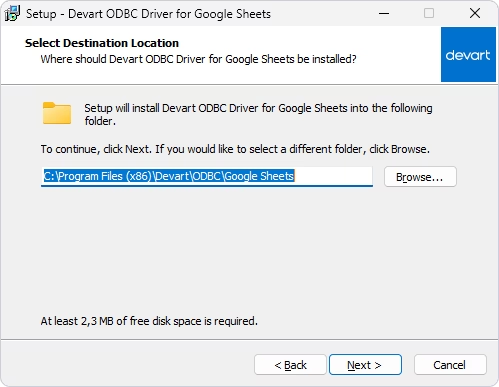
4. On the Select Components page, select the components to install, then click Next.
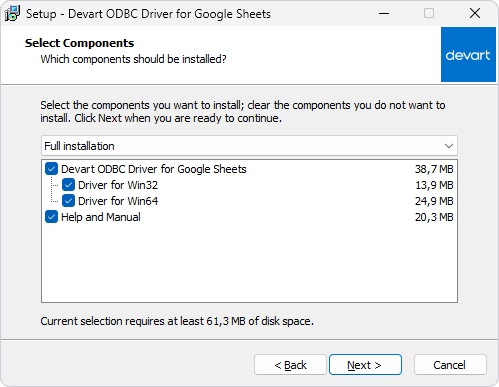
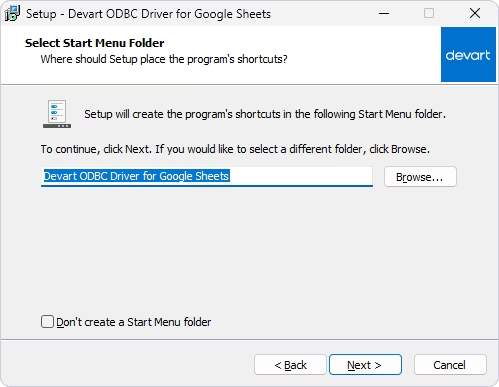
5. On the Select Start Menu Folder page, specify the folder for the Driver shortcuts. To skip creating a Start Menu folder, select Don't create a Start Menu folder. Click Next, then click Install.
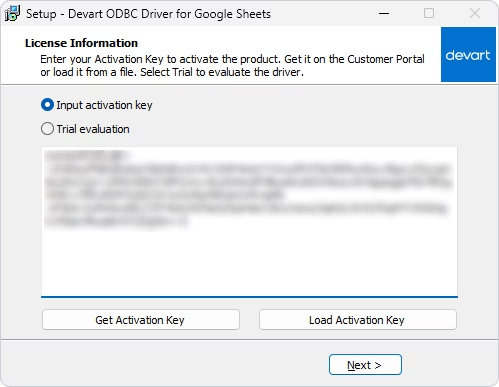
6. On the License Information page, select Input activation key and enter your key. You can find it in the registration email or your Customer Portal. To open the Customer Portal, click Get Activation Key.
If the activation key is saved on your computer, click Load Activation Key and select the corresponding file.
To evaluate the Driver without a purchased key, select Trial evaluation.
7. Click Next, then click Finish to complete the installation.
Configure an ODBC data source
In this guide, you create a Data Source Name (DSN) for the ODBC connection and verify the connection details. A DSN stores connection settings, such as the refresh token obtained from Google and the spreadsheet name and ID, that applications use to connect to Google Sheets. Applications can also connect without a DSN, by passing the same parameters in a connection string.
1. In Windows Search, enter ODBC Data Sources, and open the ODBC Data Source Administrator that matches the bitness of your application.
2. Select the User DSN, System DSN, or File DSN tab, and click Add:
- User DSN — Available only to the user who creates it.
- System DSN — Available to all users on the computer.
- File DSN — Stores connection settings in a file that can be shared between computers where the required ODBC driver is installed.
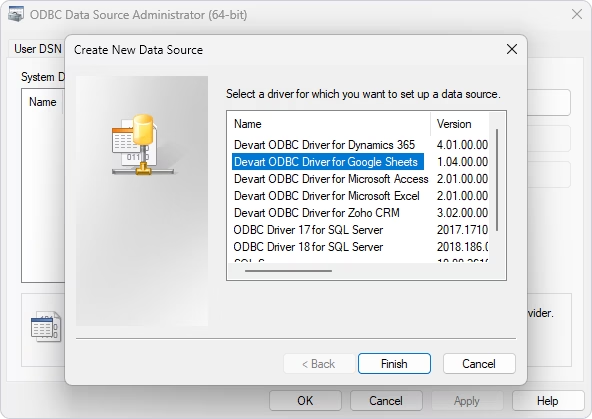
3. In the Create New Data Source dialog, select Devart ODBC Driver for Google Sheets, and click Finish.
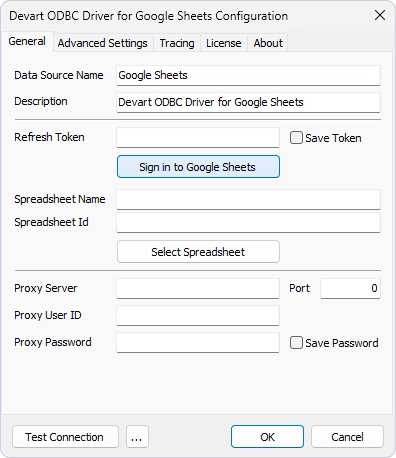
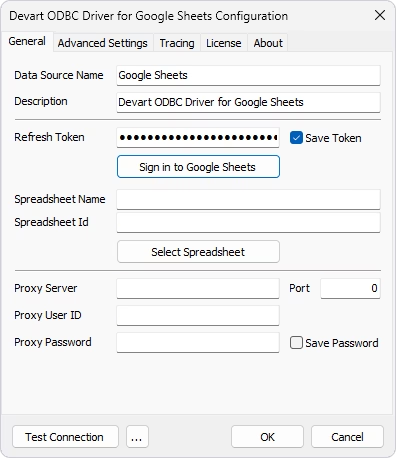
4. In the Devart ODBC Driver for Google Sheets Configuration dialog, enter a Data Source Name and an optional Description.
5. Click Sign in to Google Sheets to obtain the Refresh Token.
6. Sign in to your Google account.
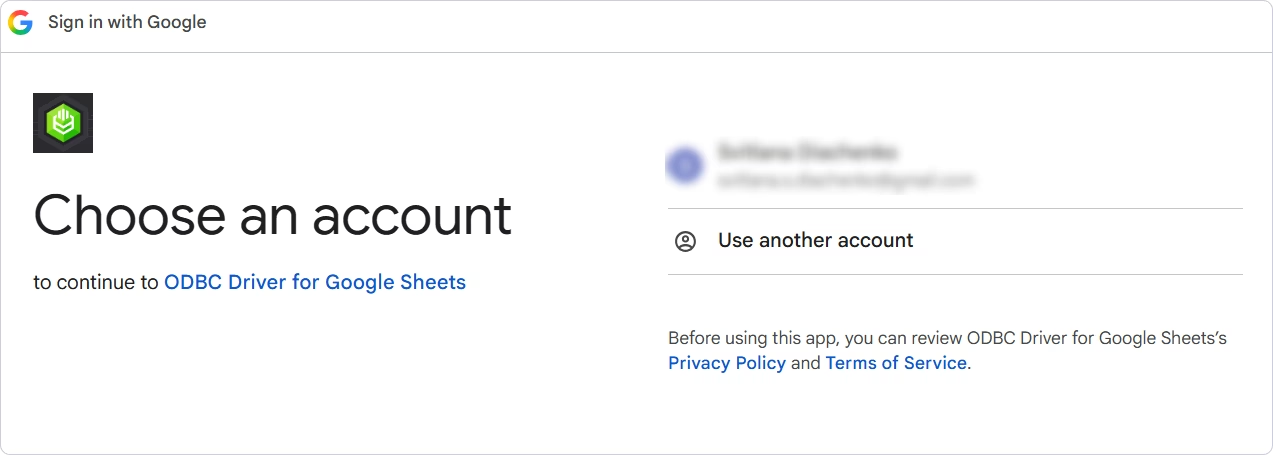
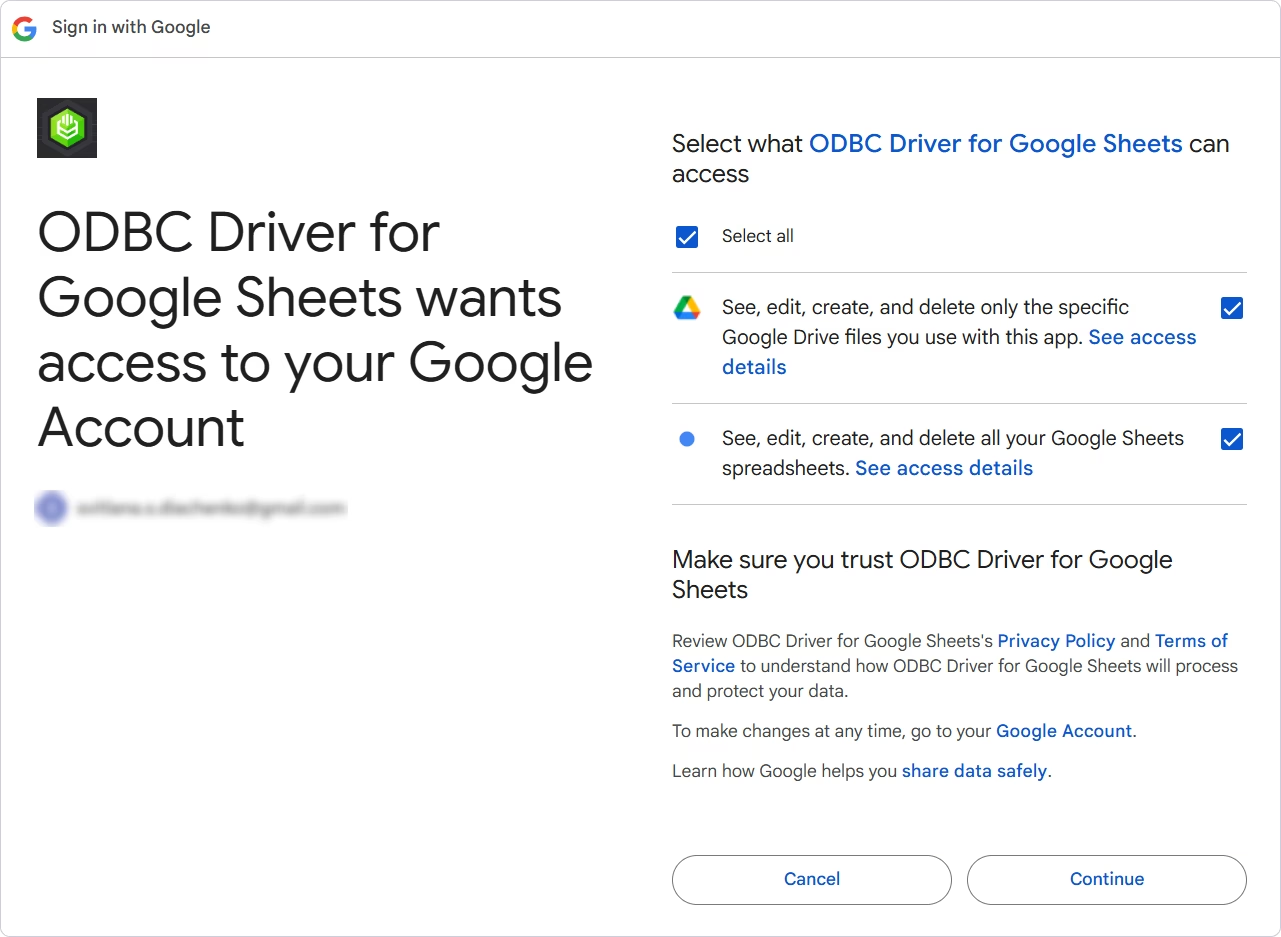
7. Grant the necessary access permissions to the ODBC Driver and click Continue.
8. The Refresh Token field is filled automatically. Select Save Token to store it.
9. From the list of spreadsheets, choose the Google spreadsheet to which you are going to connect.
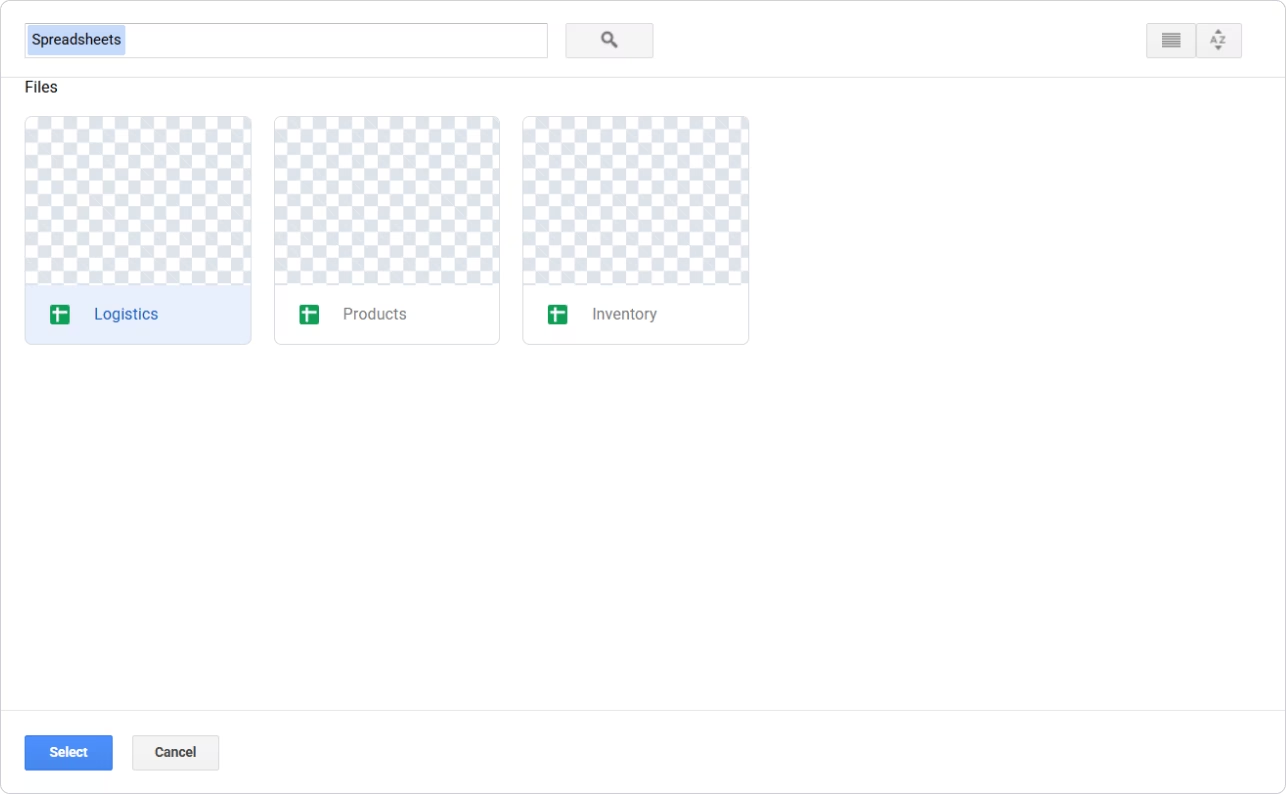
Its name and ID are automatically inserted in the DSN configuration dialog.
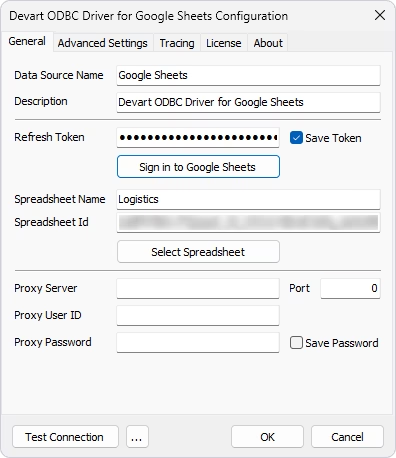
10. Optional: Click Test Connection to verify the connection settings.
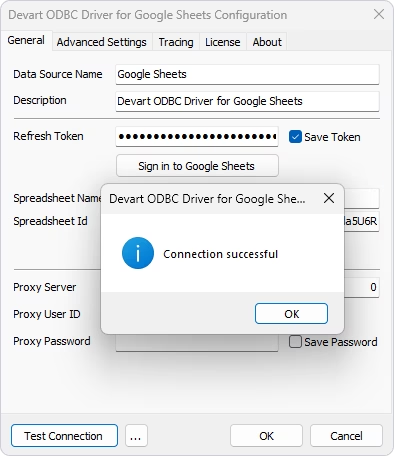
11. Click OK to save the DSN settings.
To fine-tune metadata, timeout, and compatibility behavior, use the Advanced Settings tab of the same dialog.
Connect to Google Sheets using a connection string
In addition to using a DSN, you can connect to Google Sheets by specifying the connection parameters directly in an ODBC connection string. This type of connection is known as a DSN-less connection.
The following table summarizes when to use each connection method:
| Connection method | How it works | Best for |
|---|---|---|
| DSN | Stores the connection settings in a configured ODBC data source. Applications connect by specifying the DSN name. | Desktop applications, BI and reporting tools, and reusable connections configured on a client computer |
| DSN-less | Specifies the Driver and connection parameters directly in a connection string. No DSN needs to be created beforehand. | Applications, scripts, and automated deployments where connection settings are managed programmatically |
To create a DSN-less connection, configure the connection string as follows.
DRIVER={Devart ODBC Driver for Google Sheets};Refresh Token=your_refresh_token;Spreadsheet=your_spreadsheet_name;Spreadsheet Id=your_spreadsheet_idYou can also specify advanced connection parameters to configure ODBC behavior, string types, proxy configuration, and other Driver settings.
For the complete list of supported options, see Google Sheets ODBC Connection String Parameters.
Troubleshoot common issues
If you cannot connect to Google Sheets through the Devart ODBC Driver, use the following solutions to resolve common connection issues.
"Product is not activated or has been deactivated" error
This error occurs when the Driver has not been activated or its activation is no longer valid.
Open the DSN configuration dialog, go to the License tab, click Input Activation Key, and enter your activation key. After activation, test the connection again.
ODBC data source not found or Driver not available
If your application cannot find the DSN or the Devart ODBC Driver for Google Sheets, check the application and Driver bitness.
A 32-bit application cannot use a DSN created in the 64-bit ODBC Data Source Administrator, and a 64-bit application cannot use a DSN created in the 32-bit administrator.
Make sure that:
- The DSN is created in the ODBC administrator that matches your application's bitness.
- The corresponding 32-bit or 64-bit version of the Driver is installed.
- The application is configured to use the correct DSN.
Cannot connect to Google Sheets
If the Driver cannot reach Google Sheets, verify the network settings:
- Verify that the computer running the ODBC client can reach the required Google Sheets endpoints over HTTPS.
- If your environment uses a proxy server, configure the proxy settings and credentials in the connection dialog.
Login or spreadsheet connection fails
If Google Sheets is reachable but authentication or spreadsheet access fails, check the connection settings:
- Verify that you are using the correct Google account. Reauthenticate with your credentials to obtain a new refresh token.
- Make sure the spreadsheet you are trying to connect to exists.
- Confirm that your Google account is allowed to access the selected spreadsheet.
Google Sheets connection times out
If the server is available but the connection takes too long to establish, increase Connection Timeout on the Advanced Settings tab. The default connection timeout is 60 seconds.
Also make sure the Google API quotas are available and no temporary service issues exist. Retry the operation after a short period.
Additional resources
After you install and configure Devart ODBC Driver for Google Sheets, use the following resources to continue setting up and working with your connections:
- Connection string parameters — Browse the complete list of connection options for configuring authentication, spreadsheet selection, proxy settings, timeouts, ODBC behavior, and other Driver settings.
- Google Sheets integrations — Find step-by-step guides for connecting BI, reporting, analytics, and other ODBC-compatible tools to Google Sheets.
- Using in third-party tools—ODBC Driver for Google Sheets — Connect to Google Sheets from various tools and applications written in Python, C#, C/C++, Go, Node.js, PHP, R, Visual Basic, and other supported languages.
- ODBC Driver for Google Sheets documentation — Explore installation, configuration, connectivity, and advanced Driver features.