Getting started with Devart ODBC Driver for Zoho CRM
ODBC is a standard interface that allows applications to connect to databases without needing to know the database-specific communication details.
Devart ODBC Driver for Zoho CRM provides fast and reliable access to Zoho CRM data from Windows-based applications and tools. It connects BI and reporting platforms, IDEs, spreadsheets, scripting environments, and other ODBC-compatible applications to Zoho CRM, allowing you to access and manage Zoho data using standard SQL.
The Driver connects to Zoho CRM directly over HTTPS, enabling high-performance access to data. When direct connectivity is restricted by network policies, the Driver supports connections via a proxy server.
This guide walks you through installing the Driver, configuring an ODBC data source, and testing the connection to Zoho CRM.
Quick start: Connect to Zoho CRM with ODBC
To connect to Zoho CRM using the Devart ODBC Driver:
- Download and install the Driver matching your operating system.
- Activate the Driver using a purchased or trial activation key.
- Create an ODBC data source (DSN) and select Devart ODBC Driver for Zoho CRM.
- Authenticate by signing in to your Zoho account and selecting the domain of your Zoho instance.
- Use the DSN in your ODBC-compatible application to access Zoho CRM and work with its data.
The following sections provide detailed instructions for installing and configuring the ODBC Driver.
Prerequisites
Before you begin, ensure that your environment meets the requirements for connecting to Zoho CRM through the Devart ODBC Driver:
- Windows 7 or later (32-bit or 64-bit), including Windows Terminal Server
- .NET Framework 4.5 or later
- Active Zoho account
Install the Driver
Installing the Devart ODBC Driver for Zoho CRM is straightforward. All you need to do is download it to your computer and follow the installation wizard's instructions.
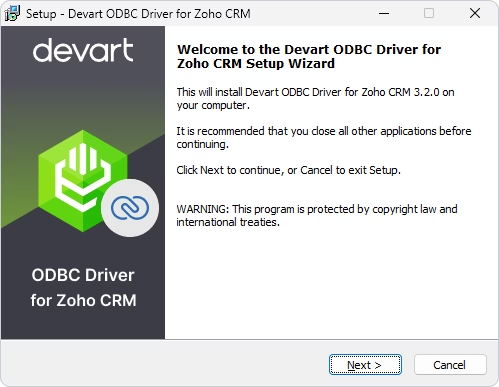
1. Download the ODBC Driver for Zoho CRM from the Devart website, open it, and click Next.
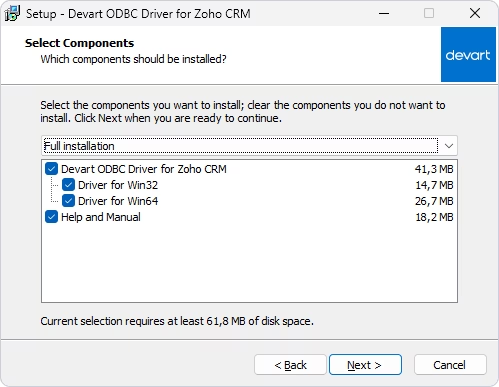
2. Follow the wizard's steps: accept the license agreement and select the destination folder for the Driver. On the Select Components page, select the 32-bit or 64-bit version of the Driver, or both, depending on your application requirements, and click Next. Optionally, install Help and Manual.
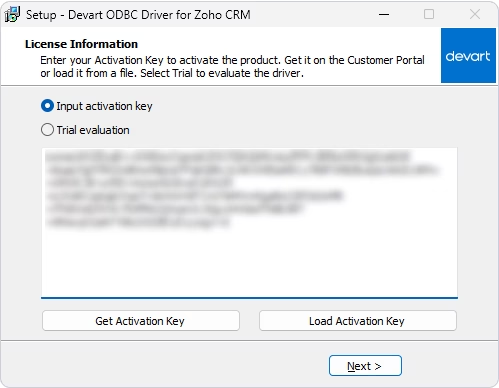
3. To activate the Driver, select Input activation key and enter your key. You can find it in the registration email or your Customer Portal. To access the Customer Portal, click Get Activation Key.
If the activation key is saved on your computer, click Load Activation Key and select the corresponding file.
For Trial evaluation, no activation key is required. If you have received a trial key, you can either enter it in the activation dialog or start the trial immediately by selecting Trial evaluation.
4. Click Next to proceed with the installation, then click Finish.
Configure an ODBC data source
After installing Devart ODBC Driver for Zoho CRM, you need to create a Data Source Name (DSN) for your ODBC connection and verify the connection details. Follow these steps to configure the Driver on Windows.
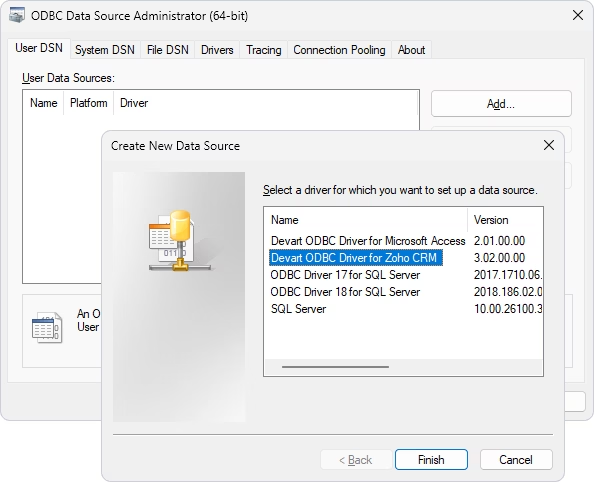
1. Enter ODBC Data Sources in the Windows Search field and find the ODBC Data Source Administrator that matches the bitness of your third-party application. Open the ODBC Data Source Administrator, select User DSN or System DSN, and click Add. In the dialog, select Devart ODBC Driver for Zoho CRM and click Finish.
2. In the setup dialog, enter the Data Source Name and Description. In the Domain field, select the domain of your Zoho CRM instance: crm.zoho.com for the US (the default value), crm.zoho.eu for Europe, crm.zoho.ca for Canada, etc. For the full list of available domains, refer to the official documentation. Click Sign in to Zoho to obtain the Refresh Token.
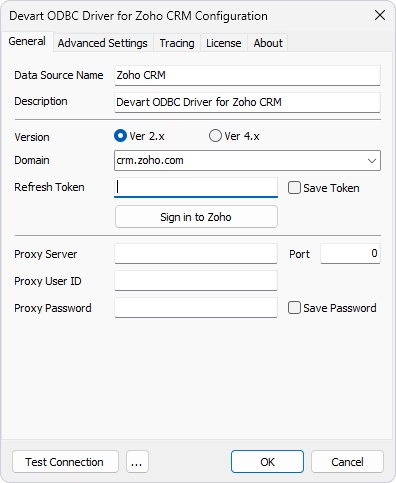
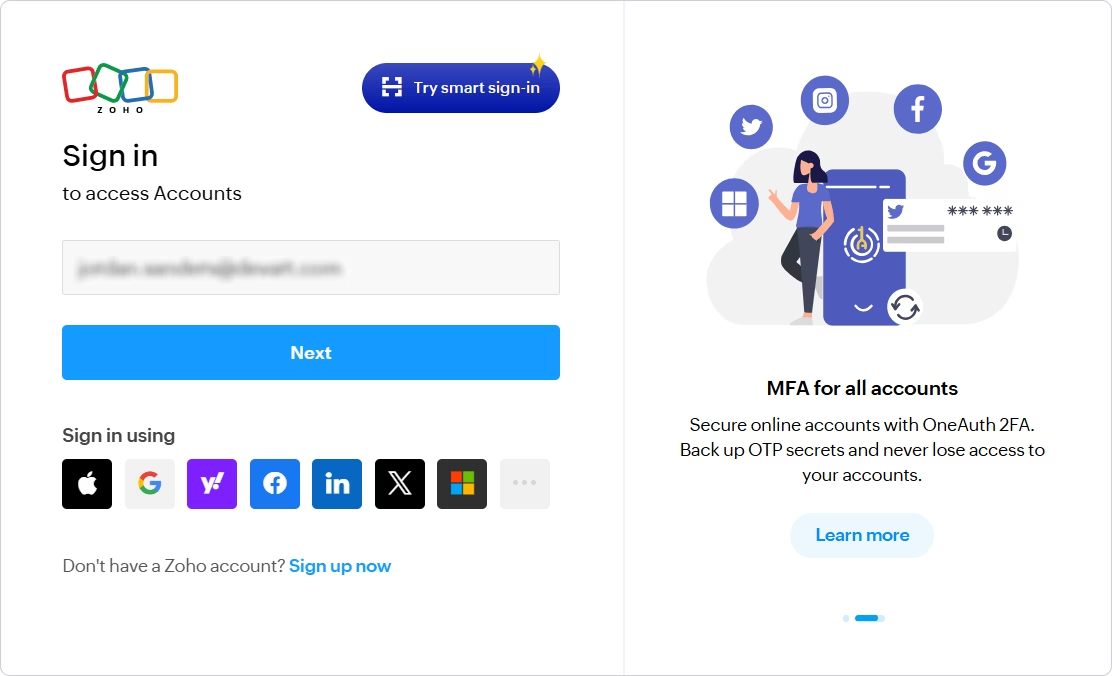
3. Sign in to your Zoho account.
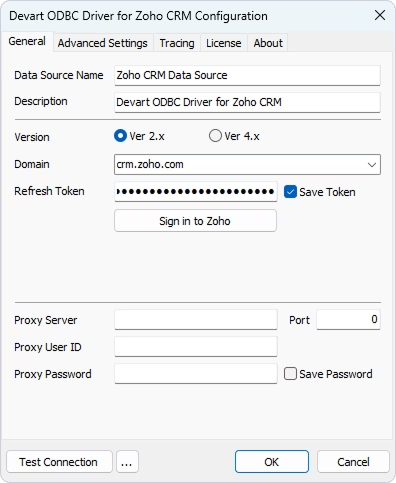
4. The Refresh Token field is filled automatically. Select Save Token to store it.
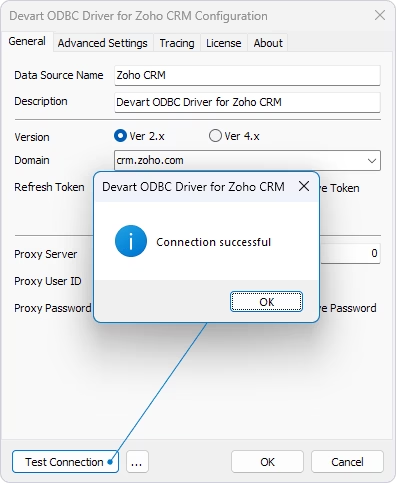
5. After you configure the connection settings, click Test Connection.
If all parameters are valid, the Driver displays a success message.
6. Click OK to save the DSN settings.
Troubleshooting
If the connection fails, check the following common causes:
- Incorrect Zoho credentials: Verify that you are using the correct Zoho CRM user name and password and re-enter them if needed.
- Invalid or expired refresh token: Re-authenticate by clicking Sign in to Zoho and ensure Save Token is selected.
- Wrong Zoho data center/API domain: Verify that your connection uses the domain corresponding to your Zoho CRM organization. Different data centers use different API domains.
- Insufficient permissions: Ensure that the authenticated user account has sufficient permissions to access Zoho CRM data.
- Network or proxy restrictions: Verify that the computer running the ODBC client can reach the required Zoho endpoints over HTTPS. If your environment uses a proxy server, configure the proxy settings and credentials in the connection dialog.
- Incorrect DSN configuration: Verify DSN parameters and test the connection.
Additional resources
After you install and configure Devart ODBC Driver for Zoho CRM, use the following resources to learn more about configuring and using the Driver.
- Advanced connection options — Browse the complete list of connection options for configuring metadata management, timeouts, ODBC behavior, and other Driver settings.
- Zoho CRM integrations — Find step-by-step guides for connecting BI, reporting, analytics, and other ODBC-compatible tools to Zoho CRM.
- How to use the Driver from programming languages — Connect to applications written in Python, C#, C/C++, Go, Node.js, PHP, R, Visual Basic, and other supported languages.
- ODBC Driver for Zoho CRM documentation — Explore installation, configuration, connectivity, and advanced Driver features.