File comparison tool you are looking for
Devart proudly presents Code Compare - an advanced visual file comparison tool
and a major step forward in source code comparison. Our programmer-to-programmer
philosophy ensures that both freeware Code Compare and powerful Code Compare Pro
software are tailored to perfectly meet your needs in change tracking and file merging.
Intuitive and user-friendly interface guarantees you can start comparing and merging
your source files in a snap. Packed with numerous cutting-edge features and distributed
as a standalone application or as a Visual Studio add-in, this code comparison tool
vividly demonstrates that we could never offer our customers anything but the best
file comparison software.
You can replace default diff and merge tools in SVN, TFS, Git,
Mercurial or in any other version control system, supporting external tools,
with Code Compare. By doing so, you will get significant advantages in tracking
changes gradually implemented into your project files over time.
Code Orientation
Source code comparison has just become a child's play! Code Compare introduces
the concept of Code Orientation, ultimately standing it out of competitive file
comparison software. The concept implies syntax highlighting as well as unique
structure and lexical comparison algorithms. The file comparison tool
takes into account language specifics, which allows comparing sources in several
of the most popular programming languages as code!
Syntax Highlighting
Code Compare recognizes language syntax elements and highlights them in different
colors, which makes visual file comparison and merge considerably easier.
This is complemented with the Brace Matching feature, which highlights the
beginning and the end of a code block. Ultimately you are able to experience an
incomparably convenient code reading for comprehensive file comparison.
Structure Comparison
The concept of Code Orientation involves several pillars. One of them is Structure
Comparison. This methodology allows comparing source code by its signature,
instead of its location only. Code Compare supports Structure Comparison in several
most popular languages, namely C#, JavaScript, Java and Visual Basic altogether
making it a comprehensive tool for source code comparison.
Lexical Comparison
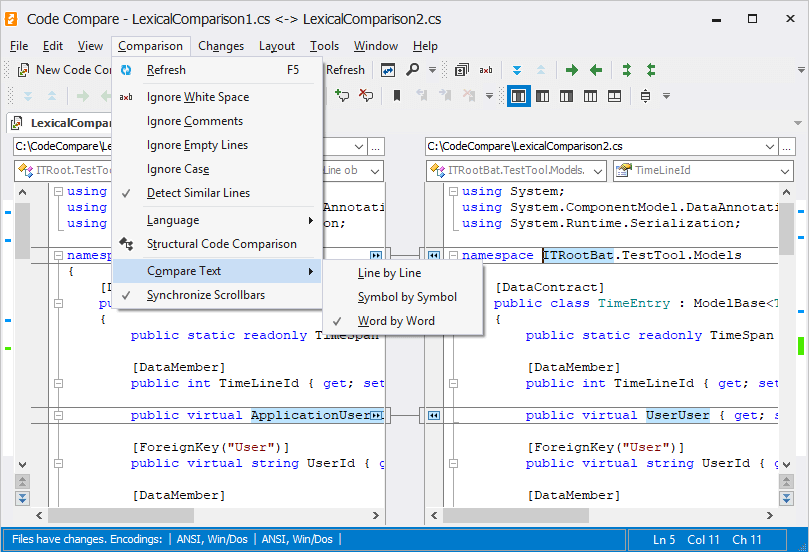
Another key point in the concept of code orientation is Lexical Comparison. This
algorithm is triggered when you choose Symbol By Symbol comparison mode. It detects
lexemes from supported languages and compares them word by word. Code Compare
supports C#, C++, Visual Basic and JavaScript sources for Lexical Comparison.
Difference Explorer
The final element of source-oriented file comparison is Difference Explorer. This
advanced option (available in Code Compare Pro only) shows changes in class structure
between revisions. It displays structure tree of source files and marks changes
by colors. This way you can visually review changes in the code and navigate between
them.
Smooth Visual Studio Integration
Striving to make source file comparison and merge even more effective, we've added
unique Visual Studio integration functionality to Code Compare. The true
freedom of performing all the development and merging operations within one environment
at the same time is finally at your hands. With a file comparison tool integrated,
Visual Studio receives a special Code Compare menu and toolbar, which contain every
function you needed for file comparison and 3-way merge.
The one environment for development and merge!
While distributed as a standalone file comparison tool, Code Compare can also be
smoothly integrated into different software environments, e.g. Windows Explorer,
version control systems and most prominently - Microsoft Visual Studio integrated
development environment.
When integrated into Visual Studio 2008 or Visual Studio 2010 Code Compare receives
numerous benefits in terms of file comparison and merging.
For instance, you can view and compare the code directly in the native Visual Studio
code editor, using all of its functionality, including keyboard shortcuts, code
formatting and syntax validation the way you are used to. As a part of its advanced
Visual Studio integration capabilities, Code Compare uses native Visual Studio colors
to highlight syntax. Also, in this case Code Navigation and Intellisense
function in the context of currently open solution.
Comparing the project structure and merging its elements can now be performed using
the solution explorer menu, containing a Code Compare item.
Three-way Merge
Three-way comparison and merge is one of the strongest functions incorporated
in Code Compare tool. This function uses all the features native to two-way file
comparison processing three files at once. The main goal is comparing one base file
with two of its editions. Highly-customizable GUI and one-click operation
make three-way merge an ultimately convenient solution for team projects.
3-Way Merge - Vertical Layout
|
3-Way Merge - Mixed Layout
|
Three-way merge in a snap!
Using this feature the content of one file placed on the center pane is compared
with the content of left and right pane content simultaneously. You can open any
three files using Browse button as well as Windows Explorer context menu or drag
and drop.
Yet, this feature is most commonly used to solve conflicts in version control systems.
Three-way file merging allows you to merge two derived files to a base file
or to a result file.
As one of its newest additions, Code Compare GUI features a special toolbar for
working with pane layout. Using these panes you can quickly switch between horizontal
or vertical layout as well as hide any of the displayed panes, leaving only
the ones necessary for you.
Folder Synchronization
From now on even if you don't use any version control systems, the extensive functionality
of Code Compare can come in handy when you need to compare and merge entire
folders. This application is very useful for detecting changes in different
versions of source code or web pages. Advanced integration capabilities of this
file comparison tool couldn't miss Windows Explorer. All you have to do in order
to compare the contents of two folders is select them and choose the respective
option from the context menu.
|
|
Folder Synchronization Options
|
Compare folders and copy changes - it's as easy as that!
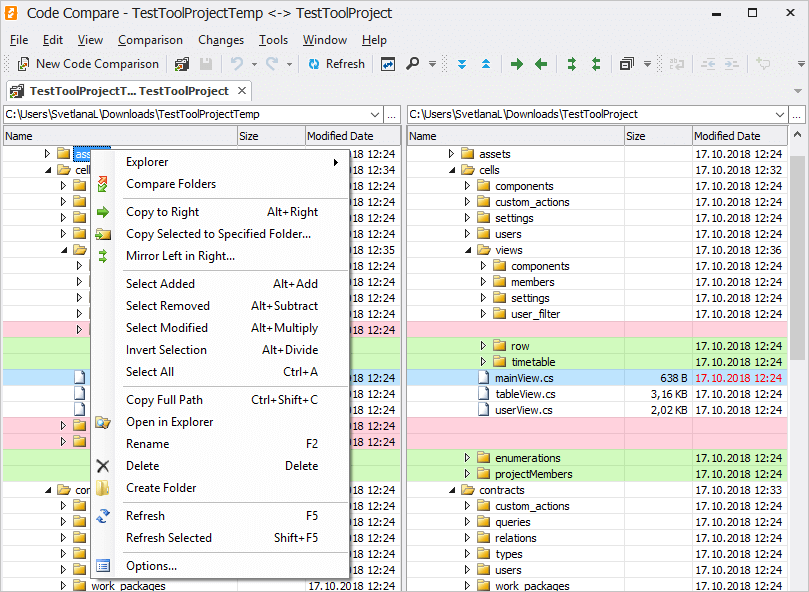
The folder comparison feature uses color highlighting to mark differences. You can
merge folders with the help of Copy to Left and Copy to Right items of the
context menu. If you want to compare a file from one folder with a respective file
from another folder just double-click on the file or press ENTER on it.
The resulting comparison is fairly quick, yet it can be further enhanced due to
an additional option, which skips files with equal size and timestamp.
Another helpful option is the possibility to filter files and folders.
For instance, it allows you to ignore binary files and subversion folders.
Comparison of individual files can be called by simple double-clicking or using
Windows Explorer menu, integrated in context menu of files and folders. Finally,
you can merge separated files one-by-one or whole folders from one pane to another.