MySQL Backup Tool for Database Administrators
Our convenient MySQL backup tool being a part of dbForge
Studio for MySQL is intended to help DBAs to backup MySQL databases with
the maximum quality and speed. As a MySQL administrator, you will surely appreciate
it as it will save your time and effort when performing MySQL database backup
tasks.
You can select any of five levels to compress your files, use auto delete of old
MySQL backup files to free your disc space, and set extended options for a database
to export, backup structure, users, or a script. Unlike binary MySQL backup process,
database is dumped in SQL format.
Save your settings along with connections as a project for the next time or to use
in the command line interface. Our MySQL backup tool can be used
as a full replacement of MySQL Dump command line tool.
How to Backup MySQL Database through GUI?
The following example will show you how to backup MySQL databases using the GUI.
-
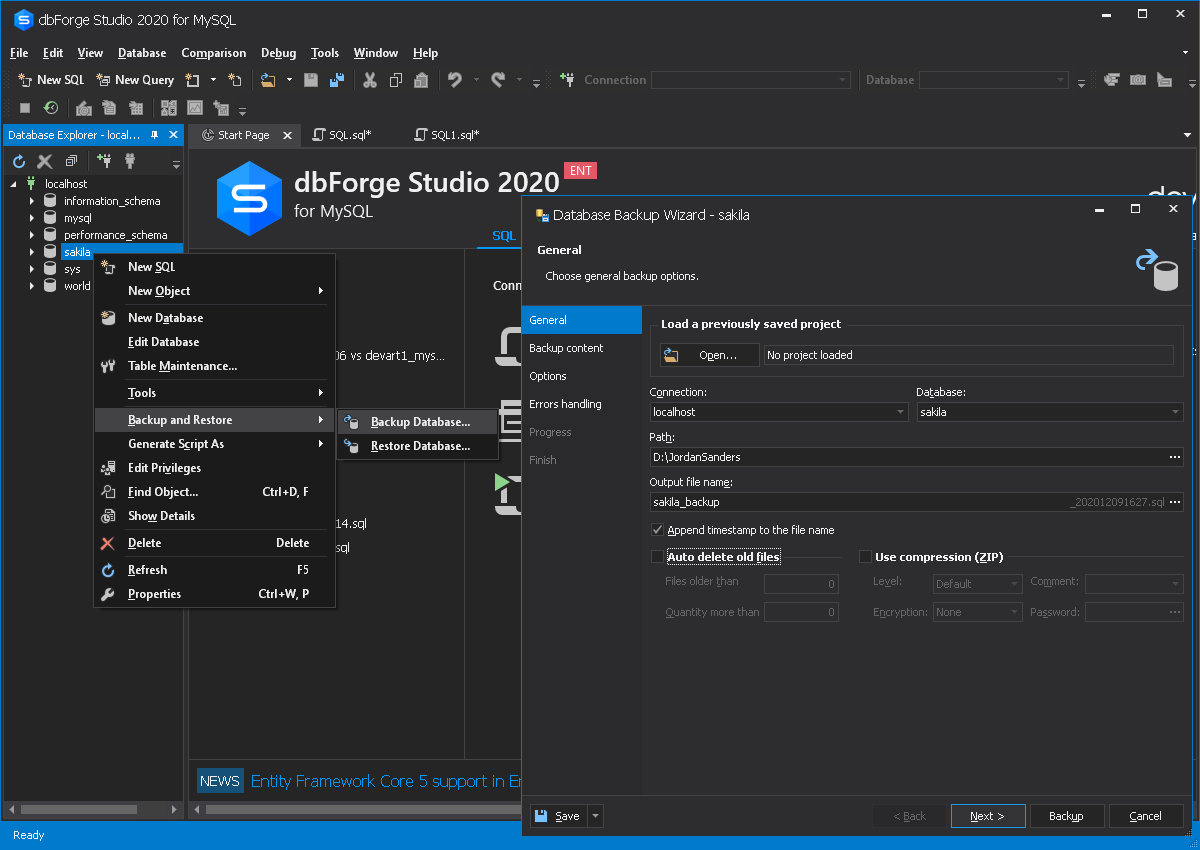
Right-click the required database in the Database Explorer window and select
Backup and Restore → Backup Database option. The Database Backup
Wizard opens.
-
On the General wizard page, specify a connection, a database to backup and a name
for the output file. Click Next.
-
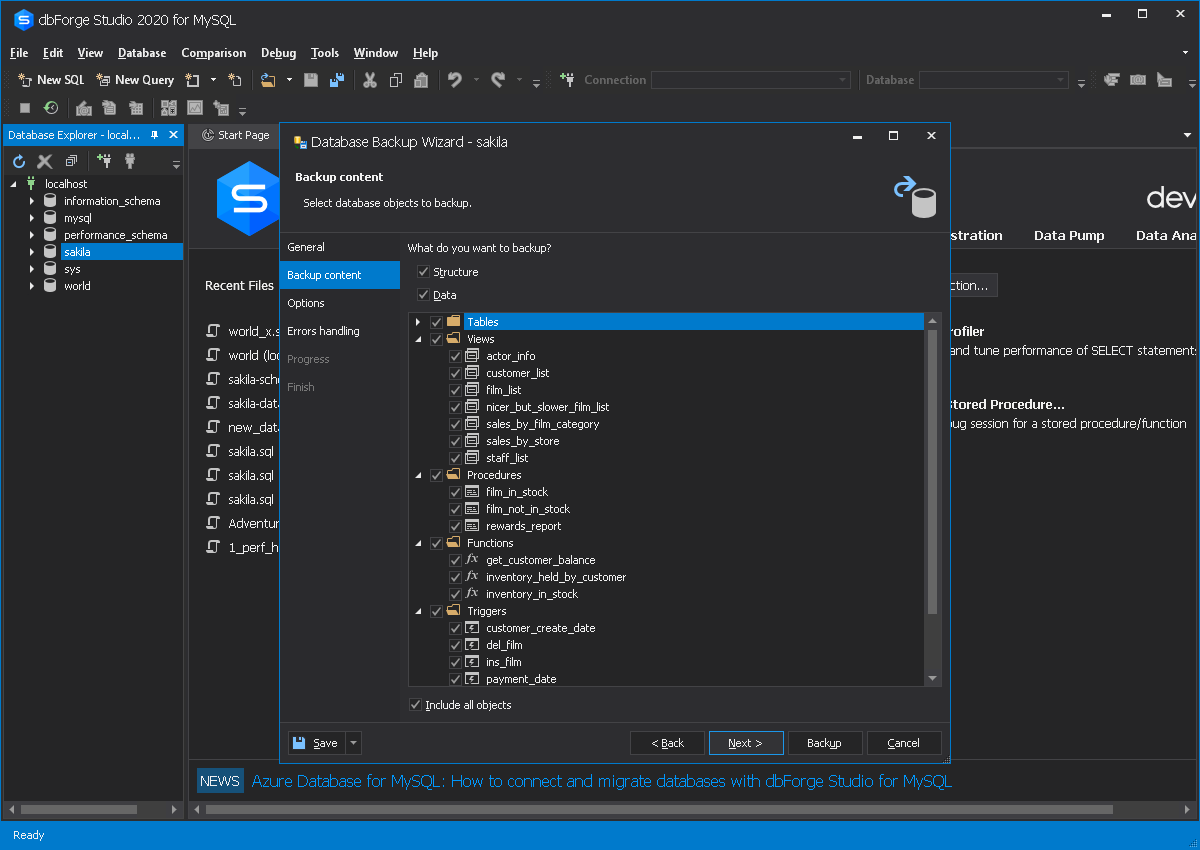
Select backup content. Click Next.
-
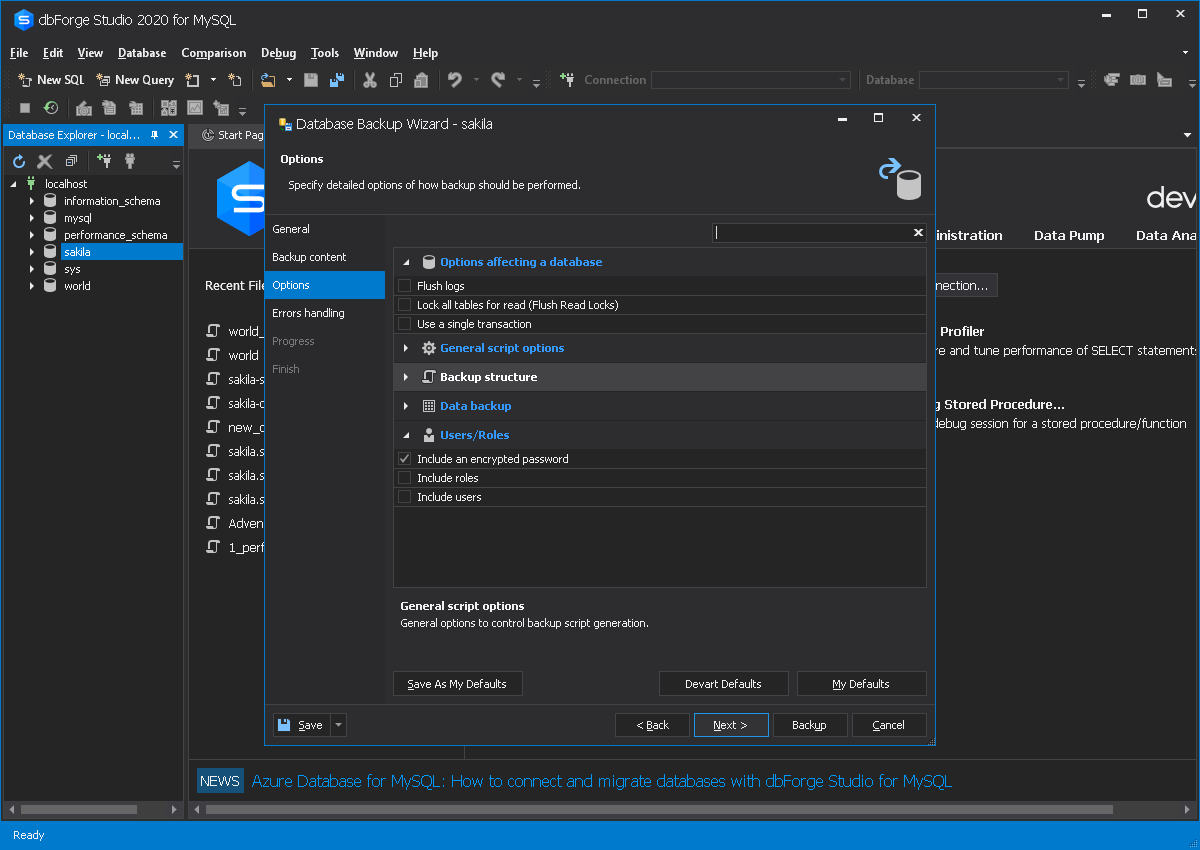
Specify detailed options of how MySQL backup should be performed. Click Next.
-
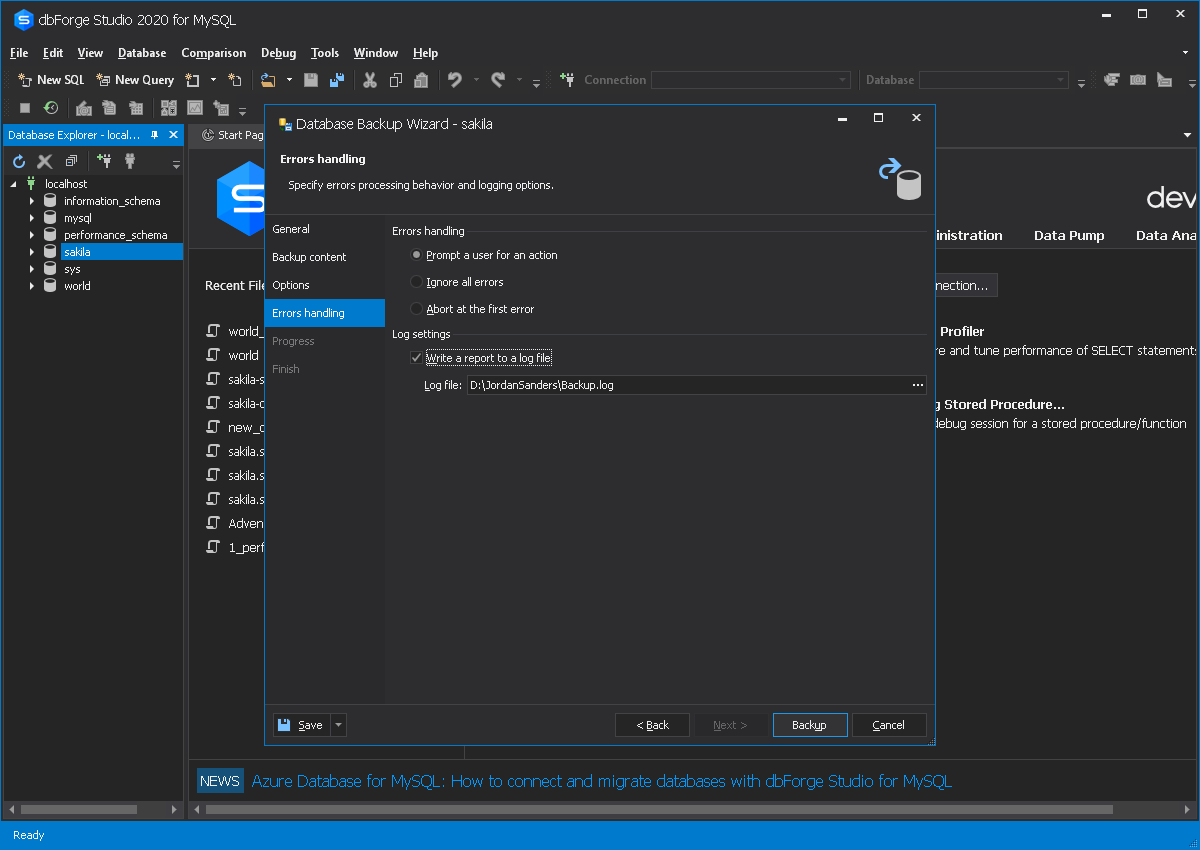
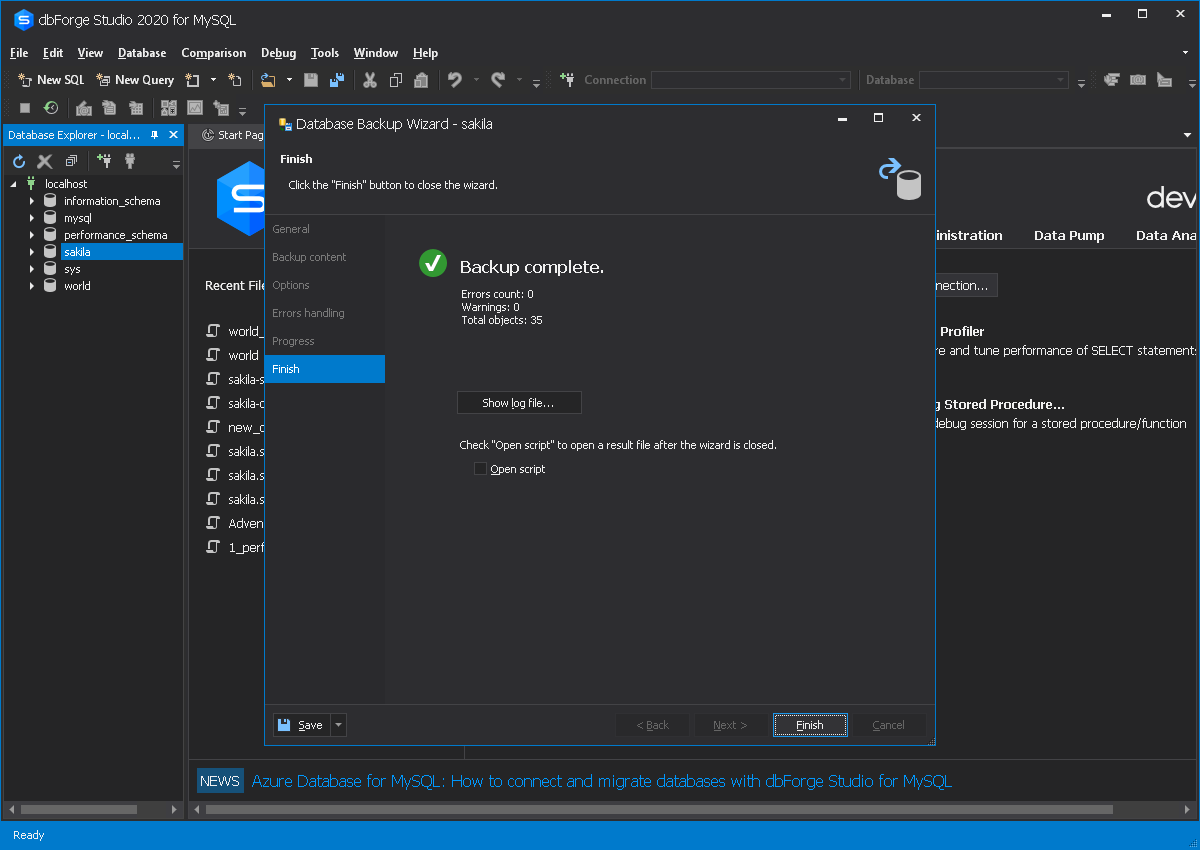
Specify Errors handling and Log settings options. Click Backup
to complete a MySQL backup task.
-
Click Finish.
How to Schedule MySQL Backup?
You may need to schedule an automated MySQL database backup that
will recur periodically. To do this, first of all, you will need to create a project
file, containing backup settings with the help of the MySQL backup tool. Once the
project file is created, you have to schedule Windows task that will perform actions
at a specific time or when a certain event occurs.
-
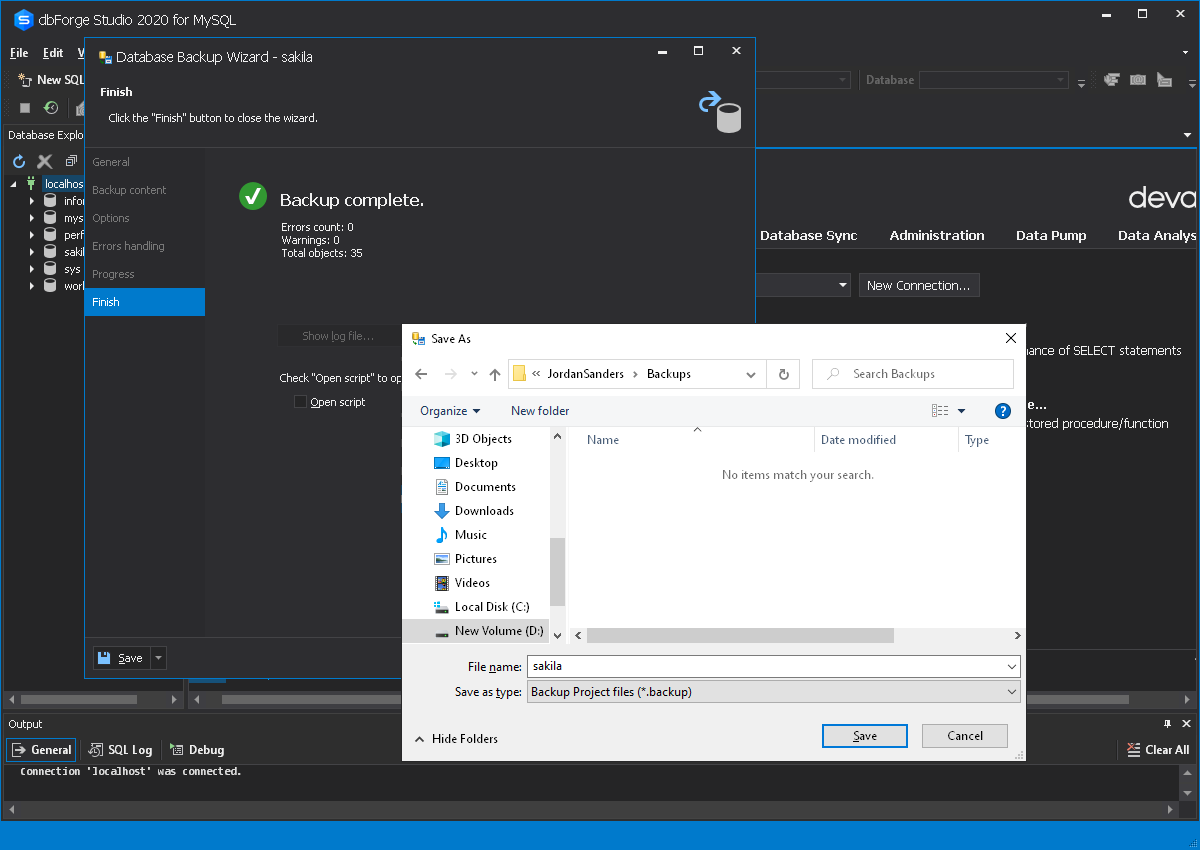
Complete the steps 1-5 above. Click Save Project.
-
Once all the needed options for the backup selected and the project file was saved,
start Task Scheduler for Windows.
-
Select Action → Create Basic Task in the top menu.
-
Provide a name for the new task. Click Next.
-
Select one of the options when you want the MySQL backup task to be started. Click
Next.
-
Select time and frequency for starting the task. Click Next.
-
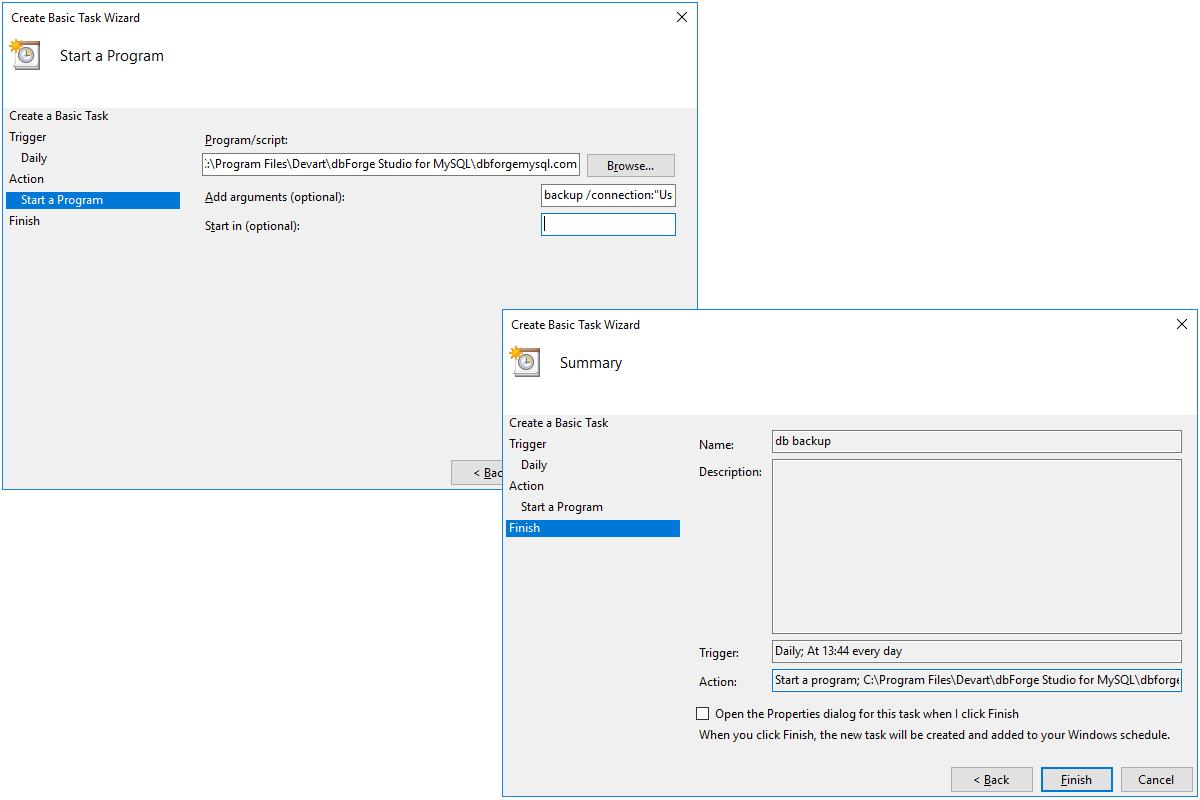
Select Start a Program and click Next.
-
Enter a path to the dbforgemysql.com file in Program/script field.
(The default path is "C:\Program Files\Devart\dbForge Studio for MySQL\dbforgemysql.com")
Also, make sure to specify arguments in the Add arguments field as follows:
/backup /connection:"User Id=root;Host=db;Port=3309;Database=sakila;Character Set=utf8;"
/projectfile:"C:\Users\Documents\dbForge Studio for MySQL\Export\sakila.backup"
-
Check all specified settings once again and, if no changes are required, click
Finish. Otherwise click Back and make the needed changes.
With our MySQL backup tool you can avoid the data loss by performing
a full database backup or a backup only of selected database objects easily in just
a few simple steps and restore it afterwards as easily and quickly as it was backed
up.