SQL Complete, an Alternative to Native Microsoft
T-SQL IntelliSense
dbForge SQL Complete is a useful add-in for SQL Server Management Studio. It offers powerful autocompletion and formatting of T-SQL code and has many distinct advantages over native Microsoft T-SQL IntelliSense.
SQL Complete prompts the most appropriate expressions when you are writing SQL code. Besides extending List Members, Complete Word, and Parameter Info features, SQL Complete adds SQL Formatter to enrich the developer toolkit and provide the fastest T-SQL query typing ever possible.
Integration to various environments
SQL Complete provides users an opportunity to integrate dbForge SQL Complete into different development environments:

Microsoft Visual Studio:
- Visual Studio 2022/2019/2017/2015/2013/2012
Learn more about the advantages of using dbForge SQL Complete in Visual Studio.

Microsoft SQL Server Management Studio:
- SSMS 20
- SSMS 19
- SSMS 18
- SSMS 17
- SSMS 2016
- SSMS 2014
- SSMS 2012
Code Completion
Support for various query types
dbForge SQL Complete provides context-based suggestions and formatting in such queries, as SELECT, INSERT, UPDATE, DELETE, USE, CREATE (table, procedure, function, trigger, view), ALTER (procedure, function, trigger, view, schema), EXEC, DROP, GRANT, REVOKE, DENY, ENABLE TRIGGER, DISABLE TRIGGER, control flow statements (IF, WHILE), BEGIN ... END blocks.
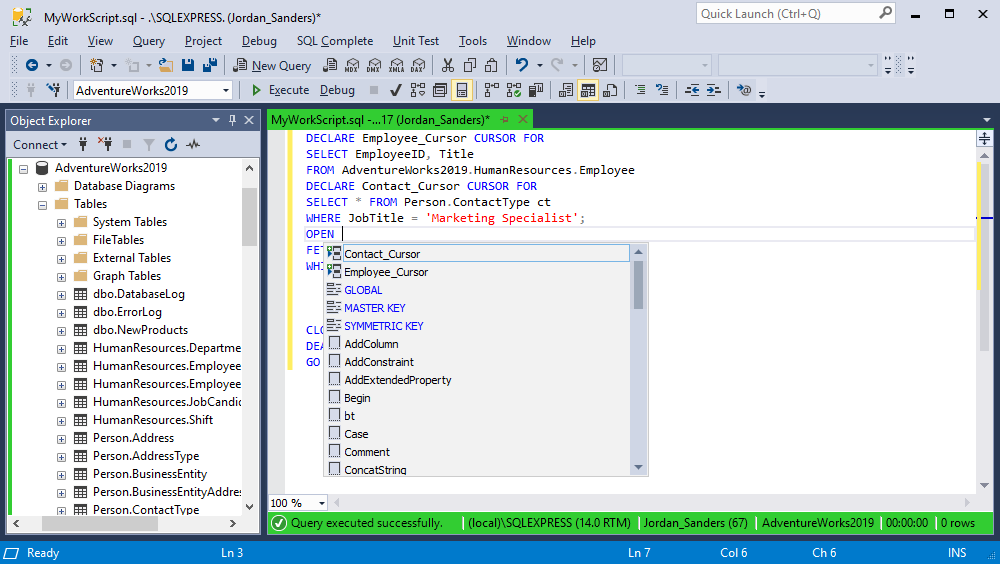
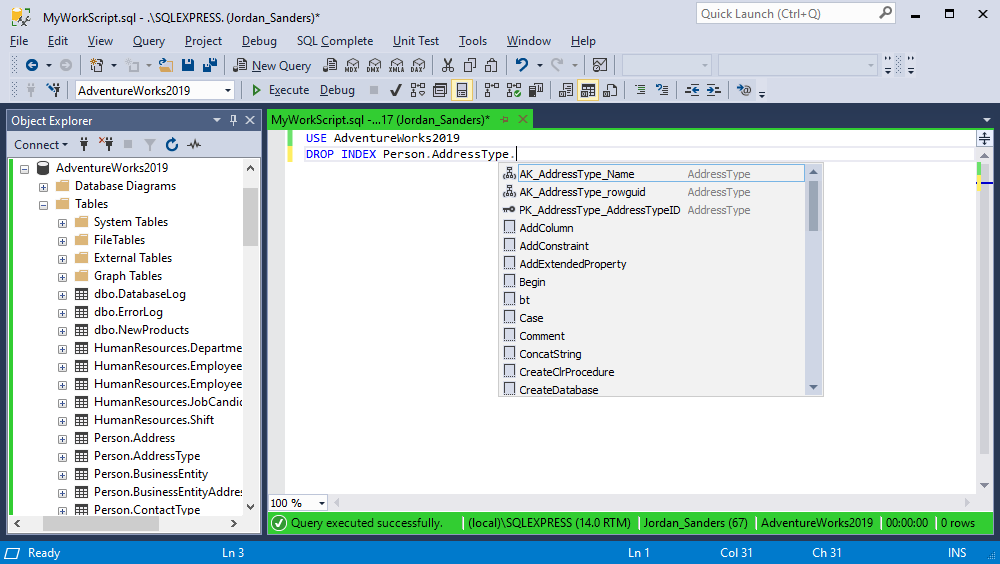
IntelliSense of SSMS supports only a few of the SQL statements.
Context-based prompt of different object types
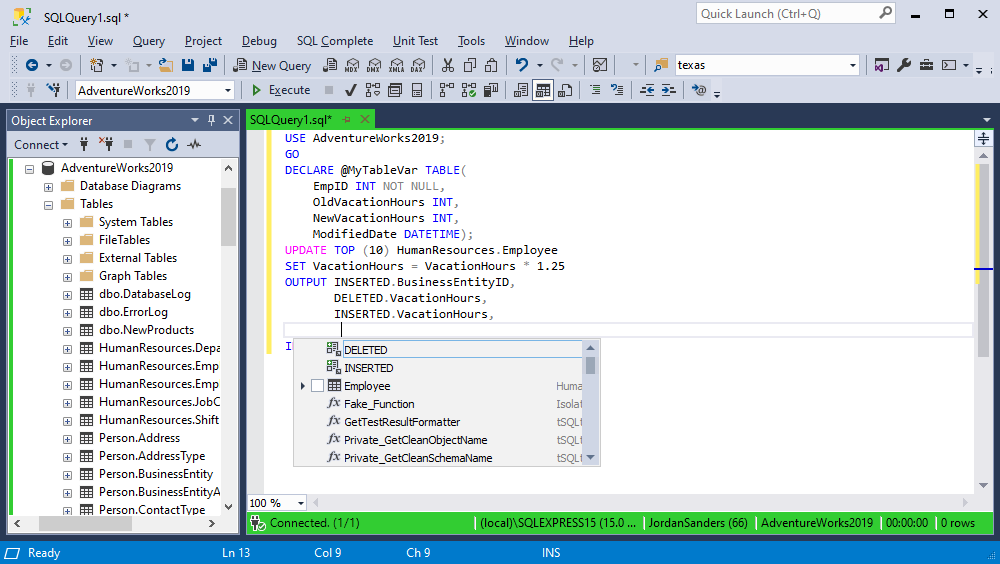
When typing queries, dbForge SQL Complete saves your time by suggesting a list of all available object names from the specified database. Each object type has its own icon, so it can be easily recognized.
Native Microsoft T-SQL IntelliSense also supports different object types but not all of them.
Context-based prompt of keywords
Also dbForge SQL Complete offers a list of available keywords to use in the certain position of your code.
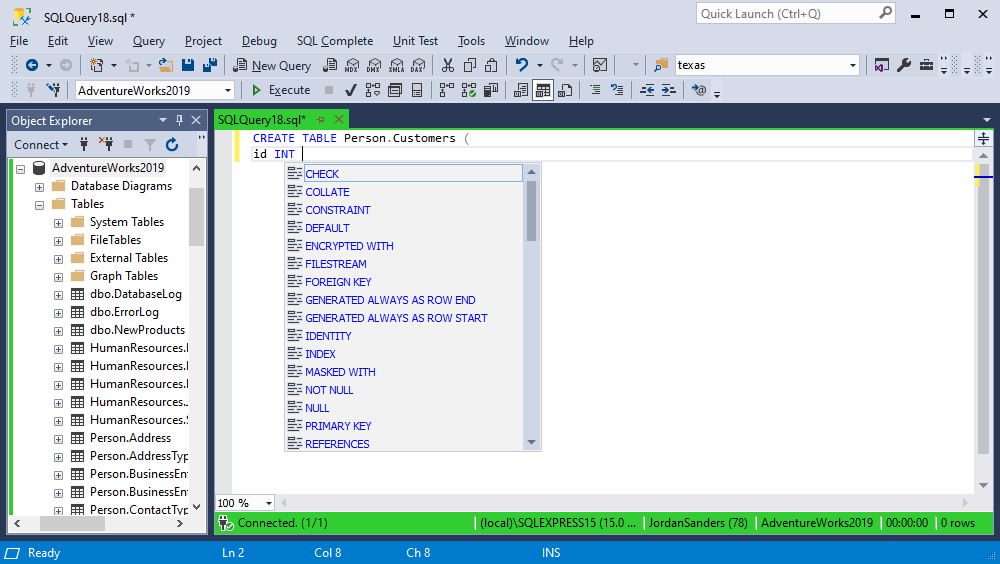
Native Microsoft T-SQL IntelliSense doesn't support this feature at all.
Context-based prompt of linked servers
You can work with the following linked servers that are supported in dbForge SQL Complete:
- SQL Server 2000-2022
- SQL Azure
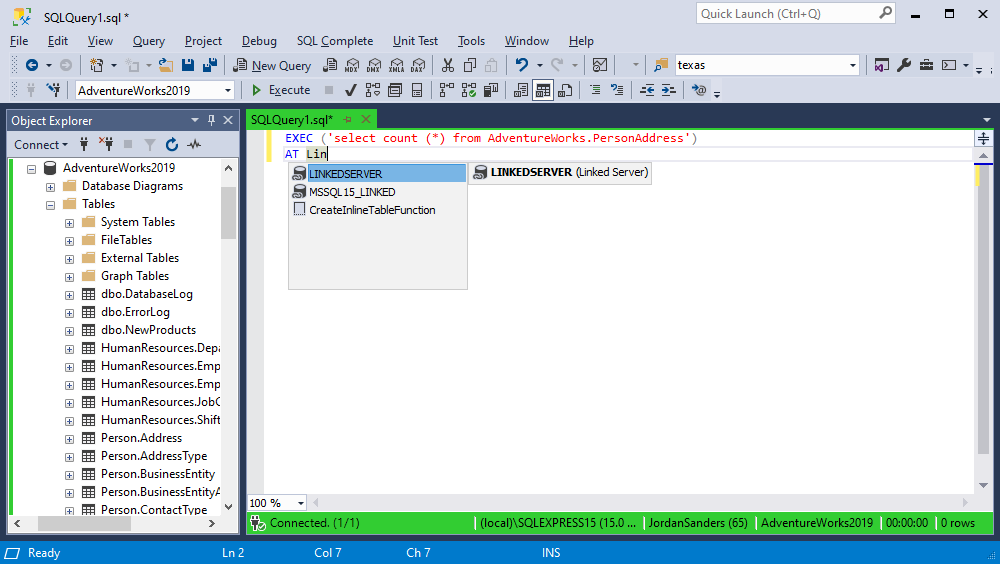
Context-based prompt of linked servers is not supported in native IntelliSense of SSMS.
Word autocompletion
If you type first several symbols of a database object name and dbForge SQL Complete finds only one match, the name will be automatically inserted into your query to complete the word.
This feature is not supported in native Microsoft T-SQL IntelliSense.
Automatic object filtering in the suggestion list
When typing a query, dbForge SQL Complete analyzes what you are typing and automatically filters names of objects and keywords in the suggestion list.
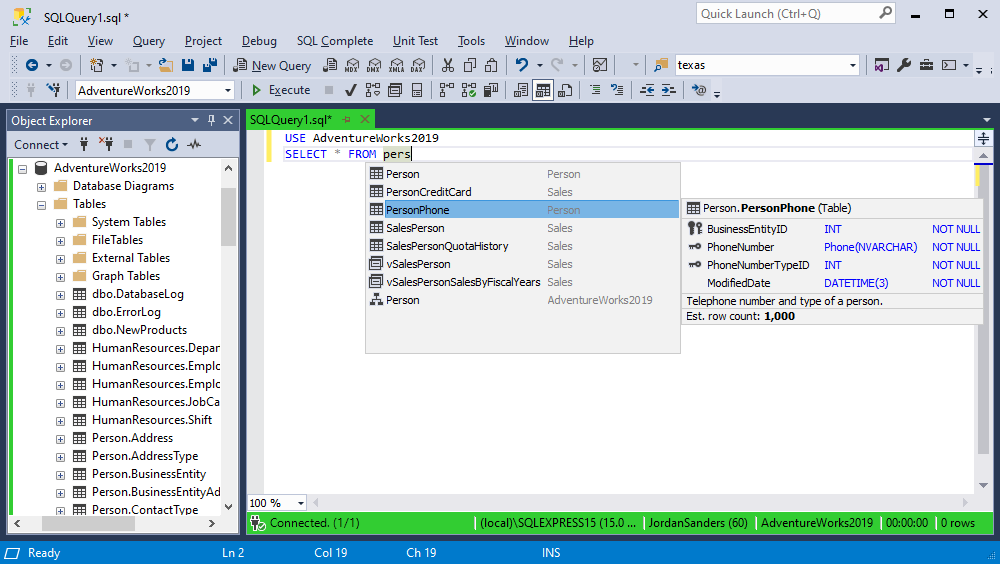
This feature is not supported in native Microsoft T-SQL IntelliSense.
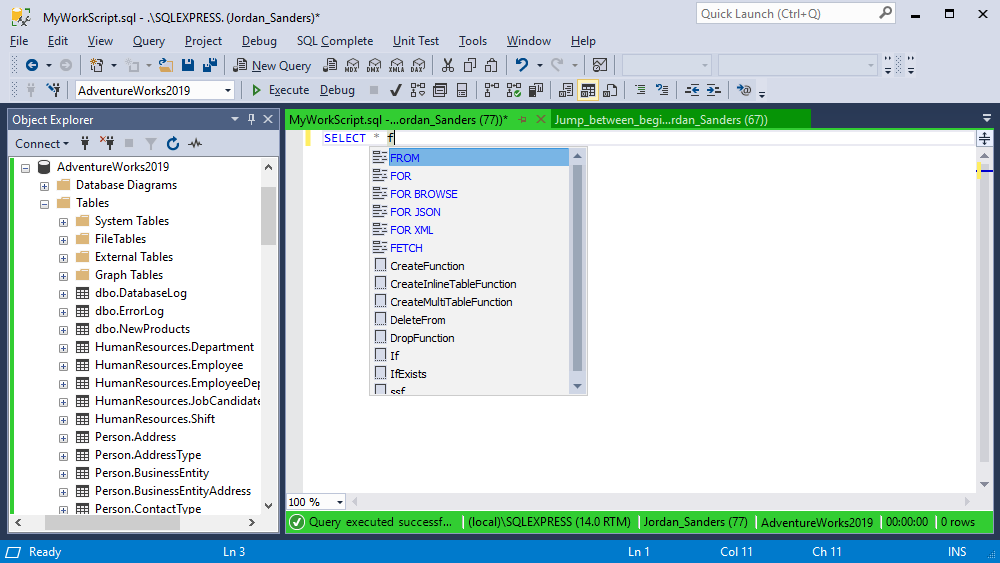
Context-based sorting of suggestions in the list
dbForge SQL Complete displays the most relevant suggestions on top of the list, while other SQL Server database objects that do not relate to the input are sorted in alphabetical order by native Microsoft T-SQL IntelliSense.
Defining a current database or schema
dbForge SQL Complete displays a list of database objects from the current database or schema even when their names are not specified in a query. The names of the current database or schema are determined basing on connection properties of the current SQL document.
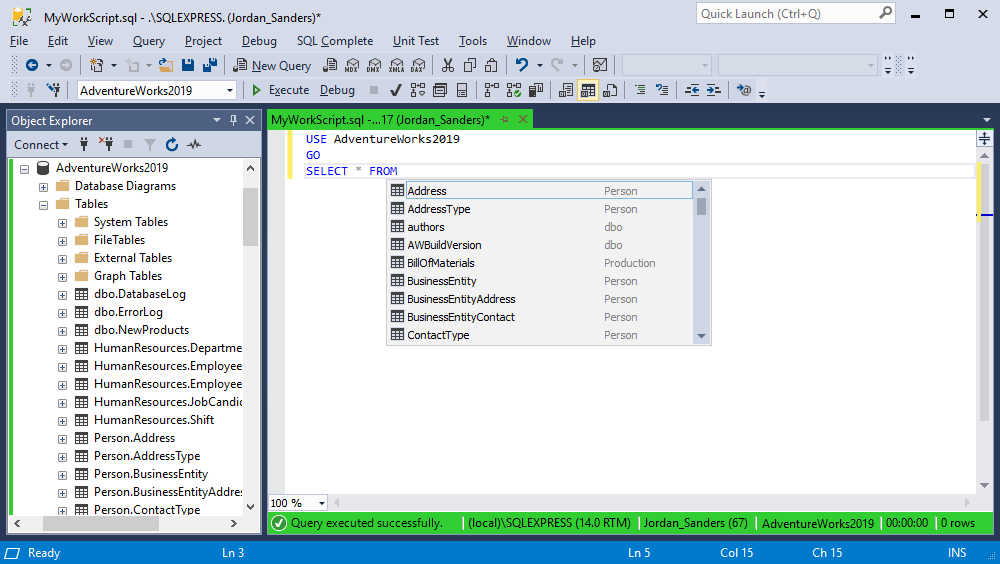
This feature is not supported in native Microsoft T-SQL IntelliSense.
Statement expansion
SQL Snippets
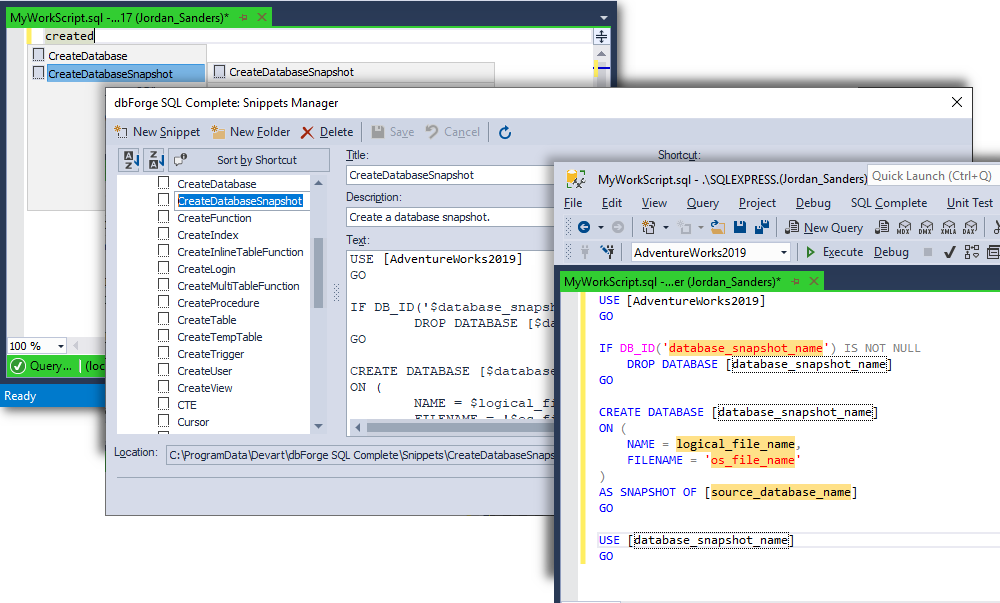
With the help of this feature recurrent usage of code fragments becomes more comfortable and simple. With SQL snippets, you can:
- Insert code templates by pressing Tab
- Add/edit templates with the help of Snippets Manager
- Add parameters to the template
This feature is supported in native Microsoft T-SQL IntelliSense.
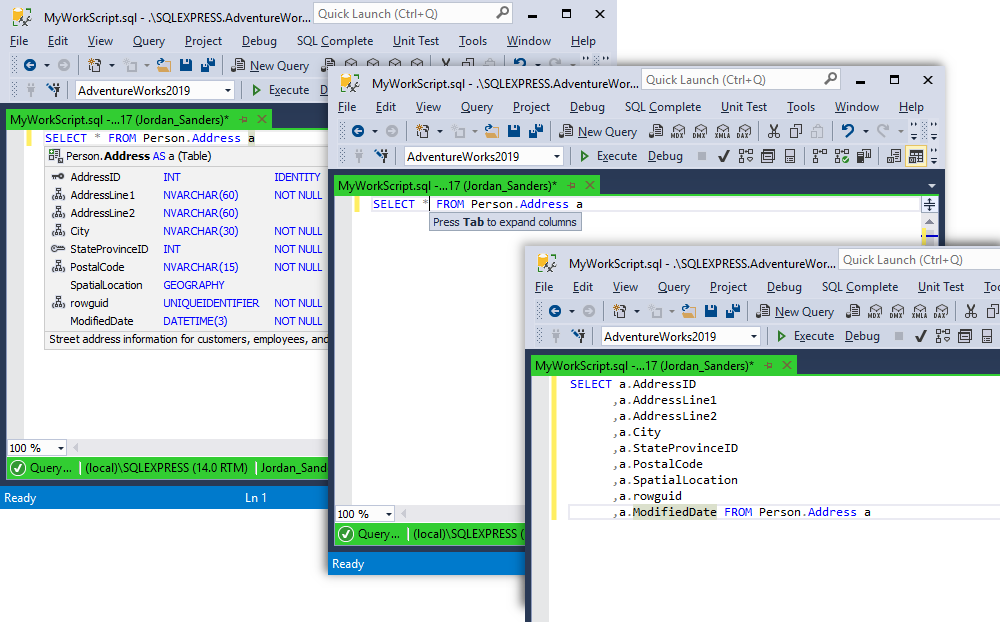
Inserting columns list by pressing Tab
A list of available columns for the needed objects (tables, views, etc.) may be inserted instead of the * symbol by pressing the Tab key.
This feature is not supported in native Microsoft T-SQL IntelliSense.
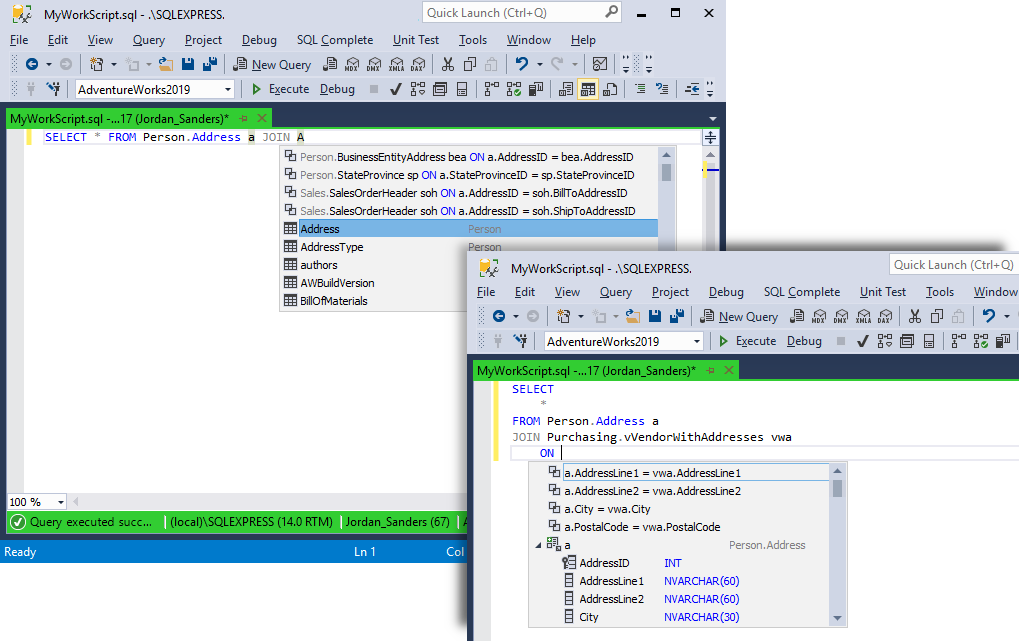
Context-based prompt for JOIN clause
For JOIN clauses, dbForge SQL Complete can suggest a full JOIN clause basing on foreign keys, or it can suggest conditions basing on column names and foreign keys. This suggestion is available after the JOIN and ON keywords.
This feature is not supported in native Microsoft T-SQL IntelliSense.
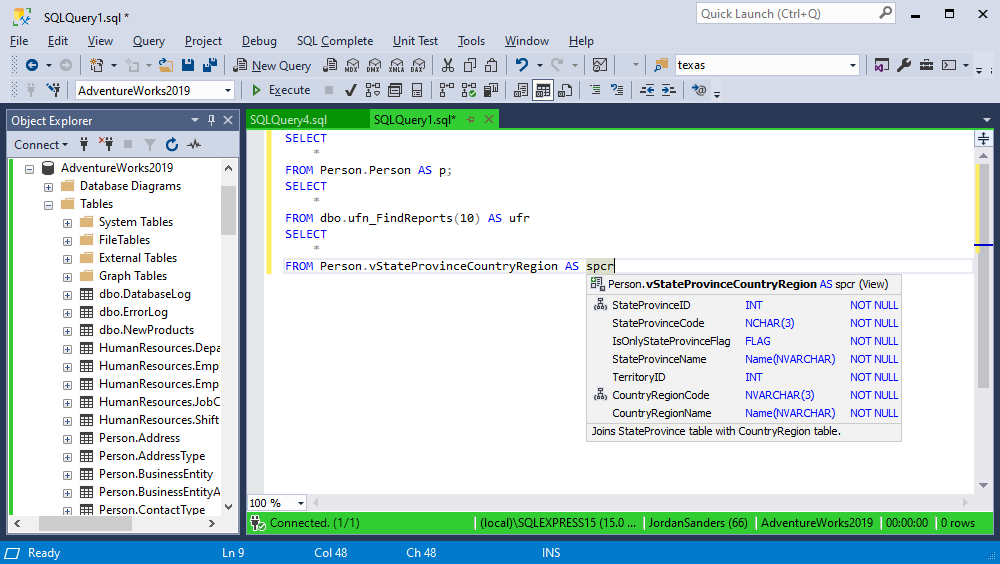
Automatic alias generation in SELECT statements
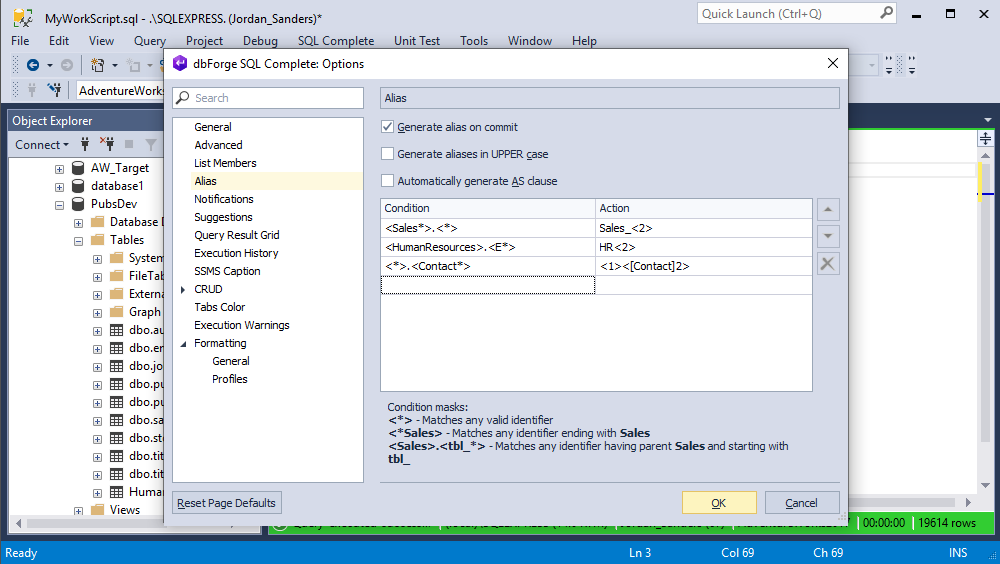
dbForge SQL Complete automatically generates aliases for table objects (table, view, function, synonym, sub-query) available in the FROM list of SQL statements. You can also assign custom aliases to a table, view, table-valued function, or synonym, and use alias masks to specify conditions and actions for alias generation.
This feature is not supported in native Microsoft T-SQL IntelliSense.
Creating custom aliases
You can also assign custom aliases to a table, view, table-valued function, or synonym, and use alias masks to specify conditions and actions for alias generation.
This feature is not supported in native Microsoft T-SQL IntelliSense.
Expanding UPDATE, INSERT, ALTER, EXEC statements
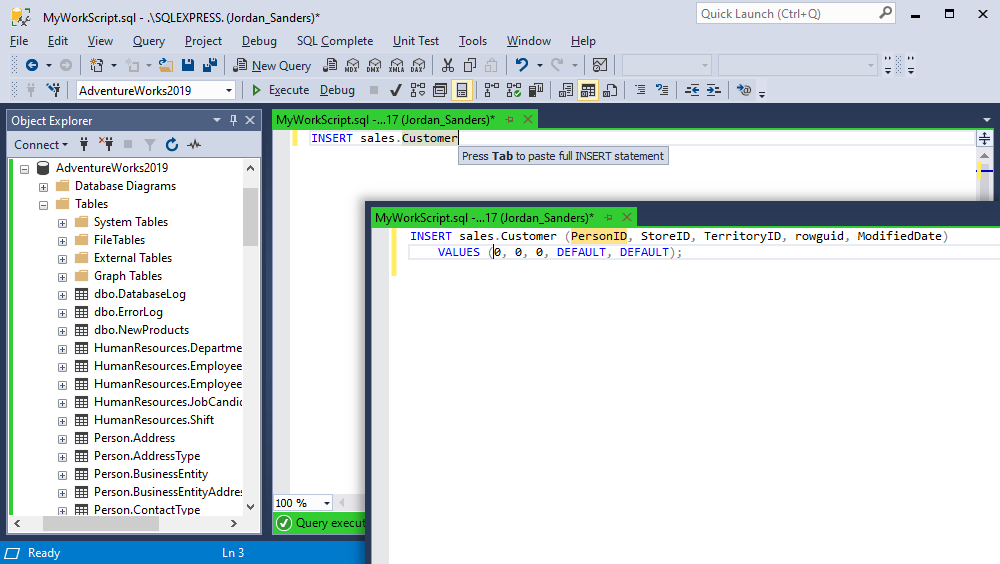
The feature allows you to type just available table names, views, procedures, functions or triggers in UPDATE, INSERT, ALTER, and EXEC statement and expand the statement to the full template by pressing the Tab key.
This feature is not supported in native Microsoft T-SQL IntelliSense.
Object information and code navigation
Context-based prompt of function parameters
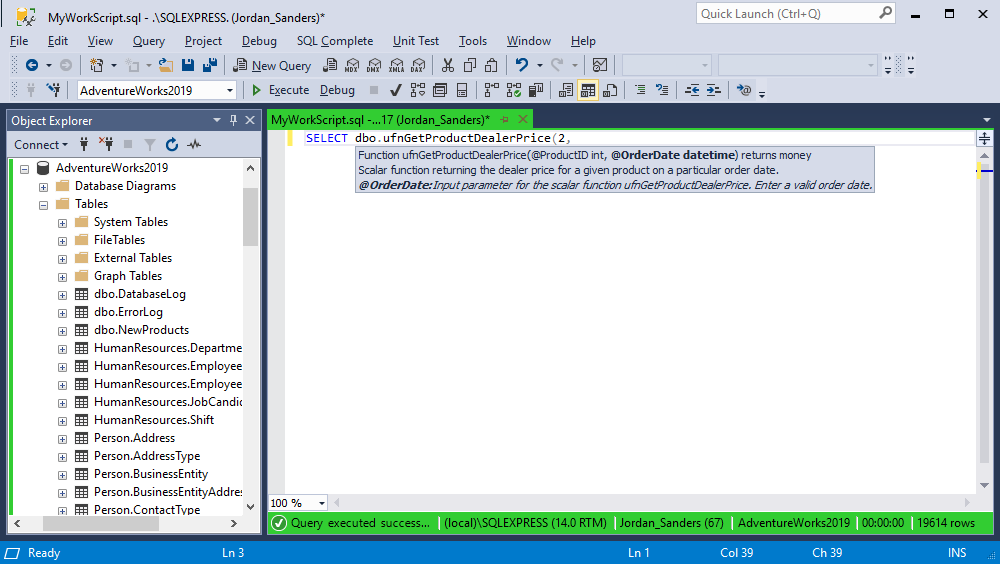
A hint with information about the function and its parameters is displayed when you call any built-in or user-defined function in a query.
This feature is not supported in native Microsoft T-SQL IntelliSense.
Quick object info
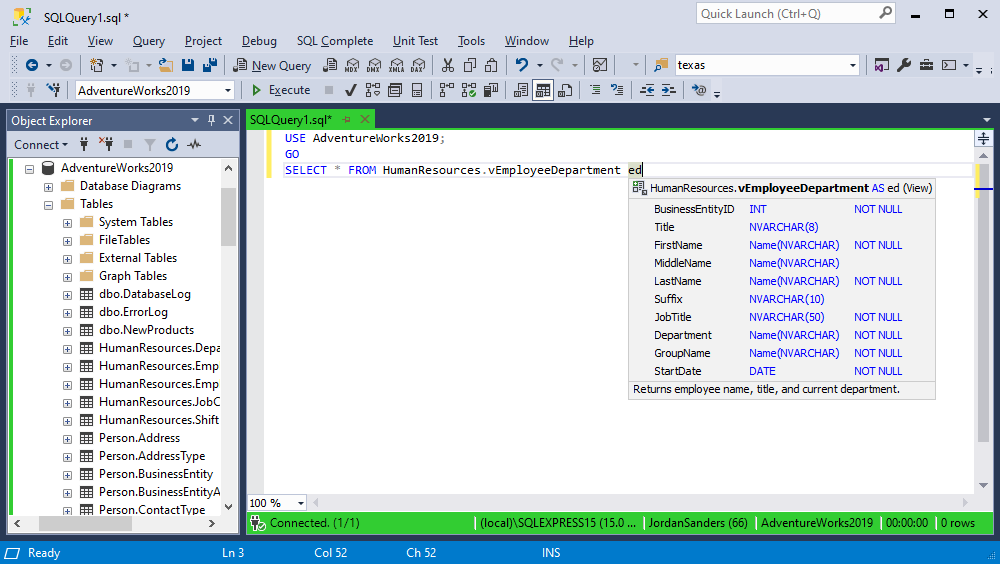
If you move the mouse cursor to the identifier, information about the database object will be displayed. The information may include table column names with data types, additional column properties (e.g., not null and identify attributes), primary, unique, and foreign keys, object type and an available user description.
This feature is partially supported in native Microsoft T-SQL IntelliSense.
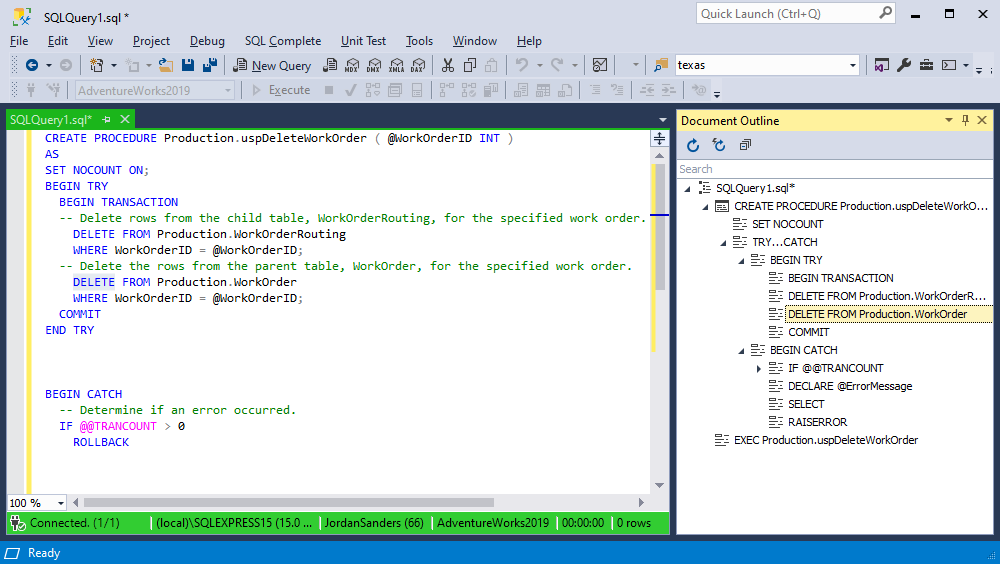
Document Outline window
The feature eases navigation in large SQL documents. The current document structure is displayed in the Document Outline window. Also you can synchronize the structure with the text straight from the code by selecting Synchronize Document Outline from the context menu.
This feature is not supported in native Microsoft T-SQL IntelliSense.
"Go to definition" for database objects
You can navigate from Code Editor straight to the object in Object Explorer. By pressing F12 or selecting Go to definition on the shortcut menu when the cursor is over the object identifier, the object will be found in the Object Explorer tree.
This feature is not supported in native Microsoft T-SQL IntelliSense.
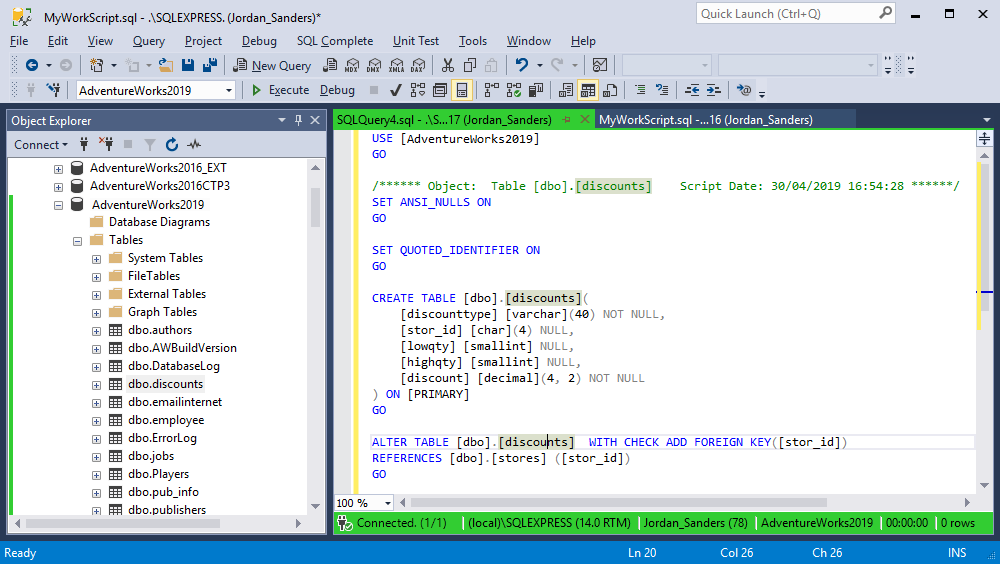
Highlight occurrences of an identifier
With the help of the feature you can see all identifier occurrences. When you move the mouse cursor to the identifier, all the identifier occurrences in the text are highlighted.
This feature is not supported in native Microsoft T-SQL IntelliSense.
Code formatting and execution
Query formatting
SQL Complete provides an opportunity to perform query formatting with regard to case, line breaks, whitespaces, indenting, wrapping, etc. The tool allows applying different formatting rules to different statements which helps achieve better code readability and maintainability.
This feature is not supported in native Microsoft T-SQL IntelliSense.
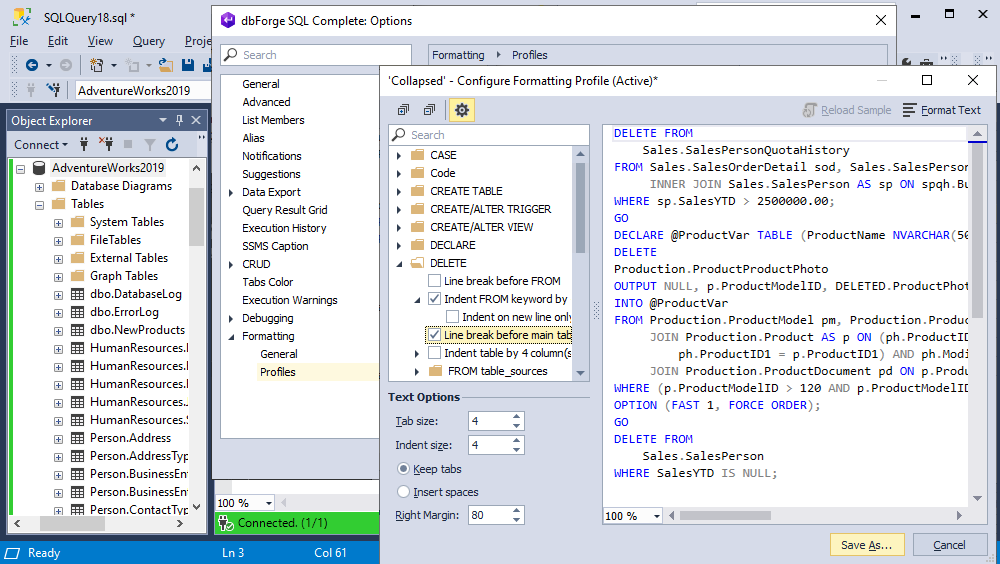
Wide array of formatting options
SQL Complete allows you to propel your scripting abilities with the advanced options that help you adjust your formatting to match your exact needs. You can fine-tune automatic formatting options, margin, syntax error behavior, and more.
This feature is not supported in native Microsoft T-SQL IntelliSense.
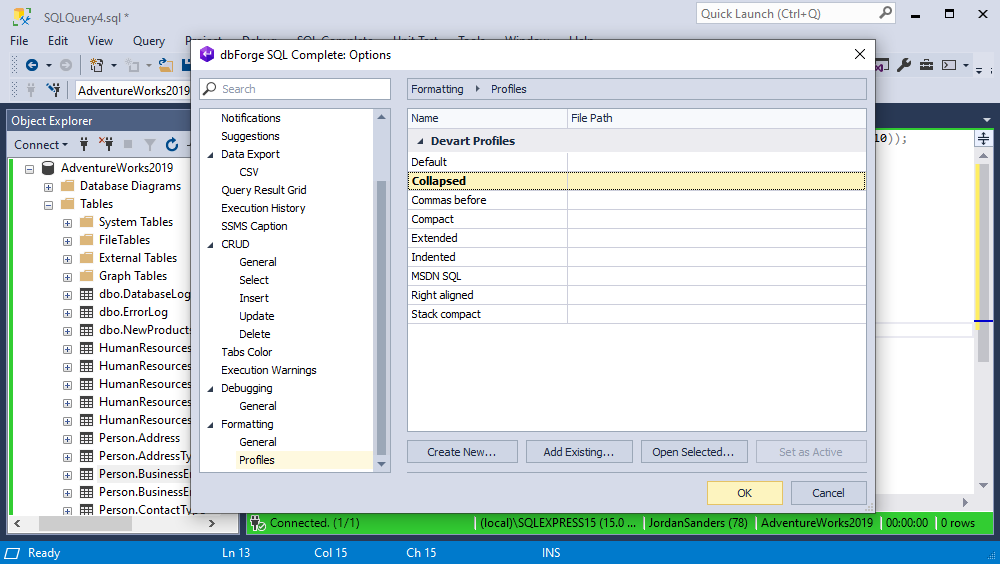
Advanced formatting profiles
SQL Complete incorporates a bunch of formatting profiles that let you tune your SQL code like never before. There are eight profiles available for you: Default, Collapsed, Commas before, Indented, Right aligned, Compact, Extended, and MSDN SQL. It is also possible to create and configure your own profile.
This feature is not supported in native Microsoft T-SQL IntelliSense.
Command-line wizard
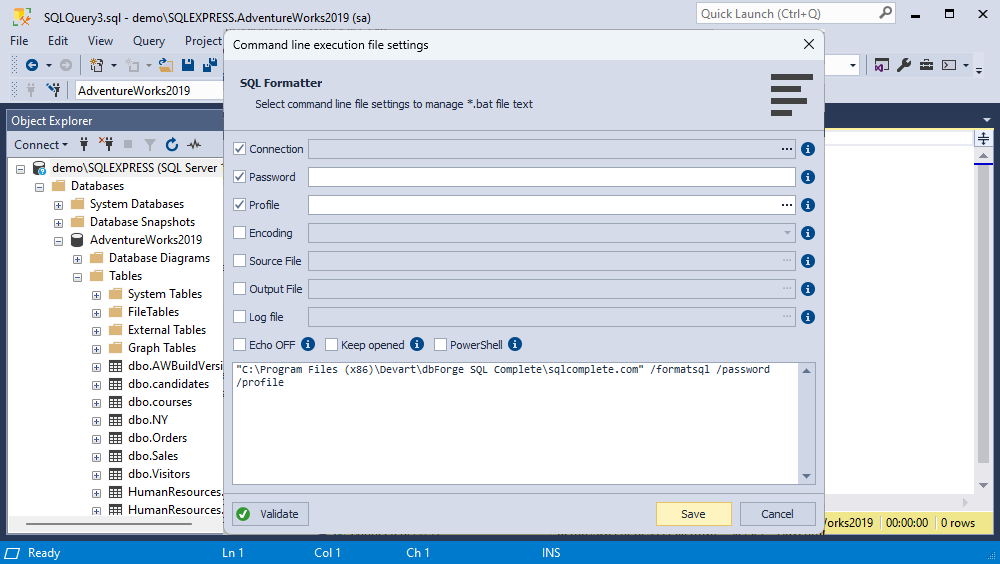
The upcoming SQL Complete 7.0 will introduce a command-line wizard, a new feature designed to convert user preferences from the Formatting Wizard into command-line syntax.
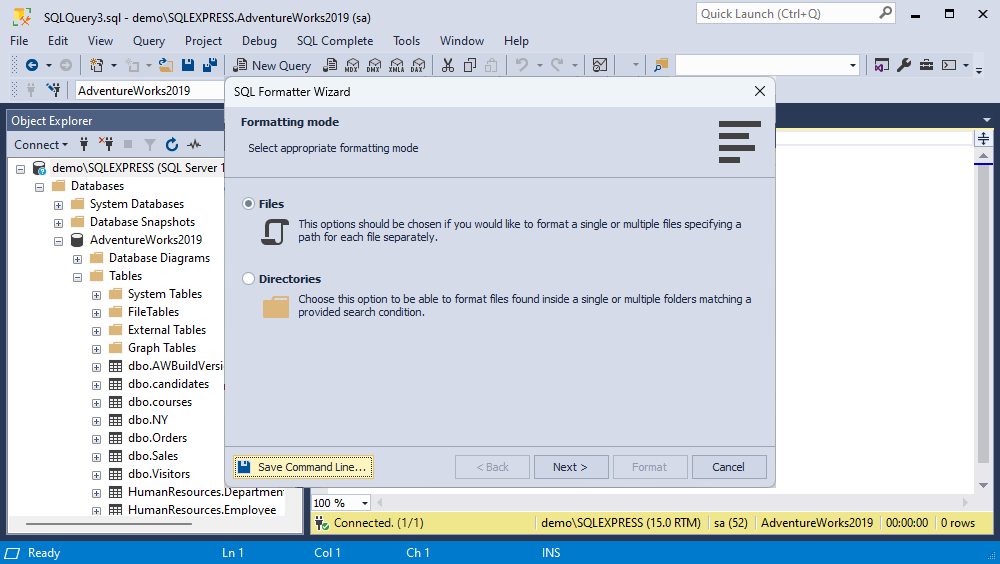
This enhancement makes it easier for users to apply their formatting preferences directly through the command line.
This feature is not supported in native Microsoft T-SQL IntelliSense.
Execute Current Statement
SQL Complete provides an opportunity to execute the current SQL statement without selecting it. You have to just place the cursor in the statement and press Ctrl+K, Ctrl+E.
This feature is not supported in native Microsoft T-SQL IntelliSense.
Execution warnings
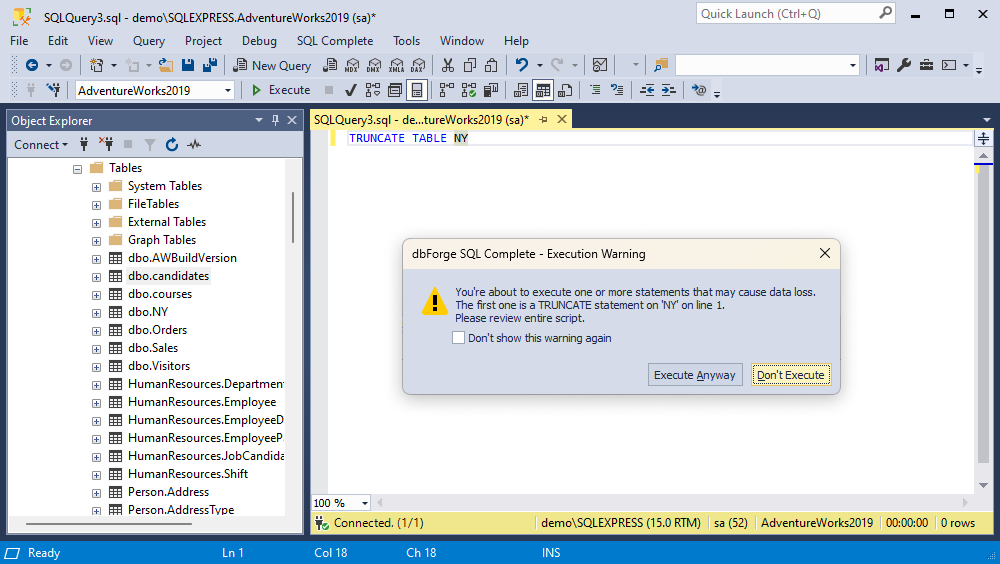
The Execution Warnings feature reviews scripts before they run and displays a blocking alert for DELETE, DROP, TRUNCATE, and UPDATE commands in specific environments.
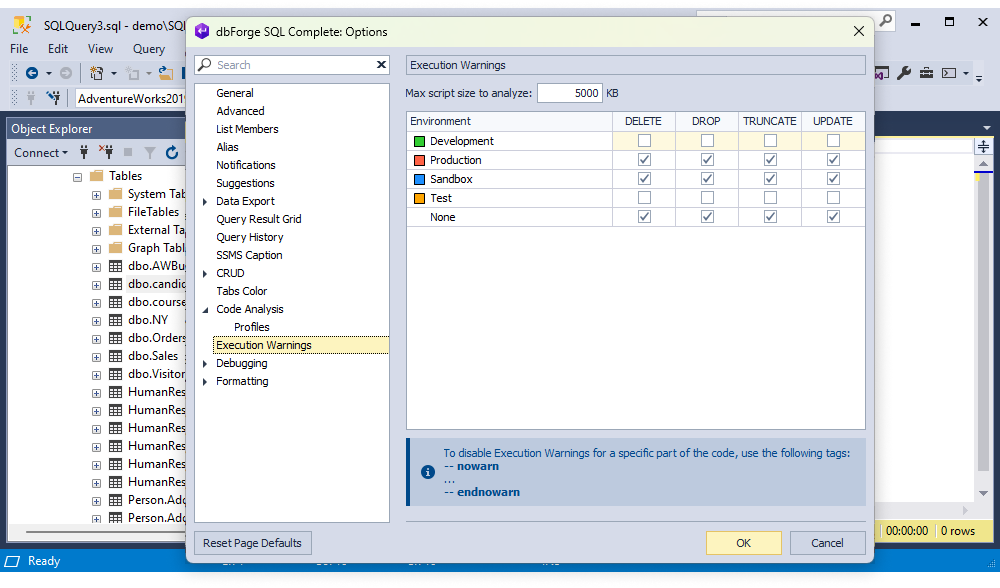
The goal is to safeguard against data loss and object deletion due to unverified code, unintended commands, or mistakes during accidental script execution.
This feature is not supported in native Microsoft T-SQL IntelliSense.
Other features
SQL Refactoring
The Rename functionality provides an easy way to change an object name for a new one that better reveals its purpose and automatically finds and corrects all references to it. SQL refactoring is available for tables, temporary tables and columns, views, stored procedures, functions, local variables, and SQLCMD variables.
This feature is not supported in native Microsoft T-SQL IntelliSense.
Code analysis
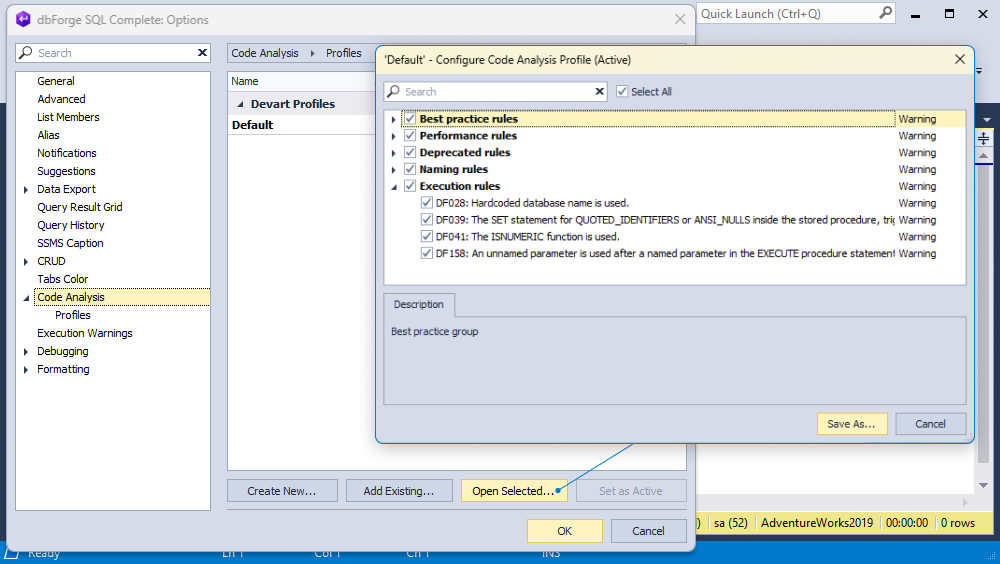
The upcoming SQL Complete 7.0 will introduce a comprehensive T-SQL Analyzer feature designed to provide in-depth code analysis.
This tool aims to assist users in identifying syntax errors, potential performance bottlenecks, and adherence to coding standards, improving the quality and efficiency of their SQL coding.

T-SQL Analyzer provides exceptional configuration flexibility, allowing SSMS users to conduct thorough code analysis. It delivers detailed results tailored to specific scenarios and requirements.
This feature is not supported in native Microsoft T-SQL IntelliSense.
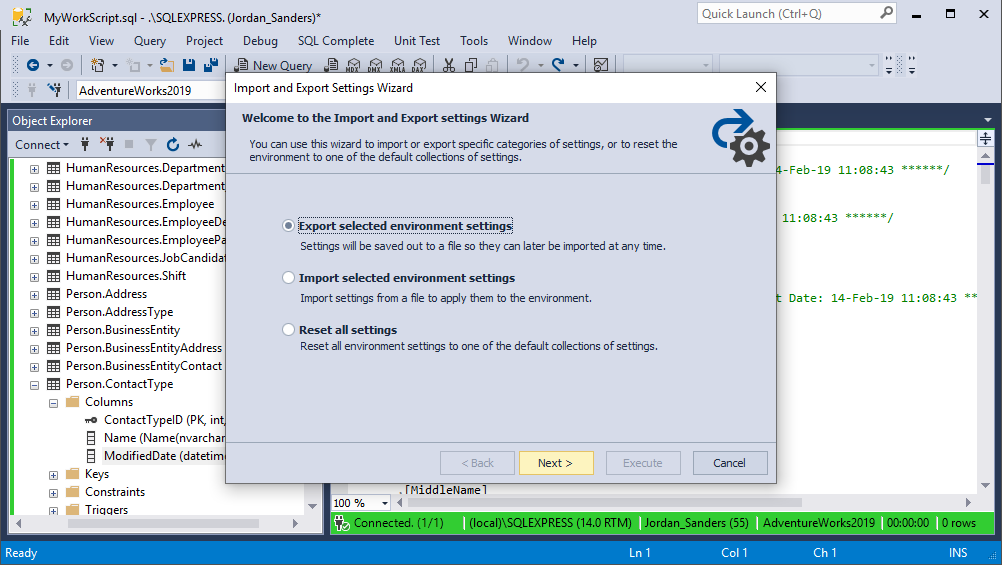
Export/Import settings wizard
You can quickly export the settings to a file for later use. SSMS also supports the export and import of settings.
Semi-transparent view of the suggestion box
There is a possibility to switch the suggestion box to semi-transparent view by holding Ctrl.
This feature is supported in native Microsoft T-SQL IntelliSense.
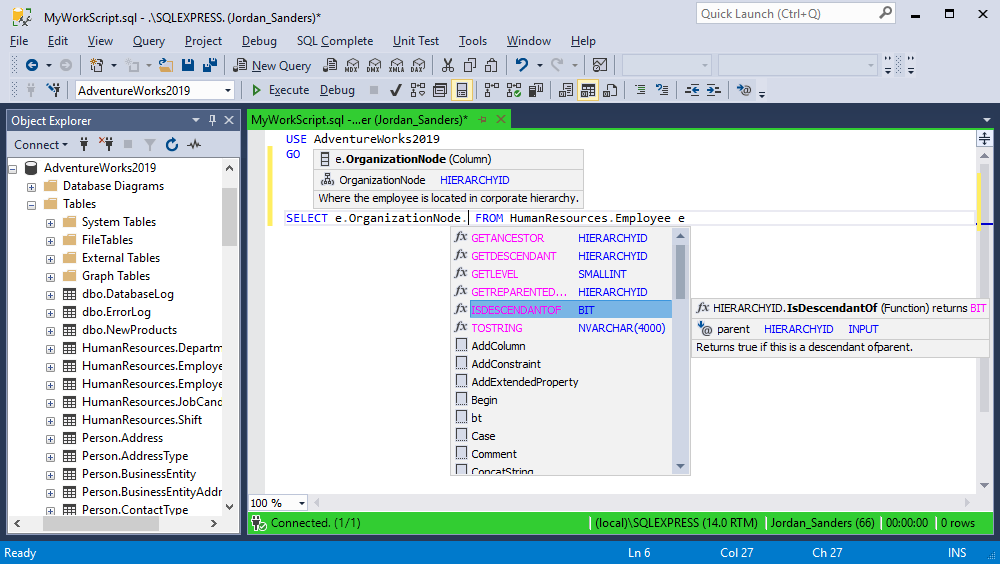
Suggesting methods for columns and variables
dbForge SQL Complete can suggest methods for columns and variables of the hierarchyid, geography, geometry and xml types.
This feature is not supported in native Microsoft T-SQL IntelliSense.
Conclusion
Being an alternative to native Microsoft T-SQL IntelliSense, dbForge SQL Complete will help database administrators and developers to speed up typing SQL queries with no extra actions taking advantage of all its features.