Supabase is an open-source backend-as-a-service platform built on top of PostgreSQL. It offers a fully managed PostgreSQL cloud database with essential features, including user authentication, file storage, edge functions, and real-time data management through a single hosted service, with minimal setup. It is a strong advantage because PostgreSQL is one of the most powerful and widely used relational databases in the world.
The platform includes a built-in dashboard and management tools, but it also allows direct connections through an external Supabase GUI client. For database professionals, this flexibility makes it easier to perform routine tasks efficiently with familiar tools.
This article aims to help you find the best Supabase GUI for your workflows. We are going to review visual PostgreSQL clients that can connect to Supabase, rather than no-code app builders or business back-office platforms.
Why use a Supabase GUI instead of only the Dashboard
The Supabase Dashboard is the official web-based interface for managing Supabase services, including PostgreSQL databases. It offers a range of visual tools for tasks such as database management (via a table editor), user administration, file storage, and API documentation. With this dashboard, users can interact with their Supabase projects directly, without command-line tools or SQL code.
That said, many database professionals turn to alternative or complementary tools for greater control and flexibility, especially when working with complex systems. Below are the most common reasons for seeking a Supabase dashboard alternative.
Richer functionality
The Supabase Dashboard is intentionally simple. It works well for quick table edits, user management, and basic SQL queries. However, professional GUI tools like dbForge Studio for PostgreSQL, pgAdmin, or DBeaver let you access the full range of PostgreSQL capabilities. For complex workflows, the Supabase Dashboard may feel limited.
Higher speed and efficiency
Desktop GUI tools are designed for intensive, day-to-day use. They typically include powerful SQL editors, support for saving queries and snippets, debugging tools, rapid data editing, and professional data analysis features. In comparison, the browser-based Supabase Dashboard can feel slower and less responsive under heavy use.
Better visualization
Dedicated database tools often support features like ER diagrams and in-depth schema exploration, making it easier to understand relationships between tables and navigate large datasets. The Dashboard provides basic data browsing and displays the database structure, and it lacks deeper visualization and analytical capabilities.
Advanced debugging and maintenance
Professional GUI solutions usually include tools for monitoring active connections, identifying slow queries, and managing roles and permissions in detail. The Supabase Dashboard covers only the basics and may not meet more advanced operational needs.
Offline, local, and multi-database workflows
The Supabase Dashboard is designed for managing Supabase projects. In practice, database teams often work across multiple systems, both cloud-based and on-premises. GUI tools are optimized for these environments, allowing users to switch between development, staging, and production environments and work with other PostgreSQL instances alongside Supabase projects.
In summary, the Supabase Dashboard is suitable for quick access and simple edits with zero setup. However, professionals who need greater power, flexibility, control, and efficiency typically rely on advanced PostgreSQL GUI tools to complement or replace it.
Best Supabase GUI clients and desktop tools
We have selected three GUI-based tools that are compatible with Supabase. These solutions are feature-rich database managers designed to handle a wide range of tasks across Supabase and PostgreSQL environments.
This review aims to help technical specialists choose the most suitable tool for managing their projects. Each GUI is examined in detail, covering key aspects such as user interface, database connectivity, SQL workflow, data management features, operating system compatibility, and best-fit use cases.
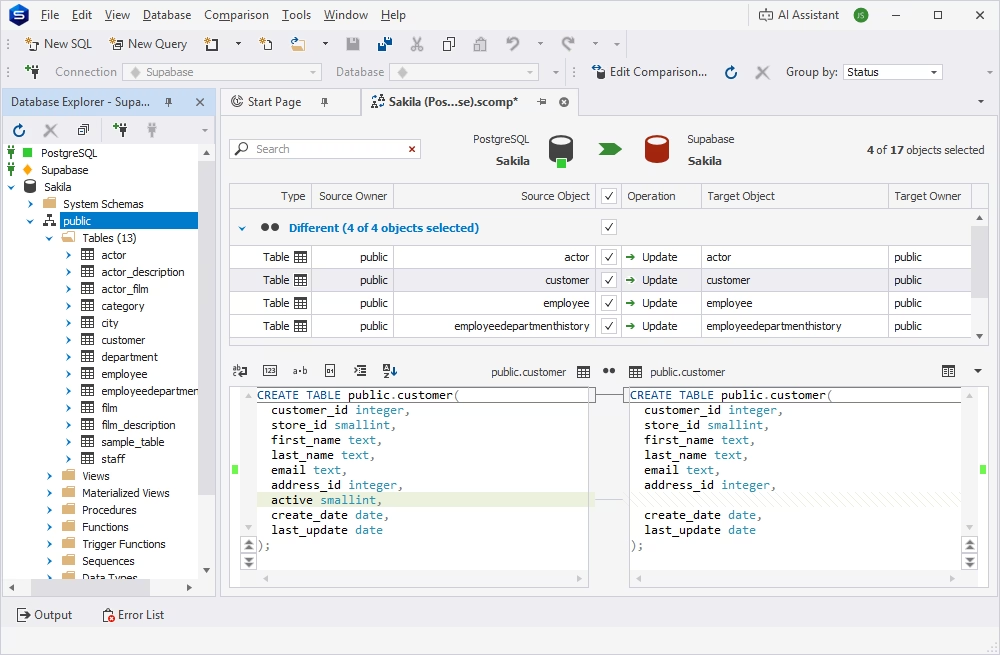
dbForge Studio for PostgreSQL is an AI-powered integrated development environment that's compatible with PostgreSQL, Amazon Redshift, and related cloud and local databases, including Supabase.
The Studio is an excellent solution for experts and beginners alike, with its rich set of features that deliver smart coding assistance, query profiling, data management
and analysis, database comparison and synchronization, and, last but not least, powerful automation capabilities. Besides, with the Studio, you can easily see
how to connect to Supabase, as it offers a straightforward connection flow.
All this, taken together with a familiar user interface, makes the Studio especially well-suited for users who require a single powerful IDE for complex workflows rather than a lightweight browser.
Pros
- Integrated AI Assistant
- Easy database management and migration
- SQL code formatter
- Data visualization and reporting
- UI customization
- Task automation via CLI
- Full documentation and video tutorials
Cons
- Limited features in the free Express edition
- Requires CrossOver or Wine for non-Windows OS
Key features
- Robust SQL Editor with auto-completion and formatting
- Database schema and table data comparison and synchronization
- Professional query profiling and execution plans
- Test data generator (200+ generators)
- Data export and import (10+ popular formats)
- Data visualization and reporting
Price
Free: Express edition (basic functionality)
Paid: Subscription-based license (from $89.95/year), perpetual license (from $179.95)
Free trial: 30 days
Best for
Developers, DBAs, analysts, and data managers who need deep SQL work, data management, and a more robust toolset.
dbForge Studio for PostgreSQL
A feature-rich and versatile IDE for database development and data management, as well as data analysis and reporting
DB Pro
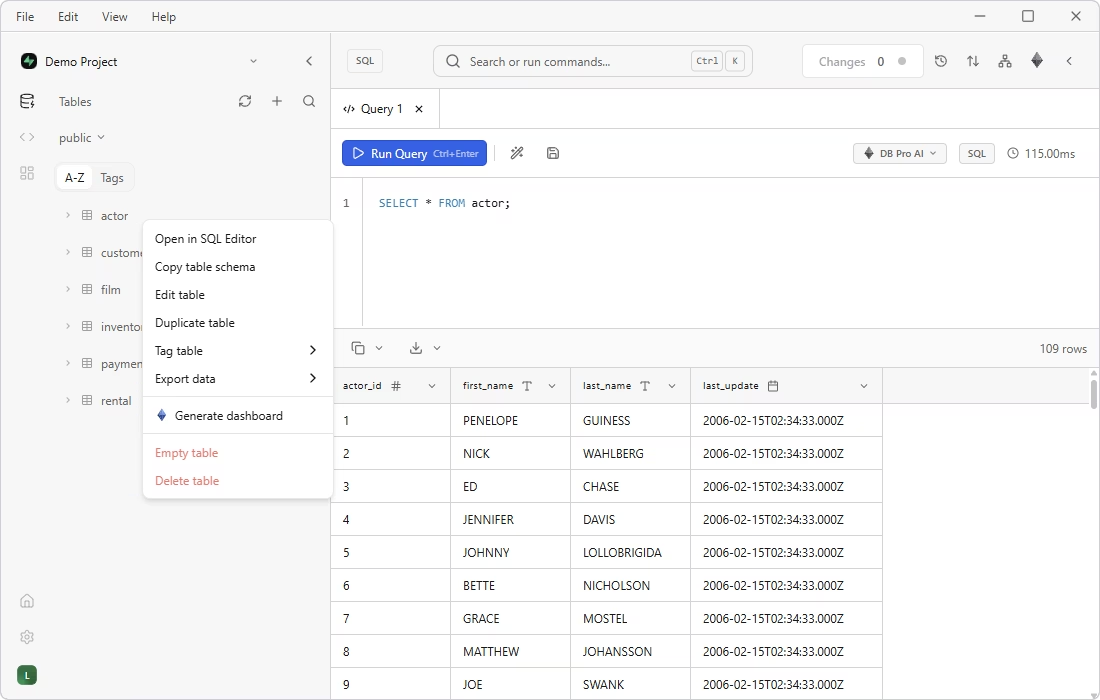
DB Pro is a modern cross-platform desktop database client focused on PostgreSQL databases, both on-premises and in the cloud, including Supabase, and supports several other popular database systems and cloud platforms.
DB Pro serves as a faster and more robust alternative to the standard web-based Supabase Dashboard, offering a wide range of features for various database tasks. Among its features, it is worth mentioning SQL editing, schema exploration, data browsing, query history, and bulk editing, thus helping Supabase users manage their projects more efficiently beyond the browser interface.
Pros
- Direct access to Supabase databases
- AI helper
- Multi-tab workflow
- Custom dashboards for data visualization
- Secure connections with full SSL and SSH support
- Documentation and user support resources
- Active community on Discord
- Video tutorials available on YouTube
Cons
- Limited functionality in the free edition
- Collaboration features are only in higher-tier plans
- Dedicated support is restricted to paid users
- Information about the Enterprise plan is only available on request
Key features
- SQL Editor
- Visual Schema Explorer
- Data Inspector for in-depth analysis
- Data import and export in major formats
- Query History with the ability to rerun previous commands
- Saved Queries library with names and descriptions
- Table Tags for better organization without modifying the schema
- Global Action Bar and keyboard shortcuts for faster navigation
Price
Free: Basic features
Paid: Subscription (from $9.99/month) or perpetual license (from $99)
Free trial: 14 days (for DB Pro Cloud)
Best for
Users who want a Supabase-focused desktop client with direct access to their databases, along with a more powerful and responsive experience than a web-based interface.
DBeaver
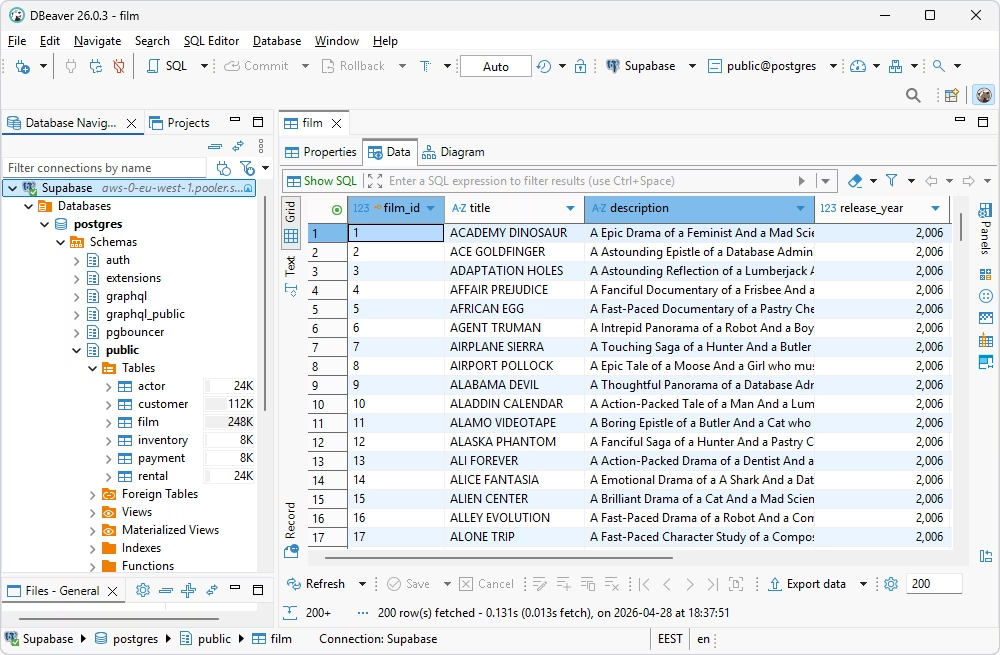
DBeaver is one of the most popular multi-database GUI tools that supports PostgreSQL and its cloud-hosted environments, including Supabase.
The application offers a rich set of tools for creating and editing databases and database objects, managing connections, writing and executing SQL queries, migrating data, and performing a wide range of administration tasks.
As an open-source, cross-platform solution, DBeaver is especially valued by specialists who need a single IDE to work with multiple databases across different platforms and environments.
Pros
- AI-powered SQL code generation
- Visual tools for database design
- Task automation and scheduling
- Advanced security features
- Support for both SQL and NoSQL databases
Cons
- Limited functionality in the free edition
- No built-in user management features
- Limited backup and recovery options
- Dedicated support is available only for paid users
Key features
- Feature-rich SQL editor
- Table data comparison and synchronization
- Visual SQL query design, analysis, editing, and execution
- Visual Database Designer with ER diagrams
- Visual editing of database objects and data
- Data migration with support for popular formats
- Session Manager for database monitoring
- Customizable data generators
Price
Free: Community edition
Paid: Subscription-based license (from $12/month)
Free trial: 14 days
Best for
Teams that manage Supabase alongside other databases and want one universal client.
How to choose the right Supabase client for your team
Choosing the right database client for Supabase (or any other database) depends on your professional needs and day-to-day workflows. The process should begin with identifying your typical tasks and the scope of your work. From there, you can determine whether you need a specialized PostgreSQL IDE, a multi-database tool, or a Supabase-focused client.
Below is a breakdown of the most suitable tools for different roles.
Solo developer
Solo developers typically prefer lightweight, easy-to-use tools that require minimal setup and support essential tasks. Since cloud-based PostgreSQL is a common choice for startups, free solutions like dbForge Studio for PostgreSQL (Express edition) or DBeaver (Community edition) are often sufficient.
If your work is centered around Supabase, the built-in Supabase Dashboard or a dedicated client may fully meet your needs. In contrast, feature-heavy paid IDEs can feel excessive for simpler workflows.
Data analyst
Data analysts require tools that support deep data exploration, clear visualization, and advanced SQL querying. In this case, a powerful SQL editor—ideally with AI assistance—combined with strong visualization capabilities is essential.
Database administrator (DBA)
Database administrators need full control over schemas, performance, and PostgreSQL-specific features. A dedicated PostgreSQL IDE like dbForge Studio provides advanced administration capabilities tailored to these requirements. Alternatively, DBeaver PRO is a strong option for DBAs who work across multiple database systems in addition to PostgreSQL and Supabase.
Development teams
For development teams, especially in startup environments, speed, flexibility, and collaboration are key priorities. In practice, this usually means combining multiple tools.
The Supabase Dashboard is useful for quick access, authentication, monitoring basic metrics, and making fast edits. At the same time, a professional PostgreSQL GUI client will enable deeper development, analysis, and administration tasks.
Which Supabase GUI is the best?
The best choice depends on how you work: lightweight tools for simplicity, specialized IDEs for depth, and multi-database solutions for flexibility across environments. We’ve reviewed some of the most efficient GUI clients for Supabase to help you choose the most suitable fit for your workflow.
If you prioritize deep PostgreSQL development capabilities, dbForge Studio for PostgreSQL stands out. This IDE offers the richest functionality for database development, management, administration, data analysis, and task automation across all PostgreSQL-related platforms, including Supabase. For those working with multiple databases across different systems and operating systems, DBeaver is a versatile option worth considering. Meanwhile, if you prefer a lightweight client for basic routines, DB Pro may be the right choice.
You can also try dbForge Studio in your own projects to evaluate its capabilities firsthand. A fully functional 30-day free trial is available, allowing you to explore its full feature set in real-world scenarios.
FAQ
What is a Supabase GUI client?
A Supabase GUI client is a graphical tool that lets you interact with Supabase databases without writing everything in SQL. It typically provides visual interfaces for browsing tables, editing data, running queries, designing schemas, and managing users or permissions, making database work faster and more straightforward.
Is the Supabase Dashboard enough for database work?
The Supabase Dashboard is sufficient for many common tasks, such as managing tables, running basic queries, handling authentication, and configuring APIs. However, it has significant limitations for advanced workflows. For complex query building, performance tuning, data modeling, or automation, it might be insufficient. Dedicated PostgreSQL clients are usually more powerful and flexible.
Can I connect PostgreSQL tools to Supabase?
Yes. Supabase allows direct access to its underlying PostgreSQL database via a connection string. You can use most PostgreSQL-compatible tools (like dbForge Studio or DBeaver) to connect, query, and manage your Supabase database just like any other PostgreSQL instance.
What is the best Supabase client for Windows, macOS, and Linux?
It depends on your needs. For most cross-platform workflows, DBeaver is often the most flexible choice, while dbForge Studio excels in advanced PostgreSQL-specific tasks on Windows (though it also runs on macOS and Linux via compatibility solutions like CrossOver or Wine).

 DB Pro
 DBeaver


