How to import and export MySQL or MariaDB databases
For data import and export, you have two options: use the command line or adopt GUI database tools with wizard-assisted operations. In this guide, we cover both approaches and introduce a solution that combines them—dbForge Studio for MySQL.
dbForge Studio for MySQL is an AI-powered IDE for MySQL, MariaDB, and related cloud platforms that supports the entire database lifecycle—from design and development to testing, administration, and automation. It eliminates tool fragmentation and unifies database workflows across on-premises and cloud environments. The Studio has all it takes to improve routine database operations.
In this guide, we explain how to export and import MySQL and MariaDB databases using the Studio and command-line tools, automate these operations, and resolve potential issues.
Quick MySQL import and export commands
For quick data export and import, MySQL and MariaDB provide command-line tools. The most commonly used tools are mysqldump for exporting databases and mysql for importing SQL dump files.
mysqldump creates a SQL dump containing the database structure and data, so you can use it to export an entire database, selected tables, or just the data or structure. The resulting .sql file can then be imported with the mysql client.
The basic workflow is straightforward: export with mysqldump > transfer or modify the dump if needed > import with mysql. Have a look at the table below that presents the most common commands for data exporting and importing in MySQL.
| Task |
Command |
Description |
| Export a database |
mysqldump -u username -p database_name > backup.sql |
Exports the specified database, including its structure and data, to a SQL file |
| Export selected tables |
mysqldump -u username -p database_name table1 table2 > backup.sql |
Exports only the specified tables from a database |
| Import a database |
mysql -u username -p database_name < backup.sql |
Executes SQL statements from the dump file against the specified database |
However, if you work with large databases or more complex migration scenarios, command-line tools may require additional options for handling character sets, routines, triggers, transactions, and other database objects. A GUI-based database tool can simplify these operations.
How to export a MySQL database
Exporting a MySQL database is a standard task during database migration. If you transfer a MySQL database, for example, from one server to another, you should copy a MySQL database and restore it in a different location. It also means that you need to export all data from all the database tables, creating a dump file. Later on, you can use this file to restore a database in the required location.
You can export selected tables and entire MySQL and MariaDB databases using command-line tools or the GUI-based dbForge Studio for MySQL with its intuitive wizards and flexible settings.
IDE for MySQL data export and import: Pros and cons
An IDE like dbForge Studio for MySQL is an excellent solution for exporting and importing MySQL data, especially for users who prefer not to work with command-line tools.
dbForge Studio provides an intuitive interface that lets you configure data export and import tasks in just a few clicks, making the process very easy even if you are a beginner.
What's more, dbForge Studio for MySQL lets you reuse your data export and import settings. You don't have to configure the task from scratch every time. Instead, you can save the settings as a template file and reuse it whenever you need to perform a similar task.
To export all data as a dump file, you can use the corresponding functionality under Backup and Restore. You can also restore the created backup file using the same functionality in dbForge Studio for MySQL.
However, there are scenarios where command-line tools are more suitable. This is especially true when you need to export data from multiple databases or restore data to more than one database.
For example, the mysql command can be used to restore data to multiple databases. Additionally, dbForge Studio does not support exporting several databases simultaneously, so the mysqldump utility is a better choice for this task.
Data export with dbForge Studio for MySQL: Supported data export formats
dbForge Studio for MySQL supports a wide range of data management scenarios, including the tasks of exporting entire databases to dump files and migrating selected data.
You can export data into 14 popular data formats: HTML, TXT, XLS, XLSX, MDB, RTF, PDF, JSON, XML, CSV, ODBC, DBF, SQL, and Google Sheets.
Export a MySQL dump
If you need to migrate the entire MySQL database, you can do it with dbForge Studio: create and export a dump file. After that, you can move this file to the new destination and restore it using the same dbForge Studio for MySQL. The process of creating this file is simple.
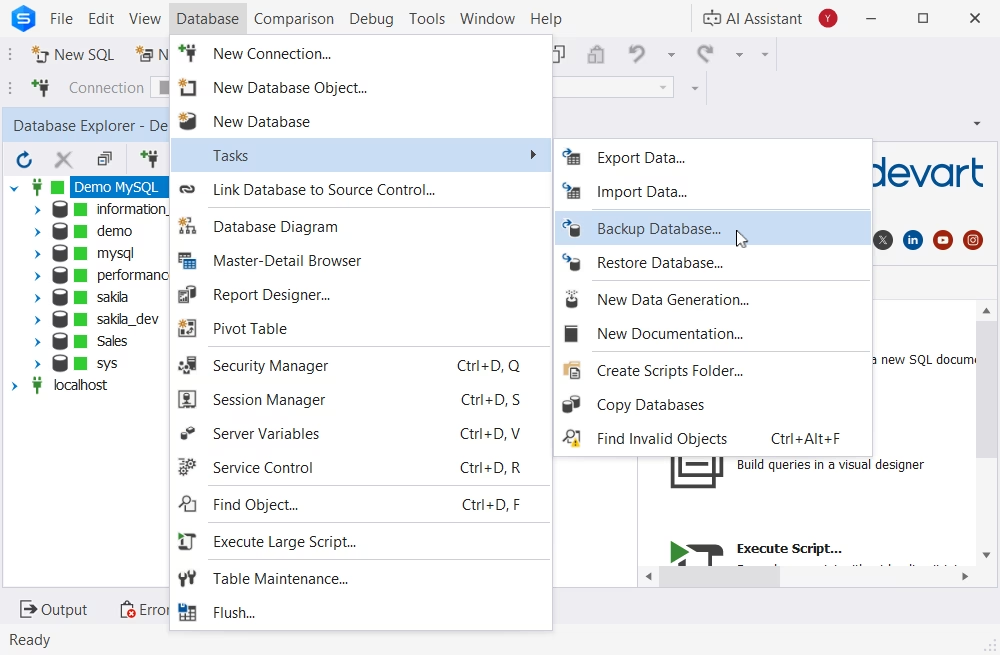
Navigate to Database > Tasks > Backup Database.
The Database Backup Wizard window will appear.
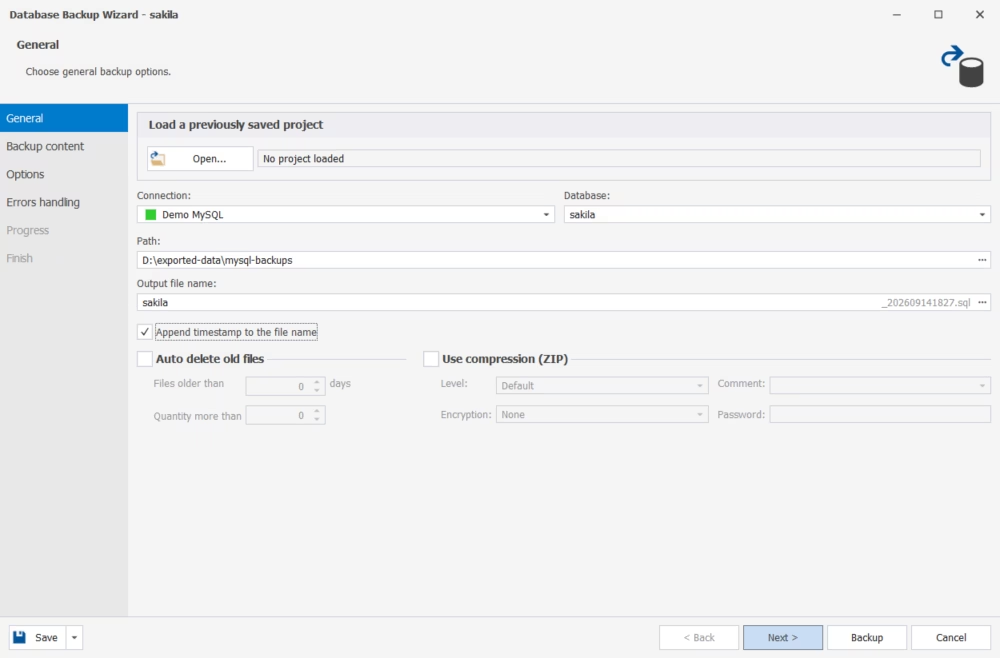
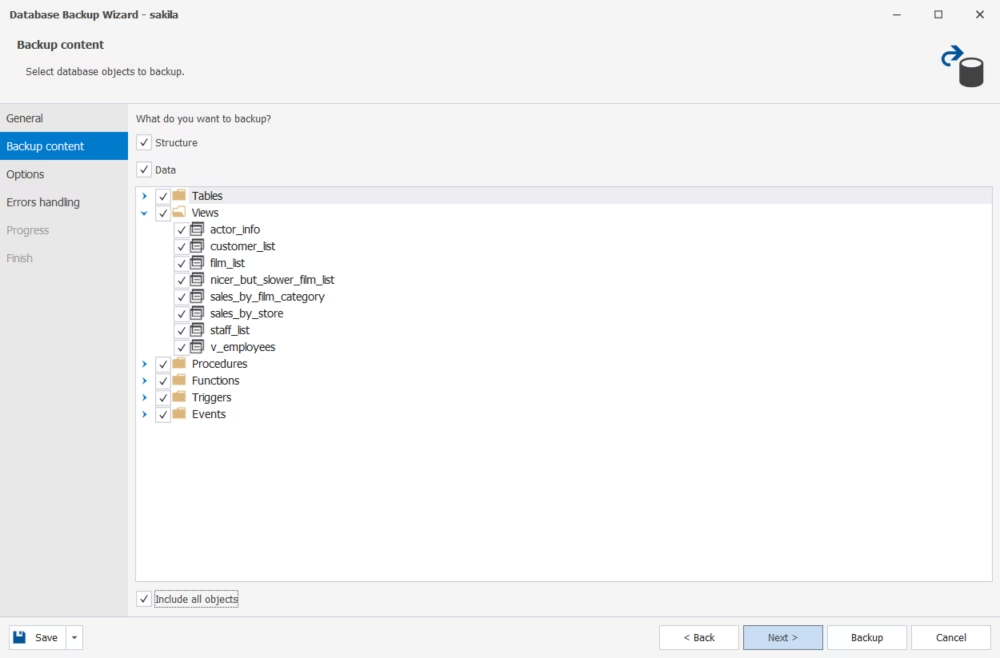
Configure the necessary settings, specify the database objects to include in the dump file, set the backup options and the error handling behavior.
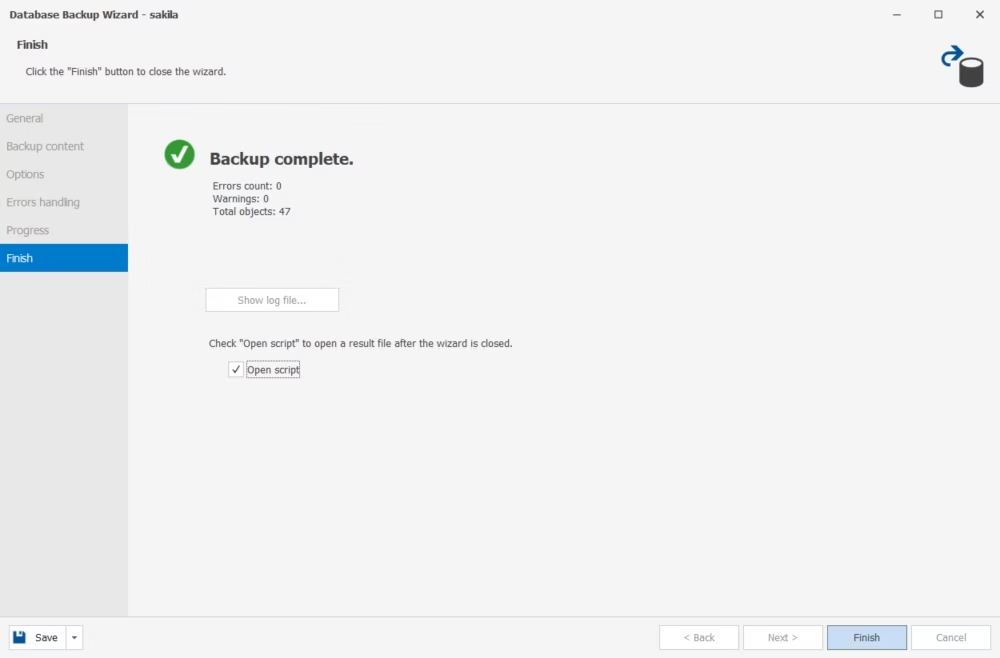
To immediately export a MySQL database to a SQL file, click Backup. To open the created SQL dump file after the wizard is closed, select Open script. After configuring all settings, click Finish.
You don't need to know all the parameters to dump a MySQL database. You don't need to enter and set them manually because you can do it with a convenient wizard. You can also export a MariaDB database in the same way, as dbForge Studio fully supports a wide range of MariaDB versions, including the latest ones.
Data export process
dbForge Studio for MySQL has advanced functionality that simplifies the data export process and makes it more precise and flexible. Its intuitive graphical interface lets you configure the task in several clicks. Follow the steps outlined below.
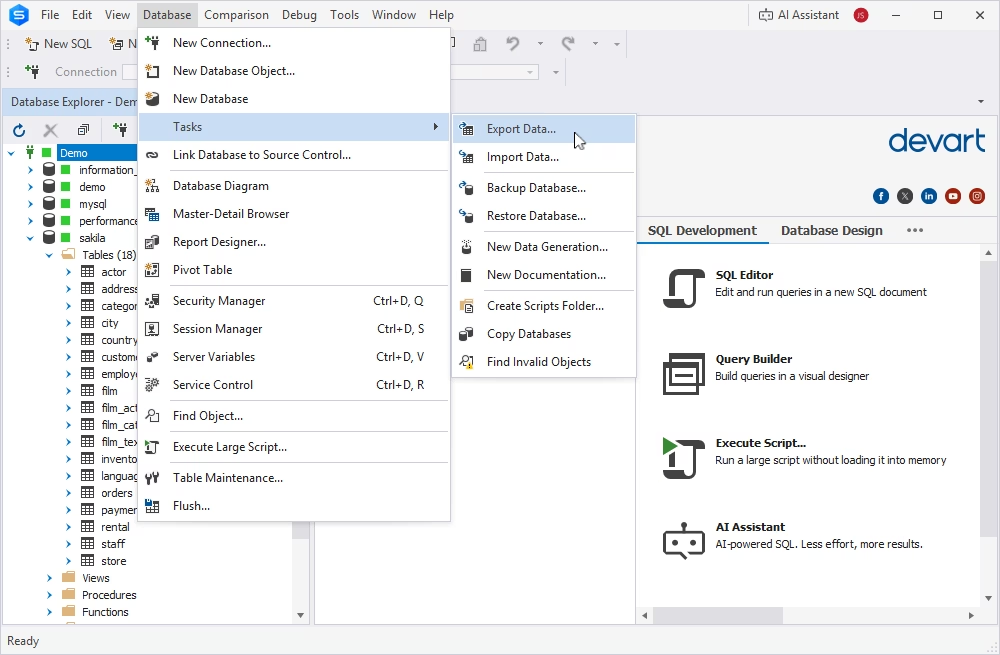
Open the Studio and go to Database > Tasks > Export Data to launch the Data Export wizard.
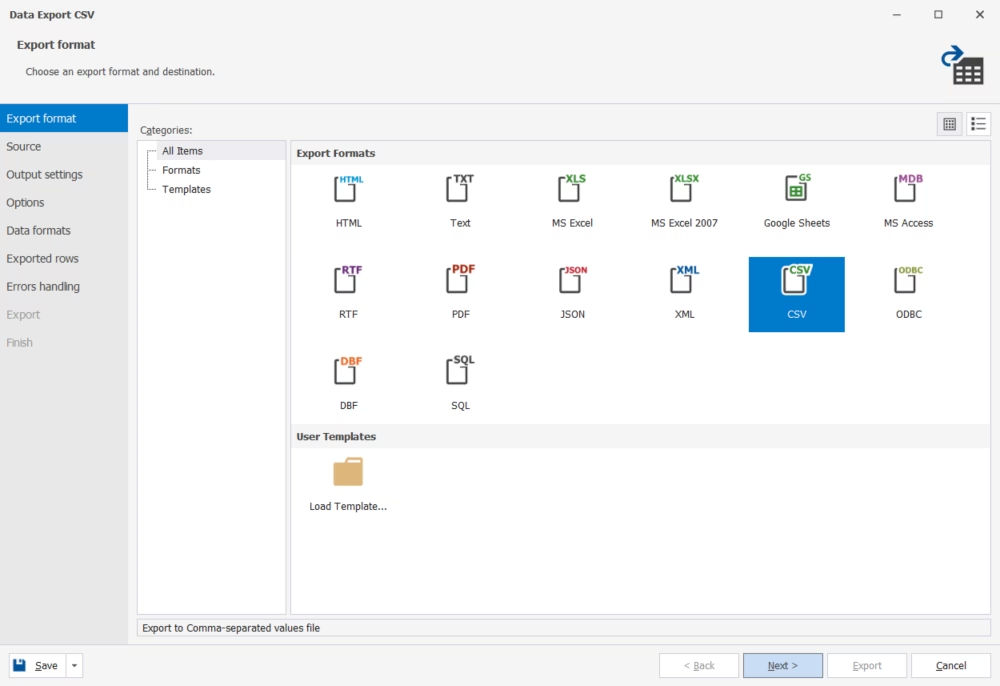
On the Export Format page, select one of the 14 available formats (this tutorial uses CSV). Click Next.
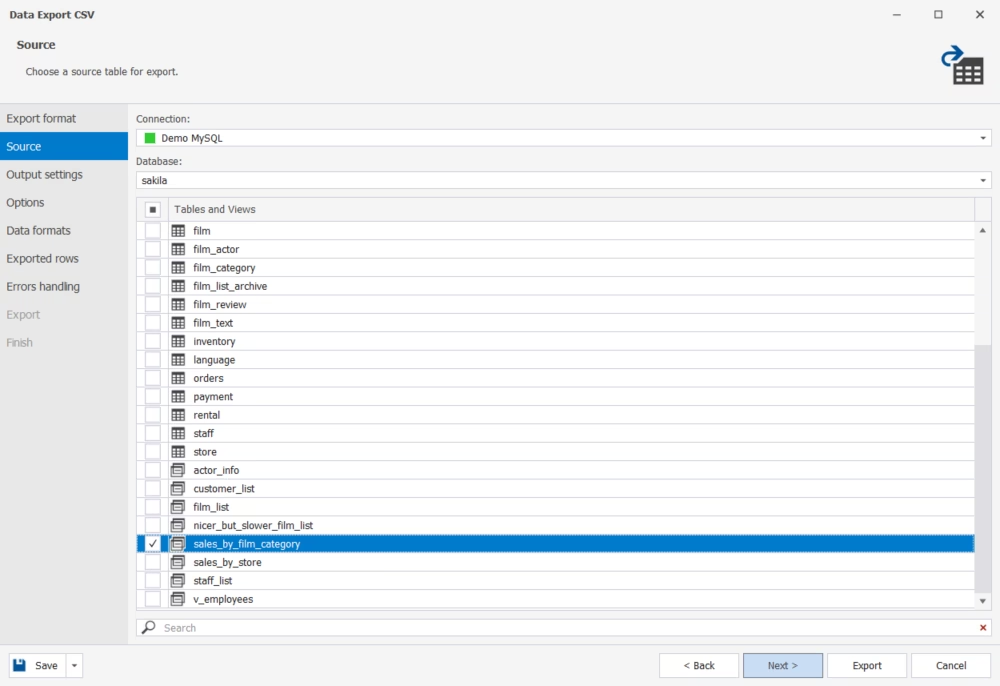
On the Source page, choose the connection, database, and table(s) to export data from. Click Next.
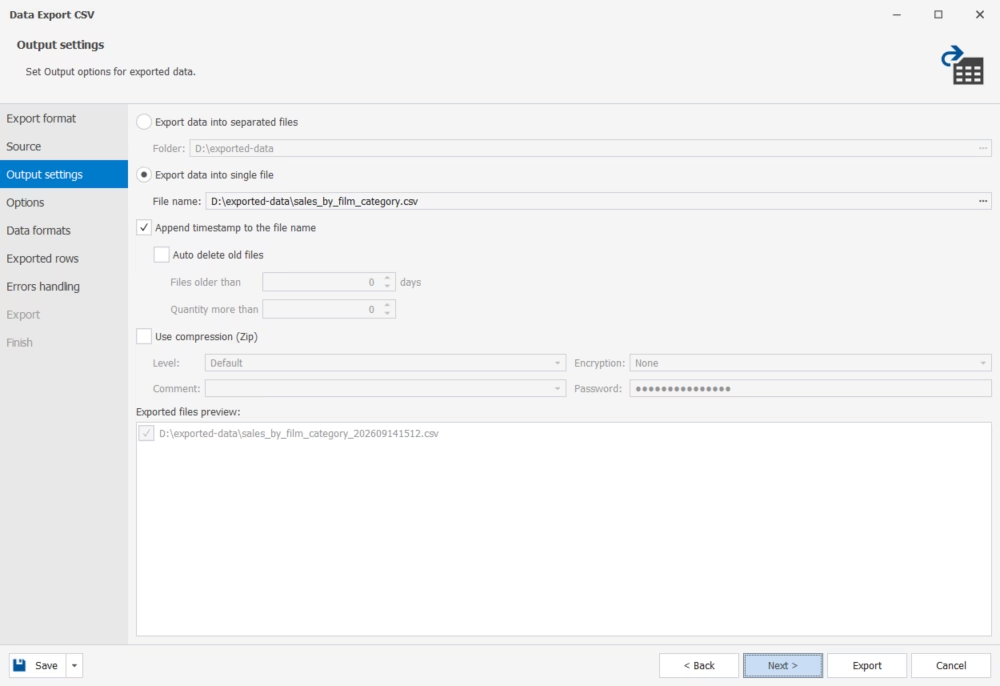
On the Output Settings page, specify the destination for the exported data. You can export to a single file or to separate files in case you are dealing with multiple tables at once. Click Next.
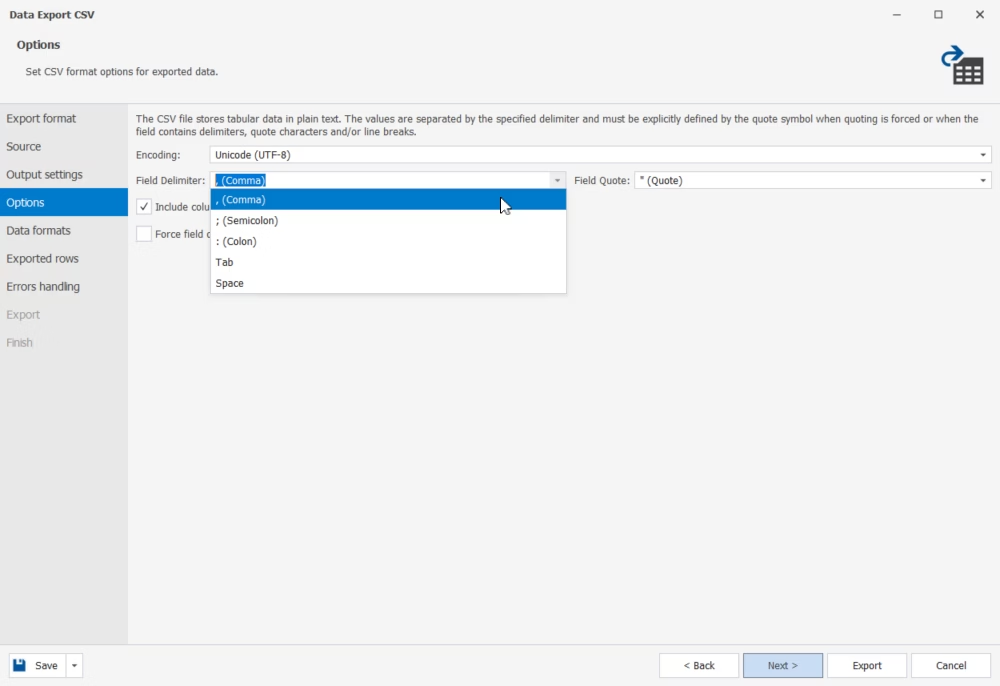
On the Options page, choose the necessary encoding, then check the delimiters and quote characters. Click Next.
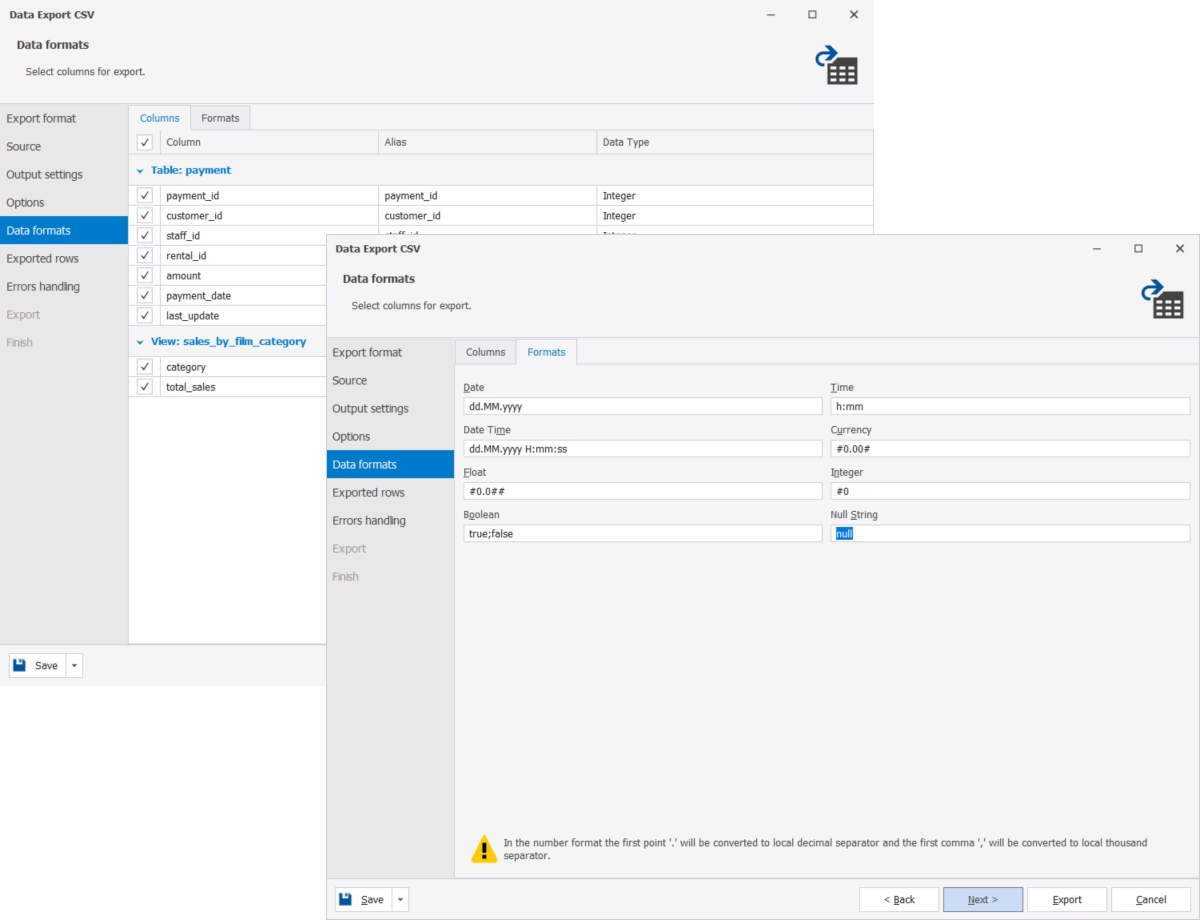
On the Data Formats page, select the columns to export on the Columns tab, then check and configure the format parameters on the Formats tab. Click Next.
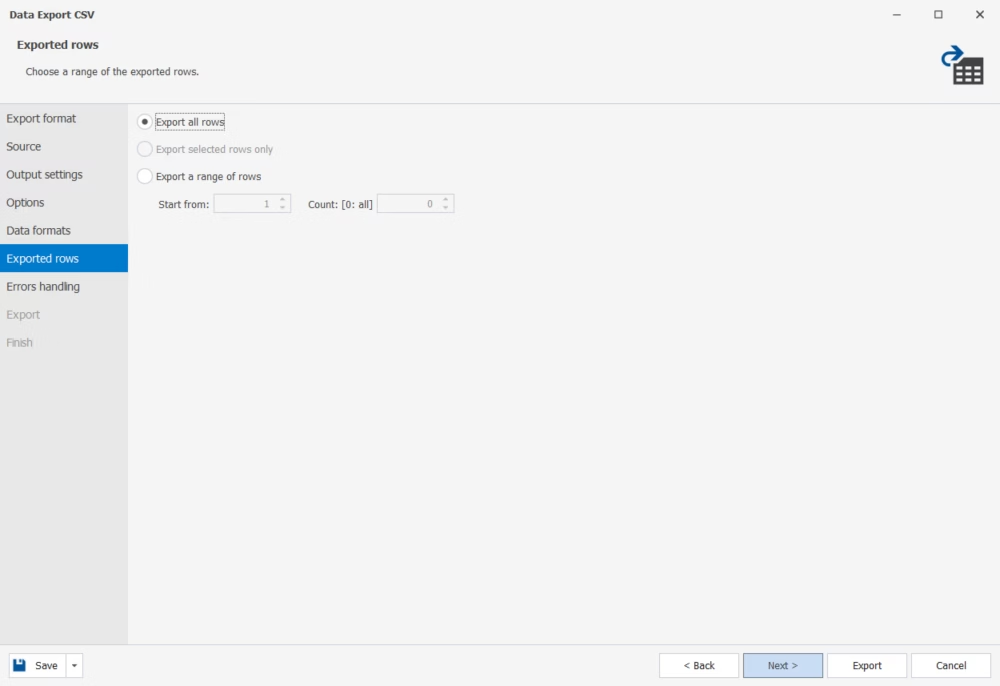
On the Exported Rows page, choose whether to export all rows or only a selection. Click Next.
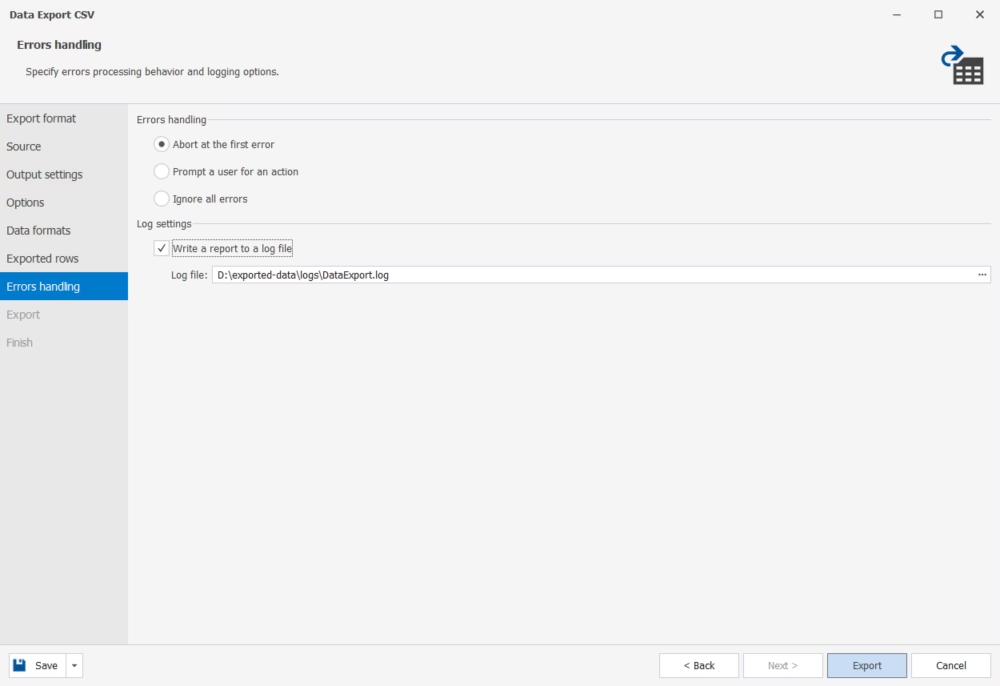
On the Errors Handling page, choose how the tool should respond to errors: abort the task, ignore errors and continue, or prompt for an action. You can also have dbForge Studio write a report to a log file. Click Export.
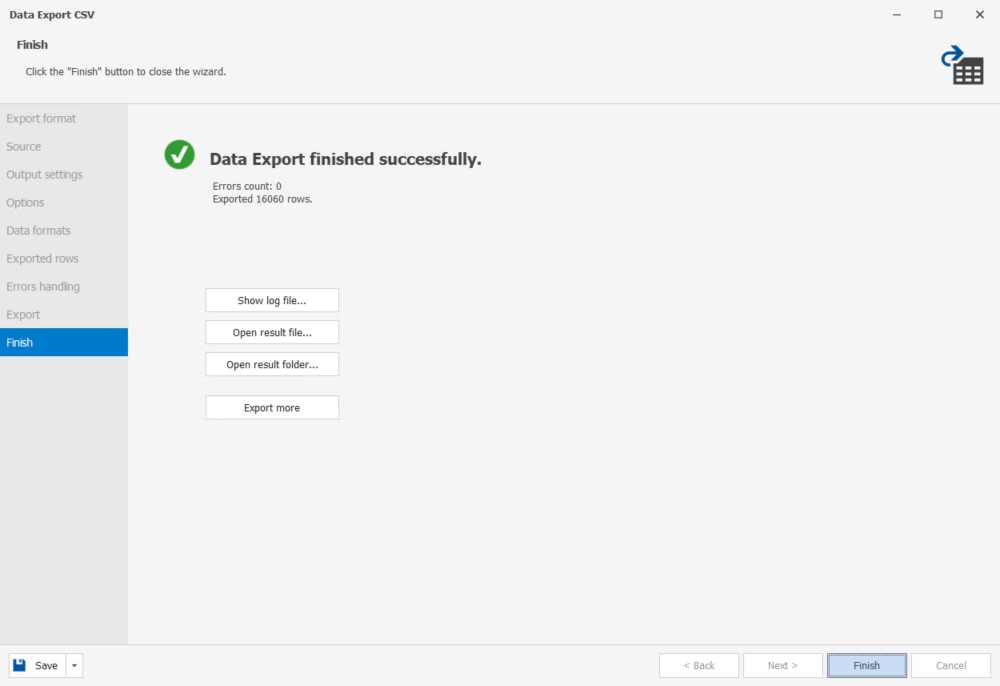
If the task completes successfully, you can view the CSV file immediately, open the folder with all exported data files, or configure a new data export task.
Data import with dbForge Studio for MySQL
The data import process performed by dbForge Studio for MySQL is simple and does not require much effort. You can import MySQL data from 10 commonly used formats: TXT, XLS, XLSX, Google Sheets, MDB (Microsoft Access), XML, JSON, CSV, ODBC, and DBF. You can also import a database in MySQL using the dump file that you will restore.
dbForge Studio for MySQL offers flexible configurations and diverse data import modes. The entire process is fully customizable. Moreover, the data import task settings can be saved as templates for recurring jobs.
Import a MySQL dump
dbForge Studio for MySQL allows you to both create a dump file and restore it, importing all its data into a database. The process is simple and is performed using a smart wizard.
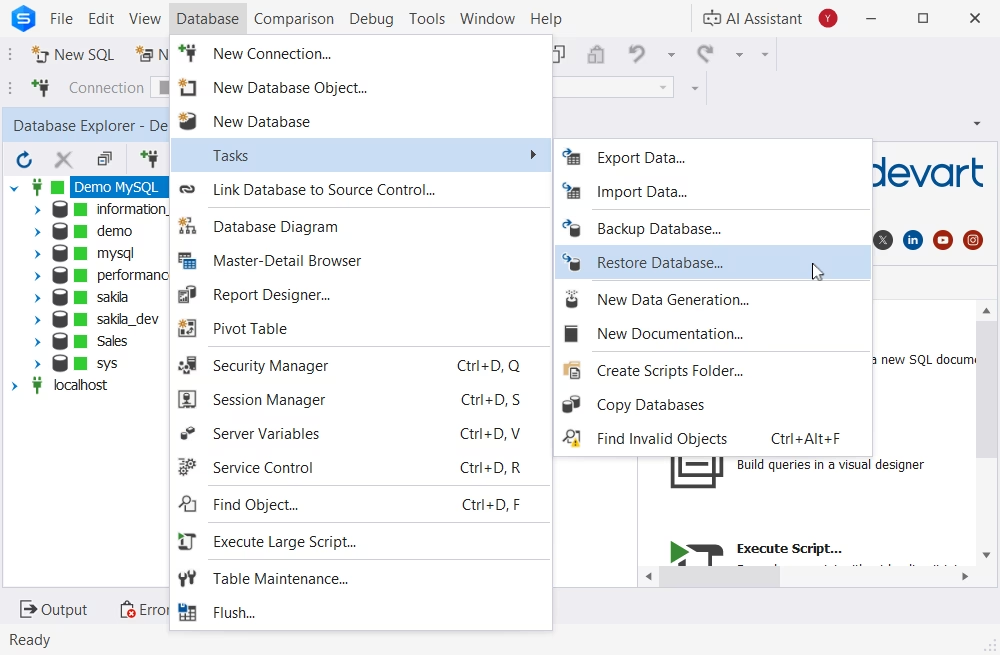
Navigate to the Database menu and select Tasks > Restore Database.
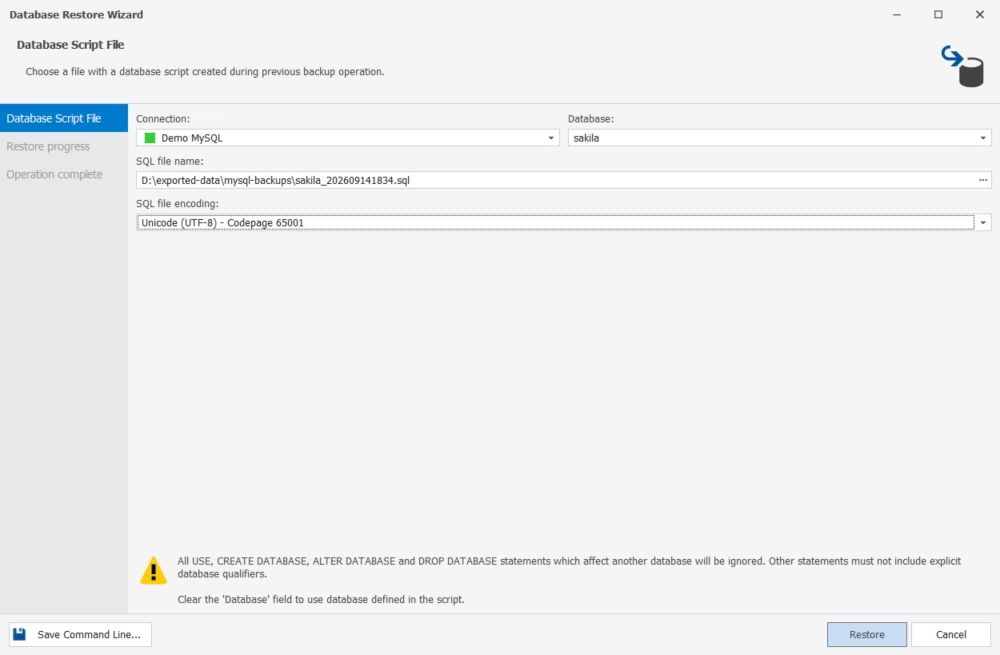
The wizard will appear. Select the dump file and click Restore.
To close the wizard, click Finish.
This is how to import a database in MySQL with all its data.
Data import process
If your goal is not to import an entire MySQL database but to import only a selection of data into the desired table, you can do it easily with dbForge Studio for MySQL and its Data Import wizard that lets you configure and perform the task in a few clicks.
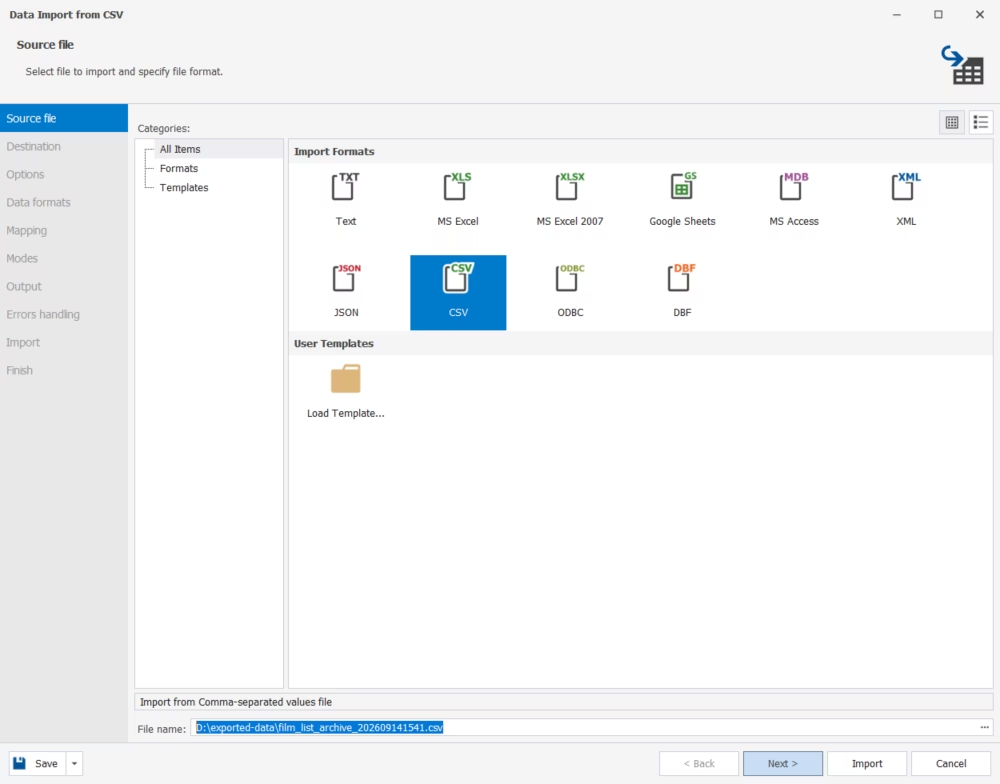
Open the Studio and go to Database > Tasks > Import Data to open the Data Import wizard. Select one of the 10 supported formats (this tutorial uses CSV again), browse to the file, and click Next.
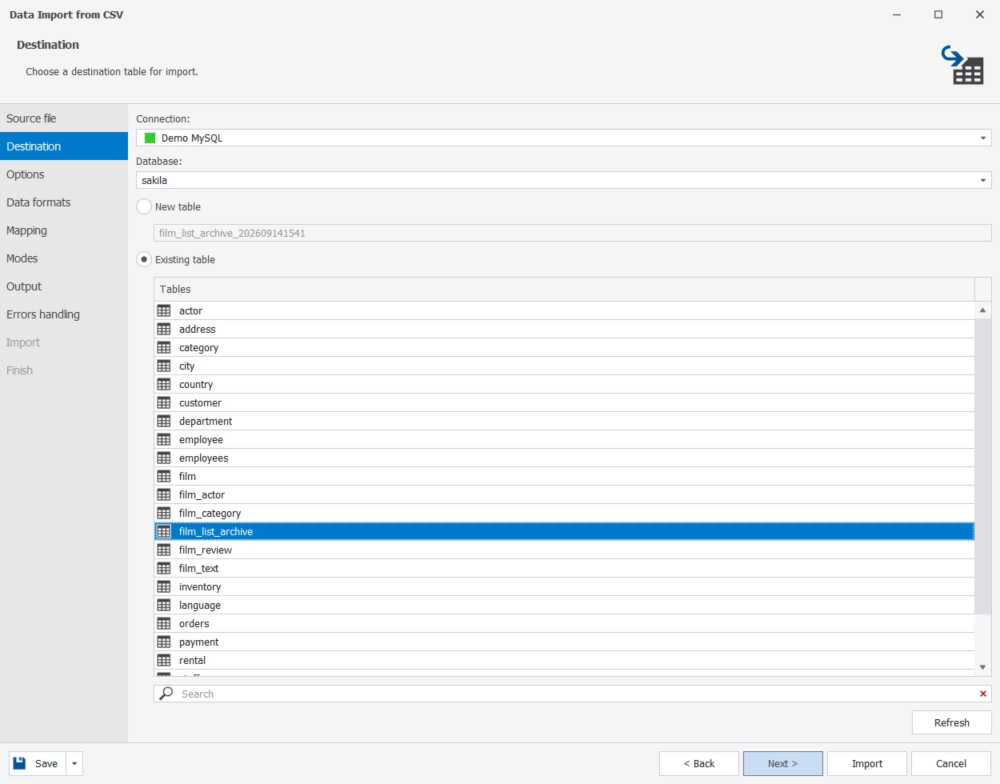
On the Destination page, choose the connection, database, and target table. You can import data into a new table (dbForge Studio will create it automatically) or into an existing one, as in this tutorial. Click Next.
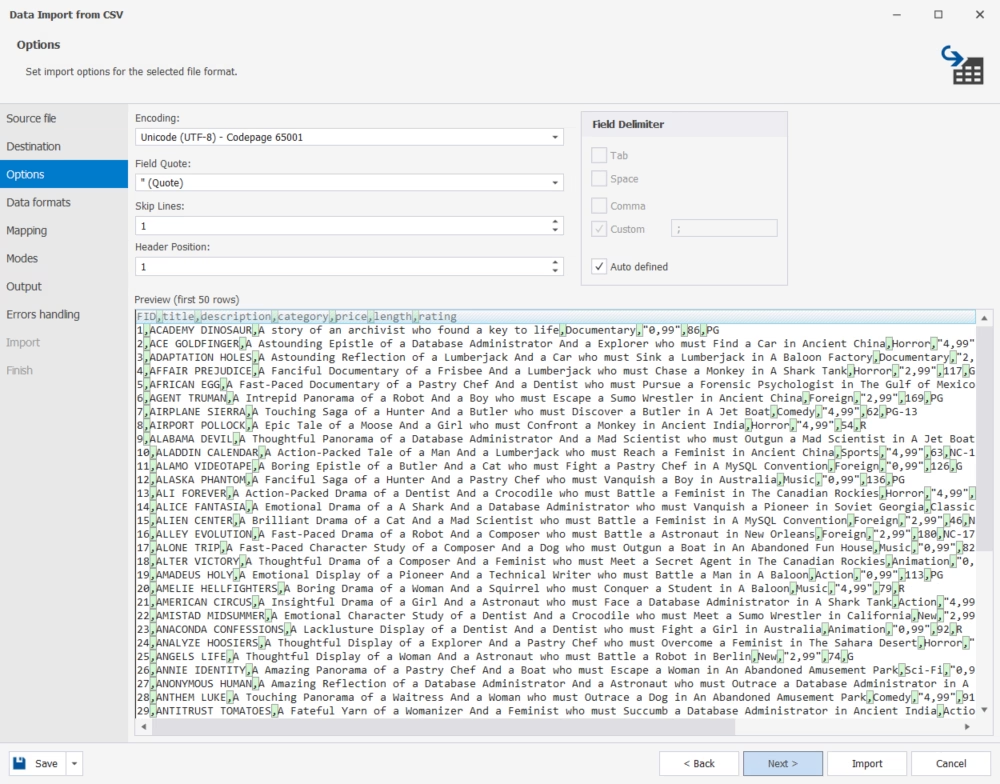
On the Options page, set the import options for the selected format and preview the imported data. Click Next.
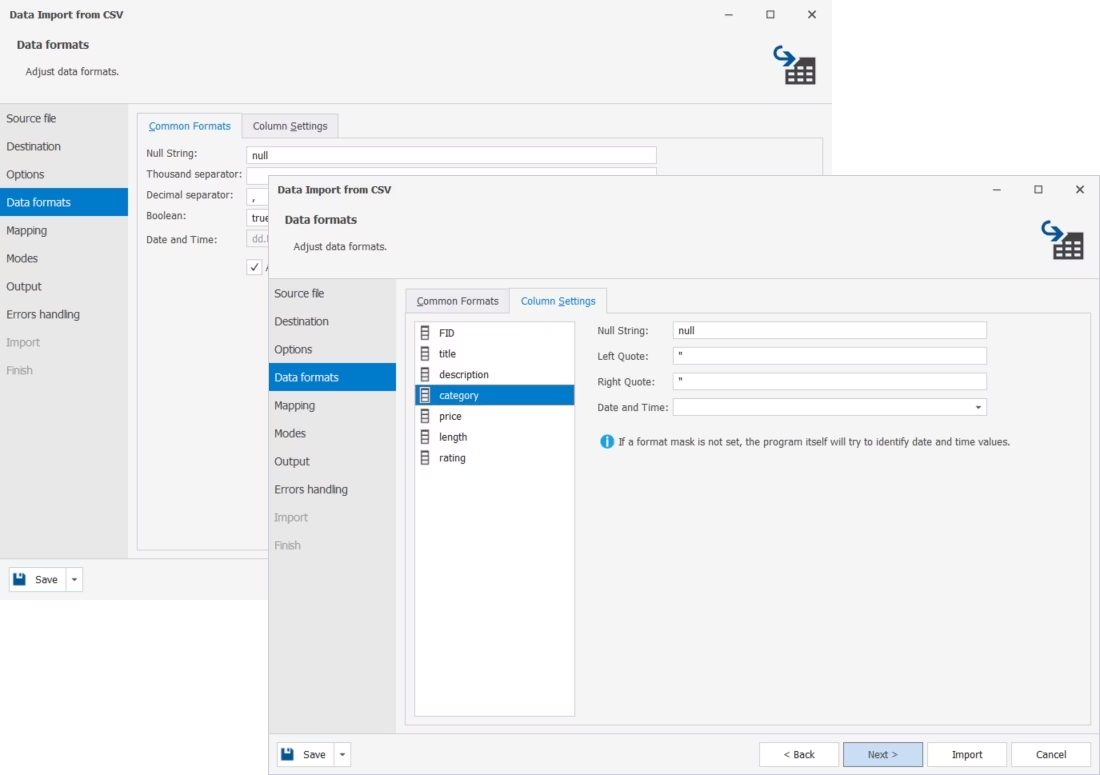
On the Data Formats page, check and adjust the format and column parameters. Click Next.
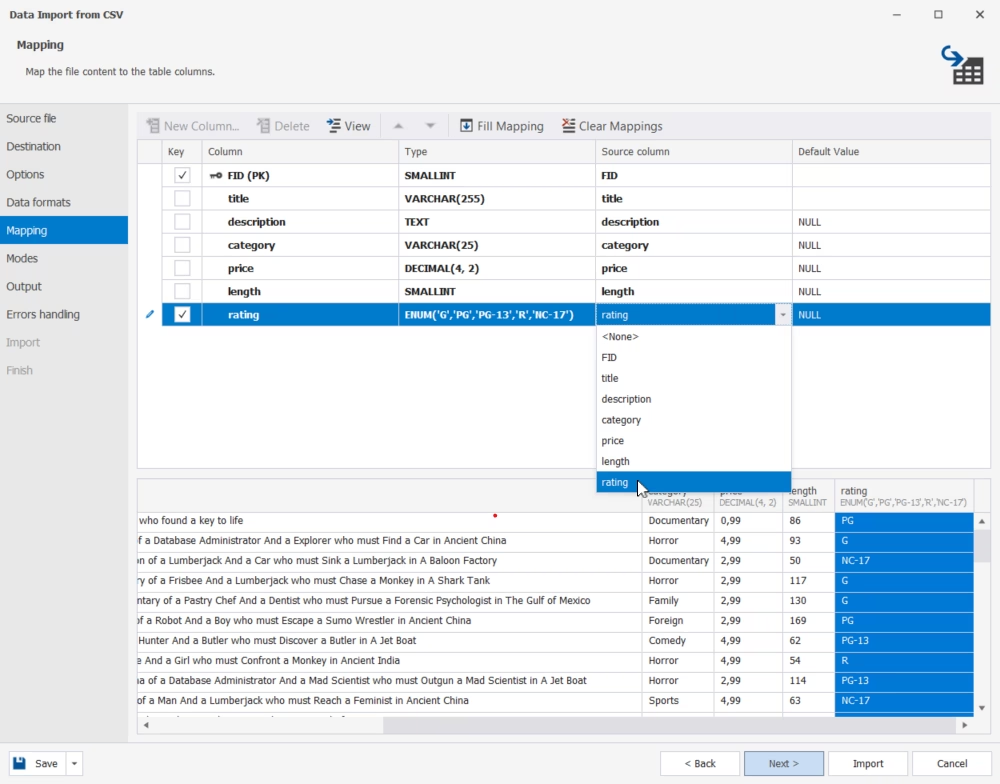
On the Mapping page, map the imported columns. If you're importing data into a new table, the Studio maps all columns automatically; for an existing table, it automatically maps columns with matching names and lets you map the rest manually. Review the mapping and click Next.
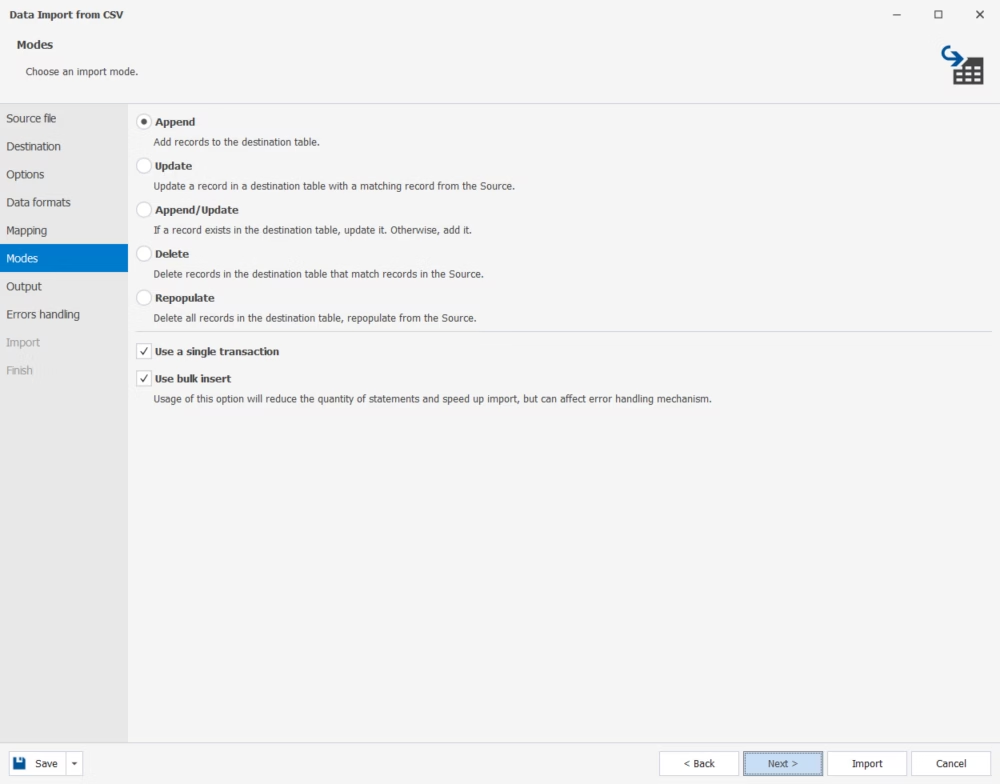
On the Modes page, select how to import the data: append new records, update existing data with new values, delete destination rows that match the source data, or repopulate the destination table. Click Next.
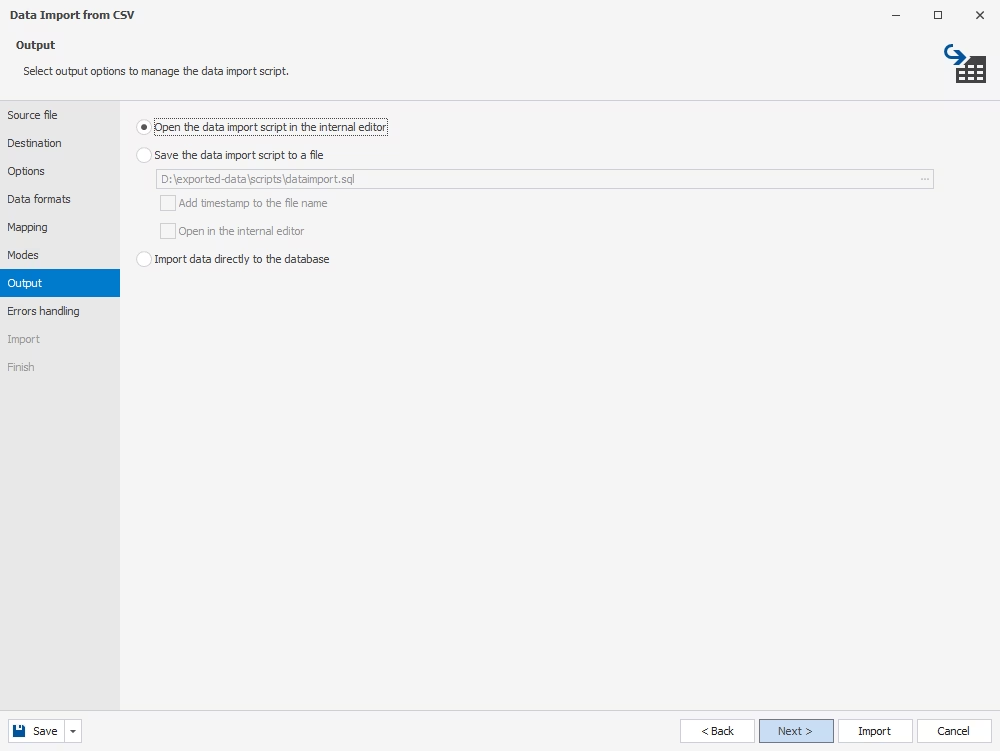
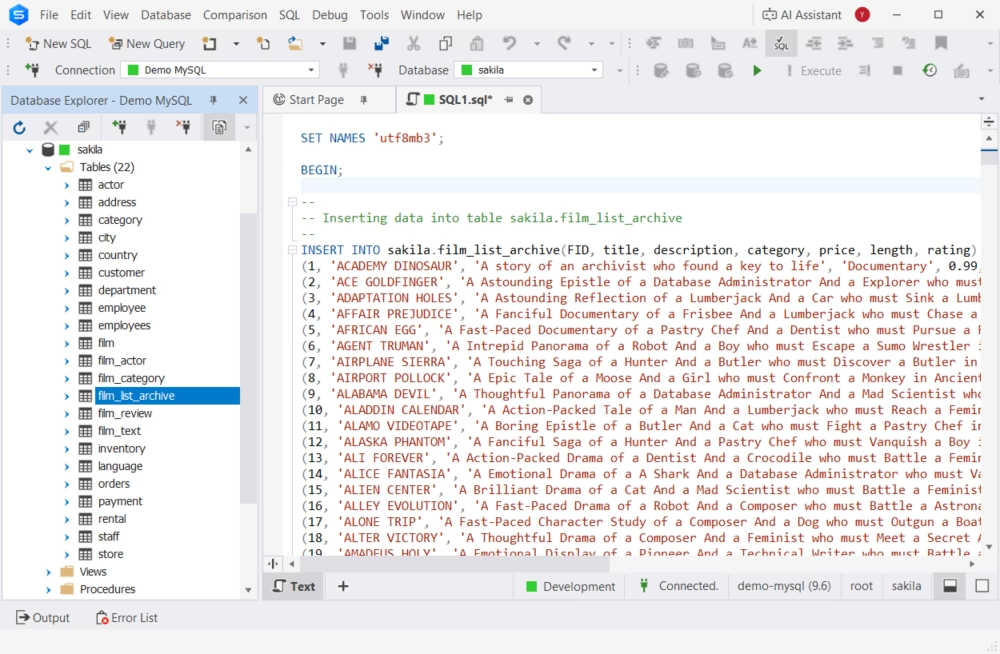
On the Output page, decide how to handle the data import script: view it in the SQL Editor, save it for later, or execute it immediately to import the data directly. Click Next.
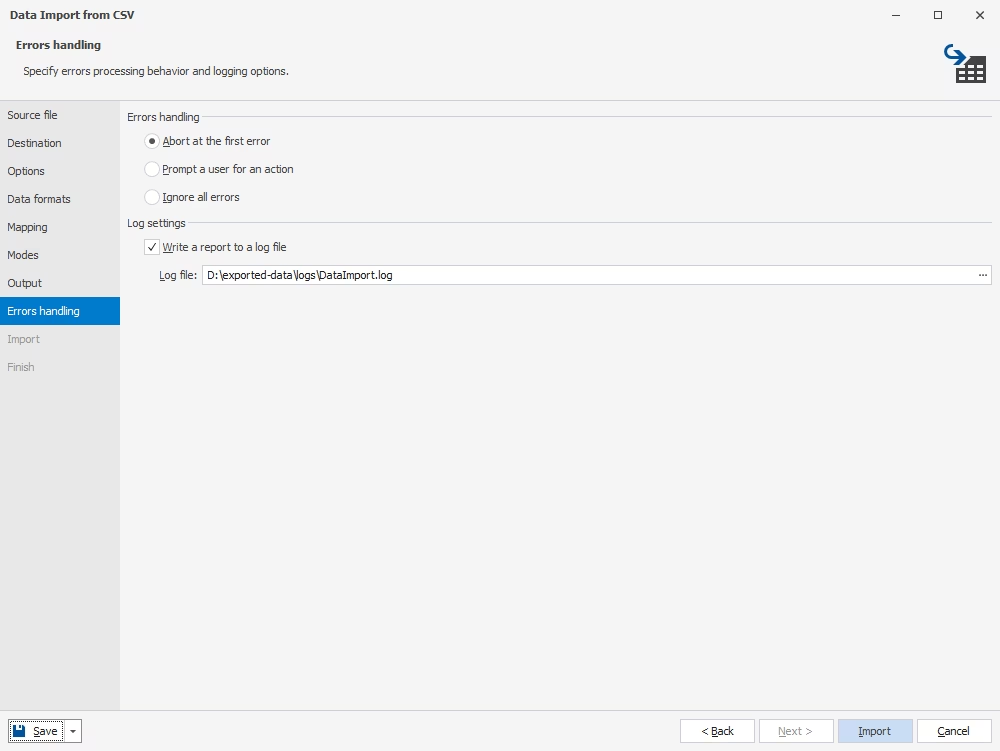
Finally, choose how errors should be handled—stop the task, continue despite errors, or prompt for an action—and optionally write a report to a log file. Click Import.
When the data import is complete, the Studio will inform you about it.
How to import a large MySQL file
Let us see how to import a MySQL database as a .sql script using Execute Script Wizard in dbForge Studio for MySQL.
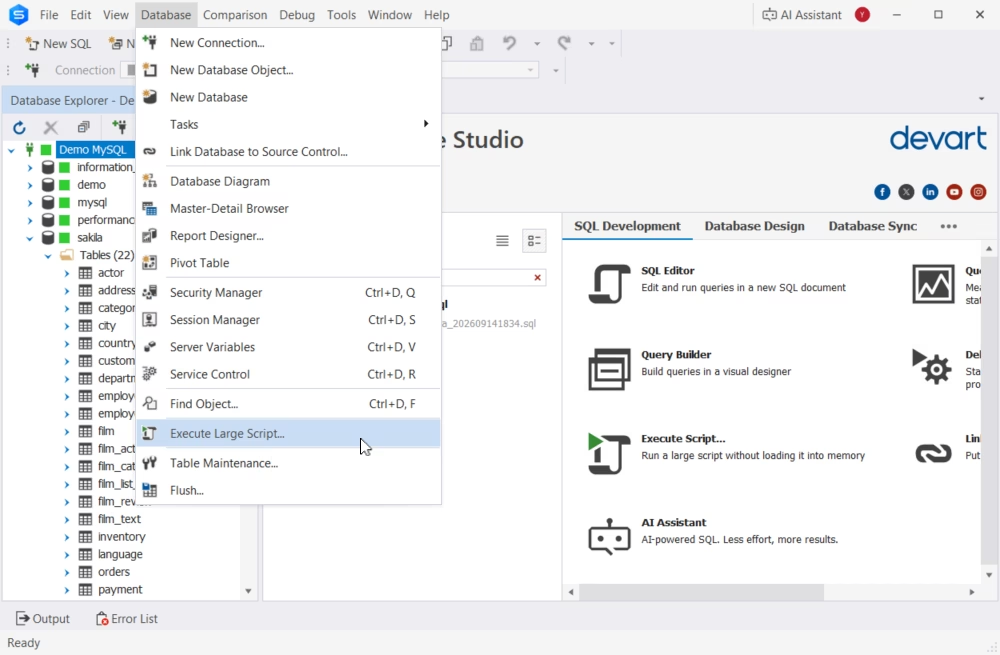
Navigate to Database > Execute Large Script.
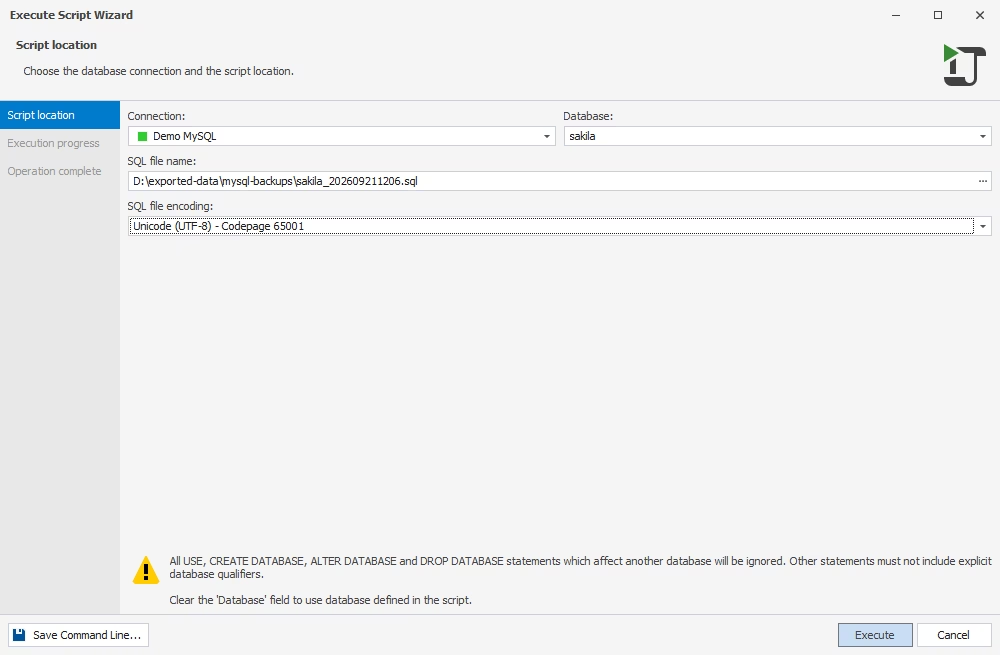
- Select the connection and database for import.
- Select the file to be imported in the SQL file name field.
- Specify the preferred encoding from the SQL file encoding drop-down list.
- Finally, click Execute.
Video tutorial: How to import and export data in MySQL
How to automate recurring import and export operations
Data import and export tasks are common, and recurring jobs should be automated. Depending on the operating system you work with, you can use different tools to automate and schedule regular operations.
If you use Windows, you can automate recurring data migration operations conveniently using dbForge Studio.
Save a template
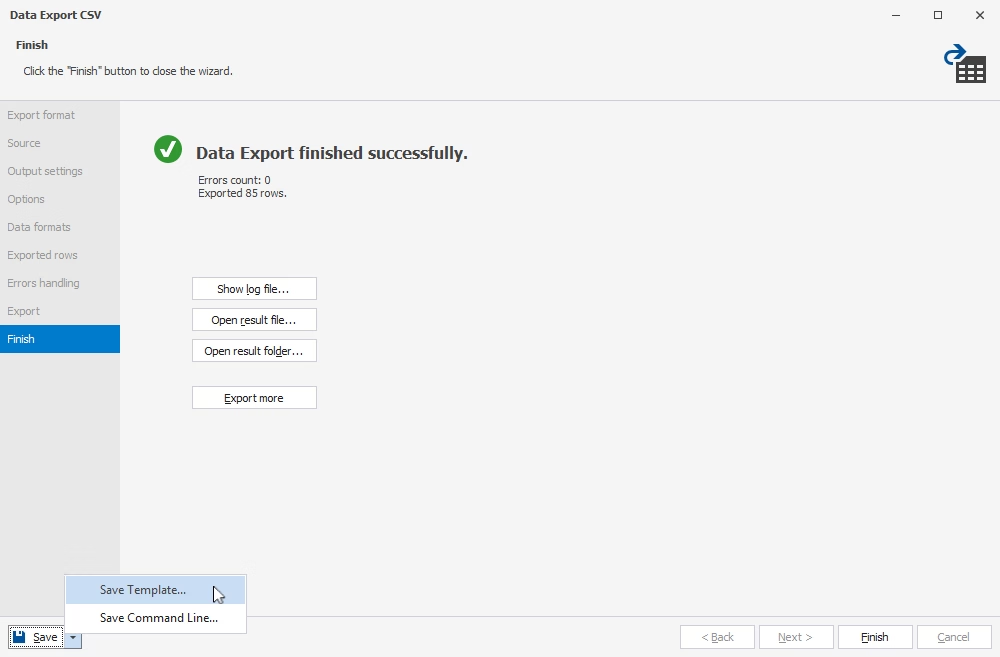
You can save your export or import settings as a template for future reuse. Once the task is configured, click Save and select Save Template. This button is available on every tab of the wizard.
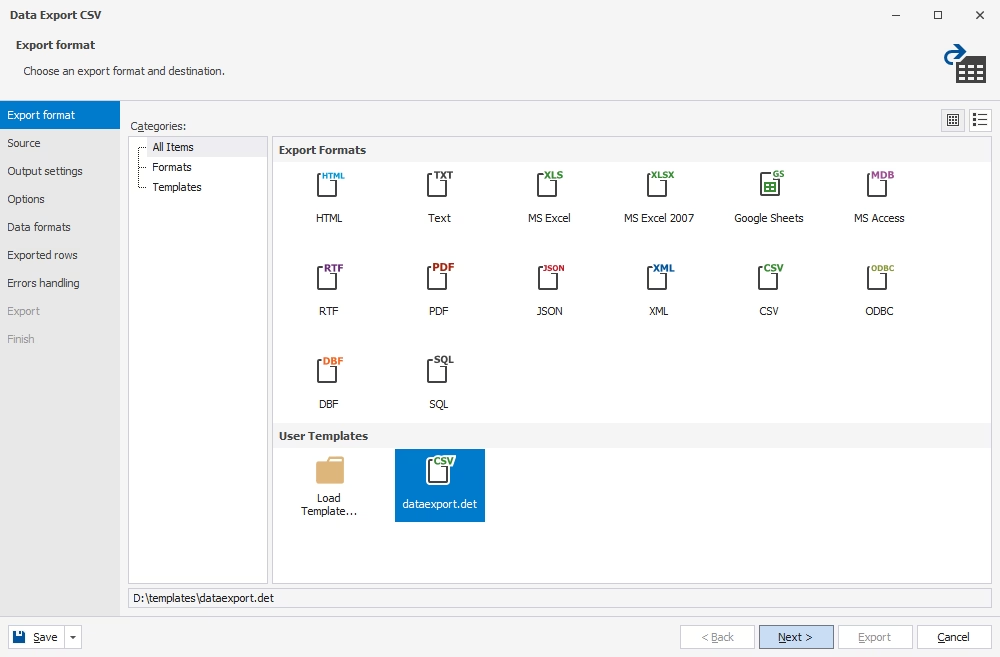
Next time, simply select the saved template to reuse it. Templates are also required for automating tasks.
Automate tasks via CLI
In the export or import wizard, click Save and select Save Command Line.
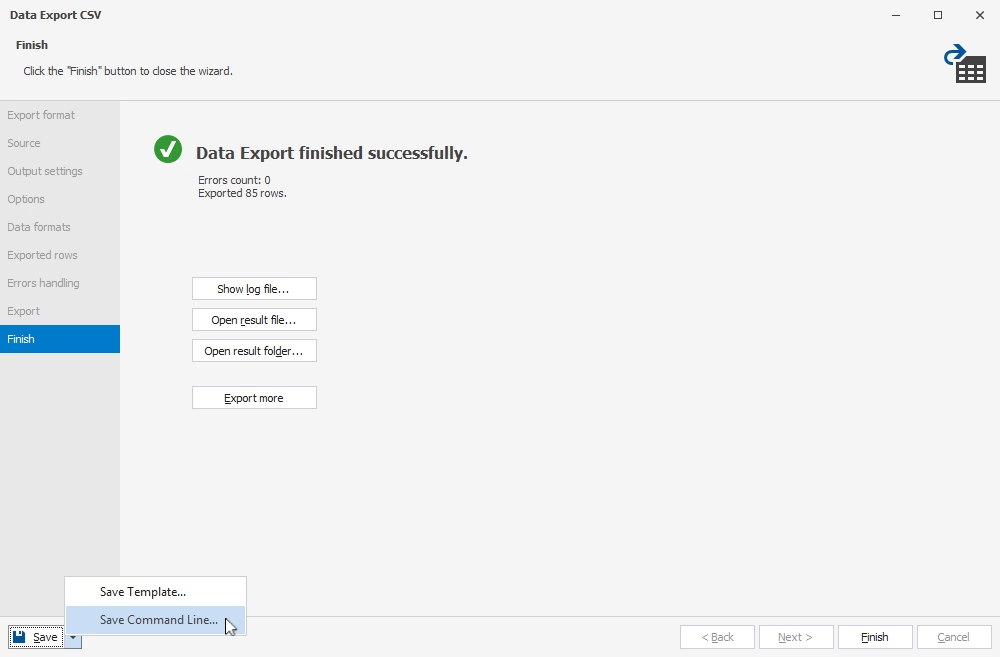
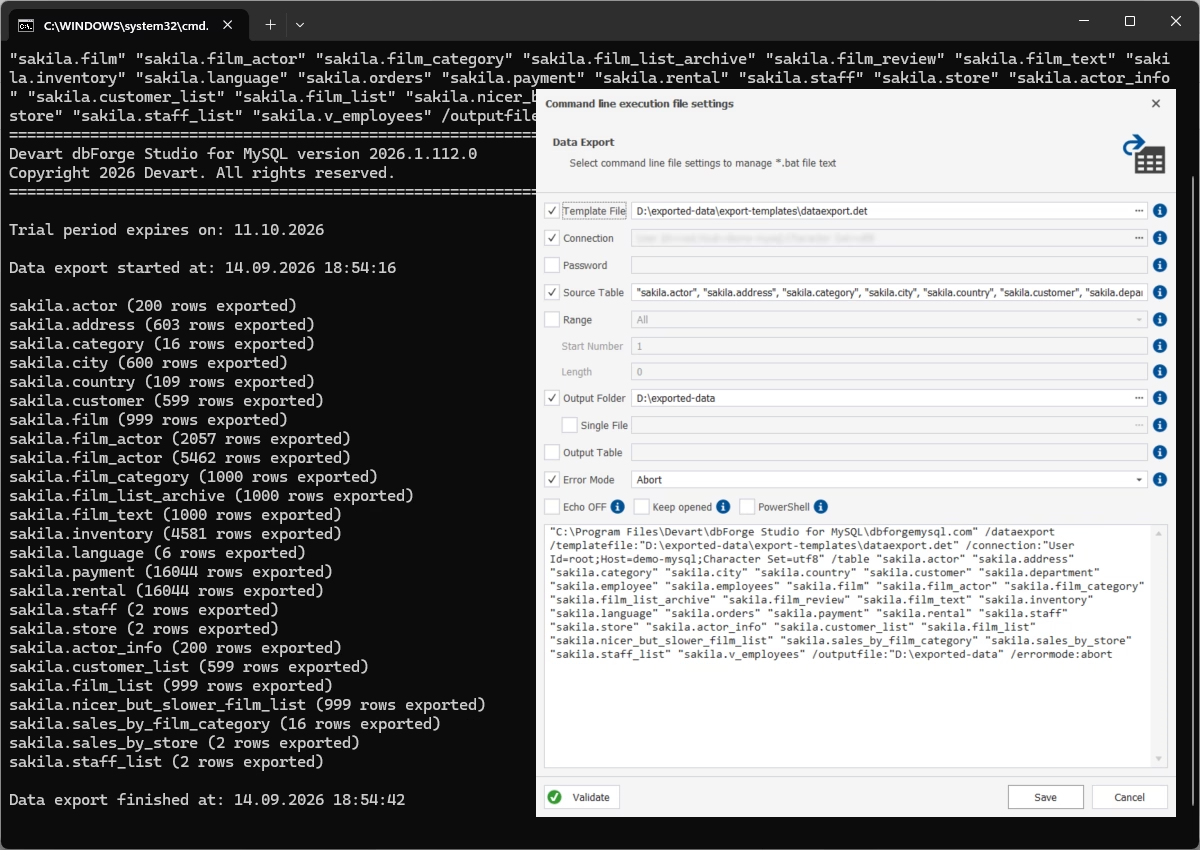
Check the settings, add the necessary task template, and click Validate to confirm that everything is correct. Save the settings as a .bat file for easy reuse.
You can run the task immediately or schedule the execution of the batch file with Windows Task Scheduler.
If you work with macOS or Linux, you can also schedule regular export operations using command-line tools like cron. To do that, you will first need a script that performs the export. For instance, you can use the standard mysqldump command:
mysqldump -u<username> -p<password> database_name > backup.sql
Next, schedule this script to run regularly using cron. To see how it's done on a Mac, refer to How to schedule recurring tasks on macOS via cron.
To learn more, refer to Export data from the command line.
Before you import a MySQL database
Whether you import a MySQL dump using a command-line tool or a GUI client, some basic checks are necessary beforehand. The exact steps may vary depending on the method you choose, but make sure to cover the following points.
- Create the target database. If you are importing a full database using the dump file, you need to first create an empty database for the import, unless the selected import method can create it for you.
- Check user privileges. Ensure that the account you use has sufficient privileges to create and modify database objects and import the data.
- Confirm the charset and collation. Check the dump and target database settings to make sure the character set and collation are compatible.
- Check the dump file path. Make sure you have the correct dump file and can access it from the command line or select it in your GUI client.
- Review the dump contents. Check whether the dump contains CREATE DATABASE, DROP TABLE, or DEFINER statements. Make sure these statements are appropriate for the target environment and will not cause unexpected changes or privilege errors.
How to import and export a MariaDB database
Importing and exporting MariaDB databases is similar to working with MySQL. Many dump-based workflows use the same or closely related commands, so you can easily transfer databases between the two systems.
For command-line operations, you can use mariadb-dump to export databases to SQL dump files, while the mariadb client can execute those files to import a MariaDB database. MySQL-compatible tools such as mysqldump and mysql may also be available, but you should verify compatibility before using them for cross-system migrations.
In any case, before migrating a MariaDB database, verify SQL syntax, storage engines, SQL modes, character sets, and version-specific features. Though MariaDB and MySQL are very similar, they have differences that can affect the dump imports and the program behavior.
If you prefer a graphical interface, dbForge Studio for MySQL is fully compatible with MariaDB and can handle MariaDB import and export tasks efficiently in the same way as described earlier in this guide.
Enhance data export and import operations with dbForge AI Assistant
dbForge AI Assistant is a tool that generates, fixes, and optimizes SQL queries, as well as provides SQL-related guidance. Being integrated into multiple dbForge products, it fully supports MySQL and MariaDB databases (as well as SQL Server, Oracle, and PostgreSQL), helping both individual developers and teams.
While dbForge Studio for MySQL simplifies data workflows through an intuitive GUI, the AI Assistant can help with more complex scenarios that require SQL.
For example, the AI Assistant can generate SQL to select the data you want to export. Simply describe your requirements in natural language, and it can generate a query based on the attached database schema. You can then review the query and export the resulting dataset using the Studio's export functionality.
The AI Assistant can also modify export queries when you need advanced filtering, JOINs, aggregations, or other conditions. Instead of writing the SQL code from scratch, you can ask the AI Assistant to generate or adjust it for you.
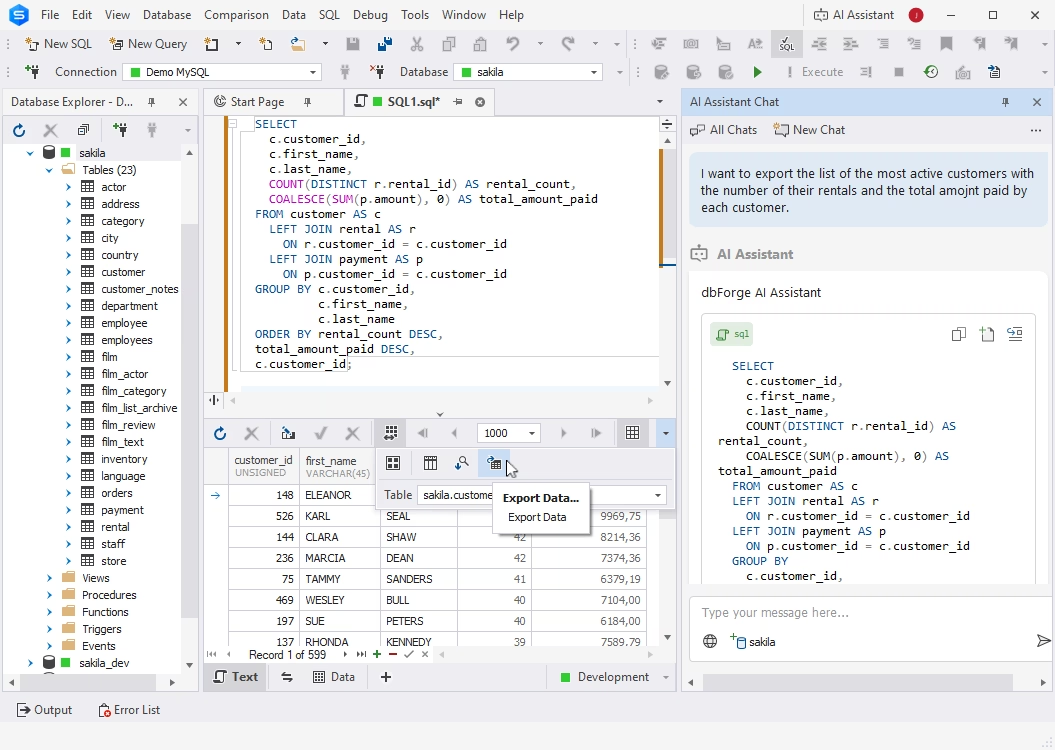
Another advantage is SQL troubleshooting. If a query used to prepare or transform data produces an error, dbForge AI Assistant can analyze it and suggest a fix.
Overall, dbForge AI Assistant helps prepare, refine, and troubleshoot SQL and data-selection logic, while dbForge Studio's Data Export and Data Import wizards handle the actual data transfer and file processing.
MySQL import and export errors: Causes and fixes
Data import and export are standard database tasks, and modern tools can make them faster and more reliable. However, issues can still occur. Let's look at some of the most common problems and how to resolve them.
| Issue |
What to check |
How to resolve it |
| Character encoding mismatch |
Check the character set used by both the source and destination databases, especially when the data contains non-ASCII characters. |
Use a compatible encoding, preferably UTF-8. When using the command line, explicitly specify the required character set, for example, --default-character-set=utf8. |
| ERROR 1290 (HY000) — secure-file-priv restriction |
Run SHOW VARIABLES LIKE 'secure_file_priv'; to check the directory allowed for file operations. If the value is an empty string (''), file operations are disabled. |
Place files in the permitted directory, such as /var/lib/mysql-files/, or adjust the MySQL server configuration if you have the required administrative access. |
| CSV delimiter or quoting problems |
Check the field separator and look for values containing separators, newlines, quotes, or other special characters. |
Specify the correct delimiter explicitly and quote fields that contain separators, newlines, or special characters. GUI tools such as dbForge Studio can simplify these settings during import and export. |
| JSON format or schema mismatch |
Verify that the JSON structure matches the target table and that values use consistent and valid data types. |
Validate and normalize the JSON before importing it. Use the UTF-8 encoding for reliable handling of special characters. |
| Large JSON import performance |
Check whether large files cause memory, packet-size, or performance issues. |
Consider increasing relevant MySQL settings, such as max_allowed_packet and, where appropriate, innodb_buffer_pool_size. Test configuration changes before importing large production datasets. |
Take note that dbForge Studio offers rich settings to help you configure import and export operations in the most flexible way. If something goes wrong, the Studio will notify you about it immediately. Additionally, you can configure error handling during import and export operations beforehand on the corresponding pages of the wizard.
FAQ
What are the best tools for exporting and importing MySQL and MariaDB data?
If you prefer an intuitive user interface, choose a GUI-based database tool such as dbForge Studio for MySQL. It offers smart and versatile wizards that will help you configure and automate routine import and export tasks with maximum precision.
If you are comfortable with command-line tools, you can use the mysqldump utility. It also allows you to back up multiple MySQL databases simultaneously.
What is the best way to automate MySQL and MariaDB data export and import?
The easiest way is to configure the task in dbForge Studio for MySQL and automate its execution.
- Connect to the required server in dbForge Studio for MySQL.
- In Database Explorer, right-click the database you want to export and select Export Data.
- Configure the export settings in the Data Export wizard.
- Click Save > Save Command Line in the bottom left corner of the wizard.
- Save the generated script as a batch file.
You can then schedule the batch file for regular execution using tools such as Windows Task Scheduler.
What are the most common issues with importing large MySQL databases?
Importing large databases can be affected by resource limitations, configuration settings, and data integrity issues. Common problems include:
- Timeouts: Large imports can take a long time. Increase the relevant timeout values in my.cnf or my.ini.
- Insufficient memory: Large imports may consume significant memory and slow down or crash the server. Adjust the appropriate memory-related settings if necessary.
- Slow imports: Complex indexes and foreign key constraints can slow down the process. Consider temporarily disabling them during the import.
- Insufficient disk space: Large imports and temporary files can consume considerable disk space. Make sure there is enough free space in both the temporary and data directories.
- Invalid data: Incorrect data types, missing required values, and other invalid entries can cause import failures. Validate the data before importing it.
- Character set mismatches: Incompatible character sets, such as UTF-8 and Latin1, can result in corrupted or misinterpreted data. Verify the character set settings before importing.
- Large rows or BLOBs: If max_allowed_packet is too low, imports containing large rows or binary data may fail. Increase the value in the MySQL configuration file.
- MyISAM table locking: MyISAM uses table-level locking, which can affect database availability during import or export. Consider switching to InnoDB or performing the operation during off-peak hours.
What is the difference between logical and physical data export in MySQL?
Logical and physical exports are two different approaches to backing up a database.
The logical export saves table data, views, stored procedures, triggers, and other database objects as SQL statements. These files can later be used to reconstruct the database.
The physical export copies the actual database files used to store data, indexes, and logs. It typically produces a binary copy of the database's underlying storage structure.
How do I transfer MySQL and MariaDB data between servers efficiently?
dbForge Studio offers several ways to migrate data between servers. Choose the method that best fits your scenario:
- Schema Compare and Data Compare synchronize source schemas and data with target environments.
- Copy Database creates a copy of an entire database, with an option to include its data.
- Duplicate Object copies a table to another environment, with an option to include its data.
- Create Scripts Folder generates a collection of scripts that can reconstruct a database and its data.
- Data Export and Import lets you transfer data using 14 popular formats.
What formats does dbForge Studio support for MySQL and MariaDB data export?
dbForge Studio supports 14 export formats: HTML, TXT, XLS, XLSX, MDB (Microsoft Access), RTF, PDF, JSON, XML, CSV, ODBC, DBF, SQL, and Google Sheets.
How do I export MySQL and MariaDB data in multiple formats at once using dbForge Studio?
The Data Export wizard provides format-specific options, so you need to select the required format when configuring each export.
To export the same data in another format, run the wizard again, select the desired format, and configure its settings.
Does dbForge Studio support the export of MySQL views?
Yes. You can export MySQL views just like regular tables. In Database Explorer, right-click the required view, select Export Data, and configure the export in the wizard.
You can also export the output of a stored procedure. Execute the procedure in SQL Editor, select the required data in the results grid, right-click the selection, choose Export Data, and configure the export settings in the wizard.
Can dbForge Studio import large files?
Yes. The Studio can efficiently process even very large files. Use the dedicated Execute Script Wizard to configure and perform large-file imports quickly and easily.
Can dbForge Studio export MySQL data to CSV, Excel, JSON, and DBF?
Yes. dbForge Studio for MySQL can export data from database tables to CSV, XLS/XLSX, JSON, DBF, and other popular formats. Altogether, the Studio supports data export to 14 formats.
Can I save import and export settings in dbForge Studio?
Yes. You can save the settings of any data import or export task as a template. In the Data Export or Data Import wizard, select Save > Save Template. When you need to run the same task again, simply select the saved template to reuse its settings without configuring the task from scratch.
Does dbForge Studio support MariaDB import and export workflows?
Yes. dbForge Studio for MySQL is fully compatible with MariaDB. It lets you create and restore MariaDB dump files and easily configure and perform data import and export tasks for MariaDB tables.
Can dbForge Studio help move data between MySQL servers?
Yes. You have several options. You can export data from tables on one server and import it into tables on another. You can also export the entire database as a dump file and restore it on a different server. Alternatively, use Data Compare to compare table data across MySQL servers and transfer the required data to the target database.
