MySQL Report Builder and Reporting Tools
Data analysis and reporting are routine yet critical tasks that demand attention due to their complexity and importance. Analysts and managers must carefully select and collect relevant data, then analyze it to identify trends, patterns, anomalies, or insights. This process often involves writing SQL queries, requiring a solid understanding of the language. Effective data visualization is also essential as it enhances understanding, emphasizes findings, and improves report readability.
Although common, these challenges can be significantly reduced with the assistance of a specialized GUI-based data management tool.
dbForge Studio for MySQL from Devart is often named as the best MySQL IDE for Windows (it also runs on macOS and Linux). This solution covers every stage of the database workflow. It simplifies data analysis and reporting by providing users with an intuitive interface. Data analysts and managers can select, query, process, and visualize data in just a few clicks, and automate these tasks. With its help, you can perform data analysis and reporting more quickly, easily, and efficiently. Let us explore the robust data reporting capabilities of dbForge Studio for MySQL.
MySQL reporting tool key features
dbForge Studio for MySQL is an all-in-one integrated development environment (IDE) that provides a toolset for developing, managing, and administering MySQL databases. Beyond core database tasks, it also offers advanced features for data analysis, visualization, and reporting.
Here, we'll delve into how MySQL reporting tools offered by dbForge Studio can make your work faster, more intelligent, and more insightful.

MySQL Report Generator
The Studio provides the functionality for creating MySQL reports from scratch or based on a single table, view, or custom query, with flexible output settings. In particular, this MySQL report generator provides you with the following options:
- Create a standard, label, or blank report
- Select columns to display in a report
- Add grouping levels
- Customize the report layout
- Select styles for a report

MySQL Report Designer
A handy and functional Report Designer provides everything needed to create a good-looking MySQL data report so you can:
- Use custom queries as a data source+
- Drag and drop objects to report from Database Explorer
- Fine-tune reports with a rich set of controls
- Easily navigate through the report elements
- Add grouping and sorting levels to the report
- Preview a ready report before printing

MySQL Pivot Tables
dbForge Studio for MySQL helps you convert large amounts of data into compact and informative summaries - pivot tables. This feature enables you to create a report from a MySQL database more efficiently. You can rearrange (pivot) data to achieve the best layout for understanding data relations and dependencies.
The Studio provides the following options:
- Choose the style to change a pivot table's appearance
- Add conditions and configure layout with the specialized editor
- Calculate custom totals for column or row fields
- Filter and group data for better readability

MySQL Chart Builder
Charts are visual representations of your SQL data, allowing you to understand the numbers at a glance. The Chart Builder, implemented in dbForge Studio for MySQL, features a comprehensive chart collection suitable for various purposes.

Smart report delivery
When dbForge Studio for MySQL generates a data report and displays it within the interface, you can either save the report locally or share it for use in later stages of your data management processes.
The Studio also offers multiple options for working with ready-made data reports. In particular, you can:
- Print the report
- Send the report via email
- Export the report in 9+ popular formats
- Save the report project for later use

Automation of reporting tasks
Data reporting tasks are often routine and repetitive, making them ideal candidates for automation. With dbForge Studio for MySQL, you can easily automate MySQL data reporting through its command-line interface.
You can also create a command-line execution file to generate reports on demand or configure it with Windows Task Scheduler to run recurring reporting tasks automatically.

Now, let us explore how to use these MySQL database reporting tools to generate a data report for your database.
How to create a MySQL data report in dbForge Studio
On the File menu of the Studio, point to New > Data Report. In the Data Report Wizard, select Standard Report and click Next.

There are two approaches when you want to generate a report from a MySQL database. First, you can retrieve data from specialized tables and their corresponding columns. Or, you can get the data from different columns in different tables. Let us consider both options.
To generate the report using data from a single table only, select the Simple Table/View mode.

Specify the table and columns to retrieve the data from.

If you need a more complex data selection that involves different tables and columns, choose the Custom Query mode. It enables you to obtain the data as a result of the specialized query.

You can use sophisticated queries with JOINs and conditions. Write or paste the query directly, design the query visually, or load the SQL script from an external location.

Next, configure the layout for your report - we recommend using the tabular format.

Select the visual style, and click Finish to get into the Report Designer area.

In this section, you can customize the titles and the size of fields if necessary. Click Preview to view the data selection that has to be included in the report. Here you can also save the report in different formats. The Studio supports all popular file formats including PDF, HTML, CSV, RTF, XLS, and TXT.

You can also configure dbForge Studio to deliver these reports via email or FTP.
We have examined how to create a report in MySQL from the data stored in the database. As mentioned earlier, reporting tasks can be automated and scheduled to run at specific times. This feature is highly valued because it eliminates the need for manual work on routine tasks. Moreover, it is beneficial for DevOps teams. Let's explore this functionality in more detail.
How to automate data reporting for DevOps and CI/CD
Data analysis and reporting are integral to CI/CD processes, enabling teams to quickly detect the impact of changes after implementation, enhance collaboration, and facilitate more thorough and efficient decision-making.
The system automatically generates and delivers reports (e.g., via email or FTP), reducing manual work. These automated reports integrate with CI/CD pipelines to monitor, validate, and communicate key metrics about software performance, quality, and system health.
dbForge Studio for MySQL allows you to automate the data reporting tasks. Any report settings can be saved as a .rdb file. After that, you can use that file in conjunction with the .bat file to run this particular report automatically and schedule it with Windows Task Scheduler.
When you complete the task configuration, click Save Command Line. In the Command Line execution settings, check Report File and select the .rdb file with the report configuration.

Now you can use this file to run automatic reports. You can select the file format and the delivery method – either sending it by email or by FTP (configure the SMTP settings on the Tools > Options menu).

To automate report running and delivery, launch the Windows Task Scheduler, navigate to the Task Scheduler Library, and click Create Basic Task. Enter a name for the new task and click Next.

In the Trigger section, specify when you want the task to start. You can set the desired day and time. Click Next.

For the Action, select Start a program and click Next. Select the .bat file you saved earlier after configuring the data report.

Click Finish to complete the task setup.

Therefore, Windows will launch the mysql report generator included in your dbForge Studio for MySQL and run the necessary report on the schedule automatically. After that, this report will be delivered in your preferred format.
Common mistakes and how to resolve them
Although dbForge Studio for MySQL is designed to minimize errors, occasional issues may still occur, especially when using the Custom Query mode for reports. Such errors often arise from problems in the SQL query used to retrieve the required data.
Let us explore the most common mistakes you might encounter when generating data reports and show you how to fix them.
Error 1267: Illegal mix of collations
This error takes place when MySQL tries to compare or join string columns with different collations (e.g., utf8_general_ci vs utf8_unicode_ci), which are not compatible. As a consequence, queries fail to execute, and the report generation process halts.
To fix this issue, ensure all string columns involved in joins or unions have the same collation by explicitly converting them using COLLATE. For instance, column_name COLLATE utf8_general_ci.
Excessive resource consumption during data aggregation tasks
Aggregation operations on large datasets (especially with complex expressions or no indexes) can consume excessive memory or CPU. Therefore, reports may time out, slow down server performance, or become unavailable during peak hours.
The solution will be to optimize queries by indexing grouped columns, avoiding unnecessary calculations within the GROUP BY clause, utilizing derived tables or temporary tables, and reviewing execution plans with the EXPLAIN feature.

Data export mistakes (encoding, CSV delimiters)
When exporting data (e.g., to CSV), encoding mismatches or incorrect delimiters can lead to unreadable files or corrupted characters. As a result, end users may receive unusable reports or face errors when importing data into tools like Excel.
The report designer lets you select both the encoding and delimiters when exporting to formats where these settings are crucial. Ensure that your chosen options align with the requirements for accurate data display.

Check our MySQL report builder video guide
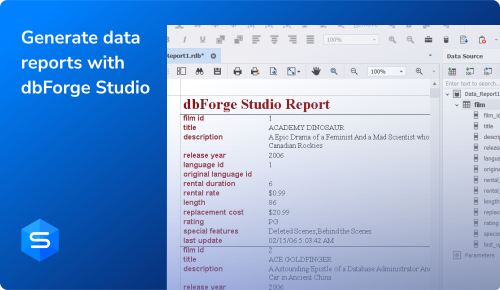
dbForge Studio for MySQL is a user-friendly GUI tool, that is suitable for both beginners and experienced users. Have a look at the below video tutorial that demonstrates how to create data reports in the Studio using its visual tools.
Conclusion
dbForge Studio for MySQL is a comprehensive solution for professional database development and management. It provides an extensive set of tools to create, administer, and optimize databases as well as advanced data analysis capabilities. Its powerful reporting features allow users to generate detailed, visually appealing reports that clearly present data trends to support strategic business decisions. Additionally, it integrates smoothly with DevOps workflows to enhance operational efficiency.
You can explore all of dbForge Studio for MySQL's features with a fully functional 30-day free trial. See the difference it can make for your projects!
A few words from our users
IT Technician at Fundacja RSC
Lecturer at the University of Brawijaya
Chief Executive Officer