You can install the driver by using the Windows installer.
After you receive the license key, add it to your connection strings to connect to the data source.
Db2 is a cross-platform database management system (DBMS) developed by IBM. It provides a robust relational database engine along with integrated support for selected NoSQL features, making it a powerful and flexible data platform.
Thanks to its strong analytical and transactional capabilities, Db2 remains a popular choice in modern software development. However, reliable connectivity between the database and the application is essential, and this is where modern data providers from the dotConnect product line become especially useful.
In this article, we will explore how to connect to Db2 using dotConnect for Db2 and demonstrate several connection approaches.

Fully supports EF Core, Dapper, NHibernate, and LinqConnect, enabling developers to build scalable and maintainable data access layers when working with IBM Db2 databases.

Conforms to the latest ADO.NET standards and recent industry innovations for seamless and consistent integration with .NET applications.

Includes the full range of IBM Db2 data types and database features, allowing accurate mapping and reliable handling of Db2-specific structures within .NET applications.

Offers strong security capabilities, including SSL connections, proxy support, and advanced network configuration, protecting data in transit and enabling flexible deployment scenarios.

Provides seamless Visual Studio integration and rich design-time support, simplifying connection setup, schema exploration, and rapid application development.

Includes priority support, detailed documentation, and regular updates, ensuring reliability and continuous compatibility with new .NET and Db2 releases..
You can start using dotConnect for Db2 immediately with a 30-day free trial. Choose one of the following installation options:
You can install the driver by using the Windows installer.
After you receive the license key, add it to your connection strings to connect to the data source.
The following example shows how to connect to an IBM Db2 database using dotConnect for Db2 in a C# application.
using Devart.Data.DB2;

                    namespace DB2ConnectionExample
                    {
                    class Program
                    {

                        static void Main(
                        string[] args
                        )

                    {
                    string connectionString =
                    "" +
                    "User Id=TestUser;" +
                    "Password=TestPassword;" +
                    "Server=127.0.0.1;" +
                    "Database=TestDatabase;" +
                    "current schema=TestSchema;" +
                    "License Key=**********";

                    using (
                    DB2Connection connection =
                    new DB2Connection(connectionString)
                    )
                    {
                    try
                    {
                    connection.Open();

                    Console.WriteLine(
                    "Connection successful!"
                    );
                    }
                    catch (DB2Exception ex)
                    {
                    Console.WriteLine(
                    $"Error: {ex.Message}"
                    );
                    }
                    }
                    }
                    }
}You can establish an SSL connection to a Db2 database using the Devart.Data.Db2 library with the specified connection string parameters. Modify your code as follows:
                        static void Main(
                        string[] args
                        )

                    {
                    // Define your connection string with SSL parameters
                    string connectionString =
                    "" +
                    "Server=127.0.0.1;" +
                    "User Id=TestUser;" +
                    "Password=TestPassword;" +
                    "Database=TestDB;" +
                    "Security=SSL;" +
                    "SSLClientKeystash=path/to/your/keystash.sth;" +
                    "SSLClientKeystoredb=path/to/your/keystore.kdb;" +
                    "License Key=**********;";

                    // Create a new Db2Connection object
                    using (Db2Connection connection =
                    new Db2Connection(connectionString))
                    {
                    try
                    {
                    // Open the connection
                    connection.Open();

                    Console.WriteLine(
                    "Connection successful!"
                    );
                    }
                    catch (Db2Exception ex)
                    {
                    // Handle any errors that may have occurred
                    Console.WriteLine(
                    $"Error: {ex.Message}"
                    );
                    }
                    }
                    }
SSL parameters:
The following table lists common connection string parameters used when connecting to IBM Db2 with dotConnect. These properties define the authentication type, server location, credentials, and default schema settings.
| Property | Description |
|---|---|
| Authentication | String representing the type of authentication to be used. The default value is SERVER. Acceptable values are: SERVER, SERVER_ENCRYPT, DATA_ENCRYPT, KERBEROS, GSSPLUGIN, CERTIFICATE |
| Server | Host and port to connect to, separated by a colon. Example: db2server:5000. The port is optional |
| Data Source/Host/Server | Host name or IP address of the Db2 server |
| User ID/User | Db2 login account used for authentication |
| Password | Password for the Db2 login account |
| Database | Name of the database. If not specified, the database name is assumed to be the same as the user name |
| Current Schema | Default user ID to be used as the owner of unqualified SQL objects |
See the full list of available connection string parameters in the documentation: dotConnect for Db2 connection string parameters .
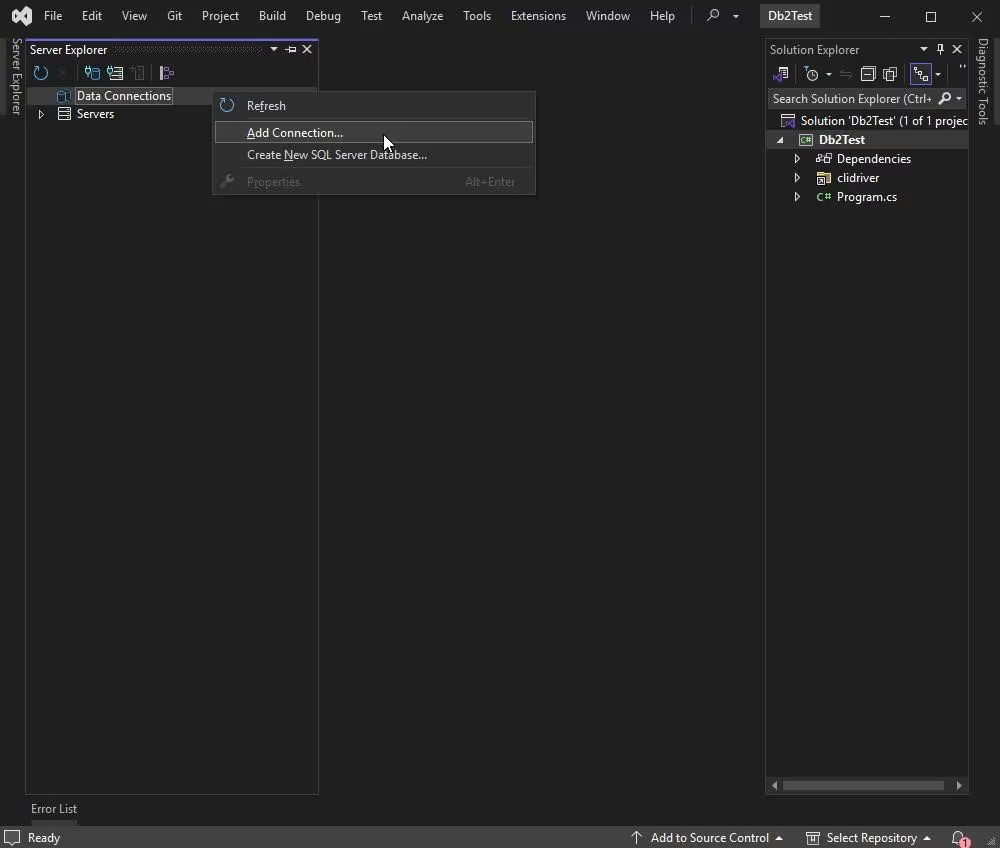
In the Server Explorer pane, right-click Data Connections and select Add Connection from the menu.
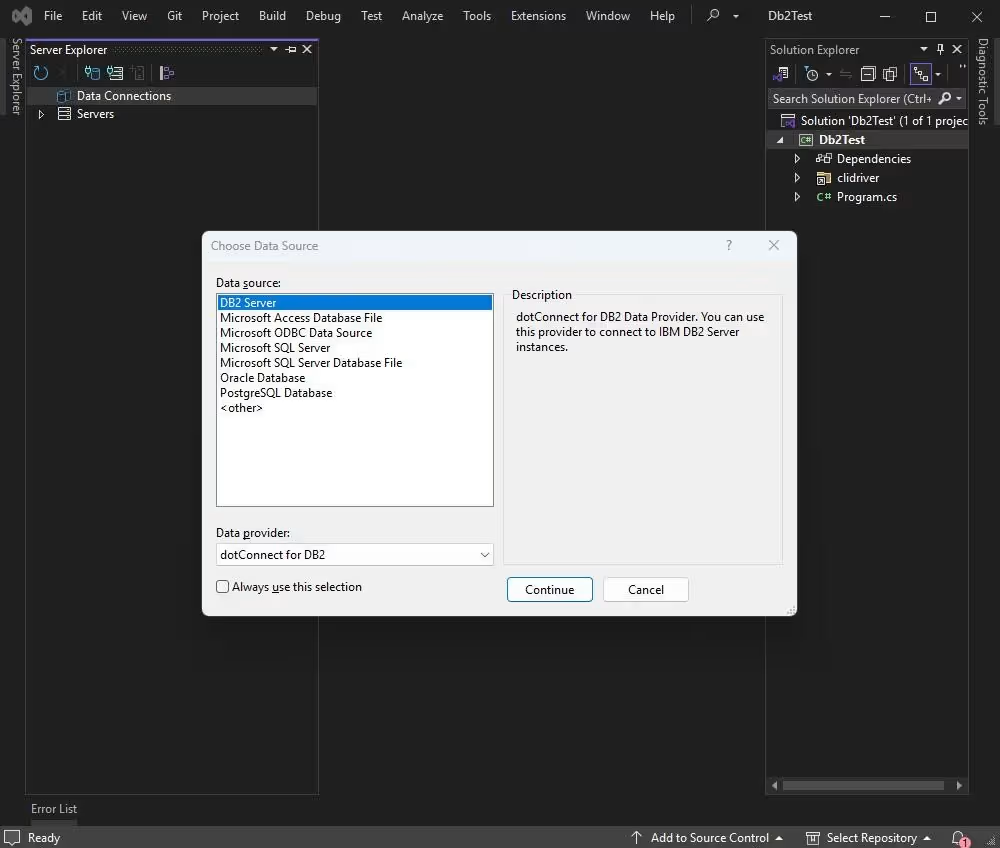
The Choose Data Source dialog opens. Select dotConnect for Db2 from the list of installed data providers. Click Continue.
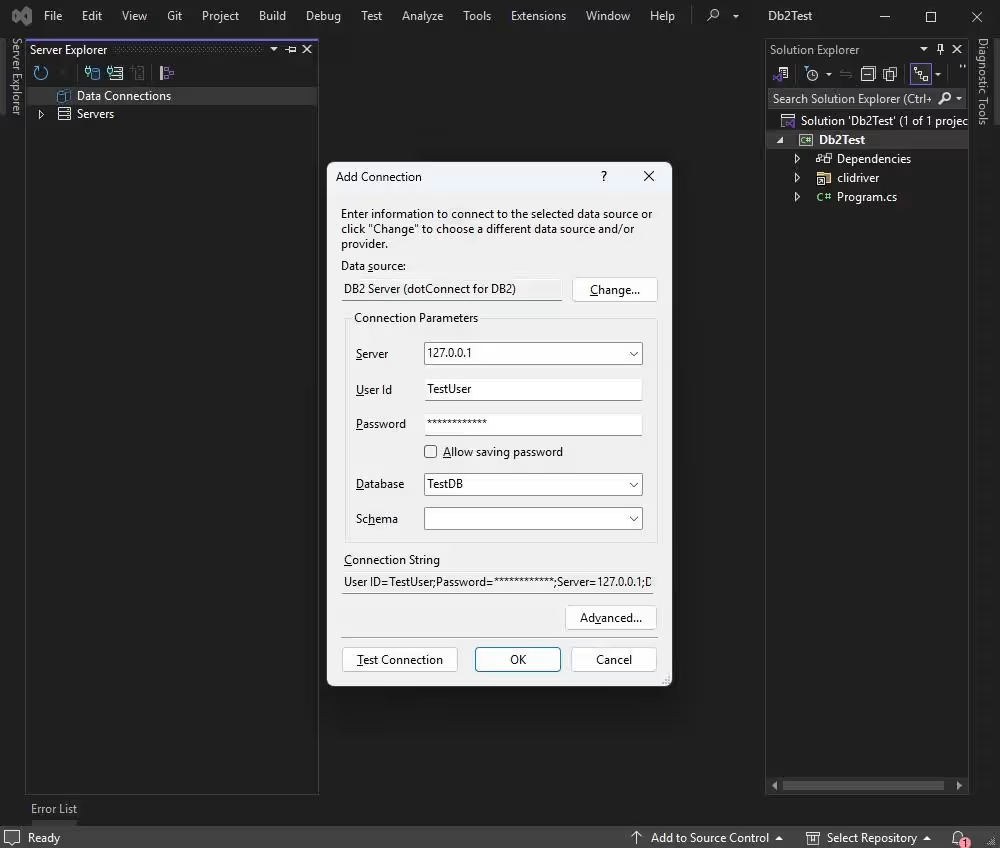
In the Add Connection dialog, fill in the necessary connection properties. Click Test Connection to verify that all the settings are correct, and you can connect to the Db2 database.
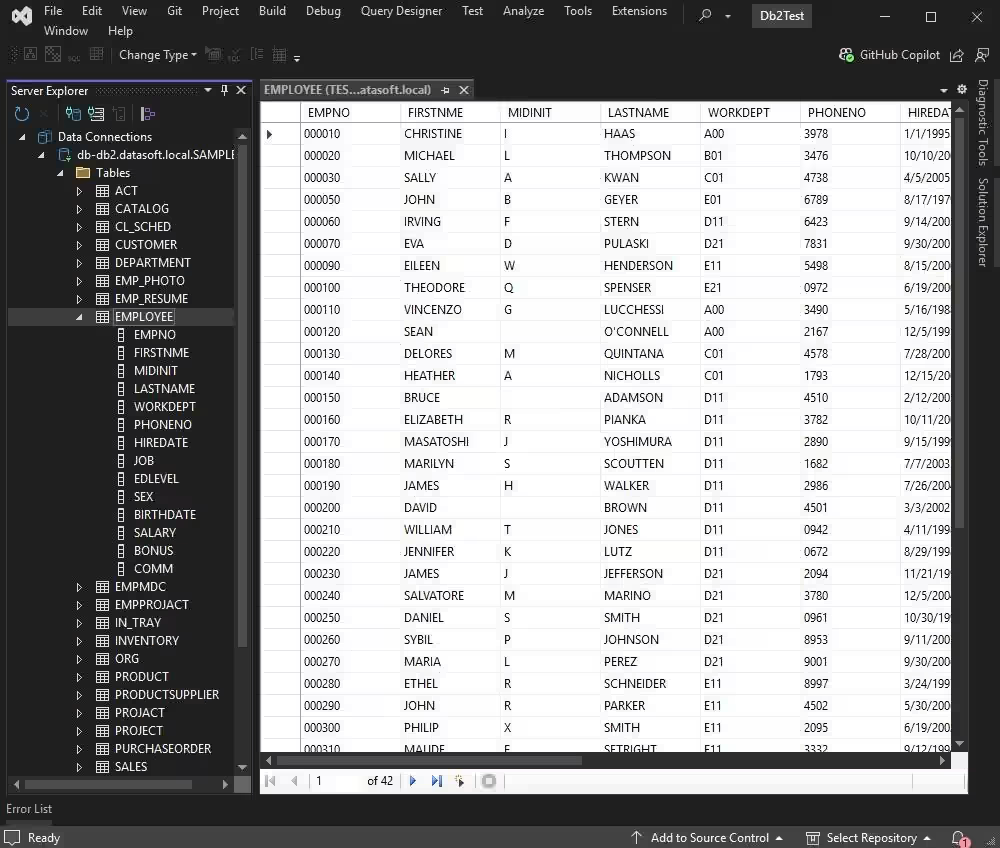
After that, expand the newly created data connection to view the database structure. You can view the list of tables in the database and columns in tables.
To retrieve data from a particular table, right-click its name and select Retrieve Data from Table. This action opens a new query window with the SELECT statement for fetching data from the table.
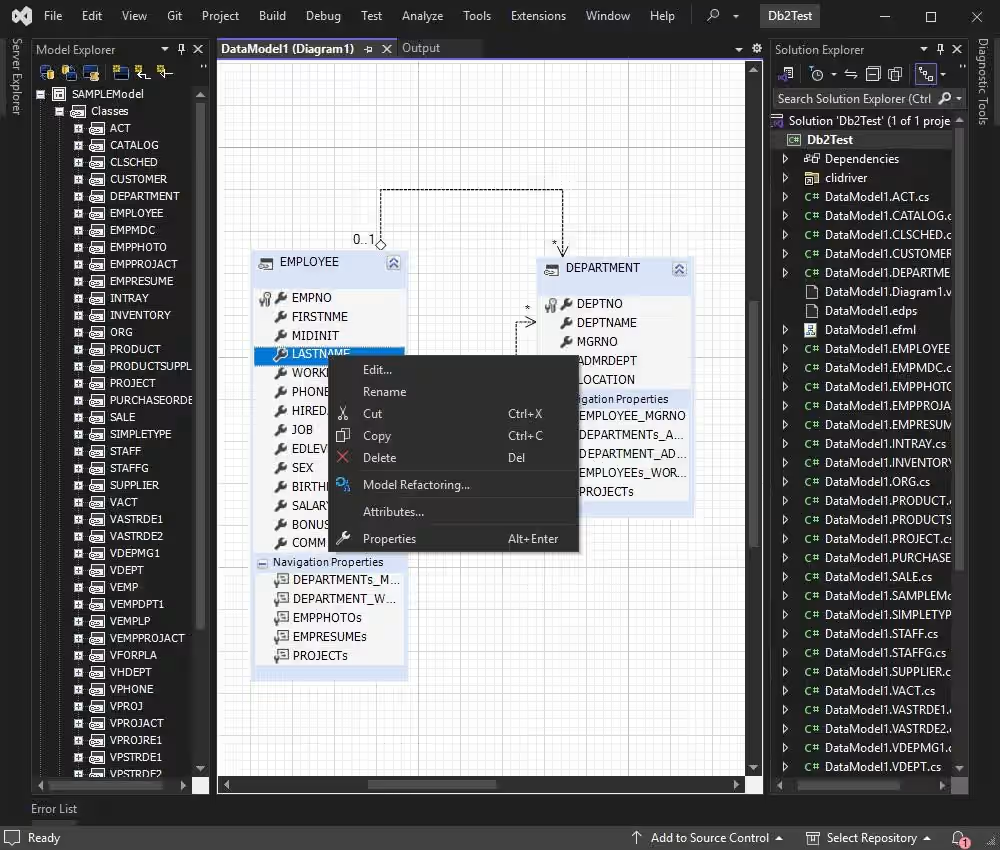
To create an EF Core model from the Db2 database, use the visual ORM designer Entity Developer, which allows you to visually design and generate EF Core models, making database application development faster and easier.
If Entity Developer is not installed, close Visual Studio, download Entity Developer, and install it by following the on-screen instructions.
Follow the detailed illustrated guide to create your database model using Entity Developer. When the process is complete, the generated model will open automatically. Review the model and the generated context classes.
Follow the instructions below to connect to a Db2 database using EF Core and scaffold the database context. This process generates the EF Core model classes and a DbContext based on your existing Db2 database schema.
Install the required NuGet packages:
Go to Tools > NuGet Package Manager > Package Manager Console. Run the following command to scaffold the DbContext and entity classes from your Db2 database. Make sure to replace the connection string with your actual connection details.
Scaffold-DbContext "Server=127.0.0.1;User Id=TestUser;Password=TestPassword;Database=TestDB;License Key=your_license_key;" Devart.Data.Db2.Entity.EFCore -OutputDir ModelsNotice that the -OutputDir Models parameter specifies the output directory to which the generated model classes are placed (in this case, it is Models). After running the scaffold command, EF Core will generate the DbContext class and entity classes in the specified output directory.
Review the generated code to ensure it matches your database schema.
Given all the benefits, it is no surprise that Db2 is a popular choice among .NET developers. However, one of the key challenges is maintaining reliable connectivity between the database and the application. This challenge is effectively addressed by Devart's dotConnect for Db2—a user-friendly and reliable solution that enables seamless connection to the data source from a .NET application on any operating system.
You can try dotConnect for Db2 in your projects with a fully functional 30-day free trial. Explore its capabilities in your daily workflows and see how it enhances your application development.

I'm a technical content writer who loves turning complex topics — think SQL, connectors, and backend chaos–into content that actually makes sense (and maybe even makes you smile). I write for devs, data folks, and curious minds who want less fluff and more clarity. When I'm not wrangling words, you'll find me dancing salsa, or hopping between cities.

