
You can install the driver by using the Windows installer.
After you receive the license key, add it to your connection strings to connect to the data source.
Google Cloud offers a reliable and scalable MySQL service through Cloud SQL, making it easy to run managed relational databases in the cloud. For .NET developers, integrating a MySQL instance on Google Cloud into your application can streamline data access while offloading infrastructure management.
In this tutorial, you'll learn how to connect your C# application to a MySQL database hosted on Google Cloud and perform basic data operations such as querying, inserting, updating, and deleting records. This guide is ideal for developers new to cloud integrations with .NET.

Fully supports EF Core, Dapper, NHibernate, LinqConnect, and other technologies for efficient data management.

Conforms to the latest ADO.NET standards and innovations for seamless integration with .NET applications.

Offers many MySQL-specific features and fully supports all unique data types for accurate and complete data representation.

Provides robust security with support for SSL/SSH connections, connecting via proxy servers, embedded servers, and HTTP tunneling.

Features native integration with Visual Studio and complete design-time support for accelerated development.

Includes priority support, detailed documentation, and regular updates for continuous improvement.
You can start using dotConnect for MySQL immediately with a 30-day free trial. Choose one of the following installation options:
You can install the driver by using the Windows installer.
After you receive the license key, add it to your connection strings to connect to the data source.
To connect to MySQL using the built-in Data Explorer, click Tools and select Connect to Database. Then choose MySQL Server as the data source.
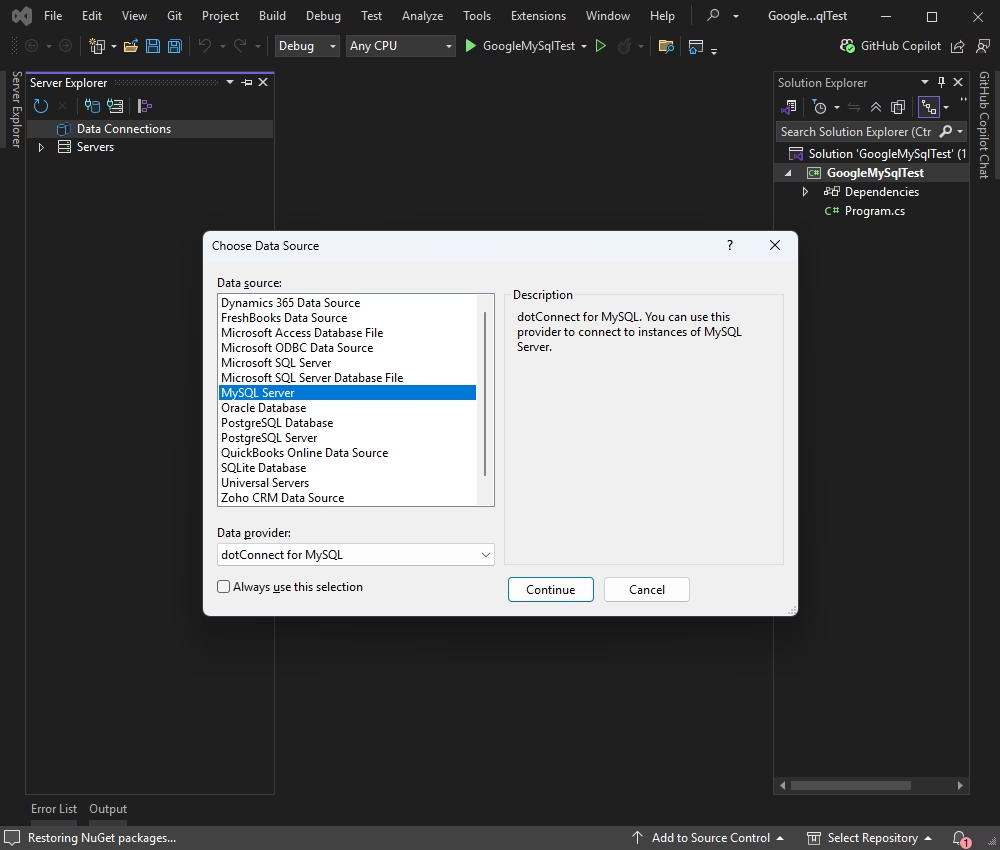
By default, Google Cloud for MySQL requires an SSL connection.
To enable it, go to the Google Cloud Console → SQL → your MySQL instance → Connections → Security → Certificates, and download the Server CA certificate.
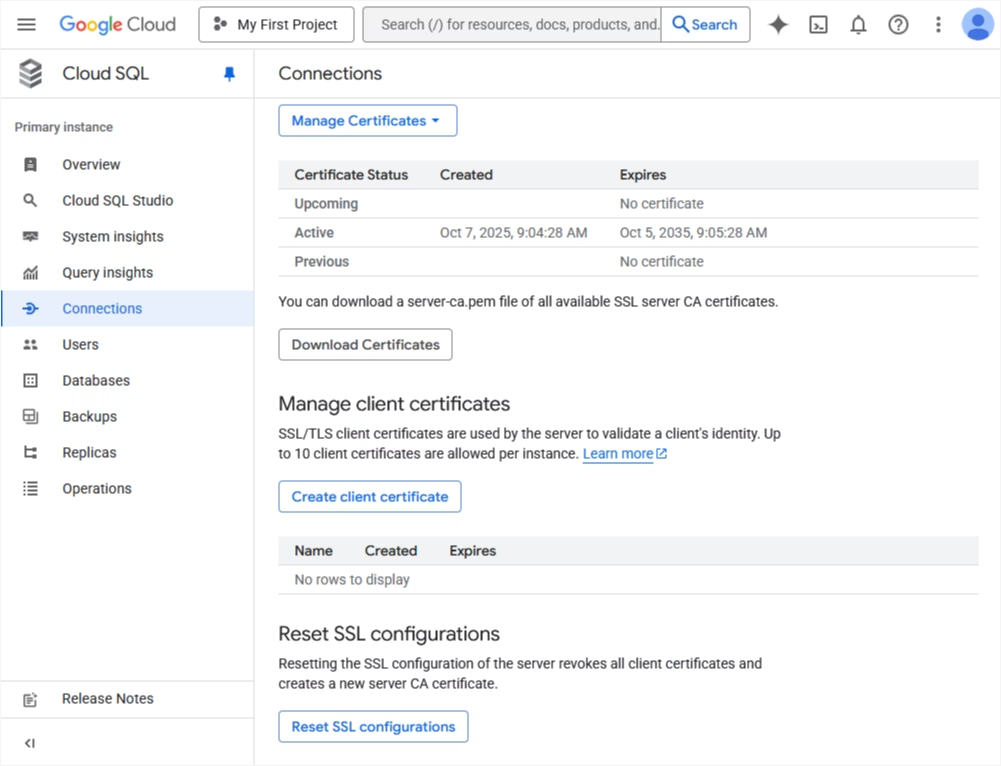
Then, open the Advanced connection settings in your application and specify the path to the downloaded certificate file under the SSL configuration before connecting.
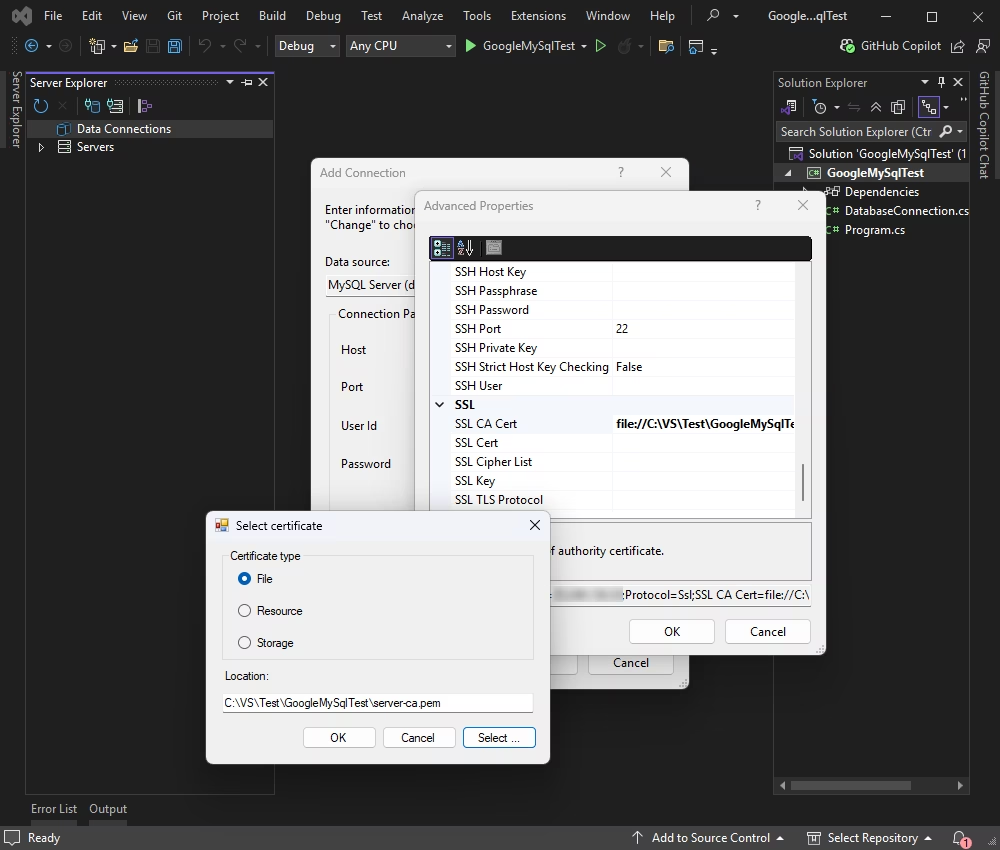
Enter your server details and credentials and click Connect.
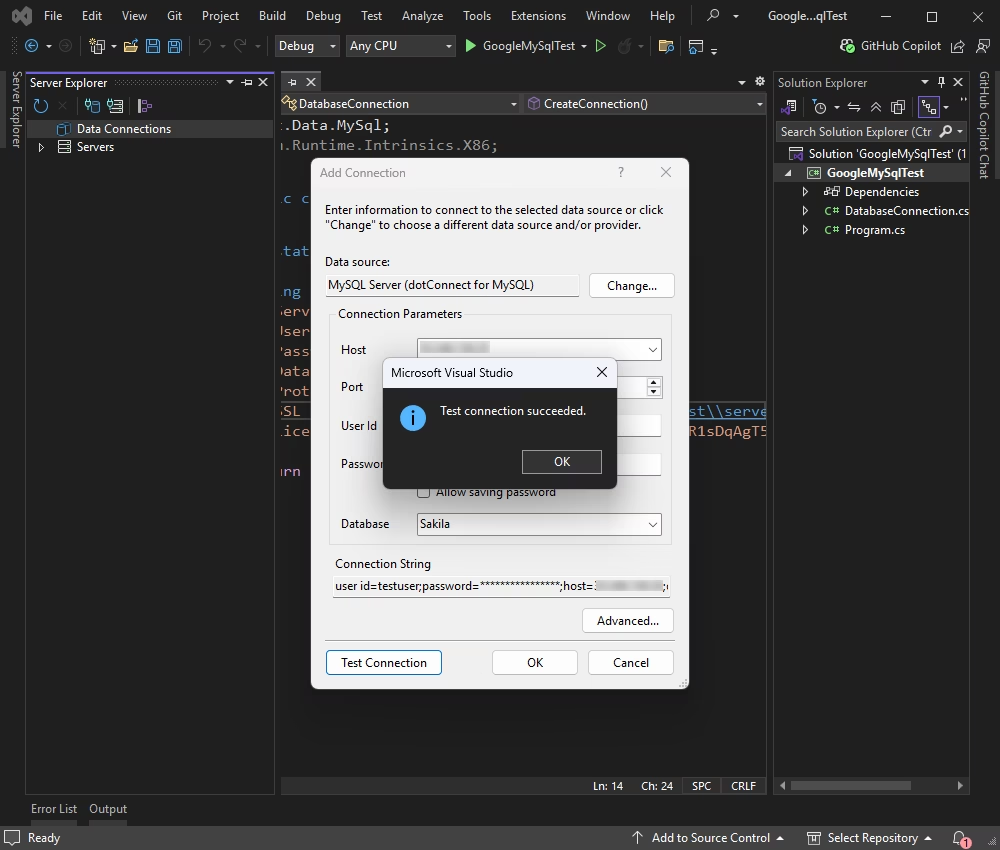
Once connected, you can browse tables, execute queries, and manage data directly within Data Explorer.
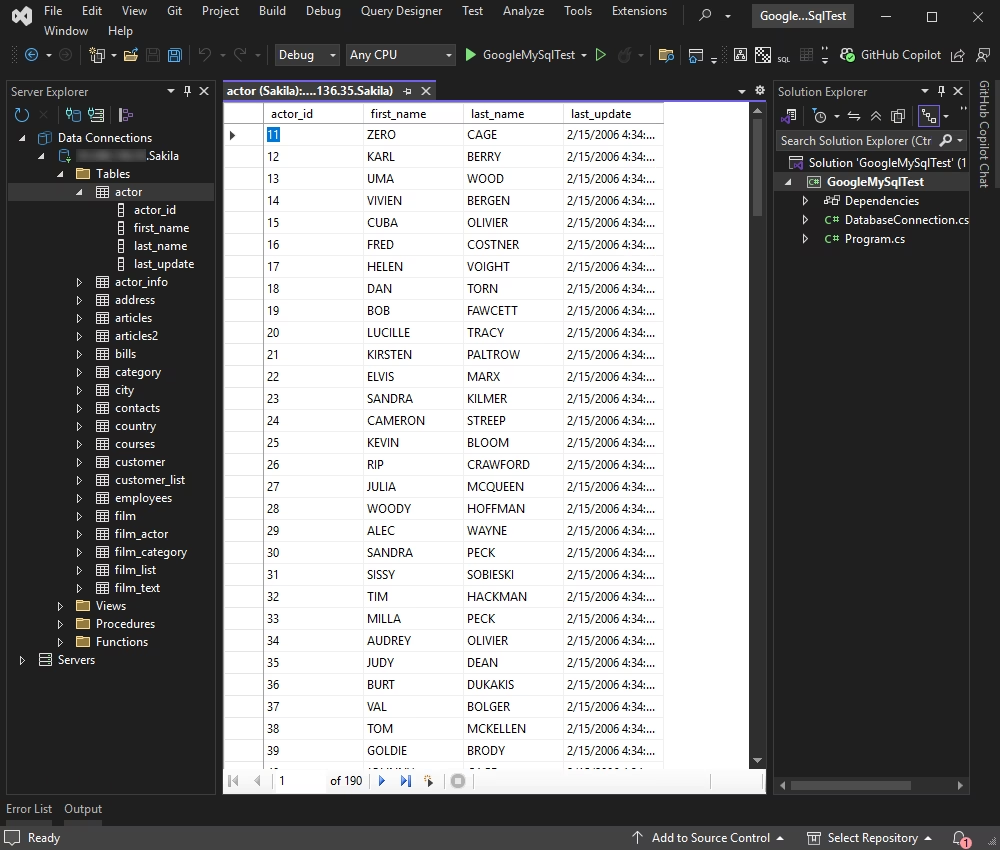
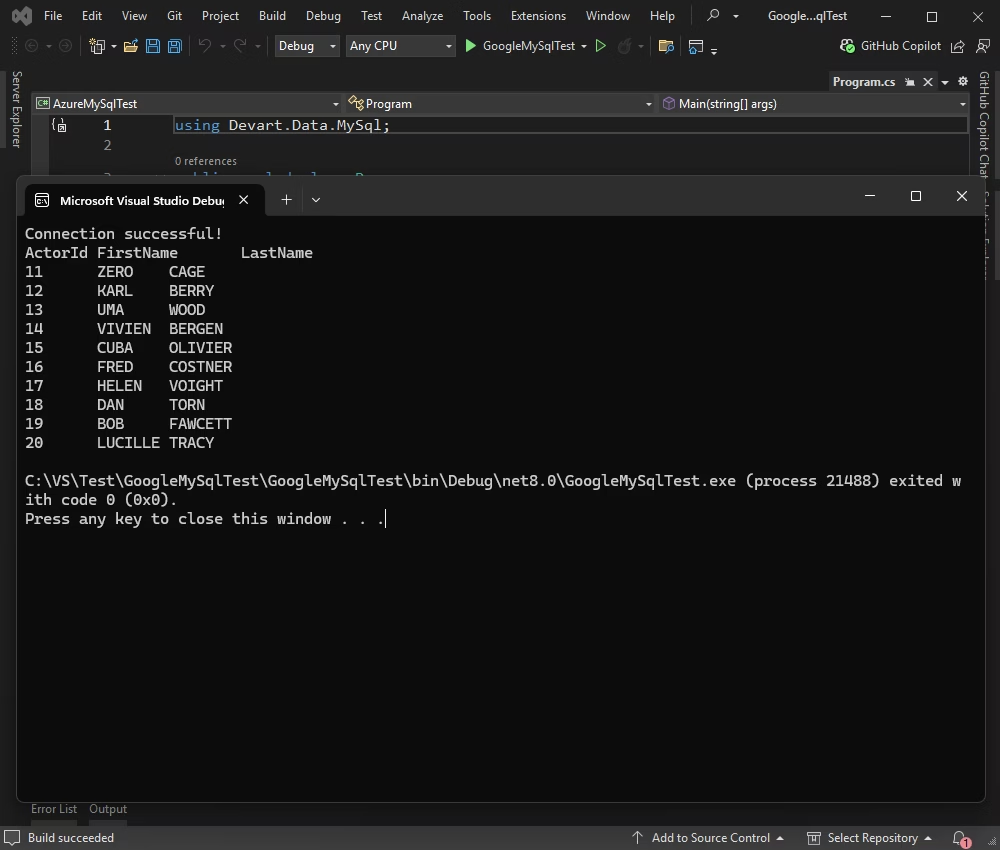
First, let's establish a connection to your Cloud SQL for MySQL instance and run a simple query to pull records from the Actor table. This step ensures that your application is communicating properly with the database.
This class keeps connection details separate for better maintainability.
using Devart.Data.MySql;

public static class DatabaseConnection
{
    public static MySqlConnection CreateConnection()
    {
        string connectionString = "" +
          "Server=127.0.0.1;" +
          "User Id=TestUser;" +
          "Password=TestPassword;" +
          "Database=TestDatabase;" +
          "Protocol=Ssl;" +
          "SSL CA Cert=file://C:\\server-ca.pem" +
          "License key=**********";

        return new MySqlConnection(connectionString);
    }
}| Property | Meaning |
|---|---|
| Host or Server | Hostname or IP address of the MySQL server |
| Port | Port number on which the MySQL server is listening |
| User Id | User ID used to authenticate with MySQL |
| Password | Password for the user ID |
| Database | Default database to be used after connecting |
| License key | Your license key (only required when using .NET Standard compatible assemblies) |
Replace the placeholders in the connection string with your actual MySQL database credentials.
Add the code below to your Program.cs file.
using Devart.Data.MySql;

public sealed class Program
{
    public static void Main(string[] args)
    {
        try
        {
            using (MySqlConnection connection = DatabaseConnection.CreateConnection())
            {
                connection.Open();
                Console.WriteLine("Connection successful!");

                string sql = "SELECT actor_id, first_name, last_name FROM actor ORDER BY actor_id LIMIT 10";
                using (MySqlCommand command = new MySqlCommand(sql, connection))
                using (MySqlDataReader reader = command.ExecuteReader())
                {
                    Console.WriteLine("ActorId\tFirstName\tLastName");
                    while (reader.Read())
                    {
                        int actorId = reader.GetInt32(0);
                        string firstName = reader.GetString(1);
                        string lastName = reader.GetString(2);
                        Console.WriteLine(actorId + "\t" + firstName + "\t" + lastName);
                    }
                }
            }
        }
        catch (Exception ex)
        {
            Console.WriteLine("An error occurred: " + ex.Message);
        }
    }
}Build and run your application by pressing F5 or selecting Start from the menu.
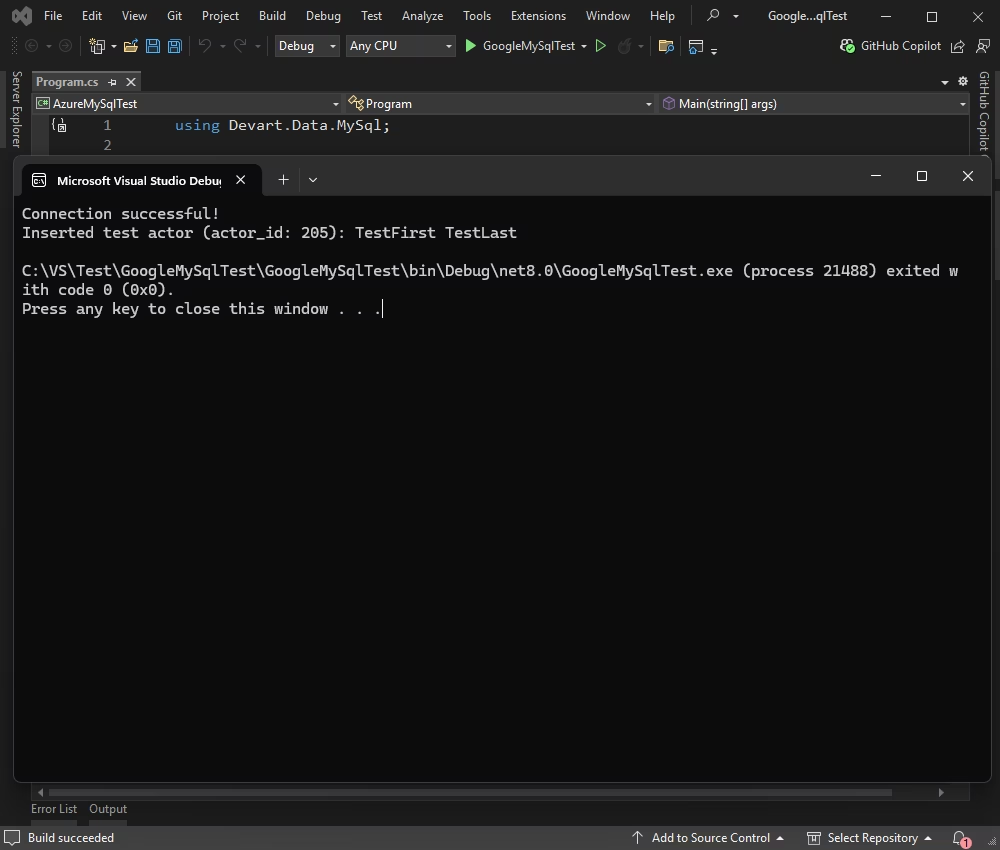
Now that the connection is active, let's add new data. In this example, you will learn how to insert a row into the Actor table using parameterized SQL to write data into your MySQL instance safely.
using Devart.Data.MySql;

public sealed class Program
{
    public static void Main(string[] args)
    {
        try
        {
            using (MySqlConnection connection = DatabaseConnection.CreateConnection())
            {
                connection.Open();
                Console.WriteLine("Connection successful!");

                string insertSql = "INSERT INTO actor(first_name, last_name) VALUES(@first, @last)";
                using (MySqlCommand insertCmd = new MySqlCommand(insertSql, connection))
                {
                    insertCmd.Parameters.AddWithValue("@first", "TestFirst");
                    insertCmd.Parameters.AddWithValue("@last", "TestLast");
                    insertCmd.ExecuteNonQuery();
                }

                long newActorId = 0;
                using (MySqlCommand idCmd = new MySqlCommand("SELECT LAST_INSERT_ID()", connection))
                {
                    object result = idCmd.ExecuteScalar();
                    if (result != null && result != DBNull.Value)
                    {
                        newActorId = Convert.ToInt64(result);
                    }
                }

                Console.WriteLine("Inserted test actor (actor_id: " + newActorId + "): TestFirst TestLast");
            }
        }
        catch (Exception ex)
        {
            Console.WriteLine("An error occurred: " + ex.Message);
        }
    }
}
You can see the results in your application:
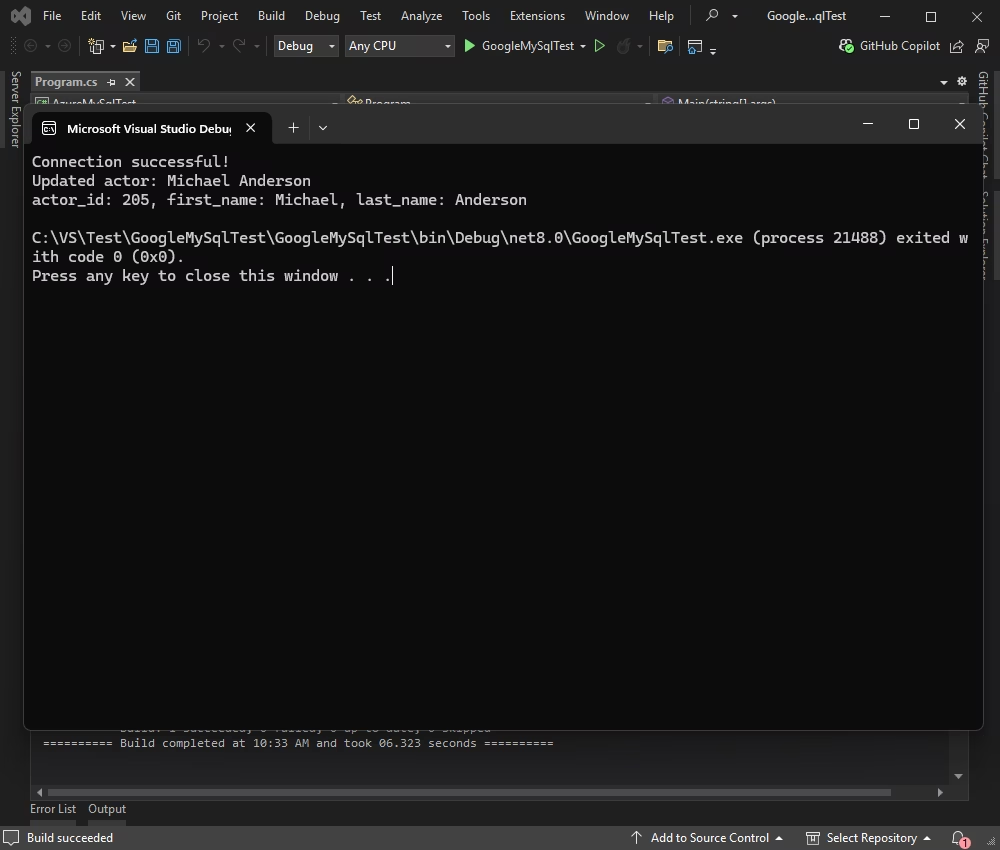
Need to modify existing data? In this example, let's update the first and last names of an actor in the table, applying changes to a specific row using a targeted update statement.
using Devart.Data.MySql;

public sealed class Program
{
    public static void Main(string[] args)
    {
        try
        {
            using (MySqlConnection connection = DatabaseConnection.CreateConnection())
            {
                connection.Open();
                Console.WriteLine("Connection successful!");

                string updateSql = "UPDATE actor SET first_name = @first, last_name = @last WHERE actor_id = @id";
                using (MySqlCommand updateCmd = new MySqlCommand(updateSql, connection))
                {
                    updateCmd.Parameters.AddWithValue("@first", "Michael");
                    updateCmd.Parameters.AddWithValue("@last", "Anderson");
                    updateCmd.Parameters.AddWithValue("@id", 205);
                    int rowsAffected = updateCmd.ExecuteNonQuery();

                    if (rowsAffected > 0)
                    {
                        Console.WriteLine("Updated actor: Michael Anderson");

                        // Retrieve and display the updated row
                        string selectSql = "SELECT actor_id, first_name, last_name FROM actor WHERE actor_id = @id";
                        using (MySqlCommand selectCmd = new MySqlCommand(selectSql, connection))
                        {
                            selectCmd.Parameters.AddWithValue("@id", 205);
                            using (MySqlDataReader reader = selectCmd.ExecuteReader())
                            {
                                if (reader.Read())
                                {
                                    Console.WriteLine($"actor_id: {reader["actor_id"]}, first_name: {reader["first_name"]}, last_name: {reader["last_name"]}");
                                }
                            }
                        }
                    }
                    else
                    {
                        Console.WriteLine("No actor found with actor_id: 205");
                    }
                }
            }
        }
        catch (Exception ex)
        {
            Console.WriteLine("An error occurred: " + ex.Message);
        }
    }
}
You can see the results in your application:
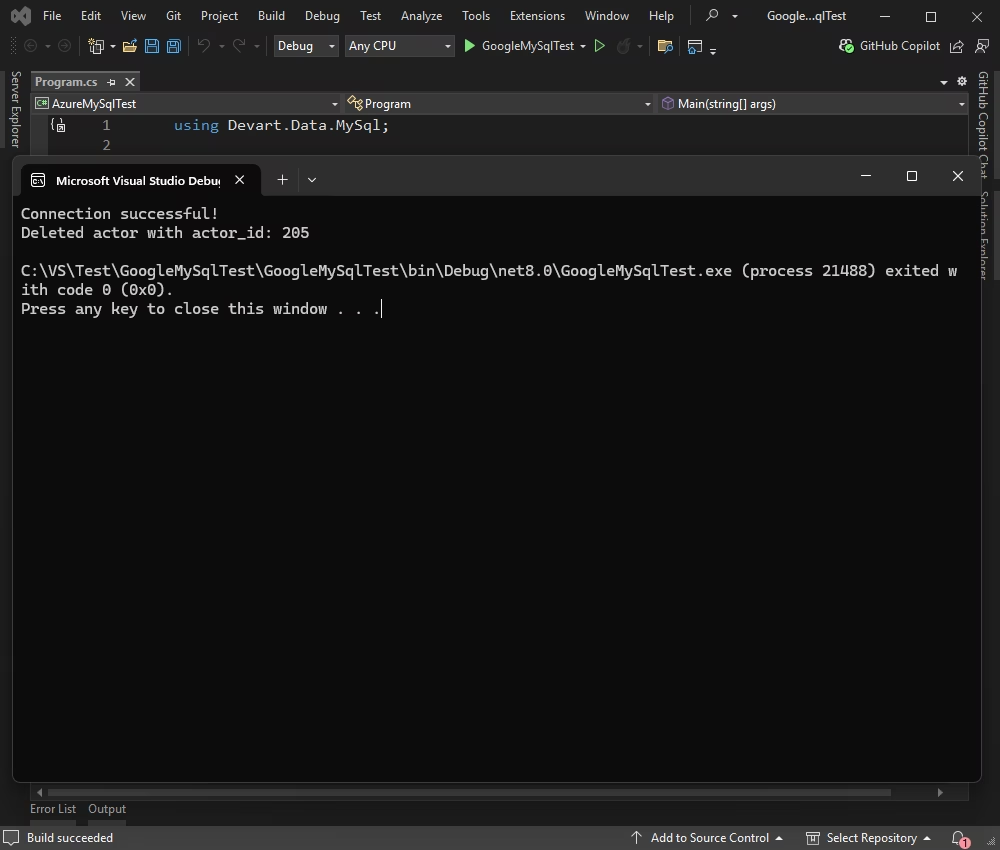
To clean up the test data, let's delete the actor we just added. This demonstrates how to remove records from a MySQL database on Google Cloud using standard SQL commands in C#.
using Devart.Data.MySql;

public sealed class Program
{
    public static void Main(string[] args)
    {
        try
        {
            using (MySqlConnection connection = DatabaseConnection.CreateConnection())
            {
                connection.Open();
                Console.WriteLine("Connection successful!");

                string deleteSql = "DELETE FROM actor WHERE actor_id = @id";
                using (MySqlCommand deleteCmd = new MySqlCommand(deleteSql, connection))
                {
                    deleteCmd.Parameters.AddWithValue("@id", 205);
                    int rowsAffected = deleteCmd.ExecuteNonQuery();

                    if (rowsAffected > 0)
                    {
                        Console.WriteLine("Deleted actor with actor_id: 205");
                    }
                    else
                    {
                        Console.WriteLine("No actor found with actor_id: 205");
                    }
                }
            }
        }
        catch (Exception ex)
        {
            Console.WriteLine("An error occurred: " + ex.Message);
        }
    }
}
The application output shows that the operation is successful.
In this tutorial, you've successfully connected a .NET application to a Google Cloud MySQL instance and completed basic CRUD operations. With this knowledge, you're equipped to build more robust cloud-native apps that leverage MySQL's flexibility within the Google Cloud ecosystem.
License key parameter for a working connection.
License key value, then create a MySqlConnection instance with this string and call Open() for it inside a try-catch block to test and handle connection errors.
Protocol=SSL and specify the SSL CA Cert, SSL Cert, and SSL Key file paths in the connection string, then open the MySqlConnection connection to establish an encrypted SSL/TLS connection.
Scaffold-DbContext with a dotConnect connection string (including the License key) to generate the DbContext and entity classes.

I'm a technical content writer who loves turning complex topics — think SQL, connectors, and backend chaos–into content that actually makes sense (and maybe even makes you smile). I write for devs, data folks, and curious minds who want less fluff and more clarity. When I'm not wrangling words, you'll find me dancing salsa, or hopping between cities.

