
You can install the driver by using the Windows installer.
After you receive the license key, add it to your connection strings to connect to the data source.
This tutorial provides a deep dive into connecting a .NET application to an Oracle database.
We're going to use Oracle Database, a powerful and feature-rich relational database management system renowned for its scalability, performance, and robust security features. As a leading choice for enterprise-level applications, Oracle Database is ideal for critical business solutions as it supports high transaction volumes and large datasets. Its advanced capabilities, such as Real Application Clusters (RAC) and comprehensive data management tools, ensure high availability and reliability.

Fully supports EF Core, Dapper, NHibernate, LinqConnect, and other technologies for efficient data management.

Conforms to the latest ADO.NET standards and innovations for seamless integration with .NET applications.

Offers many Oracle-specific features and fully supports all unique data types for accurate and complete data representation.

Provides robust security with support for SSL/SSH connections, connecting via proxy servers, embedded servers, and HTTP tunneling.

Features native integration with Visual Studio and complete design-time support for accelerated development.

Includes priority support, detailed documentation, and regular updates for continuous improvement.
You can start using dotConnect for Oracle immediately with a 30-day free trial. Choose one of the following installation options:
You can install the driver by using the Windows installer.
After you receive the license key, add it to your connection strings to connect to the data source.
This example demonstrates a basic connection to an Oracle database. Depending on your requirements, you may need to add more functionality, such as executing queries or handling various types of exceptions.
using Devart.Data.Oracle;

class Program
{
    static void Main(string[] args)
    {
        string connectionString = "" +
            "Host=127.0.0.1;" +
            "Port=1521;" +
            "Service Name=orcl;" +
            "User Id=TestUser;" +
            "Password=TestPassword;" +
            "Direct=True;" +
            "License Key=**********;";

        try
        {
            using (OracleConnection connection = new OracleConnection(connectionString))
            {
                connection.Open();
                Console.WriteLine("Connection successful!");
            }
        }
        catch (OracleException)
        {
            Console.WriteLine("Connection failed!");
        }

        Console.WriteLine("\nPress any key to exit...");
        Console.ReadKey();
    }
}
The connection string contains the required information to connect to the database, such as the server, user ID, password, and database name.
| Property | Meaning |
|---|---|
| Direct | Specifies whether to use the Direct mode |
| Host | States the IP address or hostname of the Oracle server |
| Port | Indicates the port number for the Oracle server |
| ServiceName | Determines the service name for the database instance |
| Sid | Specifies the Oracle System Identifier (SID) for the database instance |
| UserId | States the Oracle database username |
| Password | Defines the password that is associated with the Oracle database username |
| License Key | Specifies your license key; it is required only when using .NET Standard-compatible assemblies |
To establish an SSL connection to an Oracle database with the specified connection string parameters, modify your code as follows:
using Devart.Data.Oracle;

class Program
{
    static void Main(string[] args)
    {
        string connectionString = "" +
            "Host=127.0.0.1;" +
            "Port=1521;" +
            "Service Name=orcl;" +
            "User Id=TestUser;" +
            "Password=TestPassword;" +
            "Direct=True;" +
            "SslKey=/server.key;" +
            "SslCert=/server.crt;" +
            "License Key=**********;";

        try
        {
            using (OracleConnection connection = new OracleConnection(connectionString))
            {
                connection.Open();
                Console.WriteLine("Connection successful!");
            }
        }
        catch (OracleException)
        {
            Console.WriteLine("Connection failed!");
        }

        Console.WriteLine("\nPress any key to exit...");
        Console.ReadKey();
    }
}And if you need to establish an SSH connection to an Oracle database with the specified connection string parameters, modify your code as follows:
using Devart.Data.Oracle;

class Program
{
    static void Main(string[] args)
    {
        string connectionString = "" +
            "Host=ssh://127.0.0.1;" +
            "Port=1521;" +
            "Service Name=orcl;" +
            "User Id=TestUser;" +
            "Password=TestPassword;" +
            "License Key=**********;";

        try
        {
            using (OracleConnection connection = new OracleConnection(connectionString))
            {
                // Configure SSH options
                connection.SshOptions.AuthenticationType = SshAuthenticationType.PublicKey;
                connection.SshOptions.User = "sshUser";
                connection.SshOptions.Host = "sshServer";
                connection.SshOptions.PrivateKey = "C:\\client.key";

                connection.Open();
                Console.WriteLine("Connection successful!");
            }
        }
        catch (OracleException)
        {
            Console.WriteLine("Connection failed!");
        }

        Console.WriteLine("\nPress any key to exit...");
        Console.ReadKey();
    }
}You can also connect to a database using Visual Studio's built-in Data Explorer:
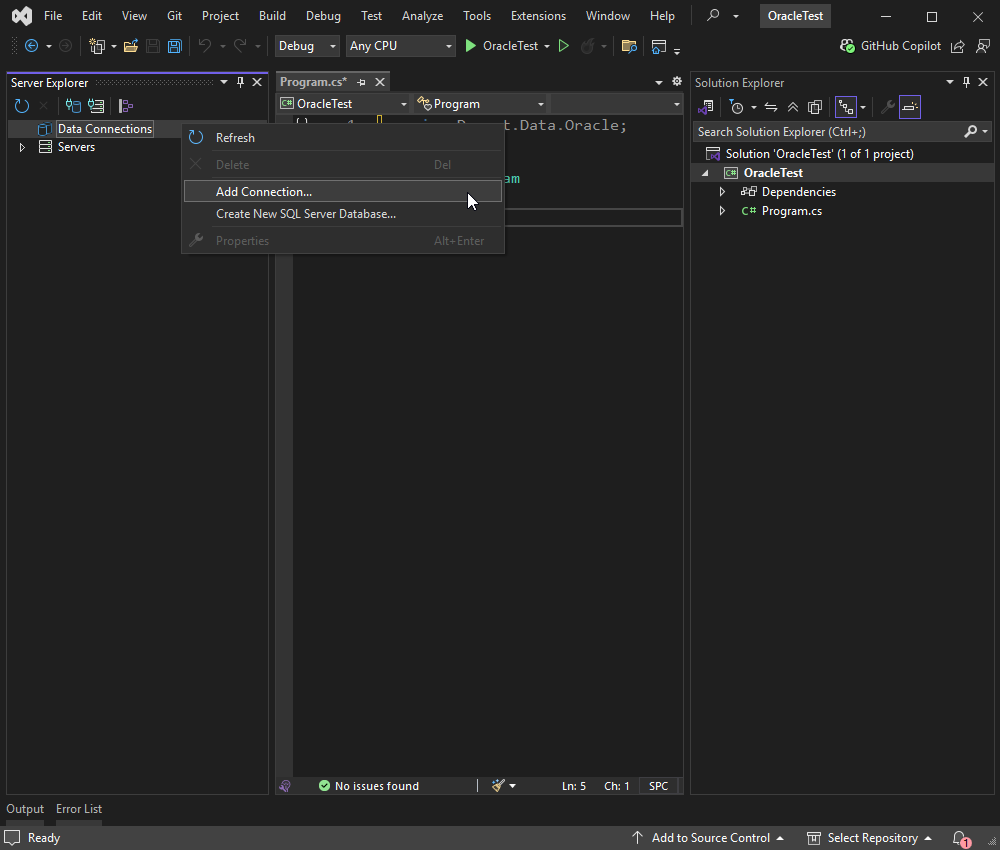
1. Go to the Server Explorerwindow, right-click Data Connections, and then select Add Connection.
2. In the Add Connection dialog, click Change to specify the data source.
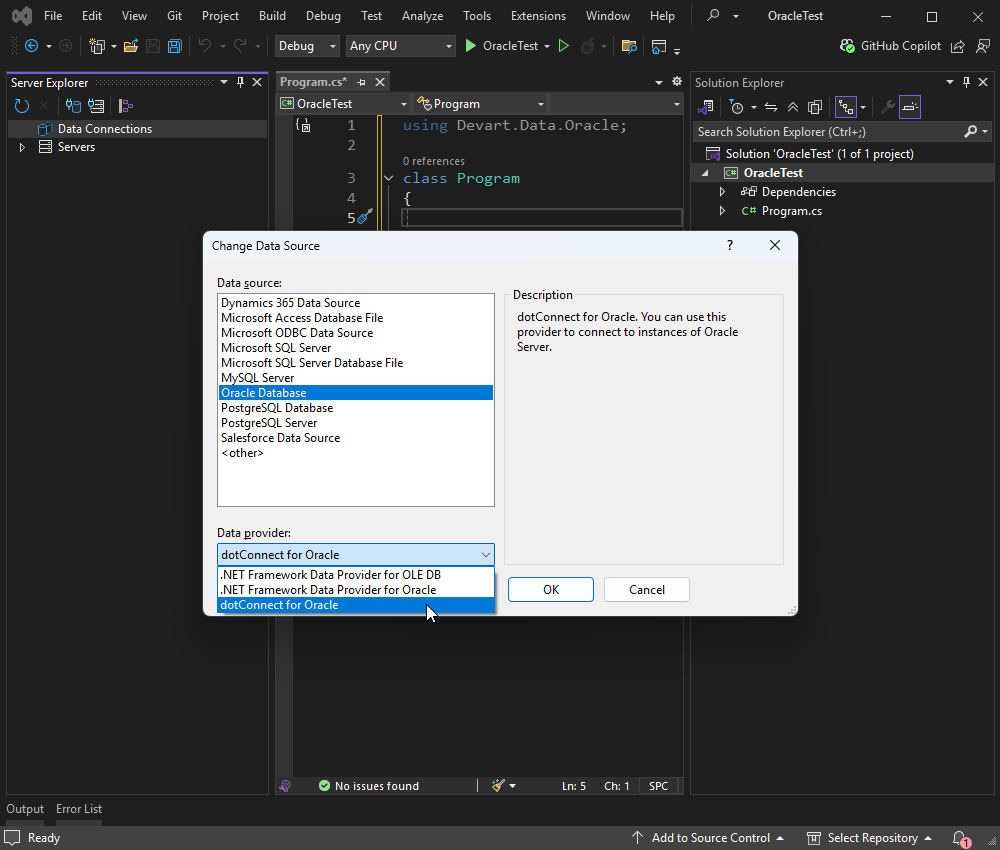
3. In the Change Data Source dialog, select dotConnect for Oracle from the list from the list of installed data providers and click OK.
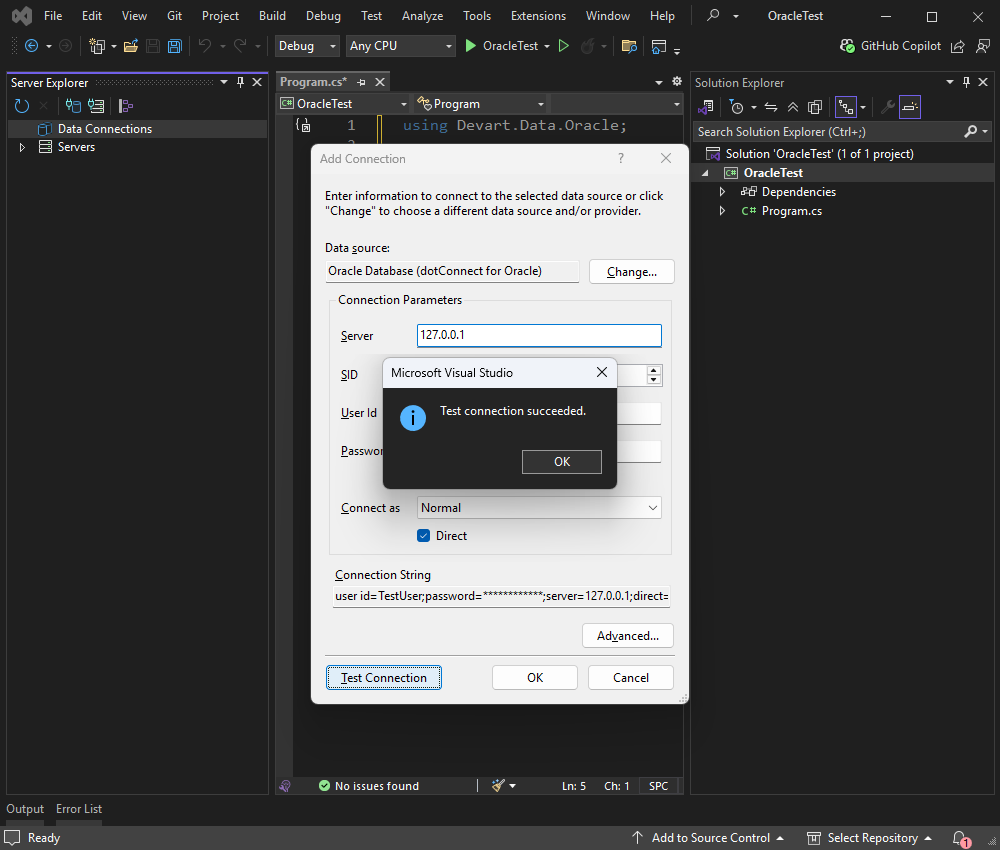
4. In the Add Connection dialog, select Oracle as the data source and provide your server credentials.
5. To verify the connection, click Test Connection.
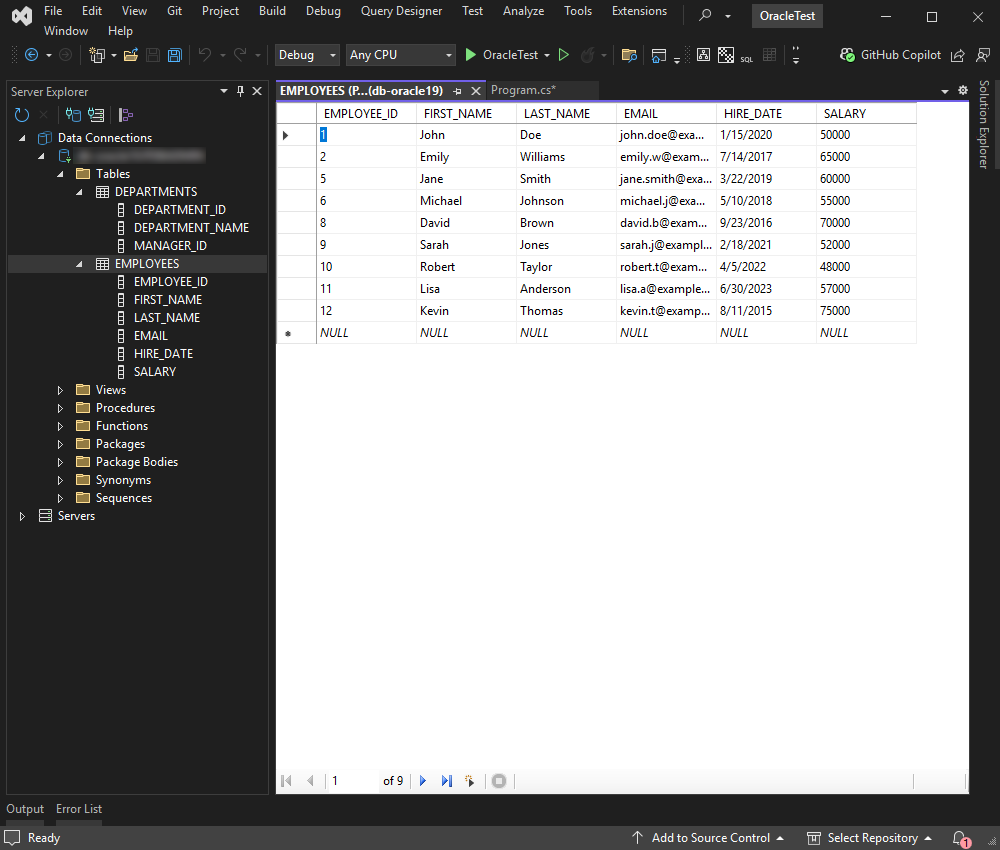
Once you are connected, you can browse tables, run queries, and manage data directly in Visual Studio.
Entity Developer allows you to visually design and generate EF Core models, making database application development faster, easier, and more efficient. If you don't have it already installed, close your Visual Studio instance, download Entity Developer, and install it following the on-screen instructions.
Follow the detailed illustrated guide to create your database model using Entity Developer. When this process is complete, the model you created opens.
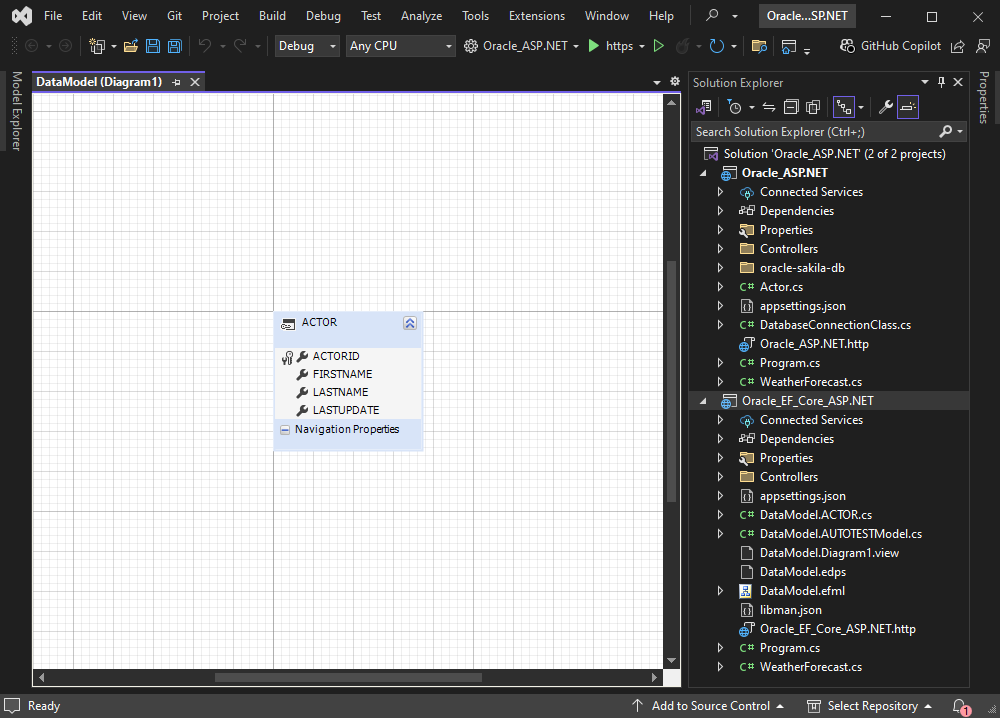
To connect to an Oracle database using Entity Framework Core (EF Core) and scaffold its context, follow the below instructions to generate the required EF Core model classes and a DbContext based on the existing Oracle database schema.
In Solution Explorer, right-click the project and select Manage NuGet Packages. Then, you need to open the Package Manager Console. To do this, go to Tools > NuGet Package Manager > Package Manager Console.
In Package Manager Console, run the following command to scaffold DbContext and entity classes from the Oracle database. Replace the connection string with your relevant connection details.
Scaffold-DbContext "Host=127.0.0.1;Port=1521;Service Name=orcl;User Id=TestUser;Password=TestPassword;Direct=True;License Key=**********;" Devart.Data.Oracle.Entity.EFCore -OutputDir ModelsAfter running the scaffold command, EF Core generates the DbContext class and entity classes in the specified output directory (e.g., Models). Review the generated code to make sure it matches your database schema.

This tutorial provides detailed guides on connecting a .NET application to Oracle databases in various ways. It explores multiple connection methods, including Direct Mode, SSH, secure SSL/TLS, and using Entity Framework Core with Scaffold-DbContext and Entity Developer.
These are just a few of the things dotConnect can do for you. To experience a seamless, high-performance data connectivity solution tailored for .NET developers, download dotConnect for Oracle.
License Key parameter for a working connection.
License Key value, then create an OracleConnection instance with this string and call Open() for it inside a try-catch block to test and handle connection errors.
Scaffold-DbContext with a dotConnect connection string (including License Key) to generate the DbContext and entity classes.

I'm a technical content writer who loves turning complex topics — think SQL, connectors, and backend chaos–into content that actually makes sense (and maybe even makes you smile). I write for devs, data folks, and curious minds who want less fluff and more clarity. When I'm not wrangling words, you'll find me dancing salsa, or hopping between cities.

