
You can install the driver by using the Windows installer.
After you receive the license key, add it to your connection strings to connect to the data source.
Amazon RDS for PostgreSQL is a fully managed relational database service provided by Amazon Web Services (AWS). It takes care of many complex and time-consuming administrative tasks, making it easier to deploy and manage PostgreSQL databases, even for users without deep database administration experience. With its strong scalability, high availability, and reliable performance, Amazon RDS is a popular choice among PostgreSQL users who want to combine PostgreSQL's flexibility with the advantages of a fully managed cloud platform.
This guide will show you how to connect a C# application to a PostgreSQL database hosted on Amazon RDS. You'll learn how to configure the connection, access data, and perform basic data operations from a .NET environment. To streamline the process and avoid common connectivity issues, we'll also use dotConnect for PostgreSQL. Let's begin.

Fully supports EF Core, Dapper, NHibernate, LinqConnect, and other technologies for efficient data management.

Conforms to the latest ADO.NET standards and innovations for seamless integration with .NET applications.

Offers many PostgreSQL-specific features and fully supports all unique data types for accurate and complete data representation.

Provides robust security with support for SSL/SSH connections, connecting via proxy servers, embedded servers, and HTTP tunneling.

Features native integration with Visual Studio and complete design-time support for accelerated development.

Includes priority support, detailed documentation, and regular updates for continuous improvement.
You can start using dotConnect for PostgreSQL immediately with a 30-day free trial. Choose one of the following installation options:
You can install the driver by using the Windows installer.
After you receive the license key, add it to your connection strings to connect to the data source.
The first option is connecting to Amazon RDS for PostgreSQL via the built-in Data Explorer in Visual Studio. Here's how to do this:
1. Click Tools, then select Connect to Database, and choose PostgreSQL as the data source.
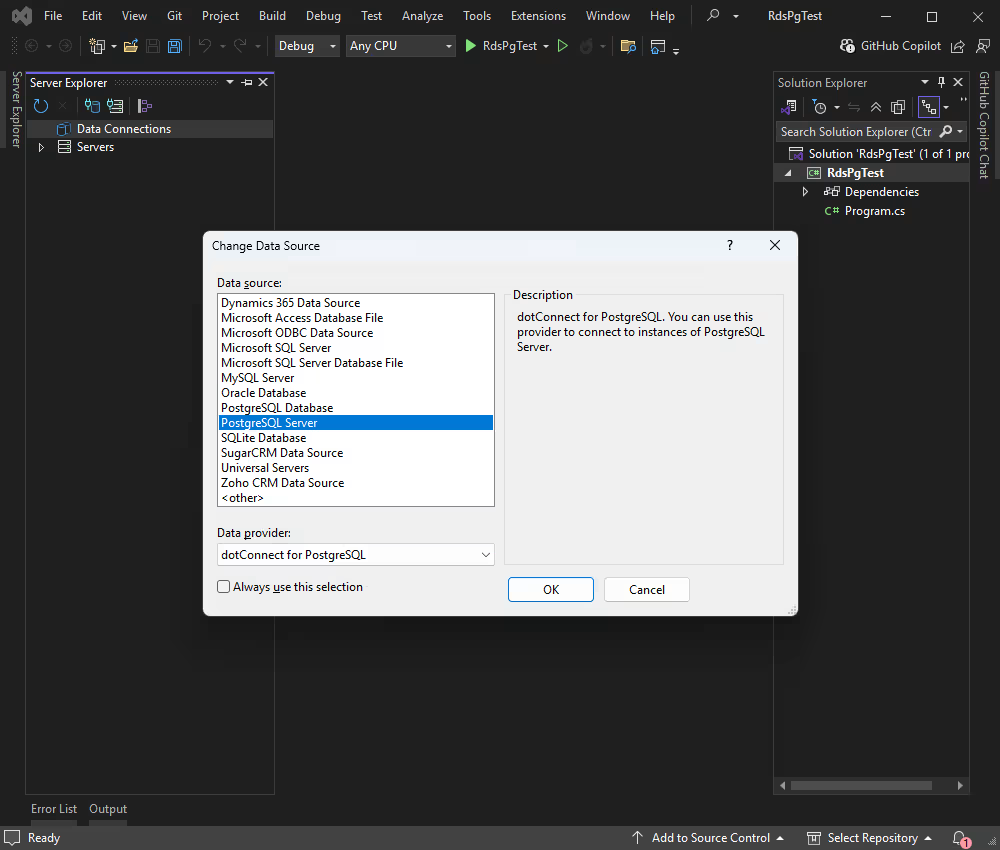
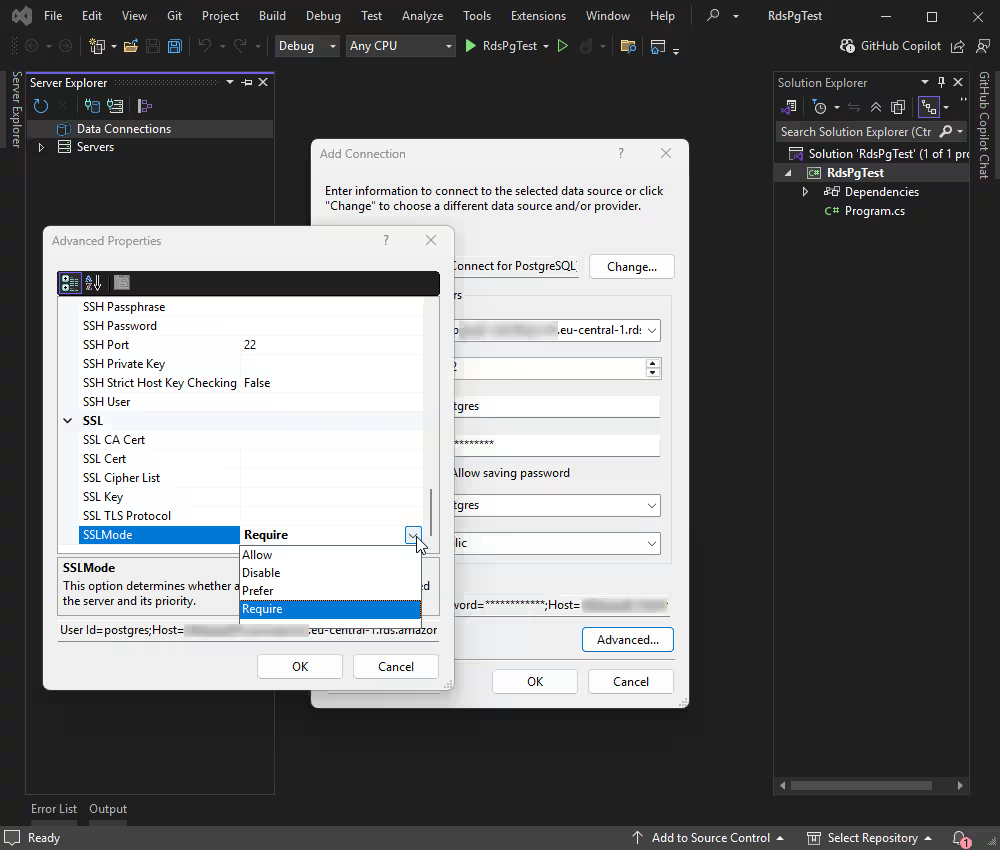
By default, AWS RDS for PostgreSQL requires an SSL connection. The steps below explain how to complete the connection process:
2. Open Advanced Properties in the connection settings in your application and enable the SSLMode for connecting.
3. Enter your server details and credentials, and click Connect.
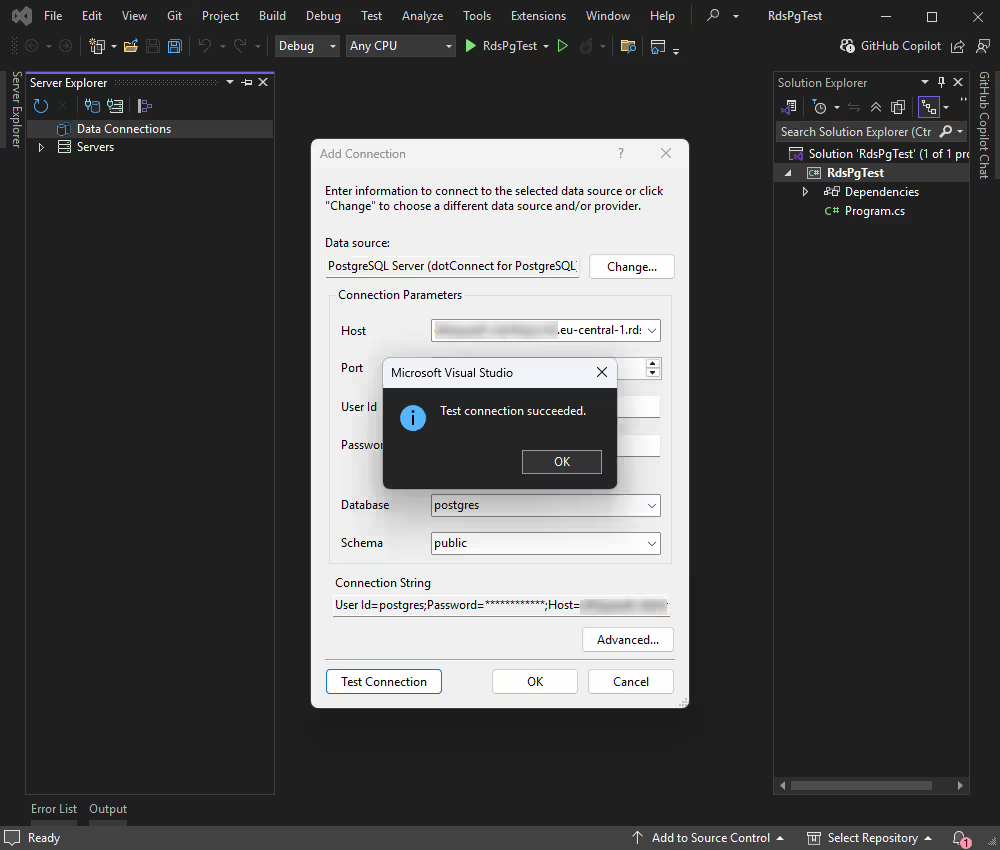
4. Once connected, you can browse tables, execute queries, and manage data directly within the Data Explorer.
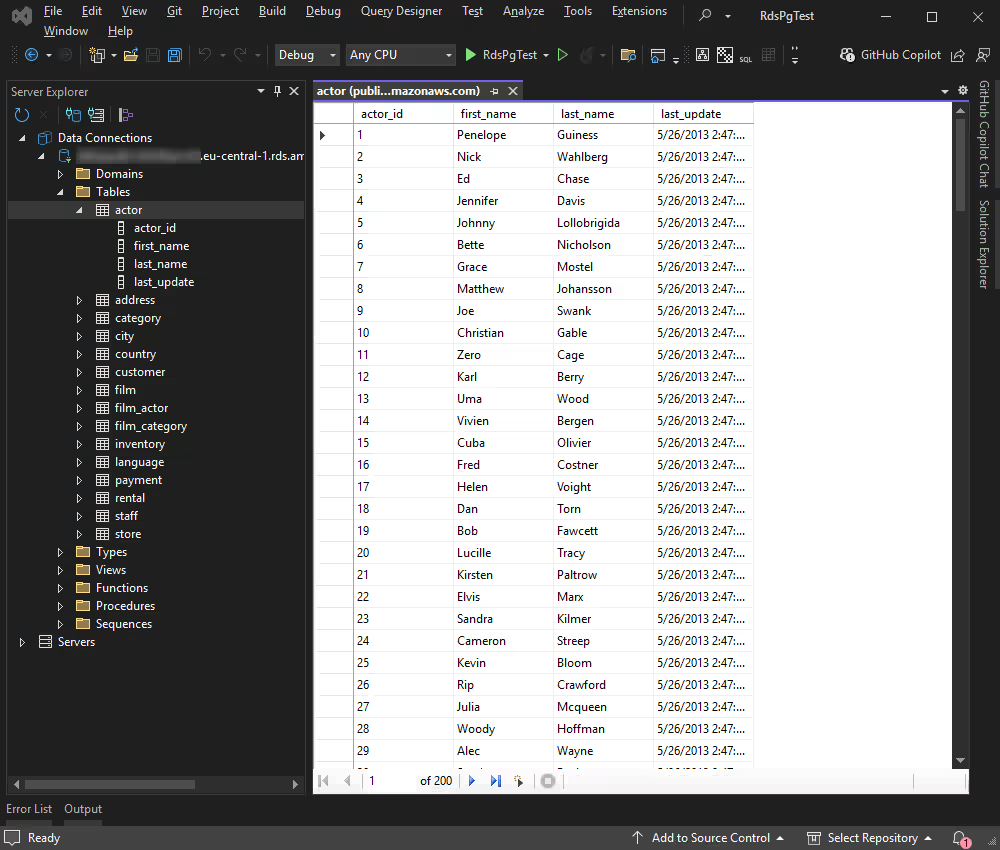
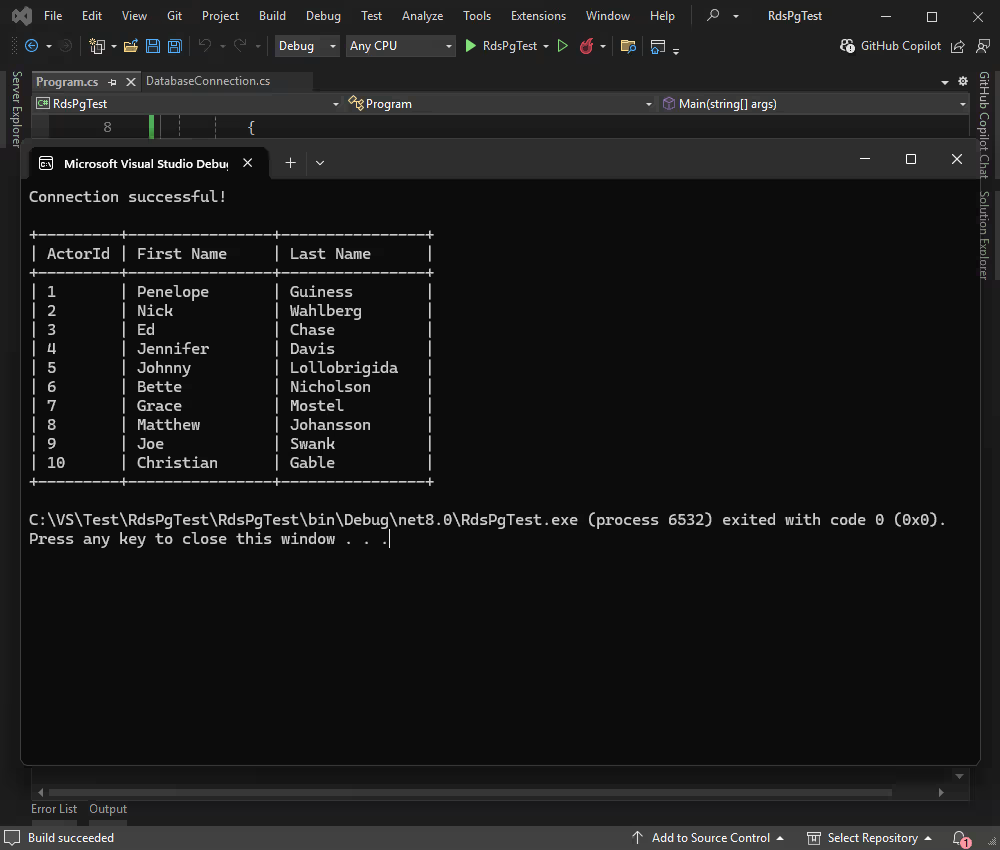
Let's establish a connection with Amazon RDS for PostgreSQL and then run a simple SELECT query to pull records from the Actor table. The query confirms that the connection is established correctly and the data is accessible.
The DatabaseConnection.cs class keeps connection details separate for better maintainability.
using Devart.Data.PostgreSql;

public static class DatabaseConnection
{

        public
        static
        PgSqlConnection
        CreateConnection()

    {
        string connectionString =
            "" +
            "Server=*********;" +
            "User Id=TestUser;" +
            "Password=********;" +
            "Database=TestDatabase;" +
            "Initial Schema=public;" +
            "SSLMode=Allow;" +
            "License key=**********";

        return
            new PgSqlConnection(connectionString);
    }
}
Make sure to replace the placeholders in the code with your actual PostgreSQL database credentials. If you have the paid license of dotConnect for PostgreSQL, include the license key in the code.
| Property | Meaning |
|---|---|
| Host | Specifies the hostname or IP address of the PostgreSQL server |
| Port | States the port number on which the PostgreSQL server is listening |
| UserId | Indicates the user ID used to authenticate with PostgreSQL |
| Password | Defines the password for the user ID |
| Database | Specifies the default database to use after connecting |
| Schema | The PostgreSQL schema to use |
| License key | Specify your license key in this parameter; this is required only when using assemblies compatible with .NET Standard |
Add the code below to your Program.cs file.
using Devart.Data.PostgreSql;

public sealed class Program
{

        public
        static
        void
        Main(

                string[]
                args
            )

    {
        try
        {
            using (PgSqlConnection connection = DatabaseConnection.CreateConnection())
            {
                connection.Open();
                Console.WriteLine("Connection successful!\n");

                string sql =
                    "SELECT actor_id, first_name, last_name FROM actor ORDER BY actor_id LIMIT 10";

                using (PgSqlCommand command =
                    new PgSqlCommand(sql, connection))

                using (PgSqlDataReader reader =
                    command.ExecuteReader())
                {
                    Console.WriteLine("+---------+----------------+----------------+");
                    Console.WriteLine("| ActorId | First Name     | Last Name      |");
                    Console.WriteLine("+---------+----------------+----------------+");

                    while (reader.Read())
                    {
                        int actorId = reader.GetInt32(0);
                        string firstName = reader.GetString(1);
                        string lastName = reader.GetString(2);

                        Console.WriteLine(

$"| {actorId,-7} |
{firstName,-14} |
{lastName,-14} |"
);
                    }

                    Console.WriteLine("+---------+----------------+----------------+");
                }
            }
        }
        catch (Exception ex)
        {
            Console.WriteLine(
                "An error occurred: " + ex.Message
            );
        }
    }
}Build and run your application. To do this, select Start from the menu or click F5. It displays the data retrieved from the database.
This section walks you through inserting a new row into the Actor table using parameterized SQL to interact with the database safely.
using Devart.Data.PostgreSql;

public sealed class Program
{

        public
        static
        void
        Main(

                string[]
                args
            )

    {
        try
        {
            using (PgSqlConnection connection = DatabaseConnection.CreateConnection())
            {
                connection.Open();
                Console.WriteLine("Connection successful!");

                string insertSql =

"INSERT INTO actor(first_name, last_name) VALUES(@first, @last) RETURNING actor_id"
;

                using (PgSqlCommand insertCmd =
                    new PgSqlCommand(insertSql, connection))
                {
                    insertCmd.Parameters.AddWithValue(
                        "@first",
                        "TestFirst"
                    );

                    insertCmd.Parameters.AddWithValue(
                        "@last",
                        "TestLast"
                    );

                    object result =
                        insertCmd.ExecuteScalar();

                    long newActorId =
                        0;

                    if (
                        result != null
                        &&
                        result != DBNull.Value
                    )
                    {
                        newActorId = Convert.ToInt64(result);
                    }

                    Console.WriteLine("+---------+----------------+----------------+");
                    Console.WriteLine("| ActorId | First Name     | Last Name      |");
                    Console.WriteLine("+---------+----------------+----------------+");

                    Console.WriteLine(

$"| {newActorId,-7} |
{"TestFirst",-14} |
{"TestLast",-14} |"
);

                    Console.WriteLine("+---------+----------------+----------------+");
                }
            }
        }
        catch (Exception ex)
        {
            Console.WriteLine(
                "An error occurred: " + ex.Message
            );
        }
    }
}
Here's the results in the application:
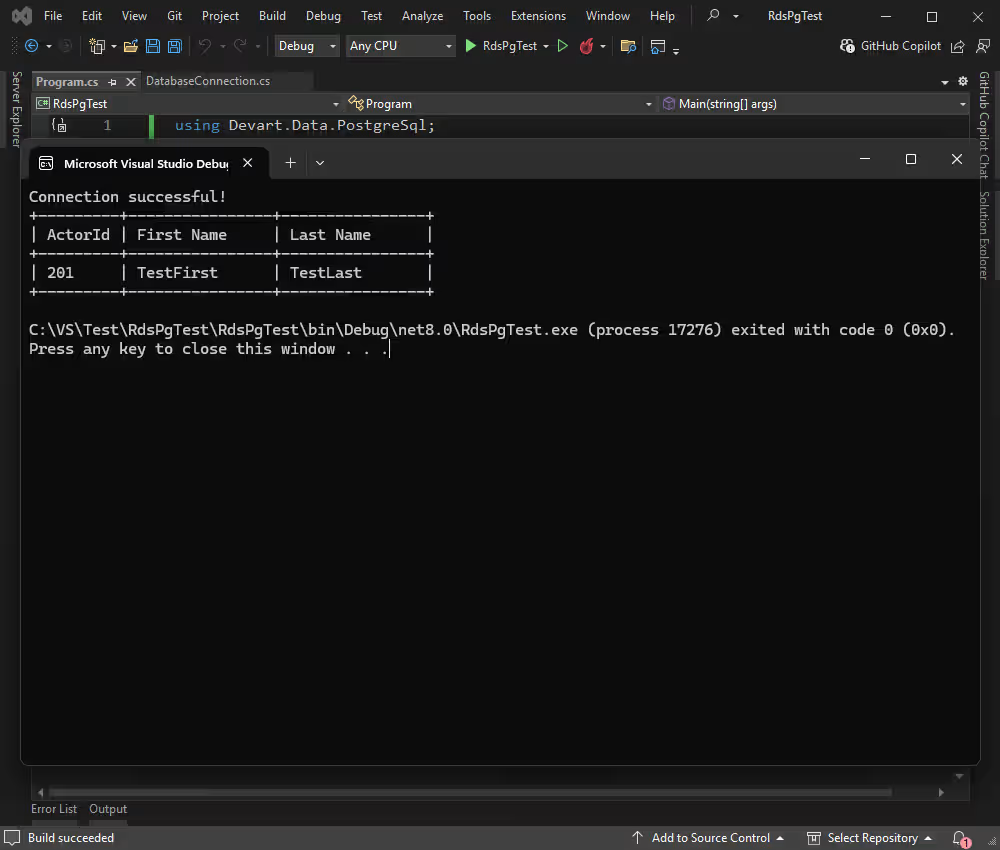
Next, let's update an existing record. First, you'll change the actor's first and last name. This process demonstrates how you can change data directly from your application.
using Devart.Data.PostgreSql;

public sealed class Program
{

        public
        static
        void
        Main(

                string[]
                args
            )

    {
        try
        {
            using (PgSqlConnection connection = DatabaseConnection.CreateConnection())
            {
                connection.Open();
                Console.WriteLine("Connection successful!");

                long actorId =
                    201;

                string firstName =
                    "James";

                string lastName =
                    "Johnson";

                string updateSql =

"UPDATE actor SET first_name = @first, last_name = @last WHERE actor_id = @id"
;

                using (PgSqlCommand updateCmd =
                    new PgSqlCommand(updateSql, connection))
                {
                    updateCmd.Parameters.AddWithValue(
                        "@first",
                        firstName
                    );

                    updateCmd.Parameters.AddWithValue(
                        "@last",
                        lastName
                    );

                    updateCmd.Parameters.AddWithValue(
                        "@id",
                        actorId
                    );

                    int rowsAffected =
                        updateCmd.ExecuteNonQuery();

                    if (
                        rowsAffected >
                        0
                    )
                    {
                        Console.WriteLine("+---------+----------------+----------------+");
                        Console.WriteLine("| ActorId | First Name     | Last Name      |");
                        Console.WriteLine("+---------+----------------+----------------+");

                        Console.WriteLine(

$"| {actorId,-7} |
{firstName,-14} |
{lastName,-14} |"
);

                        Console.WriteLine("+---------+----------------+----------------+");
                    }
                    else
                    {
                        Console.WriteLine(

$"No actor found with actor_id: {actorId}"
);
                    }
                }
            }
        }
        catch (Exception ex)
        {
            Console.WriteLine(
                "An error occurred: " + ex.Message
            );
        }
    }
}
The output in the application proves that the operation is successful:
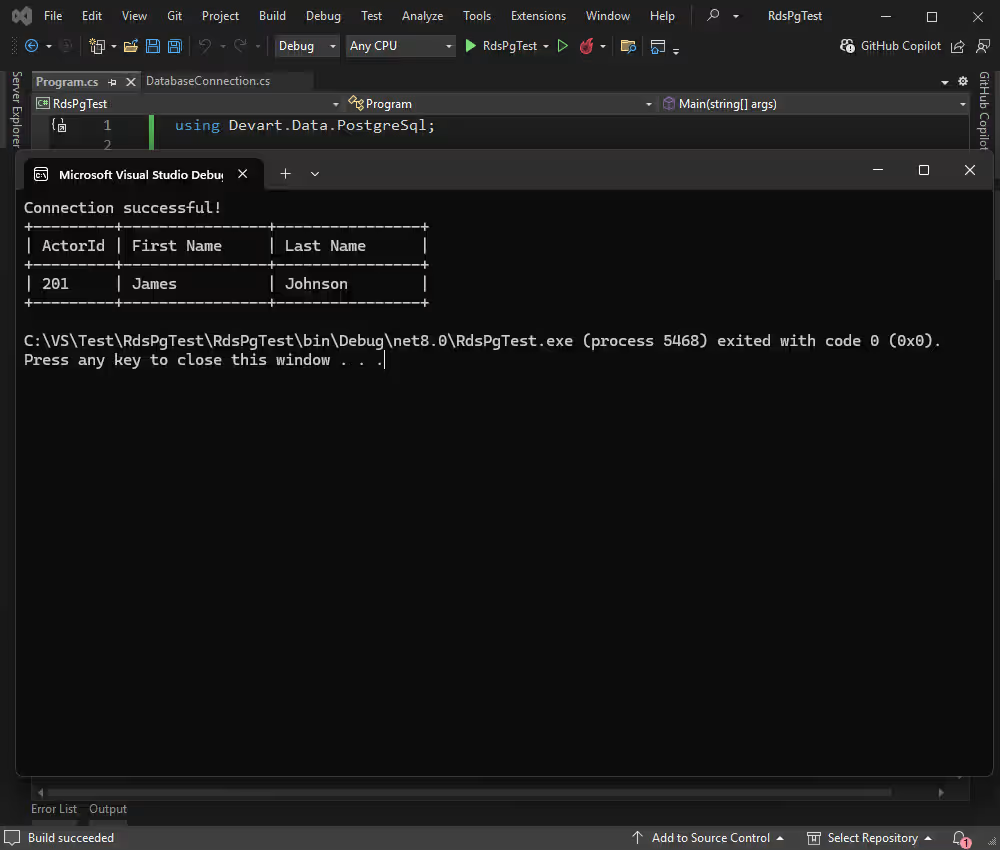
Finally, here's how you can remove the record for the actor you just added to the database. This section shows how to delete data from the PostgreSQL table based on a specific condition.
using Devart.Data.PostgreSql;

public sealed class Program
{

        public
        static
        void
        Main(

                string[]
                args
            )

    {
        try
        {
            using (PgSqlConnection connection = DatabaseConnection.CreateConnection())
            {
                connection.Open();
                Console.WriteLine("Connection successful!");

                long actorId =
                    201;

                string deleteSql =

"DELETE FROM actor WHERE actor_id = @id"
;

                using (PgSqlCommand deleteCmd =
                    new PgSqlCommand(deleteSql, connection))
                {
                    deleteCmd.Parameters.AddWithValue(
                        "@id",
                        actorId
                    );

                    int rowsAffected =
                        deleteCmd.ExecuteNonQuery();

                    if (
                        rowsAffected >
                        0
                    )
                    {
                        Console.WriteLine($"+---------+");
                        Console.WriteLine("| ActorId |");
                        Console.WriteLine("+---------+");

                        Console.WriteLine(

$"| {actorId,-7} |"
);

                        Console.WriteLine("+---------+");

                        Console.WriteLine(

$"Actor with actor_id {actorId} has been removed."
);
                    }
                    else
                    {
                        Console.WriteLine(

$"No actor found with actor_id: {actorId}"
);
                    }
                }
            }
        }
        catch (Exception ex)
        {
            Console.WriteLine(
                "An error occurred: " + ex.Message
            );
        }
    }
}
The command is successful. We can see that the record is deleted.
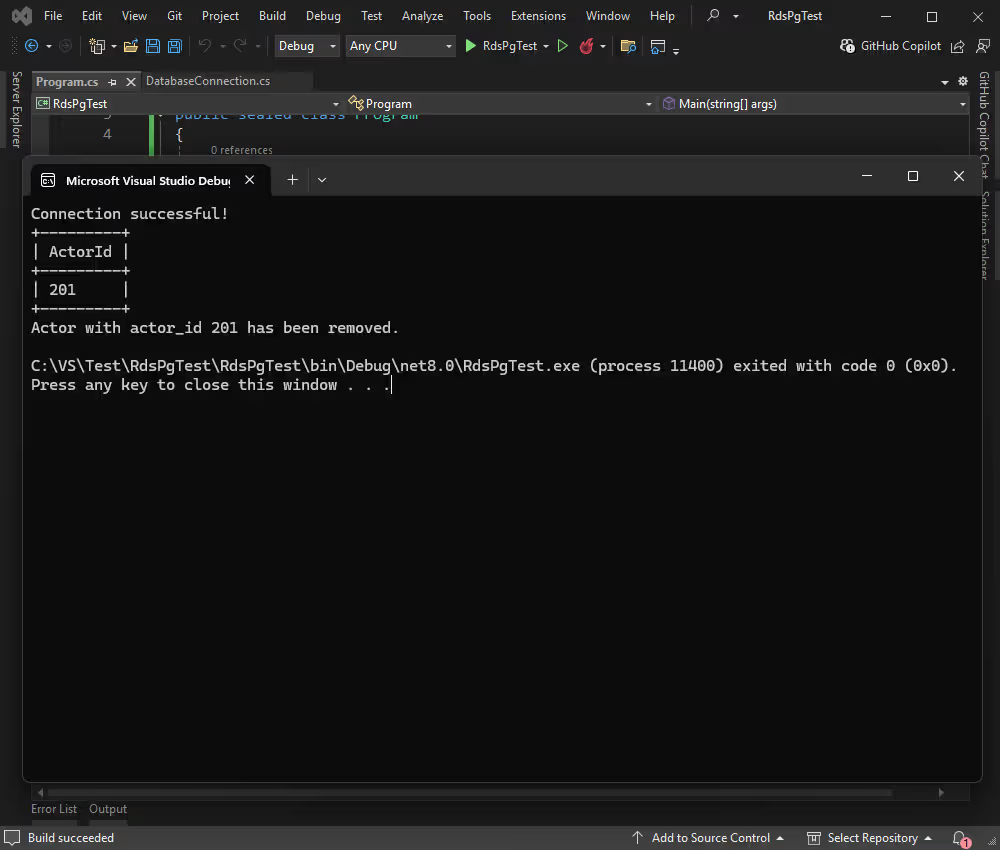
Now you can connect to Amazon RDS for PostgreSQL, access your data in PostgreSQL databases, and manipulate that data as necessary. This tutorial explained and illustrated the most fundamental data operations: reading, inserting, updating, and deleting data. With this knowledge, you can move further and build robust and scalable data-driven applications that flawlessly integrate with the AWS infrastructure.
License key parameter for a working connection.
License key value. Then create a PgSqlConnection instance with this connection string and call the Open() method inside a try-catch block to test the connection and properly handle any potential errors.
SslMode=Require and specify the CACert, Cert, and Key file paths in the connection string. Then open the PgSqlConnection connection to establish an encrypted SSL/TLS connection.
Scaffold-DbContext with a dotConnect connection string (including your License key) to generate the DbContext and entity classes.

I'm a technical content writer who loves turning complex topics — think SQL, connectors, and backend chaos–into content that actually makes sense (and maybe even makes you smile). I write for devs, data folks, and curious minds who want less fluff and more clarity. When I'm not wrangling words, you'll find me dancing salsa, or hopping between cities.

