
You can install the driver by using the Windows installer.
After you receive the license key, add it to your connection strings to connect to the data source.
Reliable database connectivity is crucial, as applications need a way to store, manage, insert, and retrieve data to function effectively. PostgreSQL stands out as a favored option for application development because of its open-source nature, rich feature set, reliability, and excellent performance. With the backing of a vast developer community and comprehensive documentation, PostgreSQL ensures that help is always within reach.
Developers who work on .NET applications can integrate PostgreSQL as the backend to gain a reliable, scalable, and cost-effective solution that adapts to evolving needs. In this article, we'll delve into some of the most effective techniques for establishing a connection between a .NET application and PostgreSQL.

Fully supports EF Core, Dapper, NHibernate, LinqConnect, and other modern data access technologies for efficient and reliable data management.

Conforms to the latest ADO.NET standards and recent industry innovations for seamless and consistent integration with .NET applications.

Includes many PostgreSQL-specific features and fully supports all unique data types for accurate and complete data representation.

Provides robust security with support for SSL/SSH connections, connecting via proxy servers, embedded servers, and HTTP tunneling.

Features native integration with Visual Studio and complete design-time support for accelerated development.

Includes priority support, detailed documentation, and regular updates for continuous improvement.
You can start using dotConnect for PostgreSQL immediately with a 30-day free trial. Choose one of the following installation options:
You can install the driver by using the Windows installer.
After you receive the license key, add it to your connection strings to connect to the data source.
To connect to a PostgreSQL database, replace the code in Program.cs and specify the relevant values for Host, Port, User Id, Password, Database, Schema, and License Key. The result should look like this:
static void Main(string[] args) {
// Define the connection string
string connectionString =
"Host=<server>;" +
"Port=<port>;" +
"User Id=<user_id>;" +
"Password=<password>;" +
"Database=<database_name>;" +
"Schema=public;" +
"License Key=**********;";

// Create a new connection object
using(PgSqlConnection connection = new PgSqlConnection(connectionString)) {
try {
      connection.Open();

// Optionally set schema if needed
var cmd = new PgSqlCommand("SET search_path TO public;", connection);
      cmd.ExecuteNonQuery();

      Console.WriteLine("Connection successful!");
    } catch (Exception ex) {
      Console.WriteLine("An error occurred: " + ex.Message);
    }
  }
}
Based on your requirements, you may want to extend this sample to run queries and add more robust exception handling. Press F5 or click Start on the toolbar.
| Property | Description |
|---|---|
| Host | Specifies the host name or IP address of the PostgreSQL server. |
| Port | Specifies the port on which the PostgreSQL server listens. |
| User Id | Specifies the user ID used to authenticate with PostgreSQL. |
| Password | Specifies the password for the user ID. |
| Database | Specifies the default database to use after connecting. |
| Schema | Specifies the PostgreSQL schema to use. |
| License Key | Specifies your license key. This is required only when you use .NET Standard-compatible assemblies. |
To establish an SSL connection to the database by using the specified connection string parameters, update your code in Program.cs to match the following format.
static void Main(string[] args) {
// Define the connection string with SSL options
   PgSqlConnectionStringBuilder connectionStringBuilder = new PgSqlConnectionStringBuilder {
       Host = "<host>",
       UserId = "<user_id>",
       Password = "<password>",
       Database = "<database_name>",
       SslMode = SslMode.Require,
       SslOptions = new SslOptions {
         CACert = @"C:\root.crt",
           Cert = @"C:\client.crt",
           Key = @"C:\client.key"
       },
       LicenseKey = "**********"
   };

// Create a new connection object
using(PgSqlConnection connection = new PgSqlConnection(connectionStringBuilder.ConnectionString)) {
try {
// Open the connection
       connection.Open();
       Console.WriteLine("SSL connection opened successfully.");

// Check the connection state
if (connection.State == System.Data.ConnectionState.Open) {
         Console.WriteLine("Connection is open.");
       } else {
         Console.WriteLine("Connection is not open.");
       }
     } catch (Exception ex) {
       Console.WriteLine("An error occurred: " + ex.Message);
     }
   }
 }
Press F5 or click Start on the toolbar.
To connect to your PostgreSQL database in Visual Studio by using the built-in Data Explorer, follow these steps:
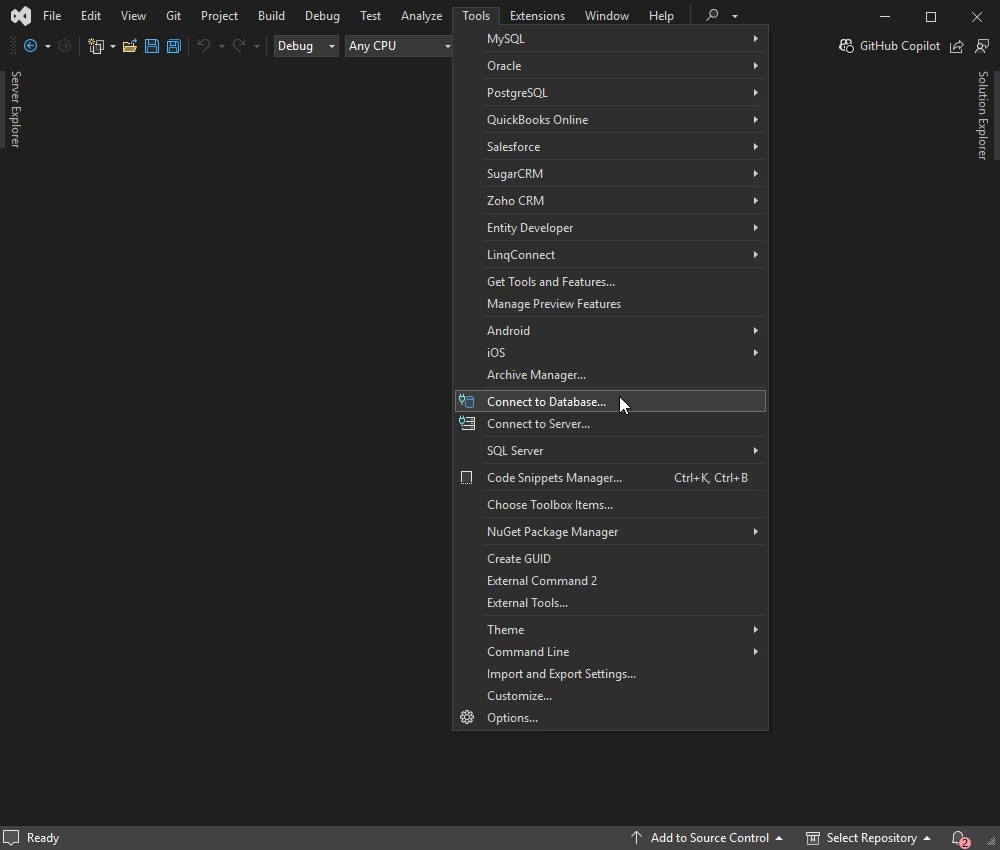
1. On the Tools menu, select Connect to Database.
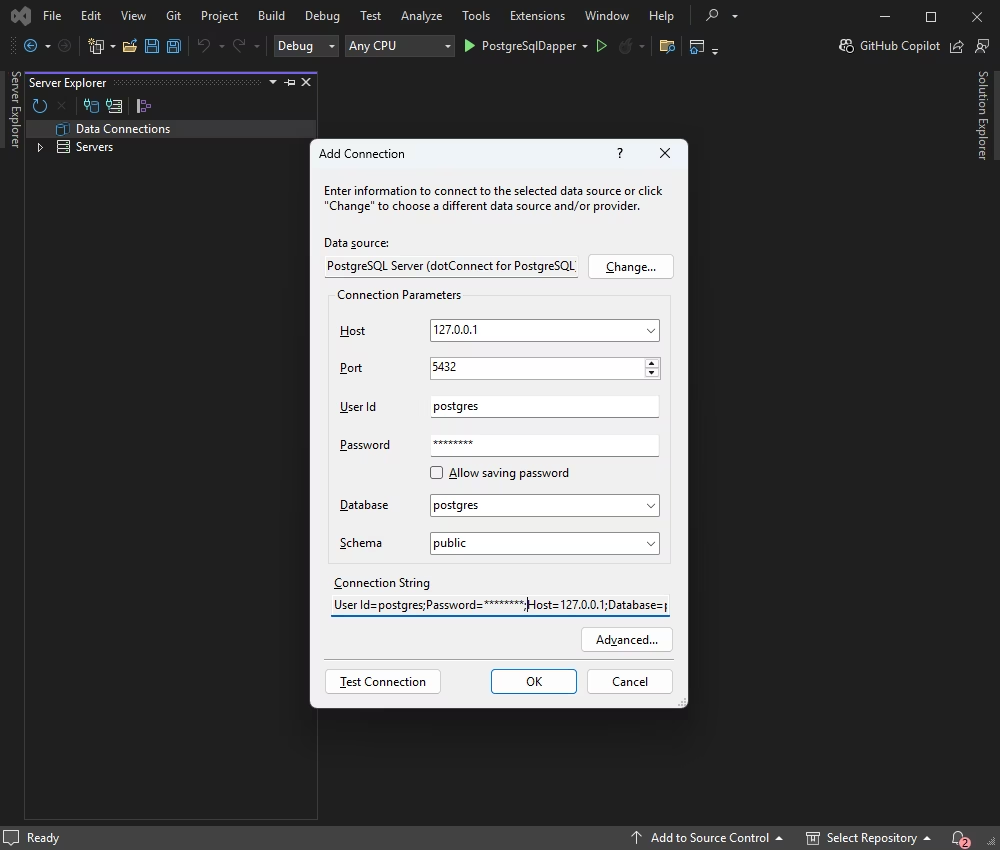
2. In the Add Connection dialog, select PostgreSQL as the data source, and then click OK.
3. Enter your server connection details, and then click OK.
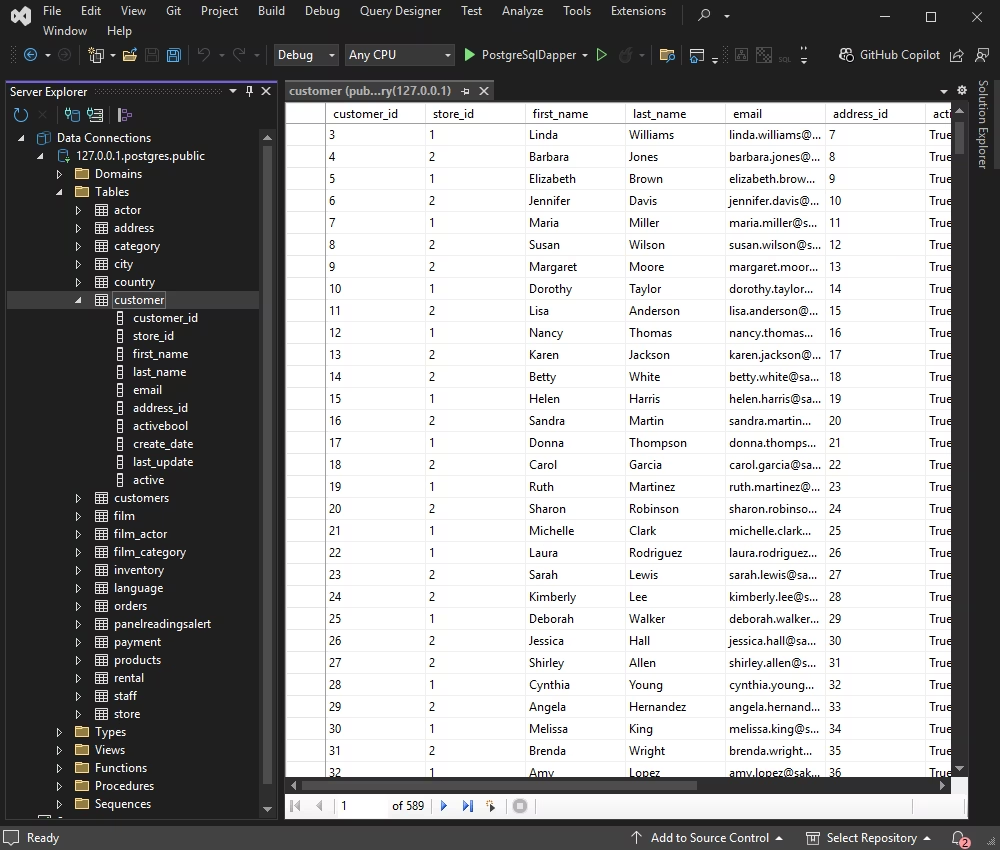
Once connected, you can browse tables, run queries, and manage data directly in Visual Studio.
If you need to create an EF Core model from your PostgreSQL database, use a visual ORM designer such as Entity Developer.
Entity Developer lets you design and generate EF Core models visually, so you can build the data layer faster and with less manual work. If you do not have Entity Developer installed, close Visual Studio, download Entity Developer, and complete the installation by following the on-screen instructions.
To build your database model, follow the detailed illustrated guide for Entity Developer. When the process finishes, Entity Developer opens the generated model. You can work with the diagram, edit fields and relationships, and generate SQL to apply changes—either as a script or directly to the database.
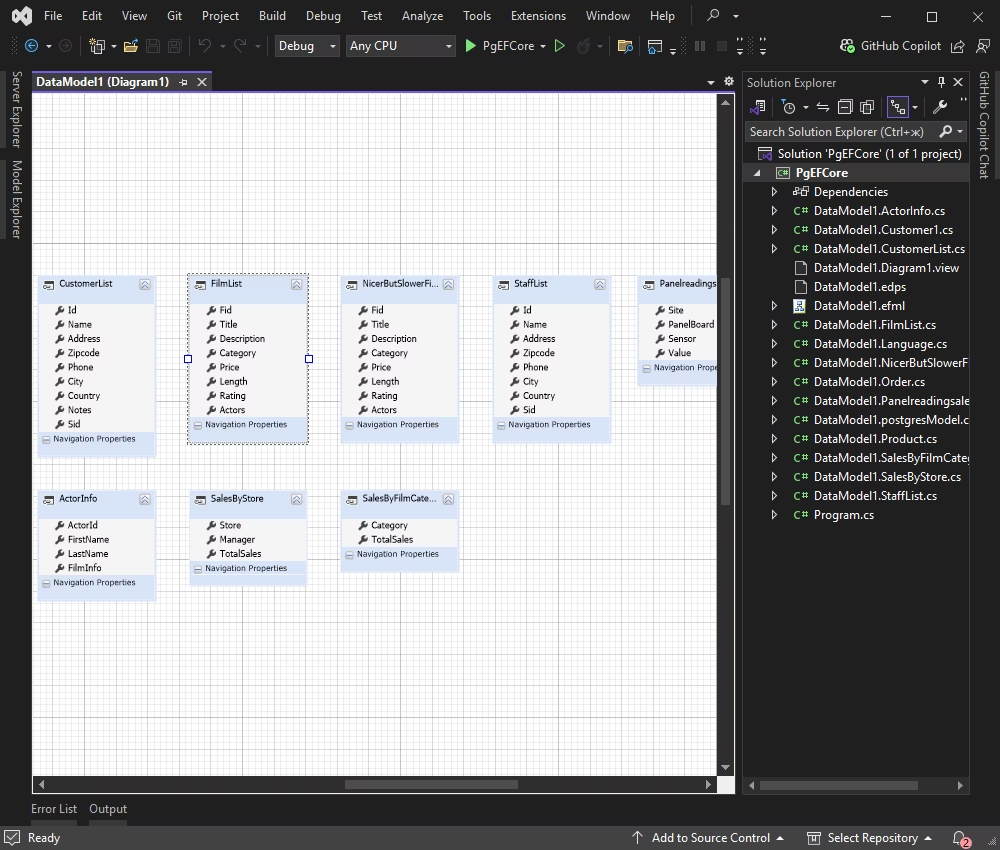
All steps in this guide use Visual Studio. If you work in VS Code, JetBrains Rider, or a similar IDE, you can run Entity Developer as a standalone application and work with your models just as efficiently.
Use the following example to check a database connection in an EF Core C# Console application when connection settings are stored in the DbContext class.
class Program {
static void Main(string[] args) {
// Create an instance of the DbContext
var context = new DvdRentalContext();

try {
// Attempt to open the connection
  	context.Database.OpenConnection();
  	Console.WriteLine("Connection opened successfully.");

// Check the connection state
if (context.Database.GetDbConnection().State == System.Data.ConnectionState.Open) {
    	Console.WriteLine("Connection is open.");
  	} else {
    	Console.WriteLine("Connection is not open.");
  	}
	} catch (Exception ex) {
  	Console.WriteLine("An error occurred: " + ex.Message);
	} finally {
// Close the connection
  	context.Database.CloseConnection();
	}
  }
}1. First, make sure EF Core tools are available in your environment. Install the CLI tool globally.
2. Install the EF Core tools package for your project (Package Manager Console).
3. Generate the DbContext and entity classes from your PostgreSQL database. Run the following command in the Package Manager Console (replace the connection values as needed).
Scaffold-DbContext "Server=127.0.0.1;Port=5432;UserId=TestUser;Password=TestPassword;Database=dvdrental;Schema=public;LicenseKey=**********" Devart.Data.PostgreSql.EFCore -OutputDir Models
4. Review the generated DbContext and entity classes and verify that they reflect your database schema.
This article provides detailed guidance on how to connect .NET applications to a PostgreSQL database by using several approaches. It covers multiple connection options, including SSL/TLS, and shows how to use Entity Framework Core with Scaffold-DbContext.
Devart dotConnect for PostgreSQL can help improve application responsiveness and reduce overhead in common database operations. Start a free trial to evaluate connectivity, performance, and security in your .NET projects.
Host, User Id, Password, Database, and (if required) License Key. Then create a PgSqlConnection with this string and call Open() inside a try/catch block to verify the connection and handle any errors.
SslMode=Require and provide the certificate file paths (for example, CACert, Cert, and Key) in the connection string. Then create a PgSqlConnection with this string and call Open() to establish an encrypted SSL/TLS session.
DbContext and entity classes, or run Scaffold-DbContext with a dotConnect connection string (including License Key) to scaffold the DbContext and entities from an existing database.

I'm a technical content writer who loves breaking complex tech topics into clear and helpful content that's enjoyable to read. With a solid writing background and growing skill in software development and database tools, I create content that's accurate, easy to follow, and genuinely useful. When I'm not writing, you'll probably find me learning something new or sweating it out at the gym.

