You can install the driver by using the Windows installer.
After you receive the license key, add it to your connection strings to connect to the data source.
QuickBooks Online is one of the leading cloud-based accounting solutions that allows businesses to manage finances, track income and expenses, send invoices, and generate detailed financial reports, all in one place.
In this article, you'll learn how to securely connect to QuickBooks Online from a C# application using a specialized ADO.NET data provider dotConnect for QuickBooks Online for simplicity and reliability. We'll walk through the essentials and show how to integrate your application with this powerful platform and start working with financial data.

Ensures effortless connection to QuickBooks Online, allowing .NET applications to access accounting data such as customers, invoices, and payments without dealing with the complexity of the API.

Streamlines authentication via Interactive OAuth, where users sign in through a browser-based login flow. After authorization, dotConnect automatically gets and manages access and refresh tokens.

Uses well-known ADO.NET classes, enabling an easy start and creating a convenient working environment.

Fully supports EF Core, Dapper, NHibernate, LinqConnect, and other technologies for efficient QuickBooks Online data management.

Conforms to the latest ADO.NET standards and innovations for seamless integration with .NET applications.

Includes priority support, detailed documentation, and regular updates for continuous improvement.
You can start using dotConnect for QuickBooks immediately with a 30-day free trial. Choose one of the following installation options:
You can install the driver by using the Windows installer.
After you receive the license key, add it to your connection strings to connect to the data source.
dotConnect for QuickBooks Online uses an interactive OAuth authorization flow to obtain access tokens and establish a connection with the data source. This approach enables secure data access without requiring the application to handle user credentials.
When a connection is opened for the first time, the provider launches a browser window, prompting the user to complete the authorization process. Once authorization is granted, the access tokens are securely stored, and subsequent connections can be established without additional user interaction. You only need to provide a valid license key.
This interactive authentication flow improves security while giving users full control over access permissions.
Here is the sample code that will help you connect to QuickBooks Online. Complete it with the following credentials: Client Id, Company Id, Client Secret, Refresh token, and License key. Additionally, set Sandbox to true if you are using the sandbox application type.
using System.Data;
using Devart.Data.QuickBooks;

class Program
{
  static void Main()
  {
    using QuickBooksConnection conn = new(
      "Authentication Type=OAuthInteractive;" +
      "License Key=**********");
    conn.Open();

    using QuickBooksCommand cmd = new(
      "SELECT Id, Name, FullyQualifiedName, Description FROM Account", conn);

    using QuickBooksDataReader reader = cmd.ExecuteReader();

    if (!reader.HasRows)
    {
      Console.WriteLine("No data found in the Account table.");
      return;
    }

    while (reader.Read())
    {
      string id          = reader["Id"]?.ToString()                 ?? "N/A";
      string name        = reader["Name"]?.ToString()               ?? "N/A";
      string fqn         = reader["FullyQualifiedName"]?.ToString() ?? "N/A";
      string description = reader["Description"]?.ToString()        ?? "N/A";

      Console.WriteLine($"Id:                 {id}");
      Console.WriteLine($"Name:               {name}");
      Console.WriteLine($"FullyQualifiedName: {fqn}");
      Console.WriteLine($"Description:        {description}");
      Console.WriteLine(new string('-', 50));
    }
  }
}
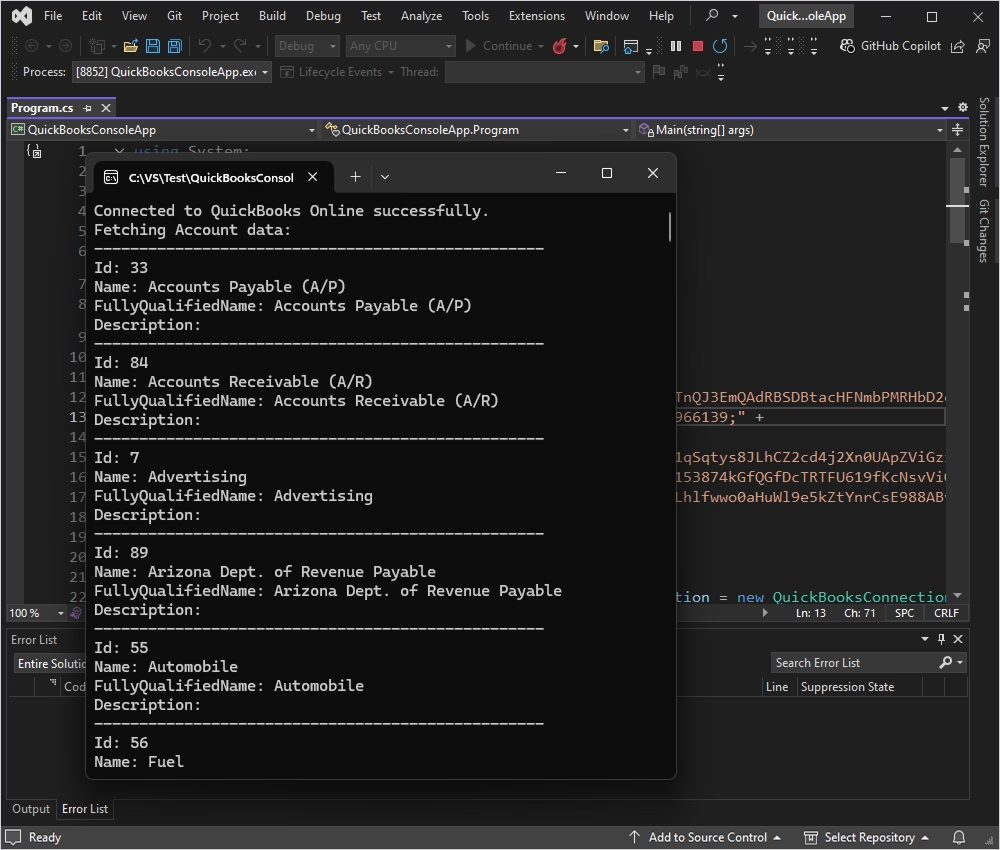
Once you successfully connect your application to QuickBooks Online, you will be able to fetch and manage your data.
In .NET applications, a connection string is a formatted string that provides the information required to establish a connection to a data source.
At its core, the connection string tells the provider where to connect, how to authenticate, and what settings to use during the connection process. Once supplied, the data provider parses the string, validates its syntax, and ensures that all specified keywords are supported. After this initial validation, the extracted parameters are passed to the data source, which performs additional checks and ultimately establishes the connection.
The table below outlines some of the most commonly used connection string parameters.
| Name | Description |
|---|---|
| Authentication Type | The authentication method: Refresh Token, Access Token, or OAuthInteractive |
| Company Id | The string that uniquely identifies a QuickBooks company |
| Access Token | QuickBooks OAuth 2.0 access token |
| Client Id | The first part of the OAuth 2.0 credentials pair that is obtained when you register a client application at developer.intuit.com/myapps with the developer account |
| Client Secret | The second part of the OAuth 2.0 credentials pair that is obtained when you register a client application at developer.intuit.com/myapps with the developer account |
| License Key | Specifies the license key |
For a complete list of parameters and detailed descriptions, refer to the official guidelines.
You can now connect your C# application to QuickBooks Online using dotConnect for QuickBooks. With the connection in place, you can extend your application to perform a wide range of operations, such as querying customers, invoices, and accounts, as well as creating, updating, and managing QuickBooks data programmatically.
And if you want firsthand experience, feel free to download dotConnect for QuickBooks Online for a free 30-day trial. Give it a go under the real workload!
Install dotConnect for QuickBooks Online using the EXE installer or by adding the Devart.Data.QuickBooks NuGet package to your project. Then obtain your Activation Key from your Devart Customer Portal and include it in the connection string via the License Key parameter.
To authenticate with QuickBooks Online, set the connection string parameter: Authentication Type=OAuthInteractive. When QuickBooksConnection opens, a browser window launches for you to sign in to your Intuit account and grant access. After authorization, dotConnect automatically retrieves and stores the access and refresh tokens.
Define a connection string that includes the CompanyID, authentication parameters, and the License Key. Then create a QuickBooksConnection instance with this string and call Open() inside a TRY-CATCH block to establish the connection and handle possible errors.
Yes, dotConnect allows you to work with QuickBooks Online data using SQL queries. Developers can retrieve and manipulate objects such as Customers, Invoices, and Payments through familiar SQL commands.
Yes, you can use Entity Developer to visually generate an EF Core model from QuickBooks Online entities, or run Scaffold-DbContext with the Devart.Data.QuickBooks.EFCore package and a dotConnect connection string (including the License Key) to create the DbContext and entity classes.
Yes, open Server Explorer in Visual Studio add a new Data Connection, choose dotConnect for QuickBooks Online as the provider, configure authentication and company details, test the connection, and explore QuickBooks Online objects directly in the IDE.

I'm a technical content writer who loves breaking complex tech topics into clear and helpful content that's enjoyable to read. With a solid writing background and growing skill in software development and database tools, I create content that's accurate, easy to follow, and genuinely useful. When I'm not writing, you'll probably find me learning something new or sweating it out at the gym.

