You can install the driver by using the Windows installer.
After you receive the license key, add it to your connection strings to connect to the data source.
The integration of QuickBooks Online into your .NET Blazor application allows you to easily access financial data, enhancing the efficient management of customer information, invoices, and more.
This tutorial demonstrates how to connect a Blazor Server App to QuickBooks Online using dotConnect for QuickBooks Online, with a particular focus on performing CRUD operations within the Customer table.

Ensures effortless connection to QuickBooks Online, allowing .NET applications to access accounting data such as customers, invoices, and payments without dealing with the complexity of the API.

Streamlines authentication via Interactive OAuth, where users sign in through a browser-based login flow. After authorization, dotConnect automatically gets and manages access and refresh tokens.

Uses well-known ADO.NET classes, enabling an easy start and creating a convenient working environment.

Fully supports EF Core, Dapper, NHibernate, LinqConnect, and other technologies for efficient QuickBooks Online data management.

Conforms to the latest ADO.NET standards and innovations for seamless integration with .NET applications.

Includes priority support, detailed documentation, and regular updates for continuous improvement.
You can start using dotConnect for QuickBooks immediately with a 30-day free trial. Choose one of the following installation options:
You can install the driver by using the Windows installer.
After you receive the license key, add it to your connection strings to connect to the data source.
Below, you will find the instructions on how to check your QuickBooks data source using the built-in Data Explorer in Visual Studio.
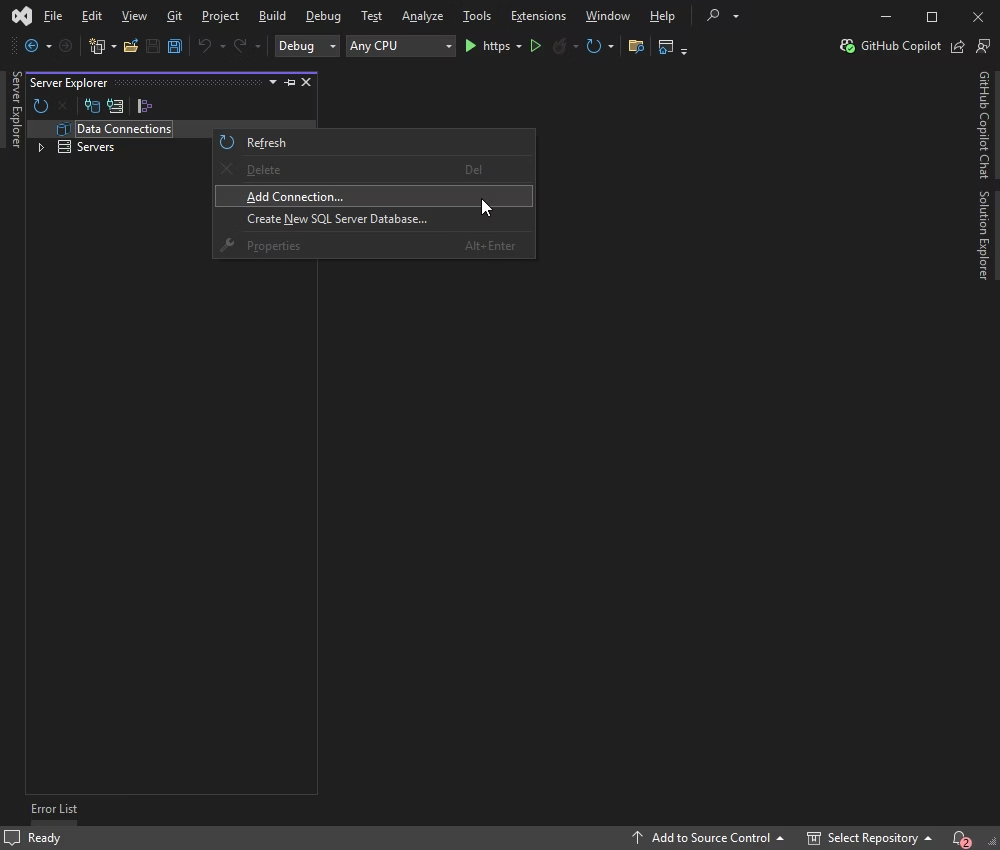
1. To connect to QuickBooks through the Data Explorer, right-click Data Connections and choose Add Connection.
2. In the Add Connection dialog, select QuickBooks Online Data Source as the data source, and click the Web Login button to get the credentials.
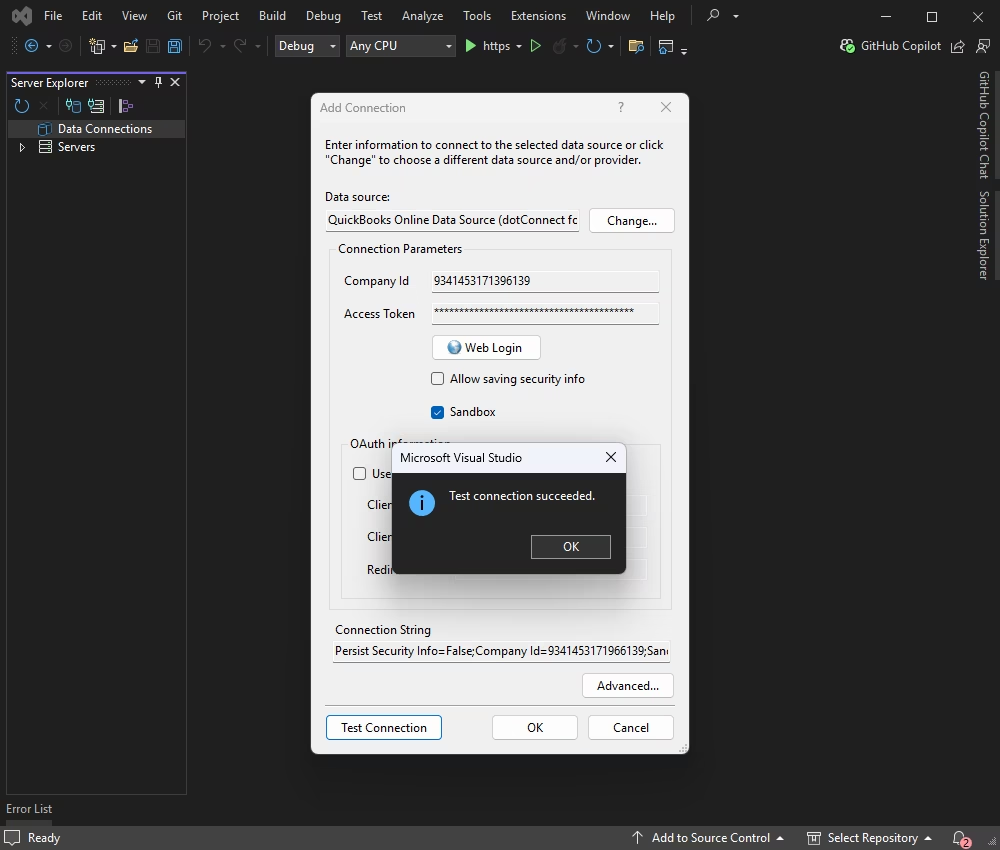
3. To verify the connectivity, click Test Connection.
4. In case the connection is successful, click OK to save it.
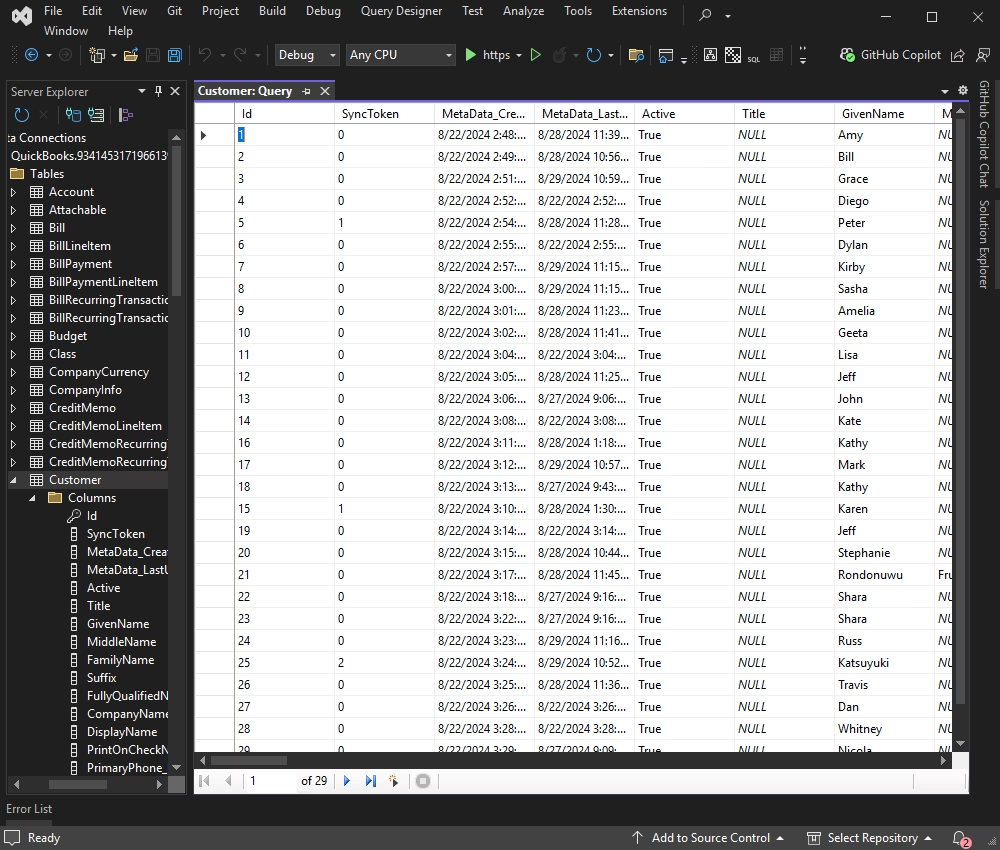
Once connected, you can browse QuickBooks tables, execute queries, and manage data directly in Data Explorer.
After you have completed the previous steps, you will have all the necessary components to establish a connection. In this section, you'll find the sample code that will help you connect to QuickBooks Online using the OAuthInteractive authentication method. This method handles the OAuth flow automatically. Meaning, when the connection is opened for the first time, a browser window will launch to complete the authorization. Once authorized, the session is maintained without requiring manual credentials such as Client Id, Client Secret, or Refresh Token. The only credential you need to provide is your License Key.
Update appsettings.json
Store your QuickBooks Online credentials securely in the appsettings.json file for use in your Blazor application.
{
  "Logging": {
    "LogLevel": {
      "Default": "Information",
      "Microsoft": "Warning",
      "Microsoft.Hosting.Lifetime": "Information"
    }
  },
  "AllowedHosts": "*",
  "QuickBooks": {
    "LicenseKey": "**********"
  }
}
Create a configuration class
Create a class to map the QuickBooks settings from the appsettings.json file. This class enables your application to read and use the stored license key.
namespace QBOBlazor
{
  public class QuickBooksSettings
  {
    public string LicenseKey { get; set; } = string.Empty;
  }
}
With the OAuthInteractive authentication type, the OAuth flow is handled automatically — no manual tokens or client credentials are required in the configuration.
Add a new class QuickBooksService.cs for QuickBooks data access.
using System;
using System.Collections.Generic;
using System.Data;
using Devart.Data.QuickBooks;
using Microsoft.Extensions.Configuration;

namespace QBOBlazor.Services
{
  public class QuickBooksService
  {
    private readonly QuickBooksSettings _settings;

    public QuickBooksService(IConfiguration configuration)
    {
      _settings = configuration.GetSection("QuickBooks").Get()
        ?? new QuickBooksSettings();
    }

    private string BuildConnectionString() =>
      "Authentication Type=OAuthInteractive;" +
      $"License Key={_settings.LicenseKey}";

    public bool CheckConnection()
    {
      try
      {
        using QuickBooksConnection conn = new(BuildConnectionString());
        conn.Open();
        return true;
      }
      catch (Exception ex)
      {
        Console.WriteLine(ex.Message);
        return false;
      }
    }

    public Liststring, object>> GetCustomers()
    {
      var customers = new Liststring, object>>();

      using QuickBooksConnection conn = new(BuildConnectionString());
      conn.Open();

      using QuickBooksCommand cmd = new(
        "SELECT Id, DisplayName, PrimaryPhone_FreeFormNumber, " +
        "PrimaryEmailAddr_Address, BillAddr_City FROM Customer", conn);

      using QuickBooksDataReader reader = cmd.ExecuteReader();

      while (reader.Read())
      {
        customers.Add(new Dictionary<string, object>
        {
          { "Id",           reader["Id"]                          },
          { "DisplayName",  reader["DisplayName"]                 },
          { "PrimaryPhone", reader["PrimaryPhone_FreeFormNumber"] },
          { "PrimaryEmail", reader["PrimaryEmailAddr_Address"]    },
          { "BillAddrCity", reader["BillAddr_City"]               }
        });
      }

      return customers;
    }
  }
}
The BuildConnectionString method
A private helper that assembles the connection string from the appsettings.json license key and the OAuthInteractive authentication type. Centralizing it ensures both CheckConnection and GetCustomers always use a consistent connection string.
The CheckConnection method
This method attempts to open a connection using the interactive OAuth flow, returning true on success and false on failure. On the first run, a browser window will open automatically to complete the OAuth authorization.
The GetCustomers method
This approach executes a SQL query to fetch customers and returns the results as List. The connection is opened using the same OAuthInteractive flow—once authorized, the session token is reused automatically.
You will register QuickBooksService as a singleton service in the Program.cs file, which configures the services and middleware for the application. To achieve this, execute the code that follows.
builder.Services.AddSingleton<QuickBooksService>();
For creating a new CustomerList.razor component in the Pages folder, run this code.
@page "/customers"
@inject QBOBlazor.Services.QuickBooksService QuickBooksService

<h1>Customers</h1>

@if (isConnected)
{
    <table class="table">
        <thead>
            <tr>
                <th>Display Name</th>
                <th>Primary Phone</th>
                <th>Primary Email</th>
                <th>Billing City</th>
            </tr>
        </thead>
        <tbody>
            @foreach (var customer in customers)
            {
                <tr>
                    <td>@customer["DisplayName"]</td>
                    <td>@customer["PrimaryPhone"]</td>
                    <td>@customer["PrimaryEmail"]</td>
                    <td>@customer["BillAddrCity"]</td>
                </tr>
            }
        </tbody>
    </table>
}
else
{
    <p>Failed to connect to QuickBooks.</p>
}

@code {
    private bool isConnected = false;
    private List<Dictionary<string, object>> customers = new List<Dictionary<string, object>>();

    protected override async Task OnInitializedAsync()
    {
        isConnected = QuickBooksService.CheckConnection();
        if (isConnected)
        {
            customers = QuickBooksService.GetCustomers();
        }
    }
}
Here, we will show you how to add a NavLink to the NavMenu.razor component, which creates a link to the Customers page. However, you need to update the NavMenu.razor component to include a link to the Customers page. To achieve this, run the command below.
<div class="nav-item px-3">
    <NavLink class="nav-link" href="customers">
        <span class="oi oi-list-rich" aria-hidden="true"></span> Customers
    </NavLink>
</div>
The following example provides a basic setup to connect to QuickBooks Online and fetch data from the Customers table in a Blazor Server application. Make sure to handle exceptions and errors appropriately in a production environment beforehand.
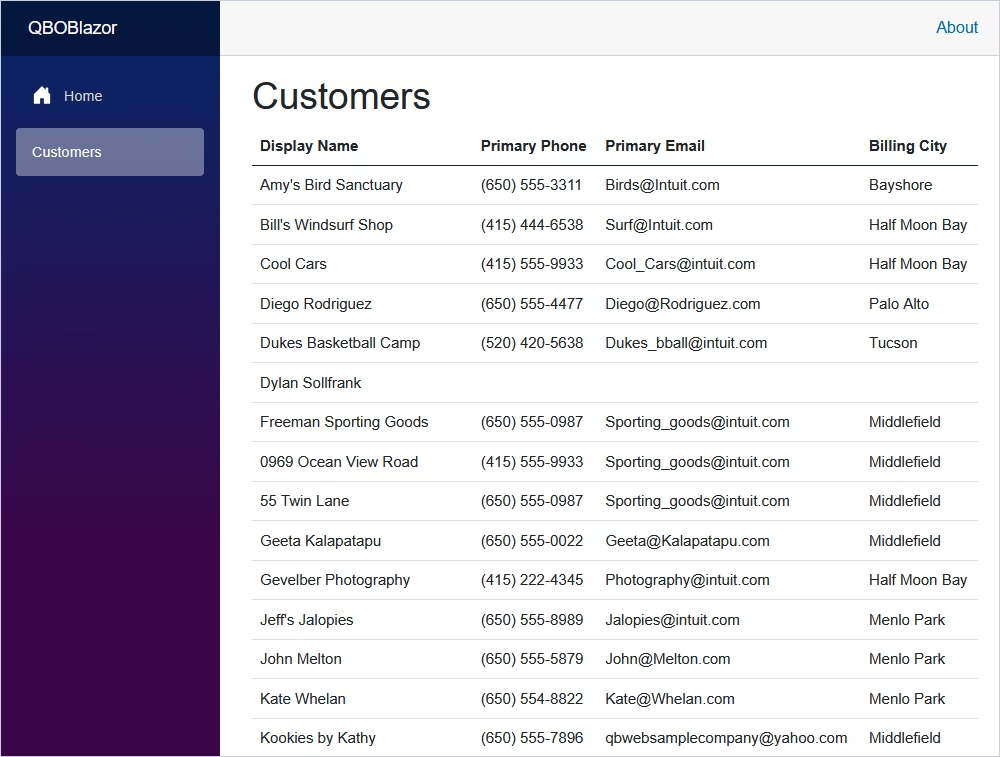
To add a form that inserts a new customer into the QuickBooks Online database, you can create a method in the QuickBooksService class to handle the insertion. Then, you can add a form in the CustomerList.razor component to trigger this insertion.
Update QuickBooksService.cs
Add a method to insert a new customer into the QuickBooks Online database:
public bool InsertCustomer(string displayName)
{
    try
    {
        using (var connection = new QuickBooksConnection())
        {
            connection.ConnectionString = $"ClientId={_settings.ClientId};CompanyId={_settings.CompanyId};ClientSecret={_settings.ClientSecret};RefreshToken={_settings.RefreshToken};LicenseKey={_settings.LicenseKey};Sandbox=true;";
            connection.Open();

            using (var command = new QuickBooksCommand(
                "INSERT INTO Customer (DisplayName) VALUES (:DisplayName)", connection))
            {
                command.Parameters.AddWithValue(":DisplayName", displayName);
                command.ExecuteNonQuery();
                return true;
            }
        }
    }
    catch (Exception ex) when (ex.Message.Contains("The name supplied already exists"))
    {
        Console.WriteLine("Customer with the same name already exists.");
        return false;
    }
    catch (Exception ex)
    {
        Console.WriteLine(ex.Message);
        return false;
    }
}
Update CustomerList.razor
Add a form to insert a new customer and display the result of the insertion:
@page "/customers"
@inject QBOBlazor.Services.QuickBooksService QuickBooksService
@inject IJSRuntime JSRuntime

<h1>Customers</h1>

<form id="insertCustomerForm" onsubmit="event.preventDefault(); insertCustomer();">
    <input type="text" id="newCustomerName" placeholder="Enter customer name" required />
    <button type="submit">Insert Customer</button>
</form>

@if (isConnected)
{
    <table class="table">
        <thead>
            <tr>
                <th>Display Name</th>
                <th>Primary Phone</th>
                <th>Primary Email</th>
                <th>Billing City</th>
            </tr>
        </thead>
        <tbody>
            @foreach (var customer in customers)
            {
                <tr>
                    <td>@customer["DisplayName"]</td>
                    <td>@customer["PrimaryPhone"]</td>
                    <td>@customer["PrimaryEmail"]</td>
                    <td>@customer["BillAddrCity"]</td>
                </tr>
            }
        </tbody>
    </table>
}
else
{
    <p>Failed to connect to QuickBooks.</p>
}

<script>
async function insertCustomer() {
    const newCustomerName = document.getElementById('newCustomerName').value;
    const response = await fetch(`/customers/insert?newCustomer=${newCustomerName}`);
    const message = await response.text();
    alert(message);
    if (message.includes('successfully')) {
        window.location.href = '/customers';
    }
}
</script>

@code {
    private bool isConnected = false;
    private List> customers = new List>();

    protected override void OnInitialized()
    {
        isConnected = QuickBooksService.CheckConnection();
        if (isConnected)
        {
            customers = QuickBooksService.GetCustomers();
        }
    }
}
Update Program.cs
In Blazor Server, you can create a custom endpoint. Modify the Program.cs file to add a custom endpoint for handling the GET request:
app.MapGet("/customers/insert", async (HttpContext context, QuickBooksService quickBooksService) =>
{
    if (context.Request.Query.TryGetValue("newCustomer", out var newCustomer))
    {
        bool success = quickBooksService.InsertCustomer(newCustomer);
        string message = success ? "Customer inserted successfully." : "Failed to insert customer. Customer may already exist.";
        await context.Response.WriteAsync(message);
    }
}
At this configuration stage, you can run the application.
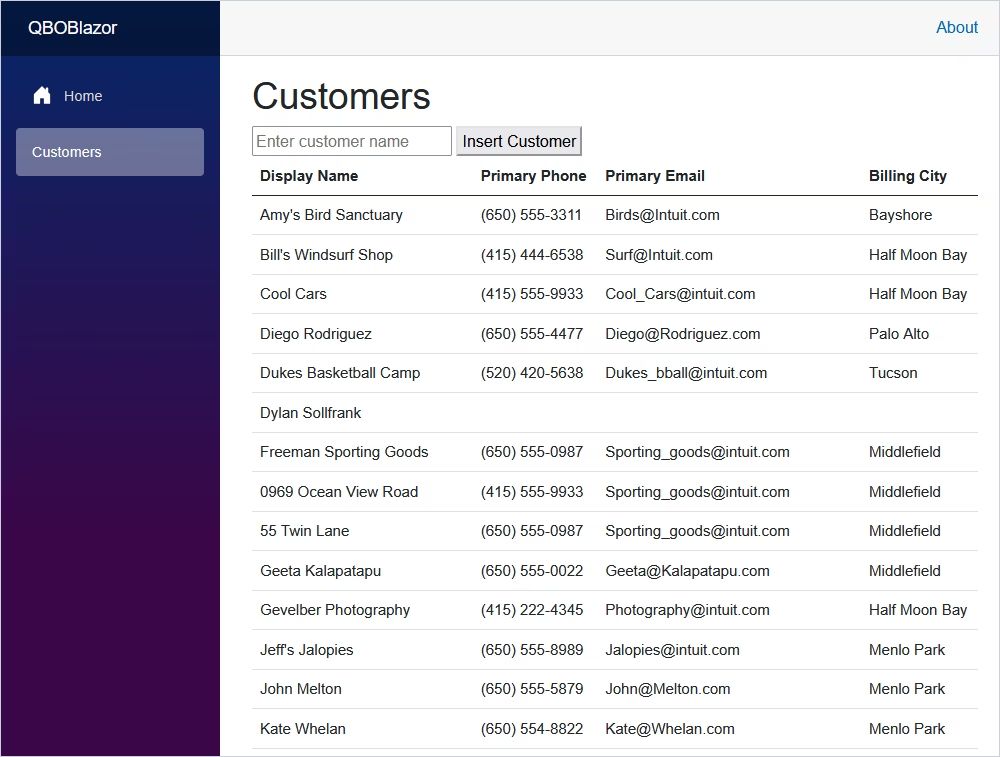
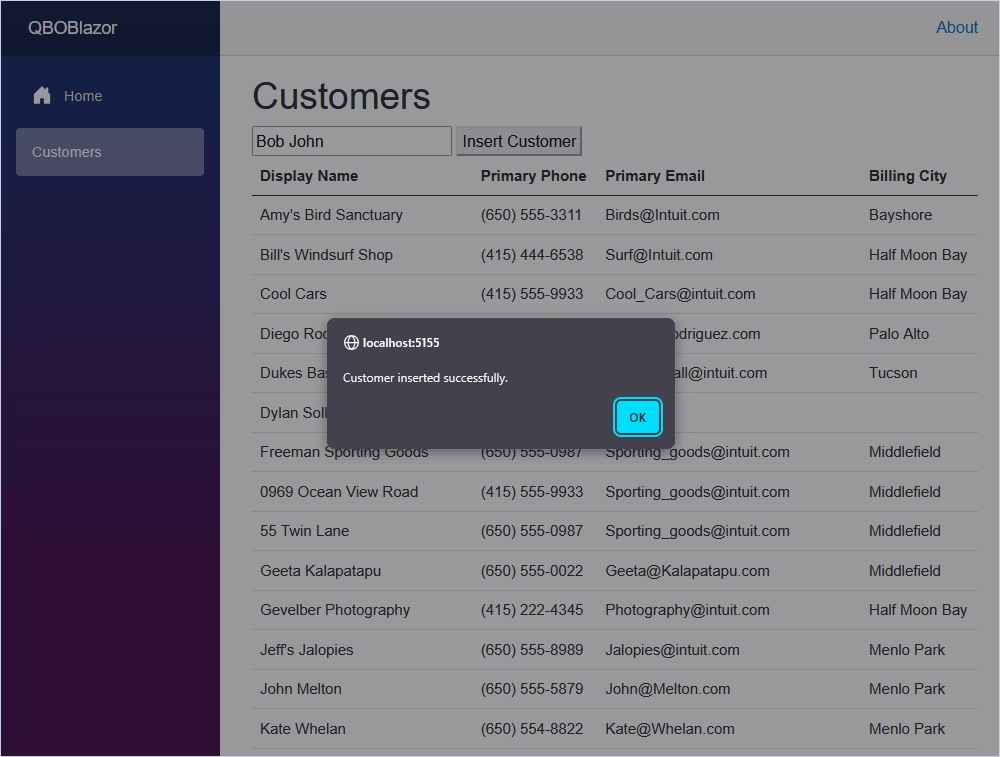
Now, add a new customer. To do this, enter a new customer name and click Insert Customer.
If successful, a corresponding message appears.
To add a remove method and a remove link to each row in the table, you'll need to modify the QuickBooksService class to include a method for deleting a customer by their ID. Then, you'll update the CustomerList.razor component to include a remove link for each row in the table.
Update QuickBooksService.cs
Add a method to delete a customer by their ID:
public bool DeleteCustomer(string customerId)
{
    try
    {
        using (var connection = new QuickBooksConnection())
        {
            connection.ConnectionString = $"ClientId={_settings.ClientId};CompanyId={_settings.CompanyId};ClientSecret={_settings.ClientSecret};RefreshToken={_settings.RefreshToken};LicenseKey={_settings.LicenseKey};Sandbox=true;";
            connection.Open();

            using (var command = new QuickBooksCommand(
                "DELETE FROM Customer WHERE Id = :Id", connection))
            {
                command.Parameters.AddWithValue(":Id", customerId);
                command.ExecuteNonQuery();
                return true;
            }
        }
    }
    catch (Exception ex)
    {
        Console.WriteLine(ex.Message);
        return false;
    }
}
Update Program.cs
Modify the Program.cs file to add a custom endpoint for handling the DELETE request:
app.MapGet("/customers/delete", async (HttpContext context, QuickBooksService quickBooksService) =>
{
    if (context.Request.Query.TryGetValue("customerId", out var customerId))
    {
        bool success = quickBooksService.DeleteCustomer(customerId);
        string message = success ? "Customer deleted successfully." : "Failed to delete customer.";
        await context.Response.WriteAsync(message);
    }
});
Update CustomerList.razor
Add a remove link to each row in the table and handle the removal using JavaScript:
@page "/customers"
@inject QBOBlazor.Services.QuickBooksService QuickBooksService
@inject IJSRuntime JSRuntime

<h1>Customers</h1>

<form id="insertCustomerForm" onsubmit="event.preventDefault(); insertCustomer();">
    <input type="text" id="newCustomerName" placeholder="Enter customer name" required />
    <button type="submit">Insert Customer</button>
</form>

@if (isConnected)
{
    <table class="table">
        <thead>
            <tr>
                <th>Display Name</th>
                <th>Primary Phone</th>
                <th>Primary Email</th>
                <th>Billing City</th>
                <th>Action</th>
            </tr>
        </thead>
        <tbody>
            @foreach (var customer in customers)
            {
                <tr>
                    <td>@customer["DisplayName"]</td>
                    <td>@customer["PrimaryPhone"]</td>
                    <td>@customer["PrimaryEmail"]</td>
                    <td>@customer["BillAddrCity"]</td>
                    <td>
                        <a href="#" onclick="event.preventDefault(); deleteCustomer('@(customer["Id"])');">Remove</a>
                    </td>
                </tr>
            }
        </tbody>
    </table>
}
else
{
    <p>Failed to connect to QuickBooks.</p>
}

<script>
async function insertCustomer() {
    const newCustomerName = document.getElementById('newCustomerName').value;
    const response = await fetch(`/customers/insert?newCustomer=${newCustomerName}`);
    const message = await response.text();
    alert(message);
    if (message.includes("successfully")) {
        window.location.href = "/customers";
    }
}

async function deleteCustomer(customerId) {
    const response = await fetch(`/customers/delete?customerId=${customerId}`);
    const message = await response.text();
    alert(message);
    if (message.includes("successfully")) {
        window.location.href = "/customers";
    }
}
</script>

@code {
    private bool isConnected = false;
    private List<Dictionary<string, object>> customers = new List<Dictionary<string, object>>();

    protected override void OnInitialized()
    {
        isConnected = QuickBooksService.CheckConnection();
        if (isConnected)
        {
            customers = QuickBooksService.GetCustomers();
        }
    }
}
This setup adds a remove method to the QuickBooksService class and a remove link to each row in the table. The JavaScript function deleteCustomer handles the removal by sending a DELETE request to the custom endpoint /customers/delete.
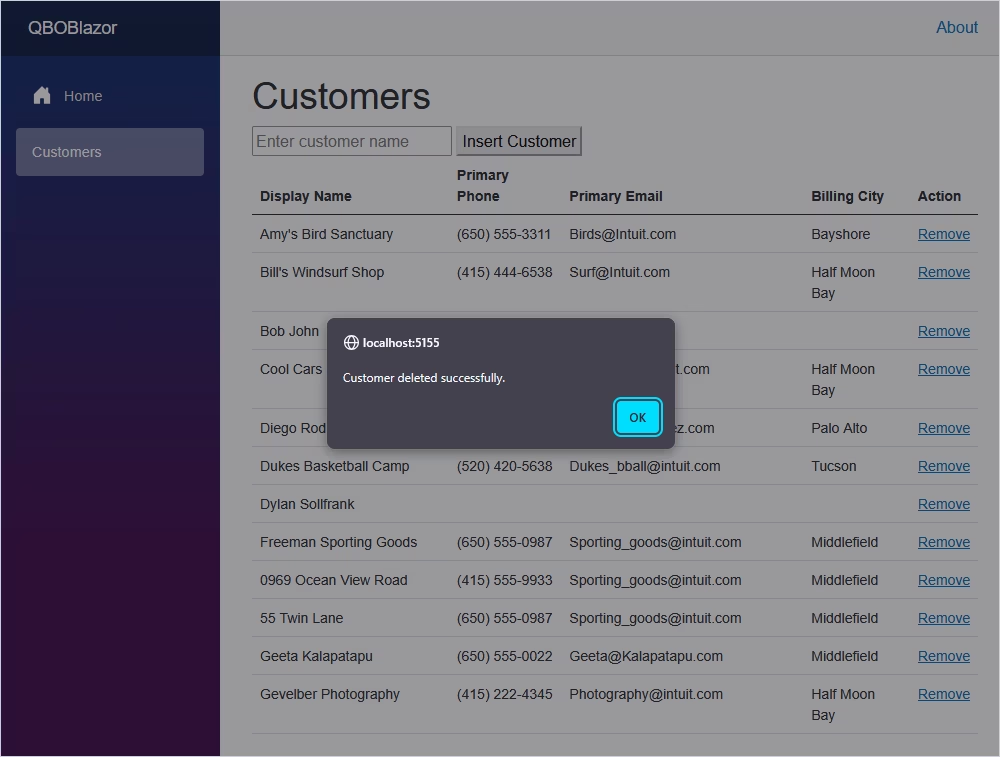
To proceed, let’s run the application.
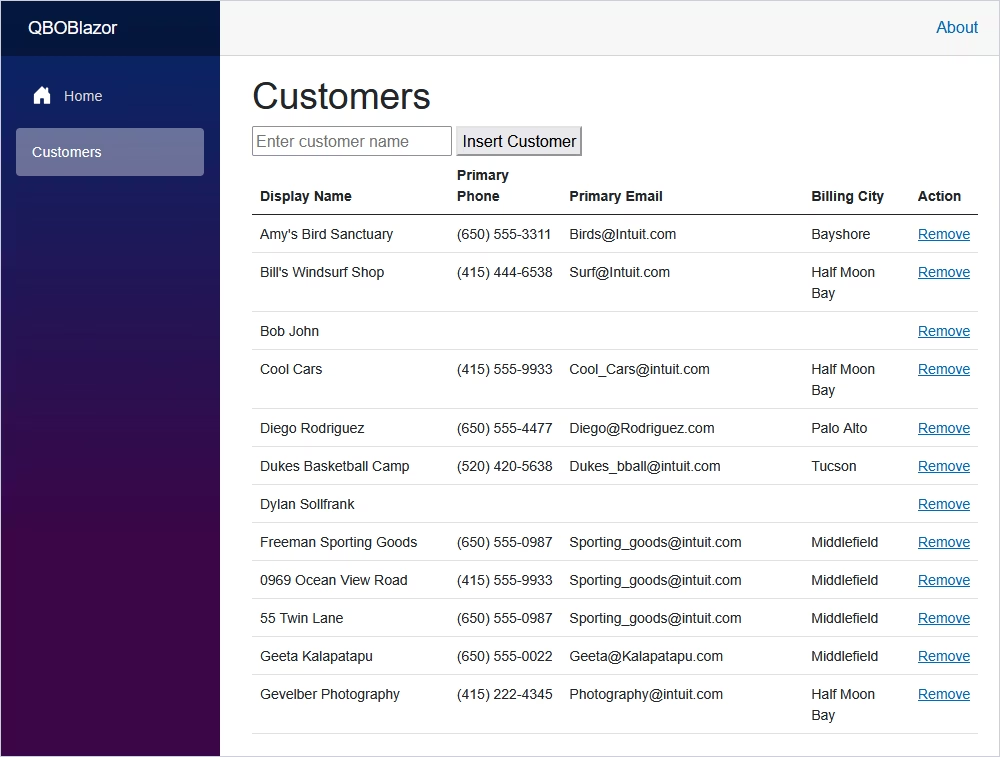
Now, you can delete a customer from the table.
By following the steps outlined in this tutorial, you can integrate your .NET Blazor application with QuickBooks Online using dotConnect for QuickBooks Online. Here, you’ve learned how to establish a secure connection, query customer data, add new records, and delete entries—all using standard ADO.NET interfaces with minimal overhead.
If you want to get some firsthand experience, feel free to download dotConnect for QuickBooks Online for a free 30-day trial and try it with your actual workload. To help you get started as quickly and efficiently as possible, we recommend referring to our documentation, which contains valuable tips and walkthroughs.
Authentication Type=OAuthInteractive

I'm a technical content writer who loves turning complex topics — think SQL, connectors, and backend chaos–into content that actually makes sense (and maybe even makes you smile). I write for devs, data folks, and curious minds who want less fluff and more clarity. When I'm not wrangling words, you'll find me dancing salsa, or hopping between cities.

