You can install the driver by using the Windows installer.
After you receive the license key, add it to your connection strings to connect to the data source.
Salesforce is one of the most popular cloud-based customer relationship management (CRM) platforms that helps businesses manage customer relationships. It is often used as a data source in various web applications, particularly those built with Blazor.
Blazor is a front-end web framework based on HTML and C# that allows developers to build web applications quickly. The development process can be further improved by incorporating ADO.NET technologies for database-like interactions, especially with dotConnect for Salesforce by Devart.
In this article, we'll explore how to connect .NET Blazor applications to Salesforce using dotConnect for Salesforce.

Ensures effortless connection to Salesforce, enabling users to access data easily and intuitively.

Supports familiar SQL statements, requiring no special knowledge of a complex API or SOQL.

Uses well-known ADO.NET classes, enabling an easy start and creating a convenient working environment.

Fully supports EF Core, Dapper, NHibernate, LinqConnect, and other technologies for efficient data management.

Conforms to the latest ADO.NET standards and innovations for seamless integration with .NET applications.

Includes priority support, detailed documentation, and regular updates for continuous improvement.
You can start using dotConnect for Salesforce immediately with a 30-day free trial. Choose one of the following installation options:
You can install the driver by using the Windows installer.
After you receive the license key, add it to your connection strings to connect to the data source.
To create the Salesforce connection instance using dotConnect within a .NET Blazor project, apply the below code.
Make sure to replace the placeholders with your valid Salesforce credentials: the host, the UserID, the password, and the security token.
public SalesforceService()
    {
        _connectionString = "Authentication Type=AccessRefreshTokenInteractive;" +
                            "License Key=**********";
    }

    public async Task<bool> TestConnectionAsync()
    {
        try
        {
            using (var connection = new SalesforceConnection(_connectionString))
            {
                await connection.OpenAsync();
                return true;
            }
        }
        catch
        {
            return false;
        }
}| Name | Description |
|---|---|
| Authentication type | The authentication method for connecting to Salesforce, such as UserNamePassword, AccessRefreshToken, AccessRefreshTokenInteractive, SessionId, etc. |
| Host | The Salesforce.com or Database.com login URL, such as login.salesforce.com, login.database.com, test.salesforce.com, etc. |
| User ID -or- User | The Salesforce login account. |
| Password | The password for the account. |
| Refresh token | The Salesforce OAuth 2.0 refresh token used for the OAuth Refresh Token authentication. |
| Security token | User ID used to authenticate with MySQL. |
| License key | The license key. |
To illustrate the work of our data provider dotConnect for Salesforce, we have created the class called SalesforceService.cs class. It will be used to set up the Salesforce connection, read Salesforce data, update, and delete it.
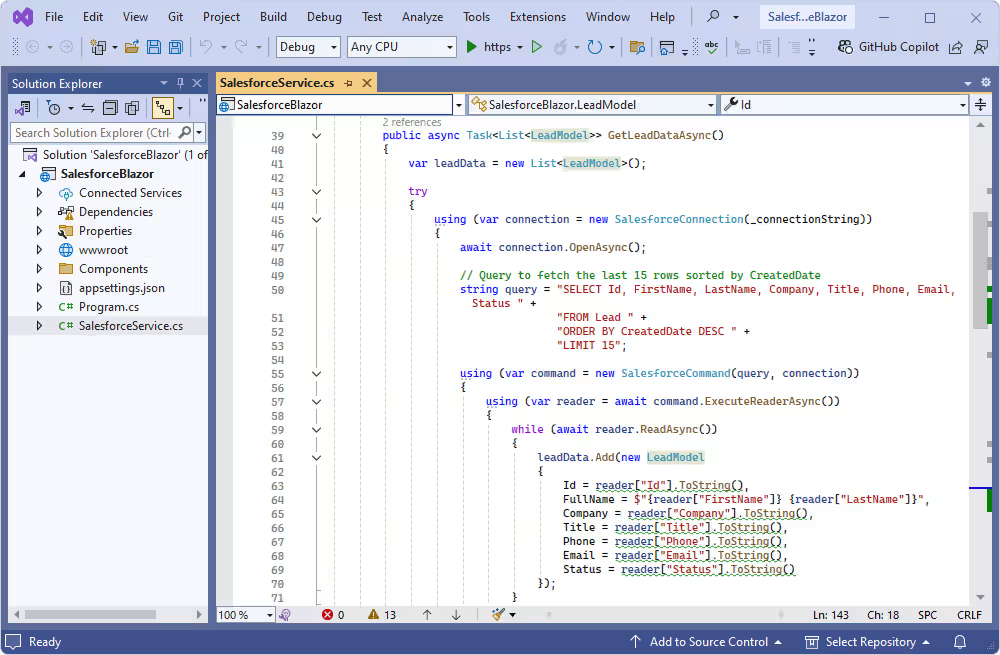
In this article, we provide examples of codes for you to use as references.
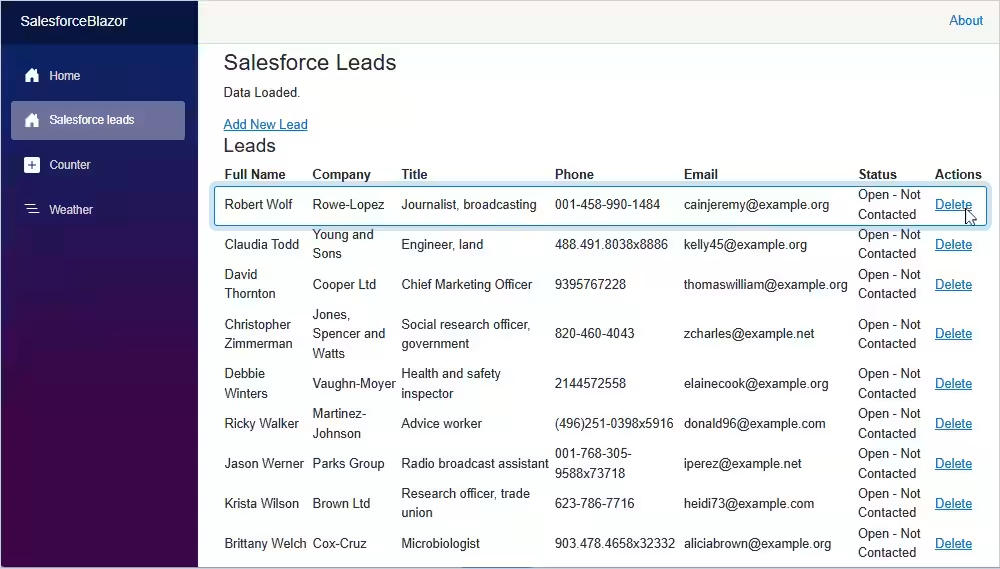
To read and display data from Salesforce tables in a Blazor app, use the below code in the SalesforceService.cs class.
This code uses the following ADO.NET classes:
public async Task<List<LeadModel>> GetLeadDataAsync()
    {
        var leadData = new List<LeadModel>();

        try
        {
            using (var connection = new SalesforceConnection(_connectionString))
            {
                await connection.OpenAsync();

                // Query to fetch the last 15 rows sorted by CreatedDate
                string query = "SELECT Id, FirstName, LastName, Company, Title, Phone, Email, Status " +
                               "FROM Lead " +
                               "ORDER BY CreatedDate DESC " +
                               "LIMIT 15";

                using (var command = new SalesforceCommand(query, connection))
                {
                    using (var reader = await command.ExecuteReaderAsync())
                    {
                        while (await reader.ReadAsync())
                        {
                            leadData.Add(new LeadModel
                            {
                                Id = reader["Id"].ToString(),
                                FullName = $"{reader["FirstName"]} {reader["LastName"]}",
                                Company = reader["Company"].ToString(),
                                Title = reader["Title"].ToString(),
                                Phone = reader["Phone"].ToString(),
                                Email = reader["Email"].ToString(),
                                Status = reader["Status"].ToString()
                            });
                        }
                    }
                }
            }
        }
        catch
        {
            // Suppressed errors for cleaner output
        }

        return leadData;
    }
The results will be displayed in a table with the below code:
<h4>Leads</h4>
<table>
    <thead>
        <tr>
            <th>Full Name</th>
            <th>Company</th>
            <th>Title</th>
            <th>Phone</th>
            <th>Email</th>
            <th>Status</th>
            <th>Actions</th>
        </tr>
    </thead>
    <tbody>
        @@foreach (var lead in Leads)
        {
            <tr>
                <td>@@lead.FullName</td>
                <td>@@lead.Company</td>
                <td>@@lead.Title</td>
                <td>@@lead.Phone</td>
                <td>@@lead.Email</td>
                <td>@@lead.Status</td>
                <td>
                    <a href="/salesforceleads?id=@@lead.Id">Delete</a>
                </td>
            </tr>
        }
    </tbody>
</table>
Click Run to view the data in your Blazor project.
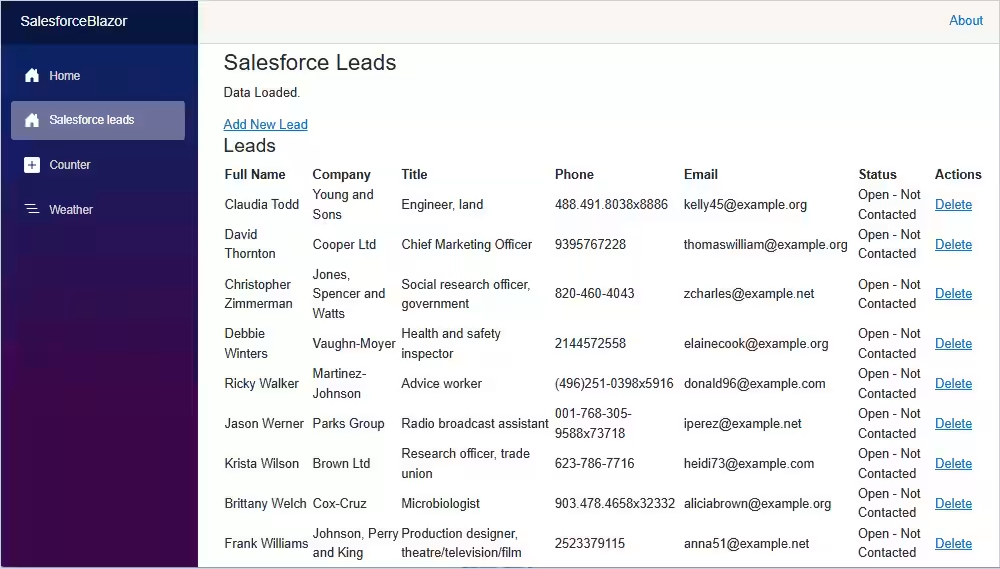
To add data to Salesforce tables in a Blazor app, use the below code in the SalesforceService.cs class.
The ADO.NET classes used in this code are:
public async Task AddLeadAsync(string firstName, string lastName, string company, string title, string phone, string email)
    {
        using (var connection = new SalesforceConnection(_connectionString))
        {
            await connection.OpenAsync();

            var loader = new SalesforceLoader
            {
                Connection = connection,
                TableName = "Lead"
            };

            // Define the columns and open the loader
            loader.CreateColumns();
            loader.Open();

            // Set values for the new lead
            loader.SetValue("FirstName", firstName ?? string.Empty);
            loader.SetValue("LastName", lastName ?? string.Empty);
            loader.SetValue("Company", company ?? string.Empty);
            loader.SetValue("Title", title ?? string.Empty);
            loader.SetValue("Phone", phone ?? string.Empty);
            loader.SetValue("Email", email ?? string.Empty);
            loader.SetValue("Status", "Open - Not Contacted"); // Default status

            // Commit the row
            loader.NextRow();

            // Close the loader
            loader.Close();
        }
    }
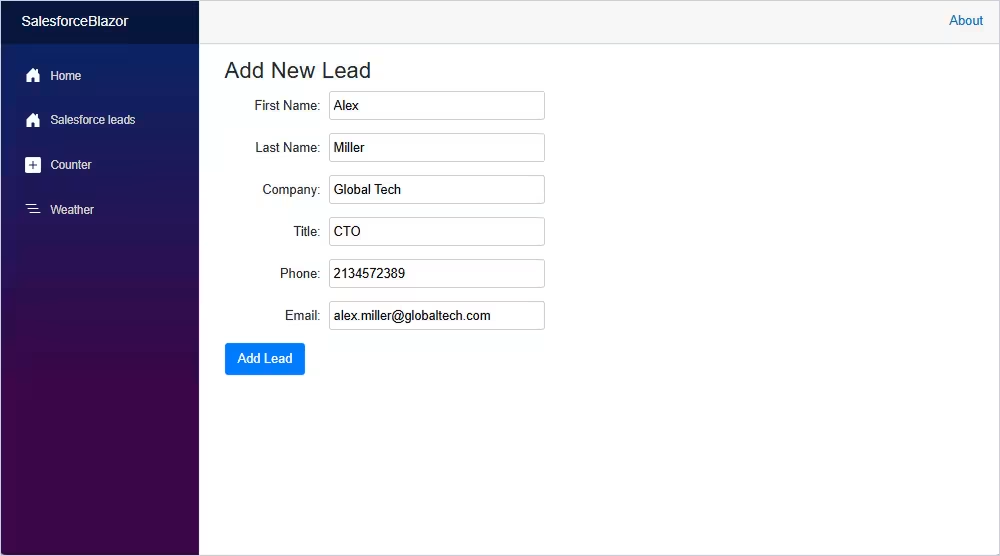
It produces the table:
<h3>Add New Lead</h3>

<form>
            <div>
            <label>First Name:</label>
            <input @@bind="FirstName" placeholder="First Name" required="required" />
    </div>
            <div>
            <label>Last Name:</label>
            <input @@bind="LastName" placeholder="Last Name" required="required" />
    </div>
            <div>
            <label>Company:</label>
            <input @@bind="Company" placeholder="Company" required="required" />
    </div>
            <div>
            <label>Title:</label>
            <input @@bind="Title" placeholder="Title" />
    </div>
            <div>
            <label>Phone:</label>
            <input @@bind="Phone" placeholder="Phone" />
    </div>
            <div>
            <label>Email:</label>
            <input @@bind="Email" placeholder="Email" type="email" />
    </div>
            <button type="button" @@onclick="SubmitLead">Add Lead</button>
</form>

@@code {
    private string FirstName, LastName, Company, Title, Phone, Email;

    private async Task SubmitLead()
    {
        await SalesforceService.AddLeadAsync(FirstName, LastName, Company, Title, Phone, Email);
        NavigationManager.NavigateTo("/salesforceleads", true);
    }
}
The below code uses the ADO.NET classes to delete records from Salesforce tables in your Blazor application.
public async Task<bool> DeleteLeadAsync(string id)
    {
        try
        {
            using (var connection = new SalesforceConnection(_connectionString))
            {
                await connection.OpenAsync();

                string query = "DELETE FROM Lead WHERE Id = @Id";
                using (var command = new SalesforceCommand(query, connection))
                {
                    command.Parameters.AddWithValue("Id", id);
                    await command.ExecuteNonQueryAsync();
                }
            }
            return true;
        }
        catch
        {
            return false;
        }
    }
}
To view the results, you will use the below code:
<a href="/[email protected]">Delete</a>

@code {
    protected override async Task OnInitializedAsync()
    {
        // Extract query parameter
        var uri = new Uri(NavigationManager.Uri);
        var query = System.Web.HttpUtility.ParseQueryString(uri.Query);
        var id = query.Get("id");

        if (!string.IsNullOrEmpty(id))
        {
            await DeleteLead(id);
        }
    }

    private async Task DeleteLead(string id)
    {
        var success = await SalesforceService.DeleteLeadAsync(id);
        if (success)
        {
            connectionStatus = $"Lead with ID {id} deleted successfully.";
            Leads = await SalesforceService.GetLeadDataAsync();
        }
        else
        {
            connectionStatus = $"Failed to delete lead with ID {id}.";
        }

        // Remove query parameters after deletion
        NavigationManager.NavigateTo("/salesforceleads", true);
    }
}
The popularity of Salesforce has made it a data source for many commercial applications. To ensure a reliable connection to Salesforce and data management, developers need efficient and user-friendly solutions. dotConnect for Salesforce provides exactly that—a fast, hassle-free way to integrate Salesforce with applications.
When Blazor is your choice for application development, dotConnect for Salesforce provides a direct, secure, and efficient connection to Salesforce data from the Blazor application and easy data retrieval, updates, and deletions—without requiring additional client libraries or expertise in complex technologies.
You can experience the full capabilities of dotConnect for Salesforce with a 30-day free trial. Simply download and install it to start building applications powered by Salesforce, with a reliable and streamlined data connection.
License Key parameter.
Authentication Type=AccessRefreshTokenInteractive
Open() on the SalesforceConnection, a browser window automatically opens for Salesforce login and consent. After successful authentication, dotConnect retrieves and manages the access and refresh tokens automatically, so no manual token handling is required.
SalesforceCommand just like standard SQL commands, allowing you to retrieve Salesforce objects such as Accounts, Contacts, and Opportunities.
Scaffold-DbContext with the Devart.Data.Salesforce.EFCore package and a dotConnect connection string (including License Key) to generate your DbContext and entity classes.

I'm a technical content writer who loves turning complex topics — think SQL, connectors, and backend chaos–into content that actually makes sense (and maybe even makes you smile). I write for devs, data folks, and curious minds who want less fluff and more clarity. When I'm not wrangling words, you'll find me dancing salsa, or hopping between cities.

