
You can install the driver by using the Windows installer.
After you receive the license key, add it to your connection strings to connect to the data source.
Managing multiple database engines across projects can become too complicated. In many cases, it leads to fragmented code, duplicated logic, and more maintenance overhead. The solution can be dotConnect Universal, a robust data provider that offers a single ADO.NET interface for working with all popular relational databases, including Oracle, PostgreSQL, MySQL, and more.
This tutorial will focus on building .NET applications that need to deal with numerous databases with the help of dotConnect Universal. Whether you're supporting multi-tenant environments, preparing for database migrations, or monitoring the health of various systems, this guide will explain how to simplify the data access layer without sacrificing flexibility or control.

dotConnect Universal is a unified data provider that enables .NET applications to work with multiple database systems, including SQL Server, Oracle, MySQL, PostgreSQL, SQLite, and Db2.

Connectivity through ADO.NET, OLE DB, and ODBC allows applications to integrate data from multiple sources, enabling developers to select the most appropriate access method for their architecture.

UniSQL lets developers write database-independent queries that work across different platforms. No need to rewrite SQL statements when switching between supported systems.

Design-time extensions, configuration tools, and wizards simplify database connectivity setup and improve development workflows within .NET projects.

dotConnect ensures accurate interaction with native database types and structures, reliable data mapping, and consistent behavior across supported database systems.

The product is continuously tested for performance, stability, and security, and is backed by professional support, detailed documentation, and regular updates.
You can start using dotConnect Universal immediately with a 30-day free trial. Choose one of the following options:
You can install the driver by using the Windows installer.
After you receive the license key, add it to your connection strings to connect to the data source.
To connect to your data source using the built-in Data Explorer, click Tools and select Connect to Database. Choose Universal Servers as the data source.
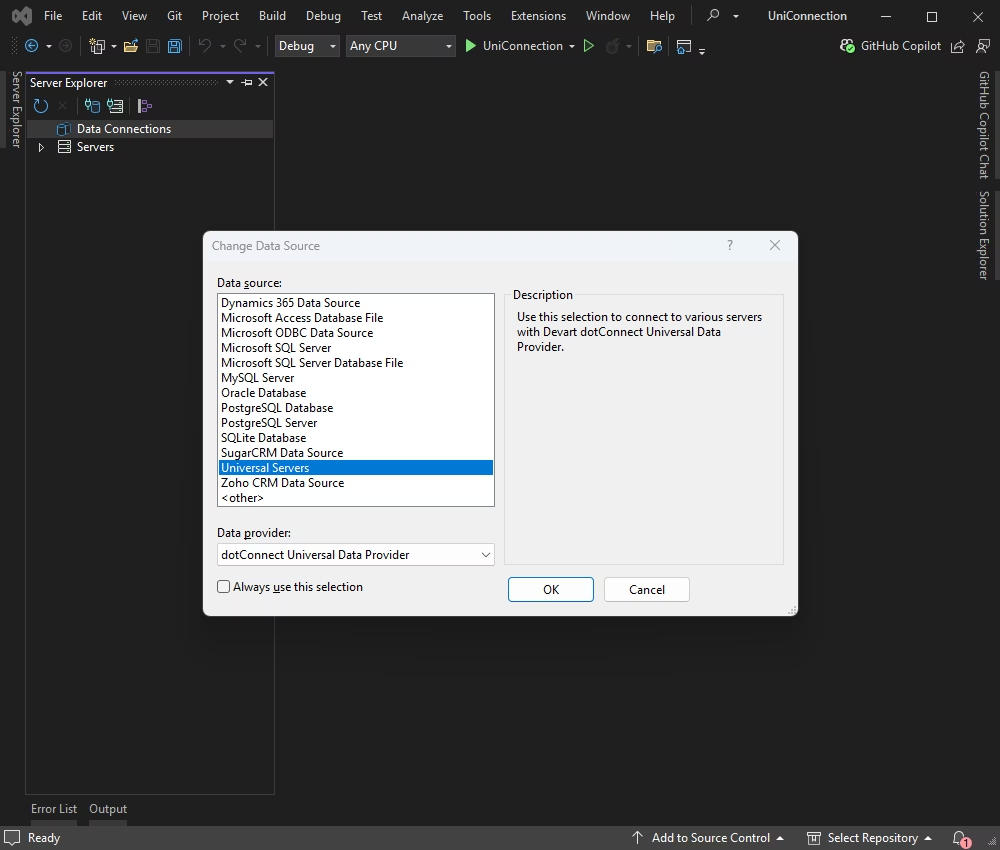
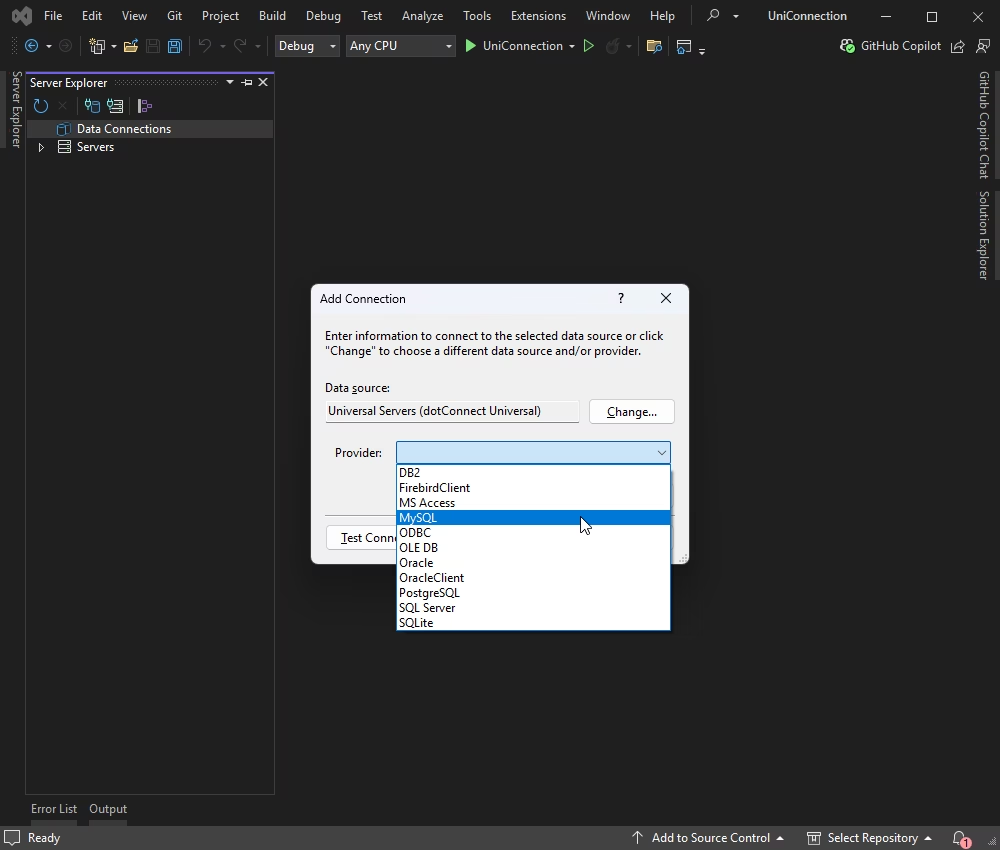
Choose a database to connect to. For instance, it may be MySQL.
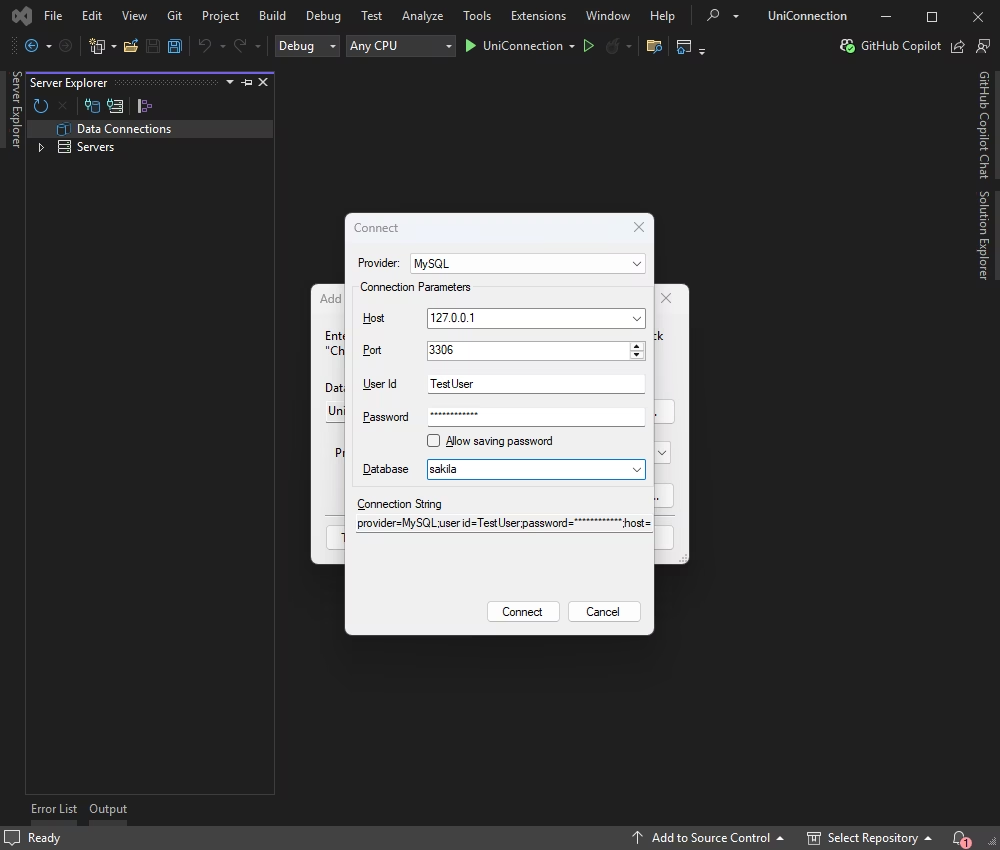
Enter your server details and credentials, and click Connect.
After establishing a connection this way, you can work with the database: browse tables, execute queries, and manage data directly within Data Explorer.
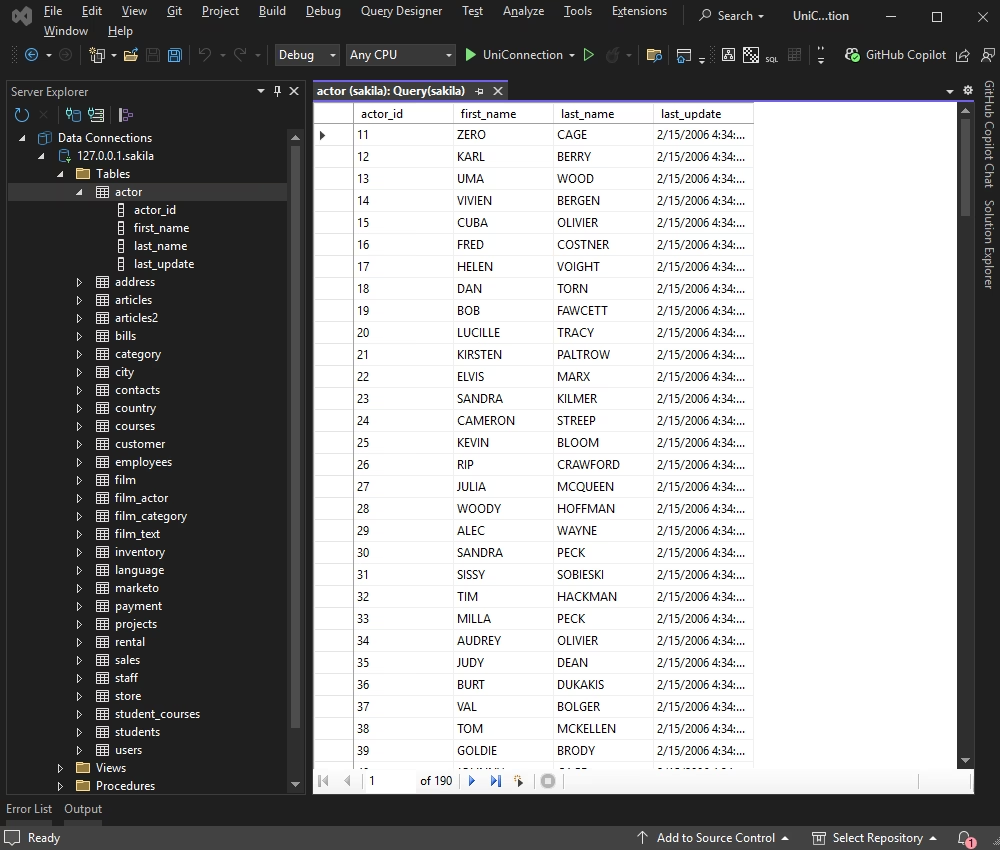
With dotConnect Universal, you can connect to any supported data source from Visual Studio directly and use a unified provider interface.
A multi-tenant application often suggests handling different database engines for various clients. Our demo .NET console app will use the same data access logic to connect to Oracle, PostgreSQL, and MySQL, retrieving data from the Actor table that is present in all three databases. For that, we will not need to change the core codebase, as dotConnect Universal grants the direct connection and enables data operations for us.
Introduce DatabaseConnection.cs as a dedicated file for the DatabaseConnections class, which gathers all connection settings in one place and isolates them from the primary application logic.
namespace UniConnectionApp
{
    public static class DatabaseConnections
    {
    public const string LicenseKey = "**********";

    // MySQL
    public static string MySqlConnectionString =>
        "Server=127.0.0.1;" +
        "Port=3306;" +
        "User ID=TestUser;" +
        "Password=TestPassword;" +
        "Database=sakila;" +
        $"License key={LicenseKey}";

    // PostgreSQL
    public static string PostgreSqlConnectionString =>
        "Host=127.0.0.1;" +
        "Port=5432;" +
        "User Id=TestUser;" +
        "Password=TestPassword;" +
        "Database=TestDatabase;" +
        "Search Path=public;" +
        $"License key={LicenseKey}";

    // Oracle
    public static string OracleConnectionString =>
        "User ID=TestUser;" +
        "Password=TestPassword;" +
        "Data Source=127.0.0.1/TestDb;" +
        $"License key={LicenseKey}";
    }
}| Name | Description |
|---|---|
| Provider | MySQL, PostgreSQL, Oracle, etc. |
| Server or Host | The name or IP address of the server to connect to |
| Port | The port of the server to connect to |
| User Id | The login account |
| Password | The password for the login account |
| Database | The name of the database to connect to |
| Initial Schema | The name of the initial schema |
| License Key | The activation key for dotConnect Universal |
Replace the placeholders in the connection string with your actual database credentials. If you own a paid license of dotConnect Universal, include the license key in the connection strings.
Add the code below to your Program.cs file.
using System;
using Devart.Data.Universal;

namespace UniConnectionApp
{
    class Program
    {
    static void Main(string[] args)
    {
        Console.WriteLine("--- Querying MySQL ---");
        QueryDatabase(DatabaseConnections.MySqlConnectionString, "MySQL");

        Console.WriteLine("\n--- Querying PostgreSQL ---");
        QueryDatabase(DatabaseConnections.PostgreSqlConnectionString, "PostgreSQL");

        Console.WriteLine("\n--- Querying Oracle ---");
        QueryDatabase(DatabaseConnections.OracleConnectionString, "Oracle");

        Console.ReadKey();
    }

    static void QueryDatabase(string connectionString, string providerName)
    {
        try
        {
        // Connection string is already complete (no formatting needed)
        using (var connection = new UniConnection(connectionString))
        {
            connection.Open();

            string sql;
            string baseQuery = "SELECT actor_id, first_name, last_name FROM actor";

            switch (providerName.ToUpperInvariant())
            {
            case "MYSQL":
            case "POSTGRESQL":
                sql = $"{baseQuery} ORDER BY actor_id LIMIT 5";
                break;

            case "ORACLE":
                // Modern Oracle syntax (12c+)
                sql = $"{baseQuery} ORDER BY actor_id FETCH FIRST 5 ROWS ONLY";
                break;

            default:
                Console.WriteLine($"Unknown provider: {providerName}. Using standard LIMIT clause.");
                sql = $"{baseQuery} ORDER BY actor_id LIMIT 5";
                break;
            }

            using (var command = new UniCommand(sql, connection))
            using (var reader = command.ExecuteReader())
            {
            Console.WriteLine($"{"Actor ID",-10} | {"First Name",-12} | {"Last Name"}");
            Console.WriteLine("------------------------------------");

            while (reader.Read())
            {
                string actorId = Convert.ToString(reader["actor_id"]);
                string firstName = Convert.ToString(reader["first_name"]);
                string lastName = Convert.ToString(reader["last_name"]);

                Console.WriteLine($"{actorId,-10} | {firstName,-12} | {lastName}");
            }
            }
        }
        }
        catch (Exception ex)
        {
        Console.ForegroundColor = ConsoleColor.Red;
        Console.WriteLine($"\nError connecting to or querying {providerName}:");
        Console.WriteLine(ex.Message);
        Console.WriteLine("Please check the connection string in DatabaseConnections.cs and ensure the database is accessible.");
        Console.ResetColor();
        }
    }
  }
}Build and run your application by pressing F5 or selecting Start from the menu.
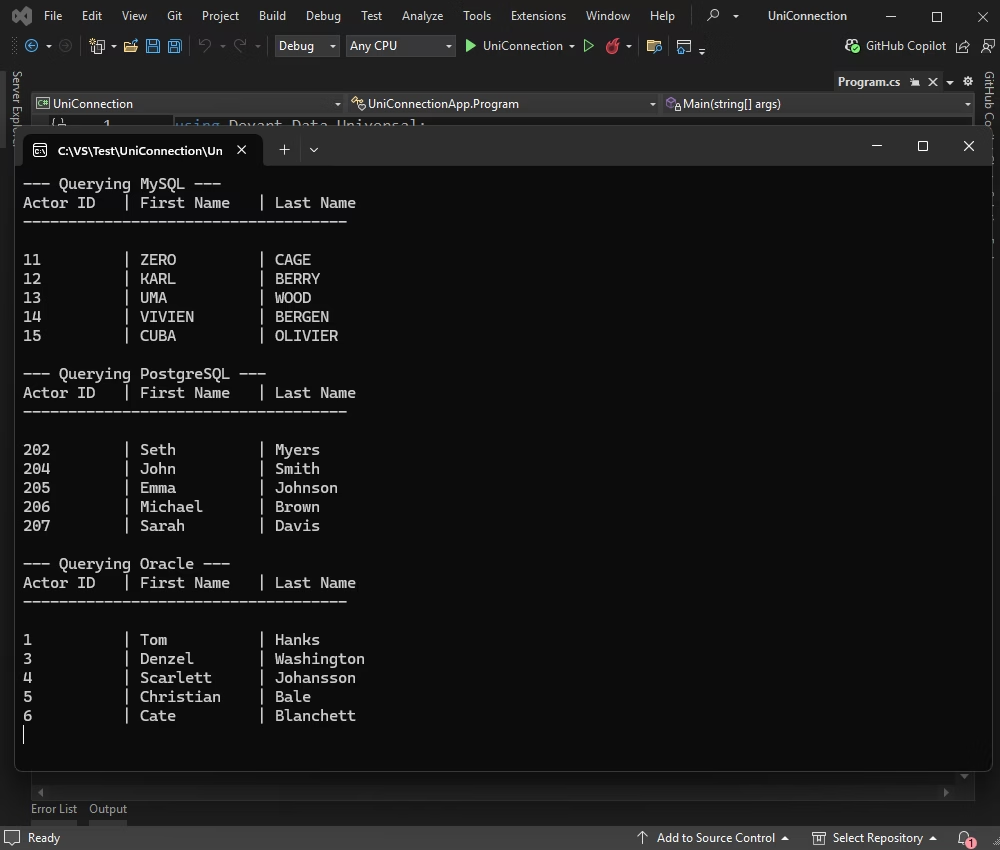
Database migrations often involve code rewrites, which take plenty of time and effort and may cause complications. However, dotConnect Universal allows us to avoid code rewriting.
In this section, we'll demonstrate how to read from a MySQL database and write to a PostgreSQL database using a unified API. It is a clean and practical approach to cross-database data transfer without changing the ADO.NET logic.
The code is as follows:
using System;
using System.Collections.Generic;

using UniConnection = Devart.Data.Universal.UniConnection;
using UniCommand = Devart.Data.Universal.UniCommand;
using UniDataReader = Devart.Data.Universal.UniDataReader;
using UniTransaction = Devart.Data.Universal.UniTransaction;
using UniParameter = Devart.Data.Universal.UniParameter;

namespace UniConnectionApp
{
    public class Actor
    {
    public int ActorId { get; set; }
    public string FirstName { get; set; }
    public string LastName { get; set; }
    public DateTime LastUpdate { get; set; }
    }

    class Program
    {
    static void Main(string[] args)
    {
        Console.WriteLine("Starting database migration...");

        try
        {
        List<Actor> actorsToMigrate = ReadActorsFromMySql();

        if (actorsToMigrate.Count > 0)
        {
            WriteActorsToPostgreSql(actorsToMigrate);
            Console.ForegroundColor = ConsoleColor.Green;
            Console.WriteLine($"\nSuccessfully migrated {actorsToMigrate.Count} actors.");
            Console.ResetColor();
        }
        else
        {
            Console.WriteLine("No actors found.");
        }
        }
        catch (Exception ex)
        {
        Console.ForegroundColor = ConsoleColor.Red;
        Console.WriteLine("\nMigration error:");
        Console.WriteLine(ex.Message);
        Console.ResetColor();
        }

        Console.ReadKey();
    }

    private static List<Actor> ReadActorsFromMySql()
    {
        var actors = new List<Actor>();
        string connectionString = DatabaseConnections.MySqlConnectionString;

        using (var connection = new UniConnection(connectionString))
        {
        connection.Open();
        string sql = "SELECT actor_id, first_name, last_name, last_update FROM actor ORDER BY actor_id LIMIT 10";

        using (var command = new UniCommand(sql, connection))
        using (var reader = command.ExecuteReader())
        {
            while (reader.Read())
            {
            var actor = new Actor
            {
                ActorId = Convert.ToInt32(reader["actor_id"]),
                FirstName = Convert.ToString(reader["first_name"]),
                LastName = Convert.ToString(reader["last_name"]),
                LastUpdate = reader["last_update"] == DBNull.Value
                ? DateTime.MinValue
                : Convert.ToDateTime(reader["last_update"])
            };
            actors.Add(actor);
            }
        }
        }
        return actors;
    }

    private static void WriteActorsToPostgreSql(List<Actor> actors)
    {
        string connectionString = DatabaseConnections.PostgreSqlConnectionString;

        using (var connection = new UniConnection(connectionString))
        {
        connection.Open();

        using (UniTransaction transaction = connection.BeginTransaction())
        {
            try
            {
            using (var truncateCommand = new UniCommand("TRUNCATE TABLE actor RESTART IDENTITY CASCADE;", connection, transaction))
            {
                truncateCommand.ExecuteNonQuery();
            }

            string sql = "INSERT INTO actor (first_name, last_name, last_update) VALUES (@first_name, @last_name, @last_update)";

            using (var insertCommand = new UniCommand(sql, connection, transaction))
            {
                insertCommand.Parameters.Add(new UniParameter("first_name", ""));
                insertCommand.Parameters.Add(new UniParameter("last_name", ""));
                insertCommand.Parameters.Add(new UniParameter("last_update", DateTime.Now));

                foreach (var actor in actors)
                {
                insertCommand.Parameters["first_name"].Value = actor.FirstName;
                insertCommand.Parameters["last_name"].Value = actor.LastName;
                insertCommand.Parameters["last_update"].Value = actor.LastUpdate;

                insertCommand.ExecuteNonQuery();
                }
            }

            transaction.Commit();
            }
            catch
            {
            transaction.Rollback();
            throw;
            }
        }
        }
    }
  }
}
We can see the results in our application:
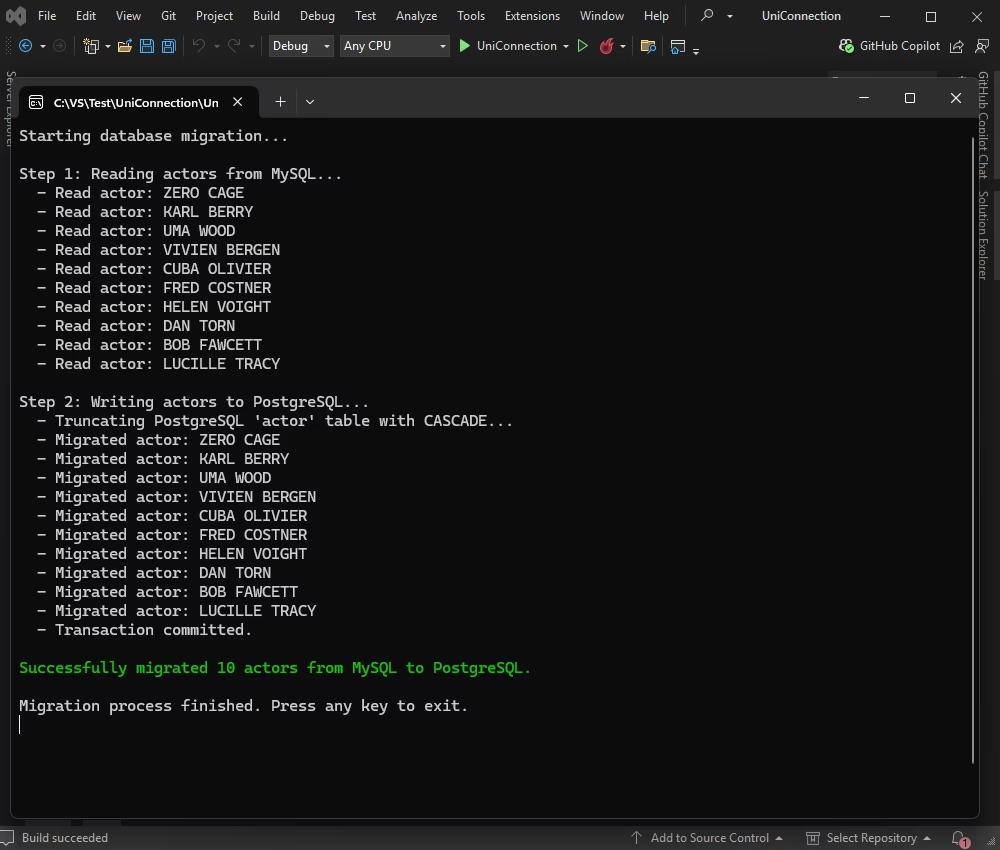
What if you need to monitor multiple database systems in production? For that, we can build a lightweight health-check console application. That app will connect to different databases, confirm connection status, and count records in the Actor table. This approach allows us to verify availability across environments.
Use the following code:
using System;

using UniConnection = Devart.Data.Universal.UniConnection;
using UniCommand = Devart.Data.Universal.UniCommand;

namespace UniConnectionApp
{
    class Program
    {
    static void Main(string[] args)
    {
        Console.WriteLine("Starting Database Health Check...");

        CheckDatabaseStatus(DatabaseConnections.MySqlConnectionString, "MySQL");
        CheckDatabaseStatus(DatabaseConnections.PostgreSqlConnectionString, "PostgreSQL");
        CheckDatabaseStatus(DatabaseConnections.OracleConnectionString, "Oracle");

        Console.ReadKey();
    }

    private static void CheckDatabaseStatus(string connectionString, string providerName)
    {
        Console.WriteLine($"\n--- Checking {providerName} ---");

        try
        {
        using (var connection = new UniConnection(connectionString))
        {
            connection.Open();

            Console.ForegroundColor = ConsoleColor.Green;
            Console.WriteLine("Connection Successful");
            Console.ResetColor();

            using (var command = new UniCommand("SELECT COUNT(*) FROM actor", connection))
            {
            object result = command.ExecuteScalar();
            long count = result == null || result == DBNull.Value
                ? 0
                : Convert.ToInt64(result);

            Console.WriteLine($"Rows: {count}");
            }
        }
        }
        catch (Exception ex)
        {
        Console.ForegroundColor = ConsoleColor.Red;
        Console.WriteLine("Connection FAILED");
        Console.WriteLine($"Error: {ex.Message}");
        Console.ResetColor();
        }
    }
  }
}
Have a look at the output in the application:
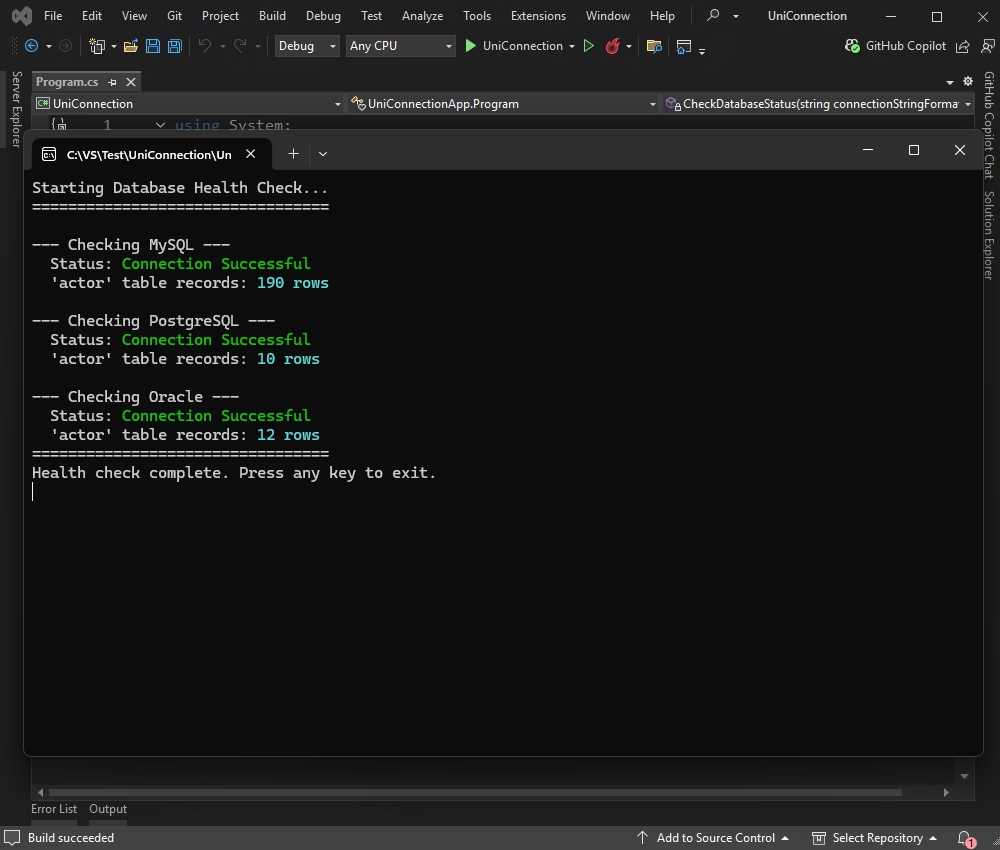
dotConnect Universal is a simple and powerful solution for multi-database development in .NET, offering a consistent interface you can use to connect to Oracle, PostgreSQL, MySQL, SQL Server, and other popular relational databases.
Whether you build multi-tenant applications, migrate between database systems, or monitor environments, you can create the data access code once and then reuse it wherever necessary. Add the full Visual Studio integration and support for ADO.NET standards, and you get a comprehensive tool that gives you flexibility without added complexity.
Install dotConnect Universal either by running the or by adding the Devart.Data.Universal NuGet package to your .NET project. Then, retrieve your activation key from the Devart Customer Portal and include it in the connection string via the License Key parameter.
Define a connection string that includes the target provider (such as SQL Server, Oracle, MySQL, or PostgreSQL), the required database parameters, and the License Key. Then create a UniConnection instance and call Open() inside a TRY-CATCH block to establish and verify the connection.
dotConnect Universal supports connectivity to multiple database systems, including SQL Server, Oracle, MySQL, PostgreSQL, SQLite, Db2, and others through a single provider.
Yes, dotConnect Universal supports connections through ADO.NET, OLE DB, and ODBC providers, allowing flexible access to a wide range of data sources.
UniSQL is a feature that enables writing database-independent SQL queries. These queries can work across different supported database systems without rewriting database-specific syntax.
dotConnect Universal integrates flawlessly with Visual Studio, letting you configure connections, browse database objects, and manage data directly. You can use Server Explorer on Visual Studio: add a new Data Connection, select dotConnect Universal as the provider, configure the database parameters, test the connection, and work with database objects.

I'm a technical content writer who loves breaking complex tech topics into clear and helpful content that's enjoyable to read. With a solid writing background and growing skill in software development and database tools, I create content that's accurate, easy to follow, and genuinely useful. When I'm not writing, you'll probably find me learning something new or sweating it out at the gym.

