dbForge Schema Compare for SQL Server Tour

Read and make sure how easy schema comparison and synchronization is with dbForge Schema Compare for SQL Server. Click the screenshots for details.

  • 1. Opening the schema comparison wizard


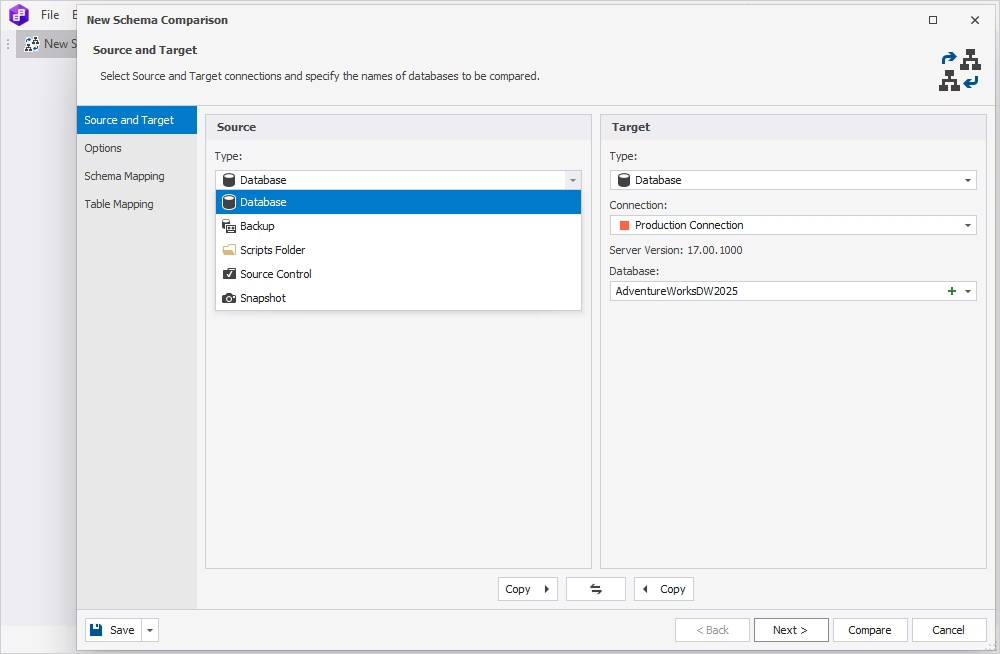
    Open the wizard by clicking the New Schema Comparison button on the Start Page or on the toolbar.

    Tip: Also you can select File->New Schema Comparison in the top menu.

  • 2. Creating database connections


    To create a database connection, click the New button in the wizard. The Database Connection window appears.

    In the Server field of the window open the drop-down list and select the required server. Then specify Authentication, User, Password, Database. Click OK to finish the creation.

    Come back to the New Schema Comparison wizard and select this connection in the drop-down list of the Connection field.

  • 3. Selecting Source and Target for comparison


    Source is the database which content is inserted to Target after synchronization. Target is the database which content you compare and synchronize with Source.

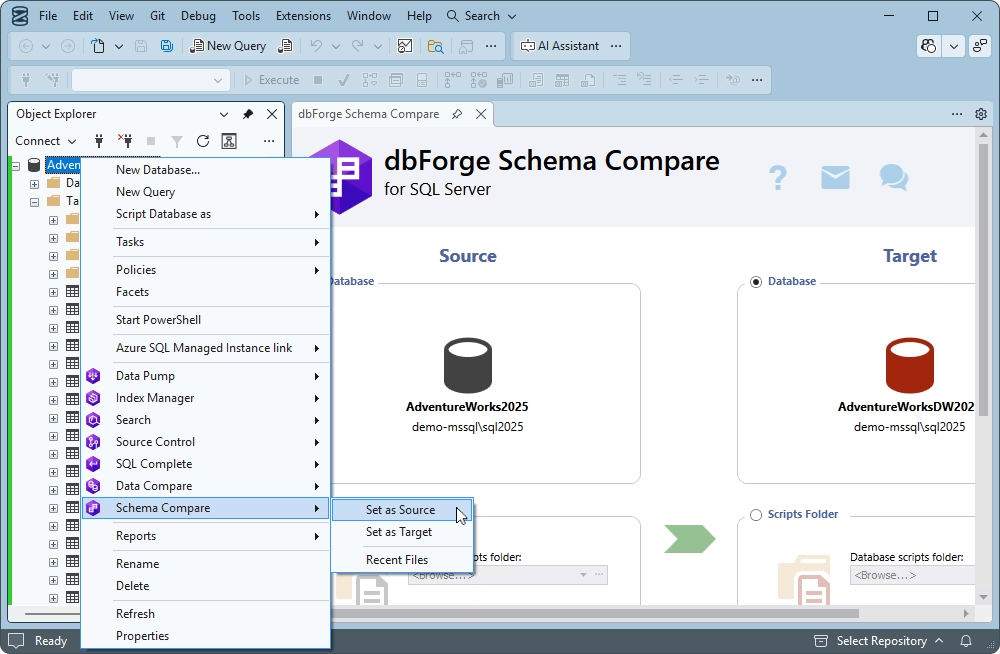
    In the New Schema Comparison wizard select any of the following Source and Target types to compare:

    – Database
    – Snapshot
    – Backup
    – Snapshot revision in a version control

    While comparing two snapshots, you can only preview the differences, but cannot synchronize them.

    Tip: To swap Source and Target, click the swap button. To set up additional comparison options, click the Next button. To start the comparison, click Compare.

  • 4. Selecting comparison options (optional)


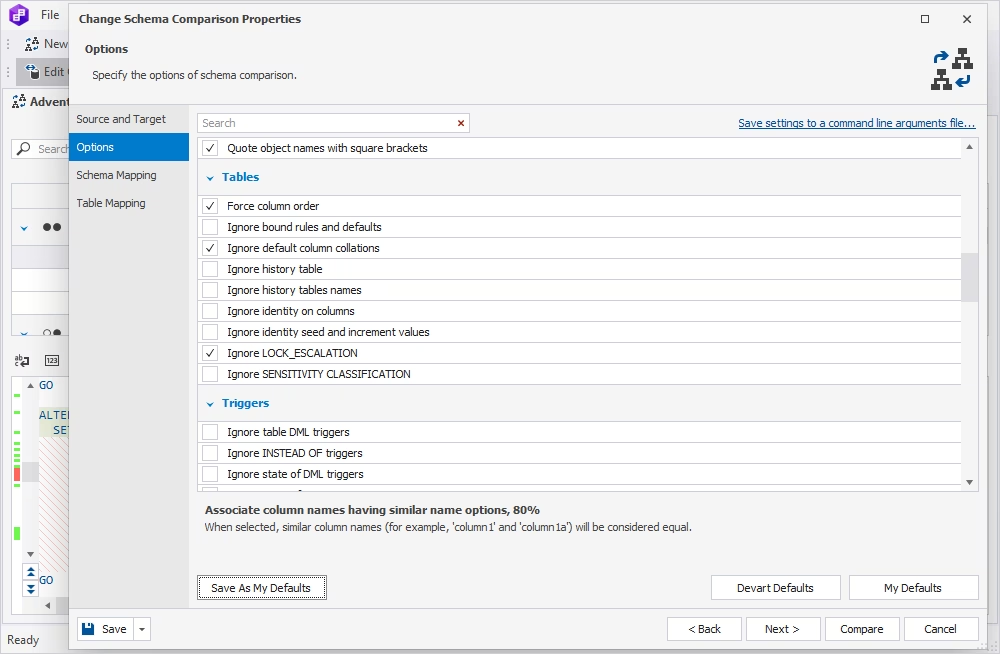
    You can customize comparison behavior, e.g., to ignore some objects or properties. Go to the Options wizard page and select the required check boxes.

    Tip: To save the current selection of options as your defaults, click the Save As My Defaults button.

  • 5. Custom schema mapping (optional)


    If you need to map schemas (with different names, one-to-many, or many-to-one), do it without a doubt.

    Go to the Schema Mapping wizard page and select Source schema in the left part of the wizard, then select Target schema from the drop-down list in the right part. When you click Compare, the schemas' objects will be automatically mapped.

  • 6. Selecting required object types to compare


    To speed up comparison and save your time, select only required object types to include into comparison on the Object Filter wizard page.

    Tip: By default, all supported objects are compared.

  • 7. Analyzing comparison results


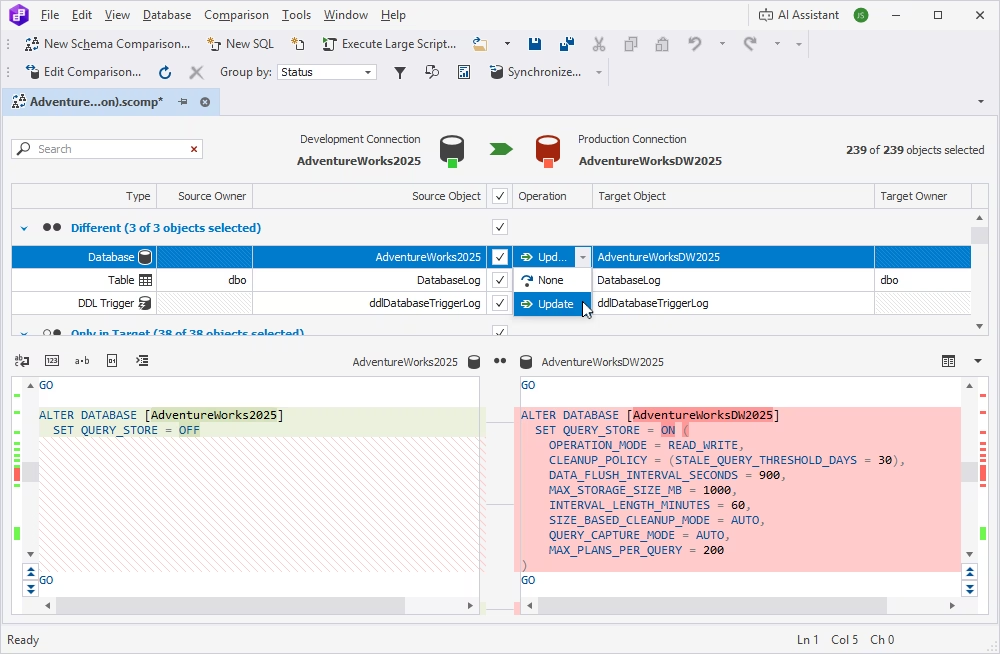
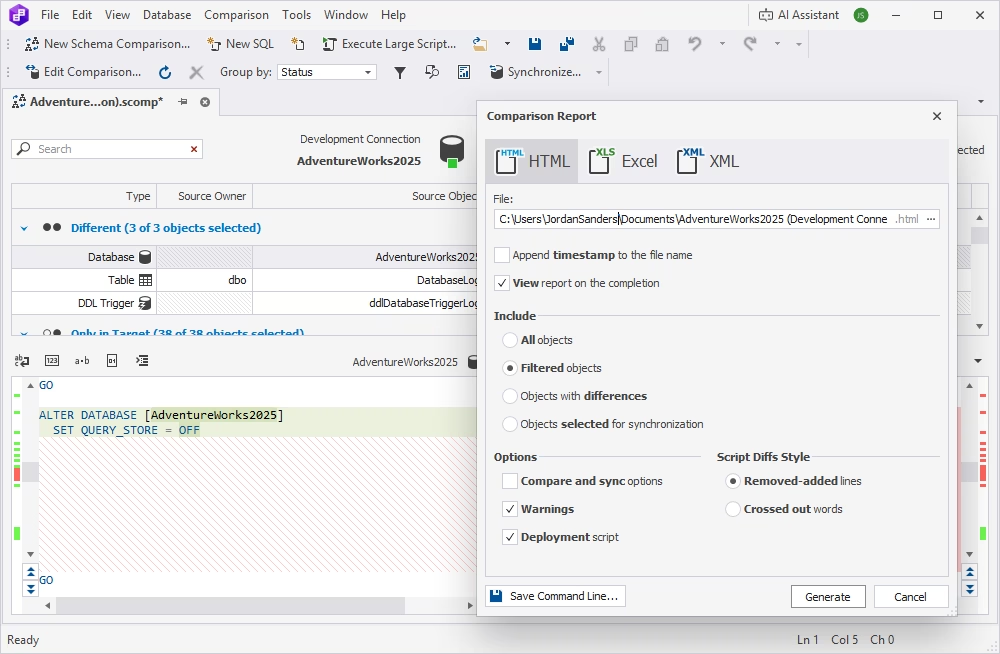
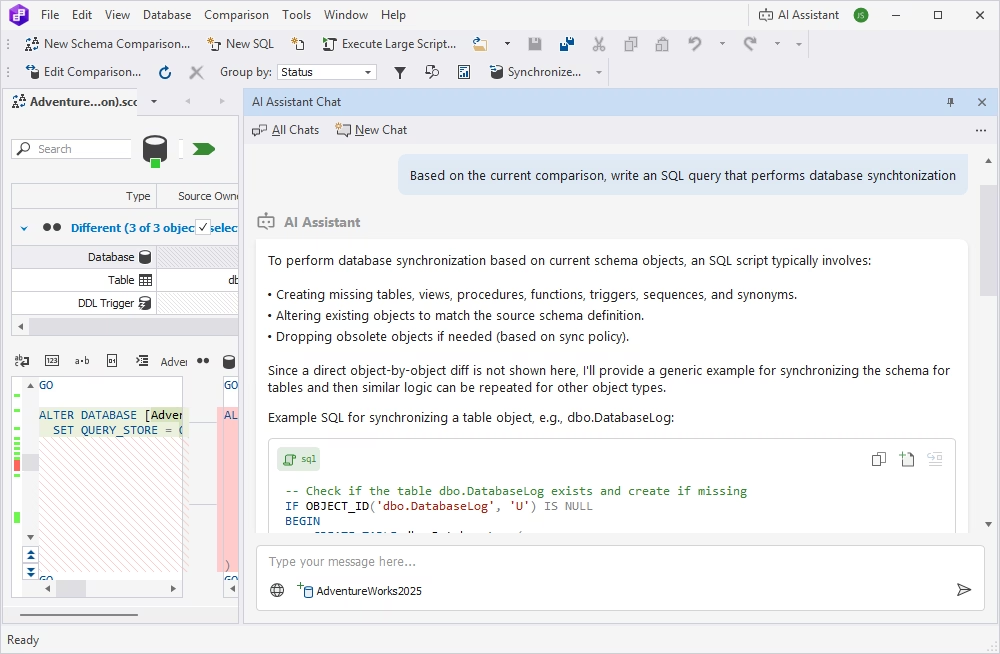
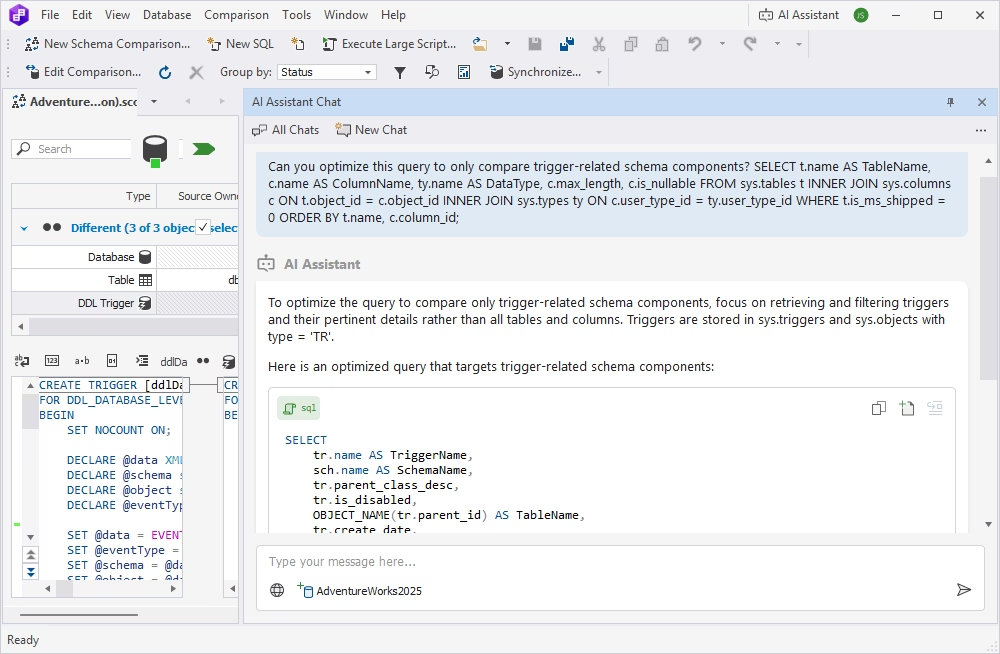
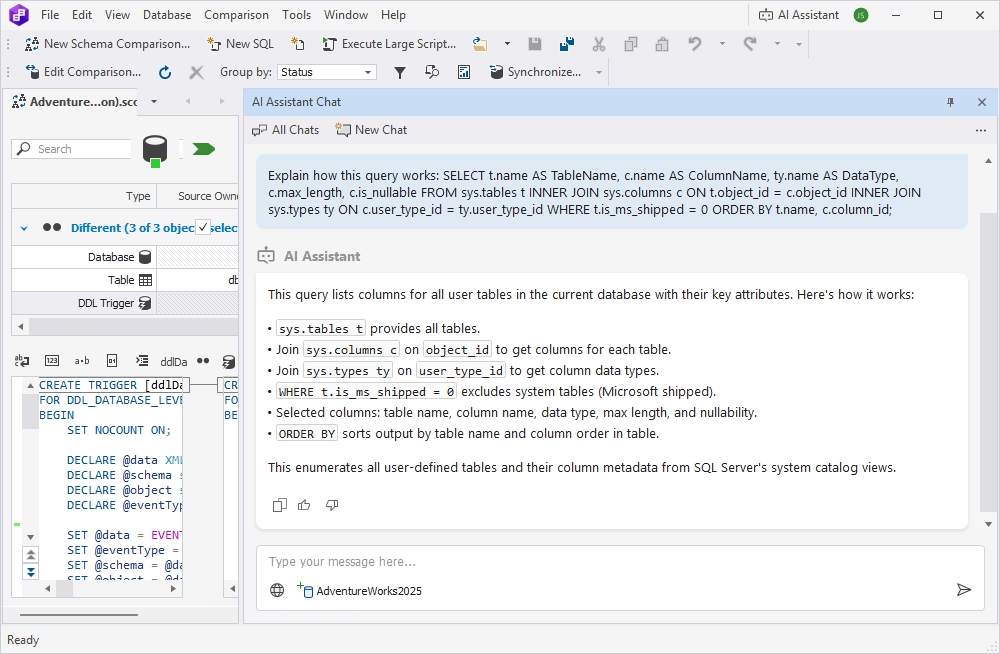
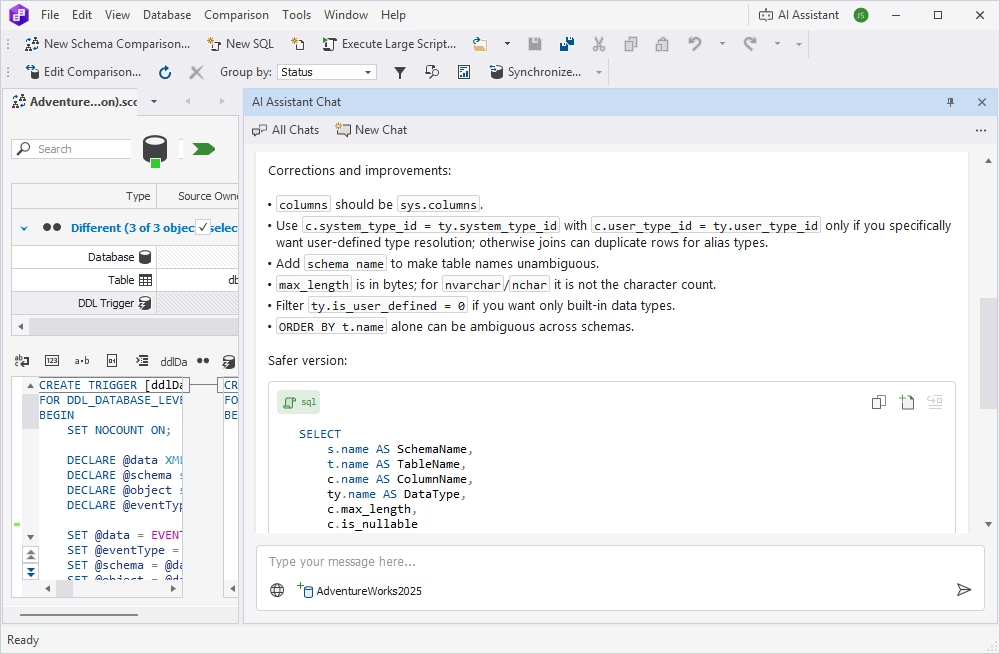
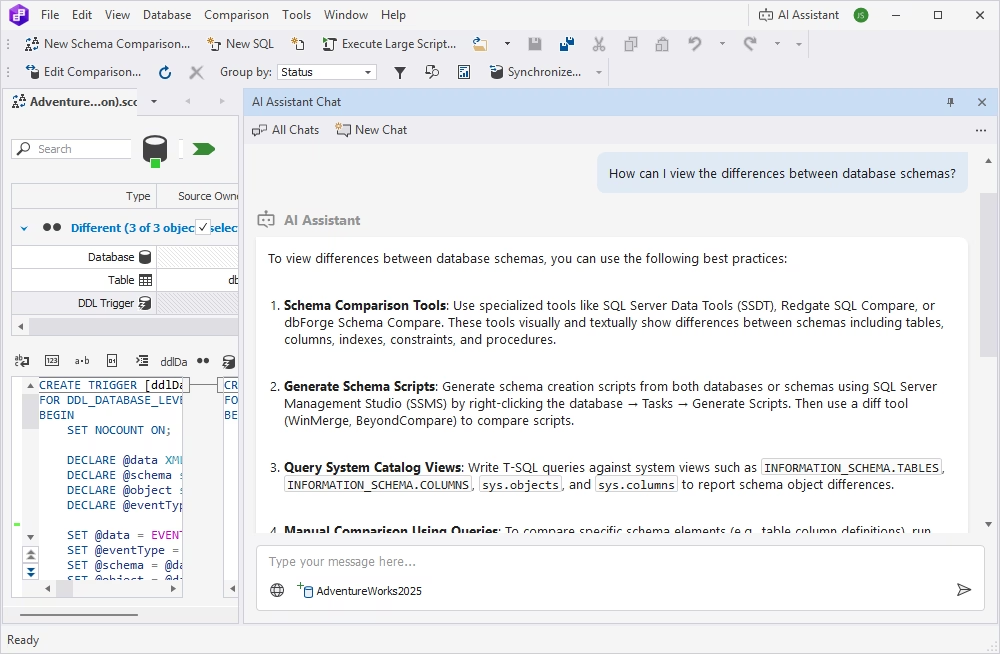
    See the full info about compared objects in the SchemaComparison window. Select required objects to synchronize.

    The grid shows all compared objects automatically grouped by their type. Under the grid you can see the structure differences of the selected object.

    Tip: For better understanding, filter the objects in the grid, e.g., to see Only in Source objects. To be convinced you will get the desired synchronization result, preview the synchronization script fragment for each object.

  • 8. Synchronizing database structures


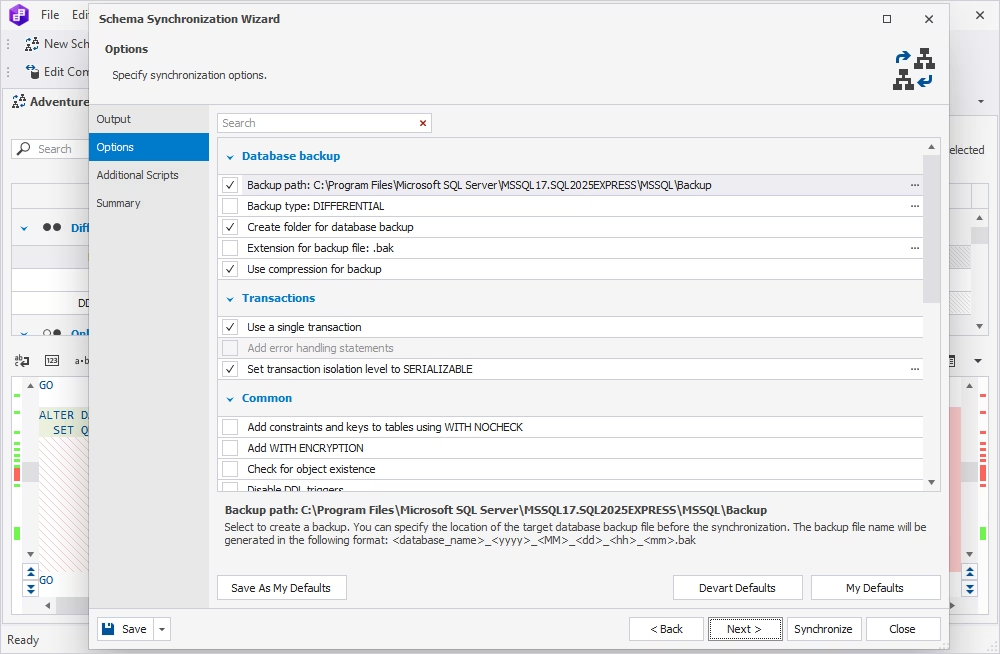
    Use the Schema Synchronization Wizard to generate a standards-driven synchronization script and tune the synchronization result based on your needs. Click the Synchronize button to immediately generate the synchronization script.

    Tip: To customize synchronization, click Next and move to other wizard's pages.

  • On the Dependencies wizard page you can check the list of objects automatically included into synchronization as they are dependent on some compared objects.

    On the Output wizard page select what you want to do with the generated script:

    – Execute against the Target database
    – Save to a file
    – Open in SQL editor - (for the final review and manual editing)

    To see the synchronization actions and the list of warnings generated during mapping, move to the Summary wizard page.

  • 9. SQL script management


    Use SQL editor to view and edit synchronization scripts, create queries and execute them against the selected database.

    Tip: To open SQL editor, click the New SQL button on the toolbar.

    Tip: When the query is executed, see the query results in the Data window at the bottom. Find rich data management options in the right-click menu.

Order Download