
You can install the driver by using the Windows installer.
After you receive the license key, add it to your connection strings to connect to the data source.
.NET MAUI (Multi-platform App UI) is a cross-platform framework for building desktop and mobile applications using C# and XAML. It allows creating applications running on Windows, macOS, and Android operating systems, all from one Codebase.
Oracle Database is a robust, commercial relational database management system (RDBMS) developed by Oracle Corporation. It delivers comprehensive SQL implementation, enterprise-grade scalability, built-in high availability, performance optimization, and extensive management tools. Thus, Oracle Database is a preferred choice for large organizations that require industrial-strength database solutions.

Fully supports EF Core, Dapper, NHibernate, LinqConnect, and other technologies for efficient data management.

Conforms to the latest ADO.NET standards and innovations for seamless integration with .NET applications.

Offers many Oracle-specific features and fully supports all unique data types for accurate and complete data representation.

Provides robust security with support for SSL/SSH connections, connecting via proxy servers, embedded servers, and HTTP tunneling.

Features native integration with Visual Studio and complete design-time support for accelerated development.

Includes priority support, detailed documentation, and regular updates for continuous improvement.
You can start using dotConnect for Oracle immediately with a 30-day free trial. Choose one of the following installation options:
You can install the driver by using the Windows installer.
After you receive the license key, add it to your connection strings to connect to the data source.
Using the built-in Data Explorer, first, configure the connection to Oracle and then select the objects you want to use in your project.
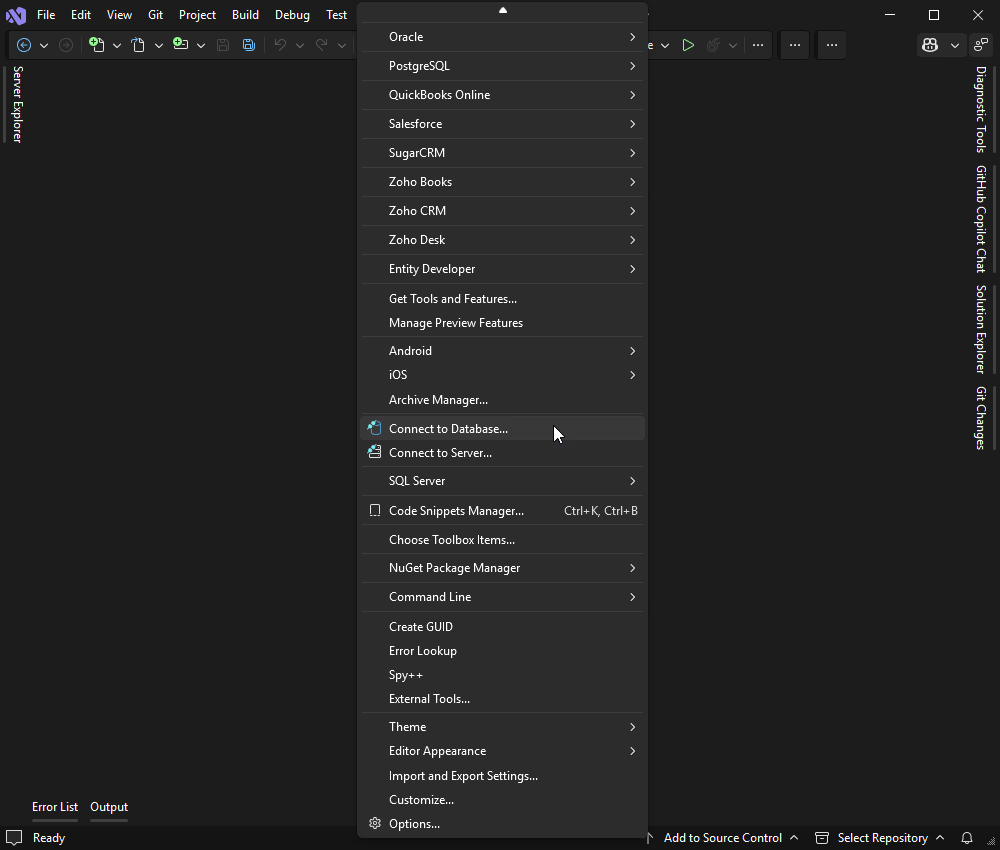
1. In Visual Studio, click Tools on the menu bar and select Connect to Database from the drop-down list.
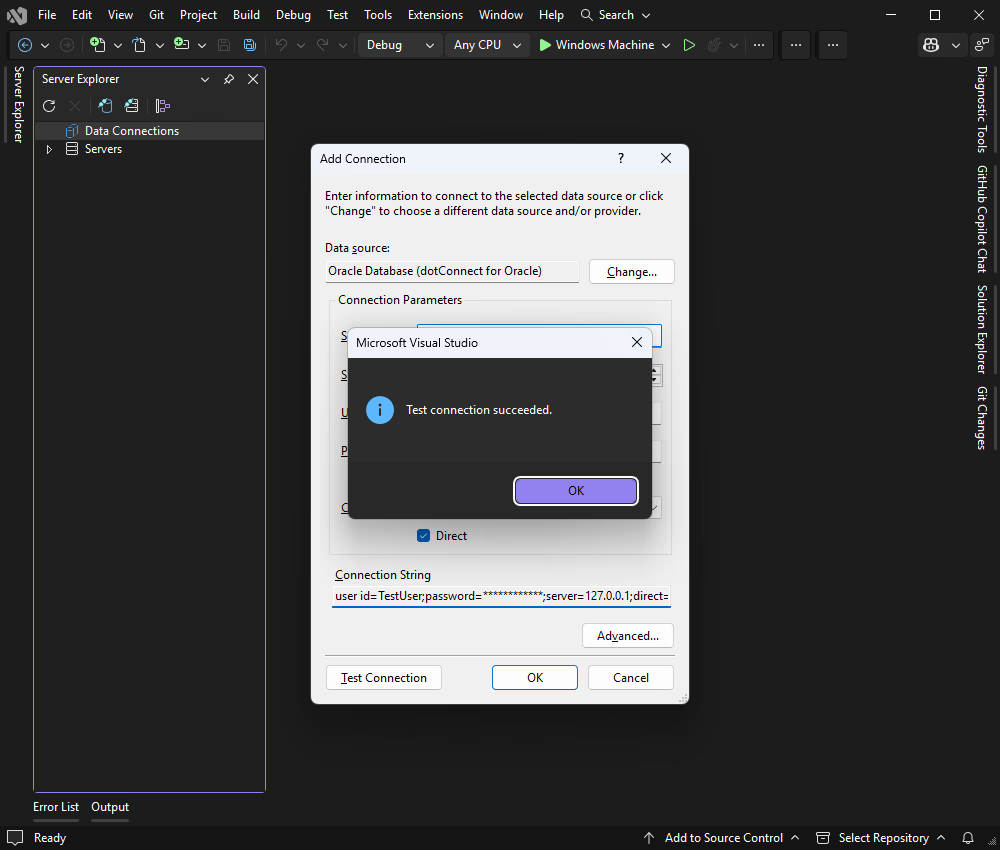
2. In the Add Connection window, choose the Oracle data source, fill in the connection details for your Oracle database, and click OK to proceed.
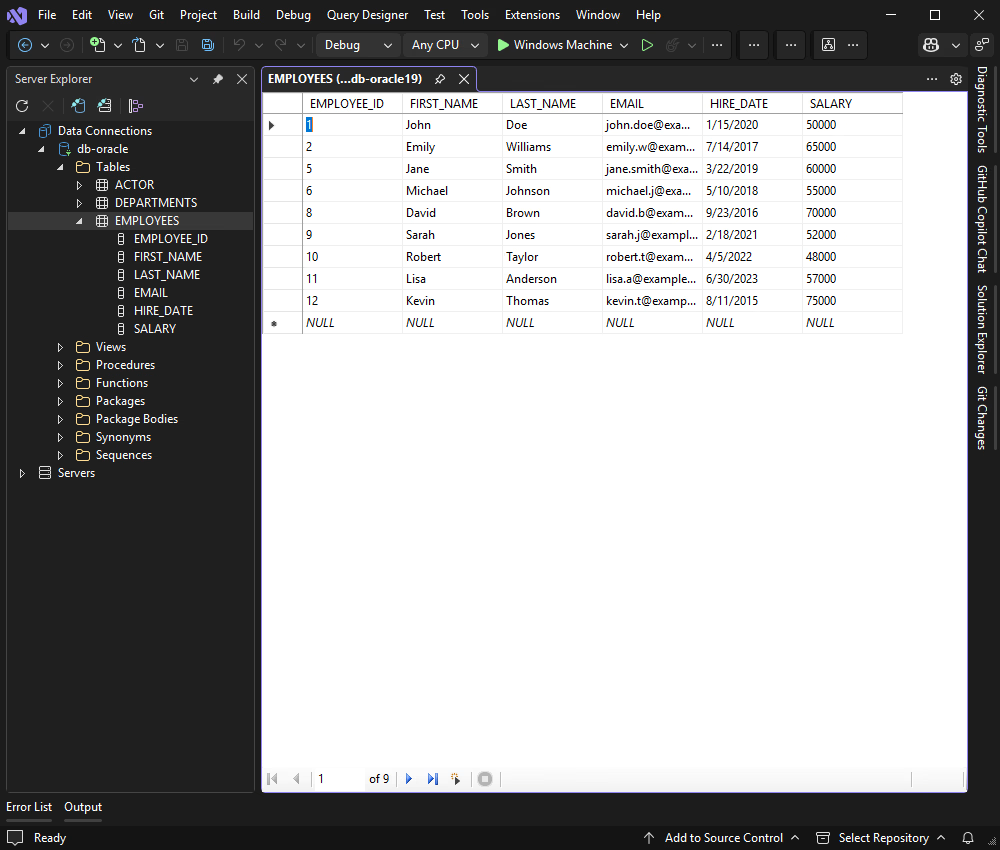
3. In Server Explorer, select the tables and fields you want to use. In our tutorial, we will use the EMPLOYEES table.
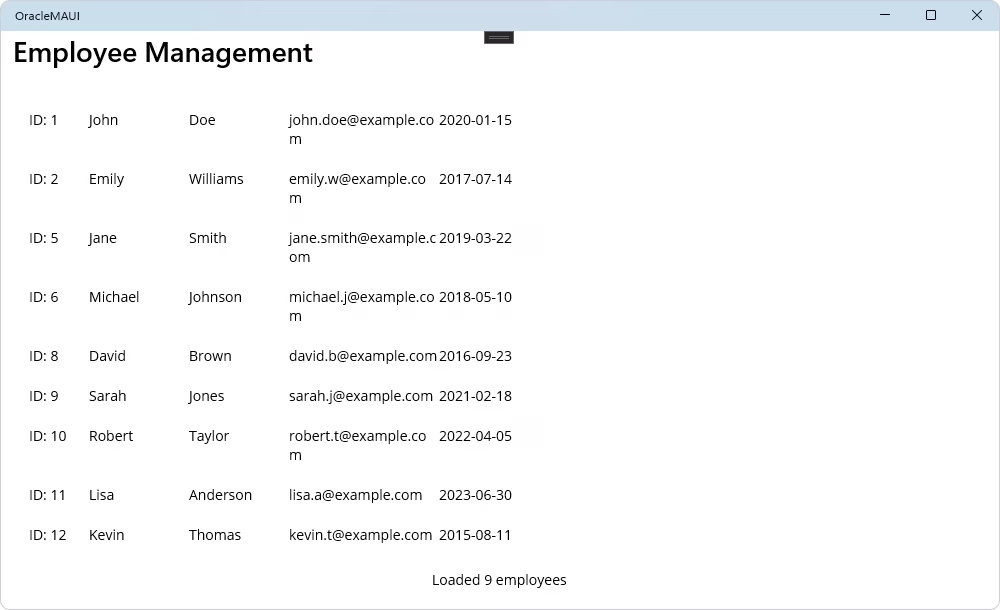
In this foundational step, our goal is to establish a connection to the Oracle database and display data in a read-only list. This ensures our database connection is correctly configured and provides the base upon which we will build the other CRUD operations.
First, create a new C# class file named Employee.cs. This class will serve as a model to store each employee record retrieved from the database.
// OracleMAUI/Employee.cs
namespace OracleMAUI;

public class Employee
{
    public int EmployeeId { get; set; }
    public string FirstName { get; set; } = string.Empty;
    public string LastName { get; set; } = string.Empty;
    public DateTime HireDate { get; set; }
    public string Email { get; set; } = string.Empty;
}
Next, create the DatabaseConnection.cs file. This class centralizes our connection string, making it easy to manage. We use Devart.Data.Oracle with Direct=True to connect directly to the Oracle server without requiring an Oracle Client installation.
// OracleMAUI/DatabaseConnection.cs
using Devart.Data.Oracle;

namespace OracleMAUI;

public class DatabaseConnection
{
    private const string ConnectionString =
        "Direct=True;Host=127.0.0.1;Service Name=OracleDb;User ID=TestUser;Password=TestPassword;License key=**********";

    public static OracleConnection GetConnection()
    {
        return new OracleConnection(ConnectionString);
    }
}| Property | Meaning |
|---|---|
| Direct | Direct mode option (if required). |
| Server or Host | IP address or hostname of the Oracle server. |
| Port | Port number for the Oracle server. |
| ServiceName | Service name for the database instance. |
| Sid | Oracle System Identifier (SID) for the database instance. |
| UserId | User ID used to authenticate with Oracle. |
| Password | Password for the user ID. |
| License Key | Your license key. This is required only when using .NET Standard compatible assemblies. |
Create an EmployeeService.cs file. We will start by adding a single method, GetAllEmployees, that queries the database and returns a list of all employees.
// OracleMAUI/EmployeeService.cs
using Devart.Data.Oracle;

namespace OracleMAUI;

public class EmployeeService
{
    public static void DeleteEmployee(int employeeId)
    {
        using var connection = DatabaseConnection.GetConnection();
        connection.Open();

        using var command = new OracleCommand(
            "DELETE FROM EMPLOYEES WHERE EMPLOYEE_ID = :employeeId",
            connection);

        command.Parameters.Add(new OracleParameter("employeeId", employeeId));

        command.ExecuteNonQuery();
    }

    public static void UpdateEmployee(int employeeId, string firstName, string lastName, string email)
    {
        using var connection = DatabaseConnection.GetConnection();
        connection.Open();

        using var command = new OracleCommand(
            "UPDATE EMPLOYEES SET FIRST_NAME = :firstName, LAST_NAME = :lastName, HIRE_DATE = :hireDate, EMAIL = :email WHERE EMPLOYEE_ID = :employeeId",
            connection);

        command.Parameters.Add(new OracleParameter("firstName", firstName));
        command.Parameters.Add(new OracleParameter("lastName", lastName));
        command.Parameters.Add(new OracleParameter("hireDate", DateTime.Now));
        command.Parameters.Add(new OracleParameter("email", email));
        command.Parameters.Add(new OracleParameter("employeeId", employeeId));

        command.ExecuteNonQuery();
    }

    public static void InsertEmployee(string firstName, string lastName, string email)
    {
        using var connection = DatabaseConnection.GetConnection();
        connection.Open();

        using var command = new OracleCommand(
            "INSERT INTO EMPLOYEES (FIRST_NAME, LAST_NAME, HIRE_DATE, EMAIL) VALUES (:firstName, :lastName, :hireDate, :email)",
            connection);

        command.Parameters.Add(new OracleParameter("firstName", firstName));
        command.Parameters.Add(new OracleParameter("lastName", lastName));
        command.Parameters.Add(new OracleParameter("hireDate", DateTime.Now));
        command.Parameters.Add(new OracleParameter("email", email));

        command.ExecuteNonQuery();
    }

    public static List<Employee> GetAllEmployees()
    {
        var employees = new List<Employee>();

        using var connection = DatabaseConnection.GetConnection();
        connection.Open();

        using var command = new OracleCommand("SELECT EMPLOYEE_ID, FIRST_NAME, LAST_NAME, HIRE_DATE, EMAIL FROM EMPLOYEES ORDER BY EMPLOYEE_ID", connection);
        using var reader = command.ExecuteReader();

        while (reader.Read())
        {
            employees.Add(new Employee
            {
                EmployeeId = reader.GetInt32(0),
                FirstName = reader.GetString(1),
                LastName = reader.GetString(2),
                HireDate = reader.GetDateTime(3),
                Email = reader.GetString(4)
            });
        }

        return employees;
    }
}
Modify MainPage.xaml to contain a ListView for displaying the employees and a Label for status messages.
<!-- OracleMAUI/MainPage.xaml -->
<?xml version="1.0" encoding="utf-8" ?>
<ContentPage xmlns="http://schemas.microsoft.com/dotnet/2021/maui"
             xmlns:x="http://schemas.microsoft.com/winfx/2009/xaml"
             x:Class="OracleMAUI.MainPage"
             Title="Employee Management">
    <Grid RowDefinitions="Auto,*,Auto" Padding="20" RowSpacing="15">

        <!-- Input Form -->

        <Grid Grid.Row="0" ColumnDefinitions="*,*,*" ColumnSpacing="10" RowDefinitions="Auto,Auto" Margin="0,0,0,20">

            <Entry x:Name="FirstNameEntry" Placeholder="First Name" Grid.Row="0" Grid.Column="0" />

            <Entry x:Name="LastNameEntry" Placeholder="Last Name" Grid.Row="0" Grid.Column="1" />

            <Entry x:Name="EmailEntry" Placeholder="Email" Grid.Row="0" Grid.Column="2" Keyboard="Email" />

            <Grid Grid.Row="1" Grid.ColumnSpan="3" ColumnDefinitions="*,*,*" ColumnSpacing="10">

                <Button Text="Insert" Clicked="OnInsertClicked" Grid.Column="0" />

                <Button Text="Update" Clicked="OnUpdateClicked" Grid.Column="1" />

                <Button Text="Delete" Clicked="OnDeleteClicked" Grid.Column="2" BackgroundColor="#D32F2F" />

            </Grid>
        </Grid>

        <!-- Employee List -->

        <ListView x:Name="EmployeeListView" Grid.Row="1" ItemSelected="OnEmployeeSelected">

            <ListView.ItemTemplate>

                <DataTemplate>

                    <ViewCell>

                        <HorizontalStackLayout Padding="10">

                            <Label Text="{Binding EmployeeId, StringFormat='ID: {0}'}" WidthRequest="60" />

                            <Label Text="{Binding FirstName}" WidthRequest="100" />

                            <Label Text="{Binding LastName}" WidthRequest="100" />

                            <Label Text="{Binding Email}" WidthRequest="150" />

                            <Label Text="{Binding HireDate, StringFormat='{0:yyyy-MM-dd}'}" HorizontalOptions="EndAndExpand" />

                        </HorizontalStackLayout>

                    </ViewCell>

                </DataTemplate>

            </ListView.ItemTemplate>

        </ListView>

        <!-- Status Bar -->

        <Label x:Name="StatusLabel" Grid.Row="2" Text="Ready" HorizontalOptions="Center" />

    </Grid>
</ContentPage>
Update the code-behind file, MainPage.xaml.cs. The code will call the LoadEmployees method from the constructor, ensuring the data is fetched immediately upon application launch.
// OracleMAUI/MainPage.xaml.cs
namespace OracleMAUI;

public partial class MainPage : ContentPage
{
    private Employee? _selectedEmployee;

    public MainPage()
    {
        InitializeComponent();
        LoadEmployees();
    }

    private void LoadEmployees()
    {
        try
        {
            var employees = EmployeeService.GetAllEmployees();
            EmployeeListView.ItemsSource = employees;
            StatusLabel.Text = $"Loaded {employees.Count} employees";
        }
        catch (Exception ex)
        {
            StatusLabel.Text = $"Error: {ex.Message}";
        }
    }

    private async void OnInsertClicked(object? sender, EventArgs e)
    {
        var firstName = FirstNameEntry.Text?.Trim();
        var lastName = LastNameEntry.Text?.Trim();
        var email = EmailEntry.Text?.Trim();

        if (string.IsNullOrWhiteSpace(firstName) || string.IsNullOrWhiteSpace(lastName) || string.IsNullOrWhiteSpace(email))
        {
            await DisplayAlert("Validation", "Please enter first name, last name, and email.", "OK");
            return;
        }

        try
        {
            EmployeeService.InsertEmployee(firstName, lastName, email);
            StatusLabel.Text = $"Inserted: {firstName} {lastName}";
            ClearForm();
            LoadEmployees();
        }
        catch (Exception ex)
        {
            StatusLabel.Text = $"Error: {ex.Message}";
        }
    }

    private void ClearForm()
    {
        FirstNameEntry.Text = string.Empty;
        LastNameEntry.Text = string.Empty;
        EmailEntry.Text = string.Empty;
        _selectedEmployee = null;
        EmployeeListView.SelectedItem = null;
    }

    private void OnEmployeeSelected(object? sender, SelectedItemChangedEventArgs e)
    {
        if (e.SelectedItem is Employee employee)
        {
            _selectedEmployee = employee;
            FirstNameEntry.Text = employee.FirstName;
            LastNameEntry.Text = employee.LastName;
            EmailEntry.Text = employee.Email;
        }
    }

    private async void OnUpdateClicked(object? sender, EventArgs e)
    {
        if (_selectedEmployee == null)
        {
            await DisplayAlert("Validation", "Please select an employee to update.", "OK");
            return;
        }

        var firstName = FirstNameEntry.Text?.Trim();
        var lastName = LastNameEntry.Text?.Trim();
        var email = EmailEntry.Text?.Trim();

        if (string.IsNullOrWhiteSpace(firstName) || string.IsNullOrWhiteSpace(lastName) || string.IsNullOrWhiteSpace(email))
        {
            await DisplayAlert("Validation", "Please enter first name, last name, and email.", "OK");
            return;
        }

        try
        {
            EmployeeService.UpdateEmployee(_selectedEmployee.EmployeeId, firstName, lastName, email);
            StatusLabel.Text = $"Updated: {firstName} {lastName}";
            ClearForm();
            LoadEmployees();
        }
        catch (Exception ex)
        {
            StatusLabel.Text = $"Error: {ex.Message}";
        }
    }

    private async void OnDeleteClicked(object? sender, EventArgs e)
    {
        if (_selectedEmployee == null)
        {
            await DisplayAlert("Validation", "Please select an employee to delete.", "OK");
            return;
        }

        var confirm = await DisplayAlert(
            "Confirm Delete",
            $"Delete employee {_selectedEmployee.FirstName} {_selectedEmployee.LastName}?",
            "Yes", "No");

        if (!confirm) return;

        try
        {
            EmployeeService.DeleteEmployee(_selectedEmployee.EmployeeId);
            StatusLabel.Text = $"Deleted: {_selectedEmployee.FirstName} {_selectedEmployee.LastName}";
            ClearForm();
            LoadEmployees();
        }
        catch (Exception ex)
        {
            StatusLabel.Text = $"Error: {ex.Message}";
        }
    }
}
You have now built a functional, read-only .NET MAUI application that connects to an Oracle database and displays the data. This confirms that your core setup is working correctly.
We will now enhance the application by adding the ability to create new records. This involves adding input fields and a button to the UI and implementing the logic to execute an INSERT SQL statement.
Modify MainPage.xaml to add Entry fields for the first name, last name, and email, and an Insert button. The main grid layout is adjusted to accommodate these new elements, with all inputs in a single row and a margin below them.
<!-- OracleMAUI/MainPage.xaml -->
<?xml version="1.0" encoding="utf-8" ?>
<ContentPage xmlns="http://schemas.microsoft.com/dotnet/2021/maui"
             xmlns:x="http://schemas.microsoft.com/winfx/2009/xaml"
             x:Class="OracleMAUI.MainPage"
             Title="Employee Management">
    <Grid RowDefinitions="Auto,*,Auto" Padding="20" RowSpacing="15">

        <!-- Input Form -->

        <Grid Grid.Row="0" ColumnDefinitions="*,*,*" ColumnSpacing="10" RowDefinitions="Auto,Auto" Margin="0,0,0,20">

            <Entry x:Name="FirstNameEntry" Placeholder="First Name" Grid.Row="0" Grid.Column="0" />

            <Entry x:Name="LastNameEntry" Placeholder="Last Name" Grid.Row="0" Grid.Column="1" />

            <Entry x:Name="EmailEntry" Placeholder="Email" Grid.Row="0" Grid.Column="2" Keyboard="Email" />

            <Grid Grid.Row="1" Grid.ColumnSpan="3" ColumnDefinitions="*,*,*" ColumnSpacing="10">

                <Button Text="Insert" Clicked="OnInsertClicked" Grid.Column="0" />

                <Button Text="Update" Clicked="OnUpdateClicked" Grid.Column="1" />

                <Button Text="Delete" Clicked="OnDeleteClicked" Grid.Column="2" BackgroundColor="#D32F2F" />

            </Grid>
        </Grid>

        <!-- Employee List -->

        <ListView x:Name="EmployeeListView" Grid.Row="1" ItemSelected="OnEmployeeSelected">

            <ListView.ItemTemplate>
                <DataTemplate>

                    <ViewCell>

                        <HorizontalStackLayout Padding="10">

                            <Label Text="{Binding EmployeeId, StringFormat='ID: {0}'}" WidthRequest="60" />

                            <Label Text="{Binding FirstName}" WidthRequest="100" />

                            <Label Text="{Binding LastName}" WidthRequest="100" />

                            <Label Text="{Binding Email}" WidthRequest="150" />

                            <Label Text="{Binding HireDate, StringFormat='{0:yyyy-MM-dd}'}" HorizontalOptions="EndAndExpand" />

                        </HorizontalStackLayout>

                    </ViewCell>

                </DataTemplate>
            </ListView.ItemTemplate>

        </ListView>

        <!-- Status Bar -->

        <Label x:Name="StatusLabel" Grid.Row="2" Text="Ready" HorizontalOptions="Center" />

    </Grid>
</ContentPage>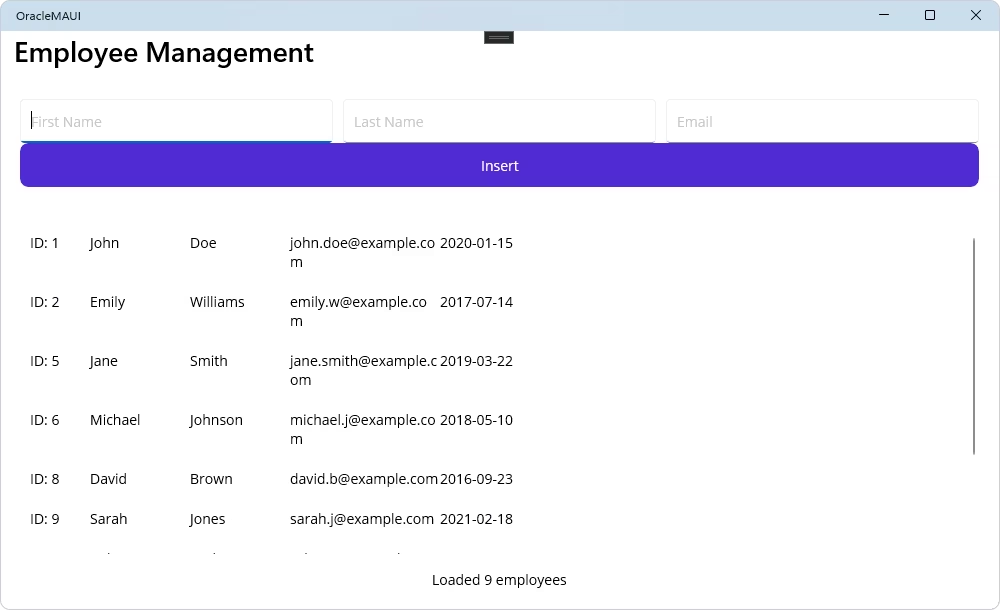
Add the InsertEmployee method to your EmployeeService.cs file. This method takes the first name, last name, and email, connects to the database, and executes a parameterized INSERT query. Devart's Oracle provider uses the :paramName syntax for bind parameters.
// OracleMAUI/EmployeeService.cs
// ... (add this method inside the EmployeeService class)

    public static void InsertEmployee(string firstName, string lastName, string email)
    {
        using var connection = DatabaseConnection.GetConnection();
        connection.Open();

        using var command = new OracleCommand(
            "INSERT INTO EMPLOYEES (FIRST_NAME, LAST_NAME, HIRE_DATE, EMAIL) VALUES (:firstName, :lastName, :hireDate, :email)",
            connection);

        command.Parameters.Add(new OracleParameter("firstName", firstName));
        command.Parameters.Add(new OracleParameter("lastName", lastName));
        command.Parameters.Add(new OracleParameter("hireDate", DateTime.Now));
        command.Parameters.Add(new OracleParameter("email", email));

        command.ExecuteNonQuery();
    }
Modify MainPage.xaml.cs to handle the new functionality. Add a private field _selectedEmployee and create the OnInsertClicked and ClearForm methods, both updated to manage the Email field.
// OracleMAUI/MainPage.xaml.cs
namespace OracleMAUI;

public partial class MainPage : ContentPage
{
    private Employee? _selectedEmployee;

    public MainPage()
    {
        InitializeComponent();
        LoadEmployees();
    }

    private void LoadEmployees()
    {
        try
        {
            var employees = EmployeeService.GetAllEmployees();
            EmployeeListView.ItemsSource = employees;
            StatusLabel.Text = $"Loaded {employees.Count} employees";
        }
        catch (Exception ex)
        {
            StatusLabel.Text = $"Error: {ex.Message}";
        }
    }

    private async void OnInsertClicked(object? sender, EventArgs e)
    {
        var firstName = FirstNameEntry.Text?.Trim();
        var lastName = LastNameEntry.Text?.Trim();
        var email = EmailEntry.Text?.Trim();

        if (string.IsNullOrWhiteSpace(firstName) || string.IsNullOrWhiteSpace(lastName) || string.IsNullOrWhiteSpace(email))
        {
            await DisplayAlert("Validation", "Please enter first name, last name, and email.", "OK");
            return;
        }

        try
        {
            EmployeeService.InsertEmployee(firstName, lastName, email);
            StatusLabel.Text = $"Inserted: {firstName} {lastName}";
            ClearForm();
            LoadEmployees();
        }
        catch (Exception ex)
        {
            StatusLabel.Text = $"Error: {ex.Message}";
        }
    }

    private void ClearForm()
    {
        FirstNameEntry.Text = string.Empty;
        LastNameEntry.Text = string.Empty;
        EmailEntry.Text = string.Empty;
        _selectedEmployee = null;
        EmployeeListView.SelectedItem = null;
    }
}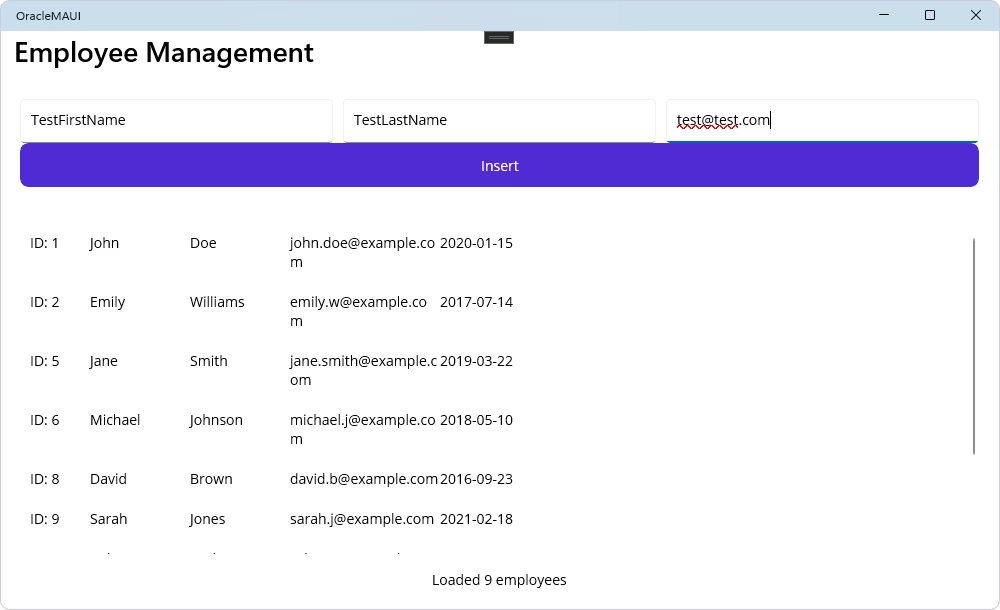
The application can now add new records to the database. Users can enter data, click the Insert button, and see the list update immediately to reflect the new entry.
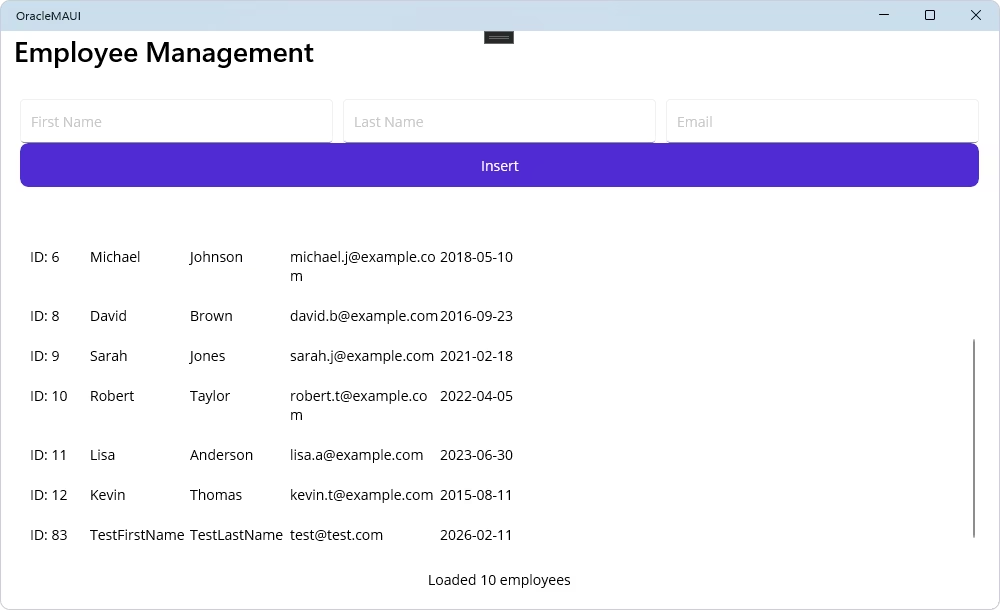
In this step, we will implement the ability to edit existing records. This requires logic to select an item from the list, populate the input fields with its data, and then save the changes with an UPDATE SQL command.
In MainPage.xaml, add an Update button next to the Insert button and attach an ItemSelected event handler to the ListView. The UI layout has also been updated to reflect a single-row input layout.
<!-- OracleMAUI/MainPage.xaml -->
<?xml version="1.0" encoding="utf-8" ?>
<ContentPage xmlns="http://schemas.microsoft.com/dotnet/2021/maui"
             xmlns:x="http://schemas.microsoft.com/winfx/2009/xaml"
             x:Class="OracleMAUI.MainPage"
             Title="Employee Management">
    <Grid RowDefinitions="Auto,*,Auto" Padding="20" RowSpacing="15">
        <!-- Input Form -->
        <Grid Grid.Row="0" ColumnDefinitions="*,*,*" ColumnSpacing="10" RowDefinitions="Auto,Auto" Margin="0,0,0,20">
            <Entry x:Name="FirstNameEntry" Placeholder="First Name" Grid.Row="0" Grid.Column="0" />
            <Entry x:Name="LastNameEntry" Placeholder="Last Name" Grid.Row="0" Grid.Column="1" />
            <Entry x:Name="EmailEntry" Placeholder="Email" Grid.Row="0" Grid.Column="2" Keyboard="Email" />
            <Grid Grid.Row="1" Grid.ColumnSpan="3" ColumnDefinitions="*,*,*" ColumnSpacing="10">
                <Button Text="Insert" Clicked="OnInsertClicked" Grid.Column="0" />
                <Button Text="Update" Clicked="OnUpdateClicked" Grid.Column="1" />
                <Button Text="Delete" Clicked="OnDeleteClicked" Grid.Column="2" BackgroundColor="#D32F2F" />
            </Grid>
        </Grid>
        <!-- Employee List -->
        <ListView x:Name="EmployeeListView" Grid.Row="1" ItemSelected="OnEmployeeSelected">
            <ListView.ItemTemplate>
                <DataTemplate>
                    <ViewCell>
                        <HorizontalStackLayout Padding="10">
                            <Label Text="{Binding EmployeeId, StringFormat='ID: {0}'}" WidthRequest="60" />
                            <Label Text="{Binding FirstName}" WidthRequest="100" />
                            <Label Text="{Binding LastName}" WidthRequest="100" />
                            <Label Text="{Binding Email}" WidthRequest="150" />
                            <Label Text="{Binding HireDate, StringFormat='{0:yyyy-MM-dd}'}" HorizontalOptions="EndAndExpand" />
                        </HorizontalStackLayout>
                    </ViewCell>
                </DataTemplate>
            </ListView.ItemTemplate>
        </ListView>
        <!-- Status Bar -->
        <Label x:Name="StatusLabel" Grid.Row="2" Text="Ready" HorizontalOptions="Center" />
    </Grid>
</ContentPage>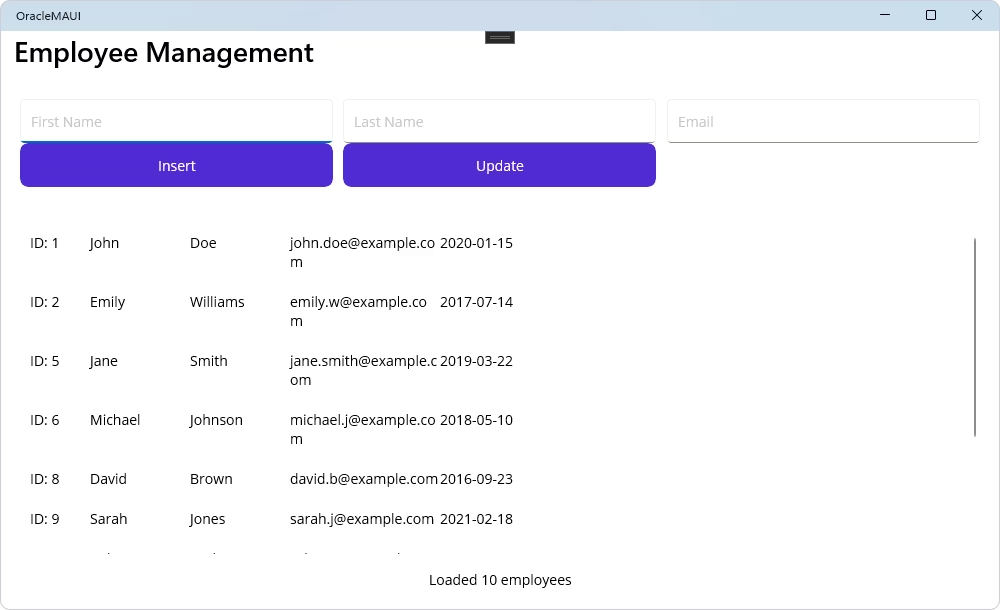
Add the UpdateEmployee method to EmployeeService.cs. This method executes a parameterized UPDATE query using the employee's ID.
// OracleMAUI/EmployeeService.cs
// ... (add this method inside the EmployeeService class)
    public static void UpdateEmployee(int employeeId, string firstName, string lastName, string email)
    {
        using var connection = DatabaseConnection.GetConnection();
        connection.Open();

        using var command = new OracleCommand(
            "UPDATE EMPLOYEES SET FIRST_NAME = :firstName, LAST_NAME = :lastName, HIRE_DATE = :hireDate, EMAIL = :email WHERE EMPLOYEE_ID = :employeeId",
            connection);

        command.Parameters.Add(new OracleParameter("firstName", firstName));
        command.Parameters.Add(new OracleParameter("lastName", lastName));
        command.Parameters.Add(new OracleParameter("hireDate", DateTime.Now));
        command.Parameters.Add(new OracleParameter("email", email));
        command.Parameters.Add(new OracleParameter("employeeId", employeeId));

        command.ExecuteNonQuery();
}Add the OnEmployeeSelected and OnUpdateClicked methods to MainPage.xaml.cs. OnEmployeeSelected will populate the form with all employee data, including email, when a user taps an item in the list. OnUpdateClicked saves the changes and passes the email to the service.
// OracleMAUI/MainPage.xaml.cs
// ... (add these methods inside the MainPage class)
    private void OnEmployeeSelected(object? sender, SelectedItemChangedEventArgs e)
    {
        if (e.SelectedItem is Employee employee)
        {
            _selectedEmployee = employee;
            FirstNameEntry.Text = employee.FirstName;
            LastNameEntry.Text = employee.LastName;
            EmailEntry.Text = employee.Email;
        }
    }

    private async void OnUpdateClicked(object? sender, EventArgs e)
    {
        if (_selectedEmployee == null)
        {
            await DisplayAlert("Validation", "Please select an employee to update.", "OK");
            return;
        }

        var firstName = FirstNameEntry.Text?.Trim();
        var lastName = LastNameEntry.Text?.Trim();
        var email = EmailEntry.Text?.Trim();

        if (string.IsNullOrWhiteSpace(firstName) || string.IsNullOrWhiteSpace(lastName) || string.IsNullOrWhiteSpace(email))
        {
            await DisplayAlert("Validation", "Please enter first name, last name, and email.", "OK");
            return;
        }

        try
        {
            EmployeeService.UpdateEmployee(_selectedEmployee.EmployeeId, firstName, lastName, email);
            StatusLabel.Text = $"Updated: {firstName} {lastName}";
            ClearForm();
            LoadEmployees();
        }
        catch (Exception ex)
        {
            StatusLabel.Text = $"Error: {ex.Message}";
        }
    }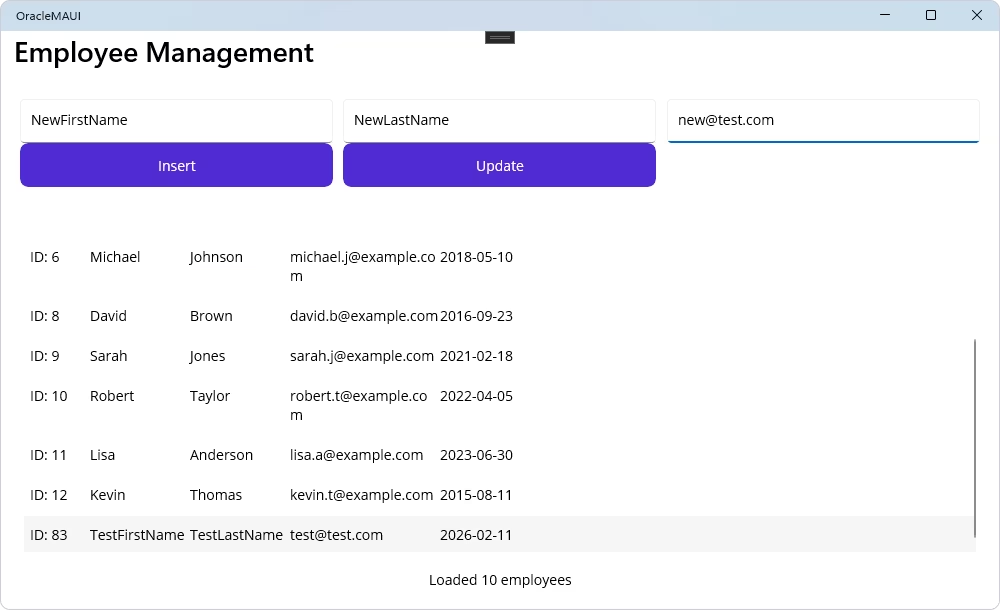
The application now supports editing data. Users can select an employee, change their details in the input form, and save the changes back to the database.
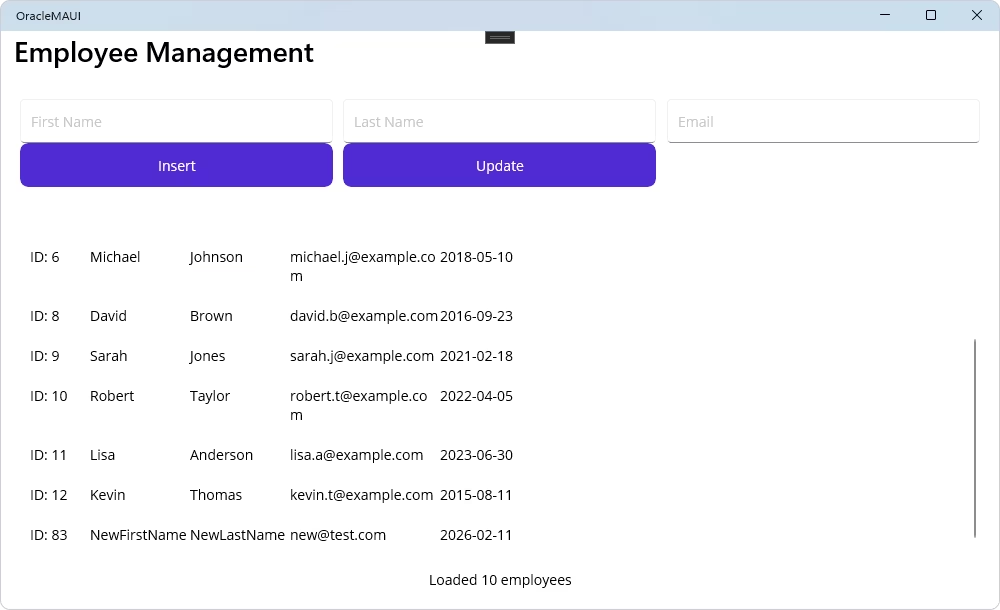
In the final step, we will implement the delete functionality. This involves adding a Delete button and the logic to execute a DELETE SQL command, including a confirmation step to prevent accidental data loss.
Modify MainPage.xaml to include a Delete button, completing our CRUD controls set. The UI layout is consistent with the single row input form.
<!-- OracleMAUI/MainPage.xaml -->
<?xml version="1.0" encoding="utf-8" ?>
<ContentPage xmlns="http://schemas.microsoft.com/dotnet/2021/maui"
             xmlns:x="http://schemas.microsoft.com/winfx/2009/xaml"
             x:Class="OracleMAUI.MainPage"
             Title="Employee Management">
    <Grid RowDefinitions="Auto,*,Auto" Padding="20" RowSpacing="15">
        <!-- Input Form -->
        <Grid Grid.Row="0" ColumnDefinitions="*,*,*" ColumnSpacing="10" RowDefinitions="Auto,Auto" Margin="0,0,0,20">
            <Entry x:Name="FirstNameEntry" Placeholder="First Name" Grid.Row="0" Grid.Column="0" />
            <Entry x:Name="LastNameEntry" Placeholder="Last Name" Grid.Row="0" Grid.Column="1" />
            <Entry x:Name="EmailEntry" Placeholder="Email" Grid.Row="0" Grid.Column="2" Keyboard="Email" />
            <Grid Grid.Row="1" Grid.ColumnSpan="3" ColumnDefinitions="*,*,*" ColumnSpacing="10">
                <Button Text="Insert" Clicked="OnInsertClicked" Grid.Column="0" />
                <Button Text="Update" Clicked="OnUpdateClicked" Grid.Column="1" />
                <Button Text="Delete" Clicked="OnDeleteClicked" Grid.Column="2" BackgroundColor="#D32F2F" />
            </Grid>
        </Grid>
        <!-- Employee List -->
        <ListView x:Name="EmployeeListView" Grid.Row="1" ItemSelected="OnEmployeeSelected">
            <ListView.ItemTemplate>
                <DataTemplate>
                    <ViewCell>
                        <HorizontalStackLayout Padding="10">
                            <Label Text="{Binding EmployeeId, StringFormat='ID: {0}'}" WidthRequest="60" />
                            <Label Text="{Binding FirstName}" WidthRequest="100" />
                            <Label Text="{Binding LastName}" WidthRequest="100" />
                            <Label Text="{Binding Email}" WidthRequest="150" />
                            <Label Text="{Binding HireDate, StringFormat='{0:yyyy-MM-dd}'}" HorizontalOptions="EndAndExpand" />
                        </HorizontalStackLayout>
                    </ViewCell>
                </DataTemplate>
            </ListView.ItemTemplate>
        </ListView>
        <!-- Status Bar -->
        <Label x:Name="StatusLabel" Grid.Row="2" Text="Ready" HorizontalOptions="Center" />
    </Grid>
</ContentPage>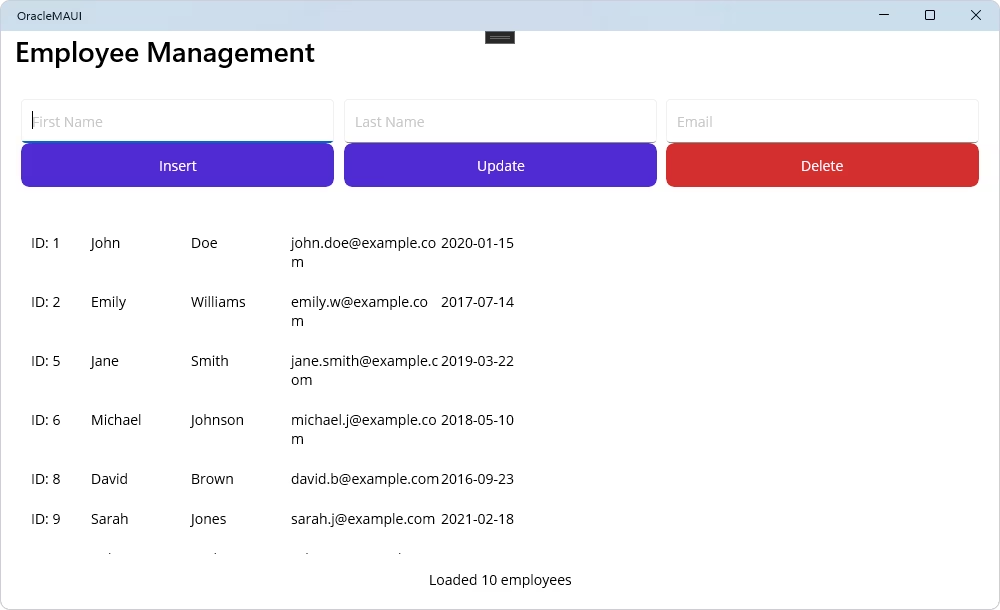
Add the DeleteEmployee method to EmployeeService.cs. This method executes a DELETE query targeting a specific employee by their ID.
// OracleMAUI/EmployeeService.cs
// ... (add this method inside the EmployeeService class)
    public static void DeleteEmployee(int employeeId)
    {
        using var connection = DatabaseConnection.GetConnection();
        connection.Open();

        using var command = new OracleCommand(
            "DELETE FROM EMPLOYEES WHERE EMPLOYEE_ID = :employeeId",
            connection);

        command.Parameters.Add(new OracleParameter("employeeId", employeeId));

        command.ExecuteNonQuery();
}Finally, add the OnDeleteClicked method to MainPage.xaml.cs. This method first confirms the user's action with a pop-up dialog before proceeding with deletion.
// OracleMAUI/MainPage.xaml.cs
// ... (add this method inside the MainPage class)
    private async void OnDeleteClicked(object? sender, EventArgs e)
    {
        if (_selectedEmployee == null)
        {
            await DisplayAlert("Validation", "Please select an employee to delete.", "OK");
            return;
        }

        var confirm = await DisplayAlert("Confirm Delete",
            $"Delete employee {_selectedEmployee.FirstName} {_selectedEmployee.LastName}?",
            "Yes", "No");

        if (!confirm) return;

        try
        {
            EmployeeService.DeleteEmployee(_selectedEmployee.EmployeeId);
            StatusLabel.Text = $"Deleted: {_selectedEmployee.FirstName} {_selectedEmployee.LastName}";
            ClearForm();
            LoadEmployees();
        }
        catch (Exception ex)
        {
            StatusLabel.Text = $"Error: {ex.Message}";
        }
    }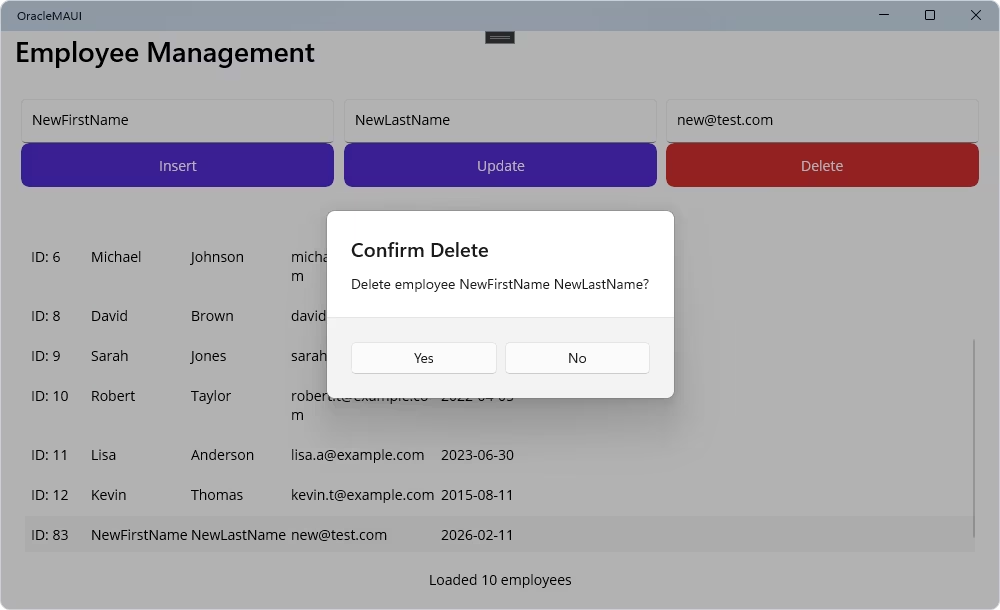
You have now completed the application. It has full CRUD functionality, allowing users to read, create, update, and delete records from the Oracle database in a user-friendly way.
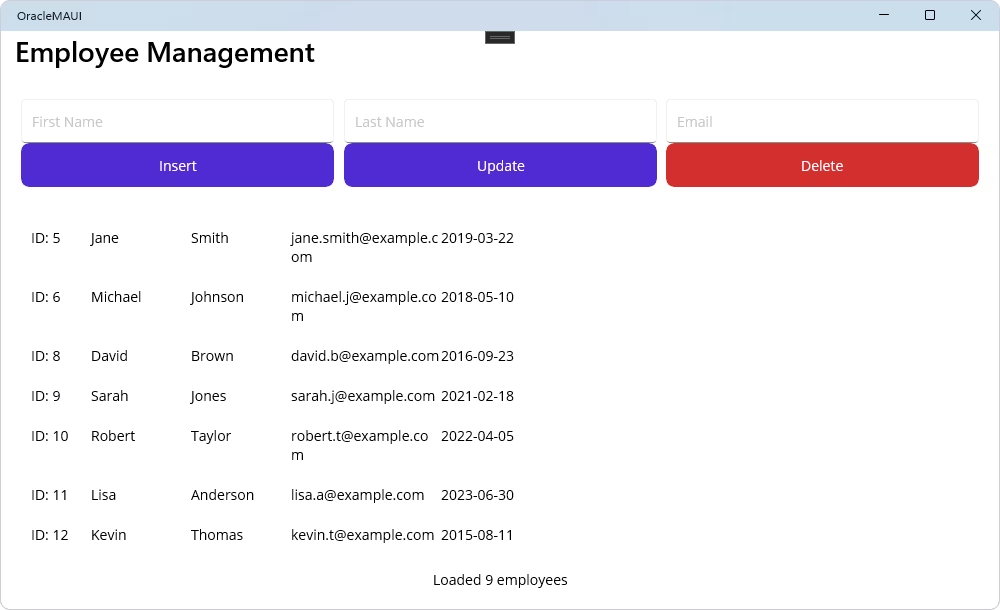

In this guide, we've explored how to perform essential CRUD operations using Oracle in a .NET MAUI application. With these steps, you have gained a foundational understanding of how to expand your app's functionality and interact with complex data. Continue experimenting with these operations to build, optimize, and customize your applications to meet new data needs.
License Key parameter for a working connection.
License Key value, then create an OracleConnection instance with this string and call Open() for it inside a try-catch block to test and handle connection errors.
Scaffold-DbContext with a dotConnect connection string (including License Key) to generate the DbContext and entity classes.

I'm a technical content writer who loves turning complex topics — think SQL, connectors, and backend chaos–into content that actually makes sense (and maybe even makes you smile). I write for devs, data folks, and curious minds who want less fluff and more clarity. When I'm not wrangling words, you'll find me dancing salsa, or hopping between cities.

