
You can install the driver by using the Windows installer.
After you receive the license key, add it to your connection strings to connect to the data source.
This guide provides a detailed, step-by-step walkthrough for creating an ASP.NET Core Blazor Web App that performs full CRUD (Create, Read, Update, Delete) operations on an Oracle database. We will build the application progressively, with each section representing a complete, functional stage of development.

Fully supports EF Core, Dapper, NHibernate, LinqConnect, and other technologies for efficient data management.

Conforms to the latest ADO.NET standards and innovations for seamless integration with .NET applications.

Offers many Oracle-specific features and fully supports all unique data types for accurate and complete data representation.

Provides robust security with support for SSL/SSH connections, connecting via proxy servers, embedded servers, and HTTP tunneling.

Features native integration with Visual Studio and complete design-time support for accelerated development.

Includes priority support, detailed documentation, and regular updates for continuous improvement.
You can start using dotConnect for Oracle immediately with a 30-day free trial. Choose one of the following installation options:
You can install the driver by using the Windows installer.
After you receive the license key, add it to your connection strings to connect to the data source.
Using the built-in Data Explorer, first, configure the connection to Oracle and then select the objects you want to use in your project.
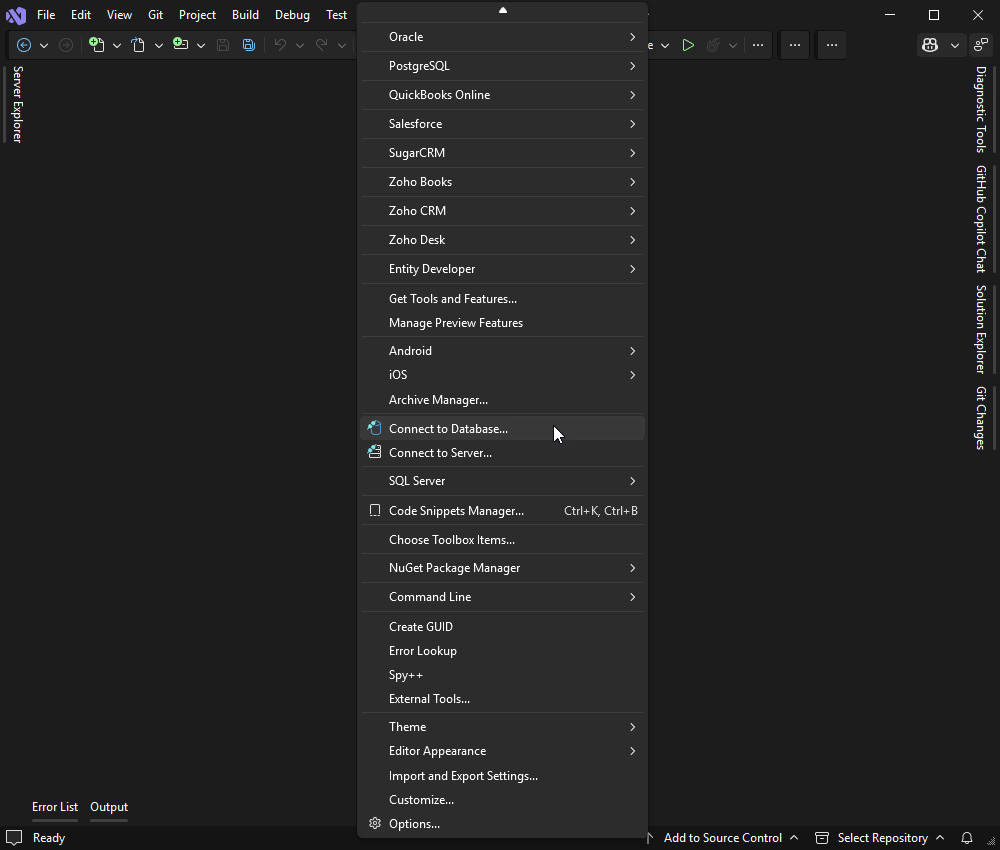
1. In Visual Studio, click Tools on the menu bar and select Connect to Database from the drop-down list.
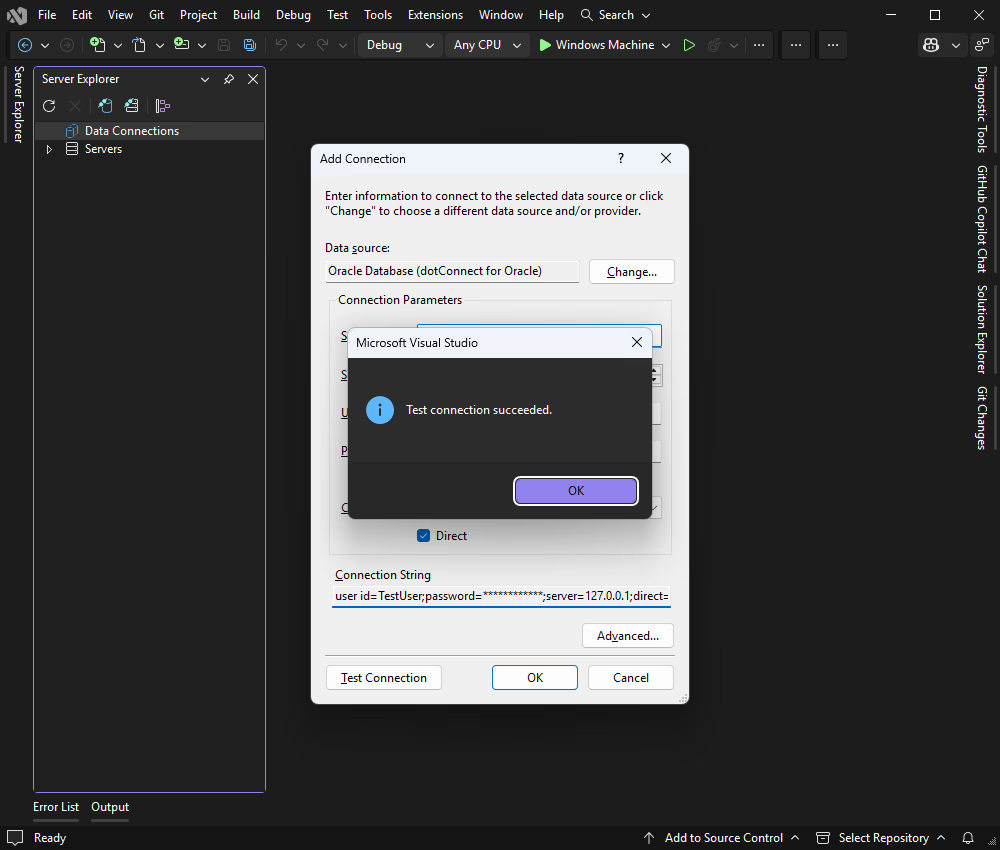
2. In the Add Connection window, choose the Oracle data source, fill in the connection details for your Oracle database, and click OK to proceed.
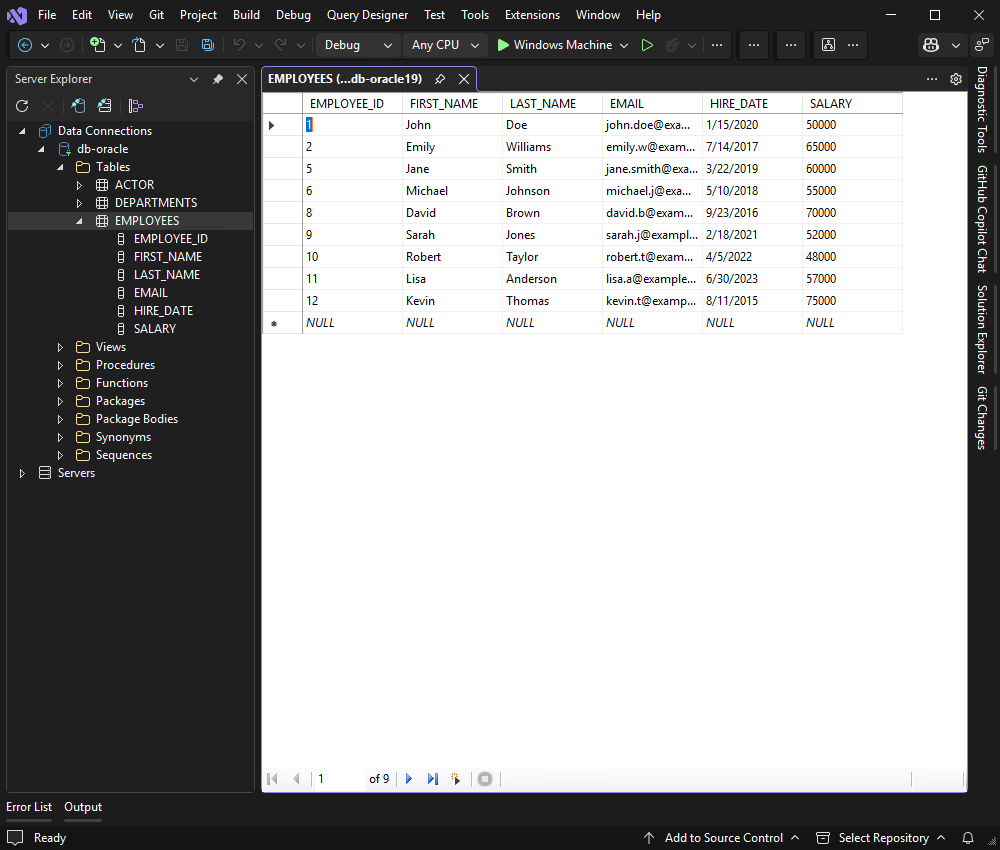
3. In Server Explorer, select the tables and fields you want to use. In our tutorial, we will use the EMPLOYEES table.
Open the appsettings.json file and add your Oracle connection string:
{
  "ConnectionStrings": {
    "DefaultConnection": "Direct=True;Host=127.0.0.1;Service Name=OracleDb;User ID=TestUser;Password=TestPassword;License key=**********"
  },
  "Logging": {
    "LogLevel": {
      "Default": "Information",
      "Microsoft.AspNetCore": "Warning"
    }
  },
  "AllowedHosts": "*"
}In this foundational step, our goal is to establish a connection to the Oracle database and display data in a read-only table. This ensures our database connection and data service are correctly configured and provides the foundation for the other CRUD operations.
In your project, create a new folder named Data. Inside it, create a class file named Employee.cs. This class maps directly to the columns of the EMPLOYEES table.
// Data/Employee.cs
namespace OracleBlazor.Data;

public class Employee
{
    public int EmployeeId { get; set; }
    public string FirstName { get; set; } = string.Empty;
    public string LastName { get; set; } = string.Empty;
    public string Email { get; set; } = string.Empty;
    public DateTime HireDate { get; set; }
    public decimal Salary { get; set; }
}In the Data folder, create a new class EmployeeService.cs. This service encapsulates all database interaction logic. The connection string is read through IConfiguration, which is provided via dependency injection.
// Data/EmployeeService.cs
using Devart.Data.Oracle;

namespace OracleBlazor.Data;

public class EmployeeService
{
    private readonly string _connectionString;

    public EmployeeService(IConfiguration configuration)
    {
        _connectionString = configuration.GetConnectionString("DefaultConnection")!;
    }

    public async Task<List<Employee>> GetAllEmployeesAsync()
    {
        var employees = new List<Employee>();
        using var connection = new OracleConnection(_connectionString);
        await connection.OpenAsync();
        using var command = new OracleCommand(
            "SELECT EMPLOYEE_ID, FIRST_NAME, LAST_NAME, EMAIL, HIRE_DATE, SALARY FROM EMPLOYEES ORDER BY EMPLOYEE_ID",
            connection);
        using var reader = await command.ExecuteReaderAsync();
        while (await reader.ReadAsync())
        {
            employees.Add(new Employee
            {
                EmployeeId = reader.GetInt32(reader.GetOrdinal("EMPLOYEE_ID")),
                FirstName = reader.GetString(reader.GetOrdinal("FIRST_NAME")),
                LastName = reader.GetString(reader.GetOrdinal("LAST_NAME")),
                Email = reader.GetString(reader.GetOrdinal("EMAIL")),
                HireDate = reader.GetDateTime(reader.GetOrdinal("HIRE_DATE")),
                Salary = reader.GetDecimal(reader.GetOrdinal("SALARY"))
            });
        }
        return employees;
    }
}In Program.cs, register the EmployeeService as a scoped service so it can be injected into our Blazor components.
// Program.cs
using OracleBlazor.Components;
using OracleBlazor.Data;

var builder = WebApplication.CreateBuilder(args);

// Add services to the container.
builder.Services.AddRazorComponents()
    .AddInteractiveServerComponents();

// Register the EmployeeService
builder.Services.AddScoped<EmployeeService>();

var app = builder.Build();

// Configure the HTTP request pipeline.
if (!app.Environment.IsDevelopment())
{
    app.UseExceptionHandler("/Error", createScopeForErrors: true);
    app.UseHsts();
}
app.UseStatusCodePagesWithReExecute("/not-found", createScopeForStatusCodePages: true);
app.UseHttpsRedirection();

app.UseAntiforgery();

app.MapStaticAssets();
app.MapRazorComponents<App>()
    .AddInteractiveServerRenderMode();

app.Run();In the Components/Pages folder, create a new Razor Component named Employees.razor. This page fetches and displays the data in a table.
@page "/employees"
@rendermode InteractiveServer
@using OracleBlazor.Data
@inject EmployeeService EmployeeSvc

<PageTitle>Employees</PageTitle>

<h1>Employees</h1>

@if (employees == null)
{
    <p><em>Loading...</em></p>
}
else
{
    <table class="table">
        <thead>
            <tr>
                <th>ID</th>
                <th>First Name</th>
                <th>Last Name</th>
                <th>Email</th>
                <th>Hire Date</th>
                <th>Salary</th>
            </tr>
        </thead>
        <tbody>
            @foreach (var emp in employees)
            {
                <tr>
                    <td>@emp.EmployeeId</td>
                    <td>@emp.FirstName</td>
                    <td>@emp.LastName</td>
                    <td>@emp.Email</td>
                    <td>@emp.HireDate.ToString("yyyy-MM-dd")</td>
                    <td>@emp.Salary.ToString("N0")</td>
                </tr>
            }
        </tbody>
    </table>
}

@code {
    private List<Employee>? employees;

    protected override async Task OnInitializedAsync()
    {
        employees = await EmployeeSvc.GetAllEmployeesAsync();
    }
}In Components/Layout/NavMenu.razor, add a link to your new page inside the <nav> element.
<div class="nav-item px-3">
    <NavLink class="nav-link" href="employees">
        <span class="bi bi-people-fill" aria-hidden="true"></span> Employees
    </NavLink>
</div>
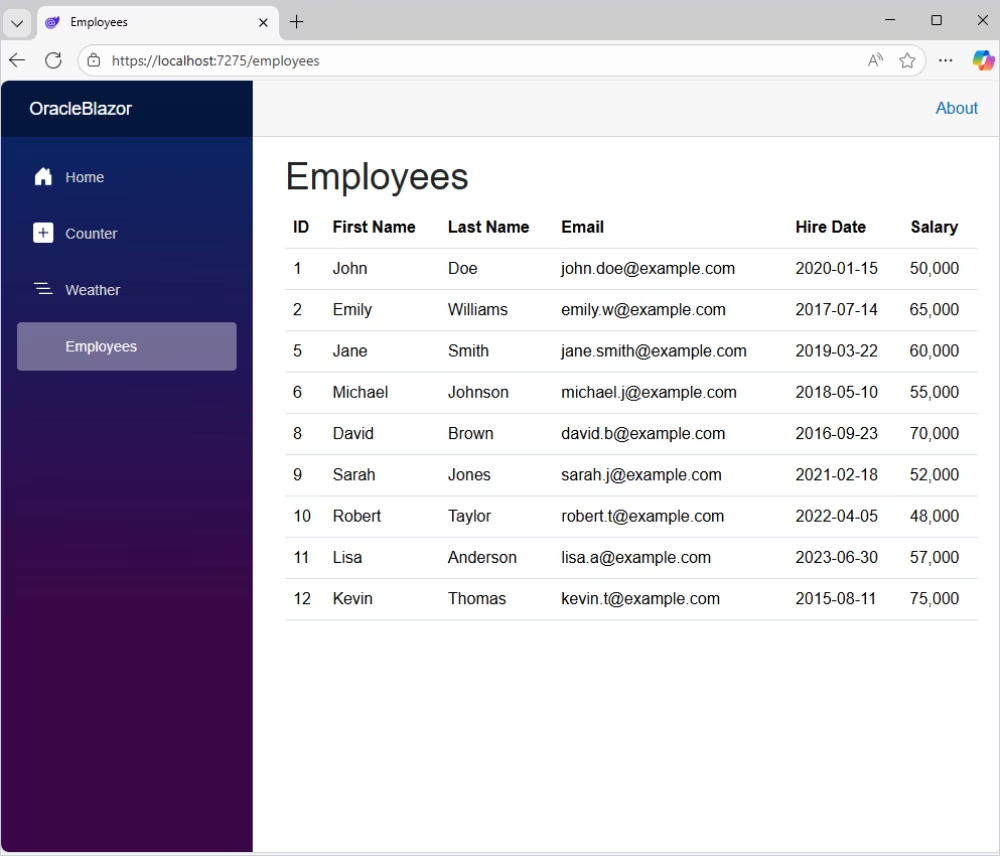
You have now built a functional, read-only Blazor application that connects to an Oracle database and displays data in a table. This confirms that your core setup, including the Direct mode connection, dependency injection, and data retrieval, is working correctly.
We will now enhance the application by adding the ability to create new records. This involves adding an EditForm to the UI and implementing the corresponding logic to execute an INSERT SQL command. The new EMPLOYEE_ID is generated using a MAX()+1 subquery, which avoids the need to create a separate Oracle sequence object.
Add the InsertEmployeeAsync method to your EmployeeService.cs file.
// Data/EmployeeService.cs
// ... (add this method inside the EmployeeService class)
public async Task InsertEmployeeAsync(Employee employee)
{
    using var connection = new OracleConnection(_connectionString);
    await connection.OpenAsync();
    using var command = new OracleCommand(
        "INSERT INTO EMPLOYEES (EMPLOYEE_ID, FIRST_NAME, LAST_NAME, EMAIL, HIRE_DATE, SALARY) " +
        "VALUES ((SELECT NVL(MAX(EMPLOYEE_ID),0)+1 FROM EMPLOYEES), :first_name, :last_name, :email, SYSDATE, :salary)",
        connection);
    command.Parameters.AddWithValue(":first_name", employee.FirstName);
    command.Parameters.AddWithValue(":last_name", employee.LastName);
    command.Parameters.AddWithValue(":email", employee.Email);
    command.Parameters.AddWithValue(":salary", employee.Salary);
    await command.ExecuteNonQueryAsync();
}
Modify Employees.razor to add an EditForm for creating new employees. Place this block above the data table.
<h3>Add New Employee</h3>
<EditForm Model="@newEmployee" OnValidSubmit="HandleInsert" FormName="NewEmployeeForm">
    <DataAnnotationsValidator />
    <ValidationSummary />

    <div class="mb-3">
        <label for="newFirstName" class="form-label">First Name</label>
        <InputText id="newFirstName" @bind-Value="newEmployee.FirstName" class="form-control" />
    </div>

    <div class="mb-3">
        <label for="newLastName" class="form-label">Last Name</label>
        <InputText id="newLastName" @bind-Value="newEmployee.LastName" class="form-control" />
    </div>

    <div class="mb-3">
        <label for="newEmail" class="form-label">Email</label>
        <InputText id="newEmail" @bind-Value="newEmployee.Email" class="form-control" />
    </div>

    <div class="mb-3">
        <label for="newSalary" class="form-label">Salary</label>
        <InputNumber id="newSalary" @bind-Value="newEmployee.Salary" class="form-control" />
    </div>

    <button type="submit" class="btn btn-primary">Insert Employee</button>
</EditForm>
<hr />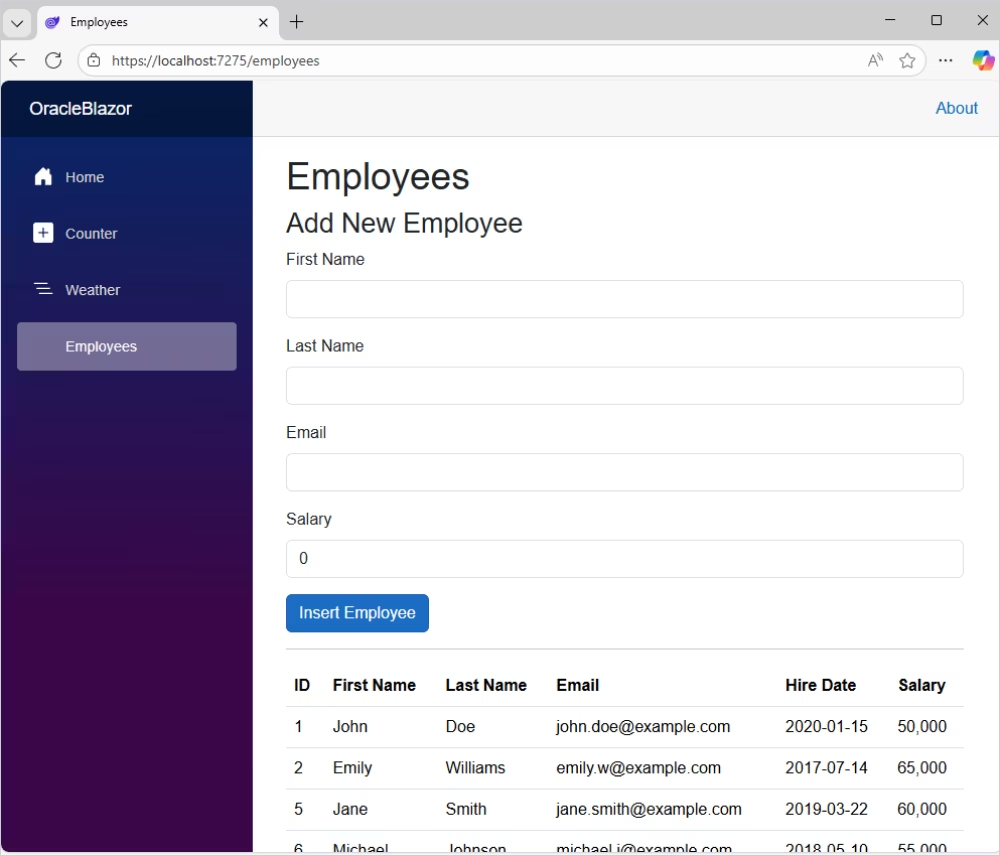
Modify the @code block to add the newEmployee field and the HandleInsert method. Also, refactor the data loading into a reusable LoadEmployees method.
@code {
    private List<Employee>? employees;
    private Employee newEmployee = new();

    protected override async Task OnInitializedAsync()
    {
        await LoadEmployees();
    }

    private async Task LoadEmployees()
    {
        employees = await EmployeeSvc.GetAllEmployeesAsync();
    }

    private async Task HandleInsert()
    {
        await EmployeeSvc.InsertEmployeeAsync(newEmployee);
        newEmployee = new(); // Clear the form after insert
        await LoadEmployees(); // Refresh the list
    }
}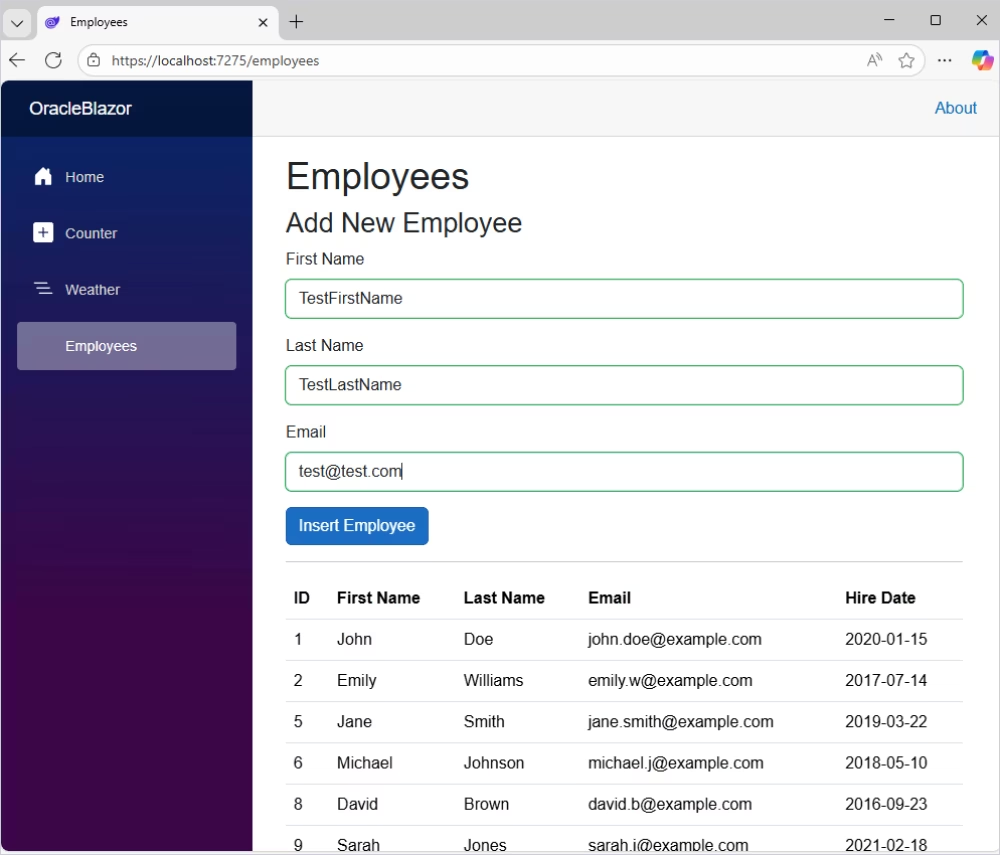
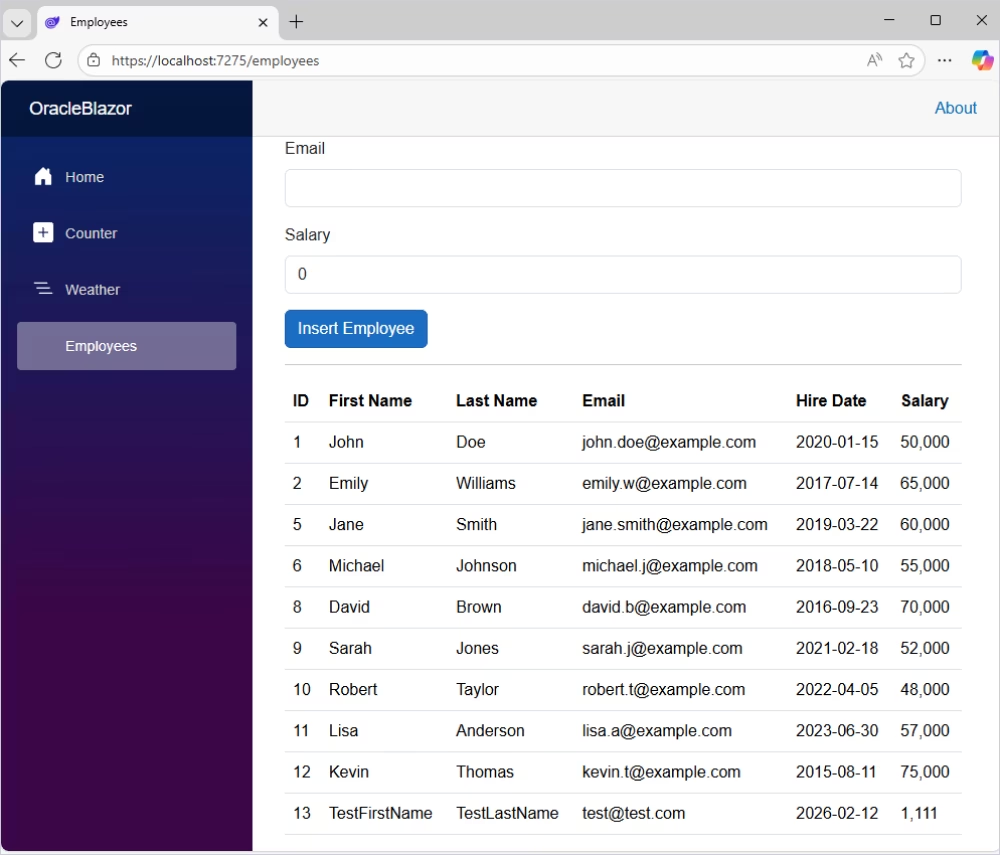
The application can now add new records to the database. Users can enter data in the form, press the Insert Employee button, and the table updates immediately with the new entry. The HIRE_DATE is set automatically to the current date via Oracle's SYSDATE function.
In this step, we will implement the ability to edit existing records. This requires adding an Edit button to each table row and a second EditForm that appears when a record is selected for editing.
Add the UpdateEmployeeAsync method to EmployeeService.cs.
// Data/EmployeeService.cs
// ... (add this method inside the EmployeeService class)
public async Task UpdateEmployeeAsync(Employee employee)
{
    using var connection = new OracleConnection(_connectionString);
    await connection.OpenAsync();
    using var command = new OracleCommand(
        "UPDATE EMPLOYEES SET FIRST_NAME = :first_name, LAST_NAME = :last_name, " +
        "EMAIL = :email, SALARY = :salary WHERE EMPLOYEE_ID = :employee_id",
        connection);
    command.Parameters.AddWithValue(":first_name", employee.FirstName);
    command.Parameters.AddWithValue(":last_name", employee.LastName);
    command.Parameters.AddWithValue(":email", employee.Email);
    command.Parameters.AddWithValue(":salary", employee.Salary);
    command.Parameters.AddWithValue(":employee_id", employee.EmployeeId);
    await command.ExecuteNonQueryAsync();
}Add a conditional EditForm for editing. This form only appears when an employee is selected. Place it between the insert form and the table. Also, add an Edit button to each table row and an empty <th> for the actions column.
<!-- ... (After the 'Add New Employee' form and <hr />) ... -->

@if (employeeToEdit.EmployeeId != 0)
{
    <h3>Edit Employee</h3>
    <EditForm Model="@employeeToEdit" OnValidSubmit="HandleUpdate" FormName="EditEmployeeForm">
        <DataAnnotationsValidator />
        <ValidationSummary />

        <div class="mb-3">
            <label for="editFirstName" class="form-label">First Name</label>
            <InputText id="editFirstName" @bind-Value="employeeToEdit.FirstName" class="form-control" />
        </div>
        <div class="mb-3">
            <label for="editLastName" class="form-label">Last Name</label>
            <InputText id="editLastName" @bind-Value="employeeToEdit.LastName" class="form-control" />
        </div>
        <div class="mb-3">
            <label for="editEmail" class="form-label">Email</label>
            <InputText id="editEmail" @bind-Value="employeeToEdit.Email" class="form-control" />
        </div>
        <div class="mb-3">
            <label for="editSalary" class="form-label">Salary</label>
            <InputNumber id="editSalary" @bind-Value="employeeToEdit.Salary" class="form-control" />
        </div>
        <button type="submit" class="btn btn-success">Save</button>
        <button type="button" class="btn btn-secondary" @onclick="ClearForm">Cancel</button>
    </EditForm>
    <hr />
}

<!-- ... (In the table, add an actions column) ... -->
<th></th>

<!-- ... (In the foreach loop, add the Edit button) ... -->
<td>
    <button class="btn btn-sm btn-warning" @onclick="() => SetEmployeeForUpdate(emp)">Edit</button>
</td>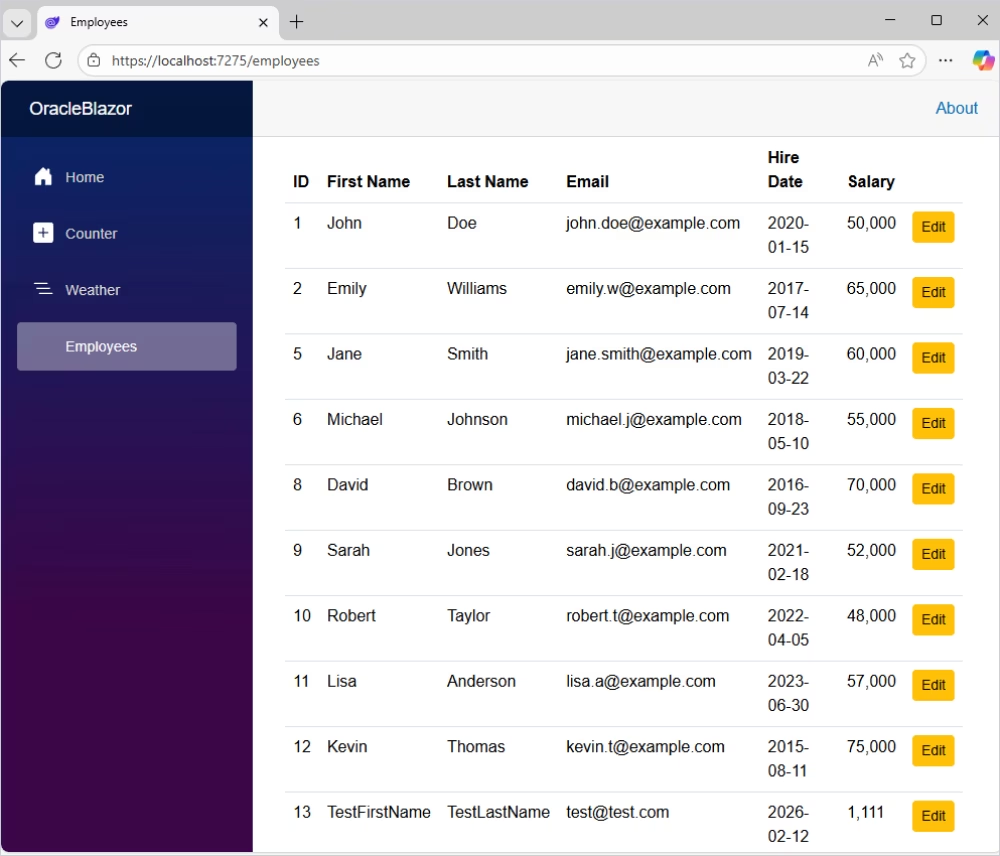
Add the employeeToEdit field and the SetEmployeeForUpdate, HandleUpdate, and ClearForm methods to the @code block.
@code {
    private List<Employee>? employees;
    private Employee newEmployee = new();
    private Employee employeeToEdit = new();

    // ... (existing OnInitializedAsync, LoadEmployees, HandleInsert methods) ...

    private void SetEmployeeForUpdate(Employee employee)
    {
        // Create a copy to avoid modifying the list directly
        employeeToEdit = new Employee
        {
            EmployeeId = employee.EmployeeId,
            FirstName = employee.FirstName,
            LastName = employee.LastName,
            Email = employee.Email,
            Salary = employee.Salary
        };
    }

    private async Task HandleUpdate()
    {
        await EmployeeSvc.UpdateEmployeeAsync(employeeToEdit);
        ClearForm();
        await LoadEmployees(); // Refresh the list
    }

    private void ClearForm()
    {
        employeeToEdit = new(); // Reset to hide the edit form
    }
}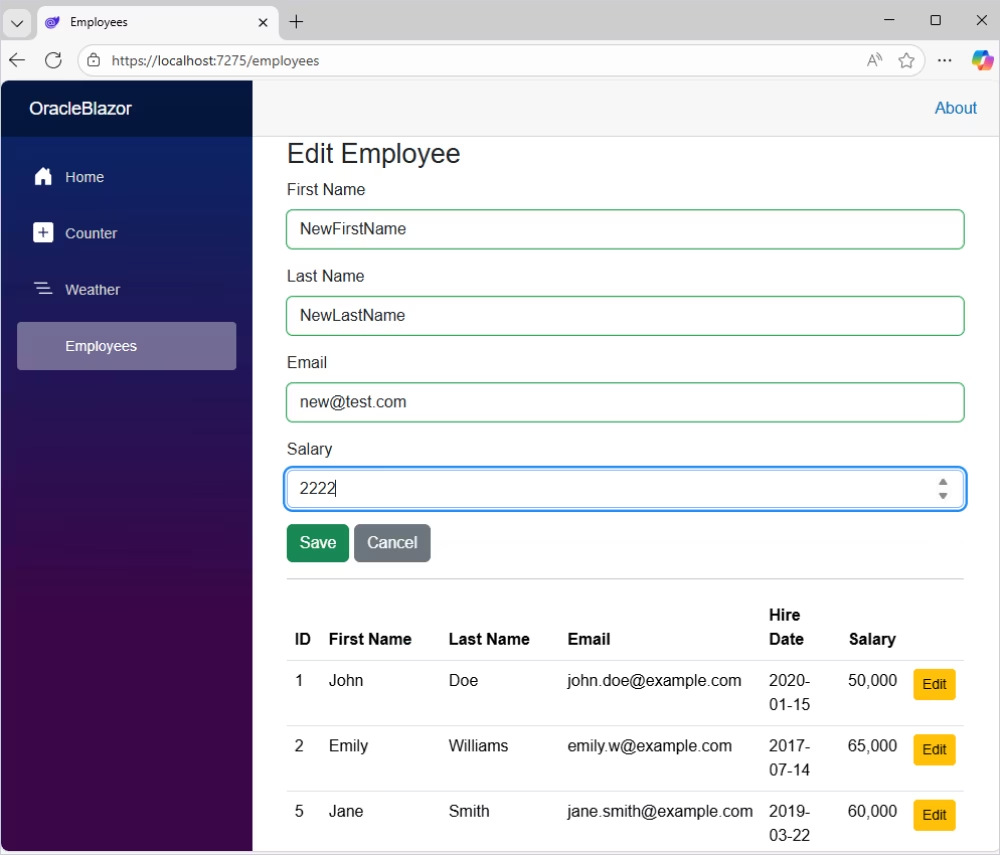
The application now supports editing data. Users can click Edit on any employee, modify the employee's details in the form, and save the changes to the database. Selecting Cancel hides the edit form without saving.
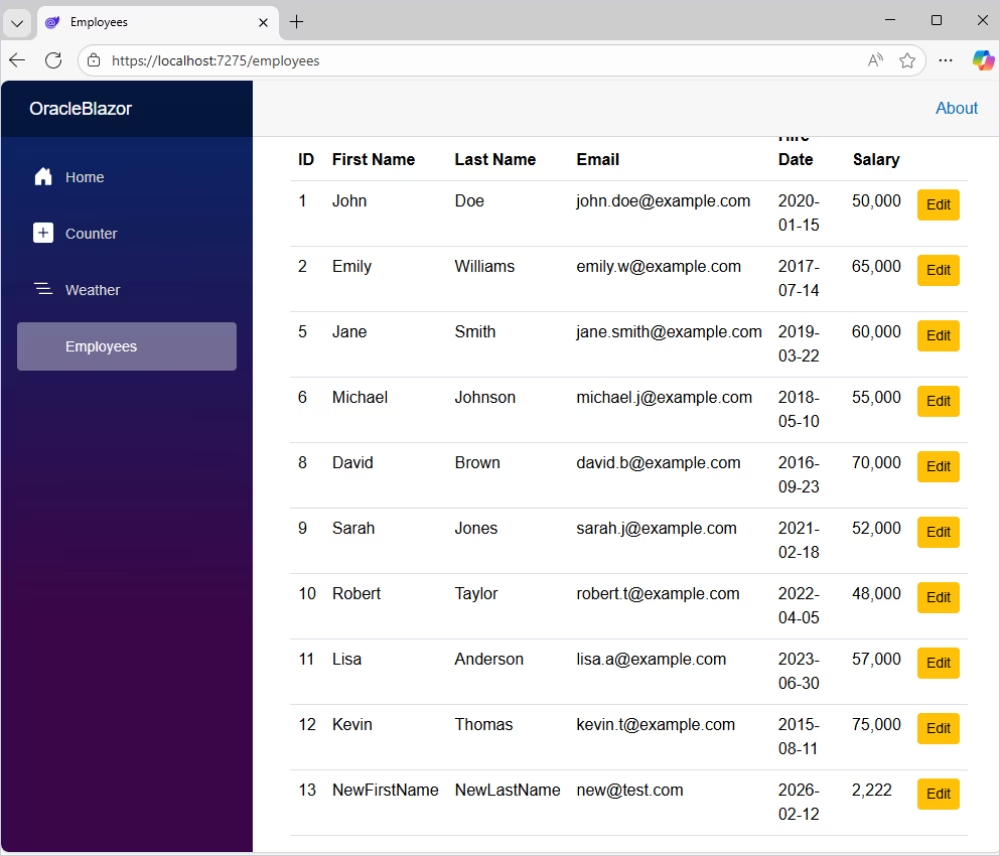
In the final step, we will implement the delete functionality. This involves adding a Delete button to each table row and using Blazor's JavaScript Interop to display a browser confirmation dialog before deleting the row.
Add the DeleteEmployeeAsync method to EmployeeService.cs.
// Data/EmployeeService.cs
// ... (add this method inside the EmployeeService class)
    public async Task DeleteEmployeeAsync(int employeeId)
    {
        using var connection = new OracleConnection(_connectionString);
        await connection.OpenAsync();
        using var command = new OracleCommand(
            "DELETE FROM EMPLOYEES WHERE EMPLOYEE_ID = :employee_id",
            connection);
        command.Parameters.AddWithValue(":employee_id", employeeId);
        await command.ExecuteNonQueryAsync();
    }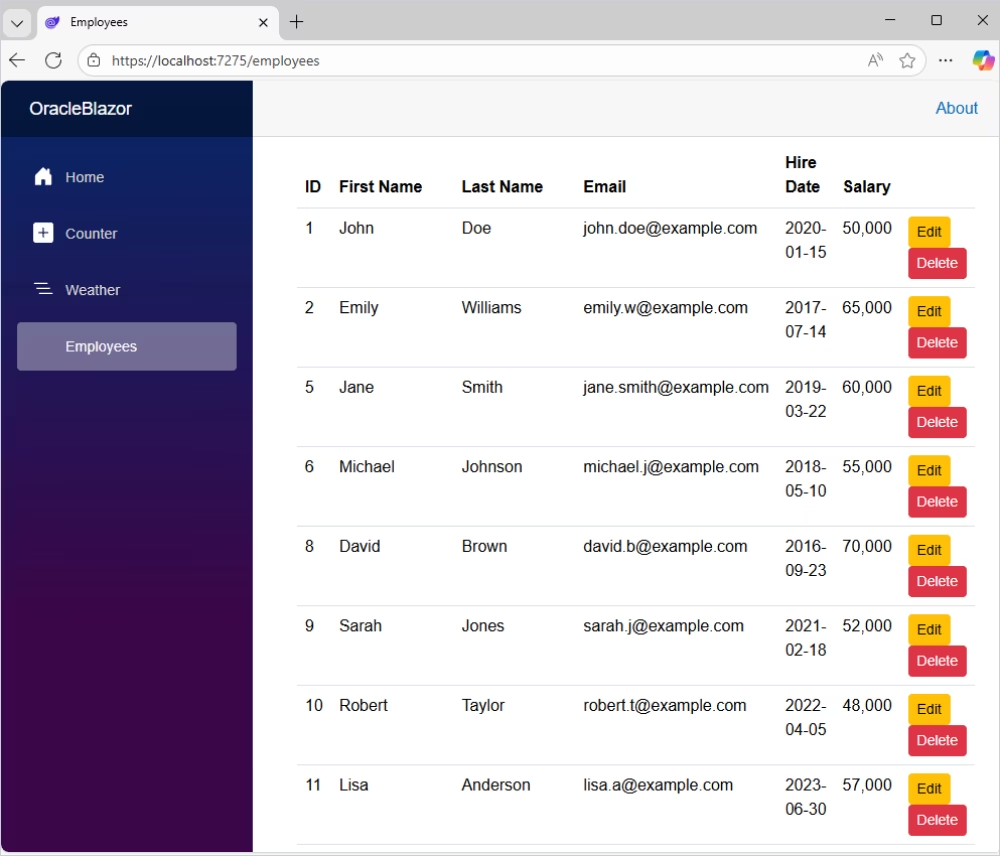
First, inject the IJSRuntime service at the top of the file. Then add a Delete button next to the existing Edit button in each table row.
@inject IJSRuntime JSRuntime

<!-- ... (In the foreach loop, next to the Edit button) ... -->
<td>
    <button class="btn btn-sm btn-warning" @onclick="() => SetEmployeeForUpdate(emp)">Edit</button>
    <button class="btn btn-sm btn-danger" @onclick="() => HandleDelete(emp)">Delete</button>
</td>
Add the HandleDelete method to the @code block. This method invokes the browser's native confirm() dialog via JavaScript Interop. The record is only deleted if the user clicks OK.
// ... (add this method inside the @code block)
private async Task HandleDelete(Employee employee)
{
    bool confirmed = await JSRuntime.InvokeAsync<bool>("confirm",
        $"Are you sure you want to delete {employee.FirstName} {employee.LastName}?");
    if (confirmed)
    {
        await EmployeeSvc.DeleteEmployeeAsync(employee.EmployeeId);
        await LoadEmployees(); // Refresh the list
    }
}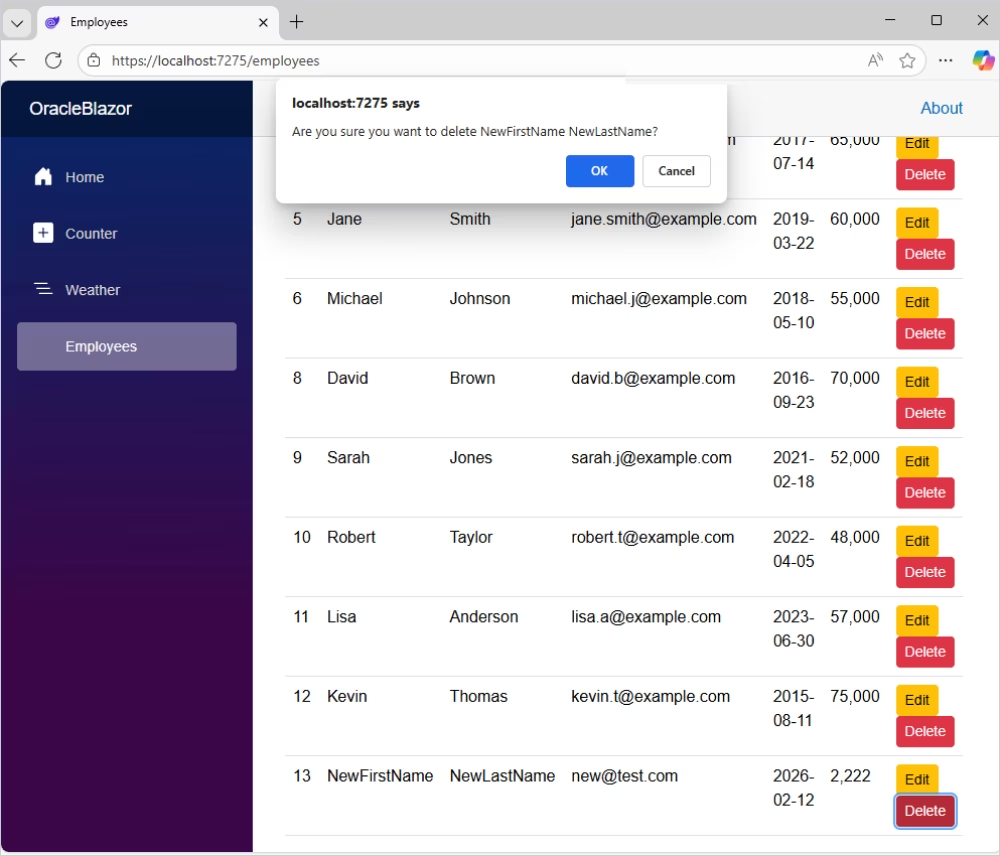
You have now completed the Blazor application. It provides full CRUD functionality, allowing users to read, create, update, and delete records in the Oracle database through a modern web interface.
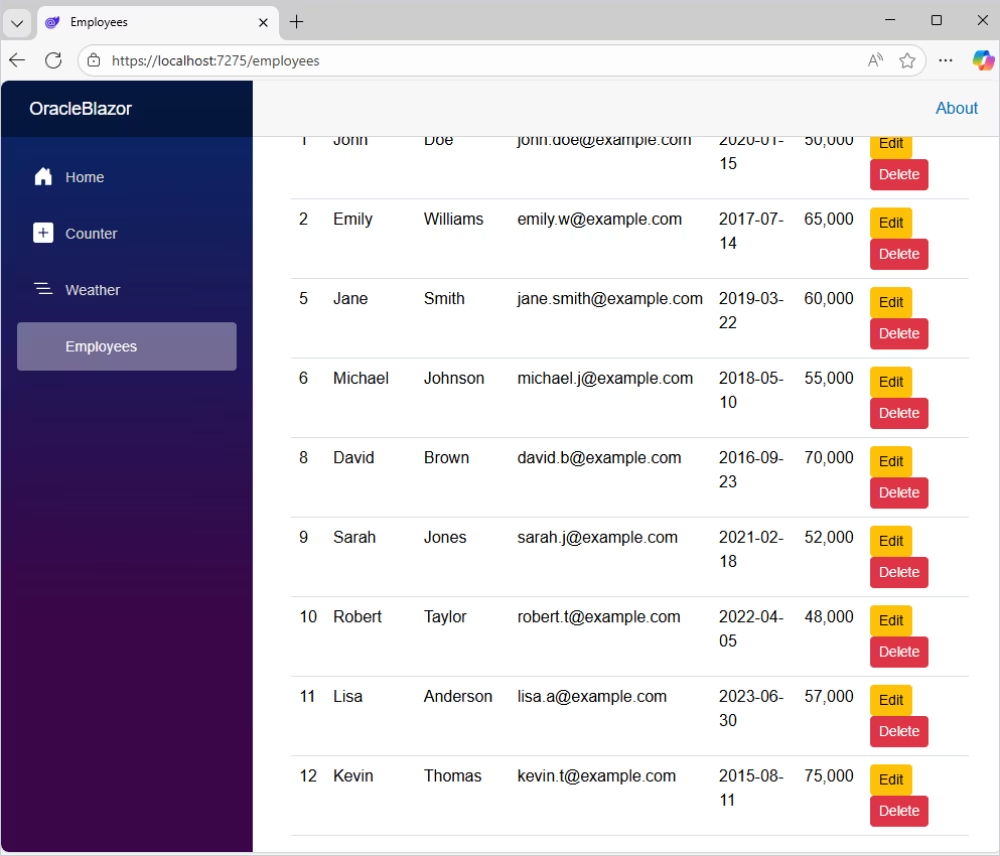

In this tutorial, we explored how to establish a connection between a Blazor application and an Oracle database using dotConnect for Oracle. Together, we walked through, inserting data, retrieving records, and performing update and delete operations. Thus, the approach covered in this tutorial provides a solid foundation for building agile, data-driven applications that leverage data and integrate with Oracle databases.
License Key parameter for a working connection.
License Key value, then create an OracleConnection instance with this string and call Open() for it inside a try-catch block to test and handle connection errors.
Scaffold-DbContext with a dotConnect connection string (including License Key) to generate the DbContext and entity classes.

I'm a technical content writer who loves turning complex topics—think SQL, connectors, and backend chaos–into content that actually makes sense (and maybe even makes you smile). I write for devs, data folks, and curious minds who want less fluff and more clarity. When I'm not wrangling words, you'll find me dancing salsa, or hopping between cities.

