SQL Server Data Tools (SSDT) has long been the default for SQL Server development, but is it still enough? As modern databases become more diverse, SSDT's rigid focus on SQL Server, lack of advanced performance tools, and limited cross-platform support leave many teams struggling. If your database needs are growing beyond SQL Server—or you want more automation, performance optimization, and flexibility—you'll need an upgrade.
This guide presents the top tools developers are using to move beyond SQL Server Tools. But before we begin, let's explore the SSDT toolset.
What is SQL Server Data Tools (SSDT)?
SQL Server Data Tools (SSDT) is a Microsoft extension that enables database development, management, and deployment for SQL Server and Azure SQL databases. It lets developers design schemas, version their SQL code, and automate deployments—all within Visual Studio, the same IDE used for application development.
SSDT key features
SSDT brings powerful database development tools to Visual Studio. Here's what it does best to simplify design and deployment:
- Schema design and management: A visual editor simplifies creating and modifying database structures without writing scripts.
- Version control and change tracking: Support for Git and Azure DevOps makes managing schema changes as seamless as handling application source code.
- Automated deployment and schema comparison: Automation ensures smooth database updates across development, testing, and production.
- Project-based development: SSDT treats database changes as structured projects, keeping workflows efficient and collaborative.
Why consider SSDT alternatives
Unlike some of the best SQL admin tools, SSDT is restricted to SQL Server, limiting teams that need multi-database support. Alternative SQL client tools offer more flexibility and extensibility for diverse environments.
Here is a closer look at SSDT's limitations:
- Locked to SQL Server: No native support for MySQL, PostgreSQL, or NoSQL databases, limiting its use for teams with diverse tech stacks.
- Windows-only: While many teams work on macOS and Linux, SSDT remains stuck on Windows.
- Weak performance optimization: No real-time query profiling, indexing recommendations, or advanced execution plan analysis.
- Rigid development workflow: SSDT enforces a strict project-based model, making it less flexible for teams using custom CI/CD pipelines.
- Limited integrations: Compared to alternatives with extensive plugin ecosystems, SSDT lacks third-party support, making customization difficult.
For teams working exclusively within SQL Server, SSDT might still be useful. But for those who go beyond, stronger alternatives are available.
Top SSDT alternatives for database developers
Here are some of the best SQL development tools that can replace SSDT.
Company: Devart | Founded: 1997 | Country: Czech Republic

dbForge Studio for SQL Server is a feature-rich SQL Server IDE designed for faster coding, smarter debugging, and seamless version control. It includes advanced query optimization, schema synchronization, and performance tuning, making it a strong SSDT alternative.
Key features:
- Advanced SQL coding assistance: Features intelligent code completion, formatting, and snippets to speed up development.
- Integrated AI Assistant: Provides real-time support in query generation and optimization and SQL troubleshooting.
- Database modeling and design: Offers visual schema editing tools that make database structure management intuitive.
- Data comparison and synchronization: Helps detect schema differences and sync data across environments for consistency.
- Integrated debugging: Includes a T-SQL debugger to test and troubleshoot database code efficiently.
- Version control integration: Supports popular source control systems, enabling collaborative database development.
dbForge Studio for SQL Server
The world's most feature-rich and versatile IDE for database development, management, and administration, as well as data management, analysis, and reporting
Microsoft SQL Server Management Studio (SSMS)
Company: Microsoft | Founded: 1975 | Country: United States

SSMS is one of Microsoft's widely used SQL management studio tools, providing a full suite of features for database administration, query development, and performance monitoring. It's the go-to choice for SQL Server administrators and developers who need a reliable, Microsoft-backed solution for managing SQL infrastructure.
Key features:
- Object explorer: Provides a hierarchical view of databases, tables, and other objects, making navigation and management intuitive.
- Query editor: Comes with syntax highlighting, IntelliSense, and an integrated debugger, helping developers write and optimize queries faster.
- Performance monitoring: Offers real-time insights into server performance, resource usage, and query execution efficiency.
- Security management: Enables fine-grained control over database access, user roles, and permissions, ensuring data security.
Azure Data Studio
Company: Microsoft | Founded: 1975 | Country: United States

Azure Data Studio is a modern, cross-platform Microsoft SQL tool built for flexibility. It supports Windows, macOS, and Linux, integrates Git and terminal workflows, and offers a marketplace of extensions. For teams needing a lightweight yet powerful alternative, it's a compelling choice.
Please note that Azure Data Studio will be discontinued in 2026. This means developers and data engineers will not be able to use the tool when it officially retires on February 28, 2026.
Key features:
- Cross-platform support: Runs on Windows, macOS, and Linux, making it ideal for teams working across multiple operating systems.
- Integrated terminal and Git support: Allows users to execute scripts, automate tasks, and manage source control without leaving the editor.
- Extensions marketplace: Supports a wide range of plugins, enabling customization for query tuning, data visualization, and additional database support.
- Notebooks: Provides Jupyter notebook integration, allowing developers to mix SQL queries with interactive documentation for data analysis and collaboration.
Aqua Data Studio
Company: Idera, Inc. | Founded: 2000 | Country: United States
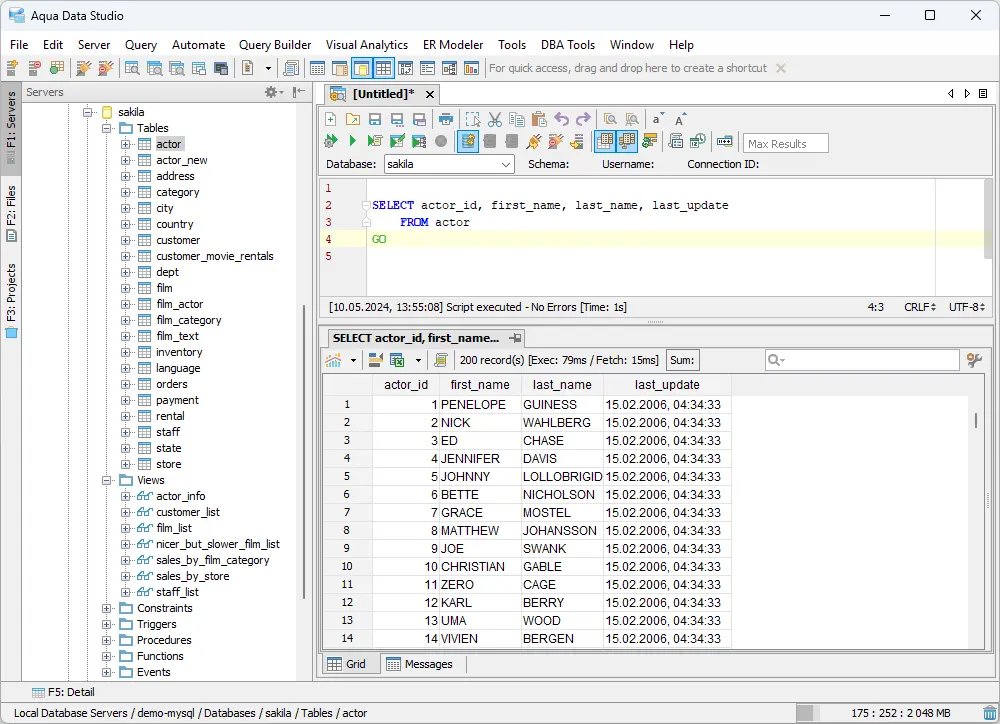
Aqua Data Studio is a multi-database IDE with strong query tools, visual analytics, and schema management. It supports SQL Server, MySQL, PostgreSQL, and other major databases, making it ideal for teams managing diverse data environments.
Key features:
- SQL Query Analyzer: Features a visual query builder and optimization tools to streamline SQL development and improve performance.
- Data visualization: Converts complex datasets into interactive charts and graphs, making data analysis more intuitive.
- Schema and data compare: Helps detect database differences and synchronize changes, simplifying database migrations and updates.
- Multi-database support: Works across various relational databases, making it ideal for developers who manage multiple database types.
DataGrip
Company: JetBrains | Founded: 2000 | Country: Czech Republic

DataGrip, a developer-focused SQL IDE from JetBrains, offers intelligent query management, deep database introspection, and smooth cross-platform usability. With AI-powered features, it helps developers write better SQL, optimize queries, and navigate complex database structures with ease. While it's a paid tool, JetBrains provides a free trial, flexible subscription options, and discounts for students and open-source projects.
Key features:
- Intelligent code completion: Improves query efficiency and reduces errors with AI-driven, context-aware suggestions.
- Database introspection: Automatically maps database relationships, helping developers visualize dependencies and optimize performance.
- Version control support: Offers built-in Git integration for schema tracking, rollbacks, and better team collaboration.
- Cross-platform compatibility: Runs on Windows, macOS, and Linux, ensuring flexibility for teams in multi-OS environments.
For developers seeking a feature-rich, AI-driven SQL IDE beyond traditional database tools, DataGrip is a strong contender.
Valentina Studio
Company: Paradigma Software | Founded: 1998 | Country: United States

Valentina Studio is a versatile database management tool designed for developers and database administrators who need powerful query building, schema modeling, and reporting tools. Supporting SQL Server, MySQL, PostgreSQL, and SQLite, it provides flexibility for teams working across multiple databases.
Key features:
- SQL Query Builder: Provides a drag-and-drop interface that allows users to create complex queries without writing SQL manually.
- Database design and modeling: Includes ERD tools for visualizing and editing database structures, making schema management more intuitive.
- Free and pro versions: The free version offers essential database management features, while the Pro version adds advanced performance tuning, reporting, and SQL analysis tools.
Free and open-source alternatives
Not all great SQL tools come with a price tag. Let's explore the free and open-source alternatives.
SQuirreL SQL

For developers looking for free SQL tools, SQuirreL SQL provides essential SQL server data modeling capabilities
without the cost of premium solutions. It is a lightweight, open-source SQL client designed for developers managing multiple databases.
Built on Java, SQuirreL SQL offers a flexible and extensible environment for writing, executing, and managing SQL queries across different platforms.
Key features:
- Multi-database support: Connects to SQL Server, MySQL, PostgreSQL, Oracle, and more, making it ideal for multi-database workflows.
- Graphical user interface: Provides an intuitive interface for executing and managing queries without heavy command-line interaction.
- Plugin architecture: Supports a vast ecosystem of plugins, enabling developers to extend functionality for performance analysis, automation, and data visualization.
How to choose the right SSDT alternative
The right SSDT alternative can enhance performance, simplify workflows, and expand cross-platform support. When evaluating SQL tools, consider the following factors:
- Ease of use: If you're switching from SQL Server development tools, consider solutions that feel intuitive, minimize frustration, and don't require weeks of training. Some tools have steep learning curves,
while others offer drag-and-drop simplicity.
- Performance and optimization: Some teams just need an SQL editor. Others need real-time performance insights, query profiling, and automation. If you're working with large databases, performance tools make a big difference.
- Integrations: If your team manages multiple databases, SSDT's SQL Server-only support won't cut it. Choosing a tool with broad database compatibility can save headaches later.
- Categories: Not all SQL tools are built for the same purpose. Some are developer-focused, some cater to database administrators, and others specialize in data visualization or multi-database management. Choose the tool that aligns with your role and daily tasks.
- Community/plugin ecosystem: SQL tools with strong community support and plugin ecosystems allow for better extensibility and problem-solving.
- Pricing: Free and open-source tools work well for smaller teams, while premium solutions offer enterprise-grade performance optimization and security.
- Support options: Good support can save time and prevent roadblocks. Some tools provide dedicated support teams, while others rely on self-service resources like documentation and community forums. Choose based on your team's needs.
- Supported platforms: The right tool should fit your development environment. Some tools only work on Windows, while others support macOS, Linux, and cloud-based workflows.
Comparison table of SQL data tools
In the table below, we compare some of the best SQL tools you may consider for your business, highlighting their key strengths.
| Tool |
Real-time query profiling |
Query optimization |
Supported databases |
Pricing |
Platforms |
 SSDT
SSDT
|
 |
|
SQL Server, Azure SQL Database |
Free |
Windows |
 dbForge Studio (Express)
|
 |
|
SQL Server, Azure SQL Database |
Subscription
Perpetual
Free Express edition
Free 30-day trial
|
Windows, macOS, Linux |
 Microsoft SSMS
|
|
|
SQL Server, Azure SQL Database |
Free |
Windows |
 Azure Data Studio
|
|
|
SQL Server, PostgreSQL, Azure SQL Database, MySQL |
Free |
Windows, macOS, Linux |
 Aqua Data Studio
|
|
|
SQL Server, MySQL, Oracle, PostgreSQL, MariaDB |
Subscription
14-day free trial |
Windows, macOS, Linux |
 DataGrip
|
|
|
SQL Server, MySQL, PostgreSQL, Oracle, SQLite |
Subscription
30-day free trial |
Windows, macOS, Linux |
 Valentina Studio Free
|
|
|
SQL Server, MySQL, PostgreSQL, SQLite |
Subscription
Free edition |
Windows, macOS, Linux |
 SQuirreL SQL
|
|
|
SQL Server, MySQL, Oracle, PostgreSQL |
Free |
Windows, macOS, Linux |
Conclusion
Microsoft SQL Server tools remain essential, but modern database teams often need more flexibility, optimization, and cross-platform support. Whether it's advanced performance tuning,
multi-database management, or cloud integration, alternatives like dbForge Studio for SQL Server, Azure Data Studio, and DataGrip provide powerful enhancements.
The SQL data tools alternative you choose must depend on your workflow. Decide if you require SQL query tools for performance tuning,
a complete SQL server management tool, or the best SQL software for cross-platform work. Prioritize a tool that simplifies development, optimizes queries, and scales with your database needs.
Hopefully, this SQL tools list helps narrow your options.
For other important SQL development functions, check out dbForge SQL management tools.
FAQ
What is SQL Server Data Tools?
SQL Server Data Tools (SSDT) is a development environment for building, managing, and deploying SQL Server databases within Visual Studio. It provides a comprehensive set of tools for database design, schema comparison, and version control, making it easier for developers to work with SQL Server and Azure SQL databases.
Is SQL Server Data Tools (SSDT) free?
Yes! SSDT is totally free—no hidden fees, no fine print. It comes bundled with Visual Studio, so you just install it and go. The only catch? If you’re using Visual Studio Community, you won’t get some of the Enterprise-exclusive perks. But for most devs, the free version is more than enough.
How do I know if SQL Server Data Tools is installed?
- Launch the Visual Studio Installer and click Modify.
- Go to the Individual Components tab. In the search box, type ssdt, then check SQL Server Data Tools.
- Click Modify and wait for the installation to complete.

