
You can install the driver by using the Windows installer.
After you receive the license key, add it to your connection strings to connect to the data source.
Integrating Dynamics 365 with a .NET MAUI application brings enterprise-grade CRM capabilities directly into your cross-platform app. Whether you need to track sales, manage customer service, or automate marketing workflows, you can work with Dynamics 365 data directly in a .NET MAUI app. In addition, using dotConnect for Dynamics 365 simplifies the process and unlocks powerful, real-time interactions with your business data.
This tutorial will walk you through the steps to connect a .NET MAUI application to Dynamics 365 with the help of dotConnect for Dynamics 365.

dotConnect efficiently resolves the connectivity challenges, allowing .NET applications to work with Dynamics 365 entities directly.

Support for Interactive OAuth authentication allows you to generate access and refresh tokens via a browser-based login flow.
Using familiar ADO.NET classes enables developers to work with Dynamics 365 data according to standard .NET patterns.

The provider is fully compatible with EF Core, Dapper, NHibernate, and other ORM technologies for flexible data access in .NET applications.

The latest ADO.NET specifications ensure reliable integration with .NET frameworks and consistent behavior in enterprise applications.

Priority technical support, full documentation, and product updates grant reliability and compatibility with Dynamics 365 and .NET.
You can start using dotConnect for Dynamics 365 immediately with a 30-day free trial. Choose one of the following installation options:
You can install the driver by using the Windows installer.
After you receive the license key, add it to your connection strings to connect to the data source.
To connect to Dynamics 365 using the built-in Data Explorer, right-click Data connections and choose Add connection.
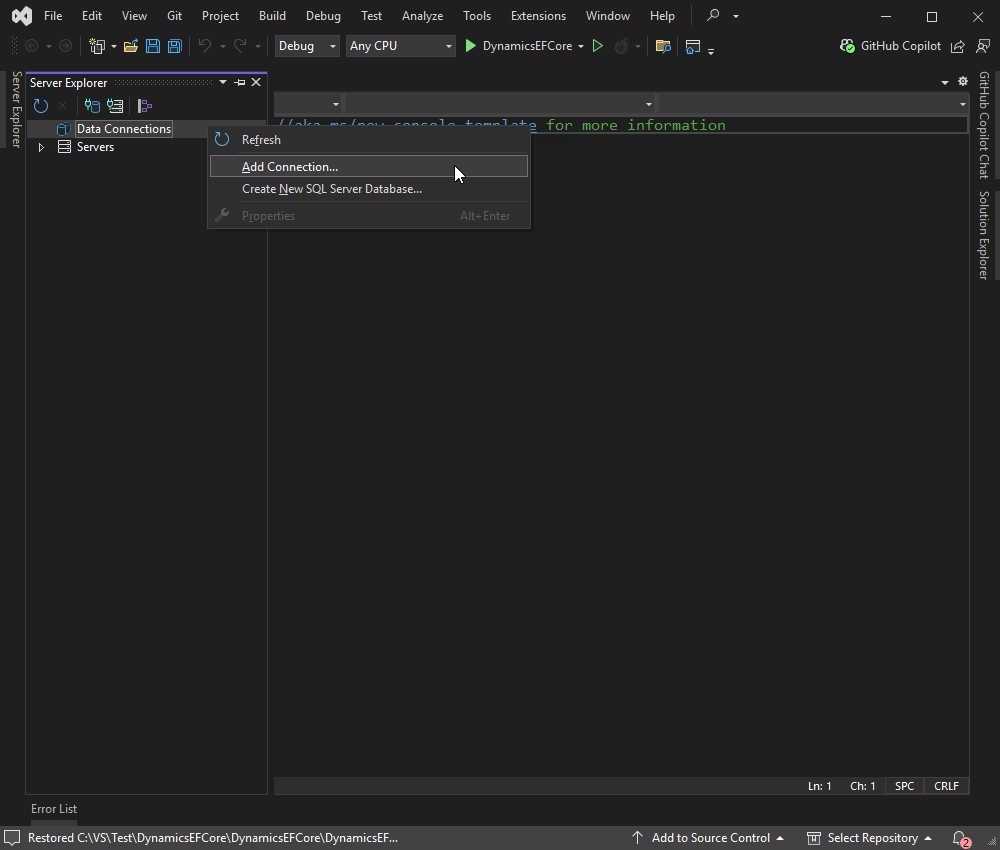
Select Dynamics 365 as the data source, choose Web Login to get credentials, and click Test Connection.
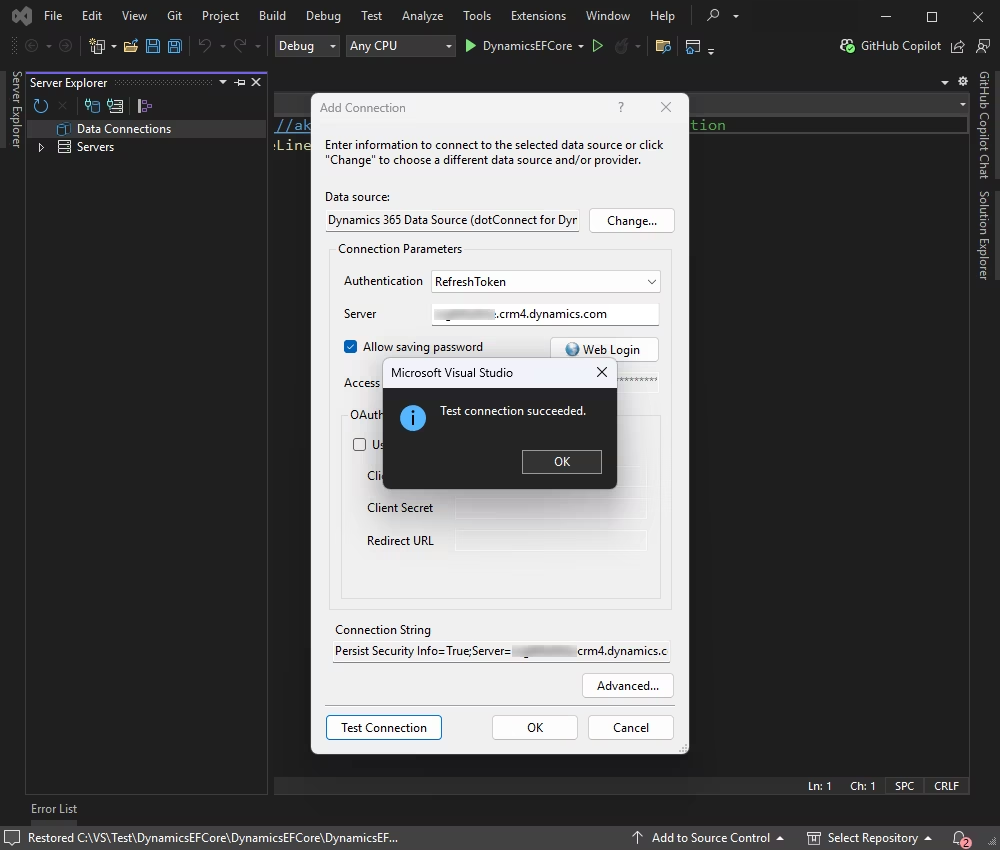
If the test connection is successful, click OK.
Once connected, you can browse tables, execute queries, and manage data directly within the Data Explorer.
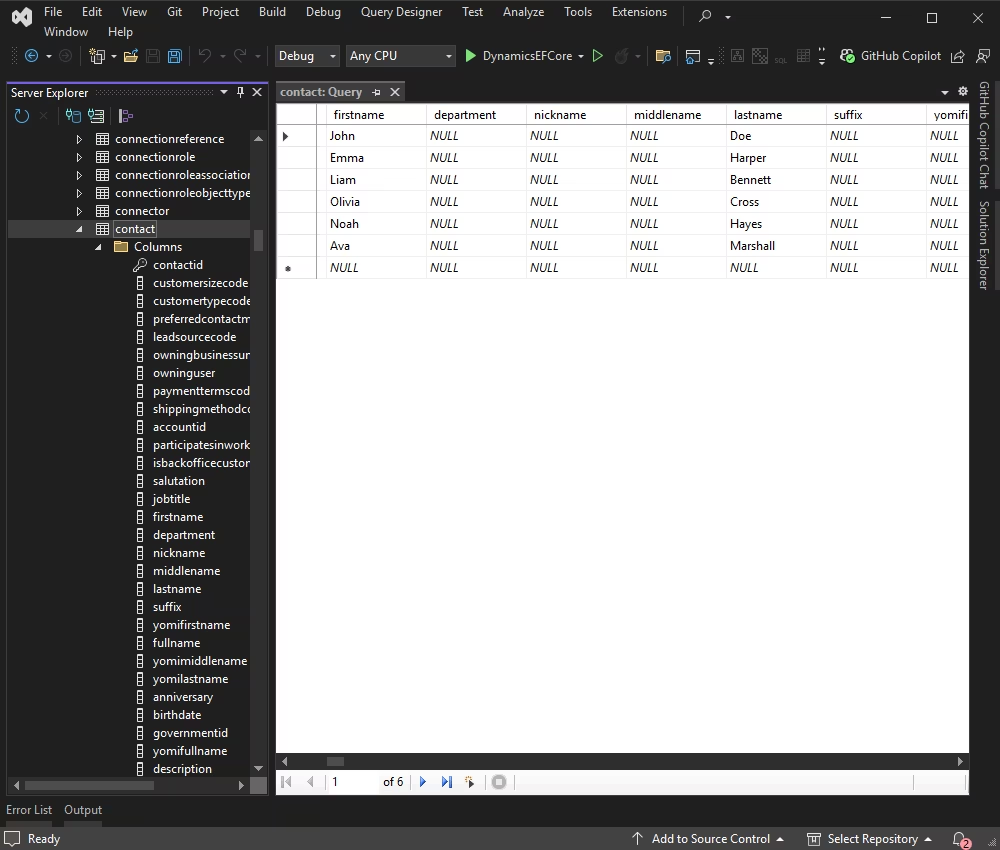
Here is the sample code that will help you connect to Dynamics 365. Complete it by specifying the following credentials: Server, User ID, Password, and License Key.
Create a new class named AppConfig to store your connection string and other configuration settings.
namespace DynamicsMAUI
{
  public static class AppConfig
  {
    public static string ConnectionString
    {
      get;
    } = "Server=******;User ID=******;Password=******;License Key=**********;";
  }
}
Now, let us illustrate the READ, INSERT, and DELETE operations.
In the example below, you can see how to retrieve and display data from Dynamics 365.
Have a look at the code fragment from the MainPage.xaml.cs file. Update the file as shown below so that it displays the connection status and uses the new SQL query.
using System;
using System.Collections.Generic;
using Devart.Data.Dynamics;
using Microsoft.Maui.Controls;

namespace DynamicsMAUI
{
  public partial class MainPage : ContentPage
  {
    public MainPage()
    {
      InitializeComponent();
      CheckConnectionAndFetchData();
    }

    private async void CheckConnectionAndFetchData()
    {
      try
      {
        using (var connection = new DynamicsConnection(AppConfig.ConnectionString))
        {
          await connection.OpenAsync();
          ConnectionStatusLabel.Text = "Connection Status: Connected";
          ConnectionStatusLabel.TextColor = Colors.Green;

          string query = "SELECT roleid, name, businessunitid, overriddencreatedon FROM Role LIMIT 10";

          using (var command = new DynamicsCommand(query, connection))
          {
            using (var reader = await command.ExecuteReaderAsync())
            {
              var roles = new List<Role>();

              while (await reader.ReadAsync())
              {
                roles.Add(new Role
                {
                  RoleId = reader["roleid"].ToString(),
                  Name = reader["name"].ToString(),
                  BusinessUnitId = reader["businessunitid"].ToString(),
                  OverriddenCreatedOn = reader["overriddencreatedon"].ToString()
                });
              }

              RolesListView.ItemsSource = roles;
            }
          }
        }
      }
      catch (Exception ex)
      {
        ConnectionStatusLabel.Text = $"Connection Status: Error - {ex.Message}";
        ConnectionStatusLabel.TextColor = Colors.Red;
        await DisplayAlert("Error", ex.Message, "OK");
      }
    }
  }

  public class Role
  {
    public string RoleId
    {
      get;
      set;
    }
    public string Name
    {
      get;
      set;
    }
    public string BusinessUnitId
    {
      get;
      set;
    }
    public string OverriddenCreatedOn
    {
      get;
      set;
    }
}The MainPage.xaml file should be updated as shown in the example to include a Label for displaying the connection status.
<?xml version="1.0" encoding="utf-8" ?>
<ContentPage xmlns="http://schemas.microsoft.com/dotnet/2021/maui"
             xmlns:x="http://schemas.microsoft.com/winfx/2009/xaml"
             x:Class="DynamicsMAUI.MainPage">

  <StackLayout>
    <Label x:Name="ConnectionStatusLabel"
           HorizontalOptions="Center"
           VerticalOptions="Center"
           FontSize="Medium"
           Margin="0,10,0,10" />

    <ListView x:Name="RolesListView">
      <ListView.ItemTemplate>
        <DataTemplate>
          <ViewCell>
            <Grid Padding="10">
              <Grid.ColumnDefinitions>
                <ColumnDefinition Width="*" />
                <ColumnDefinition Width="*" />
                <ColumnDefinition Width="*" />
              </Grid.ColumnDefinitions>
              <Label Grid.Column="0" Text="{Binding Name}" FontAttributes="Bold" />
              <Label Grid.Column="1" Text="{Binding BusinessUnitId}" />
              <Label Grid.Column="2" Text="{Binding OverriddenCreatedOn}" />
            </Grid>
          </ViewCell>
        </DataTemplate>
      </ListView.ItemTemplate>
    </ListView>
  </StackLayout>

</ContentPage>*, meaning they share the available space equally.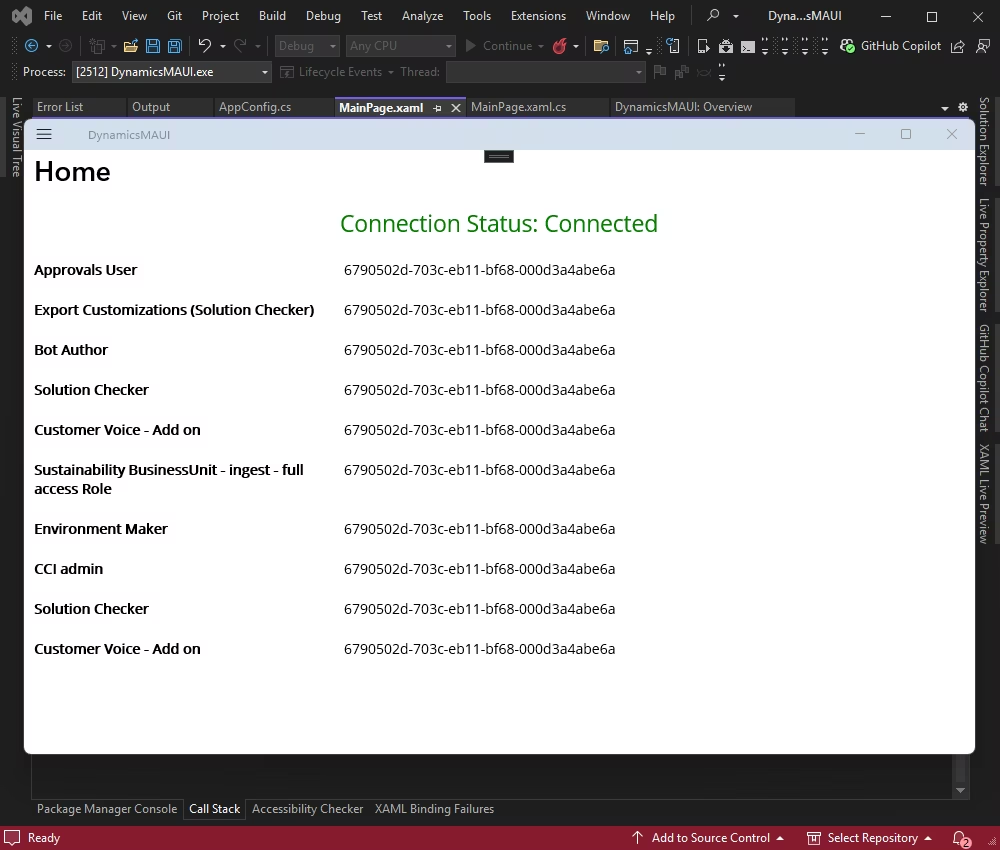
Let us see how to insert new data into Dynamics 365 from the application.
In this example, clicking Submit inserts a predefined set of test data.
private async void OnSubmitRole(object sender, EventArgs e)
{
  try
  {
    using (var connection = new DynamicsConnection(AppConfig.ConnectionString))
    {
      await connection.OpenAsync();

      string query = "INSERT INTO role (name, businessunitid, overriddencreatedon, importsequencenumber, isinherited, isautoassigned, description, summaryofcoretablepermissions, appliesto) " +
      "VALUES (:name, :businessunitid, NULL, NULL, :isinherited, :isautoassigned, :description, :summaryofcoretablepermissions, :appliesto)";

      using (var command = new DynamicsCommand(query, connection))
      {
        // Predefined test data
        command.Parameters.AddWithValue("name", "13");
        command.Parameters.AddWithValue("businessunitid", "{You business unit ID}");
        command.Parameters.AddWithValue("isinherited", "Only the rights of the working group");
        command.Parameters.AddWithValue("isautoassigned", "No");
        command.Parameters.AddWithValue("description", "1");
        command.Parameters.AddWithValue("summaryofcoretablepermissions", "1");
        command.Parameters.AddWithValue("appliesto", "1");

        int rowsAffected = await command.ExecuteNonQueryAsync();

        await DisplayAlert("Success", $"Role added successfully! Rows affected: {rowsAffected}", "OK");
      }
    }
  }
  catch (Exception ex)
  {
    await DisplayAlert("Error", ex.Message, "OK");
  }
}
The fields in the SQL INSERT statement follow the standard structure of a Dynamics 365 Role entity. Each field plays a specific role in defining the entity's purpose and function within the system.
Add a button to your MainPage.xaml to trigger the insertion of a new role:
Run the application to test the change.
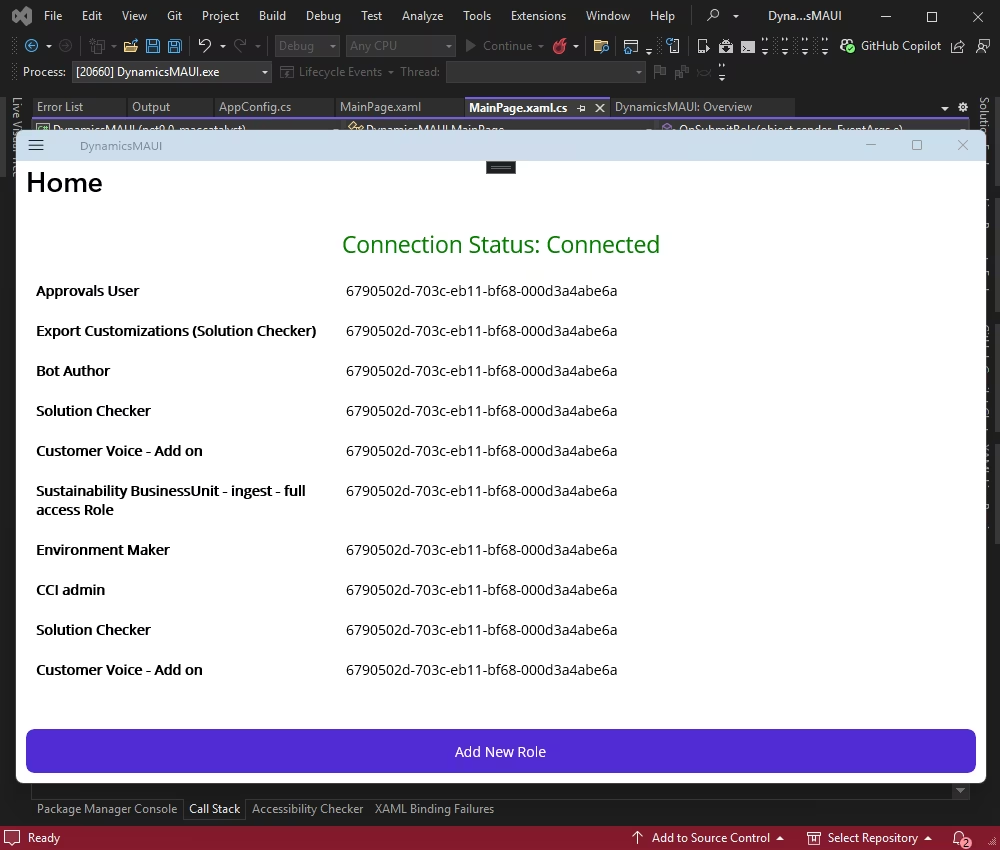
Click Add New Role.
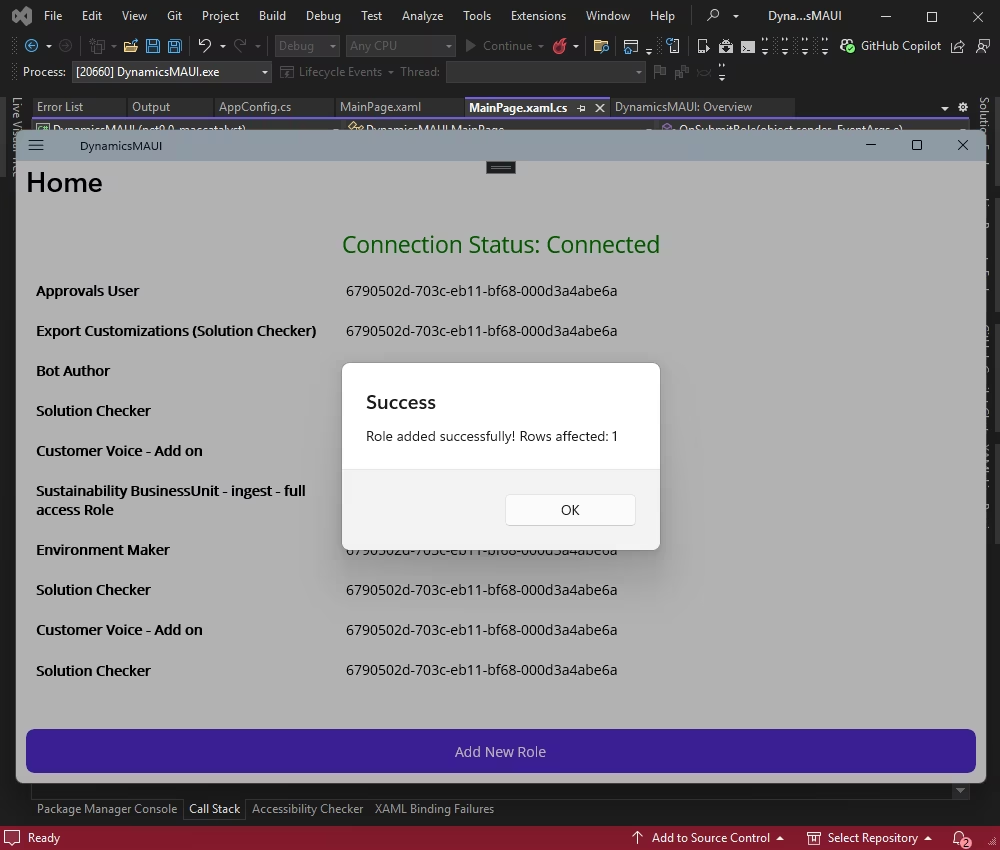
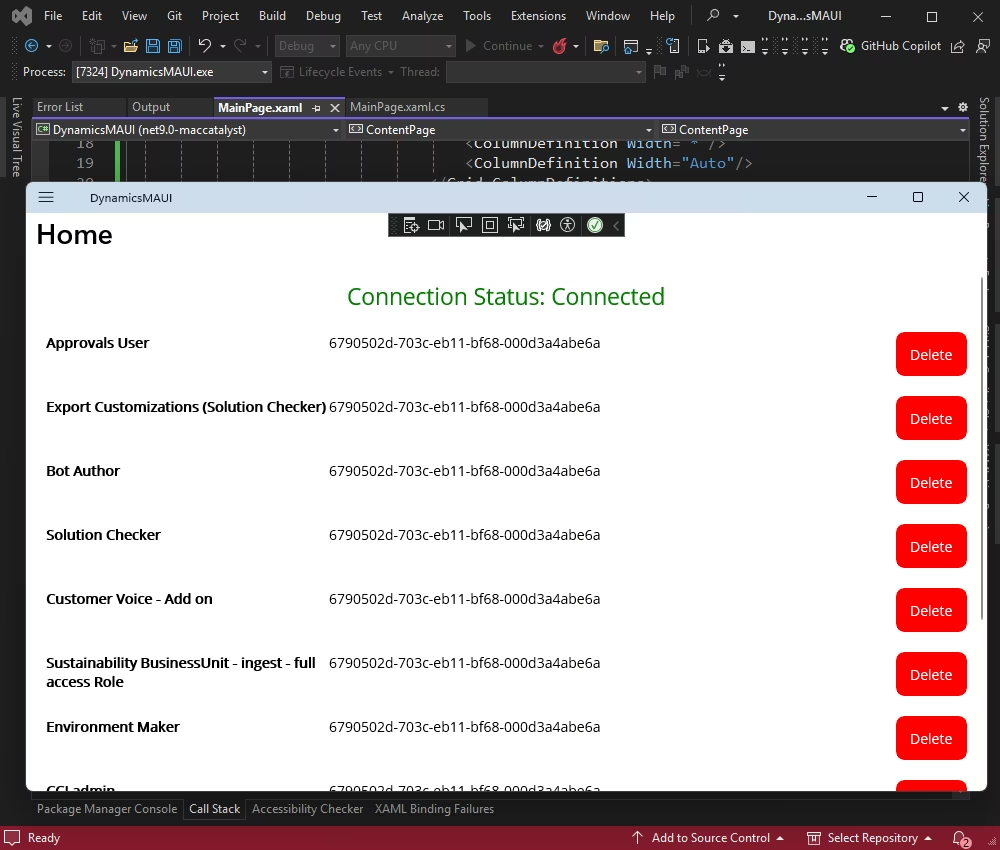
To add a method for removing a record and include a red Delete button in each row of the ListView, do the following:
Add a Delete button to each row in the ListView:
private async void OnDeleteRole(object sender, EventArgs e)
{
  var button = (Button)sender;
  var role = (Role)button.BindingContext;

  try
  {
    using (var connection = new DynamicsConnection(AppConfig.ConnectionString))
    {
      await connection.OpenAsync();

      string query = "DELETE FROM role WHERE roleid = :roleid";

      using (var command = new DynamicsCommand(query, connection))
      {
        command.Parameters.AddWithValue("roleid", role.RoleId);

        int rowsAffected = await command.ExecuteNonQueryAsync();

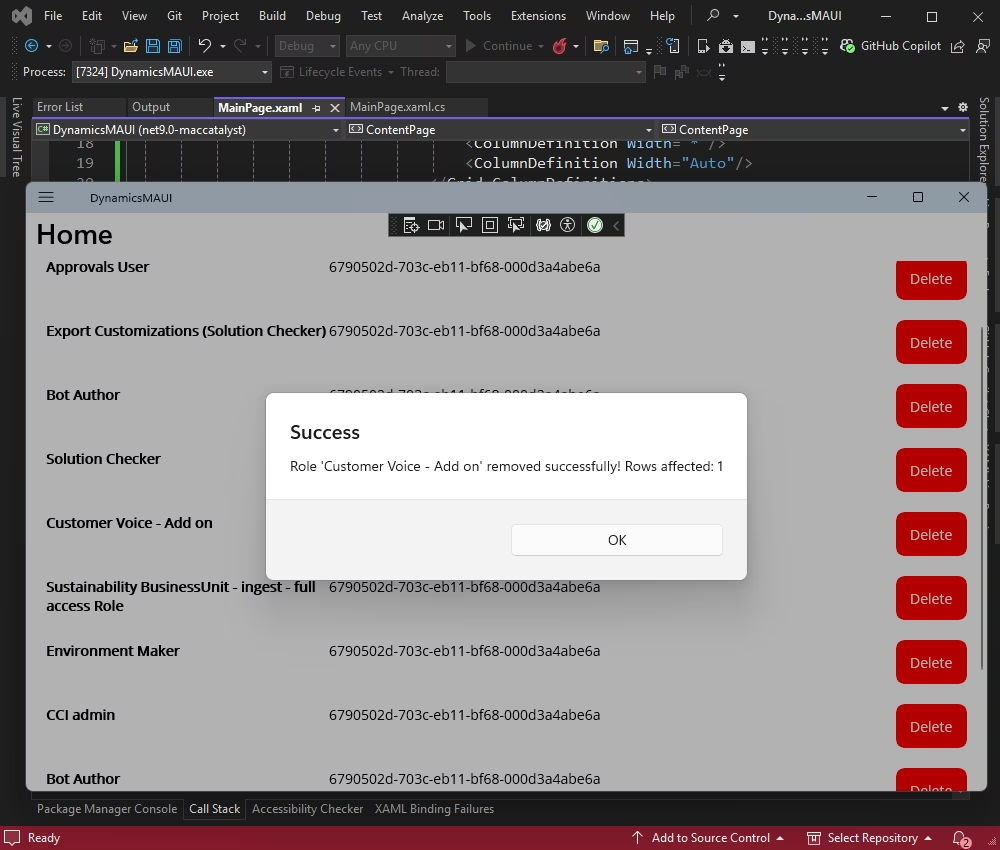
        await DisplayAlert("Success", $"Role '{role.Name}' removed successfully! Rows affected: {rowsAffected}", "OK");
      }
    }
  }
  catch (Exception ex)
  {
    if (ex.Message.Contains("iscomponentdeletionenabled"))
    {
      await DisplayAlert("Error", "Deletion is not enabled for this component. Please check the managed properties.", "OK");
    }
    else
    {
      await DisplayAlert("Error", ex.Message, "OK");
    }
  }
}
The OnDeleteRole method gets the selected Role object from the button's BindingContext, retrieves its RoleId, and executes a parameterized SQL DELETE query to remove that role.
Let us add a method to handle the deletion of a role:
<ListView x:Name="RolesListView">
  <ListView.ItemTemplate>
    <DataTemplate>
      <ViewCell>
        <Grid Padding="10">
          <Grid.ColumnDefinitions>
            <ColumnDefinition Width="*"/>
            <ColumnDefinition Width="*"/>
            <ColumnDefinition Width="*"/>
            <ColumnDefinition Width="Auto"/>
          </Grid.ColumnDefinitions>
          <Label Grid.Column="0" Text="{Binding Name}" FontAttributes="Bold"/>
          <Label Grid.Column="1" Text="{Binding BusinessUnitId}"/>
          <Label Grid.Column="2" Text="{Binding OverriddenCreatedOn}"/>
          <Button Grid.Column="3" Text="Delete" Clicked="OnDeleteRole" BindingContext="{Binding .}" BackgroundColor="Red"/>
        </Grid>
      </ViewCell>
    </DataTemplate>
  </ListView.ItemTemplate>
</ListView>
This XAML adds a Delete button to each row in the ListView item template. The button's Clicked event is bound to OnDeleteRole, and its BindingContext is set to the current item, so the method can access the corresponding role data.
Let's run our application.
The role is deleted successfully.
We have successfully connected a .NET MAUI application to Dynamics 365 with the help of dotConnect for Dynamics 365. This integration lets you access Dynamics 365 data and perform CRUD operations directly from your application. You can try it yourself with a fully functional 30-day free trial and see how it can improve your work.
Devart.Data.Dynamics NuGet package to your project. Then obtain your Activation Key from your Devart Customer Portal and include it in the connection string via the License Key parameter.
Authentication Type=AccessRefreshTokenInteractive. When the DynamicsConnection opens, a browser window appears where you sign in to your Dynamics 365 account. After authentication, dotConnect automatically retrieves and manages the access and refresh tokens.
DynamicsConnection instance and call Open() inside a try-catch block to establish and validate the connection.
Scaffold-DbContext with the Devart.Data.Dynamics.EFCore package and a dotConnect connection string, including the License Key, to generate the DbContext and entity classes.

I'm a technical content writer who loves turning complex topics — think SQL, connectors, and backend chaos–into content that actually makes sense (and maybe even makes you smile). I write for devs, data folks, and curious minds who want less fluff and more clarity. When I'm not wrangling words, you'll find me dancing salsa, or hopping between cities.

