
You can install the driver by using the Windows installer.
After you receive the license key, add it to your connection strings to connect to the data source.
Dynamics 365 is a powerful CRM and ERP solution from Microsoft, widely used for business applications. Integrating it with your .NET applications using Entity Framework Core (EF Core) allows developers to work with Dynamics 365 data using familiar ORM paradigms and LINQ queries.
In this tutorial, you will learn how to set up a connection between a C# application and Dynamics 365 using dotConnect for Dynamics 365 along with Entity Developer to generate EF Core models. This enables smooth and efficient data access in your .NET applications.

dotConnect efficiently resolves the connectivity challenges, allowing .NET applications to work with Dynamics 365 entities directly.

Support for Interactive OAuth authentication allows you to generate access and refresh tokens via a browser-based login flow.
Using familiar ADO.NET classes enables developers to work with Dynamics 365 data according to standard .NET patterns.

The provider is fully compatible with EF Core, Dapper, NHibernate, and other ORM technologies for flexible data access in .NET applications.

The latest ADO.NET specifications ensure reliable integration with .NET frameworks and consistent behavior in enterprise applications.

Priority technical support, full documentation, and product updates grant reliability and compatibility with Dynamics 365 and .NET.
You can start using dotConnect for Dynamics 365 immediately with a 30-day free trial. Choose one of the following installation options:
You can install the driver by using the Windows installer.
After you receive the license key, add it to your connection strings to connect to the data source.
To connect to Dynamics 365 using the built-in Data Explorer, right-click Data Connections and choose Add Connection.
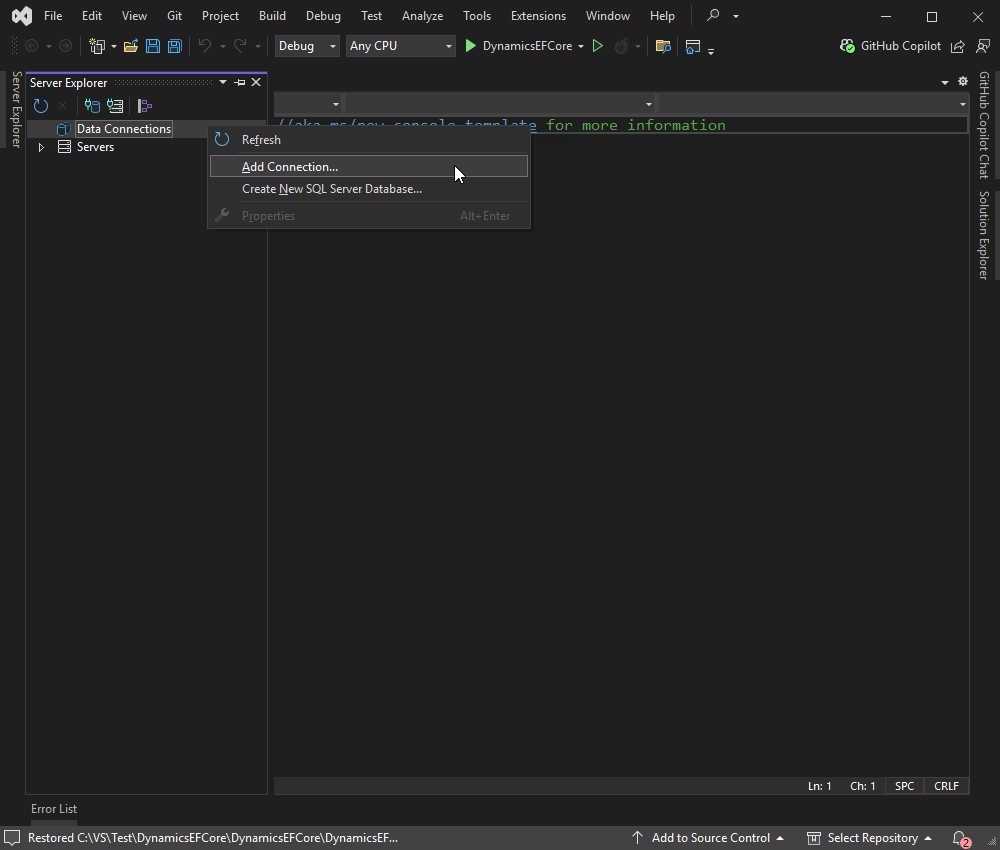
Select Dynamics 365 as the data source, choose Web Login to get credentials, and click Test Connection.
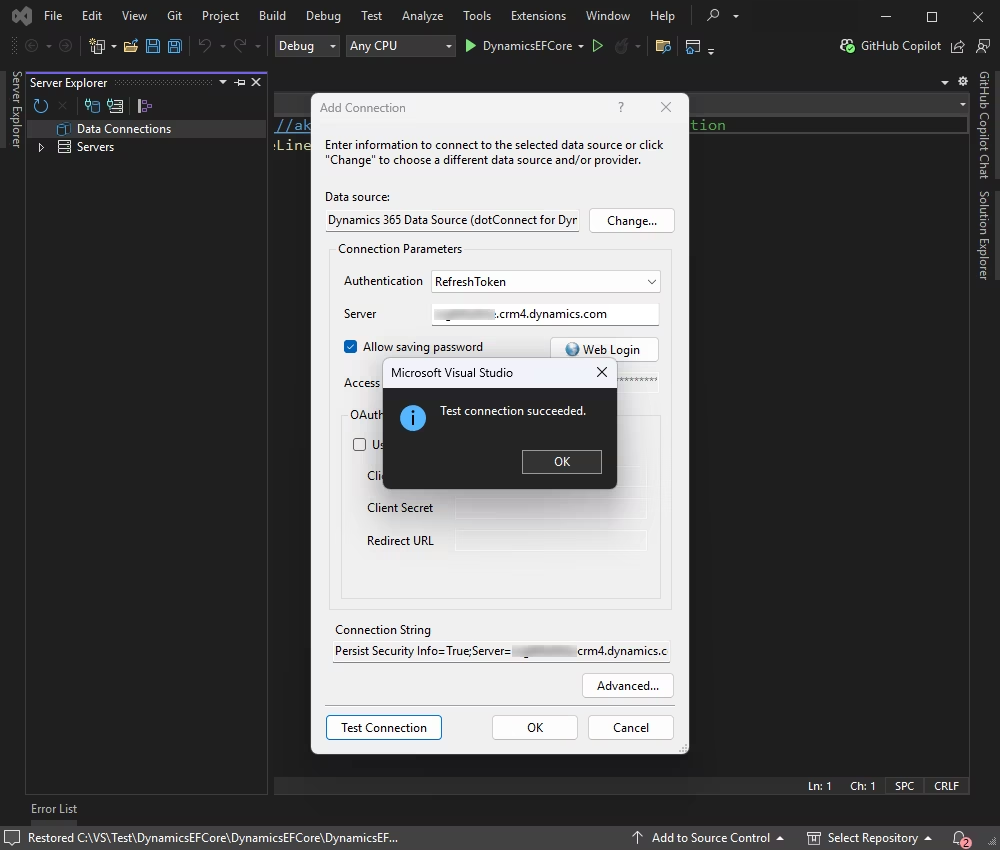
If the test connection is successful, click OK.
Once connected, you can browse tables, execute queries, and manage data directly within Data Explorer.
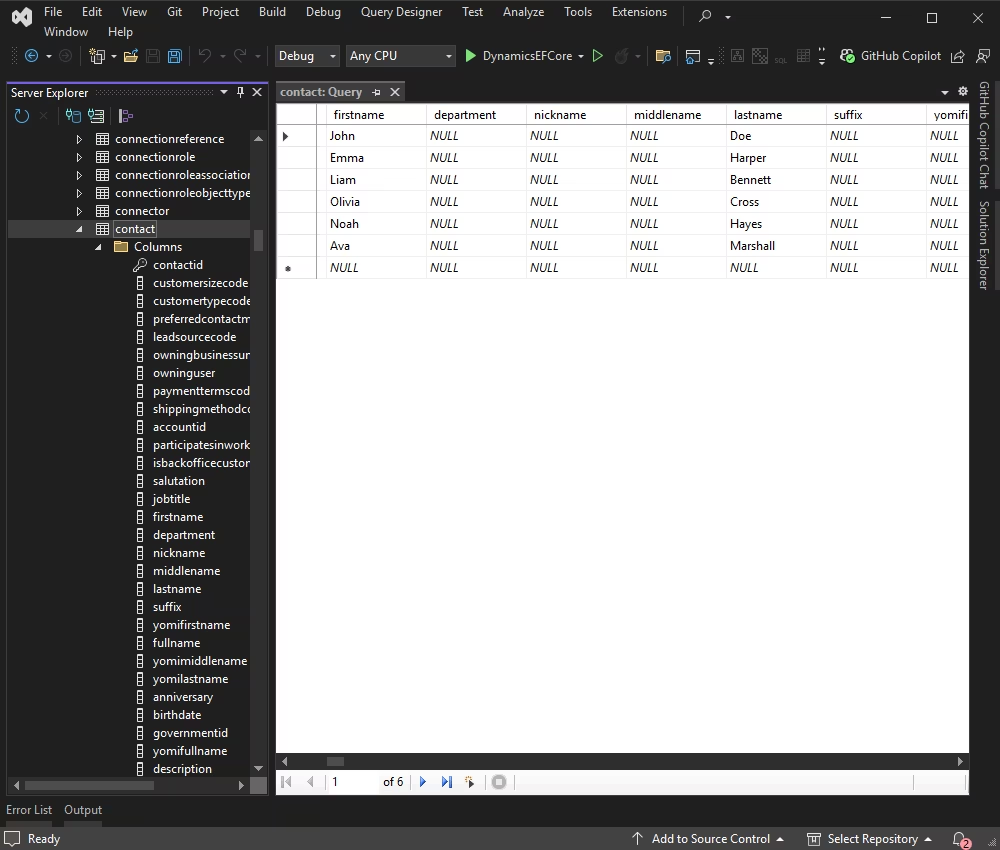
The Professional and Developer editions of dotConnect for Dynamics 365 come equipped with Entity Developer - a robust ORM model designer and code generator that supports both Entity Framework and EF Core. This tool simplifies the process of generating a model from a data source or creating a data source from an existing model.
Follow the detailed illustrated guide to create your database model using Entity Developer. When this process is complete, the model you created opens, ready for use.
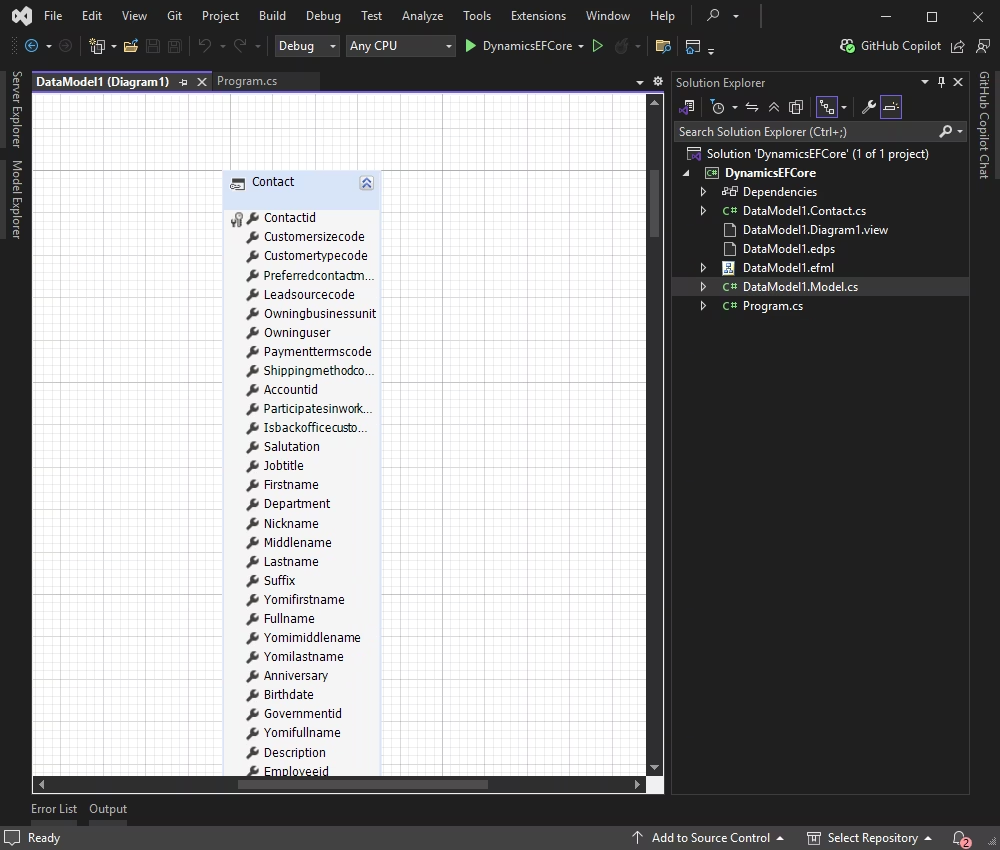
Entity Developer generates classes for the selected tables, representing data entities. It also creates a Model class descendant, which manages the connection to the Dynamics 365 CRM database and handles data flow. This class contains properties and methods corresponding to your Dynamics 365 CRM objects, allowing you to retrieve and modify data easily.
The generated code can be found in:
With the model set up, you can interact with Dynamics 365 data using Entity Framework Core in your .NET application.
| Property | Description |
|---|---|
| Authentication Type | The authentication method to use. The supported types are RefreshToken, RefreshTokenInteractive, and UsernamePassword. For more information, refer to Authentication Type. |
| Server | The login URL to Dynamics 365 service. |
| User Id | The Dynamics 365 login account that is required for the UserNamePassword authentication. |
| Password | The password for the UserNamePassword authentication. |
| Client Id | One part of the OAuth 2.0 credentials pair obtained when the OAuth 2.0 application is registered in the Azure AD tenant. |
| Client Secret | The second part of the OAuth 2.0 credentials pair obtained when the OAuth 2.0 application is registered in the Azure AD tenant. |
| Refresh Token | OAuth 2.0 refresh token for the RefreshToken authentication. |
| License Key | The license key that should be specified in the connection string. |
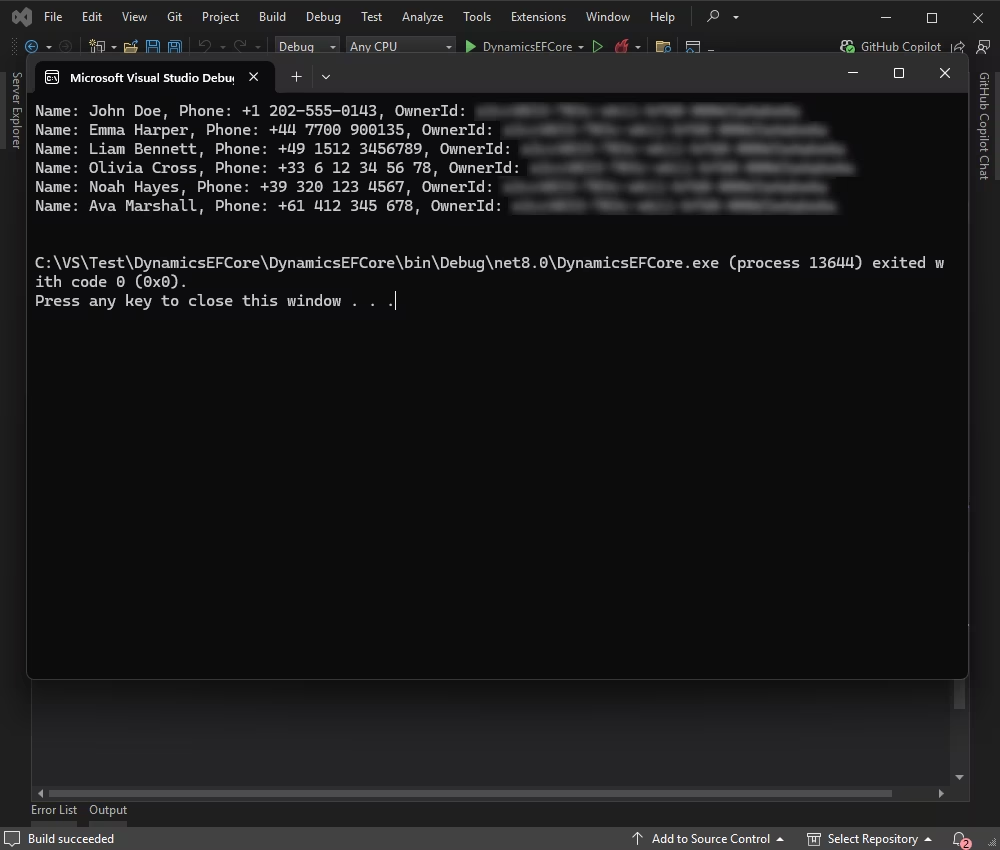
In the Program.cs file, write the code to retrieve and display information from the Contacts table.
using System;
using System.Linq;

namespace DynamicsEFCore
{
  class Program
  {
    static void Main(string[] args)
    {
      using (var context = new Model())
      {
        var contacts = context.Contacts
          .Take(10)
          .ToList();

        foreach (var contact in contacts)
        {
          Console.WriteLine($"Name: {contact.Firstname} {contact.Lastname}, Phone: {contact.Mobilephone}");
        }
      }
    }
  }
}
The console should display the First name, Last name, and Phone fields from the Contacts table in Dynamics 365.
To insert a new row into the Contact table in Dynamics 365 using EF Core, follow these steps:
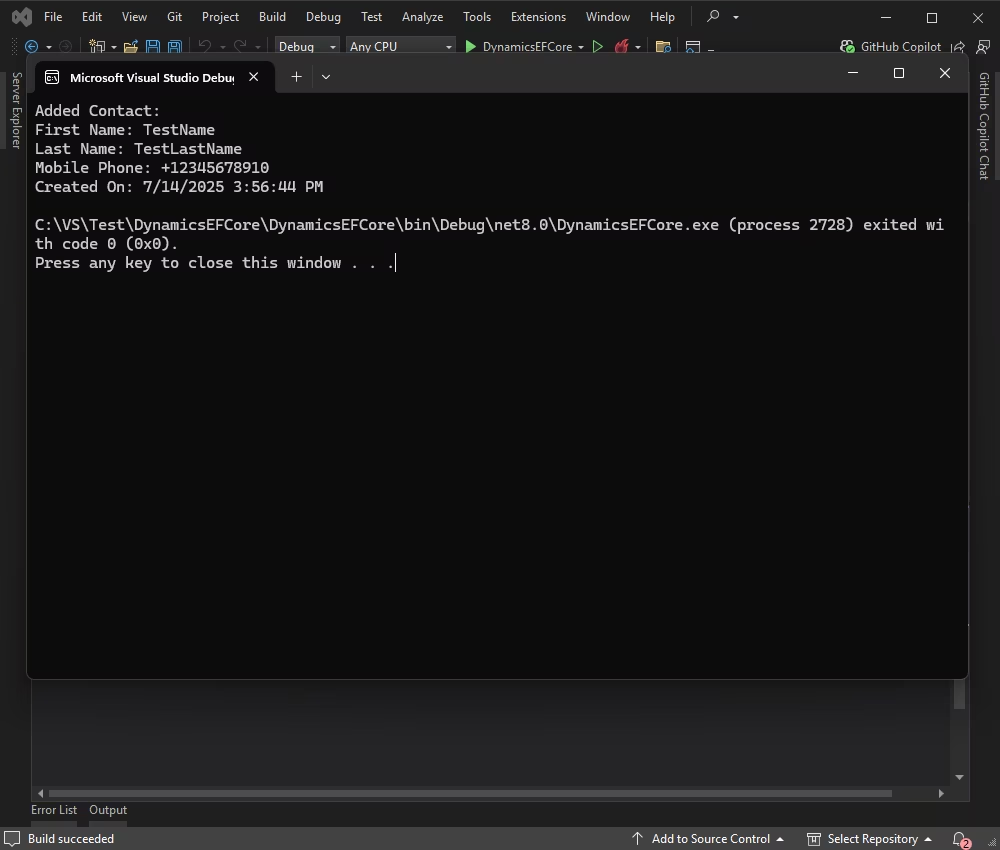
Ensure you have the necessary data for the new Contact you want to insert. For this example, we'll use the following data:
In your Program.cs file, add the following code to insert a new row into the Contact table:
using System;
using System.Linq;

namespace DynamicsEFCore
{
  class Program
  {
    static void Main(string[] args)
    {
      using (var context = new Model())
      {
        // Create a new Contact object
        var newContact = new Contact
        {
          Firstname = "TestName",
          Lastname = "TestLastName",
          Mobilephone = "+12345678910",
          Ownerid = Guid.Parse("**********")
        };

        // Add the new Contact to the context
        context.Contacts.Add(newContact);

        // Save changes to the database
        context.SaveChanges();

        // Retrieve and display the added contact
        var addedContact = context.Contacts
          .OrderByDescending(c => c.Createdon)
          .FirstOrDefault();

        if (addedContact != null)
        {
          Console.WriteLine("Added Contact:");
          Console.WriteLine($"First Name: {addedContact.Firstname}");
          Console.WriteLine($"Last Name: {addedContact.Lastname}");
          Console.WriteLine($"Mobile Phone: {addedContact.Mobilephone}");
          Console.WriteLine($"Created On: {addedContact.Createdon}");
        }
        else
        {
          Console.WriteLine("Failed to add the contact.");
        }
      }
    }
  }
}
Build and run your application.
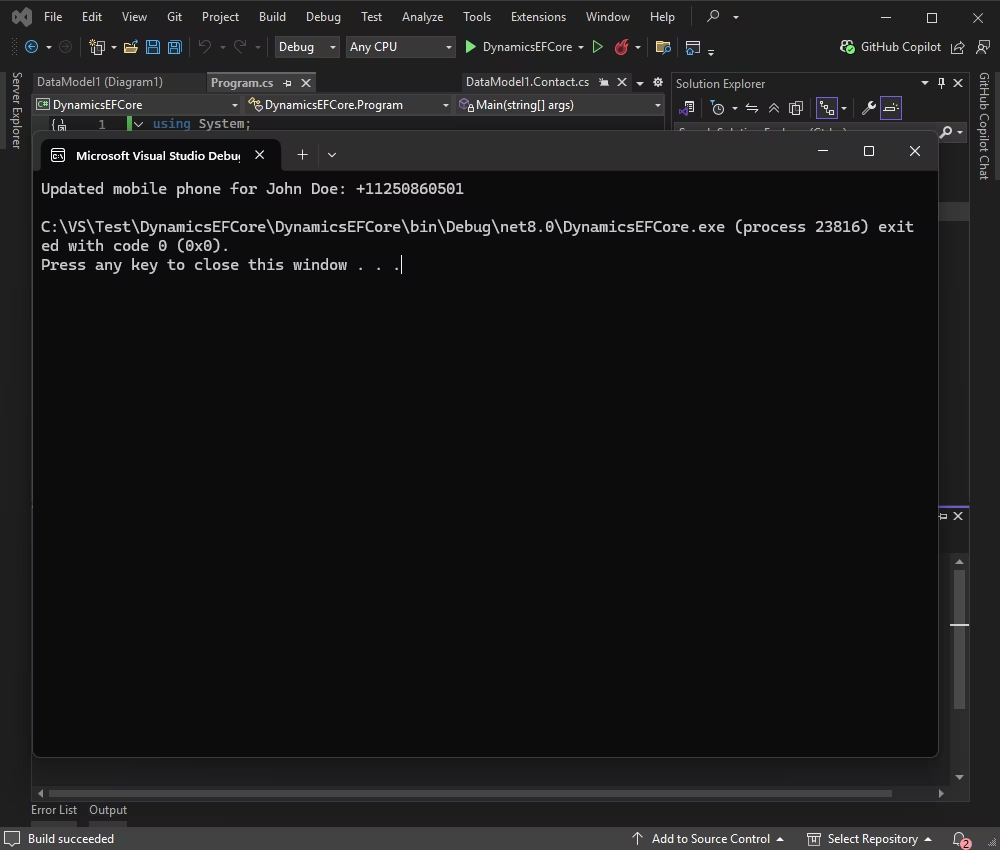
Now, let's update the phone number for an account with the name "John Doe" in Dynamics 365. This example assumes that the full name is unique or that you have a way to uniquely identify the account you want to update.
We retrieve the account named "John Doe" from the database and update the Mobilephone property with the new phone number.
Here's how you can implement this in your Program class:
using System;
using System.Linq;

namespace DynamicsEFCore
{
  class Program
  {
    static void Main(string[] args)
    {
      using (var context = new Model())
      {
        // Find the contact with Firstname "John" and Lastname "Doe"
        var contact = context.Contacts
          .FirstOrDefault(c => c.Firstname == "John" && c.Lastname == "Doe");

        if (contact != null)
        {
          // Update the mobile phone with a random value
          var random = new Random();
          contact.Mobilephone = $"+1{random.Next(1000000000, 1999999999)}";

          context.SaveChanges();
          Console.WriteLine($"Updated mobile phone for John Doe: {contact.Mobilephone}");
        }
        else
        {
          Console.WriteLine("Contact John Doe not found.");
        }
      }
    }
  }
}
When this code is executed successfully, the mobile phone for the selected account is updated.
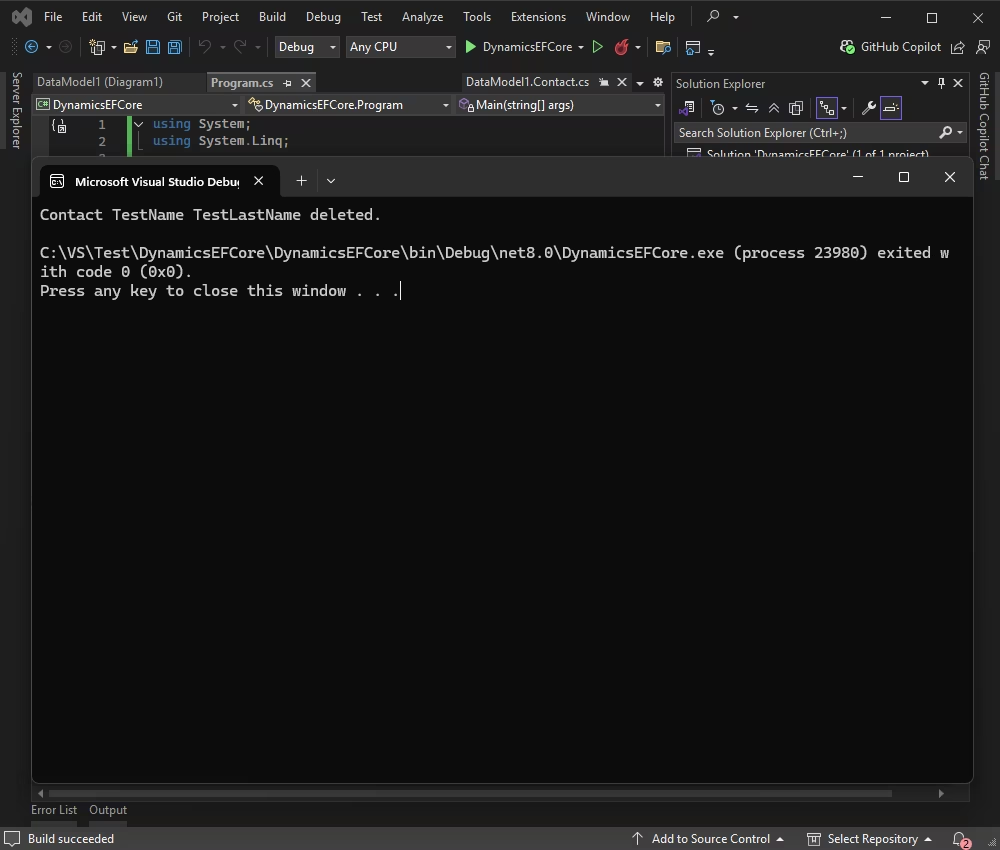
This example demonstrates how to fetch the account by name and then delete it from the database.
First, retrieve the contact with the name "TestName TestLastName" from the database.
Once you have retrieved the account, remove it from the DbContext and save the changes.
Here's how you can implement this in your Program class:
using System;
using System.Linq;

namespace DynamicsEFCore
{
  class Program
  {
    static void Main(string[] args)
    {
      using (var context = new Model())
      {
        var contact = context.Contacts
            .FirstOrDefault(c => c.Firstname == "TestName" && c.Lastname == "TestLastName");

        if (contact != null)
        {
          context.Contacts.Remove(contact);
          context.SaveChanges();
          Console.WriteLine("Contact TestName TestLastName deleted.");
        }
        else
        {
          Console.WriteLine("Contact TestName TestLastName not found.");
        }
      }
    }
  }
}
As a result, the selected contact is deleted from the database.
Using dotConnect for Dynamics 365 with Entity Framework Core and Entity Developer offers a robust, efficient, and developer-friendly way to work with Dynamics 365 data in C#. This approach abstracts the complexities of the Dynamics 365 API, providing seamless integration and full ORM benefits.
With the provided steps, you can quickly set up your project, generate EF Core models, and perform CRUD operations on Dynamics 365 entities, accelerating your application development.
Devart.Data.Dynamics NuGet package to your project. Then obtain your Activation Key from your Devart Customer Portal and include it in the connection string via the License Key parameter.
Authentication Type=AccessRefreshTokenInteractive. When the DynamicsConnection opens, a browser window appears where you sign in to your Dynamics 365 account. After authentication, dotConnect automatically retrieves and manages the access and refresh tokens.
DynamicsConnection instance and call Open() inside a try-catch block to establish and validate the connection.
Scaffold-DbContext with the Devart.Data.Dynamics.EFCore package and a dotConnect connection string (including License Key) to generate the DbContext and entity classes.

I'm a technical content writer who loves turning complex topics — think SQL, connectors, and backend chaos–into content that actually makes sense (and maybe even makes you smile). I write for devs, data folks, and curious minds who want less fluff and more clarity. When I'm not wrangling words, you'll find me dancing salsa, or hopping between cities.

