
You can install the driver by using the Windows installer.
After you receive the license key, add it to your connection strings to connect to the data source.
Google Cloud SQL for SQL Server is a fully managed relational database service that hosts Microsoft SQL Server in the cloud. It allows developers to continue using familiar SQL Server tools and existing skills while automating routine database management tasks. The service also integrates seamlessly with other Google Cloud products, such as Google Kubernetes Engine (GKE) and Cloud Functions.
For organizations that rely on Google Cloud infrastructure but want to keep the advantages of SQL Server without maintaining their own database servers, Cloud SQL for SQL Server provides a strong alternative to Azure SQL Database.
This guide explains how to connect .NET applications to SQL Server instances hosted on Google Cloud and perform essential data operations. To ensure a smooth, secure, and reliable connection without complex configuration or additional client libraries, we will use Devart's dotConnect for SQL Server, a high-performance data provider for .NET.

Connect to SQL Server directly via TCP/IP without installing SQL Server client software.

Leverage familiar ADO.NET interfaces and components for smooth integration and predictable behavior.

Supports encrypted connections and undergoes continuous performance and security testing to meet enterprise standards.

Works across all major versions of SQL Server and supports .NET Framework, .NET Core, and .NET 5/6/7+.

Features native integration with Visual Studio and complete design-time support.

Enjoy priority support, detailed documentation, and regular updates for continuous improvement.
You can start using dotConnect for SQL Server immediately with a 30-day free trial. Choose one of the following installation options:
You can install the driver by using the Windows installer.
After you receive the license key, add it to your connection strings to connect to the data source.
To connect to SQL Server using the built-in Data Explorer, click Tools and select Connect to Database. Then choose SQL Server as the data source.
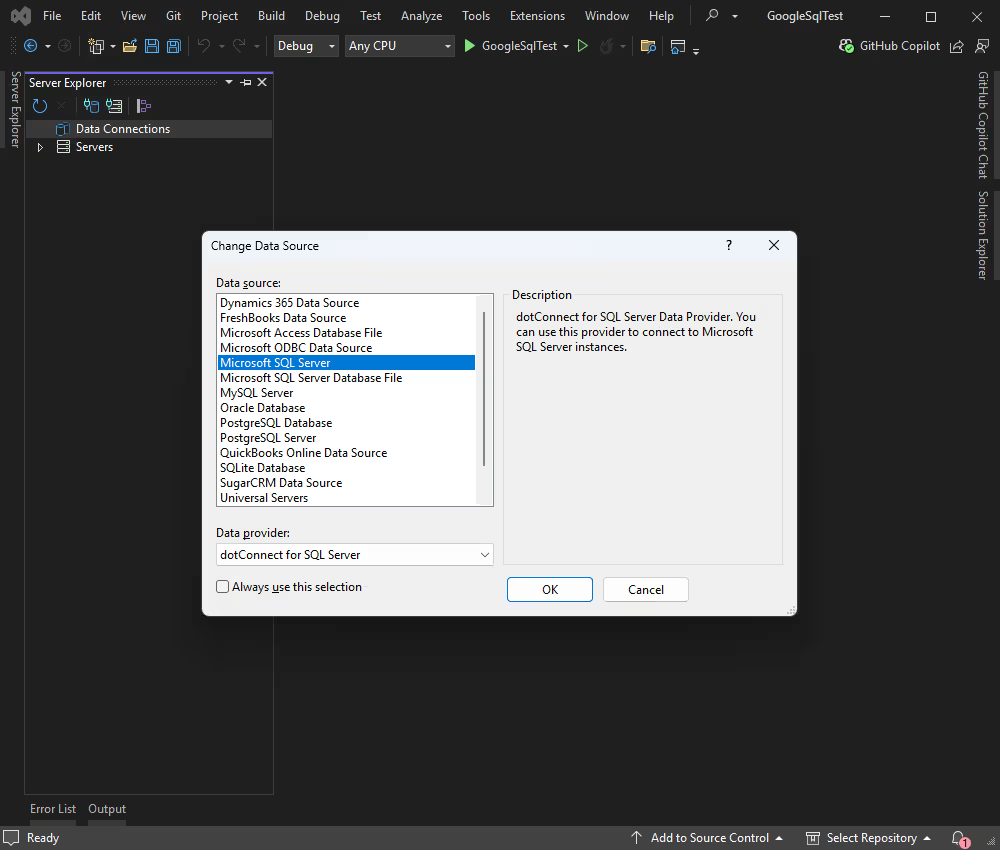
Enter the necessary credentials and click Connect.
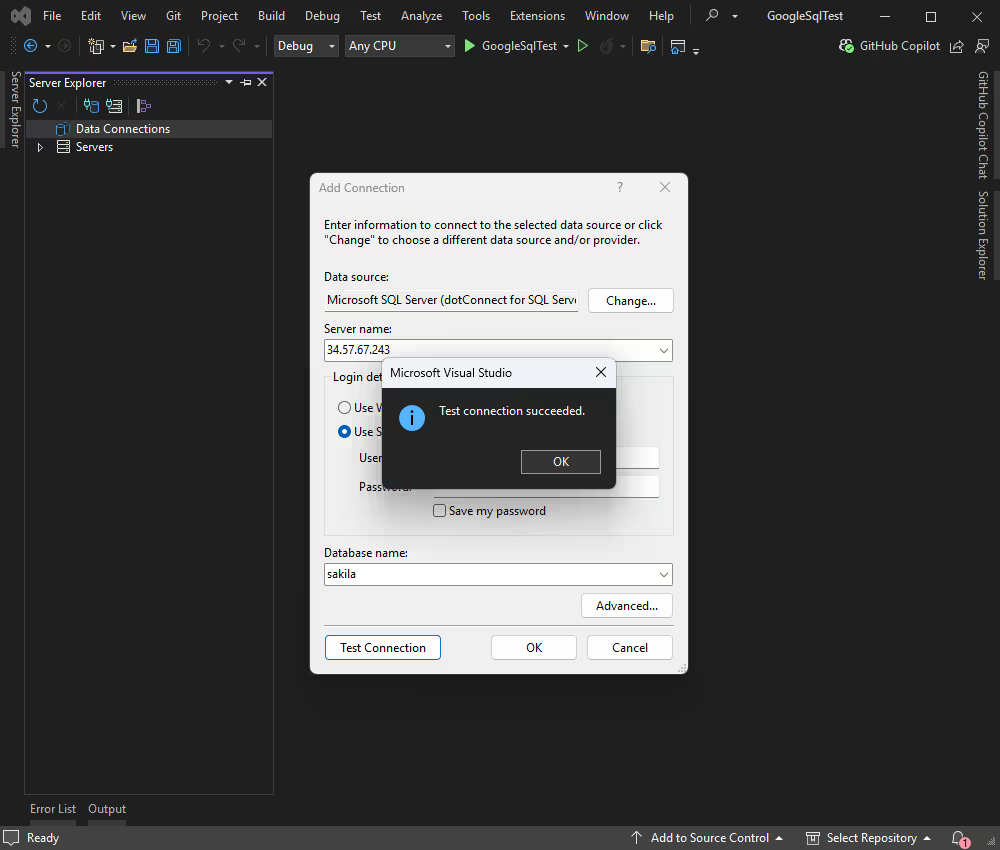
Once connected, you can browse tables, execute queries, and manage data directly within the Data Explorer.
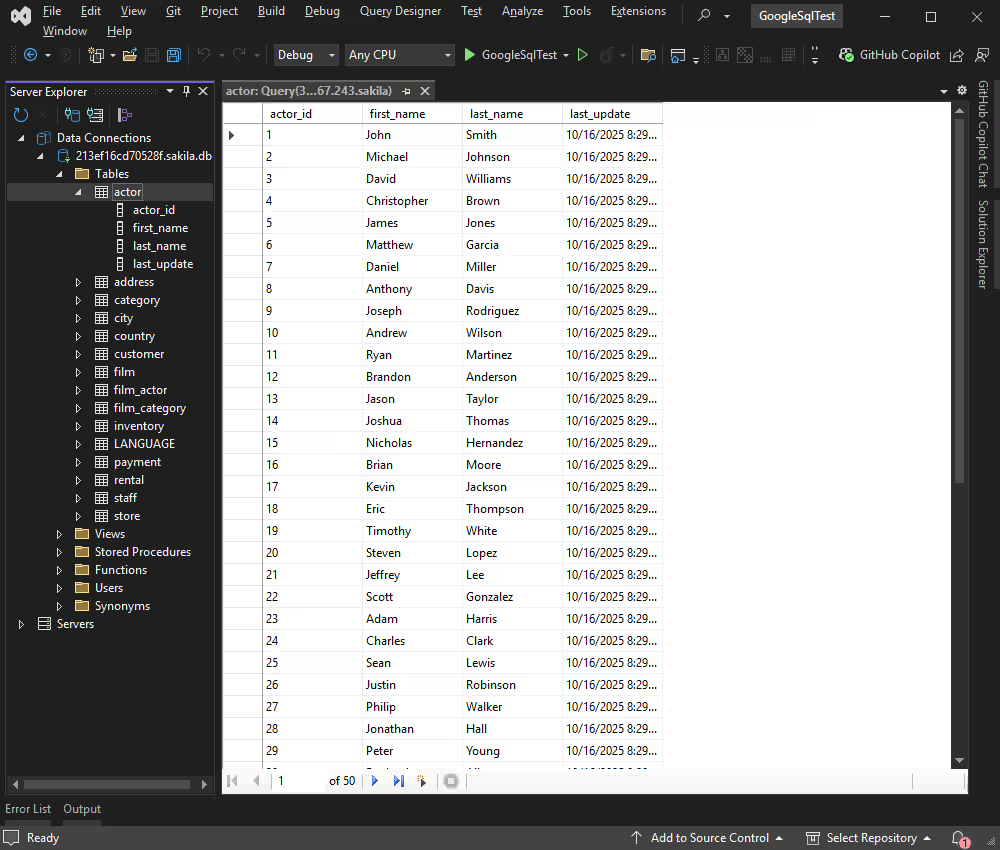
Now we can connect our project to Cloud SQL for SQL Server from the .NET application and access our data in the cloud.
This class keeps connection details separate for better maintainability.
using Devart.Data.SqlServer;

namespace GoogleSqlTest
{
    public static class DatabaseConnection
    {
        public static SqlConnection CreateConnection()
        {
            string connectionString =
                "Data Source=127.0.0.1;" +
                "User Id=TestUser;" +
                "Password=TestPassword;" +
                "Initial Catalog=TestDb;" +
                "Encrypt=True;" +
                "TrustServerCertificate=True;" +
                "License Key=**********";

            return new SqlConnection(connectionString);       }
    }
}| Property | Meaning |
|---|---|
| Database | Default database to be used after connecting |
| Server or Host | Hostname or IP address of the SQL Server |
| License Key | Your license key. This is required only when using .NET Standard compatible assemblies |
| Password | Password for the user ID |
| Port | Port number on which the SQL Server is listening |
| UserId | User ID used to authenticate with SQL Server |
Replace the placeholders in the connection string with your actual database credentials.
Add the code below to the Program.cs file.
using Devart.Data.SqlServer;

partial class Program
{
    static void Main(string[] args)
    {

        try
        {
            using (var connection = GoogleSqlTest.DatabaseConnection.CreateConnection())
            {
                connection.Open();
                Console.WriteLine("Successfully connected to SQL Server!\n");

                using (SqlCommand command = new SqlCommand("SELECT TOP (10) * FROM actor", connection))
                using (var reader = command.ExecuteReader())
                {
                    while (reader.Read())
                    {
                        Console.WriteLine($"Actor ID: {reader["actor_id"]}, " +
                                          $"Name: {reader["first_name"]} {reader["last_name"]}");
                    }
                }
            }
        }
        catch (SqlException ex)
        {
            Console.WriteLine($"Error connecting to database: {ex.Message}");
        }
    }
}Press F5 or select Start from the menu. You will see the data retrieved from the database.
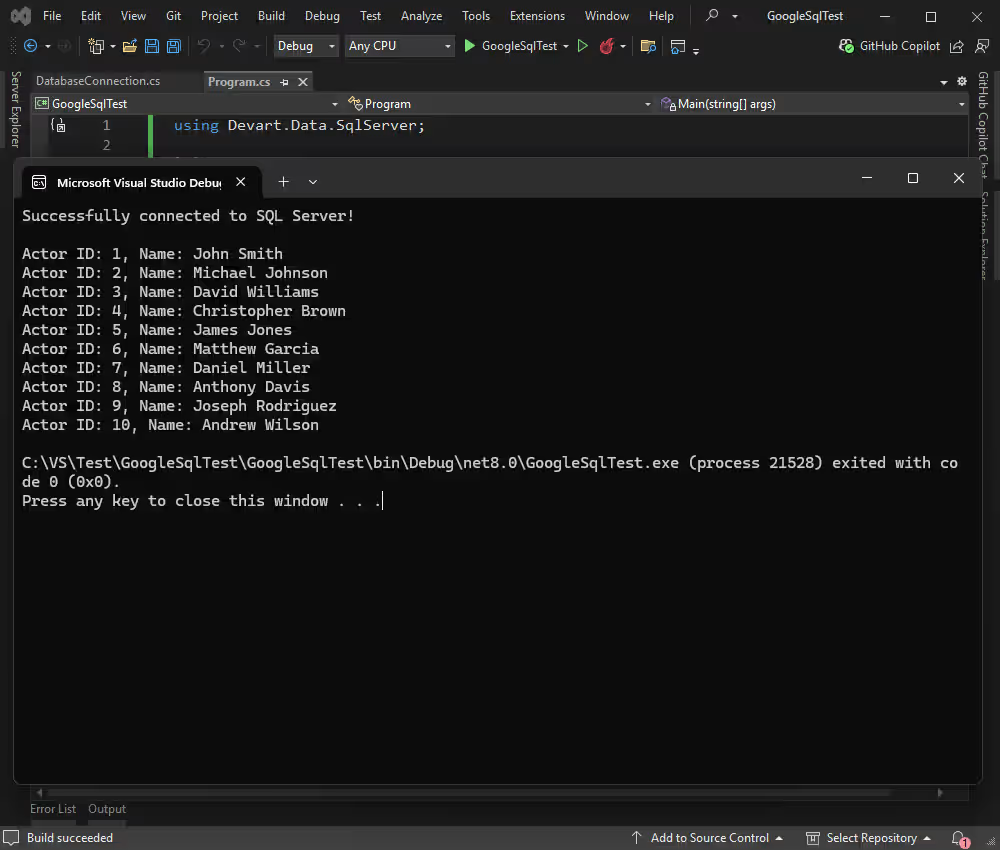
Let's add a new record to the Actor table using ADO.NET classes.
using System;
using Devart.Data.SqlServer;

partial class Program
{
    static void Main(string[] args)
    {
        var first = args.Length > 0 ? args[0] : "Chris";
        var last = args.Length > 1 ? args[1] : "Pratt";

        try
        {
            using (var connection = GoogleSqlTest.DatabaseConnection.CreateConnection())
            {
                connection.Open();
                Console.WriteLine("Successfully connected to SQL Server!\n");

                string sql =
                    "INSERT INTO actor (first_name, last_name) " +
                    "OUTPUT inserted.actor_id, inserted.first_name, inserted.last_name " +
                    "VALUES (@first, @last);";

                using (SqlCommand command = new SqlCommand(sql, connection))
                {
                    command.Parameters.Add(new SqlParameter("@first", first));
                    command.Parameters.Add(new SqlParameter("@last", last));

                    using (var reader = command.ExecuteReader())
                    {
                        if (reader.Read())
                        {
                            Console.WriteLine("Inserted actor:");
                            Console.WriteLine($"Actor ID: {reader["actor_id"]}, " +
                                              $"Name: {reader["first_name"]} {reader["last_name"]}");
                        }
                        else
                        {
                            Console.WriteLine("Insert succeeded but no row was returned.");
                        }
                    }
                }
            }
        }
        catch (SqlException ex)
        {
            Console.WriteLine($"Error connecting to database: {ex.Message}");
        }
    }
}
The operation is successful, and we can view the results in the application:
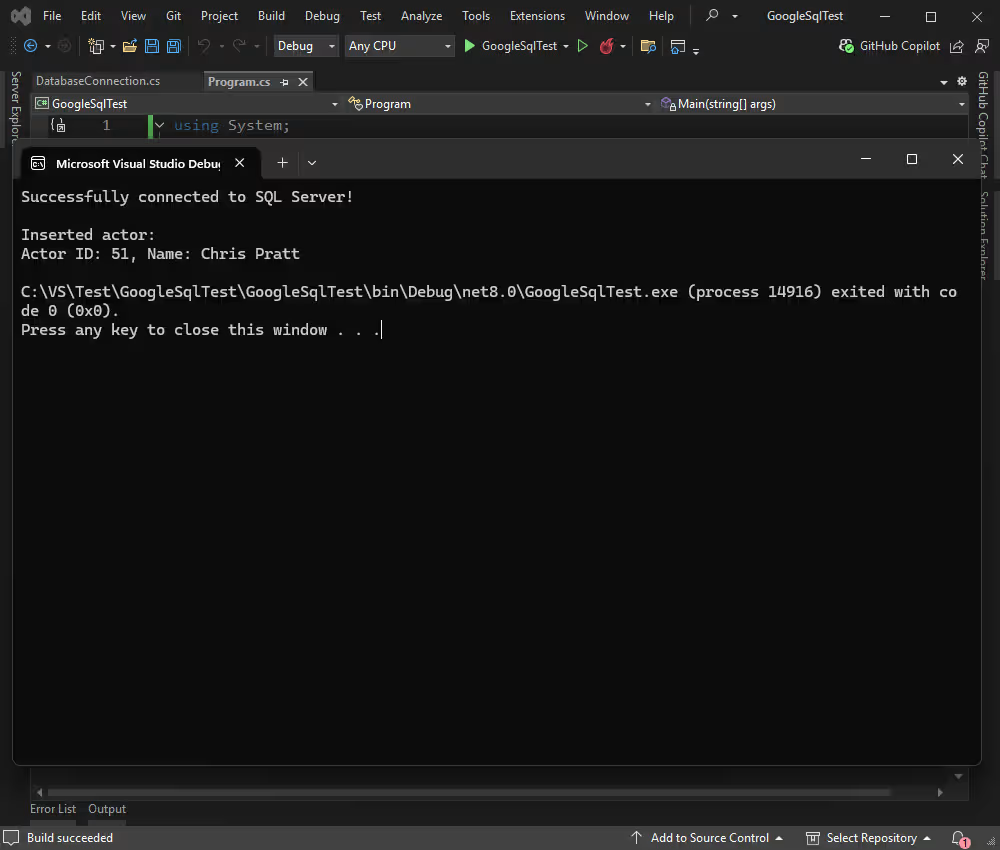
Our next task is to update an existing record. We can do it directly from the application in the following way:
using System;
using Devart.Data.SqlServer;

partial class Program
{
    static void Main(string[] args)
    {
        try
        {
            using (var connection = GoogleSqlTest.DatabaseConnection.CreateConnection())
            {
                connection.Open();
                Console.WriteLine("Successfully connected to SQL Server!\n");

                string sql =
                    "UPDATE actor " +
                    "SET first_name = @first, last_name = @last " +
                    "WHERE actor_id = 51;";

                using (SqlCommand command = new SqlCommand(sql, connection))
                {
                    command.Parameters.Add(new SqlParameter("@first", "Denzel"));
                    command.Parameters.Add(new SqlParameter("@last", "Washington"));

                    int rowsAffected = command.ExecuteNonQuery();

                    if (rowsAffected > 0)
                    {
                        Console.WriteLine("Successfully updated actor with ID 51 to Denzel Washington.");
                    }
                    else
                    {
                        Console.WriteLine("No actor found with ID 51, or the name was already Denzel Washington.");
                    }
                }
            }
        }
        catch (SqlException ex)
        {
            Console.WriteLine($"Error connecting to database: {ex.Message}");
        }
    }
}
The application shows us the updated data:
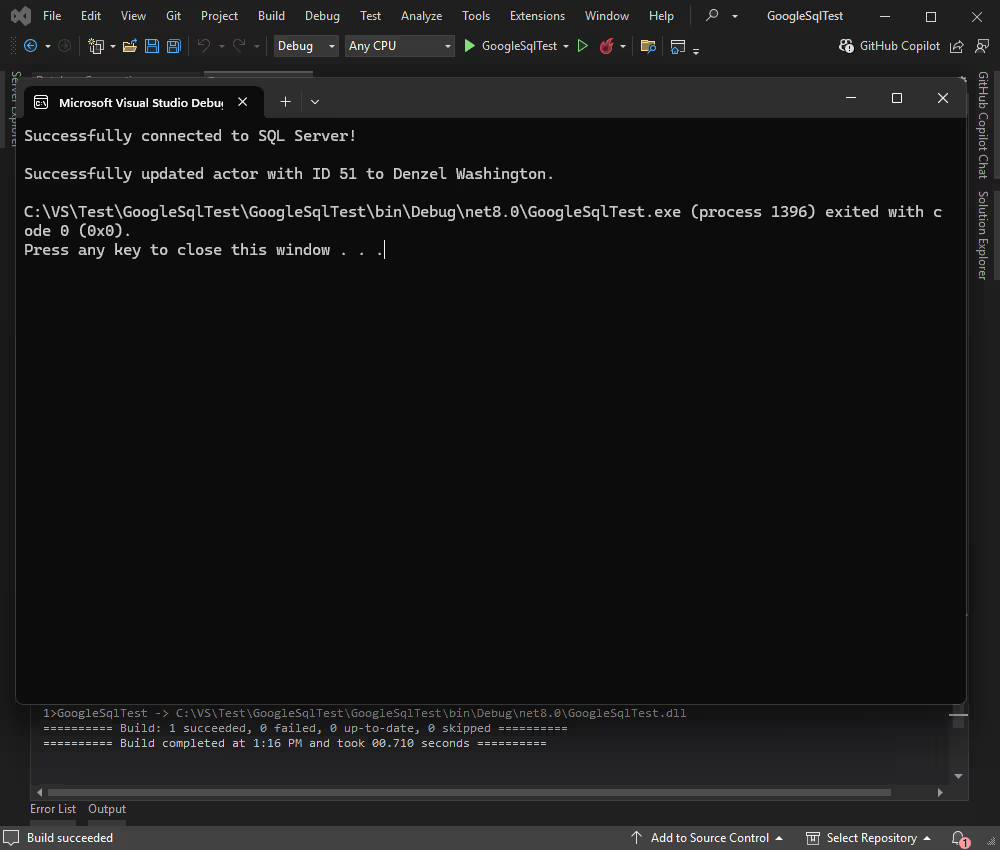
Finally, let us remove the record we previously added. Use the below code:
using System;
using Devart.Data.SqlServer;

partial class Program
{
    static void Main(string[] args)
    {
        try
        {
            using (var connection = GoogleSqlTest.DatabaseConnection.CreateConnection())
            {
                connection.Open();
                Console.WriteLine("Successfully connected to SQL Server!\n");

                string sql = "DELETE FROM actor WHERE actor_id = @actor_id;";

                using (SqlCommand command = new SqlCommand(sql, connection))
                {
                    command.Parameters.Add(new SqlParameter("@actor_id", 51));

                    int rowsAffected = command.ExecuteNonQuery();

                    if (rowsAffected > 0)
                    {
                        Console.WriteLine("Successfully deleted actor with ID 51.");
                    }
                    else
                    {
                        Console.WriteLine("No actor found with ID 51.");
                    }
                }
            }
        }
        catch (SqlException ex)
        {
            Console.WriteLine($"Error connecting to database: {ex.Message}");
        }
    }
}
The appilcation shows that the record has been successfully deleted.
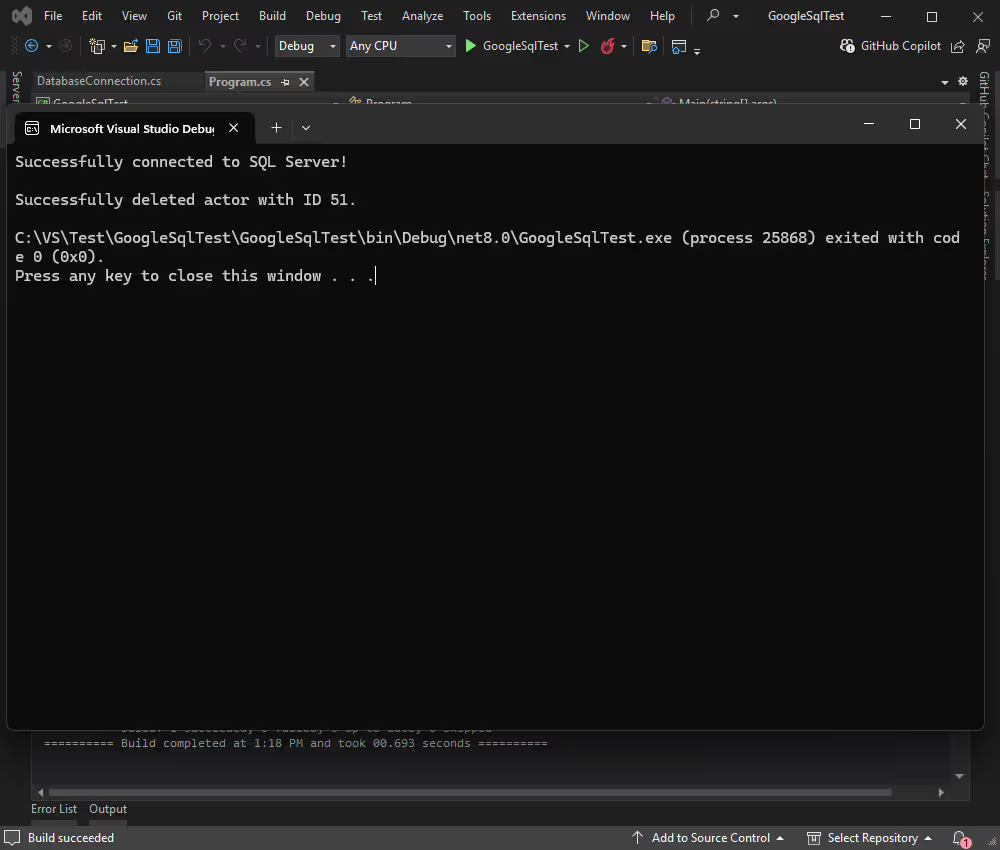
Cloud SQL for SQL Server is a popular choice for users who want secure, reliable SQL Server performance in the cloud while working within Google's ecosystem. We successfully connected to Cloud SQL for SQL Server using dotConnect for SQL Server and demonstrated how to perform essential data operations with SQL Server data hosted on Google Cloud.
From here, you can build new .NET applications, migrate existing ones to the cloud, and explore more advanced data operations.
License Key parameter for a working connection.
License Key value, then create an SqlConnection instance with this string and call Open() for it inside a try-catch block to test and handle connection errors.

I'm a technical content writer who loves turning complex topics — think SQL, connectors, and backend chaos–into content that actually makes sense (and maybe even makes you smile). I write for devs, data folks, and curious minds who want less fluff and more clarity. When I'm not wrangling words, you'll find me dancing salsa, or hopping between cities.

