MySQL Command-Line Client: Download, Install, Connect, and Use
The MySQL Command-Line Client (mysql) is a terminal-based tool used to connect to a MySQL server, run SQL queries, and manage databases directly from the command line.
It is the go-to for developers, database administrators, and DevOps engineers who need fast, scriptable access to MySQL for tasks like querying data, managing schemas, running backups, and automating workflows.
This guide will describe the basics of the MySQL Command-Line Client (mysql), including how to:
- Download and install the MySQL Command-Line Client
- Connect to a MySQL server from the terminal
- Run basic commands and queries
- Troubleshoot common command-line errors
Whether you're setting up MySQL for the first time or need a reliable way to work with databases without a GUI, this tutorial will walk you through the essential steps.
What is a MySQL client?
A MySQL client is any program that establishes a connection to a MySQL server and allows you to execute database operations such as creating databases, managing tables, inserting or retrieving data, and running administrative tasks.
The MySQL Server software cannot directly interact with a human or an external program on its own. That's why MySQL uses a client-server architecture where the client application is the mandatory bridge that allows a user or an application to communicate with the server.

The MySQL server stores and manages data, while the client acts as the interface that lets you access, modify, and control that data. When people refer to a MySQL client, they most often mean the MySQL Command-Line Client (mysql), a lightweight terminal utility included with MySQL installations that provides direct command-line access to the database, allowing users to run SQL statements such as:
- Creating or dropping databases and tables
- Inserting, updating, and deleting records
- Querying data
- Managing user privileges
Common examples of MySQL clients:
- MySQL Command-Line Client (
mysql): classic CLI tool for running SQL commands - MySQL Shell (
mysqlsh): modern client supporting SQL, JavaScript, and Python - Graphical clients (e.g., MySQL Workbench): GUI-based tools for database management
When to use which tool:
- Use MySQL Command-Line Client when you need a fast, simple, and lightweight way to run SQL queries or manage databases directly from the terminal.
- Use MySQL Shell when you need advanced scripting, automation, or multi-language support (SQL, JavaScript, Python).
- Use a GUI client for visual database management and schema design instead of command-line interaction.
How to download the MySQL Command-Line Client
You can download the MySQL Command-Line Client by installing MySQL using the official installer or by extracting it from the MySQL ZIP archive. Here's a breakdown of the installation process.
1. Use MySQL Installer (recommended)
- Go to the official download page and download the MySQL Installer.
- Run the installer.
- Choose Add or modify your existing installation.
- Under Applications and Tools, select MySQL Command-Line Client.
- Proceed with the installation to complete the setup.
2. Use a ZIP archive
- Download the MySQL Community Server ZIP archive.
- Extract the archive to a preferred location.
- Open the extracted folder and navigate to the
/bindirectory. - Locate the
mysql.exefile (this is the command-line client). - Add the
/bindirectory to your system PATH environment variable.
After setup, you can verify that the client works using this command:
How to install MySQL Command-Line Client
On Windows, the client is usually installed with MySQL server; on macOS and Linux, it can also be installed separately.
On Windows
The CLI tool is typically installed automatically with MySQL server.
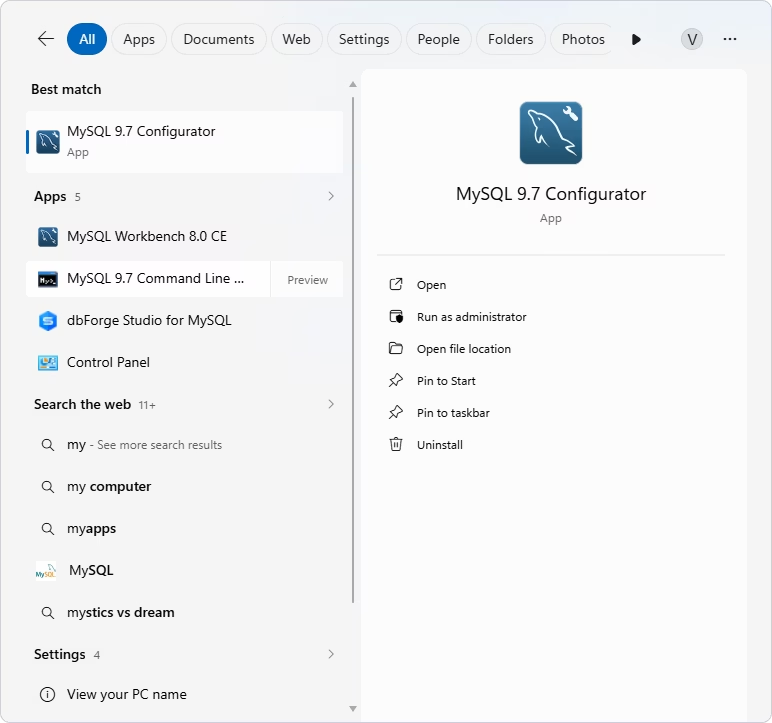
To verify it's installed:
- Open the Start menu.
- Search for MySQL.
- Look for MySQL Command-Line Client in the results.
- If it's missing, rerun the MySQL Installer and add it from the available components.
On macOS
You can install the client utility using Homebrew:
On Linux (Ubuntu/Debian)
Install the command-line interface using your package manager:
sudo apt update
sudo apt install mysql-client
PATH configuration (if needed)
After installation, you may need to add the client's /bin directory to your system PATH so you can run mysql from any location.
For example, on macOS (zsh):
echo 'export PATH="/usr/local/opt/mysql-client/bin:$PATH"' >> ~/.zshrc

source ~/.zshrc
Once configured, verify the installation by running:
How to connect to MySQL from the command line
To connect to MySQL from the command line, use the following syntax:
After running this command, you'll be prompted to enter your password.
Here's what the syntax of the command stands for:
mysql: launches the MySQL command-line client-u username: specifies the MySQL username-p: prompts for the password (recommended for security)
This is the simplest way to connect to a MySQL server running locally.
Basic login command
Here's a simple example of connecting to a local MySQL server:
Once you enter the correct password, you'll be logged into the MySQL shell and can start running SQL queries.
Connect to a specific database during login
If you already know which database you want to work with, you can connect to it directly:
Example:
This saves time by skipping the need to run a USE database_name; command after logging in.
Connect to a remote MySQL server
To connect to a MySQL server hosted on another machine, use the -h option:
Example:
You can also specify a database while connecting remotely:
Additional notes:
- Make sure the MySQL server allows remote connections
- Port 3306 is used by default; specify a different port with
-Pif needed - Ensure your user has the necessary privileges to connect remotely
How to use MySQL Command-Line Client
To use the MySQL command-line interface, you need to open a terminal, connect to a MySQL server, and start running SQL commands.
Step-by-step: open and connect
Open a terminal or command prompt:
- Windows: Command Prompt or PowerShell
- macOS/Linux: Terminal
Navigate to the /bin directory (if MySQL is not in PATH):
Run the login command:
Enter your password when prompted:
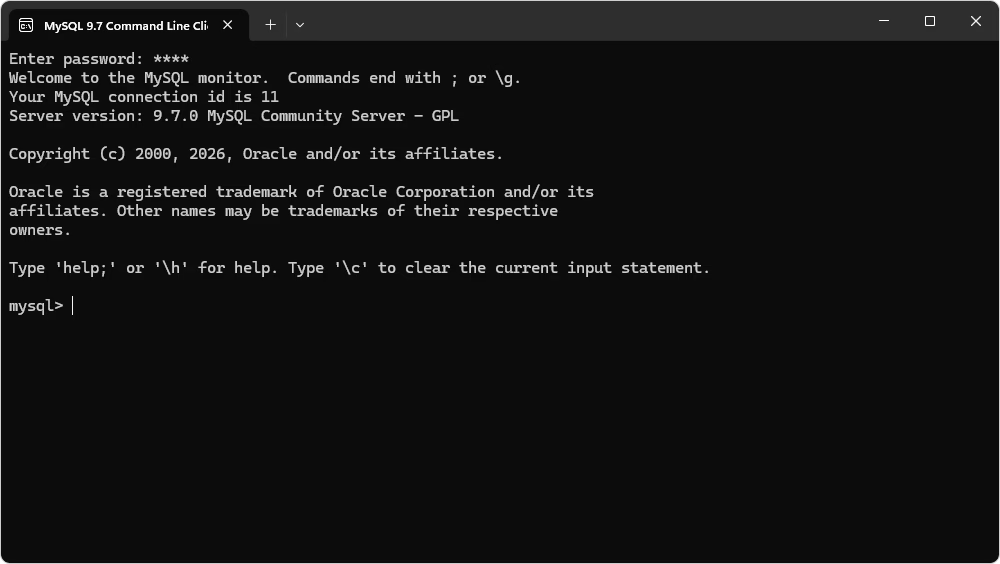
Start running SQL statements once you see the MySQL prompt:
Example: local connection
This connects to a MySQL server running on your local machine.
Example: remote connection (host and port)
-hspecifies the host-Pspecifies the port (default is 3306)
How to exit the MySQL client
To safely close the session, run:
or
How to create a database from the command line
Creating a database allows you to organize and store structured data in MySQL. This action typically requires appropriate privileges (such as the CREATE permission).
When you have created the database, you can start adding tables or inserting data.
Follow the steps below to complete this action. However, replace the placeholder with the required name of the database.
Step 1: Create a database
Step 2: Select (use) the database
Step 3: Verify the database
Look for my_database in the list to confirm it was created successfully.
For more information, please refer to How to create a database from the command line.
How to delete a MySQL user account
Deleting a MySQL user removes their ability to access the server immediately. This action requires administrative privileges (such as DROP USER).
Step 1: Check existing users
Step 2: Delete the user
Step 3: Verify deletion
Confirm that the user no longer appears in the list.
For more details on how to open MySQL in cmd, refer to How to connect to MySQL server using the command-line client.
How to manage MySQL database from the command line
To manage and administer MySQL databases from the command line, you need to get acquainted with command-line syntax. Let's look at the basic commands.
How to create a user from the command line
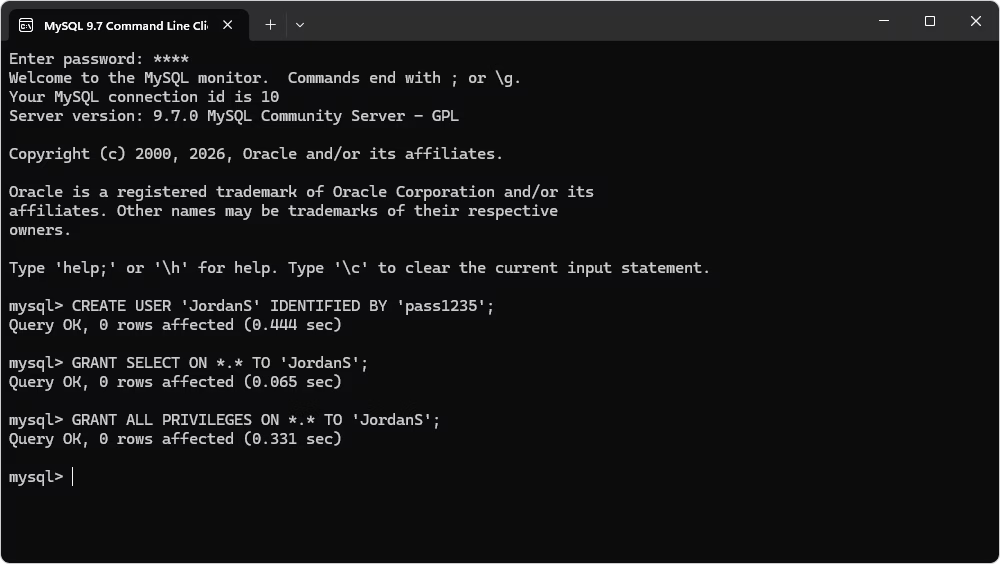
First of all, we need to create a user. For this, run the following command:
CREATE USER 'username' IDENTIFIED BY 'password';Don't forget to replace the username and password placeholders with a username and password of your choice.
Keep in mind, that just creating a user is not enough, you need to grant certain privileges to this user as shown below:
GRANT SELECT ON *.* TO 'username';This explicitly grants only the SELECT permission for the specified user. In case you want to grant a user all permissions on all databases, run the following command:
GRANT ALL PRIVILEGES ON *.* TO 'username';
For more information, refer to How to create a new user in MySQL .
How to delete a MySQL database from the command line
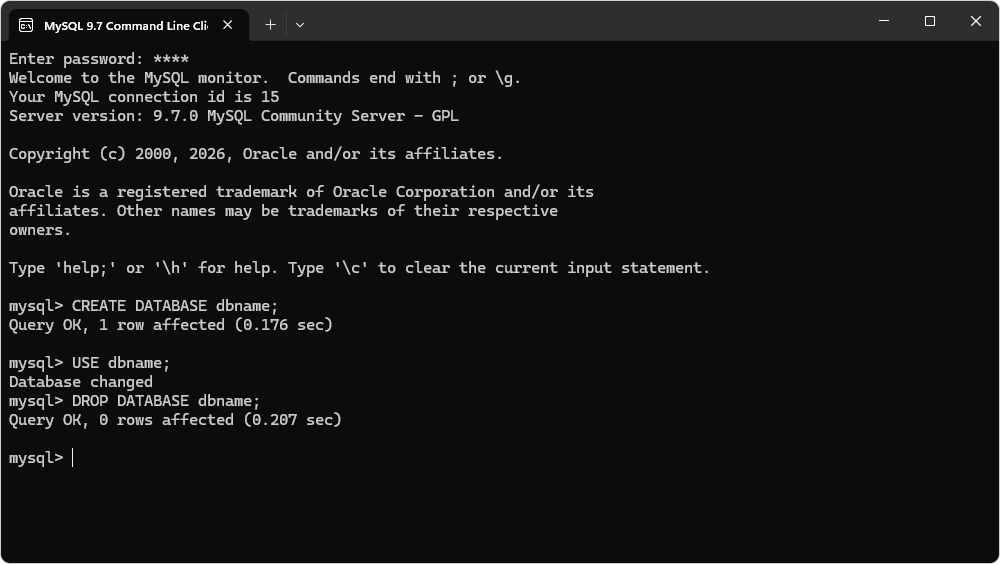
To delete a database, run the following simple command. Remember that you won't be able to revert the deletion, so perform the operation with caution.
DROP DATABASE dbname;
MySQL Command-Line Client vs MySQL Shell
When working with MySQL from the terminal, it's important to understand that the MySQL Command-Line Client (mysql) and MySQL Shell (mysqlsh) are related but different tools.
The mysql client is the classic, lightweight interface that has been part of MySQL for decades. It's designed primarily for executing SQL queries and managing databases in a straightforward way.
In contrast, MySQL Shell (mysqlsh) is a more modern and feature-rich tool. It supports multiple programming languages—SQL, JavaScript, and Python—making it better suited for automation, scripting, and advanced database operations.
Key differences at a glance
| Feature | MySQL Command-Line Client (mysql) | MySQL Shell (mysqlsh) |
|---|---|---|
| Primary use | Running SQL queries | Advanced scripting and administration |
| Supported languages | SQL only | SQL, JavaScript, Python |
| Interface | Simple, traditional CLI | Interactive shell with extended features |
| Automation | Limited | Strong scripting and automation support |
| Learning curve | Easy for beginners | Slightly steeper |
Which one should you use?
Use mysql if you need a quick, simple way to connect to MySQL and run queries. It's ideal for everyday database tasks and is often what users mean when they search for “MySQL Command-Line Client.”
Use mysqlsh if you need advanced capabilities, such as scripting, automation, or working with MySQL in a DevOps or programmatic environment.
For most users looking to download MySQL Command-Line Client and connect quickly, the classic mysql tool is the right place to start.
MySQL client options and query syntax
MySQL command-line syntax consists of the mysql command followed by connection options and SQL execution parameters. Inside the client, you can also access built-in help at any time:
or
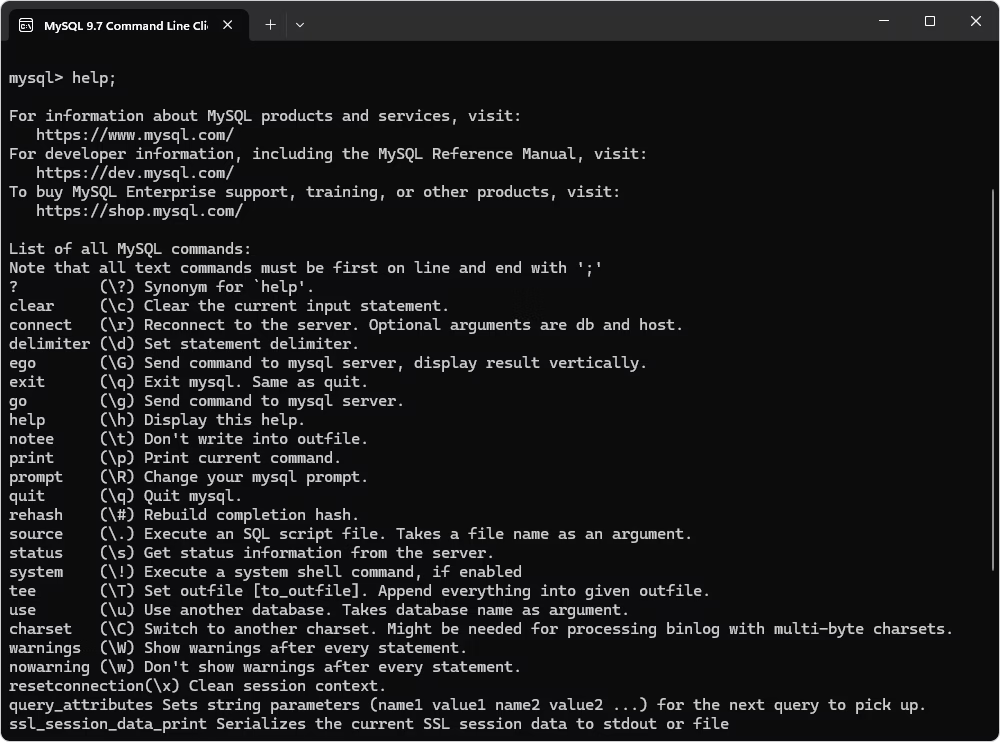
Common MySQL client options
| Option | Description |
|---|---|
-u |
Username used to connect to the server |
-p |
Prompts for password |
-h |
Host name (e.g., localhost or IP address) |
-P |
Port number (default: 3306) |
-D |
Database to connect to on login |
--ssl |
Enables SSL connection |
--help |
Displays help information |
Example commands
1. Connect locally with username and password:
2. Connect to a specific database:
3. Connect to a remote server with host and port:
Syntax notes
- Options follow the command and start with - or --
- Options are case-sensitive
- All SQL commands inside the client must end with a semicolon (;)
Common MySQL CLI errors and fixes
Let us review some of the most common errors that may occur when you work with the MySQL Command-Line Client.
'mysql' is not recognized as an internal or external command
This error usually means your system cannot find the MySQL client executable.
PATH is an environment variable that tells your system where to look for executable files like mysql.
Troubleshooting checklist:
- Locate the MySQL
/bindirectory (e.g.,C:\Program Files\MySQL\MySQL Server 9.7\bin) - Copy the full path
- Open Environment Variables in Windows
- Edit the Path variable and add the copied directory
- Save the changes
- Restart Command Prompt or PowerShell
Run:
Access denied for user 'root'@'localhost'
This error occurs when authentication fails or permissions are incorrect. Note that 'root'@'localhost' is host-specific, meaning the user must match both username and host.
Troubleshooting checklist:
- Verify your username and password
- Ensure the host (localhost vs % or IP) matches the account definition
- Check user privileges (grants)
- Reset the password if necessary
Check grants for a user:
Can't connect to MySQL server
This error can occur due to configuration or network issues.
Local troubleshooting:
- Ensure the MySQL service is running
- Verify you are connecting to the correct host (localhost)
- Confirm the port (default is 3306)
Remote troubleshooting:
- Check that the MySQL server allows remote connections
- Verify the host/IP address is correct
- Ensure the port is open and accessible
- Check firewall settings
Example remote connection command:
Version mismatch between client and server
A version mismatch can cause compatibility issues or unexpected errors. To check the MySQL client and server versions, run the following commands.
Client version:
Server version:
Troubleshooting checklist:
- Update the MySQL client to match the server version
- Use compatible versions of client and server
- Review authentication methods (e.g.,
caching_sha2_passwordvsmysql_native_password) if issues persist
Pros and cons of MySQL Command-Line Client
The MySQL Command-Line Client (mysql) is a powerful and efficient tool for interacting with MySQL databases, but like any tool, it has its strengths and limitations.
Advantages
- Fast and lightweight, with minimal system resource usage
- Provides direct control over database operations
- Ideal for automation, scripting, and DevOps workflows
- Available by default with MySQL installations
- Works well in remote environments and over SSH
- No need for a graphical interface
Disadvantages
- Requires familiarity with SQL syntax and command-line usage
- No visual interface for database design or data browsing
- More prone to user errors when typing commands manually
- Limited support for complex query visualization
- Steeper learning curve for beginners compared to GUI tools
Alternatives to the MySQL Command-Line Client
While the command-line interface is fast and efficient, GUI tools are often a better fit when you need visual database design, easier data editing, or a more intuitive workflow, especially for complex queries or schema management.
Popular MySQL GUI tools
The following table presents some of the best MySQL GUI clients. It provides a brief description of each tool, with a focus on its key characteristics and capabilities.
| Tool | Description |
|---|---|
| MySQL Workbench | Official GUI tool for database design, querying, and administration |
| dbForge Studio for MySQL | Full-featured IDE for MySQL development, management, and automation |
| phpMyAdmin | Web-based interface for managing MySQL databases via a browser |
| Toad Edge for MySQL | Lightweight tool for query building and database development |
| HeidiSQL | Fast Windows client for managing MySQL and MariaDB |
| DataGrip | Multi-database IDE with advanced query analysis (JetBrains) |
| DBeaver | Cross-platform database tool supporting multiple databases |
| SQLyog | GUI tool focused on administration, backups, and performance |
| Navicat for MySQL | Premium database management tool with automation and visualization features |
These tools provide a more visual and user-friendly experience compared to the CLI, making them ideal for users who prefer graphical interfaces or need advanced productivity features.
Best MySQL client instead of MySQL CLI
If you want a faster, more visual, and less error-prone way to work with MySQL than typing commands manually, dbForge Studio for MySQL is a strong alternative to the CLI.
Why it is a better fit for many workflows
Unlike the command-line interface, dbForge Studio provides a graphical environment where you can write, visualize, and manage queries without memorizing syntax. This makes everyday tasks like writing queries, editing data, and designing databases significantly more efficient.
Furthermore, modern database environments benefit greatly from AI-powered assistance. Integrated AI tools can help automate routine operations, generate SQL queries, explain complex code, and troubleshoot errors faster. This significantly reduces manual effort, minimizes mistakes, and accelerates development and administration workflows.
Fortunately, dbForge Studio for MySQL includes an integrated AI Assistant that enhances productivity and simplifies database workflows. The AI Assistant can generate SQL queries based on natural language prompts, explain existing queries, optimize performance, and help troubleshoot issues. This allows both beginners and experienced users to work more efficiently, reduce errors, and speed up development by minimizing manual coding and research.
Benefits for beginners
- Reduces the need to memorize SQL syntax
- Provides visual tools for building queries step by step
- Helps prevent errors with real-time validation
- Includes built-in documentation and learning resources
- Generates and explains SQL queries using the integrated AI Assistant
Benefits for advanced users
- Speeds up query writing with intelligent code completion
- Simplifies complex query building with a visual editor
- Supports automation for repetitive database tasks
- Improves productivity when managing large or multiple databases
- Assists with query optimization and troubleshooting using AI-powered suggestions
Key features
- SQL autocompletion
- Syntax validation
- Visual query builder
- Database design tools
- Automation capabilities
- Integrated AI Assistant
In addition to these features, dbForge Studio also offers tutorials, documentation, and training resources, making it suitable for both learning and professional use.
Conclusion
CLI tools are ideal for direct, scriptable database work, while GUI clients are better for visual administration, design, and broader workflow support.
Using the command-line interface is a standard practice in database management, especially in DevOps and automation-heavy environments. Knowing how to connect, run queries, and troubleshoot from the CLI is an essential skill for working efficiently with MySQL.
At the same time, GUI tools can significantly improve productivity when it comes to database design, query building, and day-to-day management. For users who want a more visual and streamlined experience, tools like dbForge Studio for MySQL offer an effective alternative, combining advanced features such as query building, automation, and database design into a single interface.
FAQ
MySQL does not have a default password. You create a password or are assigned one during installation.
Yes, you can install the client without the server and use it to connect to remote MySQL databases.
Common causes include:
- MySQL service is not running
- Incorrect username or password
- Firewall blocking port 3306
Yes, a 30-day fully functional free trial is available.
Yes, you can execute SQL queries in the SQL Editor and also work with CLI-based scripts when needed.
Yes, you can manage users and permissions using SQL commands or the built-in visual User Manager.