

dbForge Studio for PostgreSQL
AI-powered IDE for database development, management, and data analysis across PostgreSQL and related cloud services
Data analysis and reporting are essential tasks for professionals working with any database system, including PostgreSQL. DBAs, developers, and data analysts need to collect and analyze data, identify trends and patterns, detect anomalies, and share insights with colleagues and stakeholders. These tasks can be complex and require solid SQL skills—or efficient PostgreSQL reporting tools.
dbForge Studio for PostgreSQL provides a set of data analysis and reporting features that help you create professional reports from PostgreSQL data. You can analyze multidimensional data and turn it into detailed, visually appealing reports, add parameters, apply custom formatting, and include calculated summaries—all without leaving the IDE.
Key reporting features:
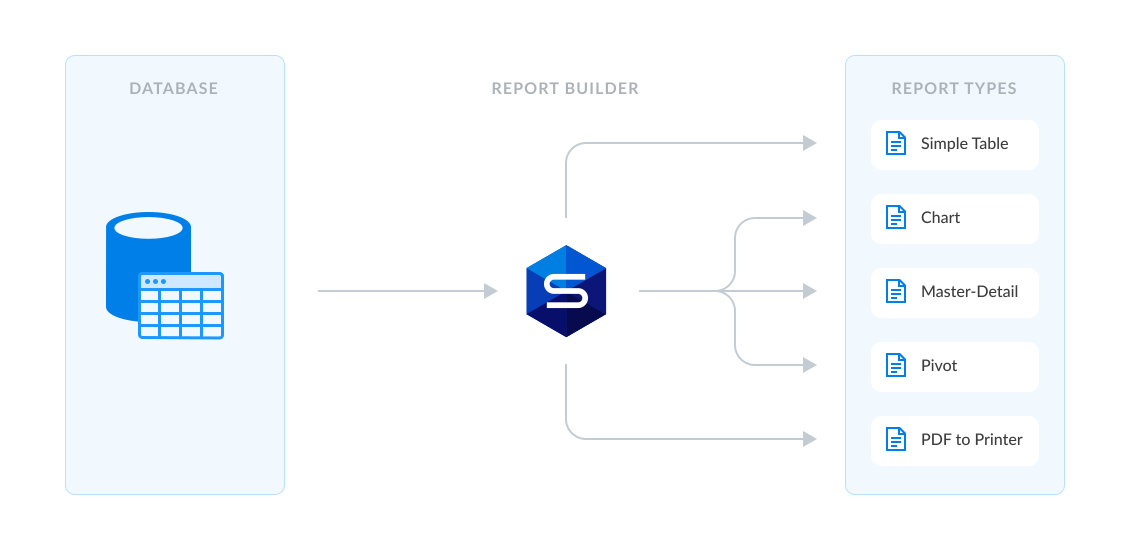
Data reporting can be time-consuming and resource-intensive. dbForge Studio for PostgreSQL simplifies and streamlines this process with a set of powerful, user-friendly reporting tools.
Let's take a closer look at the tools available for PostgreSQL data reporting in the Studio.
Data Report Wizard allows you to create data reports from scratch based on a single table, view, or custom query. In just a few steps, you can build a report template with a layout that matches your requirements and preferences.
The wizard allows you to:
Report Designer helps you create a blank report without connecting it to a data source from the start. You can design the report layout, customize it with visual elements such as rich text, labels, panels, lines, tables of contents, and shapes, and format the text as needed.
Once the report design is complete, you can add data by specifying source tables and columns.
Charts are a popular way to visualize data and present complex information in an easily understandable format. They help users quickly identify trends, patterns, and other insights, which makes chart-based reports useful in business, finance, healthcare, and many other industries.
Chart Designer in dbForge Studio for PostgreSQL provides a variety of chart types and visual styles that you can configure to suit your reporting needs.
Pivot tables help you rearrange and summarize large volumes of data. With their help, you can examine data from different perspectives and better understand relationships and dependencies.
dbForge Studio for PostgreSQL provides the following options for working with pivot tables:
Now, let's see how to create a PostgreSQL data report. We'll select the source data, create and customize a report template, export the completed report, and automate report generation.
The first step is to connect to your PostgreSQL database. Note that dbForge Studio for PostgreSQL is also compatible with Amazon Redshift and numerous PostgreSQL-based cloud databases.
1. After connecting to a database, go to File > New > Data Report. In Data Report Wizard, select Standard Report and click Next.
2. Select the data source. You can create a report based on data from a table or view, or you can retrieve data from multiple tables using a custom SQL query. In this example, let us use a custom query as the data source. Click Next.
3. dbForge Studio for PostgreSQL will execute the query in the background, define the output structure, and display the columns available for the report. Select the columns you want to include and click Next.
4. Configure the report layout, select a style, and click Finish to open the report in the Report Designer. Then click Preview to view the report populated with data.
When the report is ready, you can export it to PDF, HTML, XLSX, CSV, RTF, image files, and other supported formats.
Data analysis and reporting can be an important part of CI/CD workflows. With dbForge Studio for PostgreSQL, you can automate report generation and delivery to reduce manual work and integrate reporting tasks into your CI/CD processes.
Save the report template as a .rdb file.
To set up automated reporting, click Save Command Line in Data Report Wizard. In the Command line execution file settings dialog, select the saved .rdb file and provide additional parameters to match your preferences.
Click Validate to ensure the settings are correct, then save the .bat file. To generate the report automatically, execute this file.
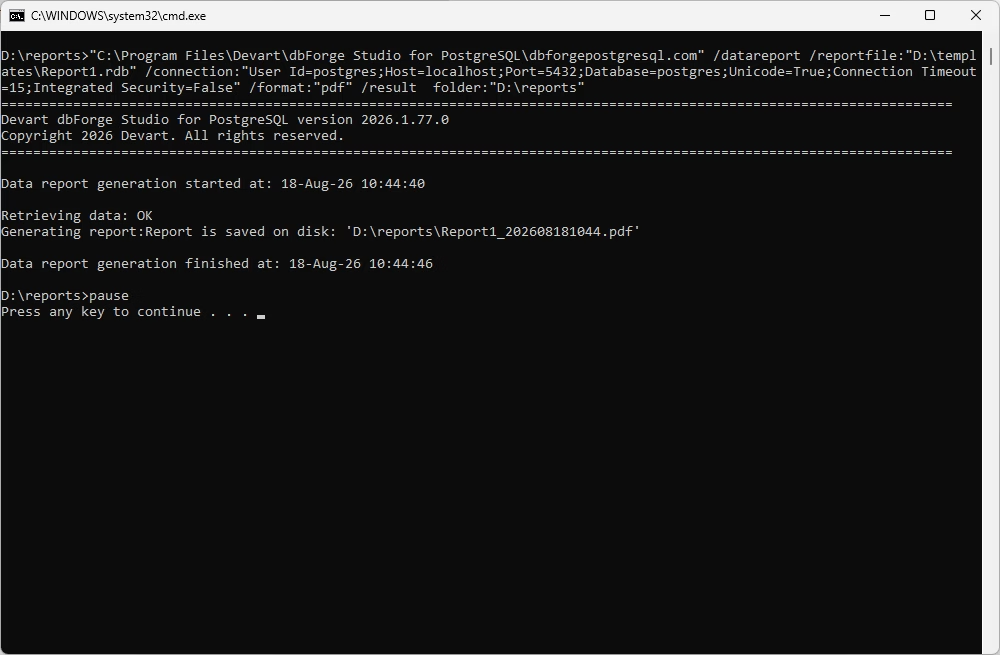
You can generate data reports regularly using Windows Task Scheduler.
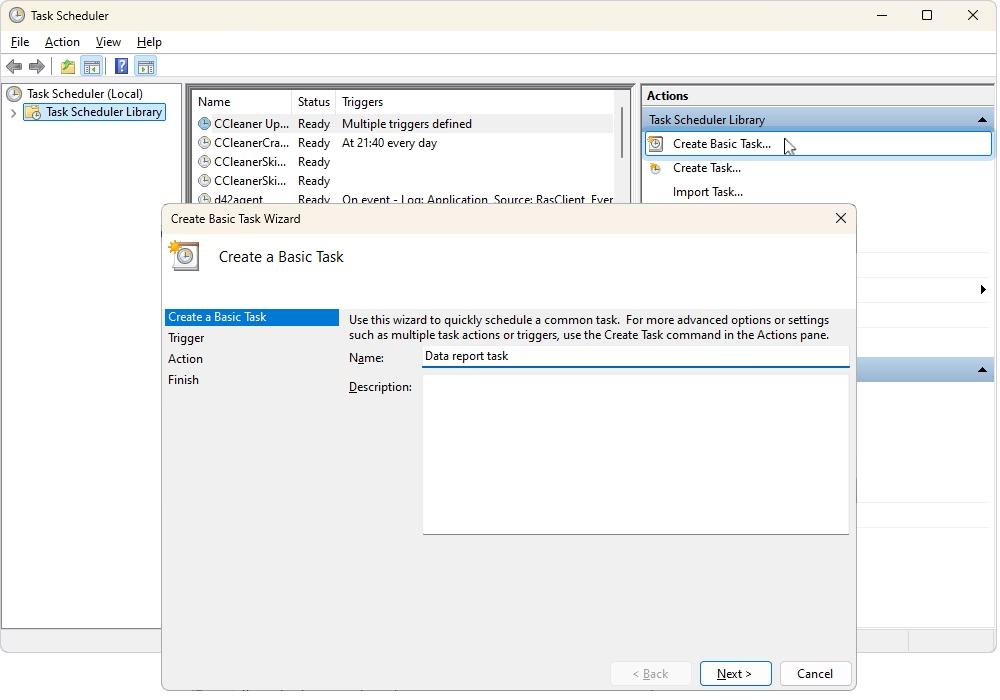
Open Task Scheduler and go to Task Scheduler Library. Click Create Basic Task, give the task a name, and click Next.
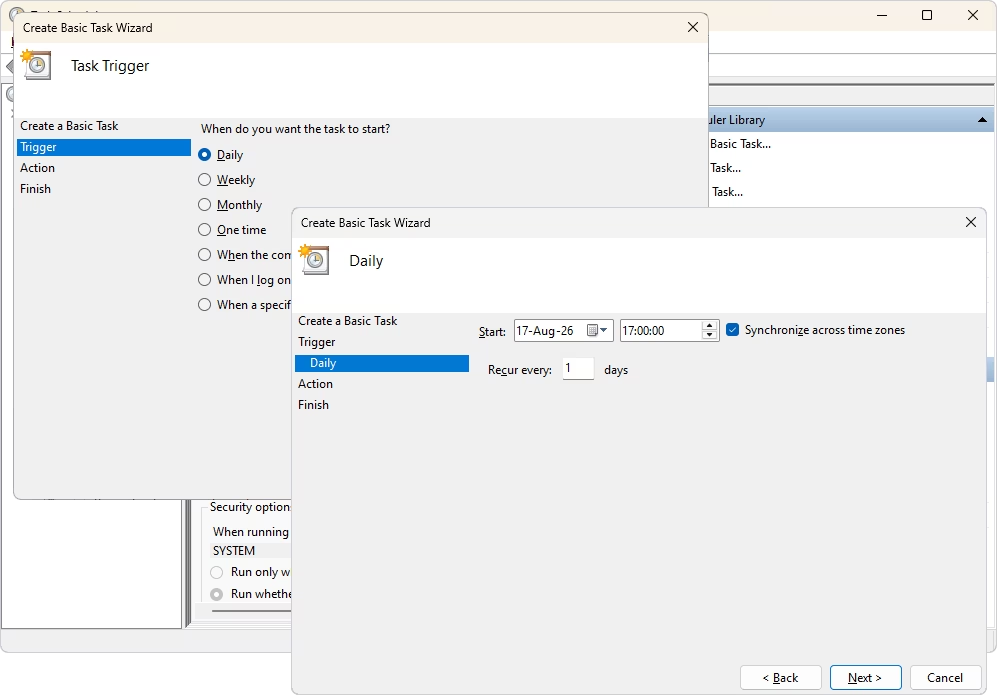
In the Trigger section, specify when the task should run. Select the required date and time, and then click Next.
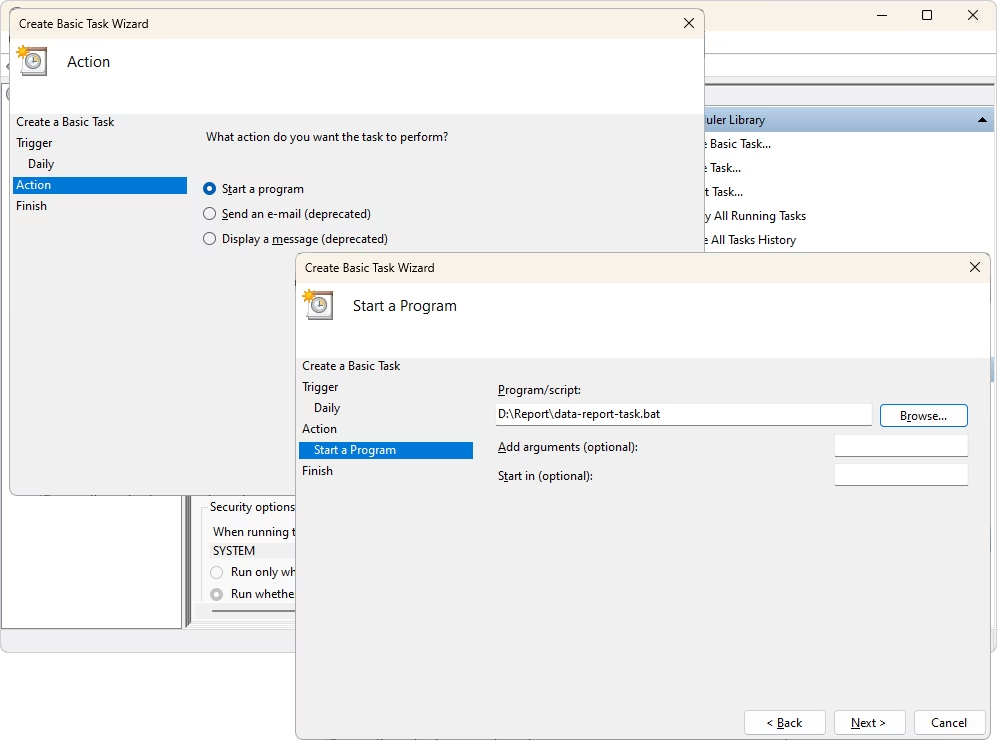
For the action, select Start a program and click Next. Specify the .bat file you saved when configuring the data report.
Click Finish to complete the task setup.
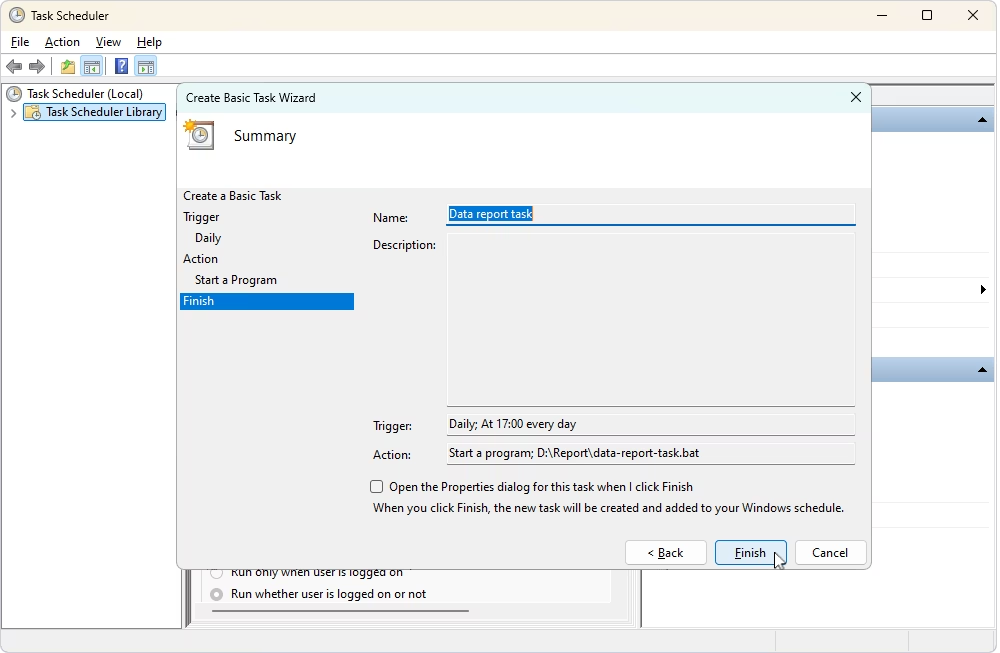
Windows Task Scheduler will launch the command line of dbForge Studio for PostgreSQL and generate the report according to the configured schedule. The resulting report will then be saved in the specified output format.
dbForge Studio for PostgreSQL makes data analysis and reporting straightforward. With Report Designer, data visualization features, and automation capabilities, you can quickly create and customize reports and automate their execution.
Explore all the features of dbForge Studio for PostgreSQL now! Download a fully functional 30-day free trial and see the difference it can make for your projects!
The most convenient option is to use a dedicated PostgreSQL reporting tool such as dbForge Studio for PostgreSQL. It provides a visual Report Designer for creating, customizing, and formatting data reports. Therefore, you don’t have to build the entire reporting workflow manually.
Yes. dbForge Studio for PostgreSQL includes a built-in Report Designer that lets you create static and data-aware reports, configure layouts, add calculated summaries, and visualize data using charts and pivot tables.
Yes. Using dbForge Studio for PostgreSQL, you can export reports to all major formats, including PDF and Excel. This option makes it easy to distribute, archive, or analyze reporting results further.
Yes, modern IDEs for PostgreSQL include task automation. dbForge Studio for PostgreSQL supports command-line automation, so you can save the task settings as an executable .bat file and use it to run the task on demand or on schedule. Besides, you can incorporate reporting tasks into scripts, scheduled processes, and DevOps workflows.
A PostgreSQL report builder focuses on creating structured, formatted reports directly from database data, often within a database development environment. BI tools typically provide broader capabilities for interactive dashboards, cross-source analytics, data exploration, and organization-wide business intelligence.
dbForge AI Assistant can help you create reports in dbForge Studio for PostgreSQL. It explains the configuration of all the tools, so you can quickly create a data report using the visual Report Designer. Besides, the AI Assistant can help you with the SQL side of reporting—for example, it can generate a custom SQL query to retrieve data from several tables for your report.