Create Database Objects in SQL Server
One of the most common tasks encountered when working with databases is creating different objects. Database systems, including SQL Server, provide standard commands for these tasks. However, you can make the entire process even more convenient by performing it visually. Modern integrated development environments (IDEs) usually include features for no-code database object creation. dbForge Studio for SQL Server also offers such features, accessed from its Database Explorer.
This article explains how to use Database Explorer in dbForge Studio for SQL Server to create essential database objects visually. Let's have a closer look.
Create database objects from Database Explorer
dbForge Studio for SQL Server is a powerful SQL Server GUI tool that enables you to construct databases and objects via SQL queries. A powerful SQL Editor with extensive coding assistance features makes this task simpler. Alternatively, Database Explorer offers a visual, intuitive way to create, modify, or remove objects, and this approach is much faster and more accurate than writing code manually.
The following object types are supported:
- Tables
- Views
- Procedures
- Functions (table-valued, scalar-valued, aggregate)
- DDL triggers
- Synonyms
- Sequences
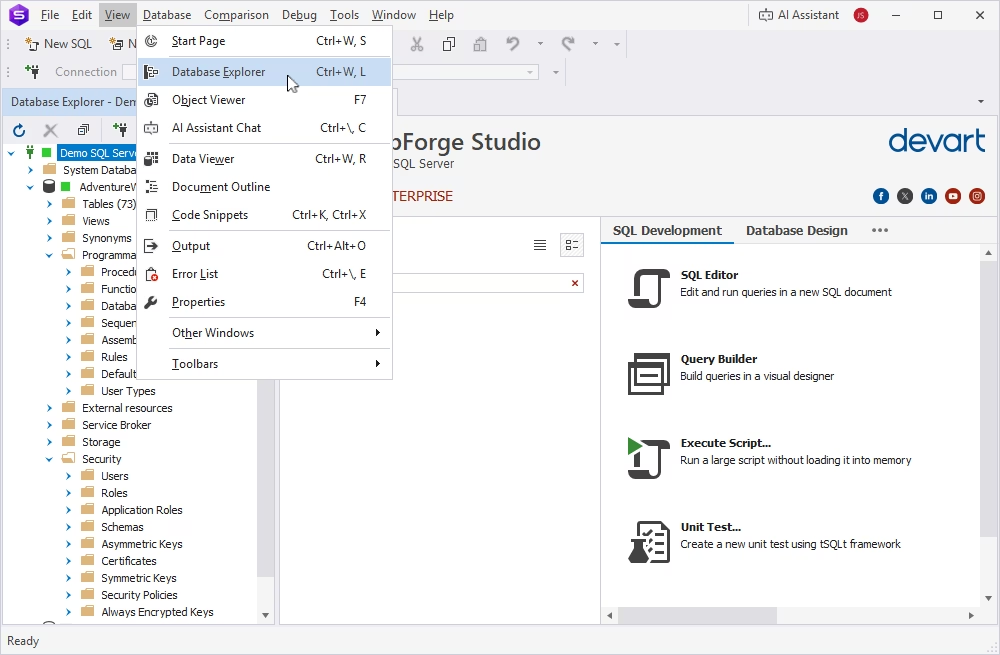
Launch dbForge Studio for SQL Server. The Database Explorer pane with the list of all database nodes is on the left by default. If it's not there, you can always proceed to the View menu and select Database Explorer to enable it.
Expand any node to view the database objects organized into folders; each folder can be further expanded to show the list of objects.
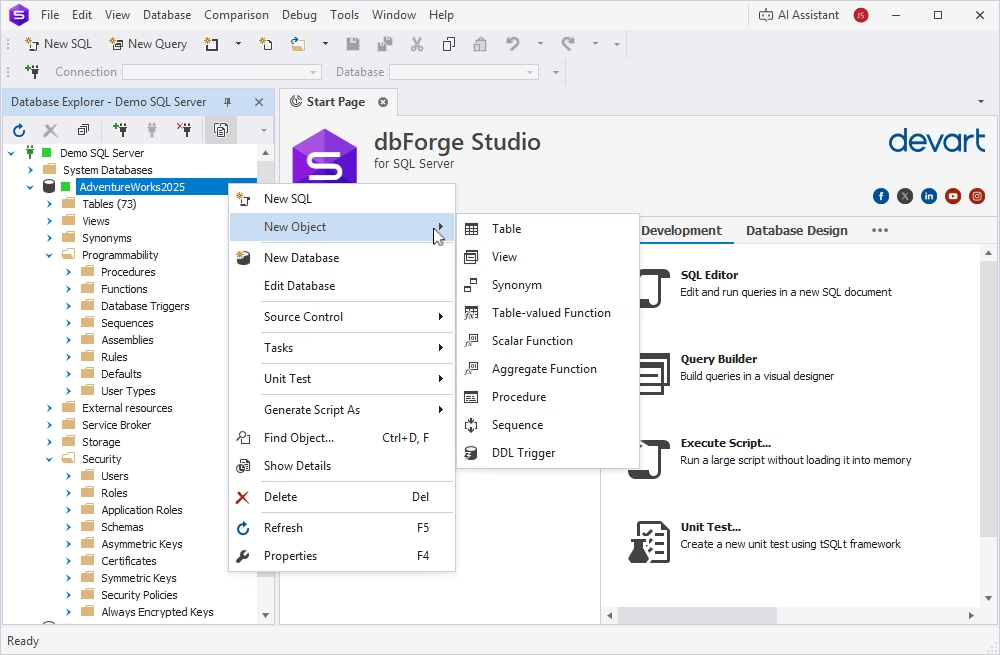
To create a database object in SQL Server, navigate to the required database in Database Explorer and right-click the node to open the menu. Point to New Object and choose the object type.
This opens the editor where the object will be created. Let's explore how to create each supported object type using dbForge Studio for SQL Server.
Create SQL Server tables
Databases organize and store data in tables, as the table structure with internal relations is the most suitable for effective data storage. You can't work with databases without creating and configuring tables; this task is the core of the database design, and it is one of the fundamental skills for database specialists.
There are two ways to create tables in SQL Server: with SQL commands or graphical tools. In dbForge Studio for SQL Server, you can create and configure tables accurately using Table Designer, available from Database Explorer. It lets you define columns, set data types, set constraints, manage relationships, and control other table properties.
You can create a new table using the New Object option from the shortcut menu. Or, you can start creating the table at once.
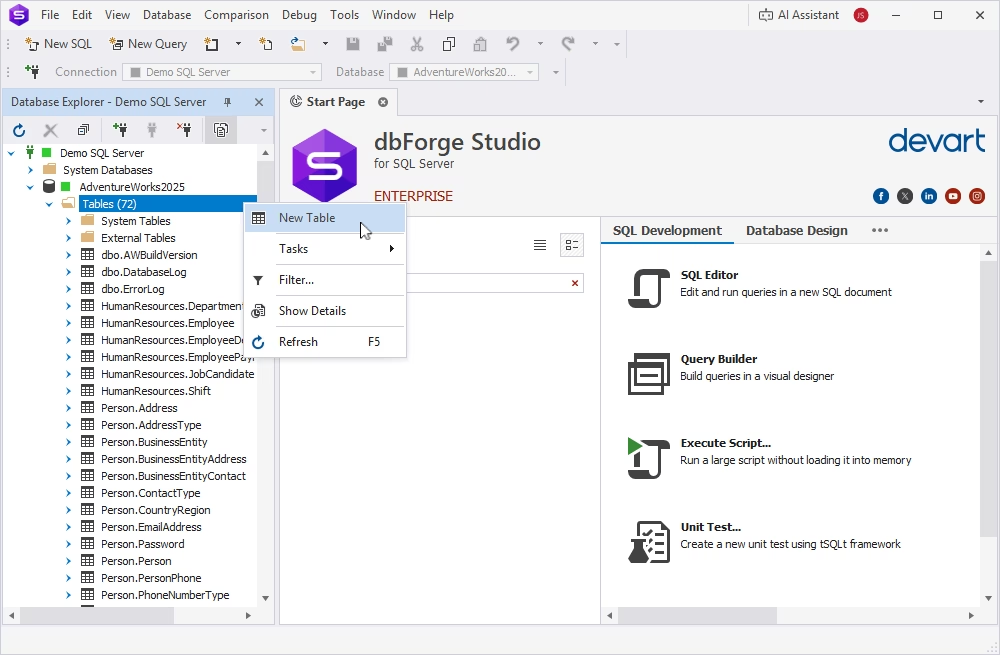
In Database Explorer, connect to the database where you want to create a new table and expand its node. Then, right-click the Tables node and select New Table. It launches Table Designer.
In the Name text box, type the table name. By default, the table is contained in the dbo schema, but you can select another schema from the dropdown menu.
Type the column names and edit column properties: specify the data types for them and define whether you allow NULLs for columns. If you need to set a primary key for the column, select the corresponding checkbox. Click Apply Changes, and dbForge Studio will create a table in the database.
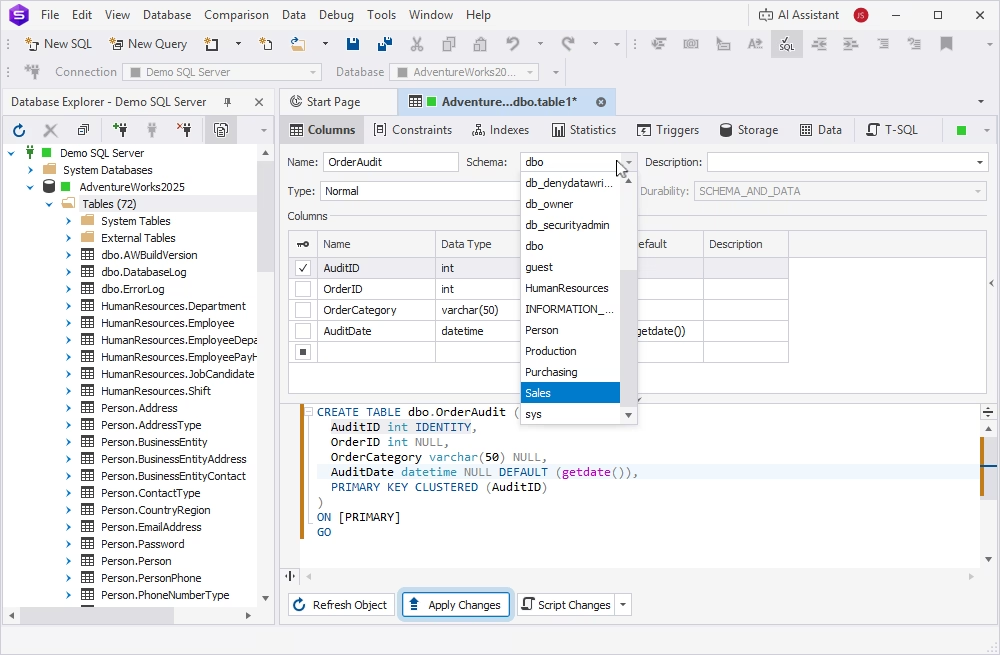
dbForge Studio for SQL Server converts your visual configurations into SQL code to create the table. You can view it, modify it, and save it if necessary. Also, you can edit table properties visually and then use the Apply Changes option in the same way.
Create SQL Server views
A view is a logical table based on one or more tables or views. It does not store data but retrieves it from underlying tables and views on request. Database Explorer allows you to create a view in SQL Server easily using the shortcut menu.
As described earlier, select the required database node and expand it, then proceed to the Views node. Right-click it and select New View from the menu.
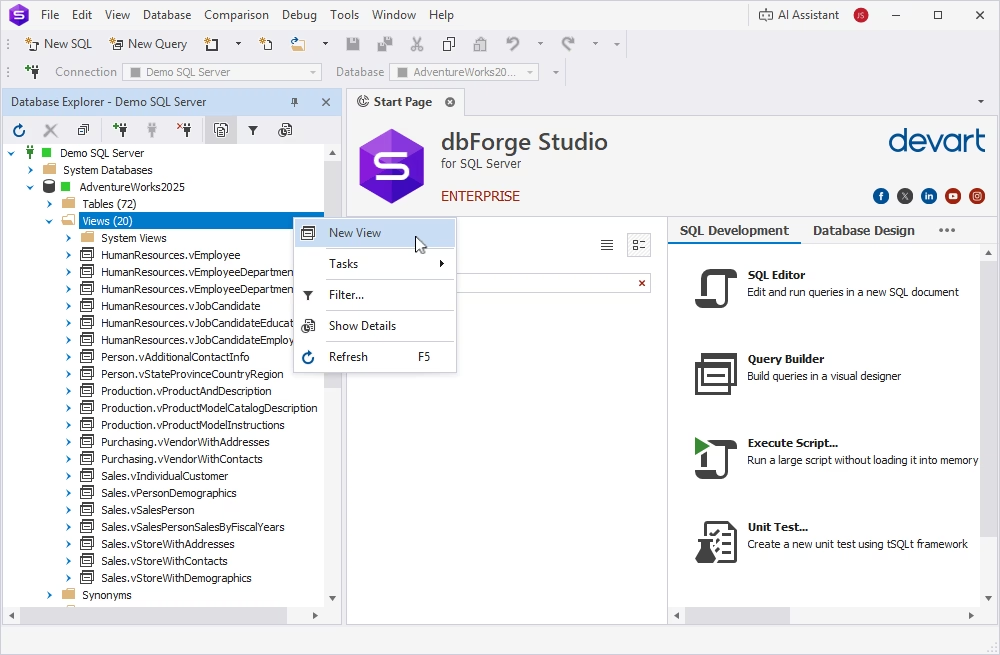
The View Editor opens. Under Query Text, enter the view name, select the schema, and enter the query to retrieve data.
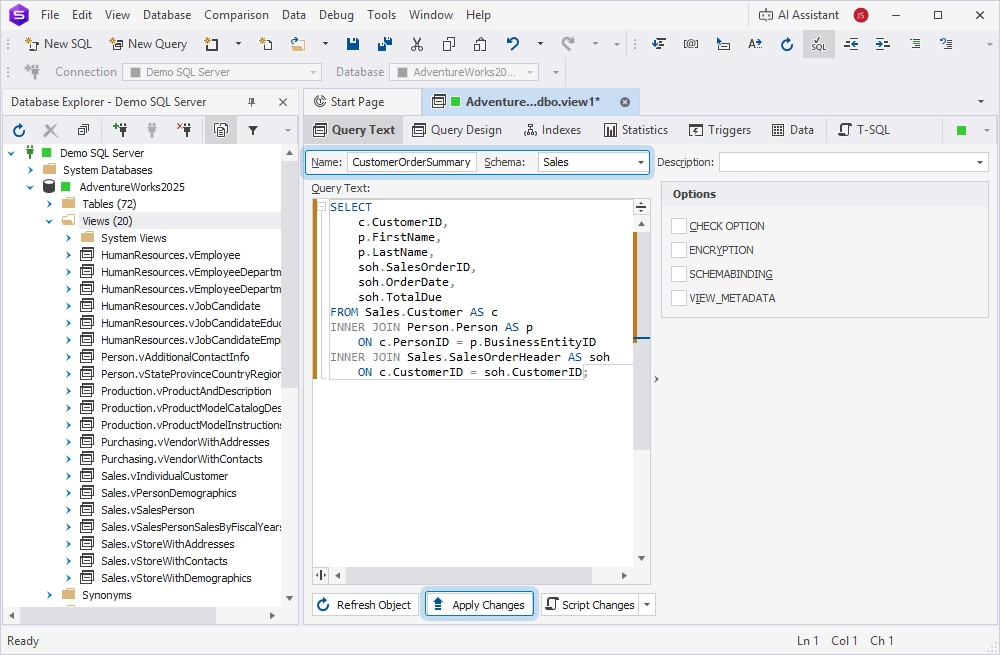
Optionally, add indexes for the view, set up statistics, add triggers, or build the view query on the database ER diagram. When finished, click Apply Changes to create the view.
Create stored procedures in SQL Server
SQL stored procedures are ready-made collections of one or more SQL statements saved for reuse. You do not need to write the same SQL queries multiple times. Instead, you can include them in the stored procedure and execute it when necessary.
Database Explorer also allows you to create stored procedures. After selecting the database, proceed to the Programmability node > Procedures. Right-click the Procedures node and select New Procedure from the menu.
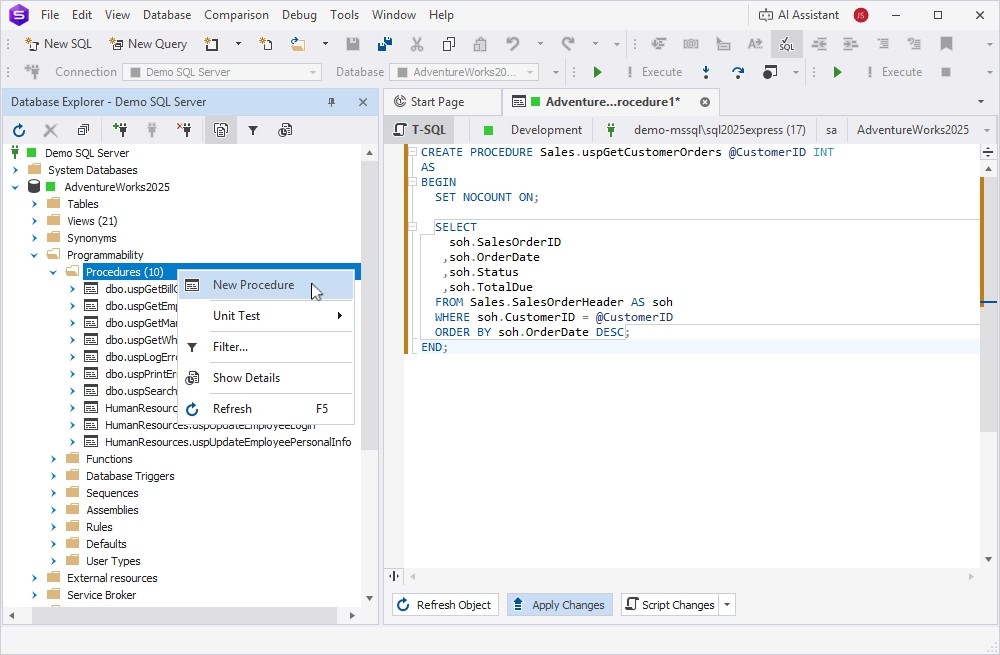
In the SQL document that opens, enter the CREATE PROCEDURE statement. After that, click Apply Changes to create the procedure in your SQL Server database.
Create SQL Server functions
SQL Server functions perform specific actions after accepting specific input parameters and return the results of those actions as a single value or a result set. These actions may range from simple calculations to complex data manipulations. Similarly to stored procedures, you can create a function once and reuse it when needed.
With dbForge Studio for SQL Server, you can create table-valued, scalar-valued, and aggregate functions:
- A table-valued function returns a table instead of a single value
- A scalar-valued function returns a single value for each row where it's called
- An aggregate function performs a calculation on a set of rows and returns a single summary value
To create the function, use Database Explorer in the same way as when creating other database objects:
Expand the Database node and go to Programmability. Right-click the Functions node and select the type of function to create: Table-valued, Scalar-valued, or Aggregate.
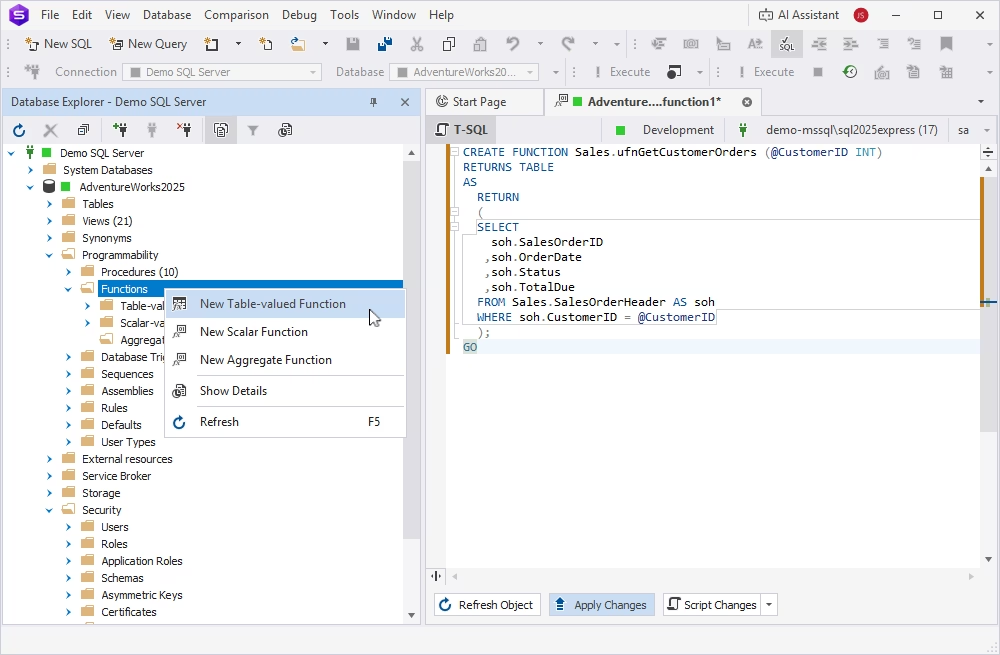
A new SQL document opens. Fill in the template with the function code. Click Apply Changes.
Create DML and DDL triggers in SQL Server
A trigger is a database object that runs automatically when an event occurs. This object is bound to a specific table and executes automatically.
In SQL Server, there are two trigger types:
- A DML (Data Manipulation Language) trigger runs following operations that change data (such as INSERT, UPDATE, or DELETE)
- A DDL (Data Definition Language) trigger runs following operations that change the database or server structure; examples include CREATE, ALTER, DROP, GRANT, DENY, REVOKE, or UPDATE STATISTICS
dbForge Studio for SQL Server allows you to create DDL triggers visually, using Database Explorer.
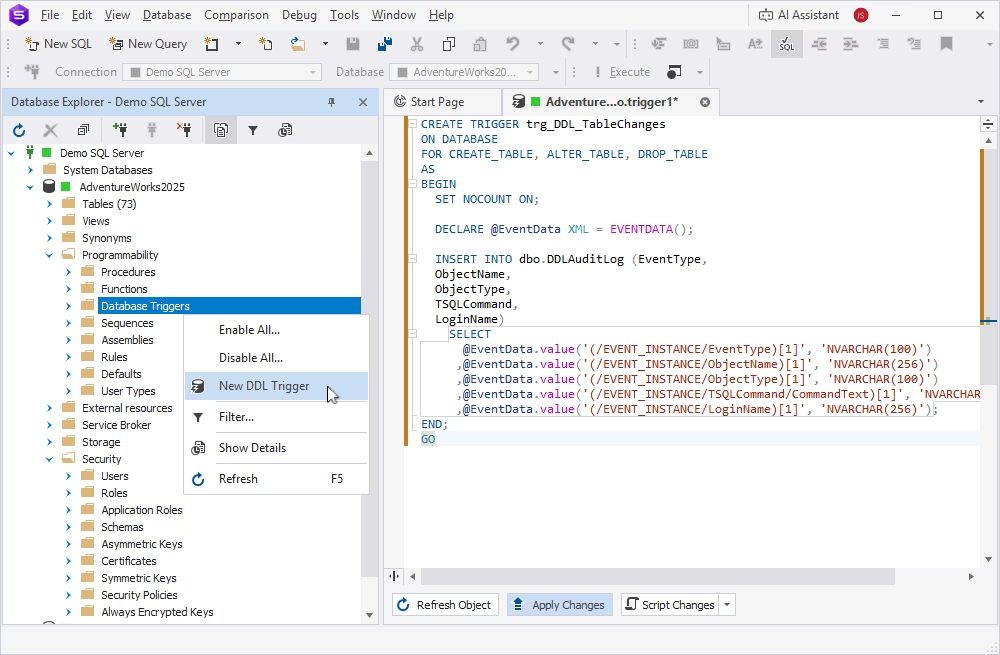
To create a trigger, connect to the target database in Database Explorer. Expand its node and go to Programmability. Select the Database Triggers node, right-click it, and choose New DDL Trigger from the menu.
A trigger editor document appears. Enter the trigger name and script. Save the trigger by clicking Apply Changes.
You can also create triggers using Table Designer. This works when creating a new table or adding a trigger to an existing table.
In Database Explorer, select the table where you want to add a trigger, right-click it, and choose Open Editor. In the Editor area, navigate to the Triggers tab. There, you can create and manage triggers.
Right-click in the area and select New Trigger. You can also edit, enable, disable, or delete triggers as needed.
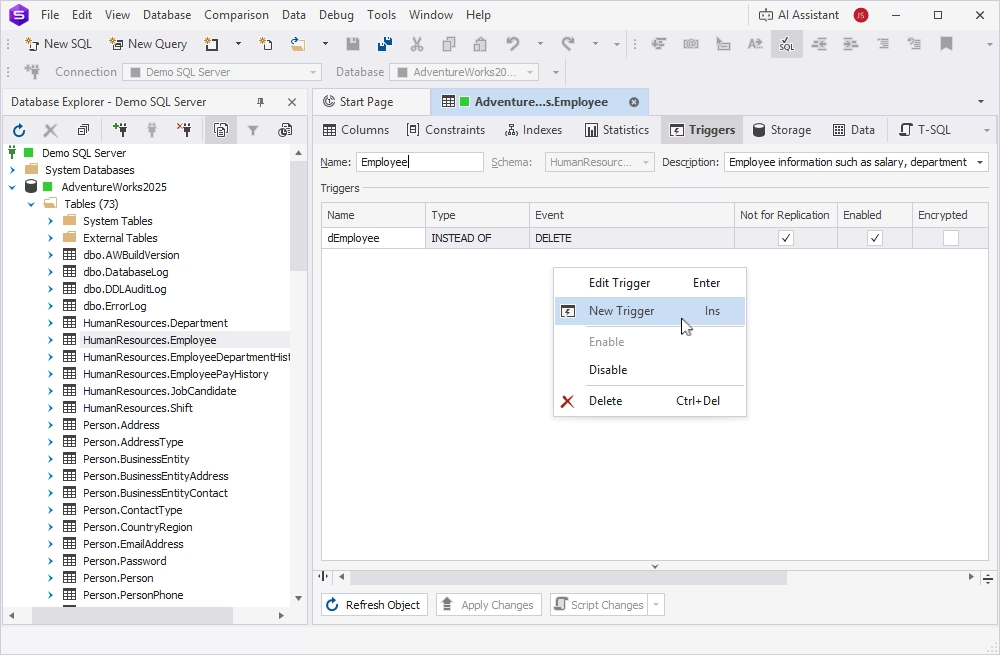
To save changes, click Apply Changes at the bottom of the editor page.
Create sequences in SQL Server
A sequence is a database object that generates ordered numeric values based on a defined specification, including start value, increment step, and optional cycling behavior. You can create sequences in SQL Server databases from Database Explorer.
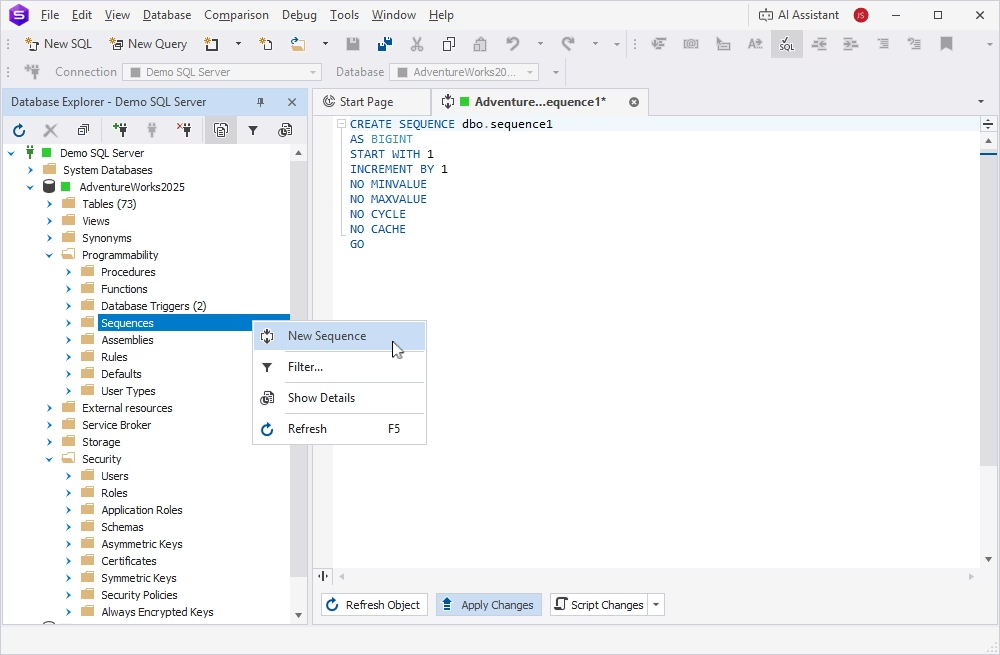
Right-click the Sequences node under Programmability and select New Sequence. Then enter the CREATE SEQUENCE statement. The template is already present, so you only need to edit it and adjust it to your needs. Click Apply Changes to save the sequence.
Create synonyms in SQL Server
A synonym is a database object that serves as an alternative name or alias for another database object (e.g., a table, view, stored procedure, or function). In the same way as with all other database objects, you can quickly create synonyms in SQL Server databases from the Studio's Database Explorer.
Expand the required database node and proceed to the Synonyms section. Right-click it and choose New Synonym. An SQL document opens; enter the CREATE SYNONYM statement, and click Apply Changes to save it in the database.
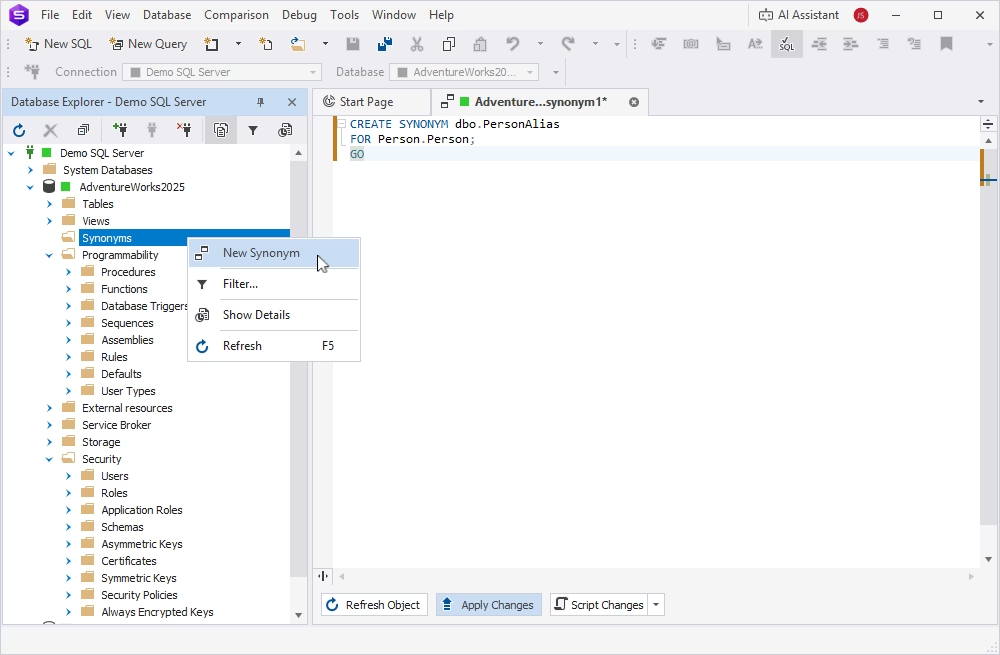
You can view, edit, or delete all objects created with the help of Database Explorer in dbForge Studio for SQL Server in the same manner: right-click the object and select the action from the menu.
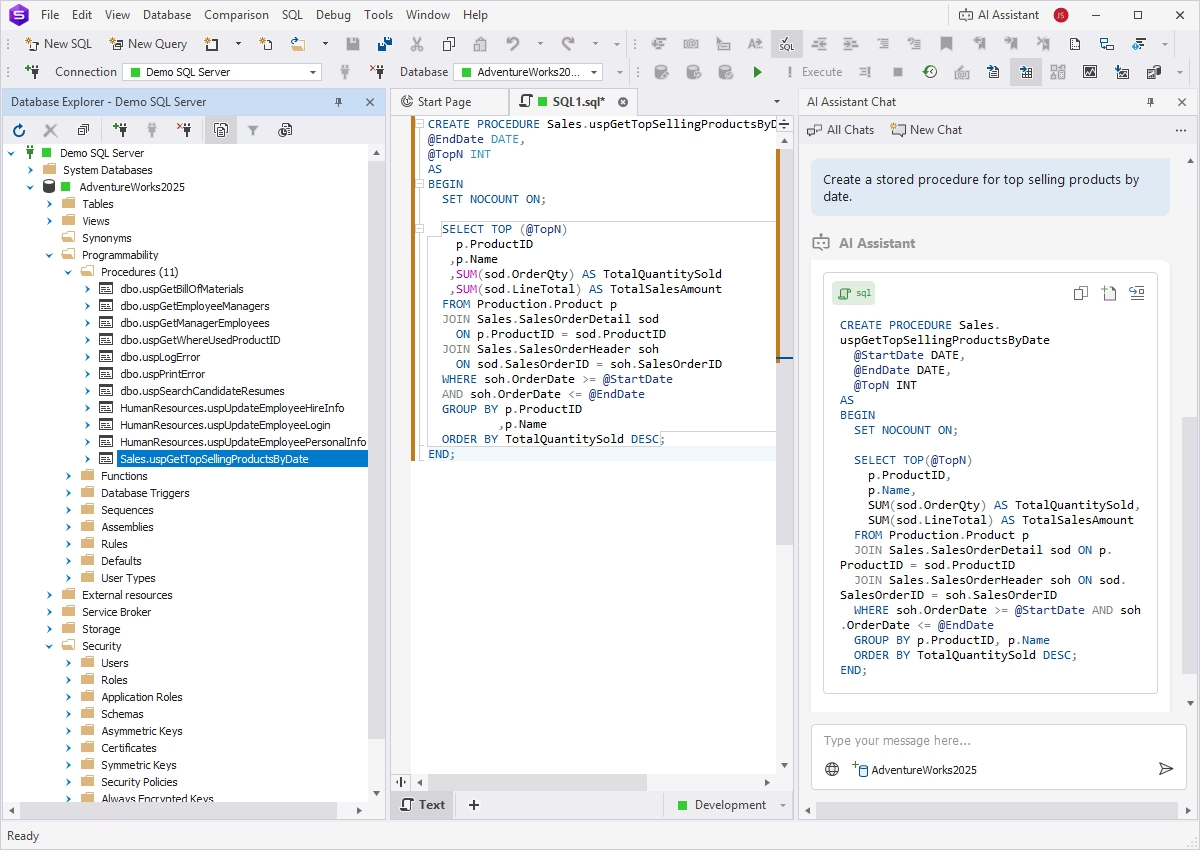
Simplify database tasks with dbForge AI Assistant
As you can see, views, functions, stored procedures, triggers, sequences, and synonyms involve writing SQL code for the particular database object. dbForge Studio for SQL Server simplifies this task for you as it provides code templates and helps you write code faster and more accurately. However, there is one more powerful tool that will make this task even more efficient—dbForge AI Assistant.
dbForge AI Assistant is available as an integrated part of dbForge Studio for SQL Server and other dbForge tools. It generates, explains, troubleshoots, and optimizes SQL code. You can describe your goal in plain language, and dbForge AI Assistant will understand it and provide you with a detailed answer.
Describe the task, and dbForge AI Assistant will generate the required code for you. After that, execute this code directly to add the object to the database. This way, the whole process of creating a new database object takes only a few clicks.
Conclusion
Modern databases are highly complex, often containing thousands of objects. Creating and managing these objects demands significant time and effort from database specialists.
However, everything's much simpler with a proper GUI at hand. dbForge Studio for SQL Server offers this functionality in Database Explorer, where you can create any database object in several clicks, while the integrated dbForge AI Assistant helps you get clear and efficient SQL code for all objects within seconds. You can try the AI-powered dbForge Studio for SQL Server in your work instantly—just download the 30-day fully-functional free trial, install the IDE, and see its powers in action!