How to Show/List Tables in a SQL Server Database
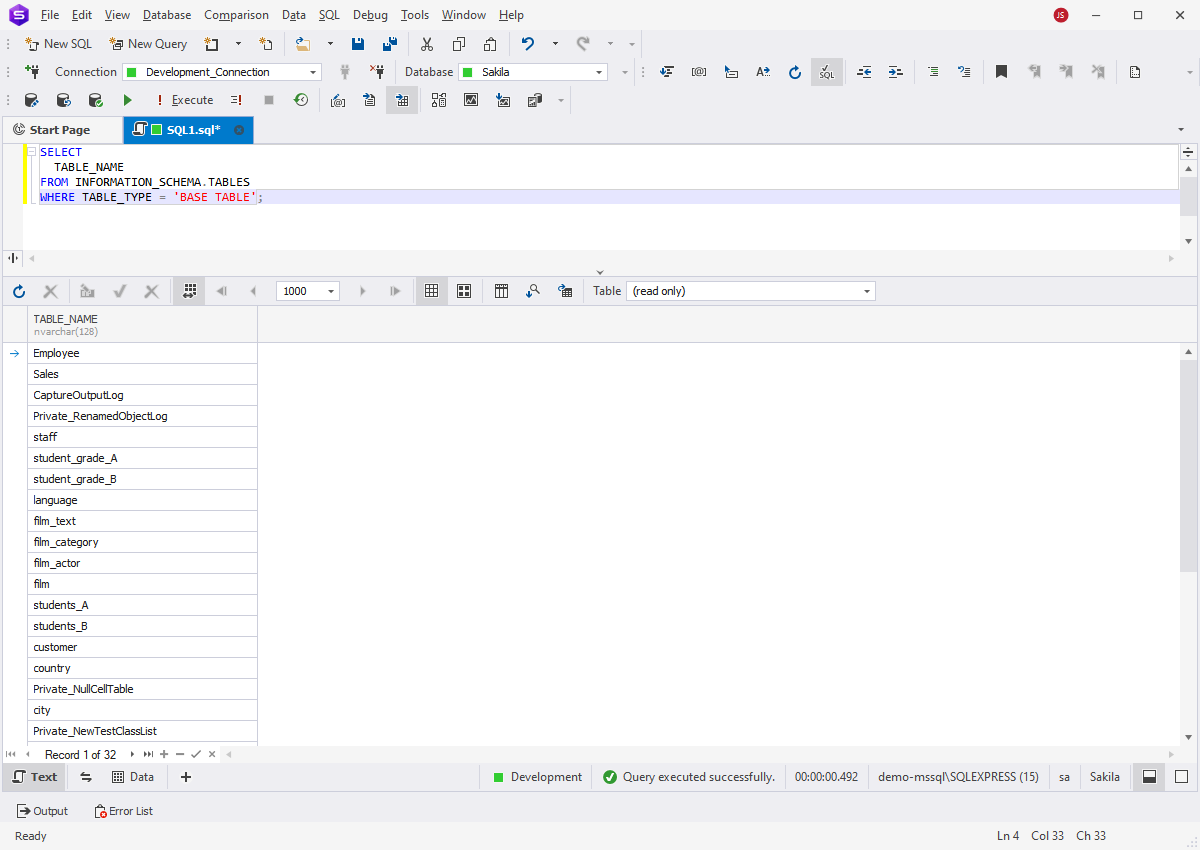
To list all tables in a SQL Server database, you can run the following query:
SELECT TABLE_NAME
FROM INFORMATION_SCHEMA.TABLES
WHERE TABLE_TYPE = 'BASE TABLE';
This command returns the names of all user-defined tables within the current database. As you can see, unlike MySQL or MariaDB, SQL Server does not support the SHOW TABLES
statement directly. Instead, it provides several alternative methods to retrieve a list of tables, each with its own use cases and advantages.
In this article, we'll explore the different approaches, explain when to use them, and compare their benefits depending on your SQL Server version and requirements.
Why you need to list tables in SQL Server
Database developers and administrators have to monitor the condition of databases, including all associated objects and processes. Often, routine tasks such as database design,
performance tuning, and security maintenance require the ability to view the list of tables within a particular database. Hence, database professionals search for reliable and
efficient ways to accomplish this task accurately.
SQL Server system catalog views serve as the primary interface for accessing metadata, providing structured information about both schema objects (tables, views, procedures)
and instance objects (logins, settings, access privileges). These views allow you to query metadata just like regular tables, making them the most reliable way to retrieve
a list of all tables in a database.
Catalog views were introduced in SQL Server 2005 and remain the recommended method for metadata access because they offer consistent results, even when underlying system tables change.
They also return descriptive column names, which help new users interpret the data.
The hierarchy of catalog views is organized into two tiers:
- Upper tier: sys.objects, which contains details about all schema-scoped objects in a database.
- Lower tier: views like sys.tables, sys.views, and sys.procedures, which inherit columns from sys.objects while adding their own specific attributes.

To list tables specifically, you can query the sys.tables view, provided you have the necessary permissions. Database owners have access by default, while other users may need
explicit permissions to use this view.
How to list tables using sys.tables
You can retrieve all user tables in SQL Server using sys.tables. This system catalog view provides a complete list of user-defined tables in the current database:
SELECT
  name
FROM sys.tables;
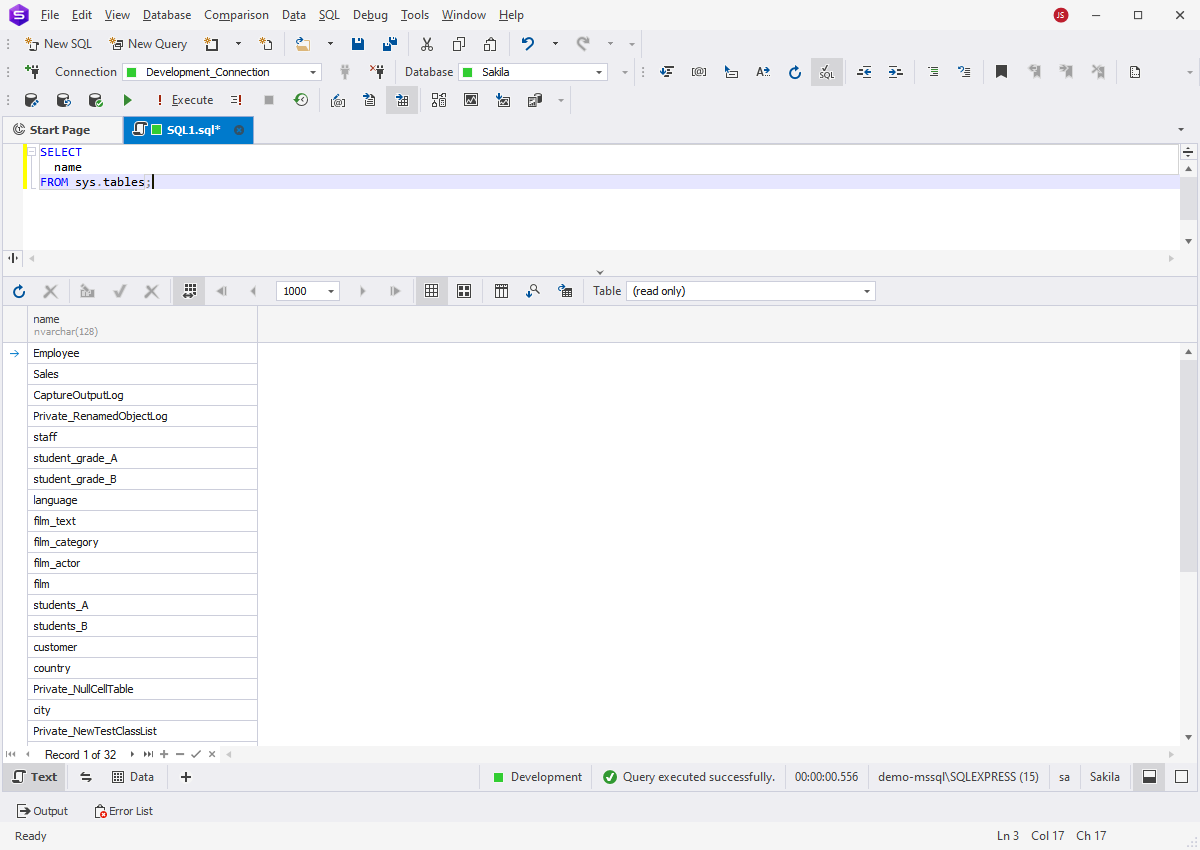
By default, the query returns table names from the active database, but you can switch to another database context if needed. Keep in mind that access to sys.tables
requires appropriate permissions. Database owners can query it without restrictions, while other users may need explicit privileges. Also note that sys.tables is unique to
SQL Server and is not available in other RDBMSs like MySQL or PostgreSQL.
How to list tables using sys.objects
One of the most commonly used catalog views is sys.objects, which returns a list of user-defined tables along with other schema objects. To show user tables in SQL Server,
you can filter the results by object type:
 SELECT
  name
FROM sys.objects
WHERE type = 'U';

In this query, 'U' stands for user tables. Since sys.objects includes all schema-scoped objects (such as views, procedures, and constraints), applying the WHERE clause ensures
that only tables are displayed. While sys.tables is more direct, sys.objects can be especially useful when you need to query multiple object types in one place.
Using INFORMATION_SCHEMA to list tables
The INFORMATION_SCHEMA.TABLES view is ANSI-compliant and lists all tables in a database, making it a portable option across different relational database systems.
To display every table and view in the current database, you can use:
SELECT
  *
FROM INFORMATION_SCHEMA.TABLES;
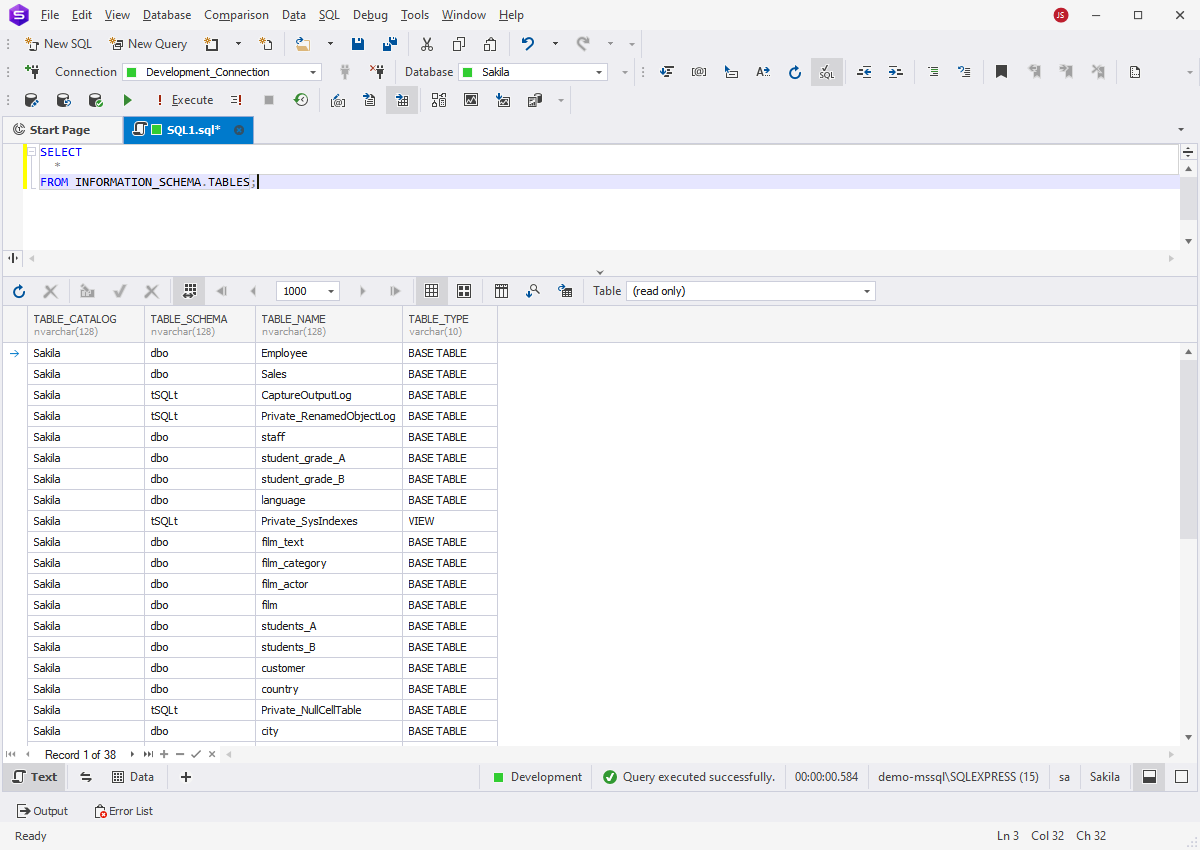
If you want to show only user tables and exclude views, refine the query with a filter:
SELECT
  TABLE_NAME
FROM INFORMATION_SCHEMA.TABLES
WHERE TABLE_TYPE = 'BASE TABLE';
This approach works in SQL Server 2005 and later. However, it may run slower than querying system catalog views, such as sys.tables or sys.objects, especially in large databases.
Still, it remains a reliable and widely recognized method for listing tables in SQL Server when cross-platform compatibility is important.
Using dbo.sysobjects to list tables
dbo.sysobjects is an outdated version of the sys.objects view that was in use prior to the release of SQL Server 2005. If you are working with SQL Server 2000 or an earlier
version and need to list tables in your databases, you should utilize dbo.sysobjects.
It provides the same results as sys.objects: the list of all objects in the database, including tables. When you need to list the database tables exclusively,
you can modify the query in the same manner as in the modern version by adding the WHERE clause to filter object types:
SELECT
  name
FROM dbo.sysobjects
WHERE xtype = 'U';

Note
This command has been deprecated in SQL Server 2005. It is still active in higher versions of SQL Server, but Microsoft recommends using more up-to-date options
like querying sys.tables or sys.objects.
Using the sp_tables stored procedure to list tables
The stored procedure sp_tables can be used to fetch a list of database objects, excluding synonym objects. The simplest way to query this stored procedure is:
However, this approach may not be the most convenient option as it retrieves the entire list of database objects. For more precise results, you can modify the command
to filter the output based on the table type, table name, table owner, and table qualifier.
EXEC sp_tables @table_owner = 'dbo'
              ,@table_qualifier = 'AdventureWorks2022'
              ,@table_type = "'TABLE'";
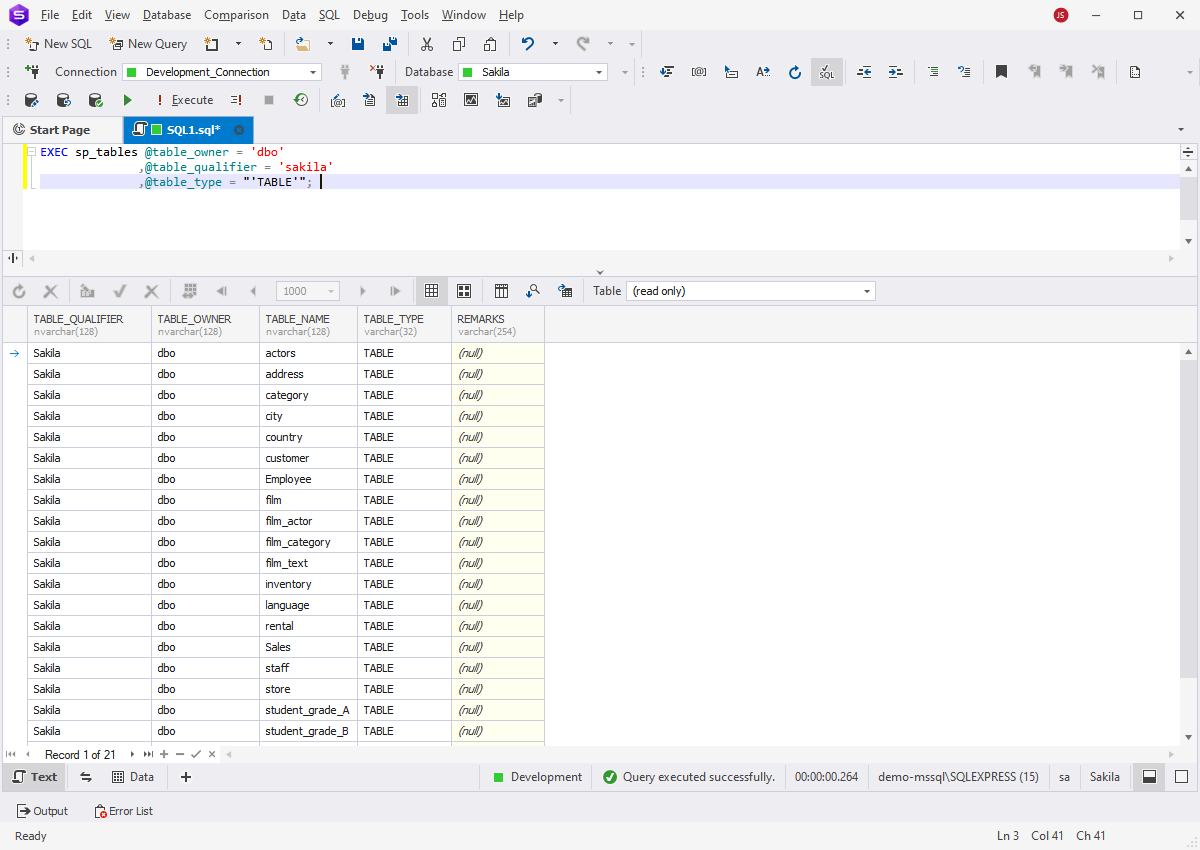
While the sp_tables stored procedure can be useful, many SQL Server experts find it more limited and complex to use in larger queries compared to querying
sys.tables and sys.objects.
Show tables in a specific schema
To list tables within a specific schema, you can filter results using the TABLE_SCHEMA column in the INFORMATION_SCHEMA.TABLES view. This is the simplest way to generate
a SQL Server list of tables by schema query:
SELECT *
FROM INFORMATION_SCHEMA.TABLES
WHERE TABLE_SCHEMA = 'sales';
In this example, only tables that belong to the sales schema will be displayed. This method is especially useful in databases with multiple schemas, as it helps you quickly isolate objects
that belong to a particular business area or application module.
Show temporary tables
To make SQL Server show temp tables, you can query the tempdb.sys.tables view and filter the results with a LIKE '#%' condition. This pattern ensures that
only temporary objects are listed:
SELECT name
FROM tempdb.sys.tables
WHERE name LIKE '#%';
In SQL Server, temporary tables are created in the tempdb database, and their names always begin with a #. Local temporary tables start with a single #,
while global temporary tables use ##. Using this query makes it easy to identify all active temporary tables, which is especially useful for debugging or monitoring session-based processes.
Find tables with a specific column
To list tables with a column name in SQL Server, you can query the INFORMATION_SCHEMA.COLUMNS view and filter by the column name:
SELECT TABLE_NAME
FROM INFORMATION_SCHEMA.COLUMNS
WHERE COLUMN_NAME = 'YourColumn';
This query returns all tables in the current database that contain the specified column. It is especially helpful when working with large or legacy databases where the same column might
appear in multiple tables. Using INFORMATION_SCHEMA.COLUMNS is a reliable way to quickly locate where a column is used and understand how data is structured across different tables.
List tables with row count
To list tables with row count in SQL Server, you can query the sys.objects catalog view together with the dynamic management view sys.partitions:
SELECT o.name,
       SUM(p.rows) AS row_count
FROM sys.objects o
JOIN sys.partitions p ON o.object_id = p.object_id
WHERE o.type = 'U'
GROUP BY o.name;
This query returns each user-defined table along with the number of rows it contains. The sys.partitions view provides up-to-date row counts, making it a practical solution
for monitoring table sizes or identifying large tables in a database. While it is not a replacement for detailed performance analysis, it offers a quick way to assess data distribution across your tables.
Show all tables in a SQL Server database with dbForge Studio
Database specialists often use T-SQL commands as their primary option. An alternative approach is to utilize GUI tools like Microsoft's SQL Server Management Studio (SSMS)
or dbForge Studio for SQL Server, which we used while preparing this material. These GUI tools offer a more user-friendly interface and allow users to perform actions
with a simple click instead of writing scripts.
To view tables in dbForge Studio for SQL Server, you can use Database Explorer. Follow these steps:
- Select the desired database in the left pane.
- Expand the selected database to reveal its contents.
- Expand the Tables folder to display all tables within the database. You can explore any specific table further to access information about its columns, triggers, indexes, constraints, and more.
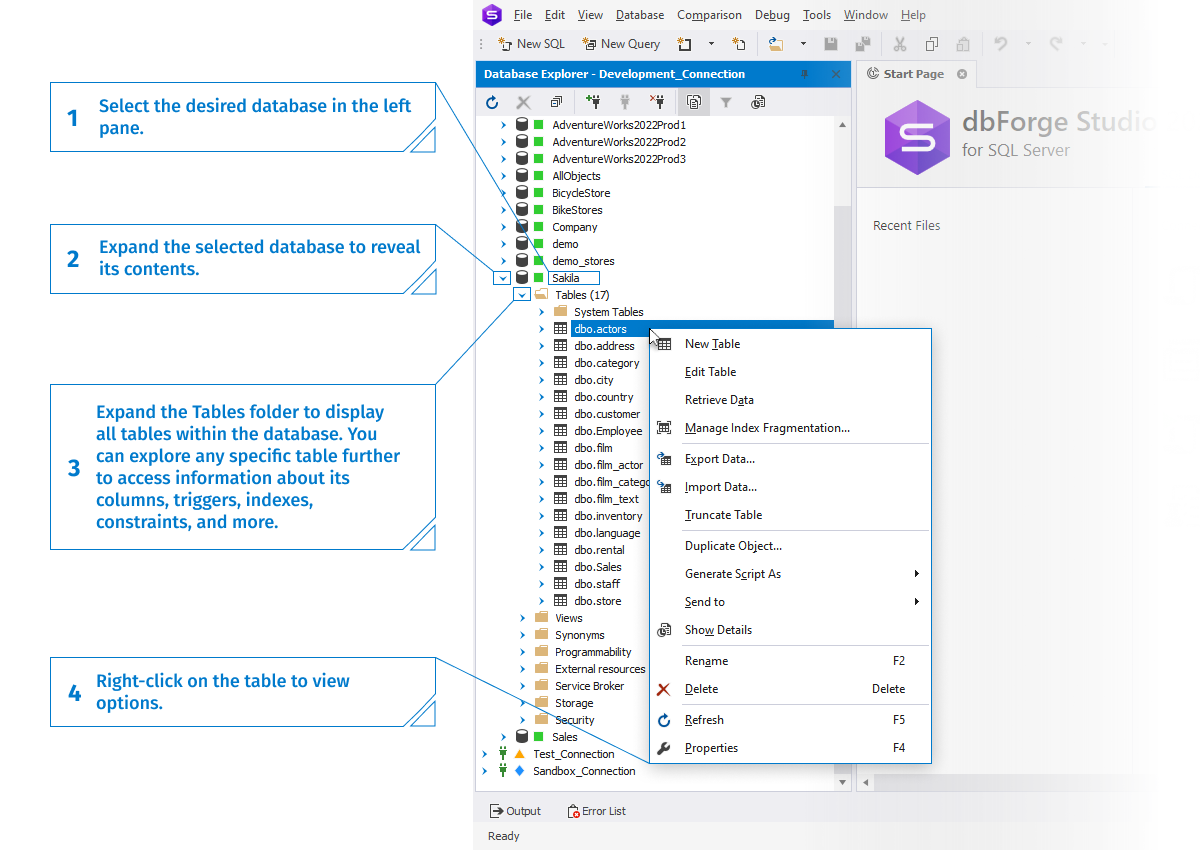
Database Explorer not only enables you to view table details but also provides the ability to edit tables directly. To do this, simply right-click the desired table and
choose the appropriate option from the menu.
Comparison table: Methods to list tables in SQL Server
| Method |
Filtering support |
Performance |
Compatibility |
Best for |
Notes |
| sys.tables |
WHERE name LIKE… |
Very high |
SQL Server only |
DBAs, developers |
Direct access to system objects. Very fast. |
| INFORMATION_SCHEMA.TABLES |
Limited |
High |
SQL Server, MySQL, others |
Cross-platform users |
Standardized view, but limited metadata. |
| sys.objects |
Full support |
Very high |
SQL Server only |
Admins, developers |
Great for advanced filtering scenarios. |
| dbo.sysobjects (deprecated) |
Supported |
Low |
Legacy SQL Server versions |
Legacy maintenance |
Deprecated, not recommended for modern usage. |
| sp_tables (procedure) |
Partial |
Moderate |
SQL Server |
Automation, scripts |
Good for scripting, but limited flexibility. |
| SSMS GUI |
Visual filter |
Depends on size |
SQL Server Management Studio |
Beginners |
User-friendly, but manual and slower on large DBs. |
| dbForge Studio GUI |
Advanced filtering |
High |
SQL Server |
All levels |
Offers filtering, grouping, export, and quick access. |
Conclusion
Both T-SQL commands and GUI tools are widely used by database experts. GUI tools are particularly beneficial for beginners and non-technical users, but they are also favored by database
experts due to their ability to accelerate tasks and reduce effort.
For example, when working with databases, you can use GUI tools to show all tables in MySQL,
PostgreSQL, or Oracle
quickly and efficiently. In practice, you will most likely see the combination of T-SQL and GUI used by the same specialists when appropriate.
dbForge Studio for SQL Server stands out as an all-in-one solution for performing various tasks related to managing, designing, developing, and administering databases in SQL Server.
It offers comprehensive functionality and can be experienced to its fullest extent through a fully functional free trial. Feel free
to download the tool and give it a try.
FAQ
How do I list all user tables only in SQL Server?
To list all user tables in SQL Server, you can query the sys.tables view with SELECT name FROM sys.tables. This is the most direct way to list tables in SQL Server, ensuring only
user-defined tables are returned. Another option is to use INFORMATION_SCHEMA.TABLES with a filter on TABLE_TYPE = 'BASE TABLE' to list tables SQL Server stores in the current database.
What is the difference between sys.tables and INFORMATION_SCHEMA.TABLES?
The main difference between sys.tables and INFORMATION_SCHEMA.TABLES is that sys.tables is a SQL Server-specific catalog view that directly lists all user-defined
tables in the current database, while INFORMATION_SCHEMA.TABLES is ANSI-compliant and can return both tables and views. If you need SQL Server-specific details or better performance,
sys.tables SQL queries are the preferred option. On the other hand, INFORMATION_SCHEMA.TABLES is useful for cross-platform compatibility but may be slower and lacks
some SQL Server-specific metadata.
How can I find temporary tables in SQL Server?
To find temporary tables, you can query the tempdb.sys.tables view and filter by names that start with #, since SQL Server creates all temp tables in the tempdb database.
For example, running a query with WHERE name LIKE '#%' will return active temporary objects. This approach is the most reliable way for SQL Server to list temp tables,
helping you identify both local (#) and global (##) temporary tables currently in use.
How do I check which tables belong to a specific schema?
To check which tables belong to a specific schema, you can query the INFORMATION_SCHEMA.TABLES view and filter by the schema name using WHERE TABLE_SCHEMA = 'YourSchema'.
This will return only the tables associated with that schema, making it easy to organize and review objects. It's a straightforward way to list tables in SQL Server database environments
that use multiple schemas.
How can I get a list of tables with a specific column name?
To get a list of tables that contain a specific column, you can query the INFORMATION_SCHEMA.COLUMNS view with a filter on the column name, for example,
WHERE COLUMN_NAME = 'YourColumn'. This will return all tables in the current database that include that column. It's a quick way to find columns in the tables
SQL Server stores, especially useful when working with large databases or tracking down column usage across multiple tables.
How do I count rows in every table in SQL Server?
To count rows in every table, you can join sys.objects with the dynamic management view sys.dm_db_partition_stats and group results by table name. This query
returns each user-defined table alongside its row count, giving you a quick overview of data distribution. It's one of the most efficient ways to get SQL Server row count per table,
helping with database monitoring, performance checks, and identifying large tables.
Can I list tables in SQL Server without writing any queries?
Yes, you can list tables in SQL Server without writing queries by using SQL Server Management Studio (SSMS). In Object Explorer, simply expand the database, then expand the Tables
folder to see all available tables. Now you see how to view tables in SQL without running SQL statements, making it especially convenient for beginners or quick lookups.
What's the fastest way to explore database tables using GUI tools?
The fastest way to explore database tables using GUI tools is through SQL Server Management Studio (SSMS). By opening Object Explorer, selecting the database, and expanding the Tables folder,
you can instantly see all available tables. This method is ideal if you want a quick overview of how to see tables in SQL Server without writing queries. Other GUI solutions, such as
dbForge Studio for SQL Server, also provide visual navigation and advanced filtering, thus showing you how to view tables in SQL and work with them more efficiently.
How do I filter tables by name or prefix in SQL Server?
To filter tables by name or prefix, you can query catalog views with a WHERE clause that uses the LIKE operator. For example, running SELECT name FROM sys.tables WHERE name LIKE 'Sales%'
will return only the tables that start with “Sales.” This approach makes it easy to narrow down results when you need to list tables SQL Server contains that follow specific naming conventions.
Which views are best for querying metadata in SQL Server?
The best views for querying metadata in SQL Server are sys.tables and INFORMATION_SCHEMA.TABLES. The sys.tables SQL view provides detailed, SQL Server-specific
information about user-defined tables, while INFORMATION_SCHEMA.TABLES offers a standardized, cross-platform way to access table metadata. Using these views allows you to
efficiently explore database structure, check table properties, and retrieve lists of tables depending on whether you need SQL Server-specific details or ANSI-compliant results.
What permissions do I need to view all tables in a database?
To view all tables in a SQL Server database, you need appropriate permissions on the database objects. Database owners have full access by default, while other users must be granted
VIEW DEFINITION or specific read permissions on the tables. Ensuring the correct privileges is essential when managing SQL Server permissions to see tables, as insufficient
rights may prevent users from listing or accessing certain tables.
How to show only system tables or exclude them from results?
To show only system tables or exclude them, you can query the sys.tables or INFORMATION_SCHEMA.TABLES views and filter by the is_ms_shipped column or use
schema filters. For example, filtering out tables where is_ms_shipped = 0 returns only user-defined tables. This approach allows you to control which objects appear,
making it easier to list tables SQL Server contains according to your needs while excluding system-generated objects.
Can I export the list of tables from SQL Server to a file?
Yes, you can export the list of tables from SQL Server to a file using tools like SQL Server Management Studio (SSMS). After running a query on sys.tables or
INFORMATION_SCHEMA.TABLES, you can right-click the results grid and choose Save Results As to export the table list to CSV, Excel, or TXT. This method provides
a simple way to export a table list from SQL Server for reporting, documentation, or migration purposes.
What are the best practices for browsing large SQL Server databases?
When browsing large SQL Server databases, it's best to use catalog views like sys.tables or INFORMATION_SCHEMA.TABLES with filters to narrow down results.
Avoid querying all tables at once and focus on specific schemas, prefixes, or object types. Using GUI tools like SQL Server Management Studio (SSMS) or dbForge Studio can also
help navigate efficiently. These practices make it easier to manage a list of tables in databases in SQL Server environments without overloading the system or missing important objects.
How can dbForge Studio simplify table browsing and filtering?
dbForge Studio for SQL Server simplifies table browsing and filtering by providing a visual interface where you can expand databases, view tables, and apply filters without writing queries.
You can sort tables by schema, name, or other properties, and quickly locate specific objects. This makes it an intuitive solution for users learning how to view tables in SQL
and for professionals who need to navigate large databases efficiently.