Best ways to export SQL data to CSV
If you work with databases and need to export SQL data to a CSV file, you have several options, including GUI tools and command-line tools. All options are practical; each one has its advantages. The best choice depends on your specific scenario and requirements.
When it comes to GUI tools, we can single out SQL Server Management Studio, which is well-suited for quick one-time export of database tables. Another notable IDE is dbForge Studio for SQL Server, which provides comprehensive functionality with advanced configuration options. Finally, command-line tools are ideal for scripting and automation.
This article explores different GUI- and CLI-powered methods for exporting SQL data to CSV files. Since the quality and usability of the output depend largely on the available export settings—such as support for column headers, encoding, delimiters, and quote handling—it is important to understand what each tool offers. This will help you choose the most suitable export method for each scenario.
Why export SQL data to CSV?
CSV (Comma-Separated Values) is one of the most popular data formats because it is lightweight, universal, and easy to work with. It stores tabular data in rows and columns in a human-readable format, is supported by a wide range of applications, and does not require specialized software to view or edit. CSV files can be opened and modified with a simple text editor.
Exporting SQL data to CSV is a common task that makes database records more accessible to non-technical users and external applications. Common scenarios for exporting data from SQL databases to CSV include:
- Export of query results for analysis in Excel, Google Sheets, or other tools
- Data migration between databases, applications, or environments
- Data sharing in a portable, widely supported format
- Creation of portable snapshots of selected data for long-term storage
- Production of records or reports for audits and regulatory requirements
- Preparation of datasets for statistical analysis or model training
- Integration with systems that use CSV files for data import
Since data export to CSV is such a common case, there are various tools and methods meant to make the process as straightforward as possible. Let us explore the most popular options.
Best methods to export SQL Server data to CSV
You can export data from a SQL database to CSV in multiple ways. Depending on your requirements—whether you prioritize speed, automation, control over export settings, or easy configuration through a GUI—you can choose from a range of native and third-party tools.
Method 1: Export SQL data to CSV with dbForge Studio for SQL Server
dbForge Studio for SQL Server is an AI-powered IDE for SQL Server, including both on-premises and related cloud platforms, that supports the entire database lifecycle—from design and development to testing, administration, and automation. It is a powerful alternative to SSMS in many areas, particularly for exporting database data to CSV and other formats (overall, the Studio supports data export to 14 popular formats).
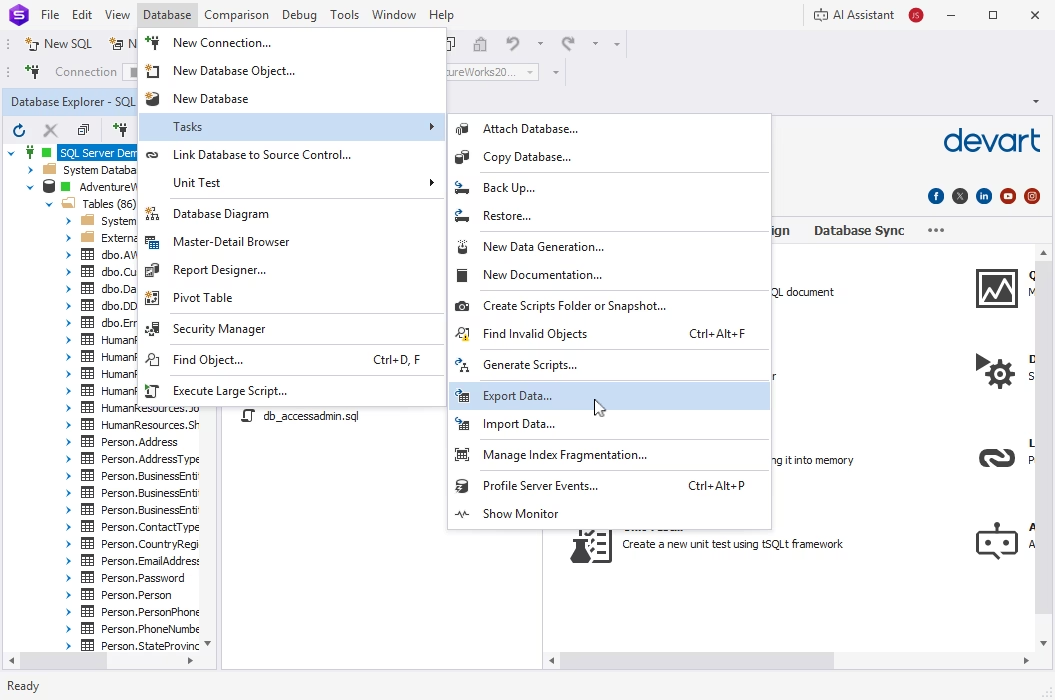
The Studio provides a convenient Data Export wizard that allows you to configure an export task in just a few clicks. The process does not require SQL knowledge or programming skills.
You can export data from a single table or view or from multiple tables and views, either to a single file or to separate files. dbForge Studio for SQL Server also supports direct export of query results from the results grid of SQL Editor.
Flexible export settings give you precise control over the output, including custom delimiters, encoding, and data formats.
Another advantage of dbForge Studio for SQL Server is the ability to save export settings as a template and apply them for similar tasks or use them in automated data export workflows.
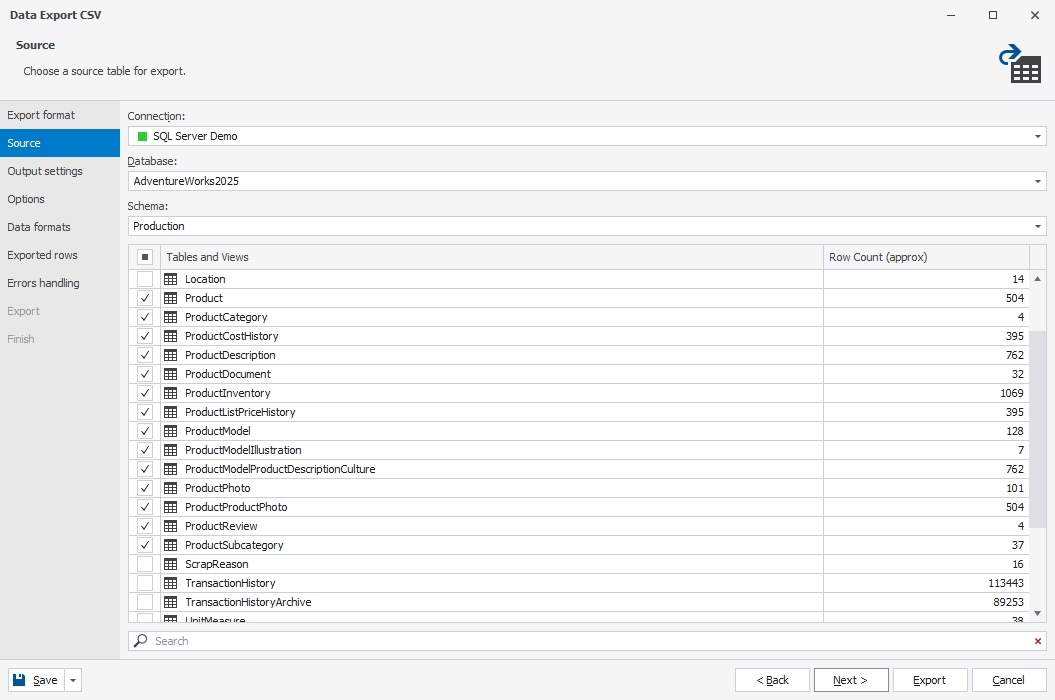
Overall, dbForge Studio for SQL Server combines an intuitive GUI and straightforward task configuration with command-line support. This makes it suitable for both one-time data exports and automated workflows, allowing you to script export tasks and integrate them into DevOps pipelines.
Method 2: Export SQL query results to CSV from the SSMS results grid
SQL Server Management Studio (SSMS), the standard IDE for working with SQL Server databases, supports exporting table data and query results to CSV files.
In some scenarios, you may need to export data directly from the results grid after running a query. SSMS provides this option and allows you to export query results with or without column headers.
To export data from the results grid without headers, select the required data, right-click it, and choose Save Results As. To export query results with headers, create an empty CSV file, copy the results from the grid with the column headers (there is a separate option provided), and paste them into the CSV file.
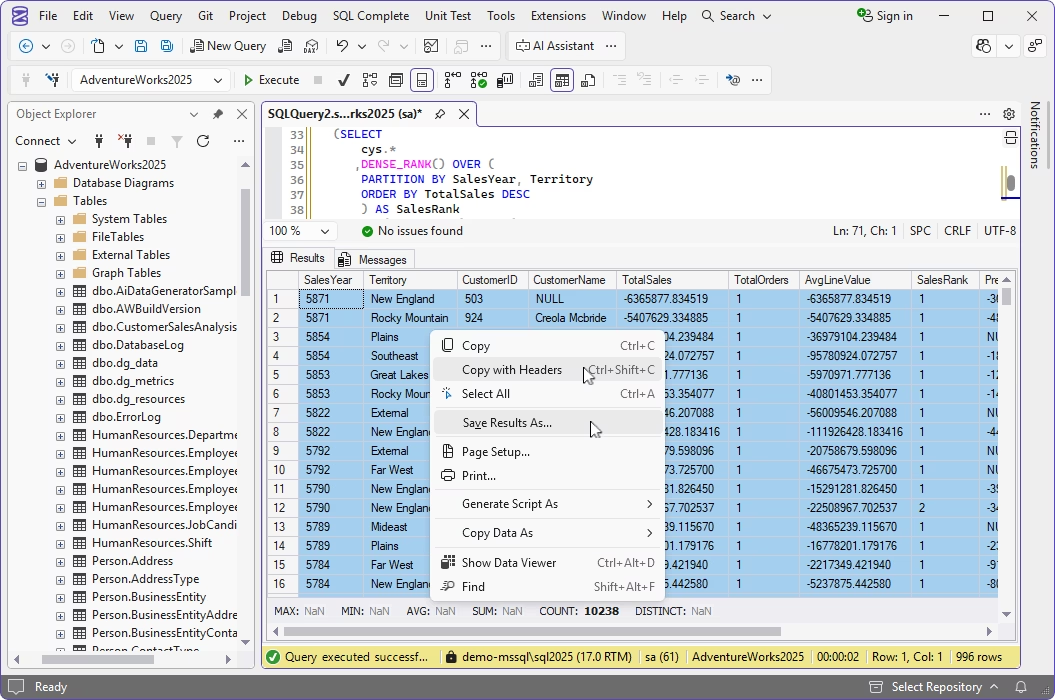
These capabilities make SSMS suitable for quick, one-time exports. However, it offers limited control over export settings and requires additional manual steps for basic tasks.
Method 3: Export SQL Server tables with SQL Server Import and Export Wizard in SSMS
SSMS also allows you to export a SQL Server table to CSV using a visual interface. To start the export, right-click the required database and select Tasks > Export Data.
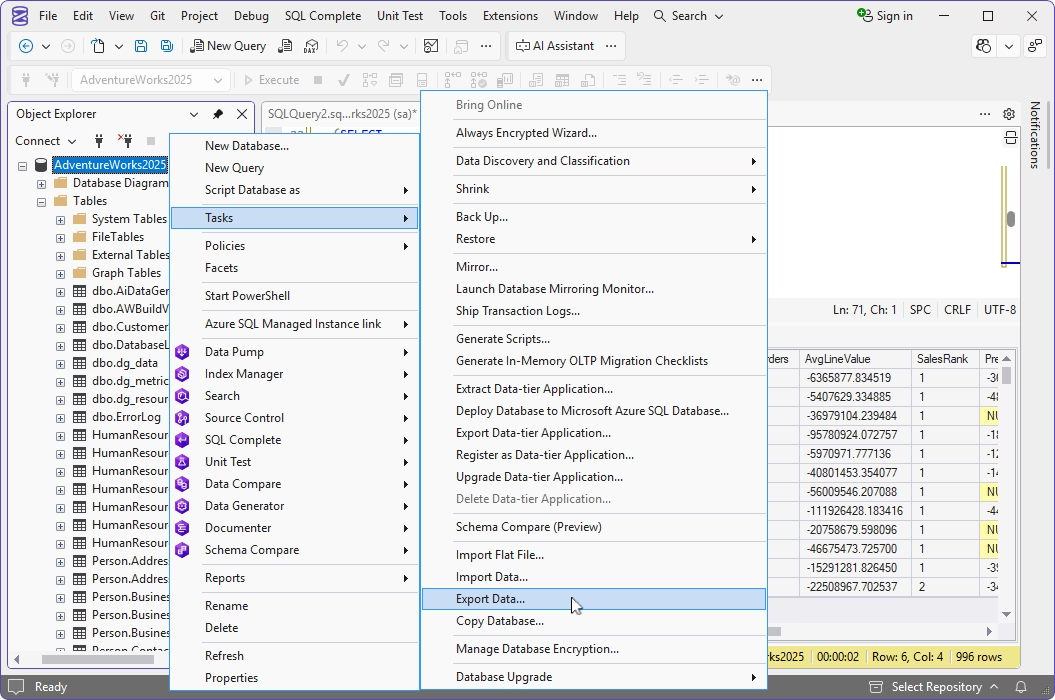
This launches the wizard, where you can configure your export.
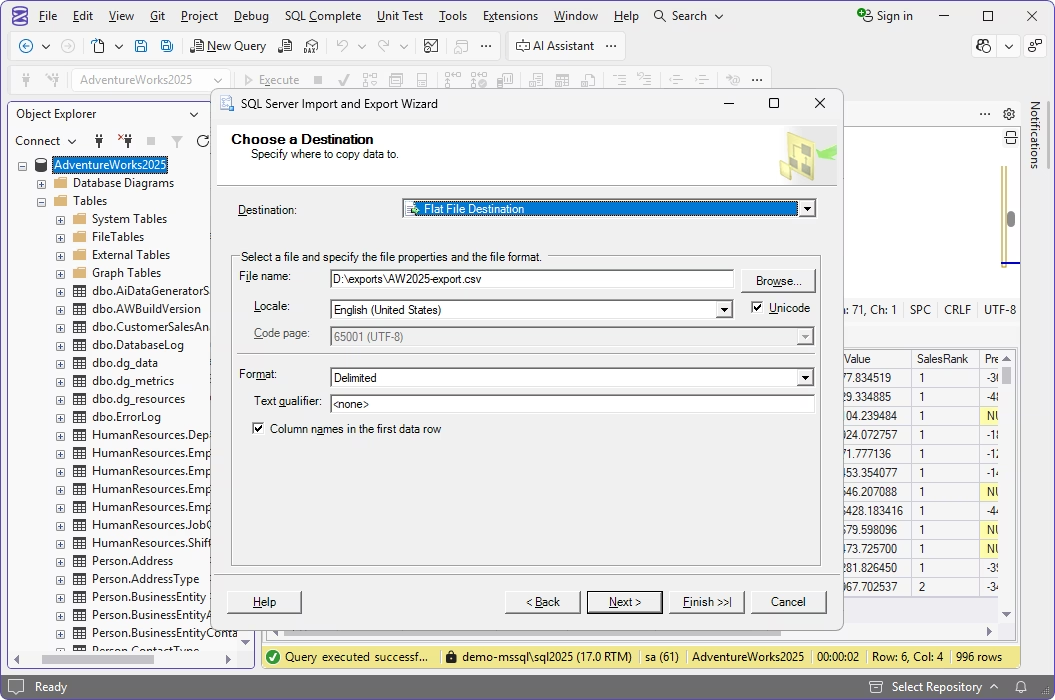
However, there are several limitations to consider before starting the export:
- The functionality depends on SQL Server Integration Services (SSIS) components. If the required components are missing or corrupted, the wizard—and therefore the export option—may be unavailable. Make sure the necessary SSIS components are installed. They are available under Individual components when installing or modifying SSMS.
- SSMS does not create CSV files automatically. You need to create an empty CSV file beforehand and then select it as the destination file when configuring the export.
Therefore, while SSMS supports export to CSV, the process requires additional manual actions before you can configure and run it. This makes it less convenient when you need to export data from multiple tables or perform recurring exports than a more advanced SQL Server GUI tool like dbForge Studio.
Method 4: Export SQL to CSV with BCP
BCP (Bulk Copy Program) is a command-line utility used to export SQL data to CSV, particularly suitable for processing large datasets and repeatable scripts.
To export table data to a CSV file, use the command below, but make sure you adjust the values accordingly:
In this example:
- database_name is the name of the database that contains a table that you want to export data from (e.g., AdventureWorks2025)
- schema_name is the name of the schema that contains the table
- table_name is the name of the table
- out copies data from the table to a specified .csv file
- file_destination_path is the location where the .csv file will be stored
- -S specifies the SQL Server instance to connect to
- server_instance is the name of SQL Server instance
- -c uses character data format
- -t sets the field delimiter
- -T specifies that the bcp utility connects to a SQL Server instance with a trusted connection (Windows Authentication)
- -U connects using SQL Authentication (optional)
- -P connects using SQL Server user password (optional)
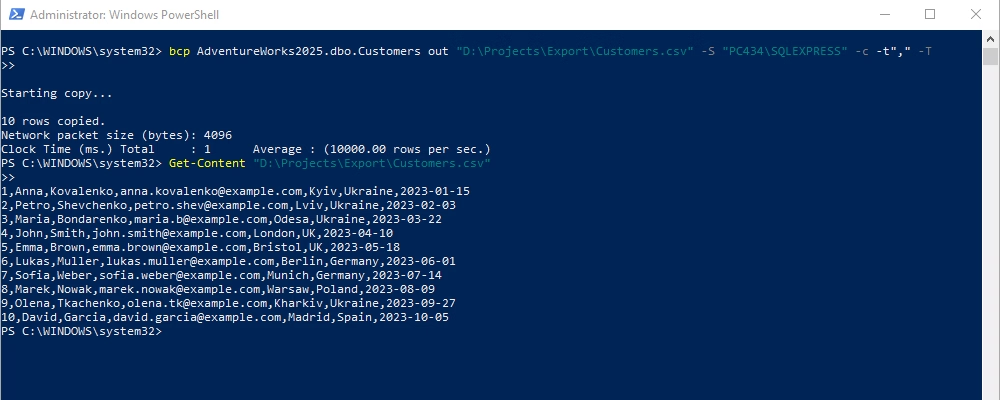
When the task is completed, check the exported file at the location specified in the command.
Using the BCP utility for data export is a common choice among SQL Server developers and DevOps professionals. However, it requires command-line knowledge and careful configuration of delimiters, headers, file paths, and permissions.
Method 5: Export SQL to CSV with SQLCMD
SQLCMD is a command-line utility that can be used from the Windows Command Prompt. It supports T-SQL statements, system procedures, and script files.
SQLCMD allows you to run queries and write their output to files. Therefore, you can use it to export data from SQL Server tables to CSV files. Run the following command:
In this example:
- SERVERINSTANCE is the name of the SQL Server instance
- PATH is the path to the CSV file where you want to save the exported data
- SQL STATEMENT is the T-SQL statement that retrieves the required data from the table
- -W removes trailing spaces from the output
- -w specifies the screen width for the output
- -s"," specifies comma as the column separator
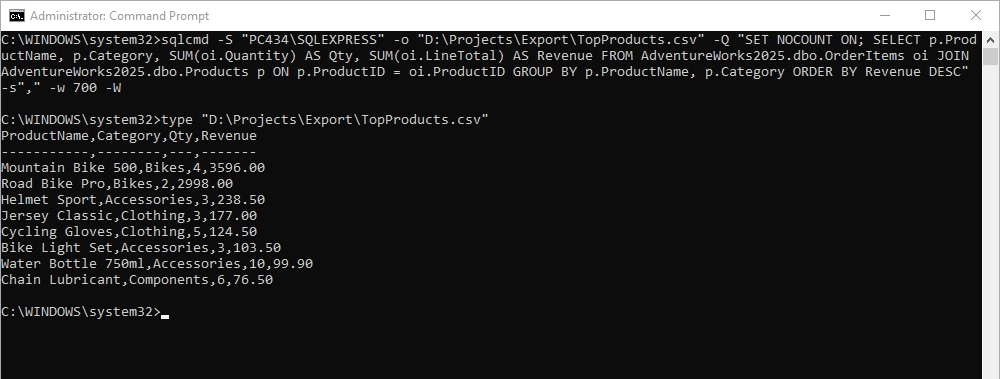
SQLCMD is commonly used because it can be integrated into scripts that combine T-SQL and SQLCMD commands. However, it does not generate standard-compliant CSV. Formatting issues may occur if delimiters, whitespaces, output width, or values containing commas and quotation marks are not handled correctly.
Method 6: Export SQL to CSV with PowerShell
PowerShell also allows you to export data from SQL Server databases to CSV files and is particularly useful for repeatable or scheduled exports. With PowerShell, you can combine SQL queries with file operations, variables, loops, and other automation logic in a single script.
For example, you can retrieve data from SQL Server using Invoke-Sqlcmd and then pass the results to Export-Csv:
Invoke-Sqlcmd `
-ServerInstance "PS434\SQLEXPRESS" `
-Database "AdventureWorks2025" `
-Query "SELECT * FROM dbo.CustomerSalesAnalysis" |
Export-Csv `
-Path "D:\Projects\Export\CustomerSalesAnalysis.csv" `
-NoTypeInformation `
-Encoding UTF8
In this example:
- Invoke-Sqlcmd connects to SQL Server and executes the specified query
- -ServerInstance specifies the SQL Server instance
- -Database specifies the database
- -Query contains the SQL query used to retrieve the required data
- Export-Csv writes query results to a CSV file
- -Path specifies the path to the output file
- -NoTypeInformation prevents PowerShell from adding type information to the CSV output
- -Encoding specifies the encoding for the output file (in our case, it's UTF8)
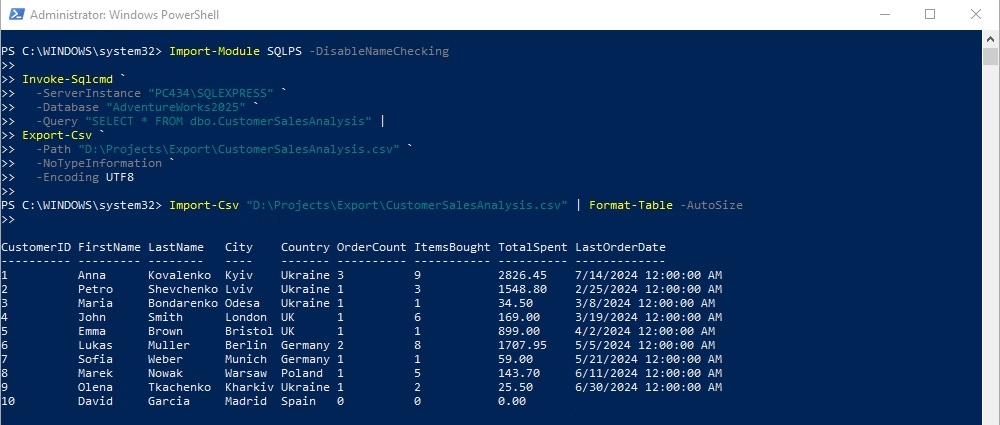
PowerShell is particularly useful when you need to export multiple tables. You can loop through a list of tables, generate a separate filename for each one, and automate the entire export process. You can also use PowerShell for advanced scenarios, such as generating filenames, creating output directories, filtering or transforming data, and logging export results. In addition, PowerShell scripts can be run manually or scheduled with Windows Task Scheduler.
The main drawback of this approach is that it requires PowerShell scripting and a certain level of technical expertise.
SQL-to-CSV export methods compared
| Method | Best for | Coding required | Headers support | Large datasets | Automation | Key limitation |
|---|---|---|---|---|---|---|
| dbForge Studio | Flexible, wizard-aided exports with extensive automation | No/Low | Yes | High | Yes | Is a third-party commercial tool |
| SSMS Save Results As | Quick one-time exports | Low | Yes, with settings | Medium | No | Formatting options are limited |
| SSMS Import and Export Wizard | Visual table/view exports | Low | Yes | Medium | Limited | Less flexible for complex queries |
| BCP | Exports of large datasets | Yes | Not by default | High | Yes | Requires command-line setup |
| SQLCMD | Query-based command-line exports | Yes | Possible | Medium | Yes | CSV formatting can be difficult |
| PowerShell | Repeatable exports for multiple tables | Yes | Yes | High | Yes | Requires scripting |
SQL-to-CSV troubleshooting table
When exporting SQL Server data to CSV files, you may encounter various issues. The following table outlines common export problems, their likely causes, and recommended solutions.
| Issue | Likely cause | How to fix it |
|---|---|---|
| Missing column headers | The header export option is disabled | Set to include column headers in export settings |
| Broken columns in CSV | Values contain commas or delimiters | Use quote encapsulation and check delimiter settings |
| Incorrect quotes | Quotes inside text are not escaped | Use proper CSV escaping, for example, double quotes inside values |
| Corrupted characters | Wrong file encoding | Export in UTF-8 or the encoding required by the target system |
| Large export failures | Too much data for the selected method | Export in batches or use BCP, PowerShell, or dbForge Studio |
| Access denied | No permission to write to the folder | Choose another folder or check user/service account permissions |
| Empty CSV file | The query returns no rows or a wrong database is selected | Test the query first and validate the database, schema, and filters |
| Scheduled export failures | Job, script, or path permissions are misconfigured | Check the SQL Server Agent/job history and output folder access |
Which SQL-to-CSV export method should you choose?
As you can see, there are several ways to export data from SQL Server databases to CSV files. The best method depends on your specific requirements and preferred workflow.
For quick one-time exports, SSMS is usually sufficient. For more technical, script-based workflows, BCP, SQLCMD, and PowerShell are often better choices. If you prefer a graphical interface but require more advanced export options, command-line support, and automation for recurring tasks, dbForge Studio for SQL Server provides all these capabilities in a single solution.
In practice, users often combine different tools depending on the task. GUI tools are convenient for quickly configuring and running data exports, while command-line utilities are better suited for scripting, automation, and pipeline integration.
You can also try dbForge Studio for SQL Server yourself. Download it for a free 30-day trial and get 30 days to evaluate the IDE with your actual workloads and explore its complete feature set.
FAQ
The best method depends on your requirements. SSMS works well for quick manual exports, while BCP and PowerShell are better suited for automated or large-scale operations. If you prefer a visual workflow with greater control over output formats and export settings, dbForge Studio for SQL Server is a convenient alternative.
If you are using SSMS, execute the query and select the data you want to export in the results grid. Right-click the selection and choose Copy With Headers to copy the data and column headers to the clipboard. Then, open an empty CSV file and paste the copied data into it.
If you are using dbForge Studio for SQL Server, execute the query, select the data you want to export, right-click the selection, and choose one of the following options:
Copy Data As > CSV — Exports the selected data with column headers by default and automatically creates a CSV file.
Export Data opens the Data Export wizard where you can configure advanced export settings.
Copy With Headers copies the selected data together with the column headers to the clipboard.
In SSMS, you have two main options. You can retrieve the required table data with a SELECT statement and export it to CSV or copy the results to the clipboard and paste them into a blank CSV file. Alternatively, you can use the SQL Server Import and Export Wizard for greater control over the source data, destination, and column mappings. Note that the wizard requires the appropriate SSIS components to be installed; otherwise, this option may be unavailable.
For large tables, BCP is generally one of the fastest options because it is designed for high-performance bulk data transfers. However, BCP produces delimited text rather than fully standard-compliant CSV, so values containing delimiters, quotation marks, or line breaks may require additional handling.
You can also use a GUI tool such as dbForge Studio for SQL Server. It lets you quickly configure precise export settings, run the export immediately, automate it from the command line, or schedule recurring exports.
Yes. You can use command-line tools such as PowerShell or BCP to export multiple SQL Server tables to separate CSV files, although this approach typically requires scripting and technical knowledge. Alternatively, dbForge Studio for SQL Server lets you export data from multiple tables without manual coding.
You can create a PowerShell- or BCP-based export script or generate a .bat export script in dbForge Studio for SQL Server. You can then schedule the script to run with Windows Task Scheduler or another automation system. Alternatively, you can use SQL Server Agent to run an appropriate export process on a defined schedule.
Column headers may be missing because the selected export method does not include them by default or because the corresponding option is disabled. Check the export settings in the tool you are using and make sure that column headers are enabled. With command-line utilities such as BCP, headers typically need to be added separately.
It depends on your use case. SSMS is convenient for occasional manual exports, while BCP is better for fast bulk exports, but it requires more technical knowledge. dbForge Studio for SQL Server is a good choice if you need a visual and configurable export workflow with advanced formatting options and automation capabilities, particularly for recurring export tasks.