
You can install the driver by using the Windows installer.
After you receive the license key, add it to your connection strings to connect to the data source.
This tutorial provides a step-by-step guide on using Dapper for efficient data operations in .NET applications. With dotConnect for Oracle, we will create Dapper models, develop a console application, and implement CRUD operations using a robust connection class for smooth database interactions.

Fully supports EF Core, Dapper, NHibernate, LinqConnect, and other technologies for efficient data management.

Conforms to the latest ADO.NET standards and innovations for seamless integration with .NET applications.

Offers many Oracle-specific features and fully supports all unique data types for accurate and complete data representation.

Provides robust security with support for SSL/SSH connections, connecting via proxy servers, embedded servers, and HTTP tunneling.

Features native integration with Visual Studio and complete design-time support for accelerated development.

Includes priority support, detailed documentation, and regular updates for continuous improvement.
You can start using dotConnect for Oracle immediately with a 30-day free trial. Choose one of the following installation options:
You can install the driver by using the Windows installer.
After you receive the license key, add it to your connection strings to connect to the data source.
Using the built-in Data Explorer, first, configure the connection to Oracle and then select the objects you want to use in your project.
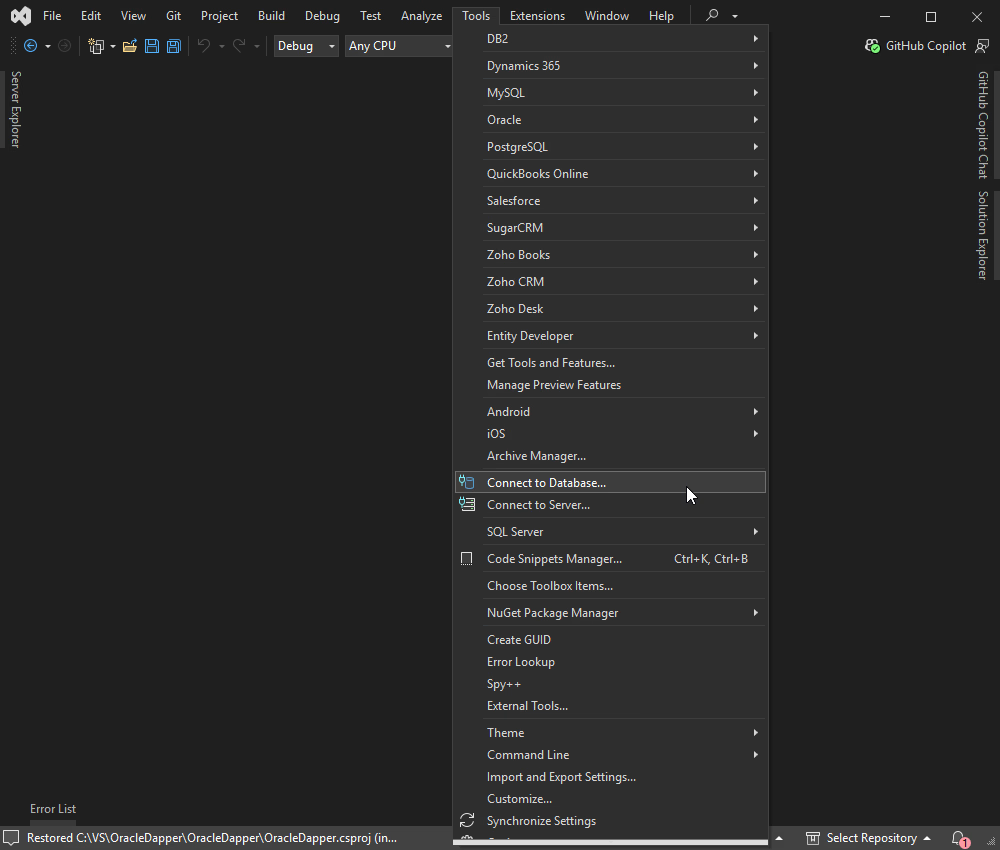
1. In Visual Studio, click Tools on the menu bar and select Connect to Database from the drop-down list.
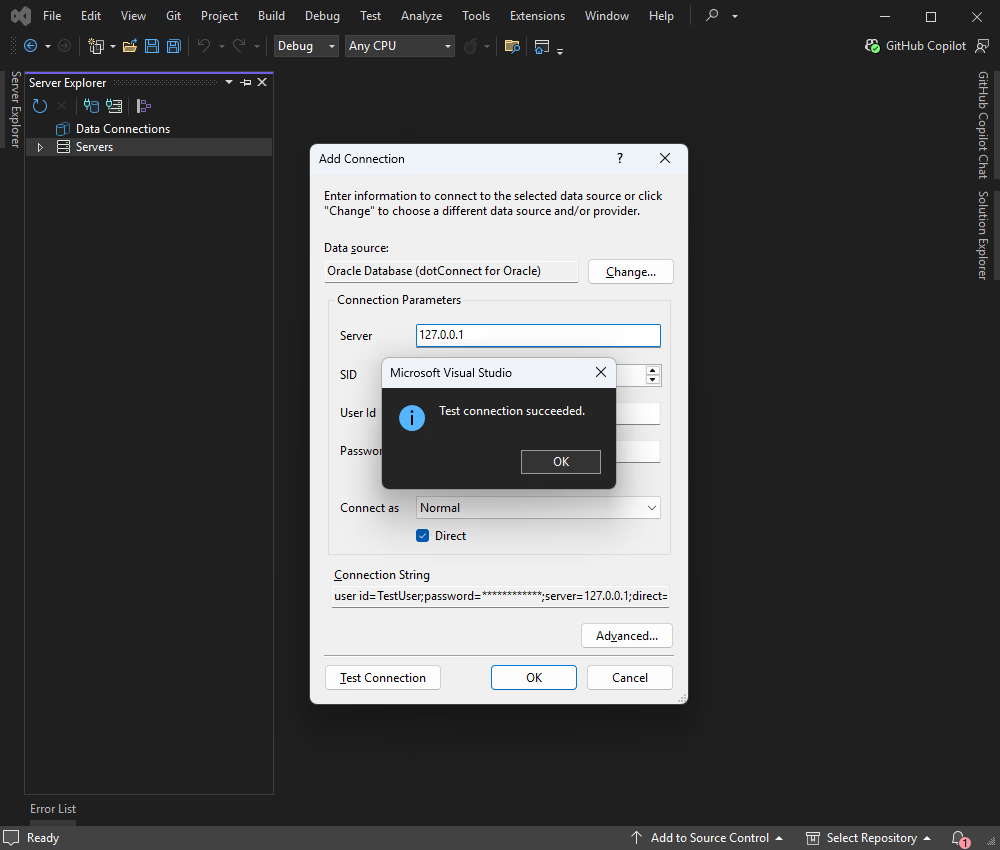
2. In the Add Connection window, choose the Oracle data source, fill in the connection details for your Oracle database, and click OK to proceed.
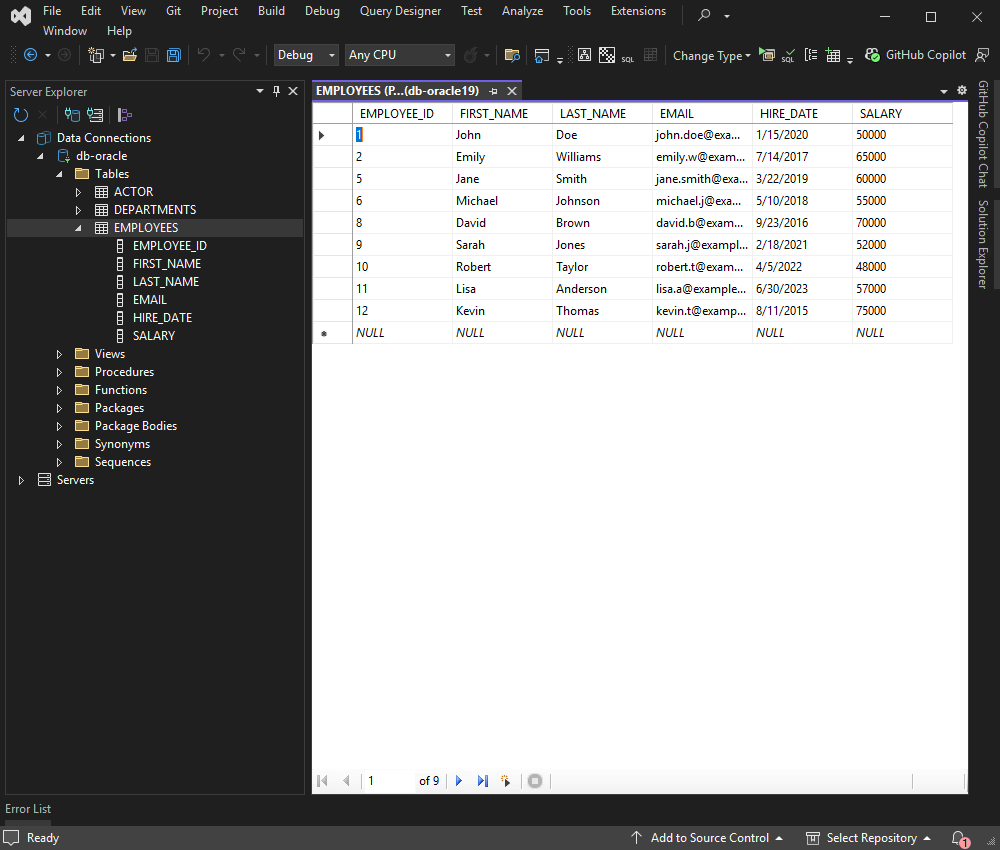
3. In Server Explorer, select the tables and fields you want to use. In our tutorial, we will use the EMPLOYEE table.
You can now create the application that connects to the Oracle database and displays data from the EMPLOYEE table using Dapper.
This class maps to the Employee table.
public class Employees
{
    public int Employee_Id { get; set; }
    public string First_Name { get; set; }
    public string Last_Name { get; set; }
    public string Email { get; set; }
    public DateTime Hire_Date { get; set; }
    public int Salary { get; set; }
}This class keeps connection details separate for better maintainability.
namespace DapperOracleExample{
    public static class DatabaseConnection{
        public static string ConnectionString="Direct=True;Host=127.0.0.1;Service Name=OracleDb;User ID=TestUser;Password=TestPassword;License Key=**********";
    }
}| Property | Meaning |
|---|---|
| Direct | Specifies whether to use direct mode |
| Server or Host | States the IP address or hostname of the Oracle server |
| Port | Indicates the port number for the Oracle server |
| ServiceName | Determines the service name for the database instance |
| Sid | Specifies the Oracle System Identifier (SID) for the database instance |
| UserId | States the Oracle database username |
| Password | Defines the password associated with the Oracle database username |
| License key | Specify your license key in this parameter. This is required only when using .NET Standard compatible assemblies |
In your Program.cs file, add the connection string to the Oracle database. It should be structured like this:
using Dapper;
using Devart.Data.Oracle;

namespace DapperOracleExample{
    class Program{

        static async Task Main(string[] args){
            try{
                using(var connection=new OracleConnection(DatabaseConnection.ConnectionString)){
                    // Open the database connection
                    connection.Open();

                    // Define the SQL query to retrieve data from the EMPLOYEE table
                    string sql="SELECT * FROM EMPLOYEE";

                    // Execute the query and map the results to a list of dynamic objects
                    var employees=connection.Query(sql).ToList();

                    // Display the retrieved data
                    foreach(var employee in employees){
                        Console.WriteLine(employee);
                    }
                }
            }
            catch(Exception ex){
                Console.WriteLine($"An error occurred: {ex.Message}");
            }
        }
    }
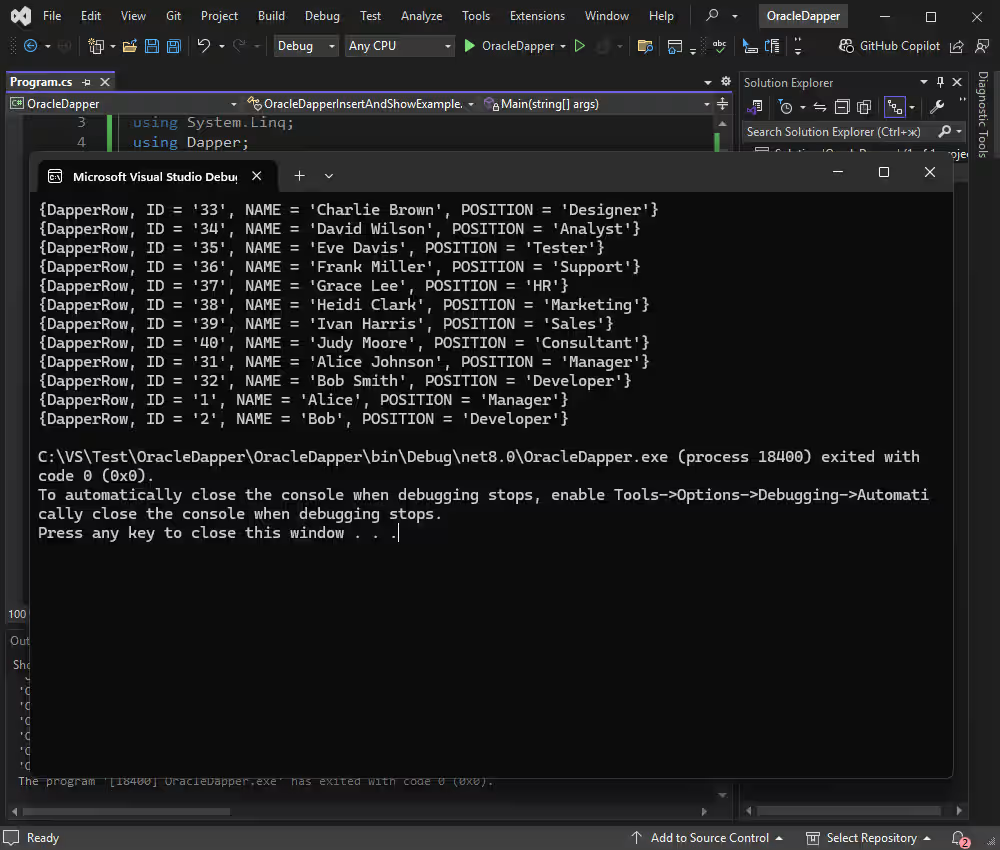
}To build and run your application, press F5 or select Start from the menu in Visual Studio.
Mapping query results to strongly-typed objects improves code readability and maintainability. You can follow the example code below to map query results to strongly-typed objects using Dapper.
public class Employee{
    public int Id{
        get;
        set;
    }
    public string Name{
        get;
        set;
    }
    public int DepartmentId{
        get;
        set;
    }
}

using(var connection=new OracleConnection(connectionString)){
    connection.Open();
    string sql="SELECT * FROM EMPLOYEE";
    var employees=connection.Query<Employee>(sql).ToList();

    foreach(var employee in employees){
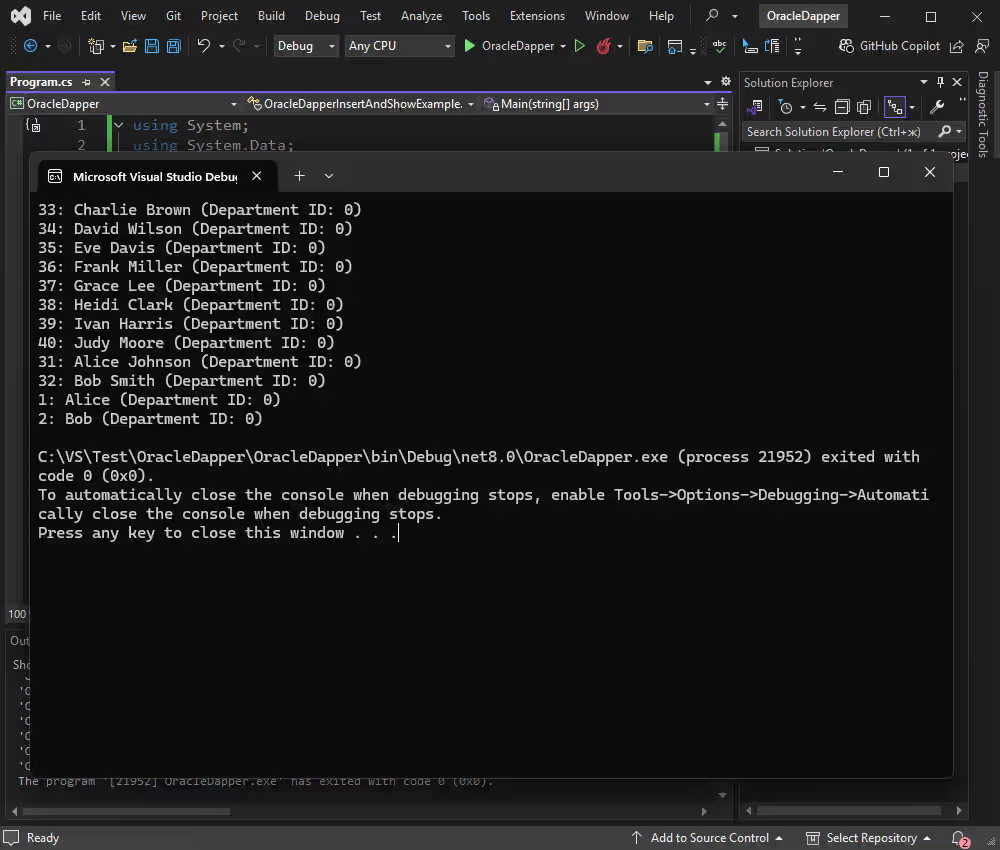
        Console.WriteLine($"{employee.Id}: {employee.Name} (Department ID: {employee.DepartmentId})");
    }
}
As a result of mapping, the query results are transformed into strongly-typed objects, allowing you to work with them more effectively in your C# application.
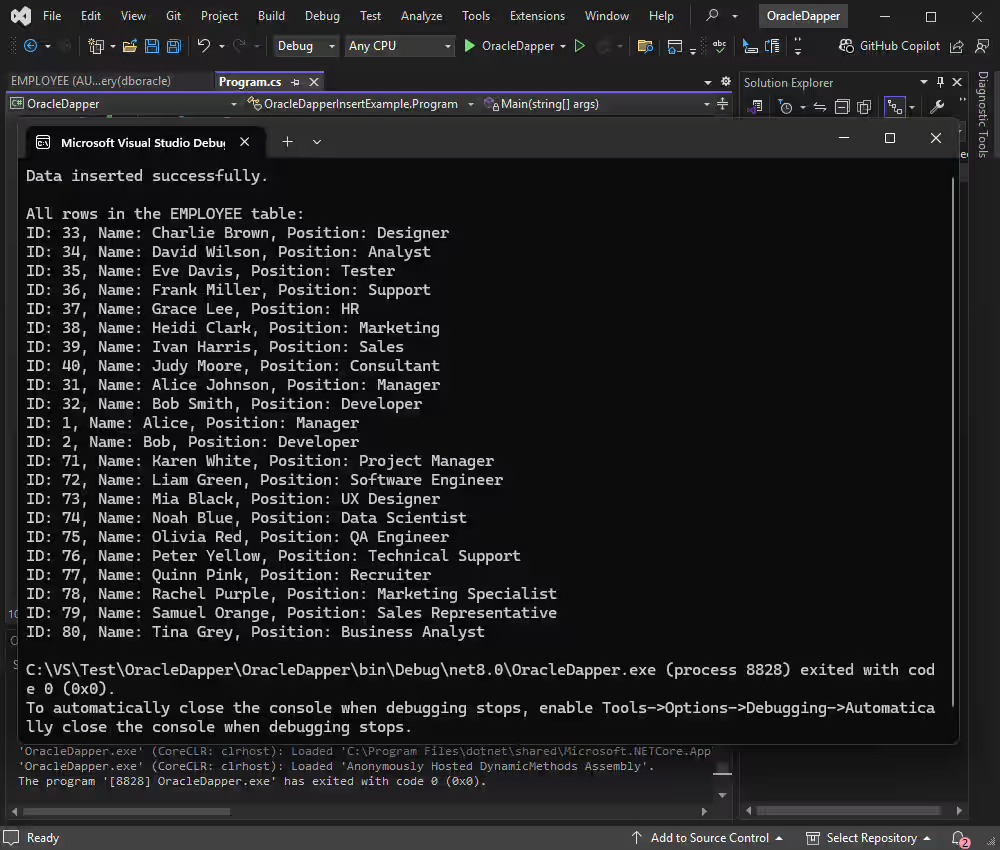
Let's examine how to insert 10 new rows into the EMPLOYEE table using Dapper in C#. This example assumes that your EMPLOYEE table has two columns: NAME and POSITION.
using Dapper;
using Devart.Data.Oracle;

namespace DapperOracleExample
{
    class Program
    {

        static async Task Main(string[] args)
        {
            try
            {
                // Sample data to insert with new names and positions
                var employees = new[]{
                    new{
                        NAME = "Karen White", POSITION = "Project Manager"
                    },
                    new{
                        NAME = "Liam Green", POSITION = "Software Engineer"
                    },
                    new{
                        NAME = "Mia Black", POSITION = "UX Designer"
                    },
                    new{
                        NAME = "Noah Blue", POSITION = "Data Scientist"
                    },
                    new{
                        NAME = "Olivia Red", POSITION = "QA Engineer"
                    },
                    new{
                        NAME = "Peter Yellow", POSITION = "Technical Support"
                    },
                    new{
                        NAME = "Quinn Pink", POSITION = "Recruiter"
                    },
                    new{
                        NAME = "Rachel Purple", POSITION = "Marketing Specialist"
                    },
                    new{
                        NAME = "Samuel Orange", POSITION = "Sales Representative"
                    },
                    new{
                        NAME = "Tina Grey", POSITION = "Business Analyst"
                    }
                };

                using(var connection = new OracleConnection(DatabaseConnection.ConnectionString))
                {
                    connection.Open();

                    // Define the SQL insert statement without the ID column
                    string insertSql = "INSERT INTO EMPLOYEE (NAME, POSITION) VALUES (:NAME, :POSITION)";

                    // Execute the insert operation for each employee
                    foreach(var employee in employees)
                    {
                        connection.Execute(insertSql, employee);
                    }

                    Console.WriteLine("Data inserted successfully.");

                    // Define the SQL select statement to retrieve all rows
                    string selectSql = "SELECT * FROM EMPLOYEE";

                    // Execute the select query and map the results to a list of dynamic objects
                    var allEmployees = connection.Query(selectSql).ToList();

                    // Display the retrieved data
                    Console.WriteLine("\nAll rows in the EMPLOYEE table:");

                    foreach(var employee in allEmployees)
                    {
                        Console.WriteLine($"ID: {employee.ID}, Name: {employee.NAME}, Position: {employee.POSITION}");
                    }
                }
            }
            catch(Exception ex)
            {
                Console.WriteLine($"An error occurred: {ex.Message}");
            }
        }
    }
}
After running the program, you should see the following output in the console:
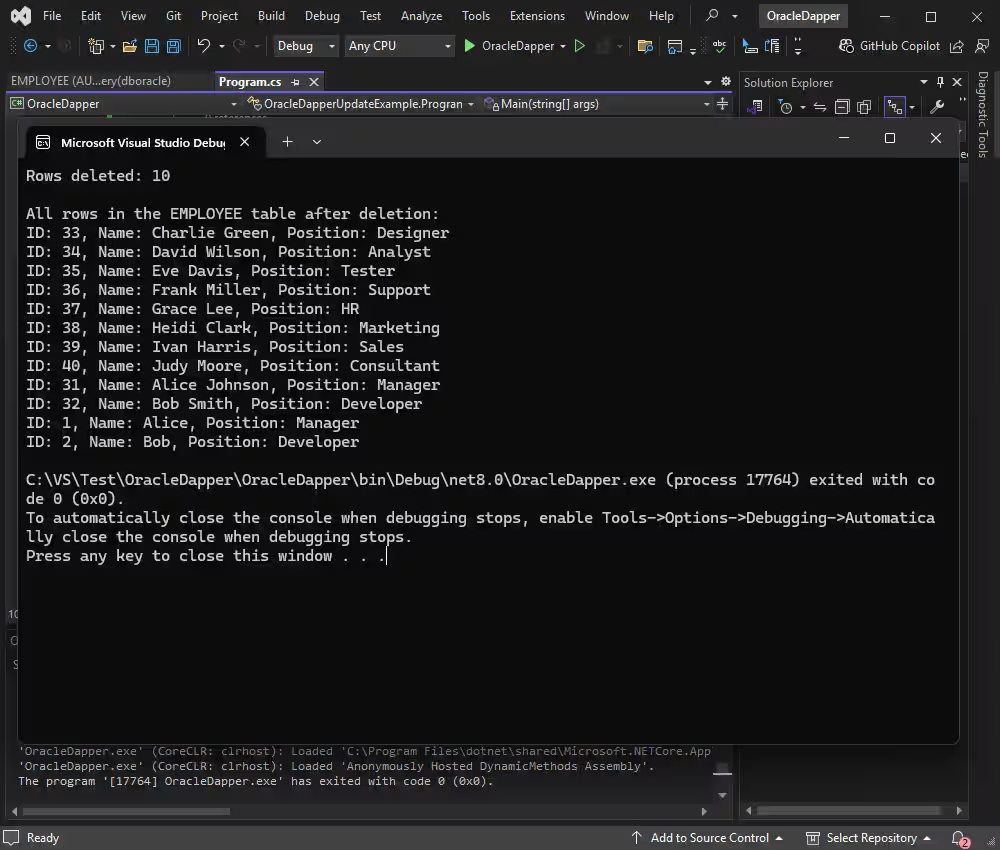
To delete rows from the EMPLOYEE table where the ID is between 71 and 80, you can use the following example with Dapper:
1. In the ActorController class, add the following method:
using Dapper;
using Devart.Data.Oracle;

namespace DapperOracleExample
{
    class Program
    {

        static async Task Main(string[] args)
        {
            try
            {
                using (var connection = new OracleConnection(DatabaseConnection.ConnectionString))
                {
                    await connection.OpenAsync();

                    string deleteSql = "DELETE FROM employees WHERE employee_id = :Id";
                    connection.Execute(deleteSql, new { Id = 63 });
                    Console.WriteLine("Employee deleted successfully.\n");

                    Console.WriteLine("Fetching all employees:\n");

                    var query = "SELECT employee_id AS Employee_Id, first_name AS First_Name, last_name AS Last_Name, email AS Email, hire_date AS Hire_Date, salary AS Salary FROM employees";
                    var employees = await connection.QueryAsync<Employees>(query);

                    foreach (var employee in employees)
                    {
                        Console.WriteLine($"ID: {employee.Employee_Id}, Name: {employee.First_Name} {employee.Last_Name}, Email: {employee.Email}, Hire Date: {employee.Hire_Date}, Salary: {employee.Salary}");
                    }
                }
            }
            catch (Exception ex)
            {
                Console.WriteLine($"An error occurred: {ex.Message}");
            }
        }
    }
}
The retrieved data is then displayed in the console, showing the id, name, and position of each remaining employee.

In this tutorial, we explored how integrating Dapper with dotConnect for Oracle streamlines data operations in .NET applications. The powerful features of dotConnect, combined with Dapper’s lightweight efficiency, provide a fast and flexible approach to managing database interactions. With these tools, you can confidently build scalable, maintainable, and high-performance .NET solutions that connect effortlessly to your database.
License Key parameter for a working connection.
License Key value, then create an OracleConnection instance with this string and call Open() for it inside a try-catch block to test and handle connection errors.
Scaffold-DbContext with a dotConnect connection string (including License Key) to generate the DbContext and entity classes.

I'm a technical content writer who loves turning complex topics — think SQL, connectors, and backend chaos–into content that actually makes sense (and maybe even makes you smile). I write for devs, data folks, and curious minds who want less fluff and more clarity. When I'm not wrangling words, you'll find me dancing salsa, or hopping between cities.

