You can install the driver by using the Windows installer.
After you receive the license key, add it to your connection strings to connect to the data source.
In this article, we'll demonstrate how to connect to Salesforce using Dapper and C# with the help of dotConnect for Salesforce. Whether you're building custom business logic, creating reports, or automating workflows, this integration allows you to retrieve, manipulate, and interact with Salesforce data in an efficient and straightforward manner. By using dotConnect, you can harness advanced features designed specifically for connecting C# applications to Salesforce, while Dapper ensures that you can perform high-speed and lightweight data queries.
Let's dive into setting up the connection and using Dapper for seamless Salesforce integration to help you get the most out of both worlds: Salesforce's robust CRM capabilities and C#'s powerful programming features.

Ensures effortless connection to Salesforce, enabling users to access data easily and intuitively.

Supports familiar SQL statements, requiring no special knowledge of a complex API or SOQL.

Uses well-known ADO.NET classes, enabling an easy start and creating a convenient working environment.

Fully supports EF Core, Dapper, NHibernate, LinqConnect, and other technologies for efficient data management.

Conforms to the latest ADO.NET standards and innovations for seamless integration with .NET applications.

Includes priority support, detailed documentation, and regular updates for continuous improvement.
You can start using dotConnect for Salesforce immediately with a 30-day free trial. Choose one of the following installation options:
You can install the driver by using the Windows installer.
After you receive the license key, add it to your connection strings to connect to the data source.
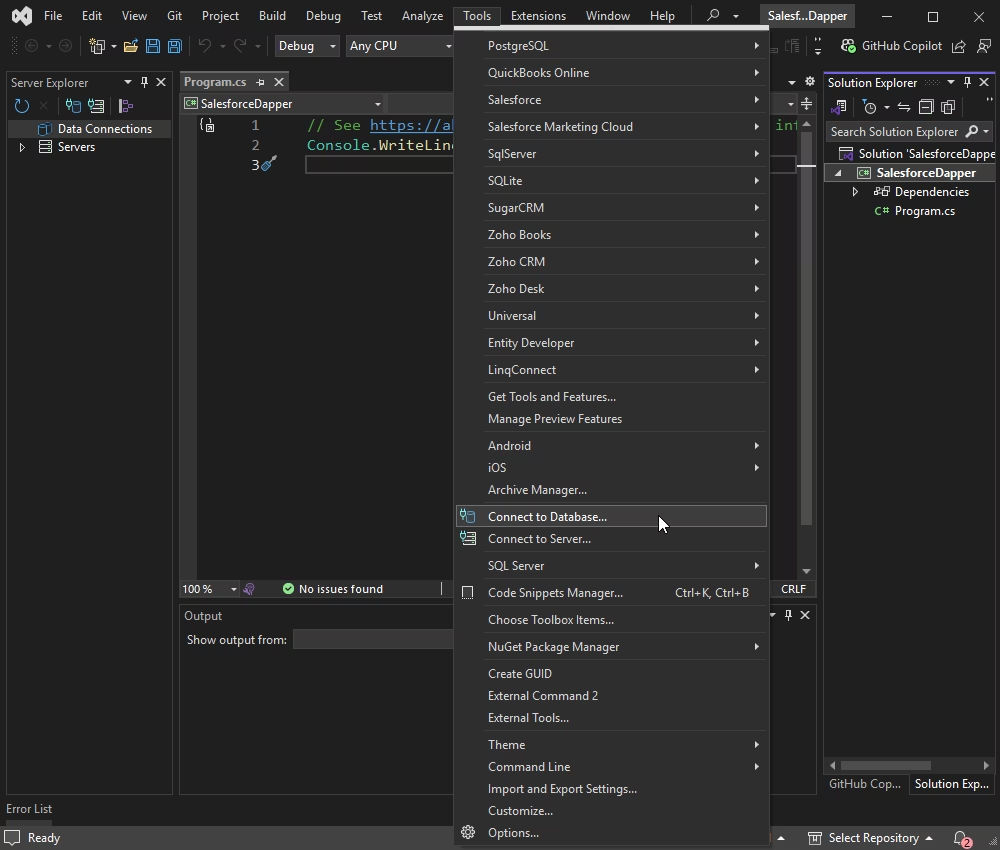
To connect to Salesforce using the built-in Data Explorer, navigate to Tools > Connect to Database.
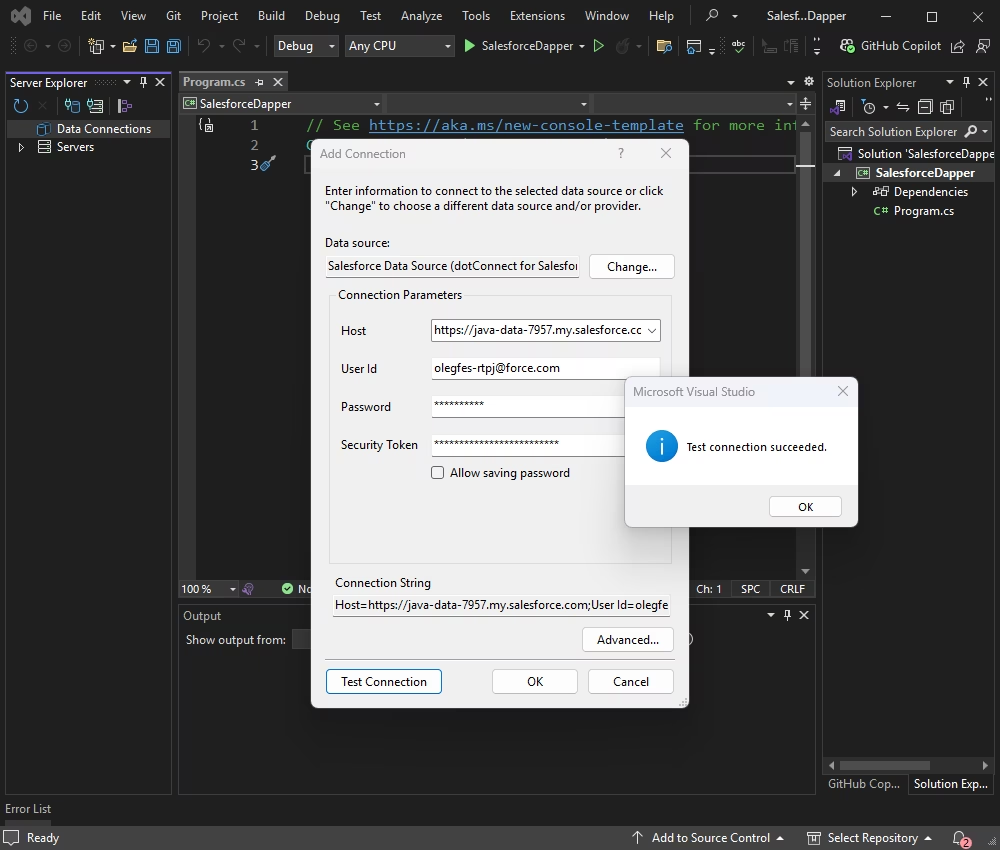
Select Salesforce as the data source, enter your server credentials, and click Connect. To verify the connection, click Test Connection.
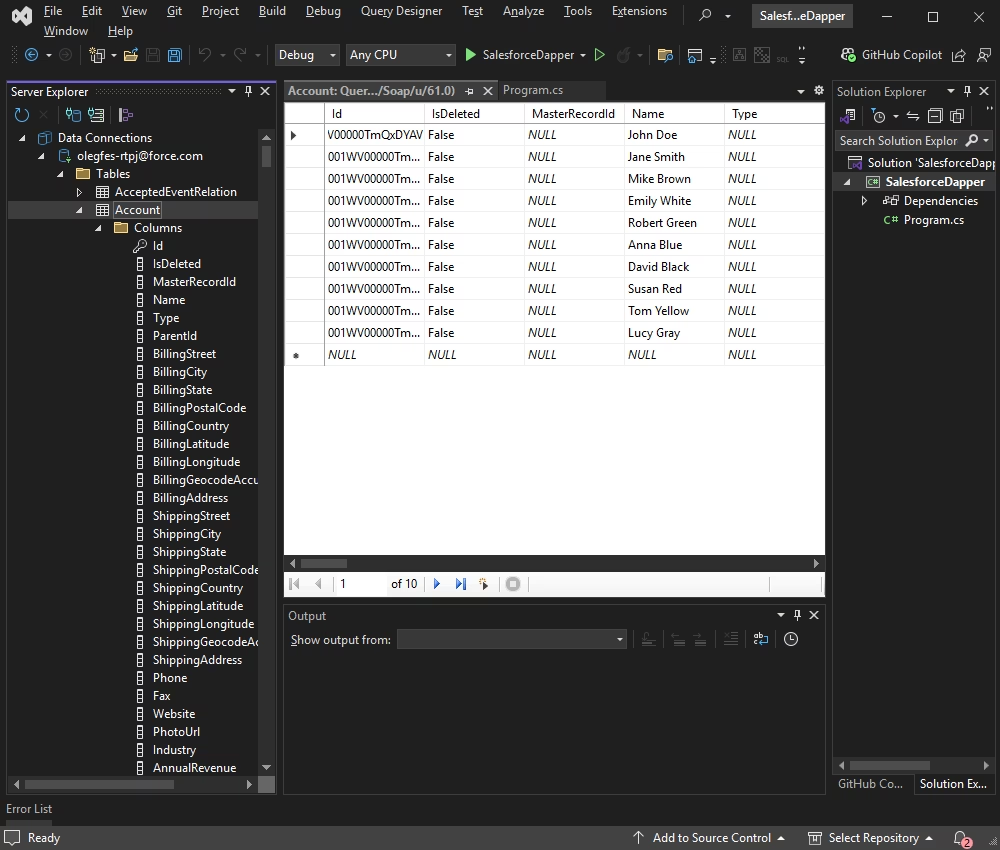
Once connected, you can browse tables, execute queries, and manage data directly within the Data Explorer.
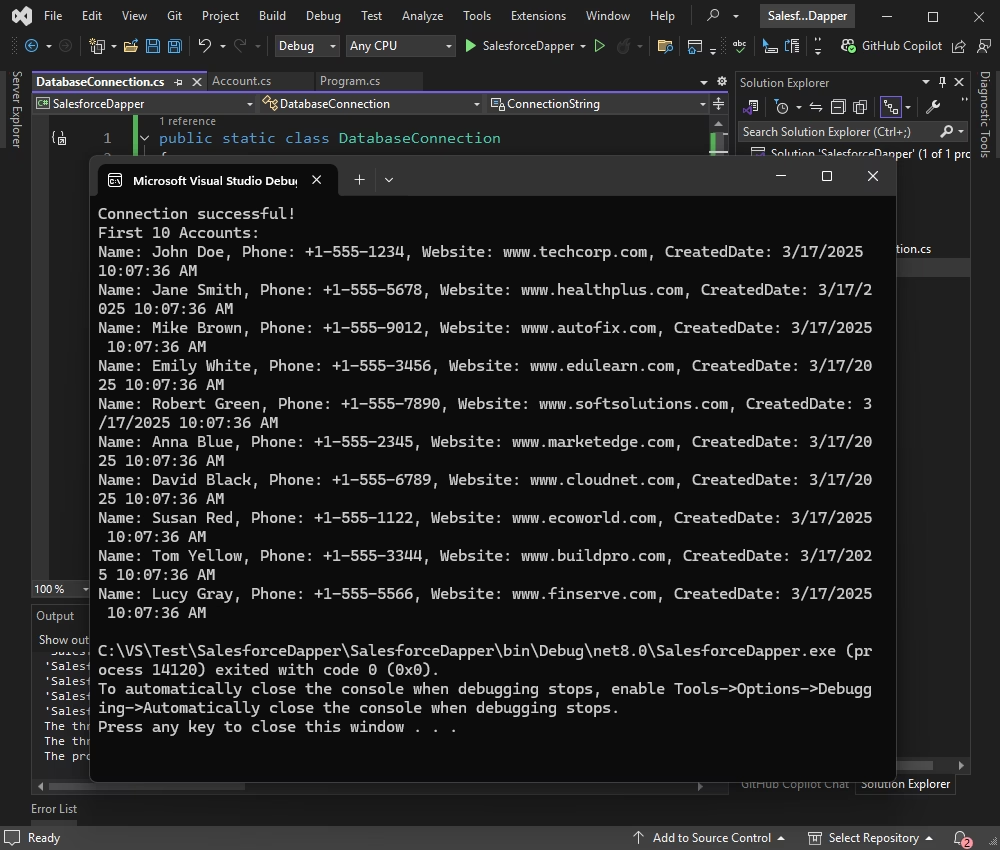
The application will connect to the Salesforce database, execute the query, and display the data from the Account table in the console. The connection uses the InteractiveOAuth, which requires no security token. In our example, we demonstrate this connection method, which is one of the most straightforward.
This class maps to the Account table:
public class Account
{
	public string Name { get; set; }
	public string Phone { get; set; }
	public string Website { get; set; }
	public DateTime CreatedDate { get; set; }
}The class keeps connection details separate for better maintainability.
public static class DatabaseConnection {
  private
  const string ConnectionString = "Authentication Type=AccessRefreshTokenInteractive;" +
    "License Key=**********;";


  public static string GetConnectionString() {
	if (string.IsNullOrEmpty(ConnectionString)) {
  	throw new InvalidOperationException("Connection string is not set.");
	}

	return ConnectionString;
  }
}
Add the following code to Program.cs:
using Dapper;
using Devart.Data.Salesforce;
using System.Data;

class Program
{
    static void Main()
    {
        string connectionString = DatabaseConnection.GetConnectionString();

        using (IDbConnection db = new SalesforceConnection(connectionString))
        {
            try
            {
                db.Open();
                Console.WriteLine("Connection successful!");

                string query = "SELECT Name, Phone, Website, CreatedDate FROM Account LIMIT 10";
                var accounts = db.Query<Account>(query).ToList();

                Console.WriteLine("First 10 Accounts:");
                foreach (var account in accounts)
                {
                    Console.WriteLine($"Name: {account.Name}, Phone: {account.Phone}, Website: {account.Website}, CreatedDate: {account.CreatedDate}");
                }
            }
            catch (Exception ex)
            {
                Console.WriteLine($"Connection failed: {ex.Message}");
            }
        }
    }
}| Property | Meaning |
|---|---|
| Authentication Type | Authentication method for connecting to Salesforce, such as UserNamePassword, AccessRefreshToken, AccessRefreshTokenInteractive, SessionId, etc. |
| Host | The Salesforce.com or Database.com login URL, such as login.salesforce.com, login.database.com, test.salesforce.com, etc. |
| User ID or User | Salesforce login account. |
| Password | Password for the account. |
| Refresh Token | Salesforce OAuth 2.0 refresh token used for the OAuth Refresh Token authentication. |
| Security Token | Automatically generated key used to log in to Salesforce from untrusted networks. |
| License Key | Your license key. |
Replace the placeholders in the connection string with your relevant Salesforce database credentials, or create a new JSON file named appsettings.json in your project and include the connection strings.
Build and run the application by pressing F5 or selecting Start from the menu.
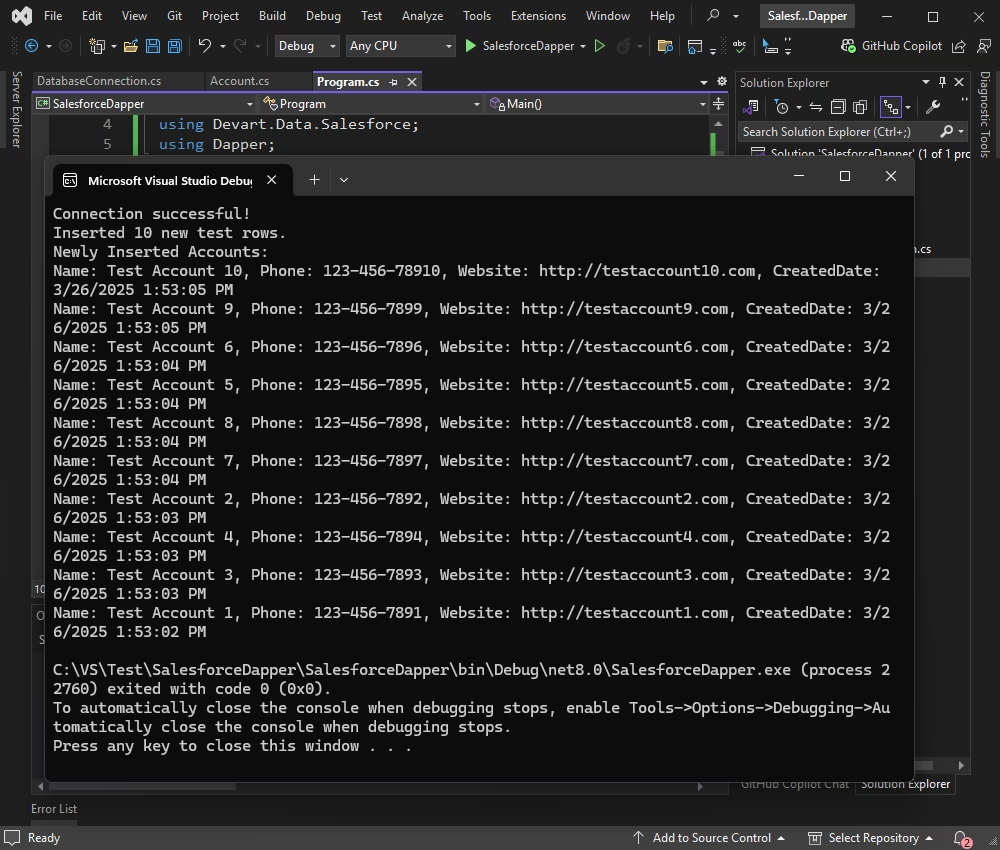
This code generates 10 new account objects with test data and inserts them into the Salesforce Account table using a parameterized query:
using Dapper;
using Devart.Data.Salesforce;
using System.Data;

class Program
{
    static void Main()
    {
        string connectionString = DatabaseConnection.GetConnectionString();

        using (IDbConnection db = new SalesforceConnection(connectionString))
        {
            try
            {
                db.Open();
                Console.WriteLine("Connection successful!");

                // Insert 10 new test rows
                var newAccounts = Enumerable.Range(1, 10).Select(i => new Account
                {
                    Name = $"Test Account {i}",
                    Phone = $"123-456-789{i}",
                    Website = $"http://testaccount{i}.com"
                }).ToList();

                string insertQuery = "INSERT INTO Account (Name, Phone, Website) VALUES (@Name, @Phone, @Website)";
                db.Execute(insertQuery, newAccounts);

                Console.WriteLine("Inserted 10 new test rows.");

                // Retrieve and display the newly inserted rows
                string selectQuery = "SELECT Name, Phone, Website, CreatedDate FROM Account WHERE Name LIKE 'Test Account%' ORDER BY CreatedDate DESC LIMIT 10";
                var insertedAccounts = db.Query<Account>(selectQuery).ToList();

                Console.WriteLine("Newly Inserted Accounts:");
                foreach (var account in insertedAccounts)
                {
                    Console.WriteLine($"Name: {account.Name}, Phone: {account.Phone}, Website: {account.Website}, CreatedDate: {account.CreatedDate}");
                }
            }
            catch (Exception ex)
            {
                Console.WriteLine($"Error: {ex.Message}");
            }
        }
    }
}
The result is as follows:
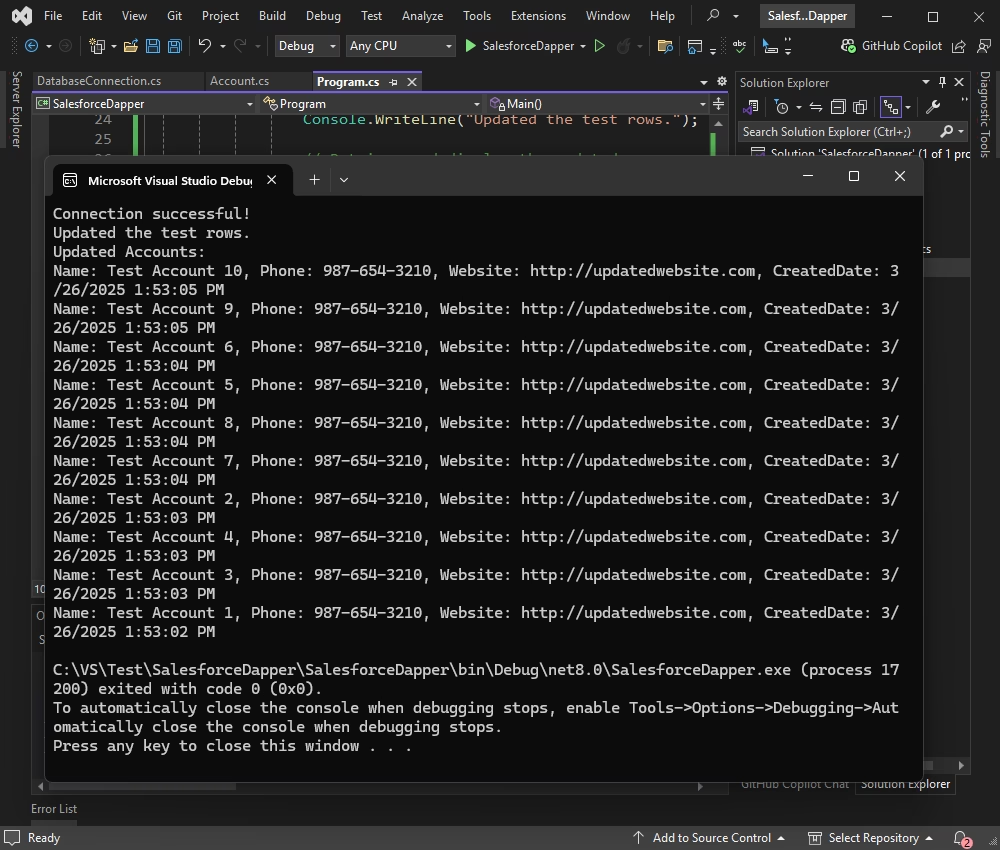
The UPDATE statement modifies the Phone and Website fields for all accounts with names that match the pattern 'Test Account%'. This ensures that only the previously inserted test rows are updated.
class Program {
  static void Main() {
	string connectionString = DatabaseConnection.GetConnectionString();

	using(IDbConnection db = new SalesforceConnection(connectionString)) {
  	try {
    	db.Open();
    	Console.WriteLine("Connection successful!");

    	// Update the previously inserted rows
    	string updateQuery = "UPDATE Account SET Phone = '987-654-3210', Website = 'http://updatedwebsite.com' WHERE Name LIKE 'Test Account%'";
    	db.Execute(updateQuery);

    	Console.WriteLine("Updated the test rows.");

    	// Retrieve and display the updated rows
    	string selectQuery = "SELECT Name, Phone, Website, CreatedDate FROM Account WHERE Name LIKE 'Test Account%' ORDER BY CreatedDate DESC LIMIT 10";
    	var updatedAccounts = db.Query<Account> (selectQuery).ToList();

    	Console.WriteLine("Updated Accounts:");
    	foreach(var account in updatedAccounts) {
      	Console.WriteLine($"Name: {account.Name}, Phone: {account.Phone}, Website: {account.Website}, CreatedDate: {account.CreatedDate}");
    	}
  	} catch (Exception ex) {
    	Console.WriteLine($"Error: {ex.Message}");
  	}
	}
  }
}
Let's test the application.
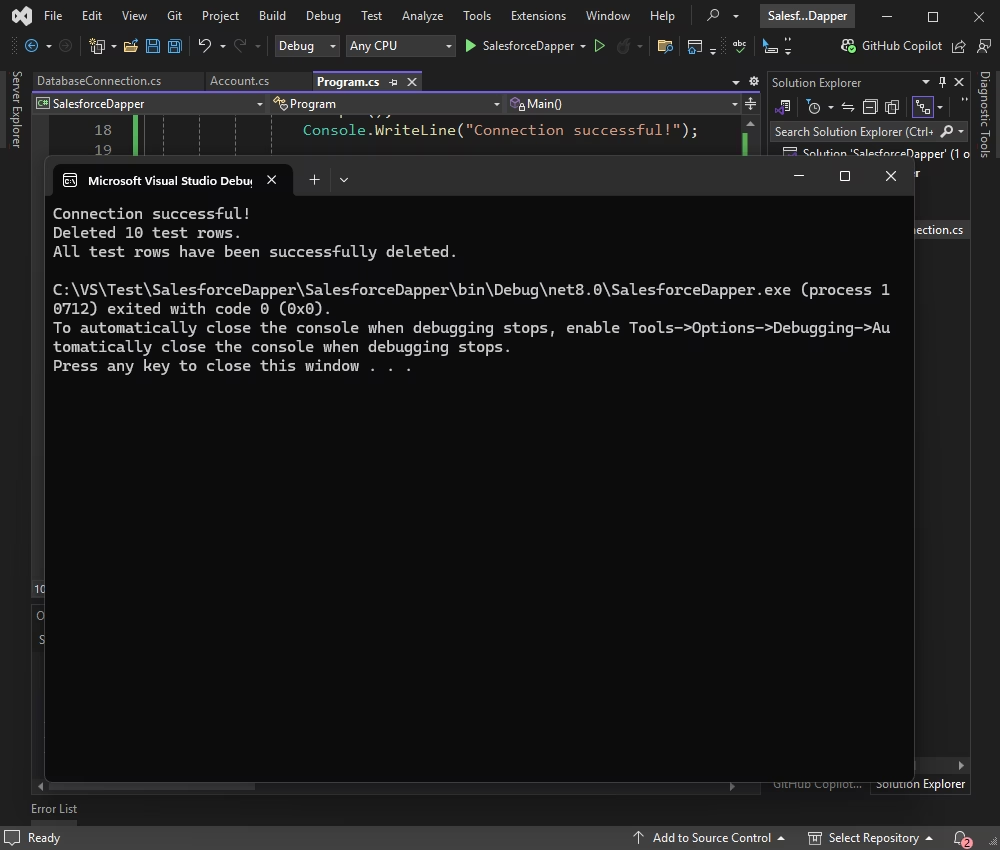
The DELETE statement removes all accounts with names that match the pattern 'Test Account%'. This ensures that only the previously inserted test rows are deleted.
using Dapper;
using Devart.Data.Salesforce;
using System.Data;

class Program
{
    static void Main()
    {
        string connectionString = DatabaseConnection.GetConnectionString();

        using (IDbConnection db = new SalesforceConnection(connectionString))
        {
            try
            {
                db.Open();
                Console.WriteLine("Connection successful!");

                // Delete the previously inserted rows
                string deleteQuery = "DELETE FROM Account WHERE Name LIKE 'Test Account%'";
                int rowsAffected = db.Execute(deleteQuery);

                Console.WriteLine($"Deleted {rowsAffected} test rows.");

                // Verify deletion by attempting to retrieve the rows
                string selectQuery = "SELECT Name, Phone, Website, CreatedDate FROM Account WHERE Name LIKE 'Test Account%'";
                var remainingAccounts = db.Query<Account>(selectQuery).ToList();

                if (remainingAccounts.Any())
                {
                    Console.WriteLine("Some test rows still exist:");
                    foreach (var account in remainingAccounts)
                    {
                        Console.WriteLine($"Name: {account.Name}, Phone: {account.Phone}, Website: {account.Website}, CreatedDate: {account.CreatedDate}");
                    }
                }
                else
                {
                    Console.WriteLine("All test rows have been successfully deleted.");
                }
            }
            catch (Exception ex)
            {
                Console.WriteLine($"Error: {ex.Message}");
            }
        }
    }
}
You can see that all test rows have been deleted.
Dapper's lightweight and fast data access, combined with the power of dotConnect for Salesforce, ensures that you can work with Salesforce data efficiently without sacrificing performance. Whether building custom solutions, integrating Salesforce data into your business logic, or creating reporting tools, this method provides a scalable and reliable approach.
As you continue to develop and extend your applications, the ability to connect to Salesforce using C# and Dapper will empower you to unlock the full potential of Salesforce's rich CRM features and maintain smooth and effective data flow between systems. So, dive in and start building your Salesforce-integrated solutions with ease, speed, and reliability!
License Key parameter.
Authentication Type=AccessRefreshTokenInteractive
When you call Open() on the SalesforceConnection, a browser window automatically opens for Salesforce login and consent. After successful authentication, dotConnect retrieves and manages the access and refresh tokens automatically, so no manual token handling is required.
Scaffold-DbContext with the Devart.Data.Salesforce.EFCore package and a dotConnect connection string (including the License Key) to generate the DbContext and entity classes.

I'm a technical content writer who loves turning complex topics — think SQL, connectors, and backend chaos–into content that actually makes sense (and maybe even makes you smile). I write for devs, data folks, and curious minds who want less fluff and more clarity. When I'm not wrangling words, you'll find me dancing salsa, or hopping between cities.

