
You can install the driver by using the Windows installer.
After you receive the license key, add it to your connection strings to connect to the data source.
Integration of .NET applications with Salesforce CRM often presents unnecessary technical challenges despite Salesforce's robust API. dotConnect for Salesforce solves this problem; it's a specialized ADO.NET data provider with straightforward Entity Framework Core support. This article demonstrates how to quickly set up, connect, and perform CRUD operations with Salesforce data using familiar EF Core patterns.

Ensures effortless connection to Salesforce, enabling users to access data easily and intuitively.

Supports familiar SQL statements, requiring no special knowledge of a complex API or SOQL.

Uses well-known ADO.NET classes, enabling an easy start and creating a convenient working environment.

Fully supports EF Core, Dapper, NHibernate, LinqConnect, and other technologies for efficient data management.

Conforms to the latest ADO.NET standards and innovations for seamless integration with .NET applications.

Includes priority support, detailed documentation, and regular updates for continuous improvement.
You can start using dotConnect for Salesforce immediately with a 30-day free trial. Choose one of the following installation options:
You can install the driver by using the Windows installer.
After you receive the license key, add it to your connection strings to connect to the data source.
After you have configured the database, you can move on to the next step—creating an EF Core model. You can do this in two ways: using Scaffold-DbContext or via Entity Developer.
Scaffold-DbContext to generate DbContext and entity classes for your Salesforce database. Run the following command in the Package Manager Console, replacing values with your actual credentials:
The ModelContext file and the Models folder containing the table entity classes are generated and appear in Solution Explorer. This means the migration has been applied, and the DbContext classes have been created.
| Name | Description |
|---|---|
| Authentication type | The authentication method for connecting to Salesforce, such as UserNamePassword, AccessRefreshToken, AccessRefreshTokenInteractive, SessionId, etc. |
| Host | The Salesforce.com or Database.com login URL, such as login.salesforce.com, login.database.com, test.salesforce.com, etc. |
| User ID -or- User | The Salesforce login account. |
| Password | The password for the account. |
| Refresh token | The Salesforce OAuth 2.0 refresh token used for the OAuth Refresh Token authentication. |
| Security token | User ID used to authenticate with MySQL. |
| License key | The license key. |
Entity Developer allows you to visually design and generate EF Core models, making database application development faster, easier, and more efficient. If you don't have it already installed, close your Visual Studio instance, download Entity Developer, and install it following the on-screen instructions.
Follow the detailed illustrated guide to create your database model using Entity Developer. When this process is complete, the model you created opens.
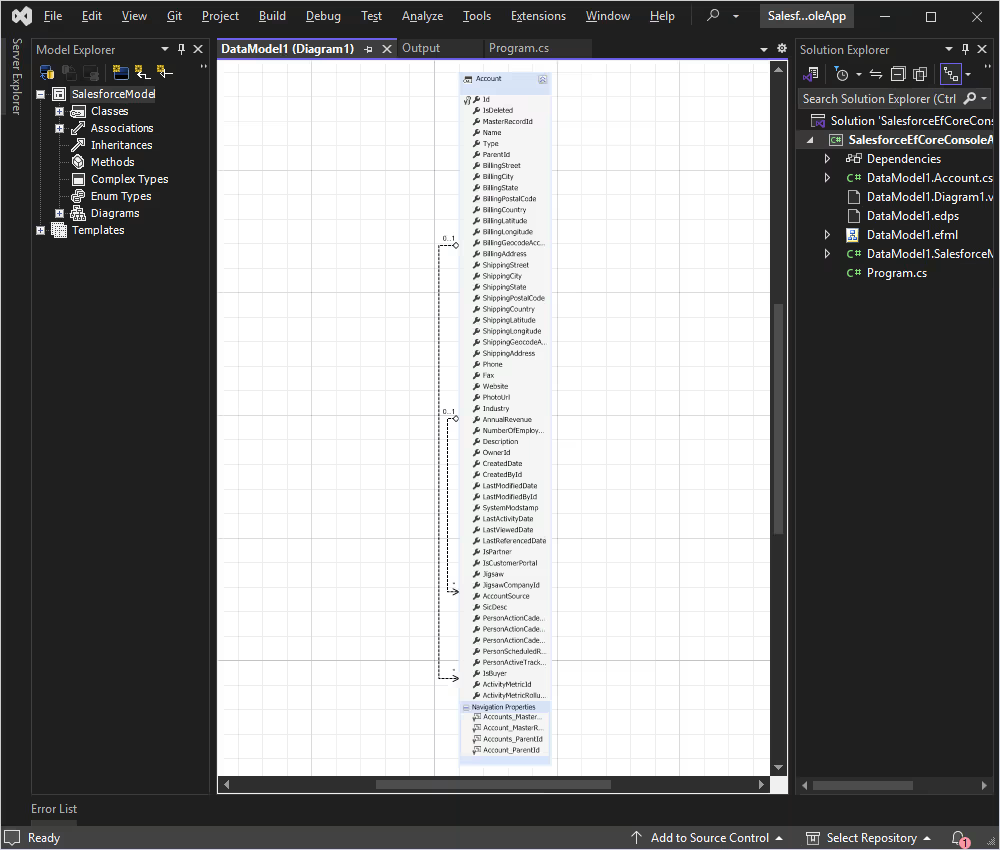
With this setup, you can connect to Salesforce using Entity Framework Core and retrieve data. Use the following code in the Program.cs file to retrieve the first 10 rows from the Account table.
using SalesforceEfCore;

namespace SalesforceEFCore
{
    class Program
    {
        static void Main(string[] args)
        {
            using (var context = new SalesforceModel())
            {
                try
                {
                    // Check connection status
                    var canConnect = context.Database.CanConnect();
                    Console.WriteLine($"Connection Status: {(canConnect ? "Connected" : "Not Connected")}");

                    if (canConnect)
                    {
                        // Retrieve the first 10 rows from the Account table
                        var accounts = context.Accounts
                          .Select(a => new
                          {
                              a.Id,
                              a.Name,
                              a.Phone,
                              a.Website,
                              a.CreatedDate
                          })
                          .Take(10)
                          .ToList();

                        // Display the results
                        Console.WriteLine("First 10 Accounts:");
                        foreach (var account in accounts)
                        {
                            Console.WriteLine($"Id: {account.Id}, Name: {account.Name}, Phone: {account.Phone}, Website: {account.Website}, CreatedDate: {account.CreatedDate}");
                        }
                    }
                }
                catch (Exception ex)
                {
                    Console.WriteLine($"An error occurred: {ex.Message}");
                }
            }
        }
    }
}You can modify the Program.cs file to include the insertion logic. For example, let's insert five new records into the Account table with only the Name, Phone, and Website fields populated. Below is the updated code that inserts the records and then retrieves and displays only the inserted records.
using SalesforceEfCore;

namespace SalesforceEFCore
{
    class Program
    {
        static void Main(string[] args)
        {
            using (var context = new SalesforceModel())
            {
                try
                {
                    // Check connection status
                    var canConnect = context.Database.CanConnect();
                    Console.WriteLine($"Connection Status: {(canConnect ? "Connected" : "Not Connected")}");

                    if (canConnect)
                    {
                        // Insert 5 new records without setting the Id field
                        var newAccounts = new[]
                        {
                            new Account { Name = "New Account 1", Phone = "123-456-7890", Website = "http://newaccount1.com" },
                            new Account { Name = "New Account 2", Phone = "234-567-8901", Website = "http://newaccount2.com" },
                            new Account { Name = "New Account 3", Phone = "345-678-9012", Website = "http://newaccount3.com" },
                            new Account { Name = "New Account 4", Phone = "456-789-0123", Website = "http://newaccount4.com" },
                            new Account { Name = "New Account 5", Phone = "567-890-1234", Website = "http://newaccount5.com" }
                        };

                        context.Accounts.AddRange(newAccounts);
                        int recordsAffected = context.SaveChanges();
                        Console.WriteLine($"Records inserted: {recordsAffected}");

                        // Retrieve and display the inserted records
                        var insertedAccounts = context.Accounts
                          .Where(a => newAccounts.Select(na => na.Name).Contains(a.Name))
                          .Select(a => new
                          {
                              a.Id,
                              a.Name,
                              a.Phone,
                              a.Website,
                              a.CreatedDate
                          })
                          .ToList();

                        Console.WriteLine("Inserted Accounts:");
                        foreach (var account in insertedAccounts)
                        {
                            Console.WriteLine($"Id: {account.Id}, Name: {account.Name}, Phone: {account.Phone}, Website: {account.Website}, CreatedDate: {account.CreatedDate}");
                        }
                    }
                }
                catch (Exception ex)
                {
                    Console.WriteLine($"An error occurred: {ex.Message}");
                }
            }
        }
    }
}
The code creates an array of five new Account objects with the Name, Phone, and Website fields populated. These are then added to the Accounts DbSet using AddRange, and SaveChanges is called to persist them to the database.
After insertion, the code retrieves the inserted records by matching the Name field. It then displays the Id, Name, Phone, Website, and CreatedDate fields for each inserted record.
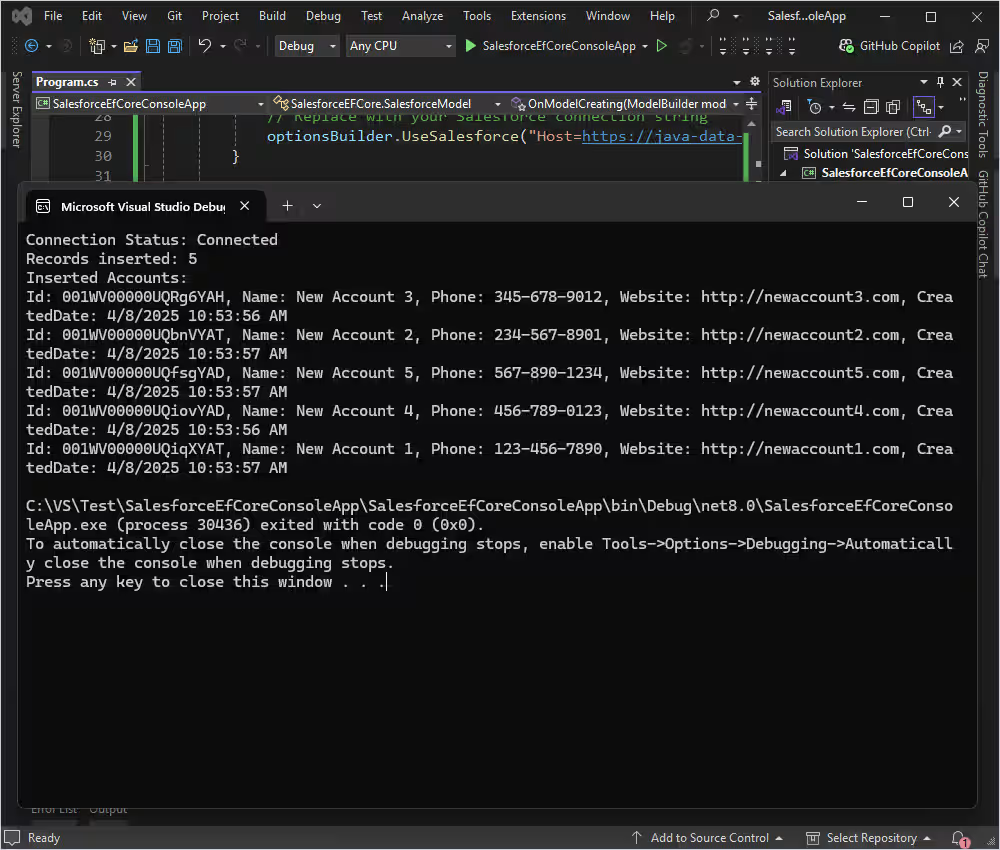
You can modify the Program.cs file to include the update logic. Say, you want to update existing records in the Account table with new values for the Name, Phone, and Website fields. Below is the updated code that performs the update operation for the specified Id values.
using SalesforceEfCore;

namespace SalesforceEFCore
{
    class Program
    {
        static void Main(string[] args)
        {
            using (var context = new SalesforceModel())
            {
                try
                {
                    // Check connection status
                    var canConnect = context.Database.CanConnect();
                    Console.WriteLine($"Connection Status: {(canConnect ? "Connected" : "Not Connected")}");

                    if (canConnect)
                    {
                        // Update existing records
                        var accountsToUpdate = new[]
                        {
                            new { Id = "001WV00000TmQxDYAV", Name = "Updated Account 1", Phone = "987-654-3210", Website = "http://updatedaccount1.com" },
                            new { Id = "001WV00000TmQxEYAV", Name = "Updated Account 2", Phone = "876-543-2109", Website = "http://updatedaccount2.com" },
                            new { Id = "001WV00000TmQxFYAV", Name = "Updated Account 3", Phone = "765-432-1098", Website = "http://updatedaccount3.com" },
                            new { Id = "001WV00000TmQxGYAV", Name = "Updated Account 4", Phone = "654-321-0987", Website = "http://updatedaccount4.com" }
                        };

                        foreach (var accountData in accountsToUpdate)
                        {
                            var account = context.Accounts.Find(accountData.Id);
                            if (account != null)
                            {
                                account.Name = accountData.Name;
                                account.Phone = accountData.Phone;
                                account.Website = accountData.Website;
                            }
                        }

                        context.SaveChanges();

                        // Retrieve and display the updated records
                        var updatedAccounts = context.Accounts
                          .Where(a => accountsToUpdate.Select(au => au.Id).Contains(a.Id))
                          .Select(a => new
                          {
                              a.Id,
                              a.Name,
                              a.Phone,
                              a.Website,
                              a.CreatedDate
                          })
                          .ToList();

                        Console.WriteLine("Updated Accounts:");
                        foreach (var account in updatedAccounts)
                        {
                            Console.WriteLine($"Id: {account.Id}, Name: {account.Name}, Phone: {account.Phone}, Website: {account.Website}, CreatedDate: {account.CreatedDate}");
                        }
                    }
                }
                catch (Exception ex)
                {
                    Console.WriteLine($"An error occurred: {ex.Message}");
                }
            }
        }
    }
}
The code defines an array of objects containing the Id values of the records to be updated, along with the new values for Name, Phone, and Website.
For each record, the code uses context.Accounts.Find(accountData.Id) to retrieve the existing record by Id. If the record is found, it updates the Name, Phone, and Website fields with the new values.
context.SaveChanges() is called to persist the updates to the database.
After updating, the code retrieves the updated records and displays the relevant fields.
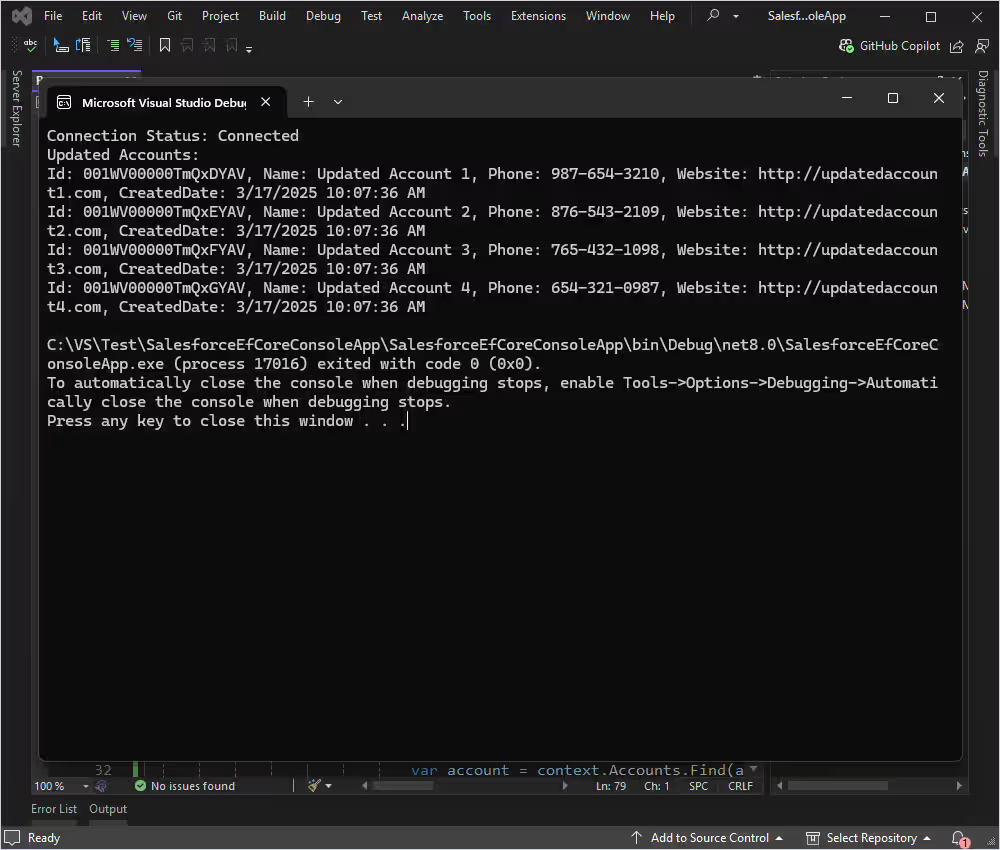
You can modify the Program.cs file to include the deletion logic. Let's delete records with specific Id values from the Account table. Below is the updated code that performs the deletion operation for the specified Id values.
using SalesforceEfCore;

namespace SalesforceEFCore
{
    class Program
    {
        static void Main(string[] args)
        {
            using (var context = new SalesforceModel())
            {
                try
                {
                    // Check connection status
                    var canConnect = context.Database.CanConnect();
                    Console.WriteLine($"Connection Status: {(canConnect ? "Connected" : "Not Connected")}");

                    if (canConnect)
                    {
                        // Delete existing records
                        var idsToDelete = new[]
                        {
                            "001WV00000TmQxDYAV",
                            "001WV00000TmQxEYAV",
                            "001WV00000TmQxFYAV",
                            "001WV00000TmQxGYAV"
                        };

                        var accountsToDelete = context.Accounts
                          .Where(a => idsToDelete.Contains(a.Id))
                          .ToList();

                        context.Accounts.RemoveRange(accountsToDelete);
                        context.SaveChanges();

                        Console.WriteLine("Records deleted successfully.");
                    }
                }
                catch (Exception ex)
                {
                    Console.WriteLine($"An error occurred: {ex.Message}");
                }
            }
        }
    }
}
The code defines an array of Id values for the records to be deleted. It retrieves the records with the specified Id values using Where and Contains, then removes them from the Accounts DbSet using RemoveRange.
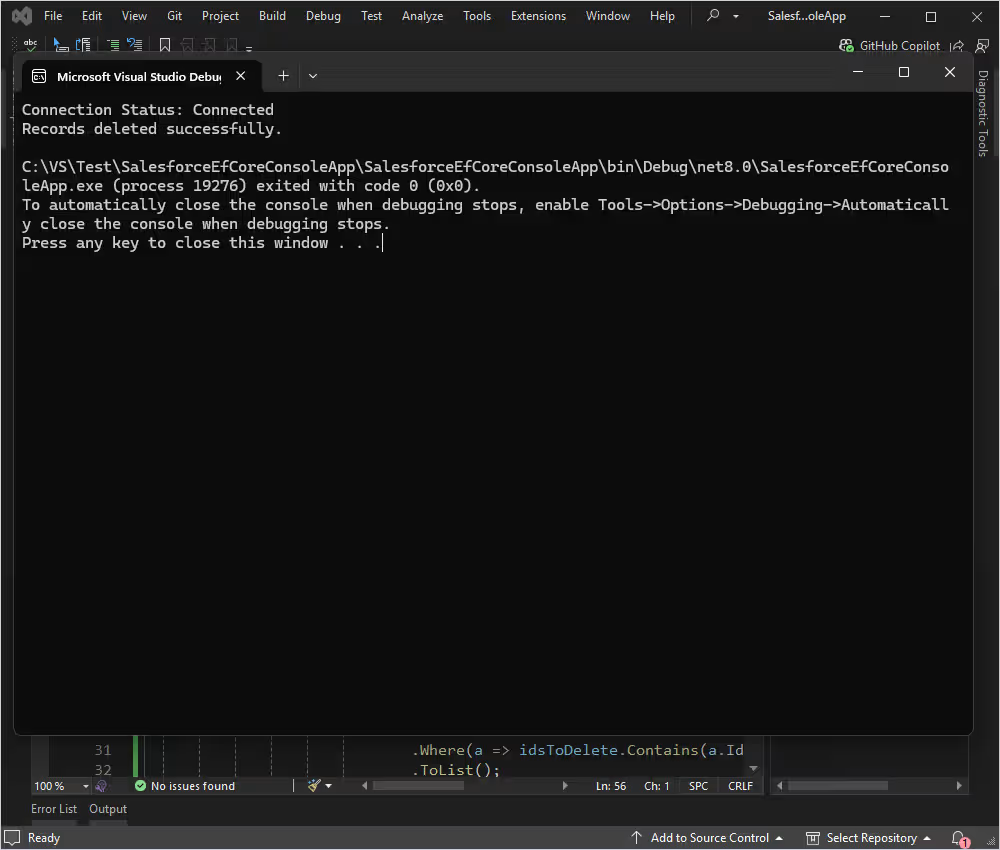
With dotConnect for Salesforce and Entity Framework Core, developers can interact with Salesforce data using the same object-oriented approach they use for traditional databases. This tutorial has shown how to establish connections, create models, and perform essential data operations without the typical complexity of Salesforce integrations. The result is efficient development that effectively handles everything from simple queries to large dataset processing.
License Key parameter for a working connection.
Authentication Type=AccessRefreshTokenInteractive
Open() on the SalesforceConnection, a browser window automatically opens for Salesforce login and consent. After successful authentication, dotConnect retrieves and manages the access and refresh tokens automatically, so no manual token handling is required.
SalesforceCommand just like standard SQL commands. This capability enables your application to retrieve Salesforce objects such as Accounts, Contacts, and Opportunities directly and efficiently.
Scaffold-DbContext with the Devart.Data.Salesforce.EFCore package and a dotConnect connection string (including License Key) to generate the DbContext and entity classes.

I'm a technical content writer who loves turning complex topics — think SQL, connectors, and backend chaos–into content that actually makes sense (and maybe even makes you smile). I write for devs, data folks, and curious minds who want less fluff and more clarity. When I'm not wrangling words, you'll find me dancing salsa, or hopping between cities.

