SQL Server Data Viewer for Browsing and Editing Table Data
When working with data stored in databases, users constantly need to quickly retrieve specific information. The SELECT statement is the primary tool for this purpose. However, most tasks go beyond simple selection, involving filtering, sorting, aggregating results, and applying more advanced SQL commands.
On the other hand, these operations benefit greatly from visualization and automation, which is especially helpful for users who may not be comfortable with complex SQL. The tools that will do the job are called data viewers.
This article focuses on SQL Server data viewers—tools or interfaces that allow users to open table data, visually inspect rows and columns, sort, group, and filter records, and even edit data directly within SQL Server databases. In particular, we focus on dbForge Studio for SQL Server, an all-in-one solution that covers the full database life cycle, including the data management tasks, where the possibility to view data is essential.
What is a SQL Server data viewer
A data viewer is a tool that allows you to inspect, filter, query, and visualize datasets without modifying the original data. Data viewers provide structured interfaces (e.g., grids, charts, or maps), enabling users to explore large datasets, troubleshoot data issues, and export results in various formats.
A SQL Server data viewer, respectively, is a specialized tool that performs these functions specifically for SQL Server databases through graphical interfaces.
Data viewers typically support the following options:
- Data exploration and visualization: Users can filter, sort, and aggregate data visually, using tables or graphs.
- Read-only data inspection: Data viewers allow users to examine records and understand data flows without risking changes to the underlying data.
- Advanced data visualization: Advanced tools offer graphical representations such as heat maps, charts, diagrams, and so on. Data can be displayed in context-appropriate formats—for example, geographical data on maps or structured data like XML and JSON with proper formatting and highlighting.
- Data analysis: Filtering, sorting, and basic analytical operations are among the core features. Users can perform standard calculations and apply aggregate functions without writing code manually.
- Data editing: Some data viewers enable direct editing of data within the interface and instant saving, without running SQL commands such as INSERT or UPDATE.
- Data reporting and export: Professional data viewers provide reporting features and support data exports in multiple formats. In many workflows, data viewers help identify trends, patterns, and relevant data subsets for deeper analysis.
- Customization and UI: Such tools offer user-friendly interfaces with customization options, so that their users can work according to their needs and preferences.
All these capabilities make data viewers highly valuable for working with SQL Server databases in modern workflows.
Who needs a SQL Server data viewer
Data viewing, analysis, and editing are routine tasks for database users, and this is where a database viewer becomes very helpful for basic data operations.
To better understand the importance of these tools, let us examine the key user roles that rely on data viewers, along with the common challenges they help overcome.
Developers verifying app data
Developers use data viewers to confirm that their code works as expected. For instance, after performing a certain action, they open the data viewer for SQL Server to quickly define if the record is saved, updated, or deleted correctly.
DBAs reviewing records and troubleshooting
Database administrators often need the option to view live data. It helps them investigate data corruption or mismatches, troubleshoot performance failures, and audit changes. All these tasks can be quickly performed with data viewers.
Analysts exploring datasets
Analysts refer to data viewers to quickly explore specific cases before a deeper analysis. These tools let analysts preview tables to pick relevant data, find missing data, and prepare it for reports, in less time and with less manual effort.
QA engineers validating test results
QA specialists use data viewers to check test results. By comparing outcomes and ensuring no unexpected side effects, they validate test cases faster.
Data teams checking transformations
Data engineers and ETL specialists depend on viewers to validate pipelines, compare raw data with processed data, and debug failures. For instance, data engineers might need to verify the aggregated values after running pipelines, and data viewers let them obtain the necessary information simply.
Therefore, SQL Server data viewers deliver the required transparency, speed, and accuracy for all their users. These tools allow viewing real data, getting immediate feedback, and catching issues early.
Why users look for a better way to view SQL Server data
| Challenge | What happens in practice | Why it becomes a problem | What users usually need |
|---|---|---|---|
| Manual query workflows can be slow for routine checks. | Users write SELECT statements again and again just to inspect table contents, verify a few values, or check recent changes. Even simple tasks like opening a table or filtering rows require manual input. | Adding repetitive work to everyday database tasks, slowing performance down, and extra friction when the goal is only to review data rather than build complex logic. | A visual way to open tables, browse records, and apply filters without writing a new query every time. |
| Built-in tools may not be convenient for daily data browsing. | Default interfaces can involve extra clicks, less intuitive navigation, basic filtering, and a less comfortable experience when working with wide tables or large result sets. | Routine data inspection takes longer, the workflow feels less natural, and users may struggle to move quickly between database objects, records, and results. | A more user-friendly data viewer with faster navigation, better filtering, clearer layout, and a stronger editing experience. |
| Data viewing often turns into data analysis or correction. | What starts as a quick check often expands into sorting, comparing rows, copying values, editing records, exporting results, or reviewing related database objects. | A basic viewer may not support the full workflow, so users end up switching between tools or repeating steps manually. | A more complete environment with data viewing, filtering, editing, and export. |
Key features of the data viewer in dbForge Studio for SQL Server
dbForge Studio for SQL Server is an integrated development environment (IDE) designed for working with SQL Server databases. It supports all fundamental tasks of database development, management, data analysis, and administration.
One of its essential features is Object Viewer, a convenient SQL Server data browser designed for viewing and modifying data. With this Viewer, you can quickly retrieve data from a table, explore and analyze it, and make changes in a grid-based interface with the built-in Data Editor.
This tool operates as a graphical user interface (GUI) that automatically generates and runs SQL queries in the background. You can perform data operations visually, without the need for writing SQL code manually.
Let's take a look at the most essential features available in dbForge Studio's Object Viewer.
Data grid for comfortable record inspection
The grid displays table data in rows and columns, much like a spreadsheet. This structured layout improves readability and helps you find and work with records faster, especially in large datasets. Besides, it allows you to avoid writing queries manually.
Advanced filtering for large datasets
Filtering is essential for working with data visually. This option lets you narrow records based on conditions and use a Filter Editor to build filters according to your specific requirements visually. This way, you can quickly and efficiently isolate relevant records for your needs.
Sorting and grouping options
Object Viewer lets you sort and group data. You can arrange records in any order, group rows by columns, and expand or collapse groups, making it easier to uncover insights, spot patterns, and improve the overall productivity of work.
Search across table content
Search functionality allows you to quickly find specific records in large datasets. With auto-search, you can look for a value within a column or full table. The tool highlights the results, saving your time.
Inline editing and controlled data updates
With inline editing, you can change data directly in the grid, updating the database instantly. This makes small corrections faster and more convenient, as you don't need to write UPDATE commands manually.
Export and copy options for reporting or sharing
Object Viewer supports data export in 14 popular formats. This way, you can move selected data outside the Studio for further analysis; export entire tables or selected rows with preserved formatting and column headers.
Visual support for large and complex tables
To simplify large or complex datasets, Object Viewer provides UI enhancements such as easy scrolling, pagination, column hiding and resizing, and value highlighting. These features help you navigate, view, and manage extensive data.
Overall, Object Viewer available in this dbForge SQL Server IDE helps you explore data quickly, collaborate more easily, and improve productivity for everyone involved.
How to view SQL Server data in dbForge Studio for SQL Server
We have reviewed the capabilities of Object Viewer present in dbForge Studio for SQL Server. Let us now explore and illustrate the practical guideline on viewing and editing data in this tool.
Connect to a SQL Server database
The first step in our tutorial is connecting to a target SQL Server instance and a specific database. dbForge Studio for SQL Server provides a connection manager, where you can quickly establish and save a connection.
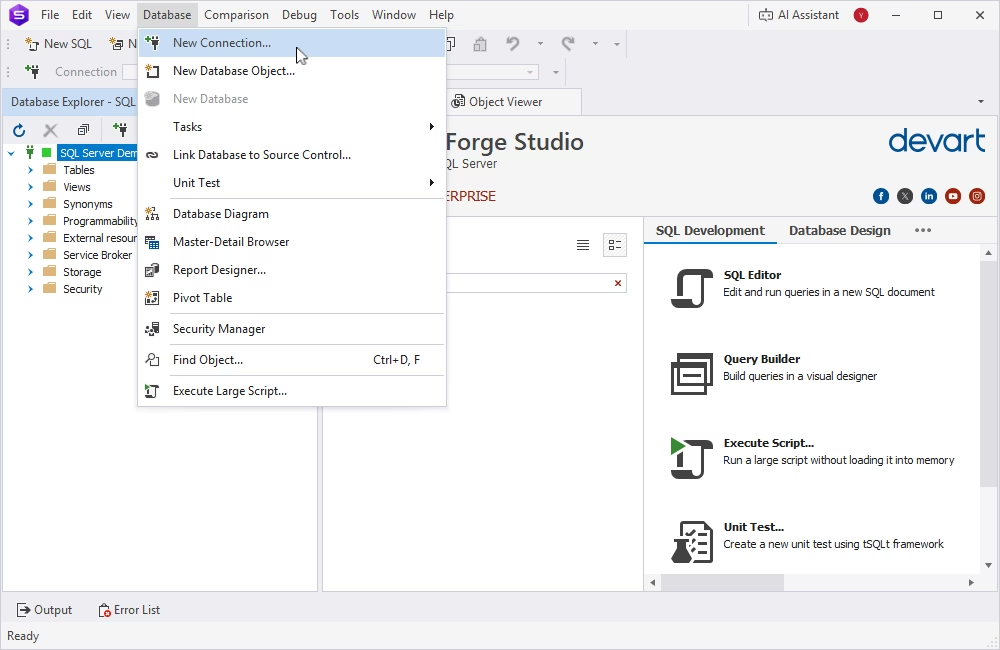
Open the Studio, go to the Database menu, and select New Connection.
In the Database Connection Properties dialog, provide the connection details: Server name, Authentication method, Login, and Password (saved by default; to turn this off, clear the Allow saving password checkbox). You can also give this connection a name and mark it with a color for convenience.
Click Test Connection to verify the credentials, or click Connect to proceed. The Studio will connect to your server.
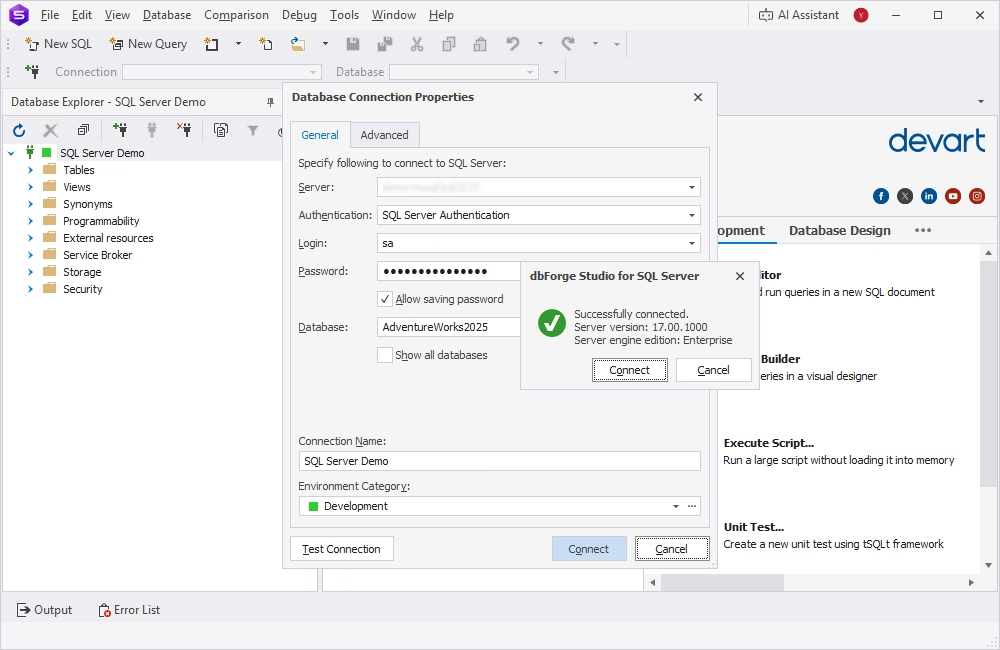
After that, you will see your databases in a tree-like Database Explorer pane on the left. Object Viewer can also be opened from Database Explorer.
Open a table and inspect its records
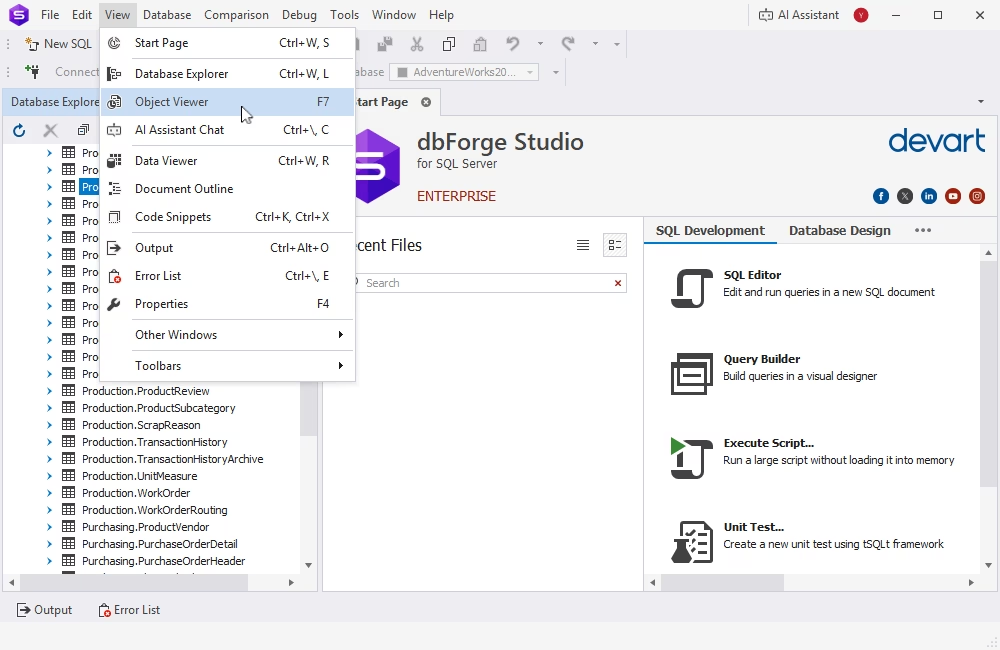
Find the database you want to work with and expand its node. You can see its objects organized as directories. Expand the Tables node and find the desired table. To open the SQL Server table data viewer, click View in the main menu and select Object Viewer (or simply click F7).
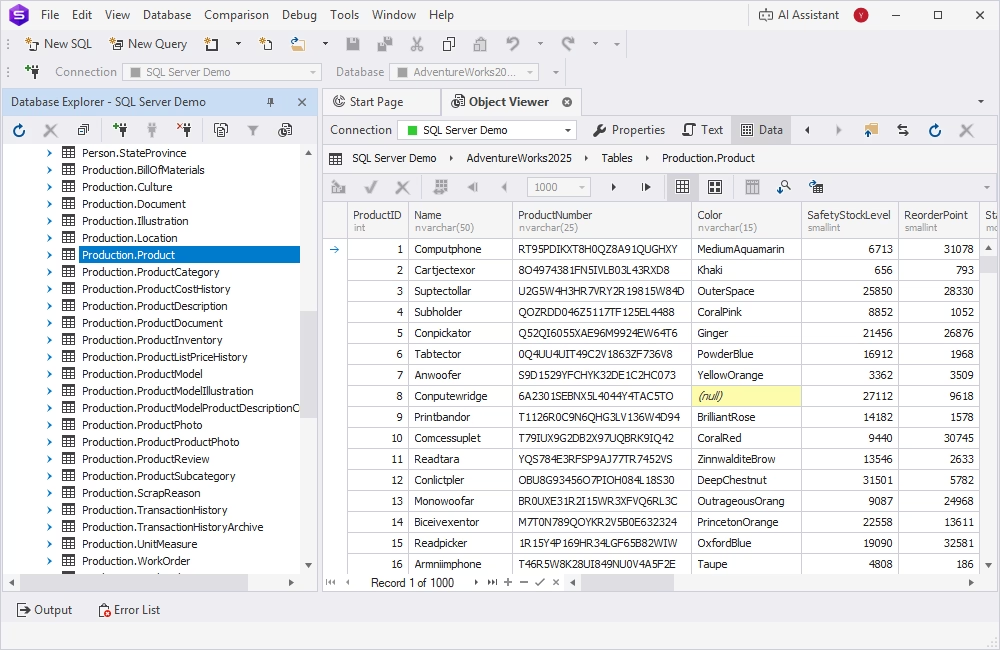
The data is retrieved immediately. Click Data to view it.
Apply filters, sorting, and search
The table data is presented as a grid with columns and rows. You can resize these columns visually as you do when working with Excel spreadsheets, and also reorder columns.
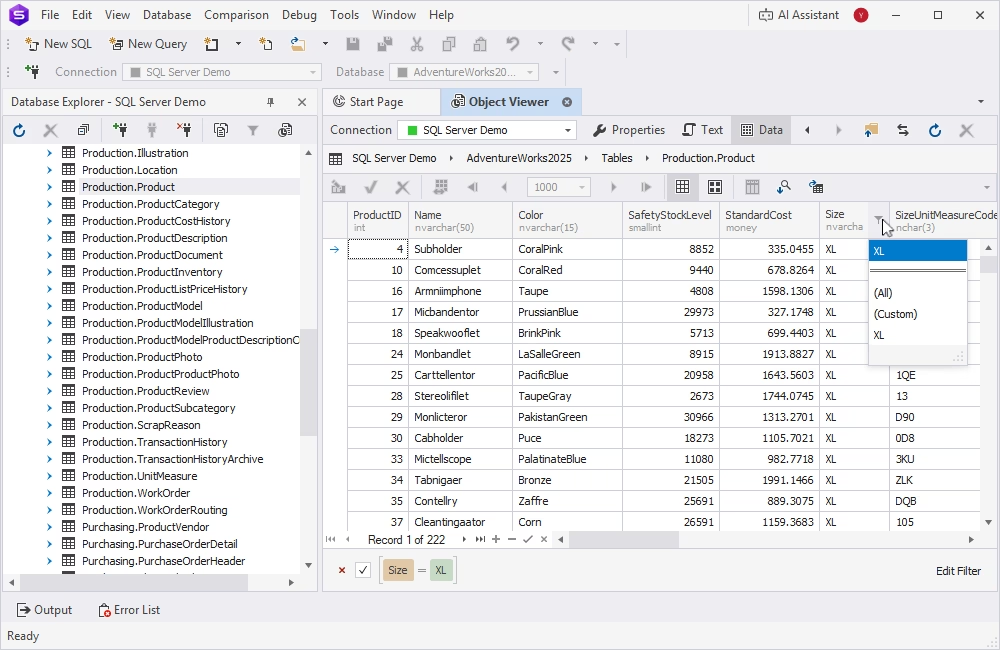
To apply filters, click the filter icon at the top of the column in the grid and select the predefined filter.
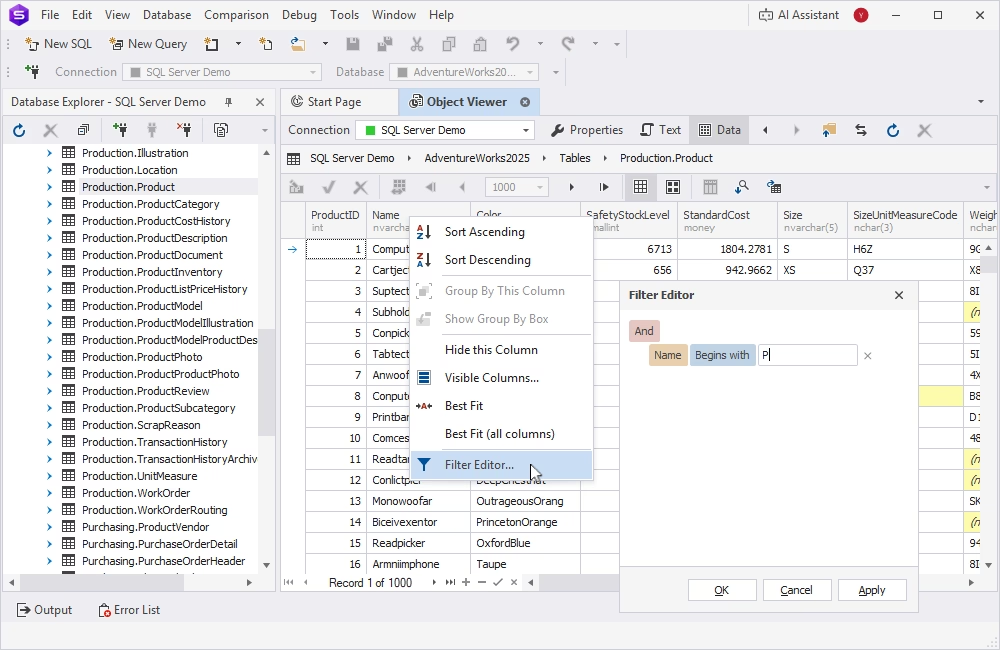
You can also configure your own filters using the built-in Filter Editor. Specify the condition (e.g., display only the values that begin with P) and apply the filter.
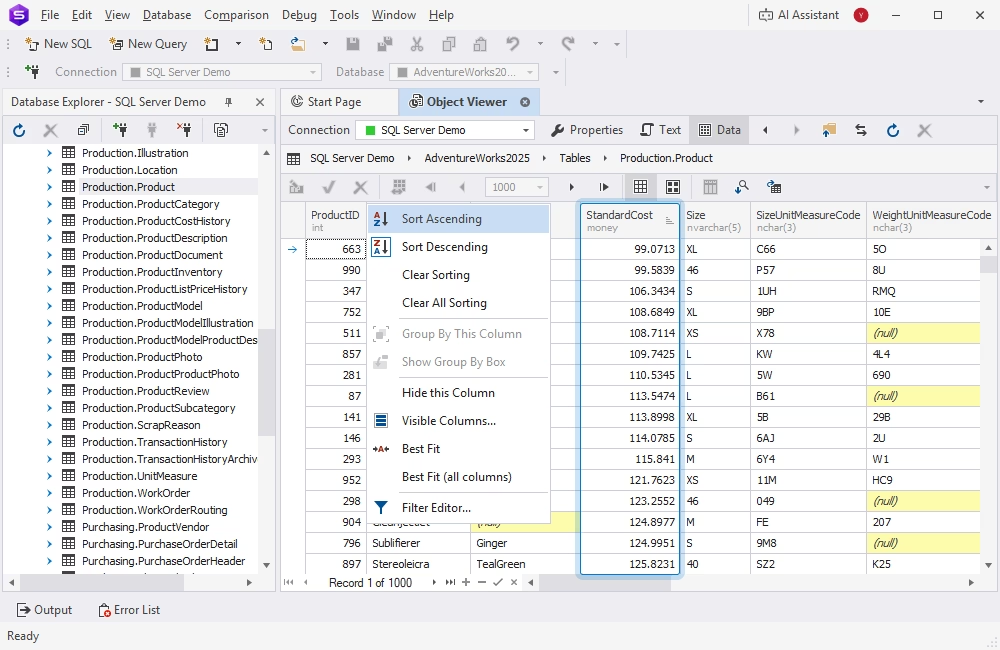
To sort values in ascending or descending order, simply click the top of the desired column. Or, right-click the column header and select the necessary option from the menu. All other values in other columns will be reordered accordingly.
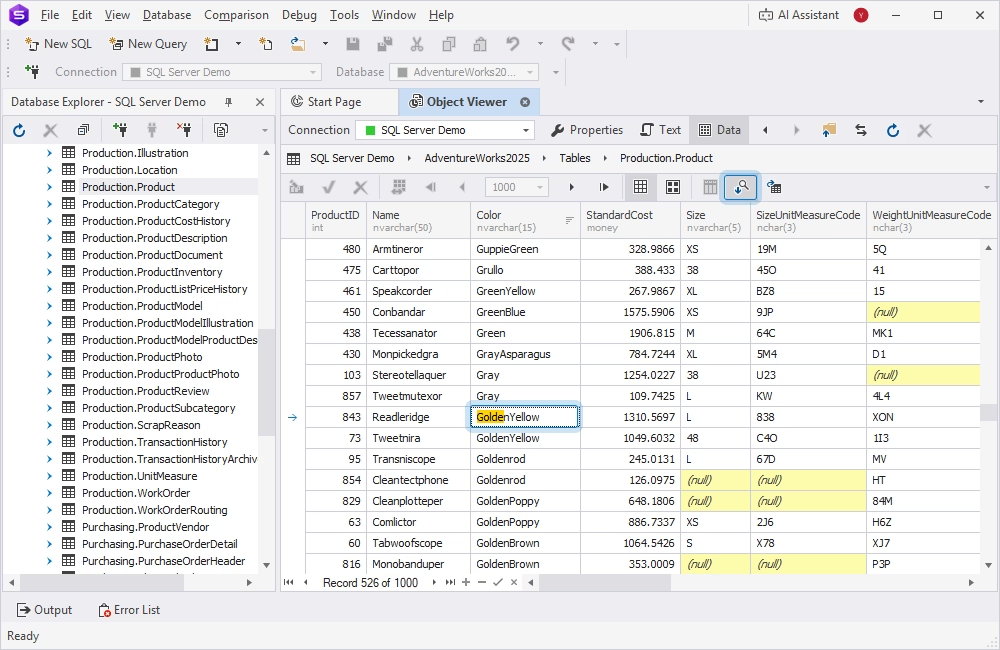
Finally, to search for a specific record in this SQL Server table viewer, enable the Auto-search mode in Object Viewer. Click the Search icon at the top of the grid or use the combination of keys Ctrl+I. When done, choose the column where you want to search for values and enter the symbols.
Edit or export data if required
You can not only view SQL Server data, but also edit it in tables inline, from within the Object Viewer window. By default, the table with data is in read-only mode. Click that field to open the menu and switch to the table name. This unlocks the edit mode.
Double-click the record you want to edit and enter the new value. Press Enter to save changes.
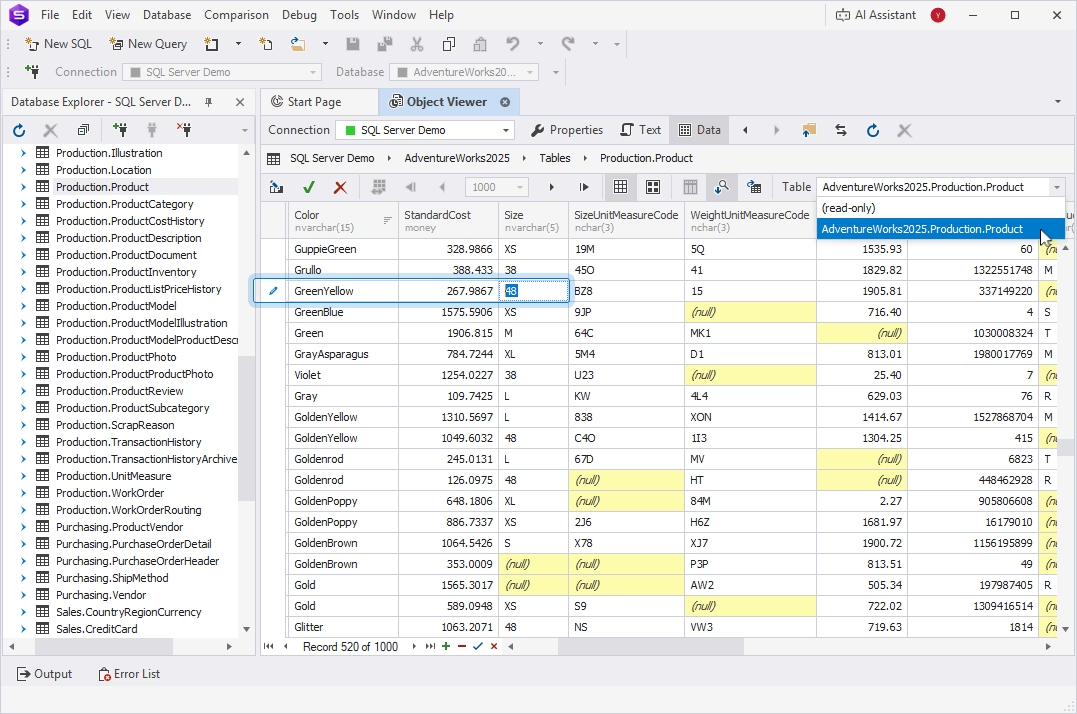
If you want to export data, click the Export icon at the top of the grid to open the data export wizard. You can select the desired data format and configure the task visually in several clicks.
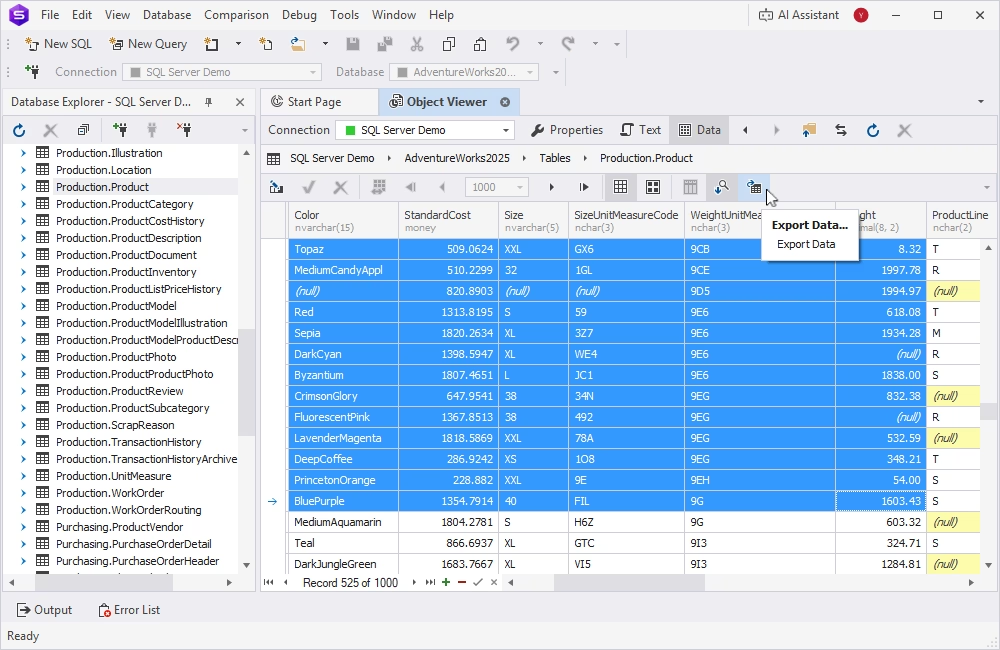
As you can see, Object Viewer allows you to perform lots of data-related operations in the most straightforward manner.
Who should use the data viewer in dbForge Studio for SQL Server
| User group | Usage scenario | Typical tasks | Why dbForge is useful |
|---|---|---|---|
| Developers | Developers use a data viewer to inspect records while building, testing, and refining database-driven applications. | Debugging application issues, validating inserted or updated data, checking query output, testing joins and filters, reviewing stored procedure results. | dbForge helps developers move quickly between SQL queries and visual data inspection, which makes validation and query testing more convenient. |
| Database administrators | DBAs use a data viewer to monitor table contents, review changes, and support routine database maintenance. | Reviewing production data, troubleshooting issues, checking table contents after updates, validating maintenance tasks, controlling data changes. | dbForge gives DBAs a more convenient way to browse, filter, and edit data while staying in control of routine review and troubleshooting workflows. |
| Analysts and data specialists | Analysts and data specialists use a data viewer to inspect business data directly in SQL Server and verify that datasets match reporting or operational needs. | Checking live tables, reviewing structure and field values, validating metrics, spotting missing or inconsistent data, preparing data for analysis. | dbForge makes it easier to review table data visually, search records, and inspect business datasets without relying only on manually written queries. |
| QA engineers and support teams | QA and support teams use a data viewer to confirm system behavior through stored data and investigate issues reported by users or identified during testing. | Validating test results, checking whether records were created or updated correctly, investigating incidents, reviewing status changes, tracing data-related errors. | dbForge helps these teams verify backend data faster, inspect affected rows, and understand how application activity appears in SQL Server tables. |
Why dbForge is a practical choice for SQL Server data viewing
dbForge Studio for SQL Server is one of the most powerful IDEs for SQL Server databases. Its available options exceed the functionality of the default SQL Server Management Studio (SSMS) significantly.
With the Studio, you can make all database tasks much more straightforward, and Object Viewer, which is one of many features available in this IDE, optimizes your common tasks even further. With its help, you can quickly access all databases and their objects and view the data in an editable grid with one click, without any SQL coding.
Then, you can search for values, manage the necessary data visually, including sorting, grouping, and filtering data, analyze values, edit them, export data, and perform other operations using a smart GUI.
You can try dbForge Studio for SQL Server in your actual workflows. Download the fully functional 30-day free trial, install it, and see how the Studio handles your daily tasks!
FAQ
A SQL Server data viewer is a tool or feature that lets you browse, filter, and edit data stored in SQL Server tables without writing complex queries. Typically, it provides the functionality to view rows and columns in a grid format, sort and filter data, edit records directly, and export data. Frequently, a data viewer is one of the features available in popular IDEs for SQL Server, such as the default SSMS IDE or dbForge Studio for SQL Server.
To view data stored in SQL Server database tables, you might refer to the standard SQL queries using the SELECT command or rely on visual IDEs, such as SSMS or dbForge Studio for SQL Server. In dbForge Studio, you can view the table data in Object Viewer: connect to the necessary SQL Server instance, select the database from the list under Database Explorer, expand the database node, then the Tables node, choose the table, and click F7 to open the data in Object Viewer. Also, you might right-click the table and choose the option to open the data in the data editor.
dbForge Studio for SQL Server is a more robust alternative to SSMS, with better performance and a considerably richer feature set. Considering the data viewing and editing tasks, dbForge Studio offers the Object Viewer feature for data viewing, editing, and analysis. SSMS users mostly rely on SQL commands. Quick options include Select Top 1000 Rows and Edit Top 200 Rows available in the menu. And though SSMS provides some basic data editing options, dbForge Studio for SQL Server offers a much more robust functionality.
Data viewers are helpful for all specialists working with SQL Server databases and data stored in them. Database developers use them for testing their SQL queries, DBAs need data viewers for troubleshooting and monitoring data, data analysts can explore large datasets quickly and conveniently, QA specialists utilize data viewers to verify the results of their tests, and any non-technical users refer to visual data viewers to work with data without deep SQL knowledge.