
You can install the driver by using the Windows installer.
After you receive the license key, add it to your connection strings to connect to the data source.
SQLite is a popular, lightweight, cross-platform database that is widely used as a part of backend for many applications. This tutorial provides step-by-step instructions on how to connect a .NET application to an SQLite database.

Provides integrated support for the SQLite Encryption Extension with AES, Blowfish, TripleDES, Cast128, and RC4 encryption algorithms.

Fully supports EF Core, Dapper, NHibernate, LinqConnect, and more for efficient data management.

Conforms to ADO.NET standards for seamless integration with .NET applications.

Includes specific features and fully supports all unique data types for accurate and complete data representation.

Features native integration with Visual Studio and complete design-time support for accelerated development.

Includes priority support, detailed documentation, and regular updates for continuous improvement.
You can start using dotConnect for SQLite immediately with a 30-day free trial. Choose one of the following options:
You can install the driver by using the Windows installer.
After you receive the license key, add it to your connection strings to connect to the data source.
The first option we explore is establishing a basic connection to a SQLite database with the help of C#. Depending on your requirements, you may need to extend this example by adding functionality such as executing SQL queries or handling various types of exceptions.
using Devart.Data.SQLite;

class Program
{
    static void Main(string[] args)
    {
        // Path to the Sakila database file
        string databasePath = @"path\to\your\sakila.db";

        // Connection string
        string connectionString = $"Data Source={databasePath};Version=3;License key=**********";

        // Create a new SQLiteConnection object
        using (SQLiteConnection connection = new SQLiteConnection(connectionString))
        {
            try
            {
                // Open the connection
                connection.Open();
                Console.WriteLine("Connection successful!");
            }
            catch (Exception ex)
            {
                Console.WriteLine($"Connection failed: {ex.Message}");
            }
        }

        Console.WriteLine("Press any key to exit...");
        Console.ReadKey();
    }
}
Refer to the SQLite connection strings guidelines for the parameters necessary to establish connection to SQLite databases and ensure proper communication between the application and the database engine.
In this tutorial, we use dotConnect for SQLite, a data provider that enables connections to encrypted SQLite databases. Although the provider does not include a built-in encryption extension, it is fully compatible with databases encrypted using third-party solutions.
To connect to an encrypted SQLite database with dotConnect for SQLite, configure the connection string with the required encryption settings, such as the encryption and password parameters.
The following example demonstrates how to use SQLiteCrypt encryption with dotConnect for SQLite to keep your SQLite database protected.
using Devart.Data.SQLite;

class Program
{
    static void Main(string[] args)
    {
        // Path to the Sakila database file
        string databasePath = @"path\to\your\sakila.db";

        // Connection string with SQLiteCrypt encryption parameters
        string connectionString = $"Data Source={databasePath};Encryption=SQLiteCrypt;EncryptionLicenseKey=00000-000-0000000-00000;FailIfMissing=false;Password=yourpassword;License key=**********";

        // Create a new SQLiteConnection object
        using (SQLiteConnection connection = new SQLiteConnection(connectionString))
        {
            try
            {
                // Open the connection
                connection.Open();
                Console.WriteLine("Connection successful!");
            }
            catch (Exception ex)
            {
                Console.WriteLine($"Connection failed: {ex.Message}");
            }
        }

        Console.WriteLine("Press any key to exit...");
        Console.ReadKey();
    }
}Next, we will demonstrate how to establish a secure AES-256-encrypted connection to an SQLite database using dotConnect for SQLite. The example below illustrates this process.
using Devart.Data.SQLite;

class Program
{
    static void Main(string[] args)
    {
        // Path to the Sakila database file
        string databasePath = @"path\to\your\sakila.db";

        // Connection string with AES256 encryption parameters
        string connectionString = $"Data Source={databasePath};Encryption=AES256;FailIfMissing=false;Password=best;License key=**********";

        // Create a new SQLiteConnection object
        using (SQLiteConnection connection = new SQLiteConnection(connectionString))
        {
            try
            {
                // Open the connection
                connection.Open();
                Console.WriteLine("Connection successful!");
            }
            catch (Exception ex)
            {
                Console.WriteLine($"Connection failed: {ex.Message}");
            }
        }

        Console.WriteLine("Press any key to exit...");
        Console.ReadKey();
    }
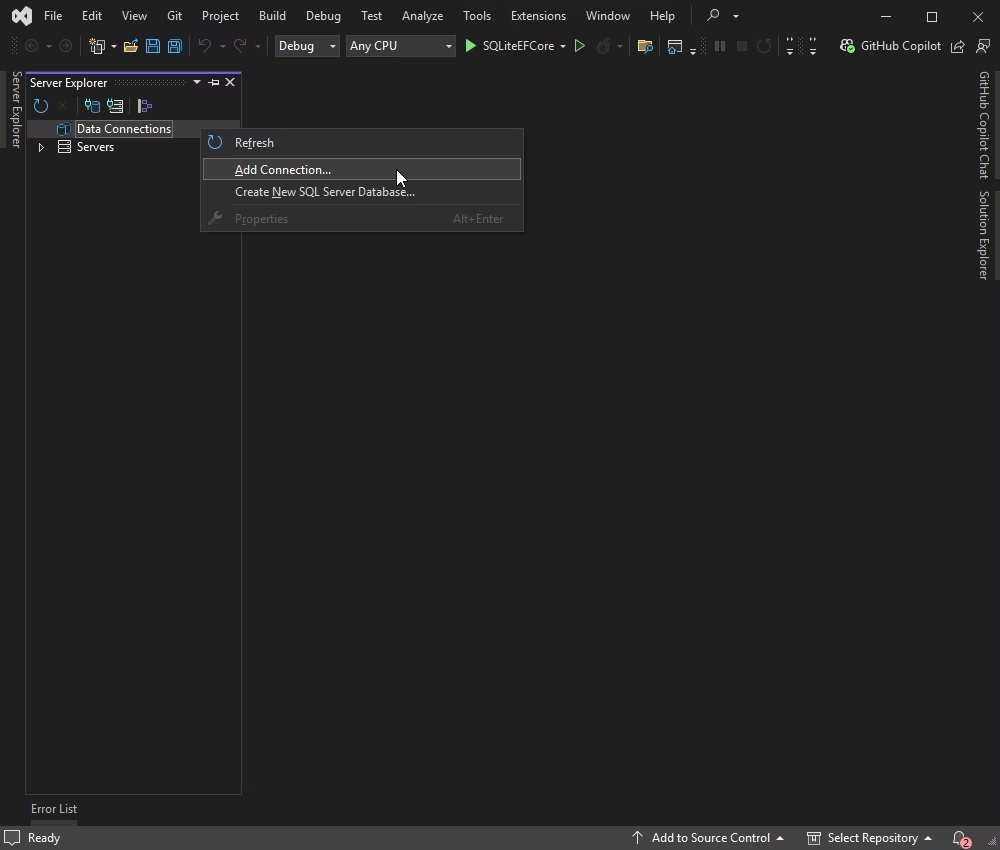
}Server Explorer is a Visual Studio tool window that enables developers to browse, manage, and query server resources on local or remote machines. It also allows you to connect to databases (SQLite in this case) directly from within Visual Studio. Follow the steps below to connect to your SQLite database using Server Explorer.
1. Right-click Data Connections and select Add Connection.
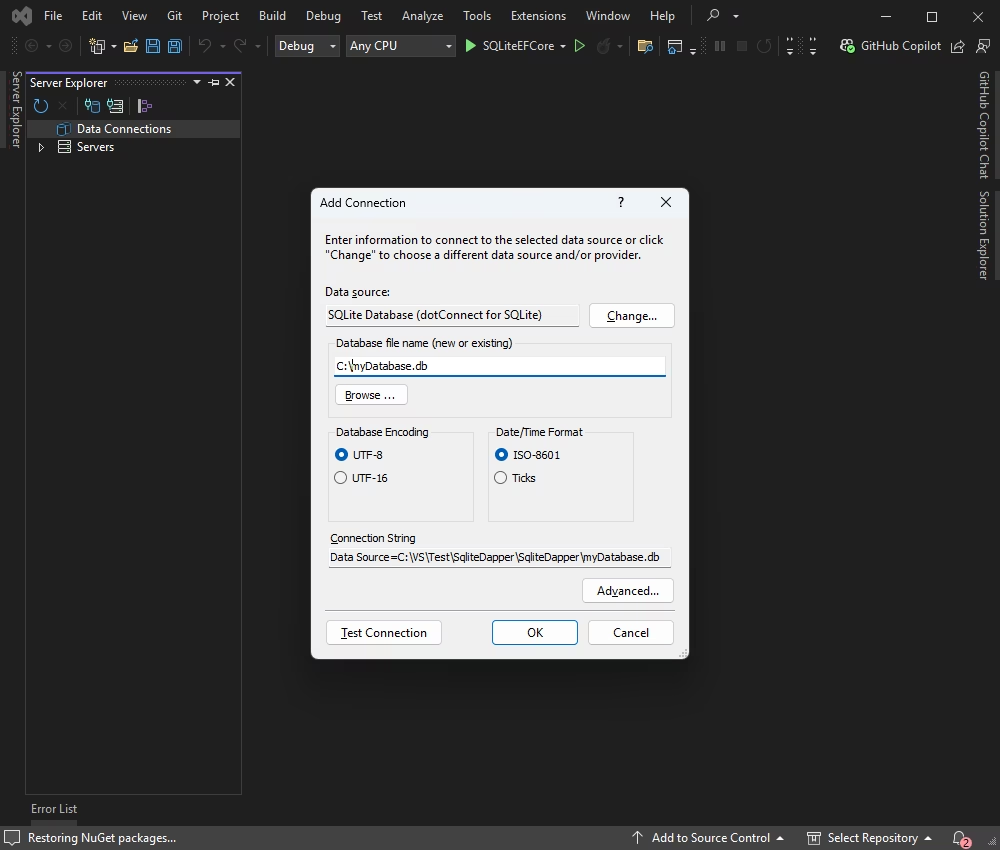
2. In the Add Connection dialog that appears, choose SQLite Database as the data source. Enter the path to the database you want to connect to, then click OK.
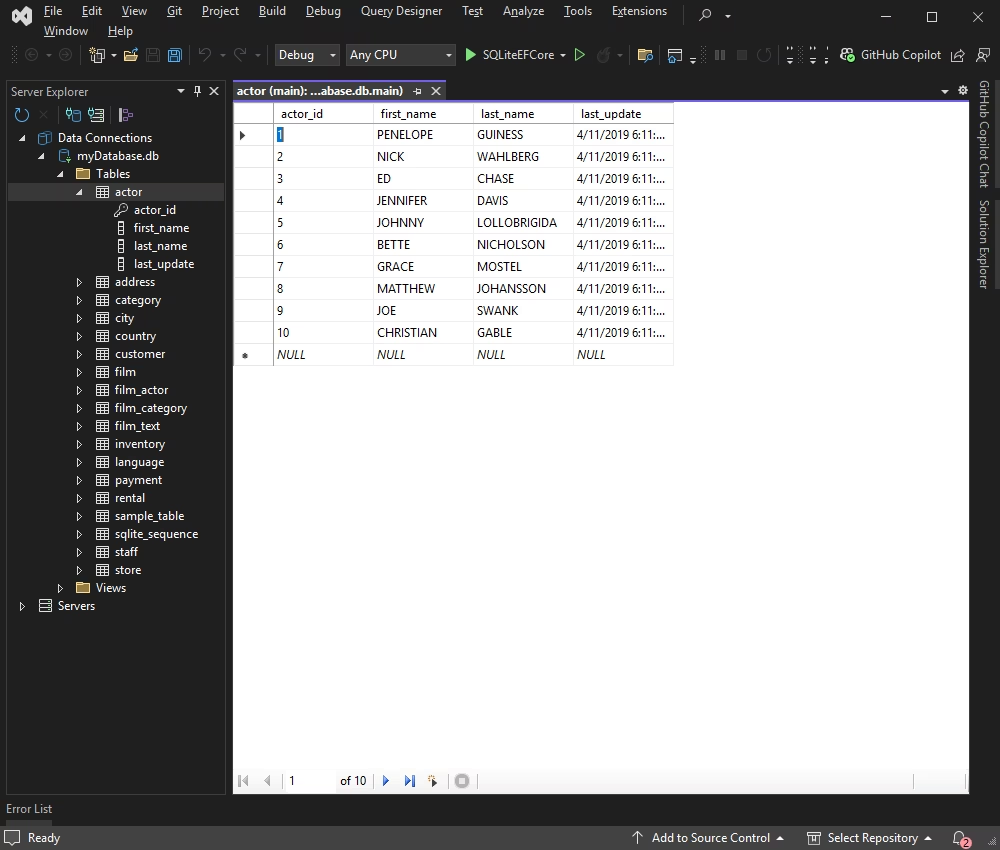
3. Once the connection is established, you can use Server Explorer in Visual Studio to browse tables, run queries, and manage data directly within the IDE.
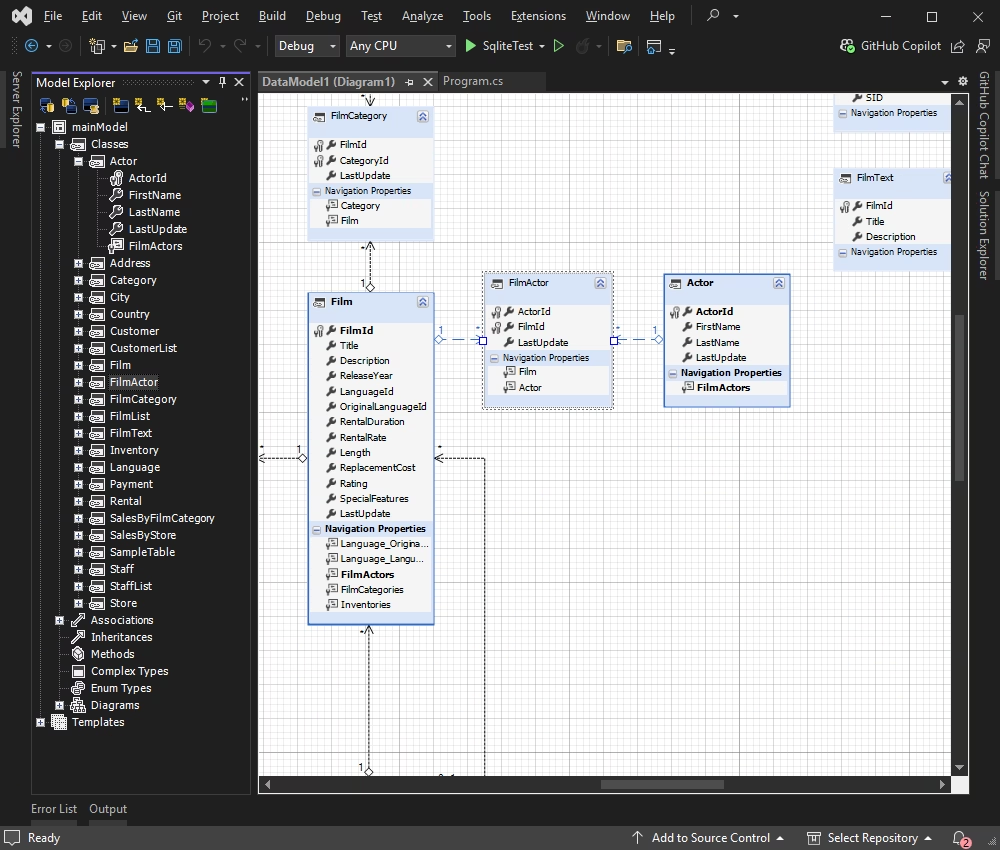
Entity Developer allows you to visually design and generate EF Core models, making database application development faster, easier, and more efficient. If you don't have it already installed, close your Visual Studio instance, download Entity Developer, and install it following the on-screen instructions.
Follow the detailed illustrated guide to create your database model using Entity Developer. When this process is complete, the model you created opens. You can work with the diagram and edit its fields and relations. It also allows you to generate SQL code for altering the database, or you can update the database directly from the model.
Finally, open a C# Console application and enter the following code. In our example, the database connection properties are defined within the DbContext class.
namespace SQLiteEFCore
{
    class Program
    {
        static void Main(string[] args)
        {
            // Create an instance of your DbContext
            using (var context = new SakilaContext())
            {
                try
                {
                    // Attempt to open the connection
                    context.Database.OpenConnection();
                    Console.WriteLine("Connection successful!");
                }
                catch (Exception ex)
                {
                    Console.WriteLine($"Connection failed: {ex.Message}");
                }
                finally
                {
                    // Close the connection
                    context.Database.CloseConnection();
                }
            }

            Console.WriteLine("Press any key to exit...");
            Console.ReadKey();
        }
    }
}Finally, let us review using the Scaffold-DbContext command to connect a .NET application to SQLite. This command is used in Entity Framework Core (EF Core) to generate code for a DbContext and entity types from the selected database.
Make sure that you have EF Core tools installed in your development environment. If not, you can add them globally using .NET CLI with the following command:
Install Scaffold-DbContext using Package Manager Console in Visual Studio.
Once installed, you can use the Scaffold-DbContext command to generate the DbContext and entity classes for your SQLite database.
Run the following command in the Package Manager Console:
Scaffold-DbContext "DataSource=sakila.db;Licensekey=**********" -provider
Devart.Data.SQLite.EFCore -OutputDir Models
Entity Framework Core will generate a DbContext class and the corresponding entity classes in the specified output directory (e.g., Models).
We have reviewed different ways of connecting .NET applications to SQLite databases. In particular, we used dotConnect for SQLite to ensure flawless connectivity for efficient data access and manipulation. You can try dotConnect for SQLite with its on-the-fly connectors and flexible configuration in your work too. Just download your free trial and see the difference immediately!
Scaffold-DbContext with a dotConnect connection string (including License key) to generate the DbContext and entity classes.

I'm a technical content writer who loves breaking complex tech topics into clear and helpful content that's enjoyable to read. With a solid writing background and growing skill in software development and database tools, I create content that's accurate, easy to follow, and genuinely useful. When I'm not writing, you'll probably find me learning something new or sweating it out at the gym.

