
You can install the driver by using the Windows installer.
After you receive the license key, add it to your connection strings to connect to the data source.
Dapper is a lightweight, open-source ORM for .NET and .NET Core applications. With its help, developers can easily access data from databases, execute SQL queries and stored procedures, map the results to objects, and perform other necessary tasks. Dapper is lightweight and fast, ideal for modern high-performance applications.
In this tutorial, you will learn how to perform data operations with Dapper in a .NET application using SQLite as the database and dotConnect for SQLite as the data provider.

Provides integrated support for the SQLite Encryption Extension with AES, Blowfish, TripleDES, Cast128, and RC4 encryption algorithms.

Fully supports EF Core, Dapper, NHibernate, LinqConnect, and more for efficient data management.

Conforms to ADO.NET standards for seamless integration with .NET applications.

Includes specific features and fully supports all unique data types for accurate and complete data representation.

Features native integration with Visual Studio and complete design-time support for accelerated development.

Includes priority support, detailed documentation, and regular updates for continuous improvement.
You can start using dotConnect for SQLite immediately with a 30-day free trial. Choose one of the following options:
You can install the driver by using the Windows installer.
After you receive the license key, add it to your connection strings to connect to the data source.
Let us connect to SQLite using the built-in Data Explorer. Move the sakila database to the project folder and select Tools > Connect to Database.
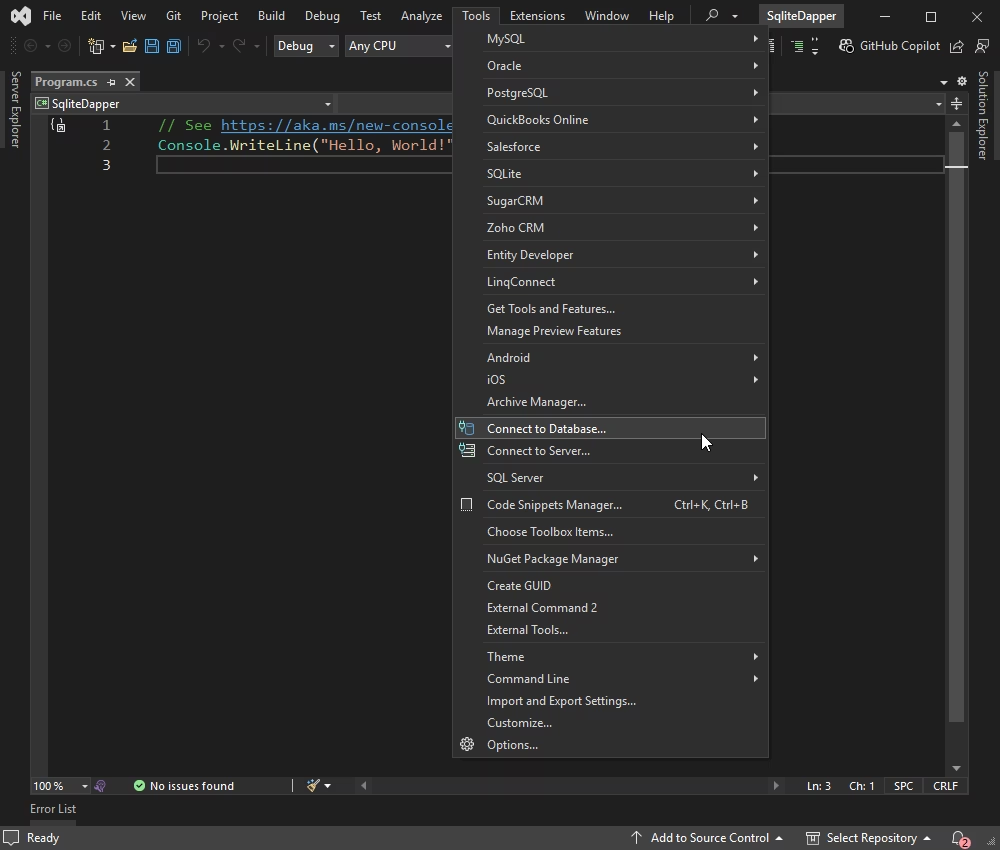
Choose SQLite as the data source and click Continue. Click Browse to select the database file and click OK.
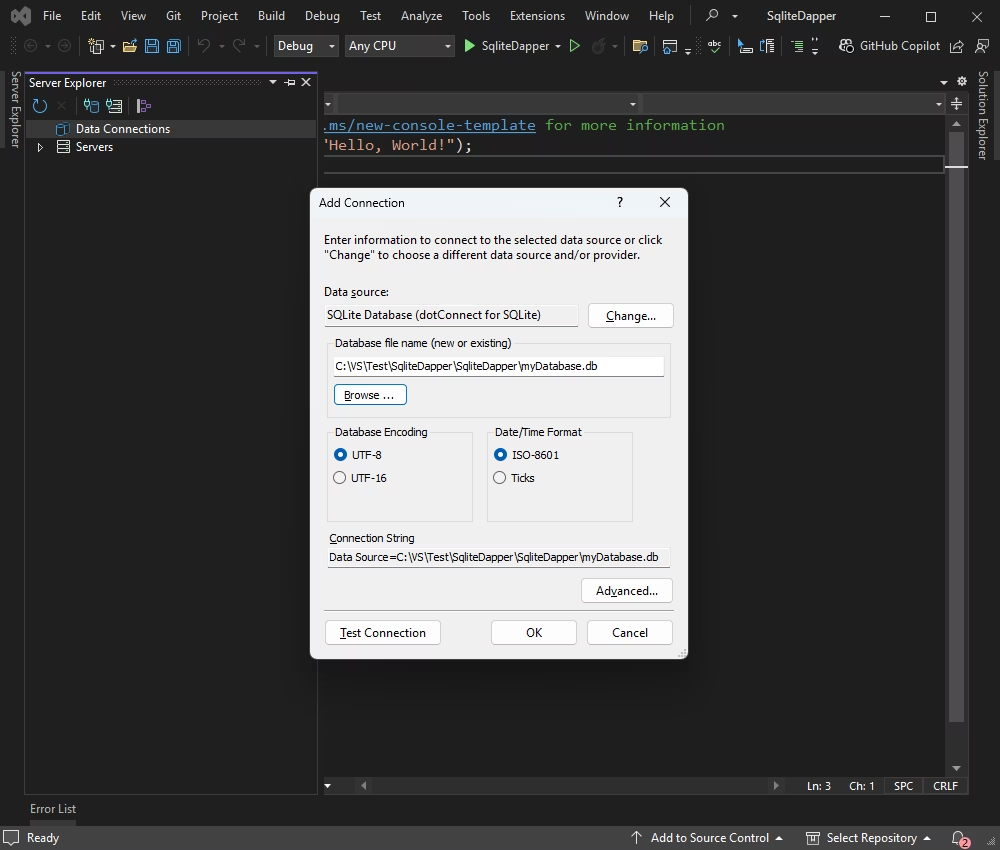
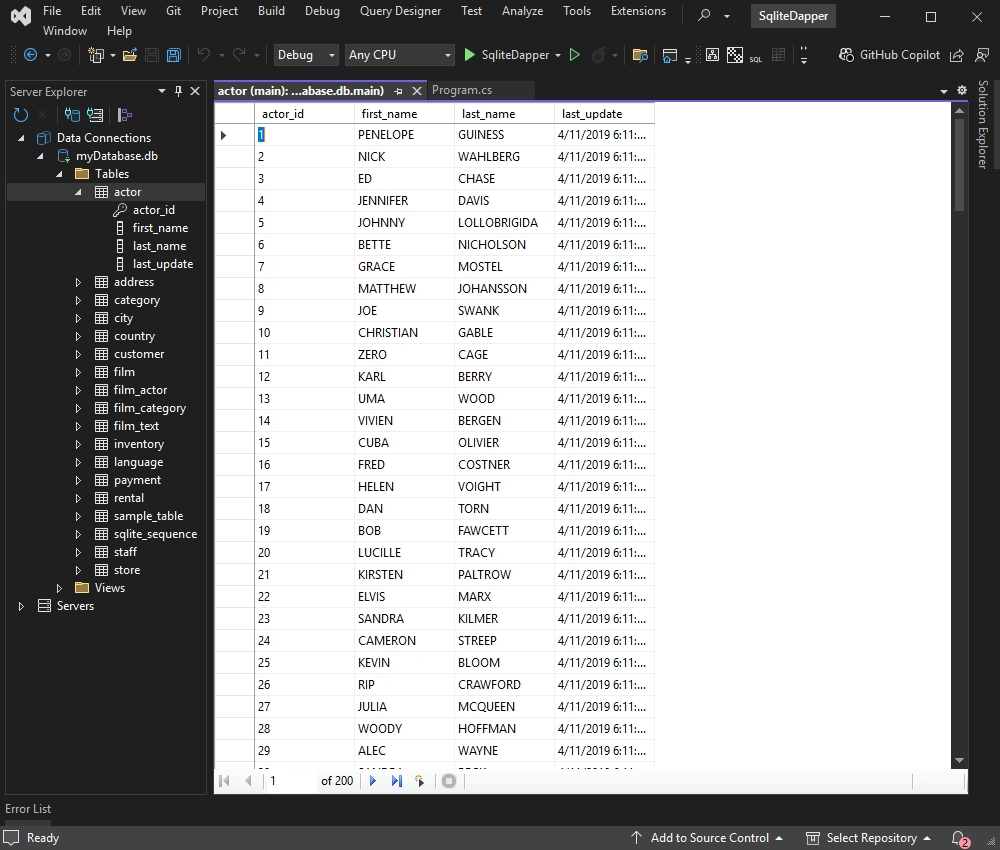
Once connected, you can browse tables, execute queries, and manage data directly within the Data Explorer.
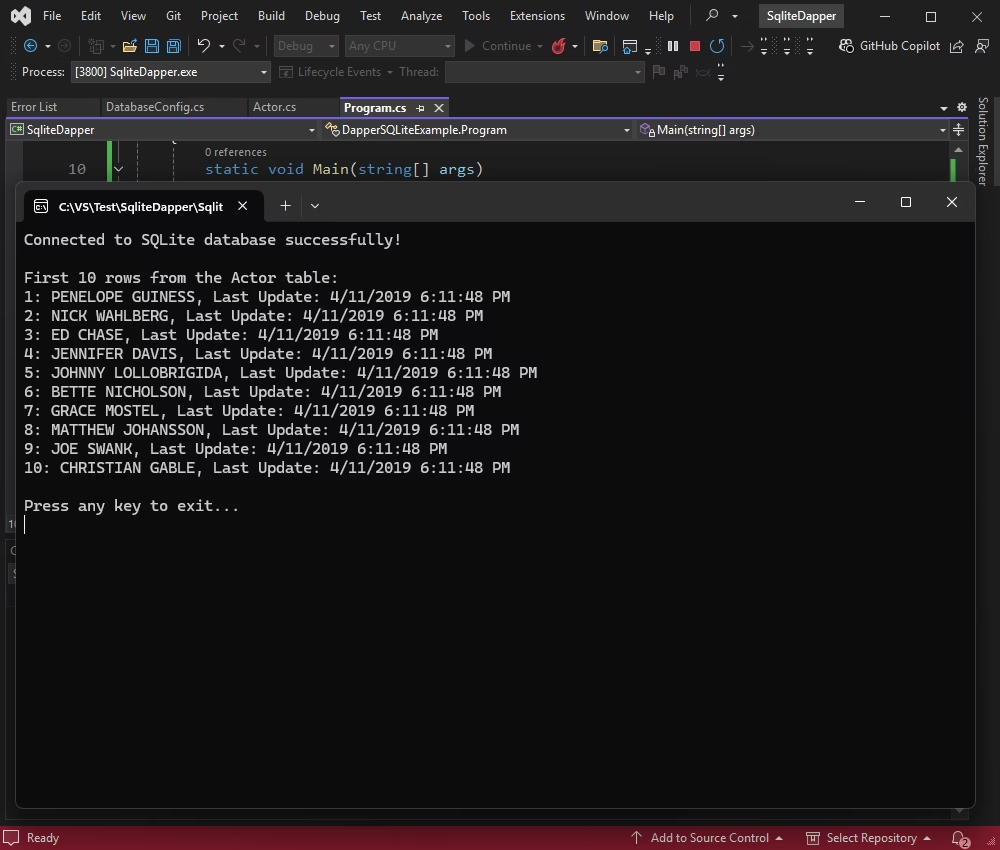
Here we're going to show how the application will connect to the SQLite database, execute the query, and display the data from the Actor table in the console.
Create a connection class to provide a single, reusable database connection string.
In the Visual Studio Solution Explorer, right-click the project name and select Add > New Item. Then, enter DatabaseConfig.cs into the field and click Add.
After that, copy and paste the code below into the newly created class.
using System;
using Devart.Data.SQLite;
using System.Data;

namespace DapperSQLiteExample {
  public static class DatabaseConfig {
    private static readonly string connectionString = "DataSource=myDatabase.db;LicenseKey=**********";

    public static IDbConnection GetConnection() {
      try {
        var connection = new SQLiteConnection(connectionString);
        connection.Open();
        Console.WriteLine("Connected to SQLite database successfully!");
        return connection;
      } catch (Exception ex) {
        Console.WriteLine("Error connecting to database: " + ex.Message);
        throw;
      }
    }
  }
}
Define a class to map the Actor table. Create the Actor.cs class and insert the following code into it.
using System;
using System.Data;
using Dapper;
using Devart.Data.SQLite;

namespace DapperSQLiteExample {
  public class Actor {
    public int ActorId {
      get;
      set;
    }
    public string FirstName {
      get;
      set;
    }
    public string LastName {
      get;
      set;
    }
    public string LastUpdate {
      get;
      set;
    }
  }
}
Create Program.cs and add the below code into it.
using System;
using System.Collections.Generic;
using System.Data;
using Dapper;

namespace DapperSQLiteExample {
  class Program {
    static void Main(string[] args) {
      // Get database connection
      using(IDbConnection db = DatabaseConfig.GetConnection()) {
        // Query the first 10 rows from the Actor table
        string sql = "SELECT actor_id AS ActorId, first_name AS FirstName, last_name AS LastName, last_update AS LastUpdate FROM actor LIMIT 10;";

        IEnumerable < Actor > actors = db.Query < Actor > (sql);

        Console.WriteLine("\nFirst 10 rows from the Actor table:");
        foreach(var actor in actors) {
          Console.WriteLine($"{actor.ActorId}: {actor.FirstName} {actor.LastName}, Last Update: {actor.LastUpdate}");
        }
      }

      Console.WriteLine("\nPress any key to exit...");
      Console.ReadKey();
    }
  }
}
Update the connection string by replacing placeholders in the connection string with your actual SQLite database credentials.
Finally, build and run your application by pressing F5 or selecting Start from the toolbar.
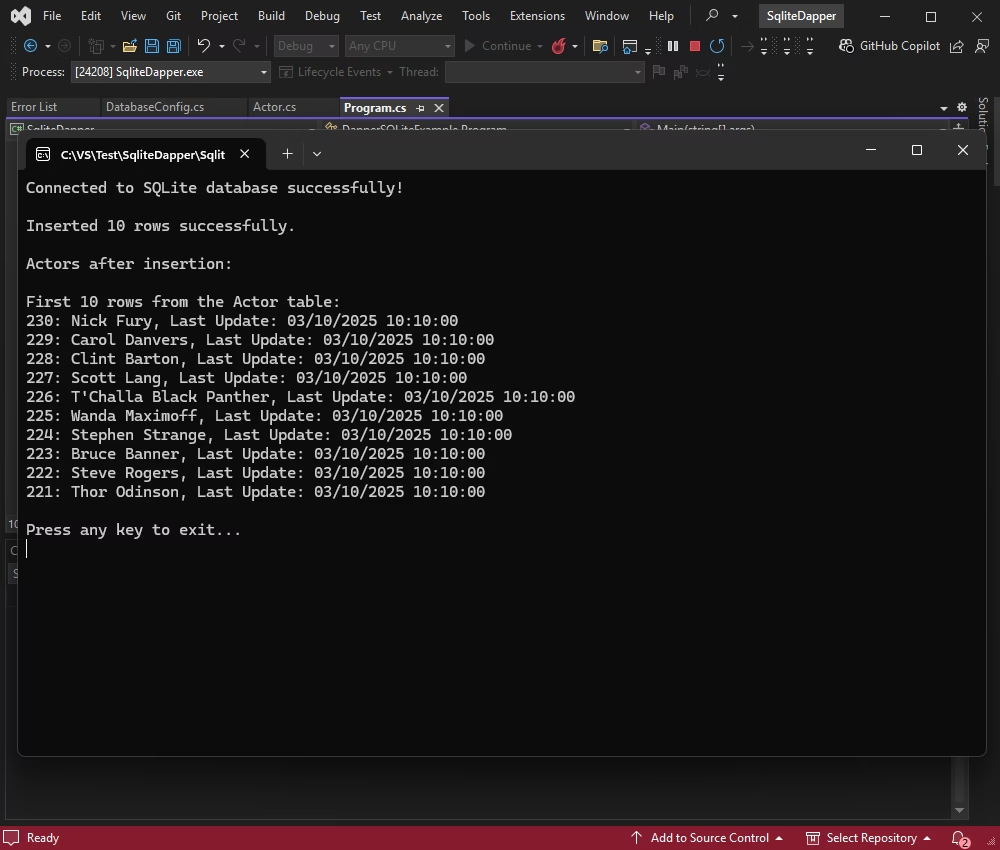
Using Dapper allows inserting multiple records in a single transaction. It is helpful when you need to improve performance and ensure atomicity.
Delete the contents of Program.cs and paste the code below into it. After that, press F5.
using System;
using System.Collections.Generic;
using System.Data;
using Dapper;

namespace DapperSQLiteExample {
  class Program {
    static void Main(string[] args) {
      using(IDbConnection db = DatabaseConfig.GetConnection()) {
        // Insert 10 new actors first
        List < Actor > newActors = GetNewActors();
        InsertActors(db, newActors);

        // Display the first 10 rows after insertion
        Console.WriteLine("\nActors after insertion:");
        DisplayActors(db);
      }

      Console.WriteLine("\nPress any key to exit...");
      Console.ReadKey();
    }

    ///
    /// Inserts a list of actors into the database.
    ///
    private static void InsertActors(IDbConnection db, List < Actor > actors) {
      string sql = "INSERT INTO actor (actor_id, first_name, last_name, last_update) VALUES (:ActorId, :FirstName, :LastName, :LastUpdate);";

      int rowsInserted = db.Execute(sql, actors);
      Console.WriteLine($"\nInserted {rowsInserted} rows successfully.");
    }

    ///
    /// Fetch and display the latest 10 actors from the database.
    ///
    private static void DisplayActors(IDbConnection db) {
      string sql = "SELECT actor_id AS ActorId, first_name AS FirstName, last_name AS LastName, last_update AS LastUpdate FROM actor ORDER BY actor_id DESC LIMIT 10;";
      IEnumerable < Actor > actors = db.Query < Actor > (sql);

      Console.WriteLine("\nFirst 10 rows from the Actor table:");
      foreach(var actor in actors) {
        Console.WriteLine($"{actor.ActorId}: {actor.FirstName} {actor.LastName}, Last Update: {actor.LastUpdate}");
      }
    }

    ///
    /// Generates a list of 10 new actors.
    ///
    private static List < Actor > GetNewActors() {
      return new List < Actor > {
        new Actor {
          ActorId = 221,
            FirstName = "Thor",
            LastName = "Odinson",
            LastUpdate = DateTime.Now.ToString("yyyy-MM-dd HH:mm:ss")
        },
        new Actor {
          ActorId = 222,
            FirstName = "Steve",
            LastName = "Rogers",
            LastUpdate = DateTime.Now.ToString("yyyy-MM-dd HH:mm:ss")
        },
        new Actor {
          ActorId = 223,
            FirstName = "Bruce",
            LastName = "Banner",
            LastUpdate = DateTime.Now.ToString("yyyy-MM-dd HH:mm:ss")
        },
        new Actor {
          ActorId = 224,
            FirstName = "Stephen",
            LastName = "Strange",
            LastUpdate = DateTime.Now.ToString("yyyy-MM-dd HH:mm:ss")
        },
        new Actor {
          ActorId = 225,
            FirstName = "Wanda",
            LastName = "Maximoff",
            LastUpdate = DateTime.Now.ToString("yyyy-MM-dd HH:mm:ss")
        },
        new Actor {
          ActorId = 226,
            FirstName = "T'Challa",
            LastName = "Black Panther",
            LastUpdate = DateTime.Now.ToString("yyyy-MM-dd HH:mm:ss")
        },
        new Actor {
          ActorId = 227,
            FirstName = "Scott",
            LastName = "Lang",
            LastUpdate = DateTime.Now.ToString("yyyy-MM-dd HH:mm:ss")
        },
        new Actor {
          ActorId = 228,
            FirstName = "Clint",
            LastName = "Barton",
            LastUpdate = DateTime.Now.ToString("yyyy-MM-dd HH:mm:ss")
        },
        new Actor {
          ActorId = 229,
            FirstName = "Carol",
            LastName = "Danvers",
            LastUpdate = DateTime.Now.ToString("yyyy-MM-dd HH:mm:ss")
        },
        new Actor {
          ActorId = 230,
            FirstName = "Nick",
            LastName = "Fury",
            LastUpdate = DateTime.Now.ToString("yyyy-MM-dd HH:mm:ss")
        }
      };
    }
  }
}
You can see the result in the application.
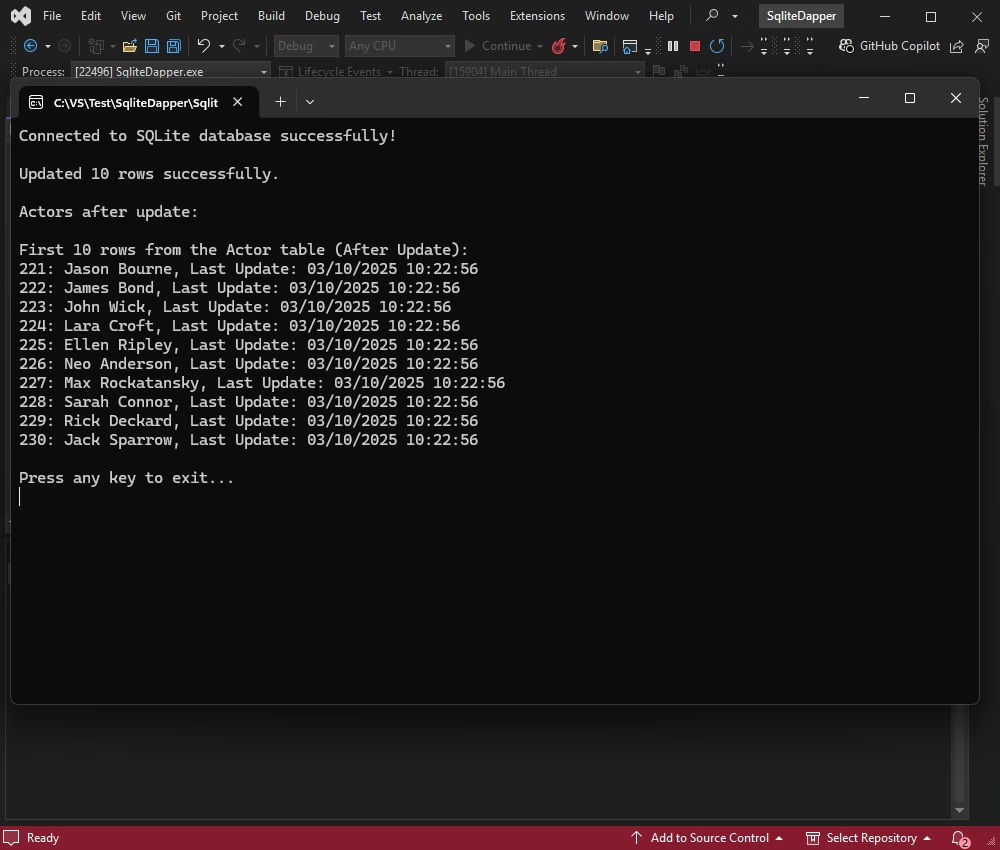
Let us update several records, those with actor_id values between 221 and 230. We are going to modify their first and last names, and then display the updated rows.
Replace the contents of Program.cs with the following code and press F5.
using System;
using System.Collections.Generic;
using System.Data;
using Dapper;

namespace DapperSQLiteExample {
  class Program {
    static void Main(string[] args) {
      using(IDbConnection db = DatabaseConfig.GetConnection()) {
        // Update names for actors with ID 221-230 (only existing ones)
        List < Actor > updatedActors = GetUpdatedActors();
        UpdateActors(db, updatedActors);

        // Display actors after update
        Console.WriteLine("\nActors after update:");
        DisplayActors(db);
      }

      Console.WriteLine("\nPress any key to exit...");
      Console.ReadKey();
    }

    ///
    /// Updates the names of actors with IDs between 221 and 230.
    /// Only updates existing records, without inserting new ones.
    ///

    private static void UpdateActors(IDbConnection db, List < Actor > actors) {
      string sql = "UPDATE actor SET first_name = :FirstName, last_name = :LastName, last_update = :LastUpdate WHERE actor_id = :ActorId;";
      int rowsUpdated = db.Execute(sql, actors);
      Console.WriteLine($"\nUpdated {rowsUpdated} rows successfully.");
    }

    ///
    /// Fetch and display updated actors from the database.
    ///

    private static void DisplayActors(IDbConnection db) {
      string sql = "SELECT actor_id AS ActorId, first_name AS FirstName, last_name AS LastName, last_update AS LastUpdate FROM actor WHERE actor_id BETWEEN 221 AND 230 ORDER BY actor_id;";
      IEnumerable < Actor > actors = db.Query < Actor > (sql);

      Console.WriteLine("\nFirst 10 rows from the Actor table (After Update):");
      foreach(var actor in actors) {
        Console.WriteLine($"{actor.ActorId}: {actor.FirstName} {actor.LastName}, Last Update: {actor.LastUpdate}");
      }
    }

    ///
    /// Generates an updated list of actors with modified names.
    ///

    private static List < Actor > GetUpdatedActors() {
      return new List < Actor > {
        new Actor {
          ActorId = 221, FirstName = "Jason", LastName = "Bourne", LastUpdate = DateTime.Now.ToString("yyyy-MM-dd HH:mm:ss")
        },
        new Actor {
          ActorId = 222, FirstName = "James", LastName = "Bond", LastUpdate = DateTime.Now.ToString("yyyy-MM-dd HH:mm:ss")
        },
        new Actor {
          ActorId = 223, FirstName = "John", LastName = "Wick", LastUpdate = DateTime.Now.ToString("yyyy-MM-dd HH:mm:ss")
        },
        new Actor {
          ActorId = 224, FirstName = "Lara", LastName = "Croft", LastUpdate = DateTime.Now.ToString("yyyy-MM-dd HH:mm:ss")
        },
        new Actor {
          ActorId = 225, FirstName = "Ellen", LastName = "Ripley", LastUpdate = DateTime.Now.ToString("yyyy-MM-dd HH:mm:ss")
        },
        new Actor {
          ActorId = 226, FirstName = "Neo", LastName = "Anderson", LastUpdate = DateTime.Now.ToString("yyyy-MM-dd HH:mm:ss")
        },
        new Actor {
          ActorId = 227, FirstName = "Max", LastName = "Rockatansky", LastUpdate = DateTime.Now.ToString("yyyy-MM-dd HH:mm:ss")
        },
        new Actor {
          ActorId = 228, FirstName = "Sarah", LastName = "Connor", LastUpdate = DateTime.Now.ToString("yyyy-MM-dd HH:mm:ss")
        },
        new Actor {
          ActorId = 229, FirstName = "Rick", LastName = "Deckard", LastUpdate = DateTime.Now.ToString("yyyy-MM-dd HH:mm:ss")
        },
        new Actor {
          ActorId = 230, FirstName = "Jack", LastName = "Sparrow", LastUpdate = DateTime.Now.ToString("yyyy-MM-dd HH:mm:ss")
        }
      };
    }
  }
}
Test the results in the application.
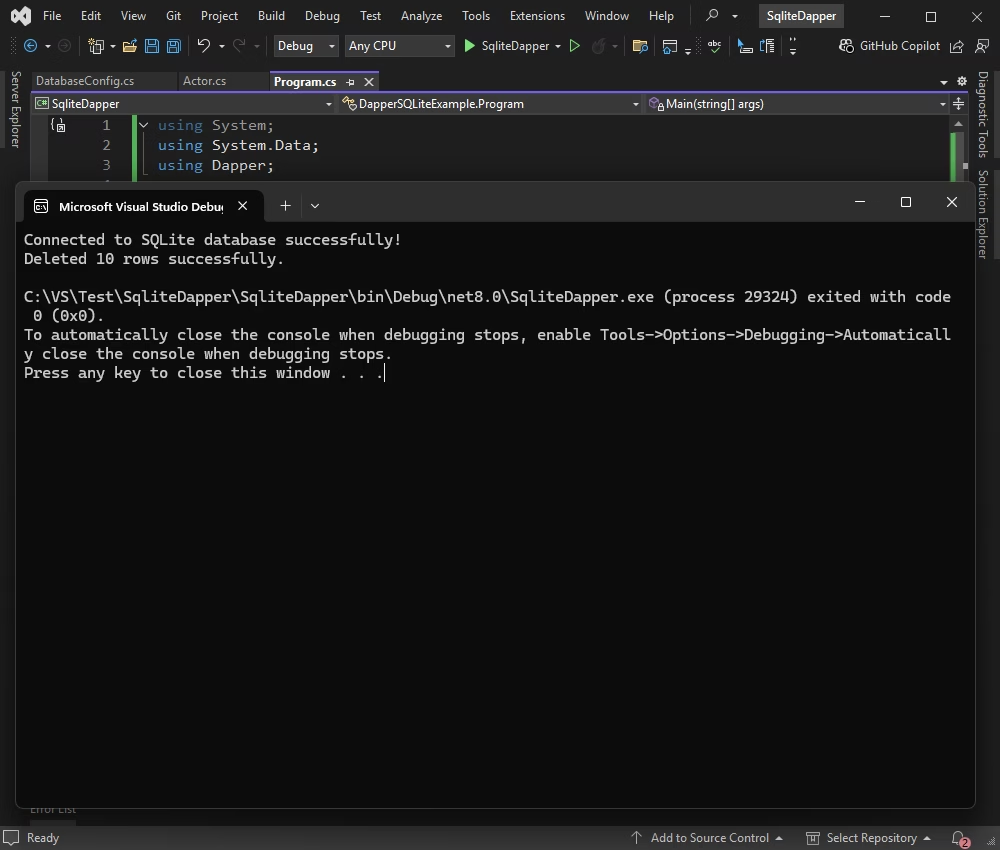
Finally, let us delete several records with one transaction. We select the actors whose actor_id values are between 221 and 230.
Update Program.cs with the new code shown below and press F5.
using System;
using System.Collections.Generic;
using System.Data;
using Dapper;

namespace DapperSQLiteExample {
  class Program {
    static void Main(string[] args) {
      using(IDbConnection db = DatabaseConfig.GetConnection()) {
        // Delete actors with ID 221-230
        DeleteActors(db);
      }
    }

    ///
    /// Deletes actors with IDs between 221 and 230.
    ///
    private static void DeleteActors(IDbConnection db) {
      string sql = "DELETE FROM actor WHERE actor_id BETWEEN 221 AND 230;";
      int rowsDeleted = db.Execute(sql);
      Console.WriteLine($"Deleted {rowsDeleted} rows successfully.");
      Console.ReadKey();
    }
  }
}
And you get the records deleted in the application.

This tutorial demonstrated the integration of Dapper with SQLite using dotConnect for SQLite to simplify data operations. The powerful features of dotConnect for SQLite, combined with the simplicity and efficiency of Dapper, offer a fast, flexible, and reliable approach for managing database interactions in SQLite-based applications. With these tools, you can confidently build high-performance .NET solutions that integrate seamlessly with SQLite databases. Try dotConnect for SQLite with a fully functional free trial and see how it can simplify many everyday development tasks!
Scaffold-DbContext with a dotConnect connection string (including License Key) to generate the DbContext and entity classes.

I'm a technical content writer who loves breaking complex tech topics into clear and helpful content that's enjoyable to read. With a solid writing background and growing skill in software development and database tools, I create content that's accurate, easy to follow, and genuinely useful. When I'm not writing, you'll probably find me learning something new or sweating it out at the gym.

