

dbForge Studio for PostgreSQL
AI-powered IDE for database development, management, and data analysis across PostgreSQL and related cloud services
What is Supabase? Supabase is an open-source backend-as-a-service (BaaS) platform built on top of PostgreSQL. It gives application developers a full backend without the need to build and wire up all the pieces themselves.
The platform provides a hosted PostgreSQL database that you can connect to using external tools, not only through the native Supabase dashboard. dbForge Studio for PostgreSQL is one of these tools: once you connect it to your Supabase project, you can browse database objects, write and execute SQL queries, edit data, analyze query results, and manage your entire database workflow visually.
While the Supabase dashboard provides practical tools for managing your hosted PostgreSQL database, development and administration often require a more comprehensive desktop environment. dbForge Studio for PostgreSQL provides a professional workspace for working with your Supabase database directly from your desktop.
With dbForge Studio, you can browse tables and other database objects, edit records, write and format SQL queries, and analyze query results in a dedicated PostgreSQL environment. You can also compare data and schemas, import and export data, and investigate database issues that arise while developing or troubleshooting applications.
This can be especially useful for teams that build applications with Supabase, using authentication tools, AI app builders, or custom backend logic. Supabase hosts and manages the PostgreSQL database, while dbForge Studio represents a convenient PostgreSQL GUI client, providing a powerful environment where developers and database professionals can handle everyday development, analysis, and management tasks.
Connecting dbForge Studio for PostgreSQL to Supabase is useful whenever you need more hands-on access to the PostgreSQL database behind your application. Typical scenarios include:
In all these cases, dbForge Studio provides a dedicated desktop environment for examining and working with the Supabase PostgreSQL database, making it easier to move between application development and database-level tasks.
The Supabase dashboard and dbForge Studio for PostgreSQL serve different purposes, and they can complement each other. The Supabase dashboard is designed for managing the broader Supabase project. It provides convenient access to services such as authentication, storage, Edge Functions, project settings, and quick SQL execution. For many routine project-level tasks, the dashboard may be all you need.
dbForge Studio for PostgreSQL is focused more on PostgreSQL development and management. It provides a desktop environment for writing and formatting SQL, analyzing query results, editing data, managing database objects visually, and performing routine database development tasks. It is also useful when you need to work extensively with tables, schemas, relationships, and other PostgreSQL objects.
In practice, you can use the two tools together: Supabase provides the hosted PostgreSQL database and its surrounding application services, while dbForge Studio creates a professional environment for deeper PostgreSQL development and database work.
The following table gives an overview of the tasks that you can accomplish using the Supabase dashboard and dbForge Studio for PostgreSQL.
| Task | Supabase dashboard | dbForge Studio for PostgreSQL |
|---|---|---|
| Project settings | Yes | No |
| Authentication settings | Yes | No |
| SQL query writing | Basic / available | Advanced SQL editor |
| Data editing | Available | Advanced visual data editor |
| Schema browsing | Available | Advanced database explorer |
| Import and export | Limited / contextual | Dedicated tools |
| Query formatting and assistance | Limited | Stronger SQL coding environment |
| Visual data work | Limited | Better for analysis and reporting |
Before you connect to Supabase from dbForge Studio, it helps to gather a few details in advance. Having them ready reduces the chance of a failed connection attempt and simplifies the setup. Always copy the exact connection data from your Supabase project dashboard rather than enter it from memory—host names, ports, and identifiers are easy to mistype.
You need a valid Supabase account and an active Supabase project with its database already provisioned. If you do not have a project yet, create one first and wait until Supabase finishes setting up the database. Connection details are not available until the project is fully ready.
You will need the database password that was created when the Supabase project was set up. If you no longer remember it, you can reset or regenerate it from the database settings in your Supabase project.
To create a connection, you need the host, port, database name, username, and password provided by Supabase. Note that Supabase can offer more than one way to connect—for example, a direct connection to the database and a pooler-based connection intended for applications with many concurrent connections—and each option has its own host and port. Copy the values for the connection type you actually intend to use.
Connections to Supabase from external GUI tools generally require SSL to be configured. Download the SSL certificate from your Supabase project's database settings, and add it during connection setup in dbForge Studio so that the connection is established securely.
With your Supabase connection details and SSL certificate ready, connecting to your Supabase Postgres database from dbForge Studio takes just a few steps.
Open your project in the Supabase dashboard and go to the database connection settings. Copy the host, port, database name, and username for the connection type you want to use (direct or pooler-based), and download the SSL certificate from the same page. Keep your database password ready as well.
A direct connection is the option to use on IPv6 networks. If your network does not support IPv6, Supabase provides an IPv4-compatible endpoint that you can get from the Session pooler details of your Supabase project.
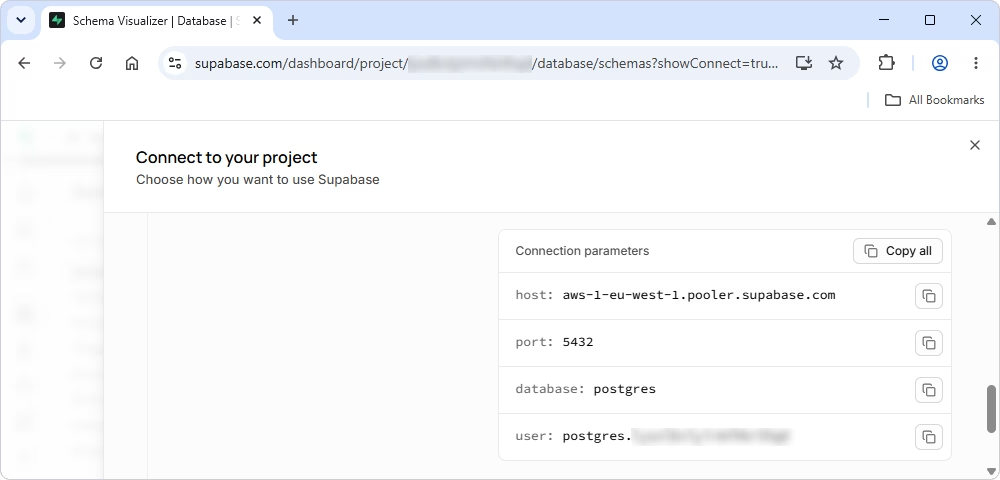
In dbForge Studio for PostgreSQL, open the Database Connection Properties dialog by selecting Database > New Connection or clicking the New Connection icon in Database Explorer. Enter the Supabase host, port, database, username, and password. Then switch to the SSL settings and load the certificate you downloaded from Supabase.
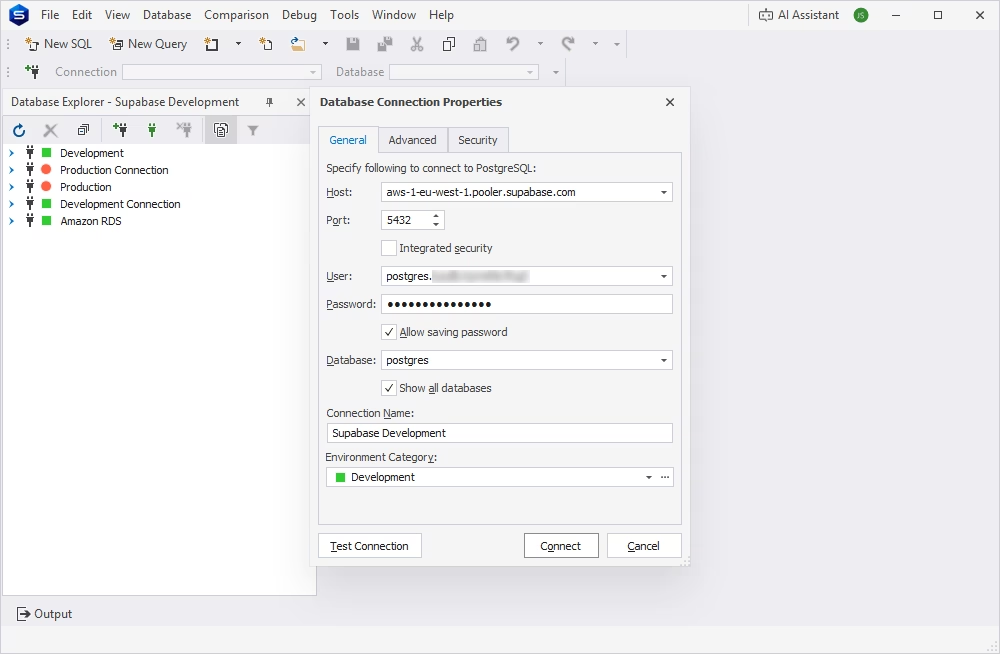
Click Test Connection to confirm that dbForge Studio can reach your Supabase database over SSL. Once the test succeeds, click Connect to save the connection and add it to Database Explorer, where you can start browsing and working with your Supabase database right away.
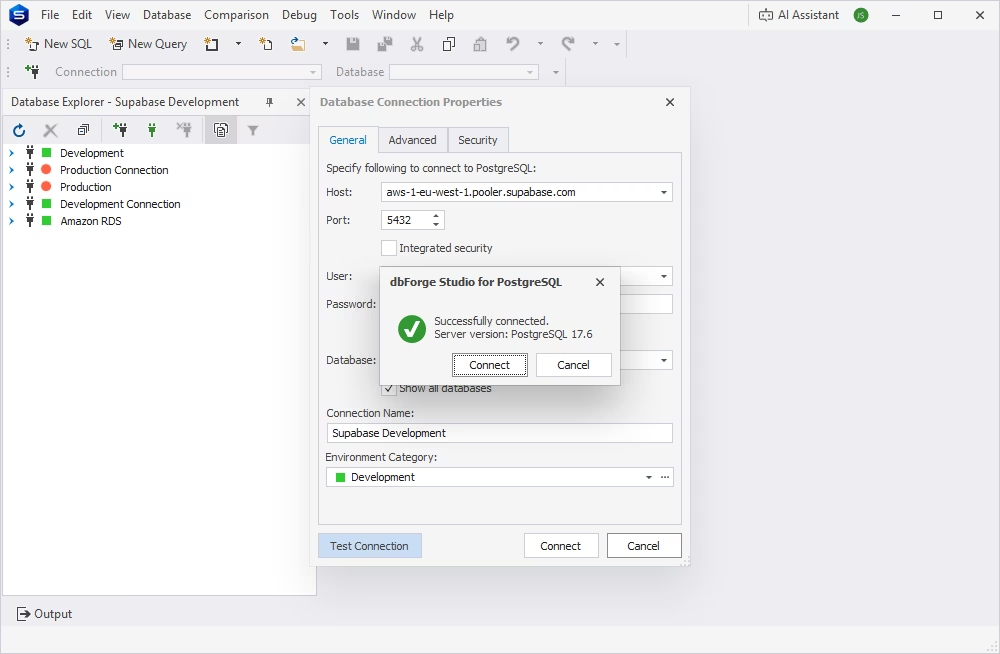
Once the connection is established, dbForge Studio becomes your working environment for the Supabase Postgres database, the place where you move from initial setup to actually using and managing the data day to day.
Use Database Explorer to inspect the structure of your Supabase database: check the tables generated by your application or app builder, review views, and see how tables relate to one another through foreign keys. This is particularly useful for teams using Supabase together with app builders, authentication tools, or custom frontends, where understanding how the generated schema is organized is not always obvious from the application code alone.
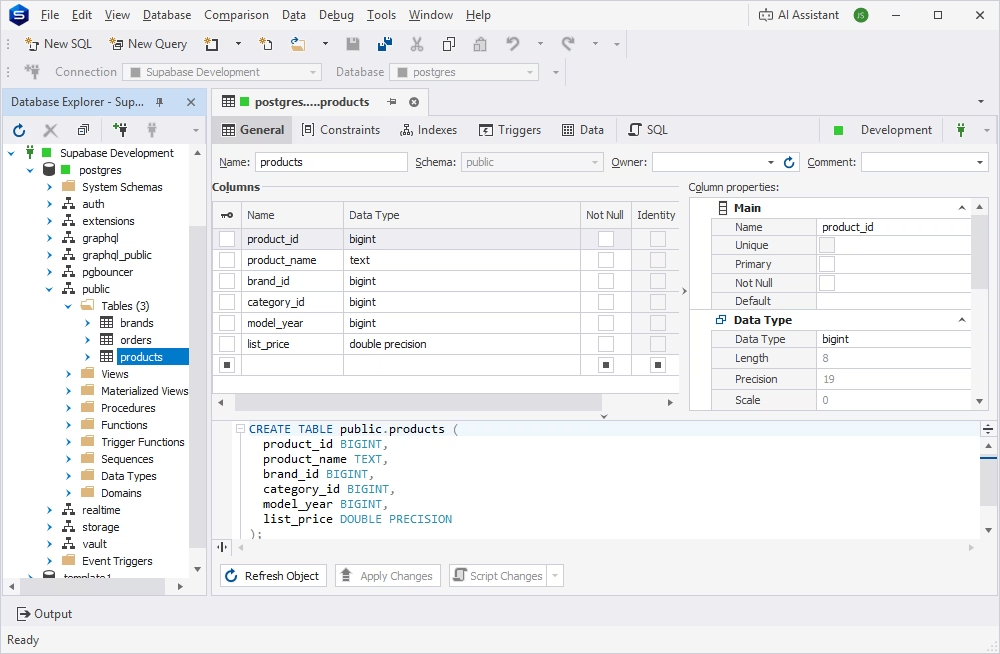
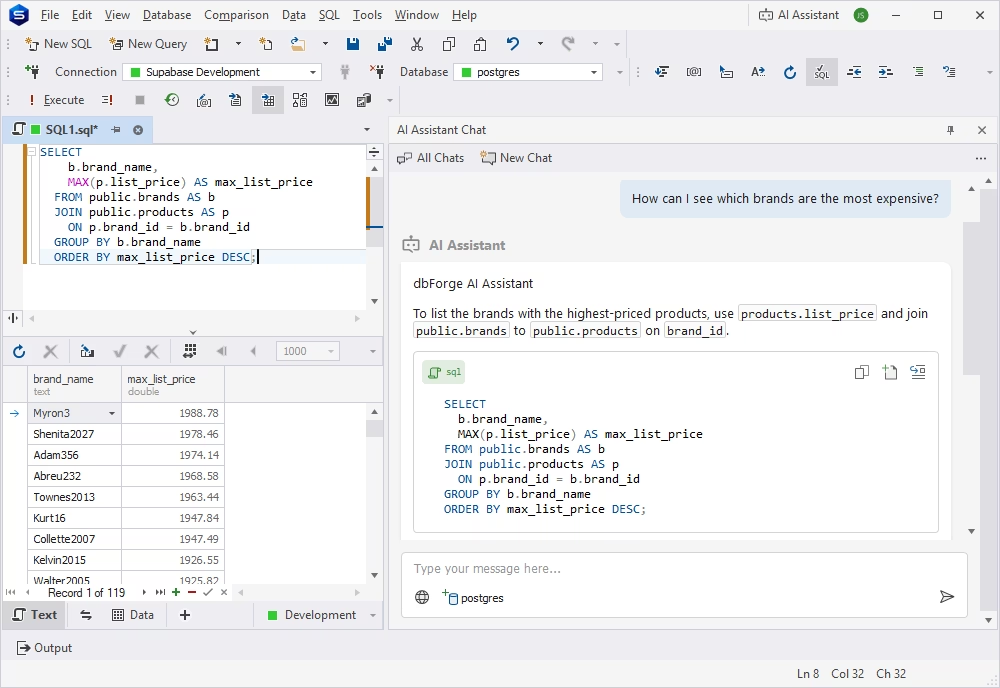
Write SQL queries directly against your Supabase Postgres database using an advanced SQL editor with formatting and code completion, then review the results in a visual grid. This helps analysts search, filter, and analyze data and create reports, and enables developers to create and modify application data, test logic, troubleshoot issues, and validate database changes.
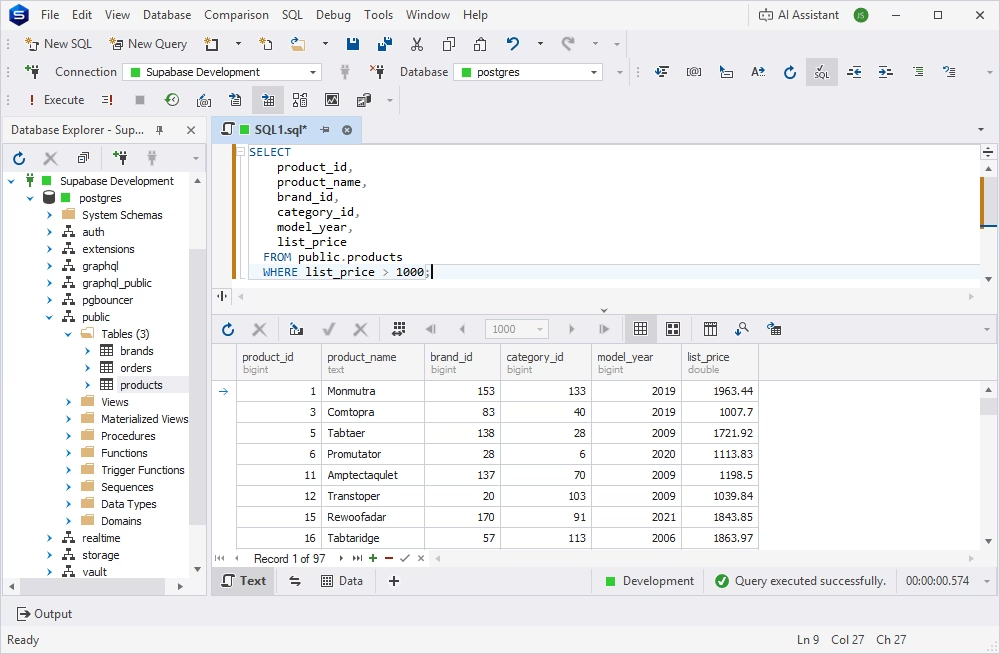
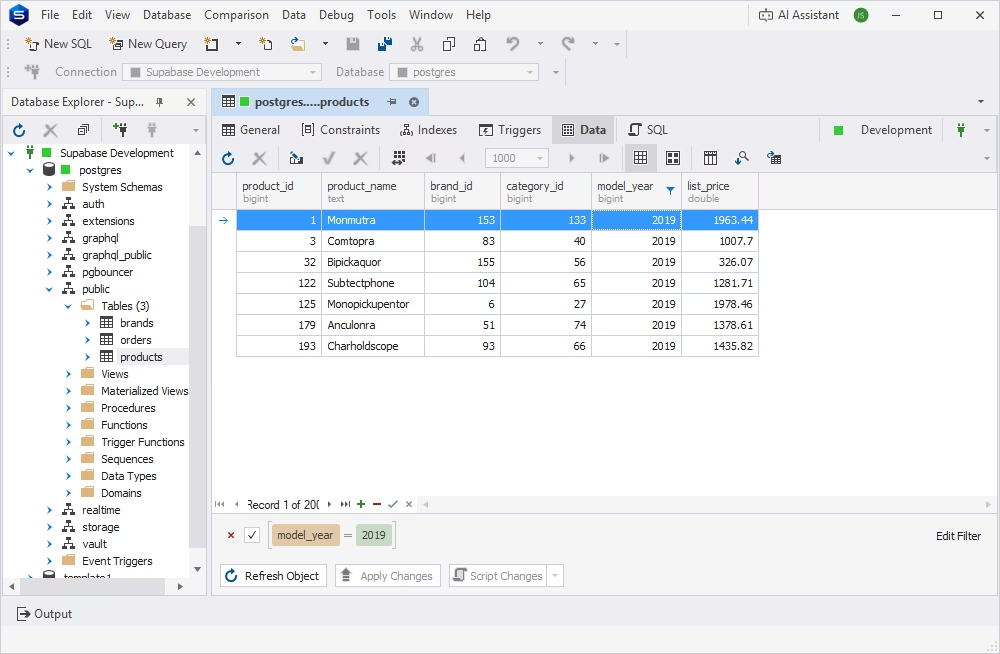
Review, filter, and edit table data directly in dbForge Studio. This comes in handy for tasks such as checking and correcting records, reviewing imported or migrated data, troubleshooting data issues, or validating application behavior.
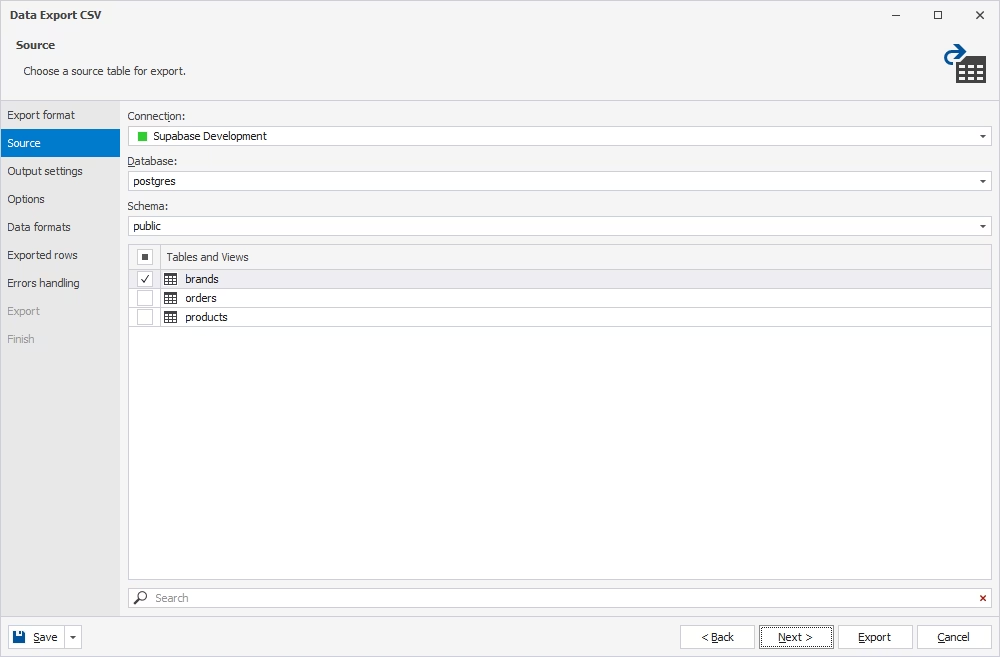
Export records from your Supabase database for reporting or analysis, or import prepared data—for example, CSV or Excel files—into your tables using dedicated import and export tools, instead of relying on manual SQL scripts for routine data movement.
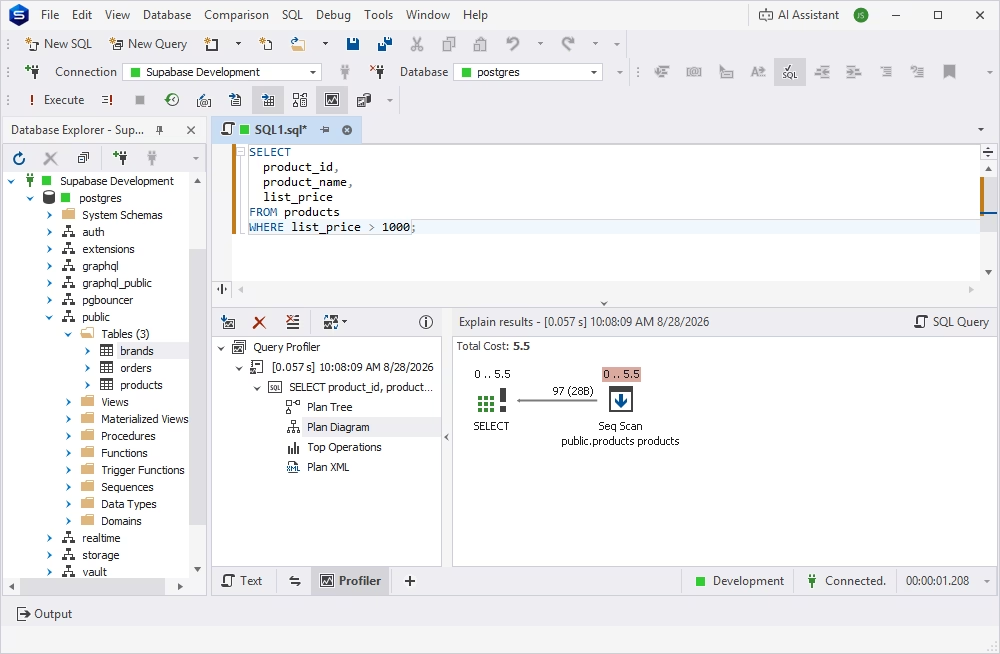
As your Supabase database grows, so does the importance of query performance. dbForge Studio lets you review how queries run, identify slow or expensive queries, and adjust your SQL to optimize them, giving you visibility into how each query is processed.
dbForge AI Assistant can generate SQL from natural language, explain what an existing query does, help troubleshoot SQL errors, and suggest ways to optimize query structure. This is helpful both for developers who want to accelerate their processes and for team members who need to work with Supabase data but do not always want to write SQL by hand.
dbForge Studio for PostgreSQL is not the only way to connect an external GUI to Supabase Postgres. The table below compares it with the built-in Supabase dashboard and two other popular Supabase GUI clients, pgAdmin and DBeaver, across the criteria that matter most for day-to-day database work.
| Criteria | dbForge Studio for PostgreSQL | Supabase dashboard | pgAdmin | DBeaver |
|---|---|---|---|---|
| Best for | Advanced PostgreSQL development and database management | Basic project and database access inside Supabase | Basic PostgreSQL administration | General multi-database management |
| Supabase connection logic | Manual PostgreSQL connection setup | Built-in access | Manual PostgreSQL connection setup | Manual PostgreSQL connection setup |
| Required connection details | Host, port, database, user, password, SSL | Not required for internal use | Host, port, database, user, password, SSL | Host, port, database, user, password, SSL |
| SSL configuration | Required for external connection | Managed by Supabase | Required for external connection | Required for external connection |
| SQL query writing | Advanced SQL editor with coding assistance | Basic SQL editor | Available | Available |
| Data editing | Advanced visual data editor | Available | Basic / available | Available |
| Schema browsing | Advanced database explorer | Available | Available | Available |
| Import and export | Dedicated import and export tools | Limited / contextual | Basic | Available |
| Query formatting | Advanced SQL formatting and coding assistance | Limited | Limited | Available |
| Data comparison | Dedicated data comparison tools | No | No | Limited / plugin-based |
| Schema comparison | Dedicated schema comparison tools | No | No | Limited / plugin-based |
| Query profiling | Available for PostgreSQL performance analysis | Limited | Limited | Limited |
| Reporting / data analysis | More suitable for visual analysis and reporting | Limited | Limited | Limited |
| AI-assisted SQL workflows | Available with dbForge AI Assistant | Limited / not the main focus | No | Limited / depends on setup |
| Best fit | Users who need deeper PostgreSQL work with Supabase data | Users who need quick access to Supabase project data | Users who need a free PostgreSQL admin tool | Users who manage multiple database types |
| When it may be enough | When users need more than a basic connection | Project setup, auth, storage, quick SQL checks | Occasional table inspection or simple queries | General-purpose database operations |
Connecting Supabase Postgres with dbForge Studio is a straightforward process. First, obtain your database connection details from the Supabase project. Then create a new PostgreSQL connection in dbForge Studio, enter the required credentials, configure SSL settings if necessary, and test the connection. Once connected, you can start working directly with your Supabase PostgreSQL database.
If you want a visual environment for managing database objects, writing and executing SQL queries, editing and analyzing data, and troubleshooting database issues, try dbForge Studio for PostgreSQL and explore a more convenient way to work with your Supabase databases.
Get the host, port, database name, username, and password from your Supabase project's database settings, download the SSL certificate from the same page, and use these details to create a new PostgreSQL connection in a client such as dbForge Studio for PostgreSQL.
Yes. Supabase Postgres databases are standard PostgreSQL databases, so dbForge Studio for PostgreSQL can connect to them as it would to any other PostgreSQL server, using the host, port, database, username, password, and SSL certificate provided in your Supabase project.
Open your project in the Supabase dashboard and click Connect to open the database connection settings. There you will find the host, port, database name, username, and the available connection types. For a link to download the SSL certificate, navigate to Database Settings.
A direct connection is the option to use on IPv6 networks. If your network does not support IPv6, Supabase provides an IPv4-compatible endpoint that you can get from the Session pooler details of your Supabase project.
Yes. Supabase generally requires an SSL-secured connection for access from external tools. Download the SSL certificate from your Supabase project's database settings and add it in the connection's SSL configuration in dbForge Studio.
No. The database password is a separate credential created specifically for connecting to the Postgres database, distinct from the password you use to sign in to your Supabase account. If you don't remember it, you can reset or regenerate it in the database settings of your Supabase project.
A failed connection is usually caused by an incorrect host, port, or password, a connection type that doesn't match the host/port pair you copied, or a missing SSL configuration. Double-check each value against your Supabase project's current connection settings, since they can change if the database password was reset.
Make sure you have downloaded the current SSL certificate from your Supabase project's database settings and added it in the SSL section of your connection in dbForge Studio. If the error persists, confirm that the certificate matches the project you are connecting to and that it hasn't been regenerated since you last downloaded it.