
dbForge Studio for PostgreSQL
AI-powered IDE for database development, management, and data analysis across PostgreSQL and related cloud services
Amazon RDS handles the infrastructure side of running PostgreSQL: provisioning, patching, backups, and availability options. However, developers and DBAs still need a powerful Amazon RDS for PostgreSQL client day-to-day SQL development, data editing, and troubleshooting tasks.
This guide shows how to connect dbForge Studio to Amazon RDS for PostgreSQL and use it as the primary environment for managing and administering databases in Amazon RDS for PostgreSQL: writing and running SQL, editing data, profiling slow queries, comparing schemas and data across environments, and diagnosing connection problems. Using dbForge Studio allows you to perform all these tasks from a single IDE.
Using Amazon RDS for PostgreSQL via a comprehensive IDE, such as dbForge Studio, allows you to make the most of both solutions. Such a setup gives you the combined benefits of cloud infrastructure orchestration by Amazon RDS and database management and administration by dbForge Studio. For the best results, use the following best practices:
Before you connect to Amazon RDS from dbForge Studio for PostgreSQL, prepare the following connection details:
Read on for details on connecting to Amazon RDS for PostgreSQL from dbForge Studio.
The RDS endpoint is the DNS address you connect to instead of an IP address; you can find it on the Connectivity & security tab of your instance in the AWS RDS console. By default, PostgreSQL listens on port 5432, though your instance may use a custom port if it was configured differently.
dbForge Studio requires a database name to establish a connection. Check the Configuration tab in the AWS console for the database name or create one before connecting. You will also need a valid PostgreSQL username and password with sufficient privileges for the tasks you plan to perform.
Connection failures to Amazon RDS for PostgreSQL are frequently caused by network configuration: a security group rule that does not allow your IP, incorrect VPC routing, a private subnet with no path from your location, or a corporate firewall blocking outbound traffic on the PostgreSQL port.
Rather than opening the database to broad Internet access, allow inbound connections only from approved IP ranges, a VPN, a bastion host, or another private connectivity path. This keeps Amazon RDS PostgreSQL database management convenient without exposing the instance unnecessarily.
Amazon RDS for PostgreSQL supports SSL/TLS encryption for connections, and using it is strongly recommended so that credentials and query data are not transmitted in plain text. AWS publishes CA certificates that can be used to verify the identity of the RDS endpoint.
Confirm whether your instance enforces SSL (some parameter groups require it) so you can configure the matching setting on the client side before attempting to connect.
When you have all the required details, you are ready to connect to Amazon RDS for PostgreSQL from dbForge Studio.
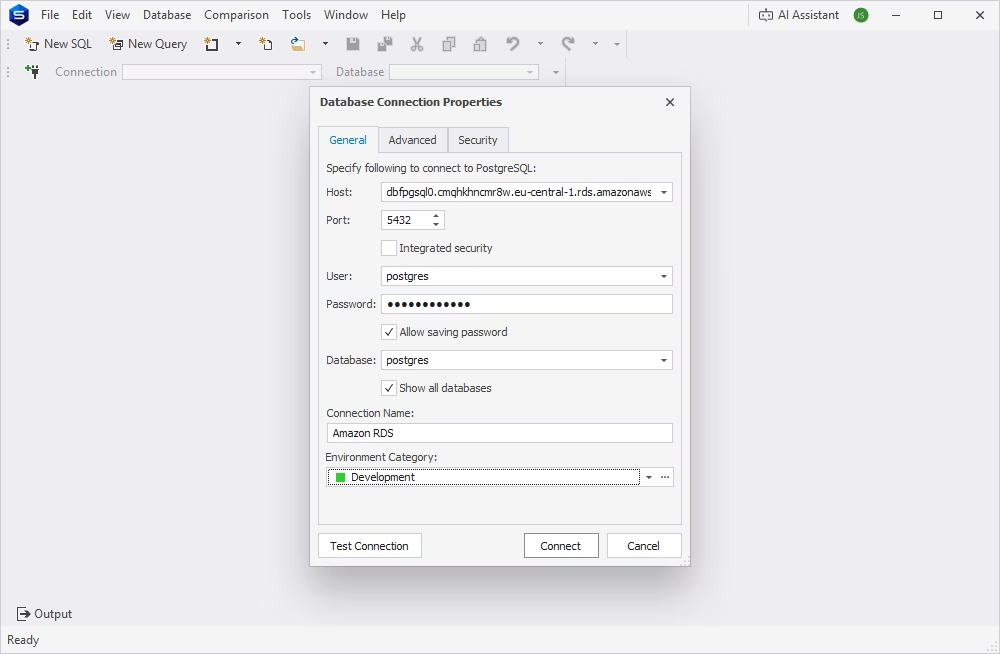
Open dbForge Studio for PostgreSQL and select New Connection from the Database menu. Enter the RDS endpoint in the Host field and specify the port (5432 by default), the database name, and your username and password. Use the Connection Name and Environment Category fields to assign a clear name and environment for your connection to avoid mistakes.
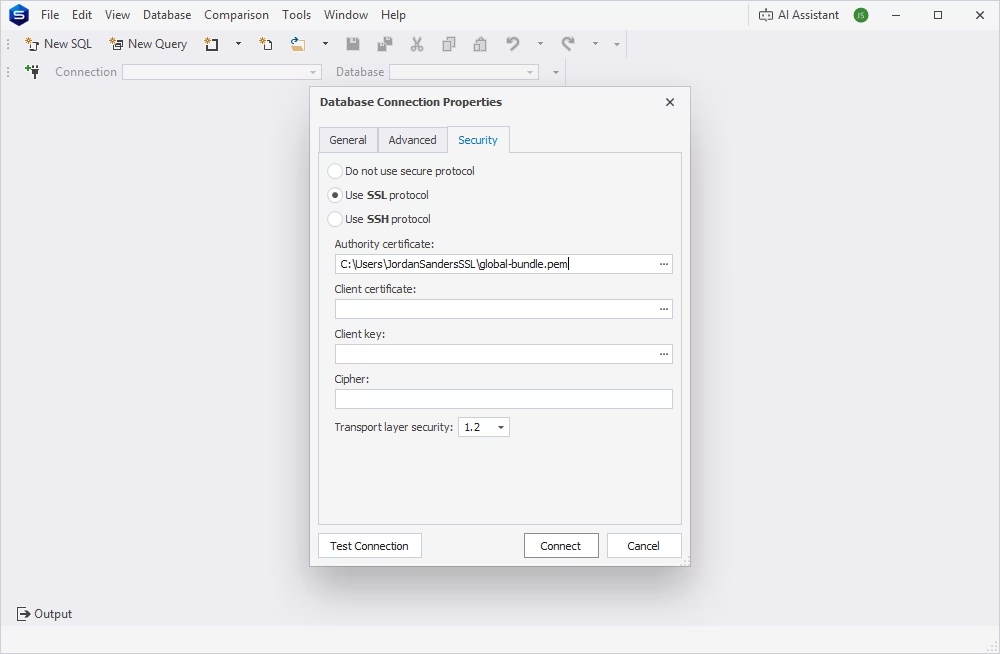
Navigate to the Security tab of the connection properties, enable SSL, and specify the appropriate AWS RDS CA certificates. Where the driver supports it, prefer the verify-ca or verify-full SSL modes over a mode that skips certificate validation to ensure a more secure connection.
Click Test Connection. If the test fails, the error message usually suggests a root cause: a connection timeout (network or security group issue), authentication failure (wrong credentials), a missing database, SSL being off when the server requires it, certificate verification failure, or insufficient user permissions.
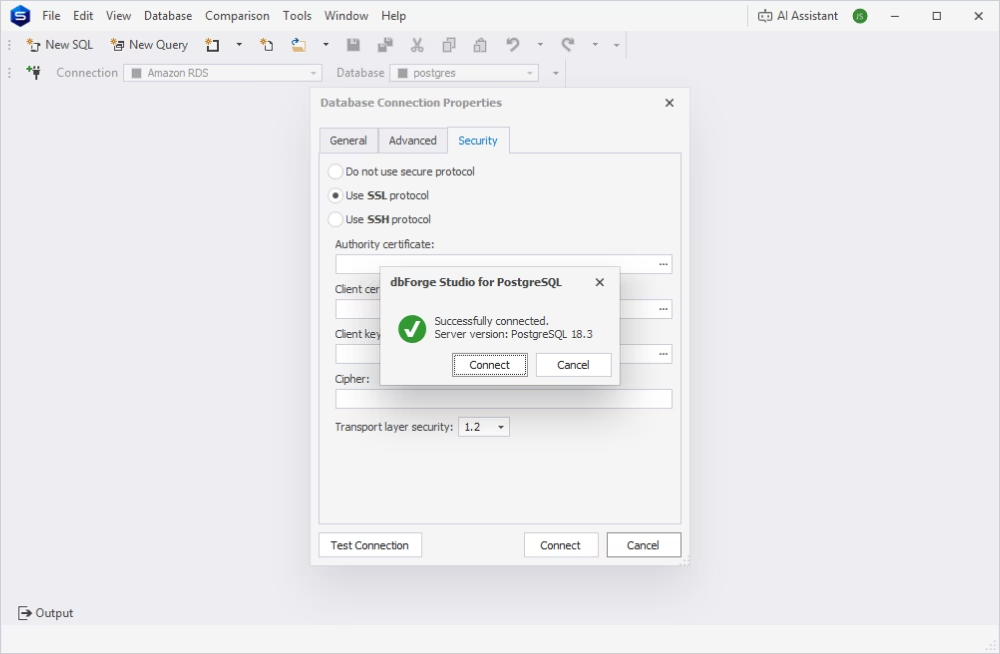
After the test succeeds, click Connect to finalize the connection and save its details. The connection appears in Database Explorer and can be used later with all details already in place. The name and environment symbol you selected while setting up the connection will help you easily navigate the Database Explorer.
Many Amazon RDS for PostgreSQL databases are deployed in private subnets and are not accessible from the public Internet. Such setups strengthen the security but prevent connecting to the database directly via the RDS endpoint. In that case, you need a secure path into the VPC before dbForge Studio can reach the RDS instance.
The most common options are a VPN or private network connection, an SSH tunnel through a bastion host, and AWS Systems Manager port forwarding. In all cases, you establish a secure path between your local machine and the private RDS instance, then configure dbForge Studio for PostgreSQL to send database traffic through that path.
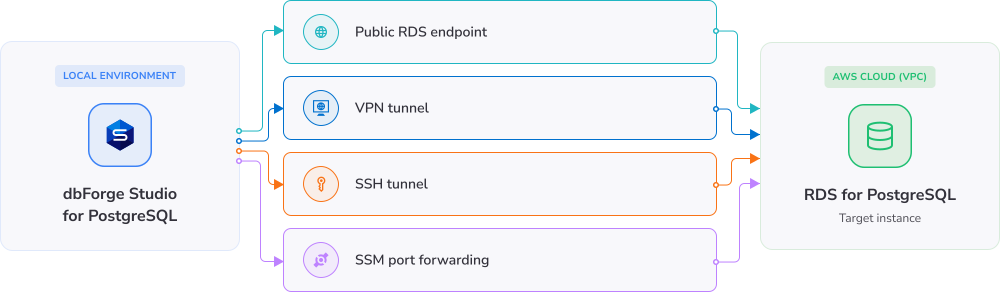
If your computer is already connected to the AWS VPC through a VPN, AWS Direct Connect, or corporate private networking, dbForge Studio can connect directly using the private RDS endpoint. No SSH tunnel or port forwarding is required because your computer already has network access to the VPC.
For the connection to work:
This is often the most convenient option for organizations that already have centralized private connectivity to AWS.
Another common approach is to use an SSH tunnel and a bastion host (also called a jump host) that can access the private RDS instance. The bastion host is typically an EC2 instance located in a public subnet, while the RDS database remains in a private subnet.
Such a connection type requires the following:
This approach allows you to keep the RDS database private while providing authorized users with secure access through a controlled entry point.
AWS Systems Manager Session Manager provides another way to access a private RDS instance without exposing it to the public Internet or setting up an SSH bastion. In this setup, an EC2 instance that can reach the private RDS instance acts as the intermediary. The SSM agent on the EC2 instance establishes the connection through AWS Systems Manager, and a local port on your computer is forwarded to the RDS endpoint.
This workflow requires:
This option can be particularly useful when organizations want to avoid exposing SSH ports or maintaining publicly accessible bastion hosts.
When connecting to Amazon RDS for PostgreSQL from dbForge Studio, you can generally use either traditional database password authentication or AWS IAM database authentication, depending on your security requirements and connection workflow.
Once connected, you can start your day-to-day RDS for PostgreSQL database management. dbForge Studio provides the same experience for working with Amazon RDS databases as with native PostgreSQL databases, offering a rich set of features. You can browse, create, and update database objects and data within the unified interface without switching between multiple tools.
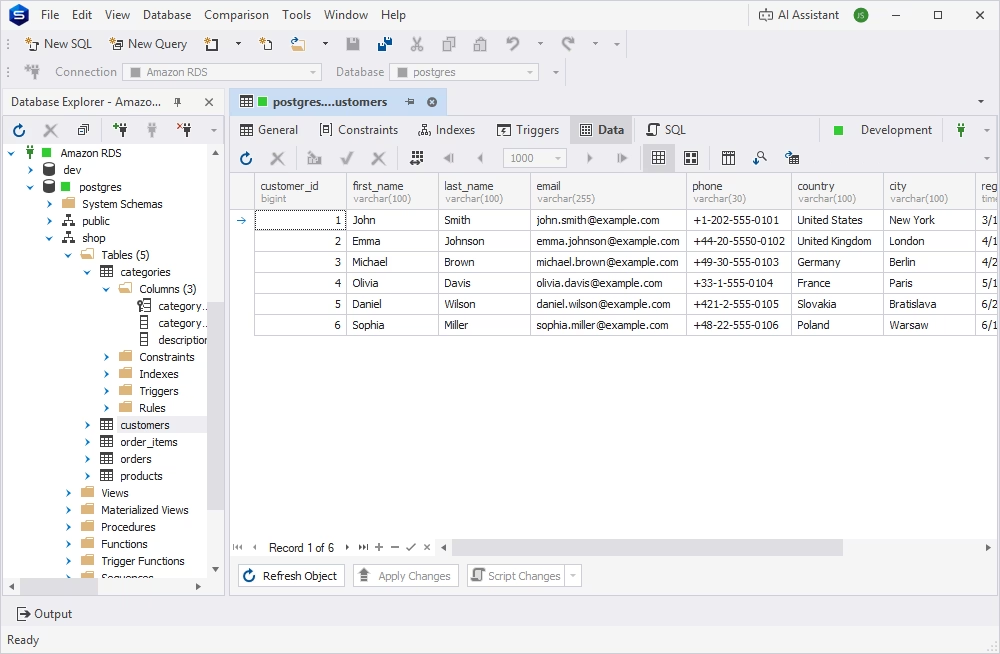
Database Explorer presents a visual tree of databases, schemas, tables, views, functions, and other PostgreSQL objects. This is particularly useful when you are working with an unfamiliar RDS database or switching between several environments, as you can navigate the database structure in Database Explorer in the Studio's GUI without writing SQL.
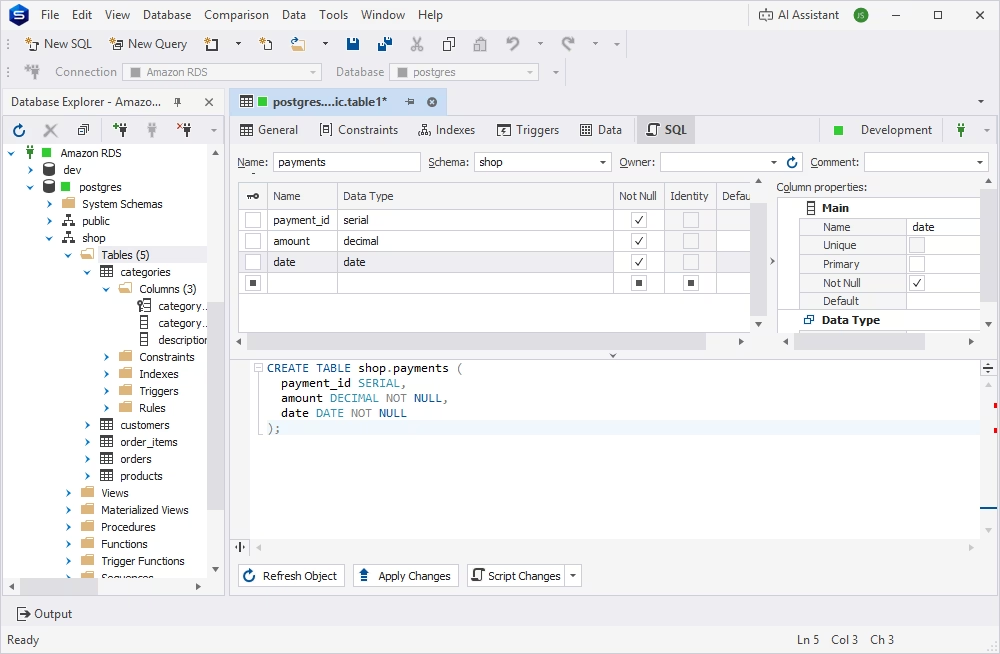
Visual object editors let you create or modify tables, columns, indexes, constraints, and other objects through a graphical interface while the corresponding SQL is generated in the background. You can review and update the generated SQL before applying it to minimize errors.
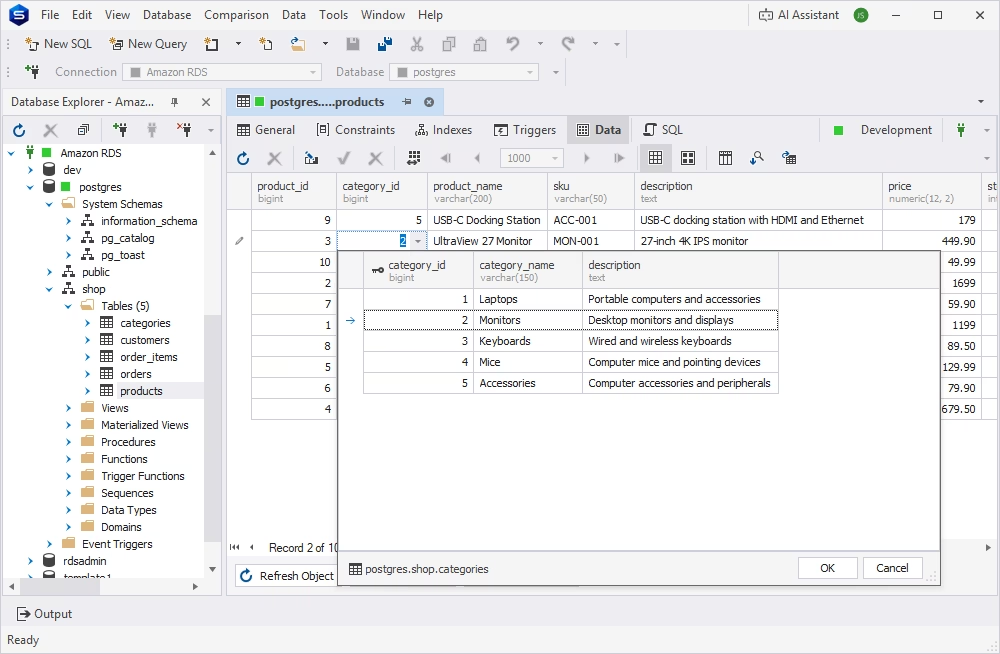
Data Editor supports browsing, filtering, sorting, and editing table data directly in a grid. For production RDS analysis, use a read-only database user account wherever possible, and make edits in the staging environment first. After you have reviewed all the changes and made sure they contain no mistakes, you can commit them to the production environment.
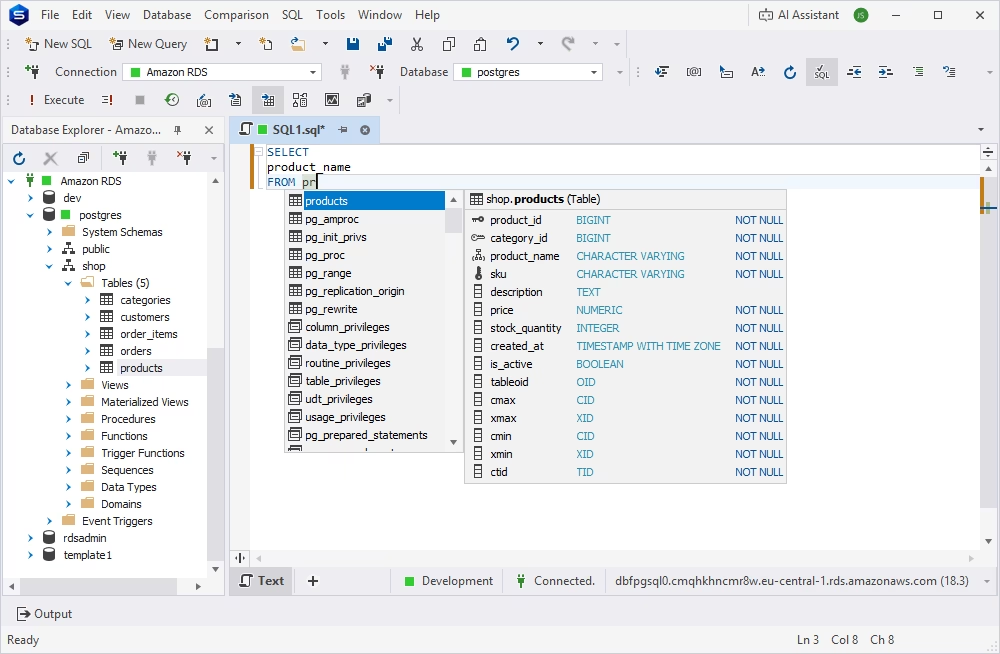
dbForge Studio supports the full range of SQL development tasks against Amazon RDS for PostgreSQL: SQL Editor with code completion and formatting, code snippets, Query Builder, and AI-assisted SQL generation, optimization, and troubleshooting. As always, review any generated or edited SQL carefully before executing it, especially against a production RDS database.
For working with Amazon RDS, dbForge Studio for PostgreSQL offers smart code completion, object name suggestions, formatting, reusable snippets, and refactoring. These features help database developers write cleaner PostgreSQL queries, work faster and with fewer syntax mistakes.
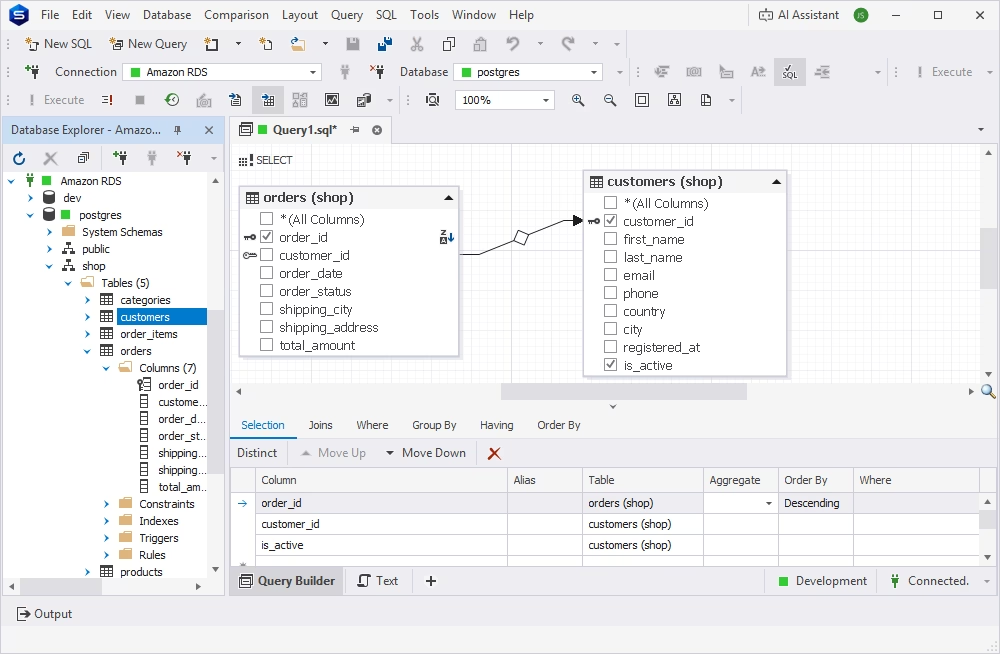
For data analysts and other data experts with basic SQL experience, dbForge Studio offers its visual PostgreSQL Query Builder—a tool for composing even complex SQL queries by dragging and dropping database objects across the canvas. Query Builder also helps reduce SQL errors by clearly showing table relationships and minimizing the chance of an incorrect or missing JOIN condition.
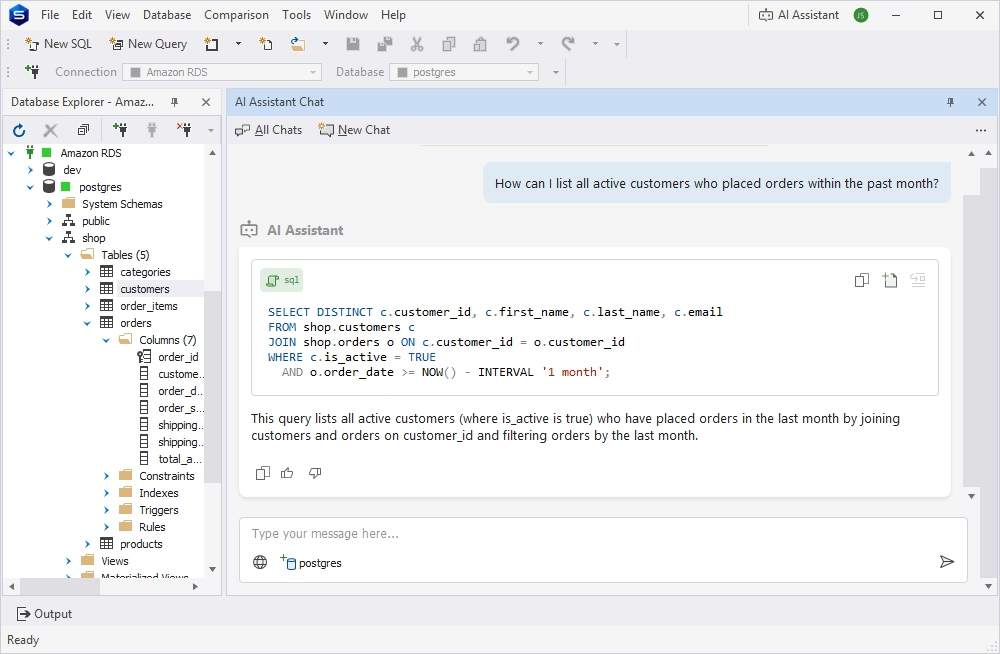
dbForge AI Assistant can support your workflow by generating SQL based upon your prompts, explaining complex queries, and helping troubleshoot errors. However, all SQL queries generated by the AI Assistant should always be checked and validated before execution, especially against a production RDS database. The best practice is to use the Assistant as your coding companion that can save you time by putting together even the most complex queries in a matter of seconds, and always perform the final review yourself.
Amazon RDS for PostgreSQL takes care of the underlying infrastructure, backups, patching, and other database management tasks, but it cannot fix inefficient SQL. Query performance depends on SQL logic, indexes, JOINs, filters, data volume, and the execution plan chosen by PostgreSQL.
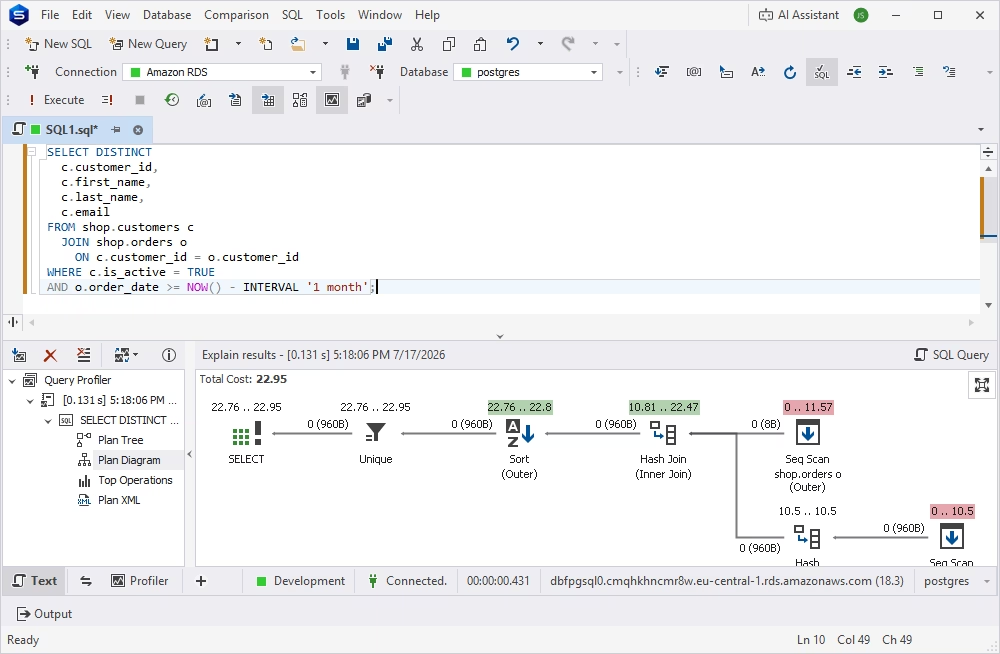
Query Profiler in dbForge Studio for PostgreSQL provides a workflow for investigating query performance on Amazon RDS. You can run a query against your RDS database, analyze its execution behavior, identify potential bottlenecks, and examine the execution plan to understand how PostgreSQL processes the request. This helps you determine whether performance issues may be related to inefficient JOINs, excessive data scans, filtering, sorting, or other aspects of query execution.
It is worth mentioning that Query Profiler cannot automatically optimize your SQL; rather, it provides the information needed to understand query behavior, test potential improvements, and verify whether an optimization actually delivers better performance.
Warning
Profiling executes the statement against the database. For SELECT queries, this is read-only; however, profiling an INSERT, UPDATE, DELETE, or MERGE statement permanently applies its changes to the database.
Before profiling a data-modifying statement on a production RDS instance, consider one of the following approaches:
BEGIN;
-- statement to profile
ROLLBACK;When teams work with local PostgreSQL databases, staging environments, and Amazon RDS for PostgreSQL instances, keeping database structures and data consistent can become challenging. Changes made during development may not make it to staging or production, while migration processes can introduce unexpected differences. dbForge Studio for PostgreSQL helps developers and DBAs identify these differences through schema and data comparison, making it easier to validate environments and manage database changes.
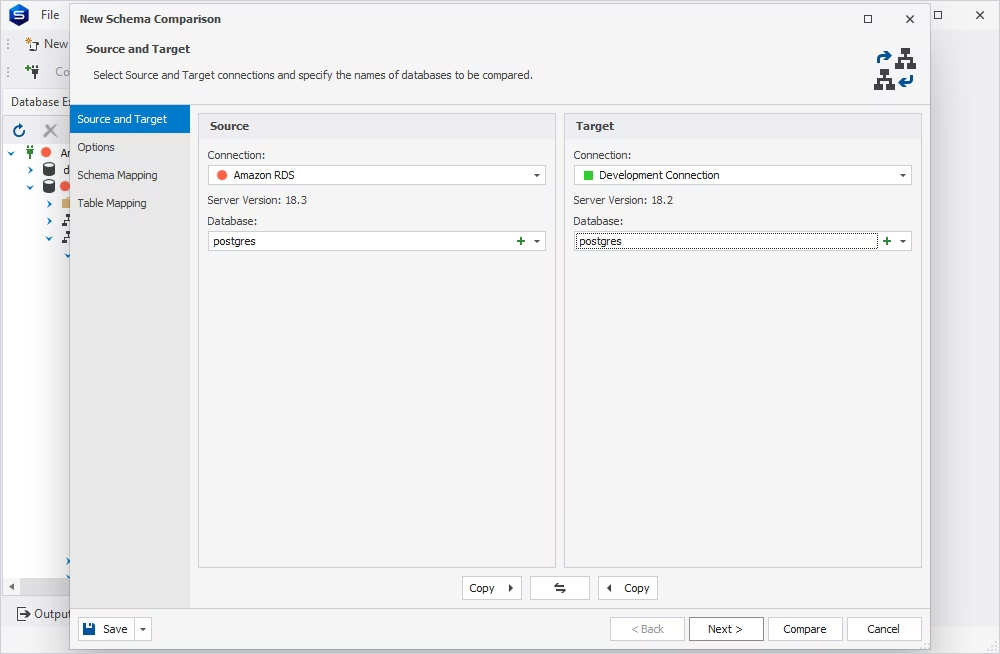
Schema comparison helps you identify differences between a local PostgreSQL database, a staging RDS instance, and a production RDS database. With dbForge Studio, you can compare database objects and quickly determine whether environments have the same structure. This is especially useful for release validation, troubleshooting environment drift, and preparing database deployments. Instead of manually inspecting database objects, you can see exactly where environments differ and determine which changes need to be synchronized.
Data comparison in dbForge Studio for PostgreSQL helps identify differences between tables in different environments. For example, after migrating data to an RDS PostgreSQL instance, you can compare the source and target tables to verify that the migration completed as expected. Similarly, comparing selected tables or subsets of data can help identify unexpected differences between staging and production.
Use extra caution when comparing or synchronizing production data. Before applying any data changes to a production RDS database, confirm that the selected comparison scope is correct and that you understand exactly which records will be affected. Whenever possible, test the synchronization process in a non-production environment first and ensure that appropriate backups or recovery options are available.
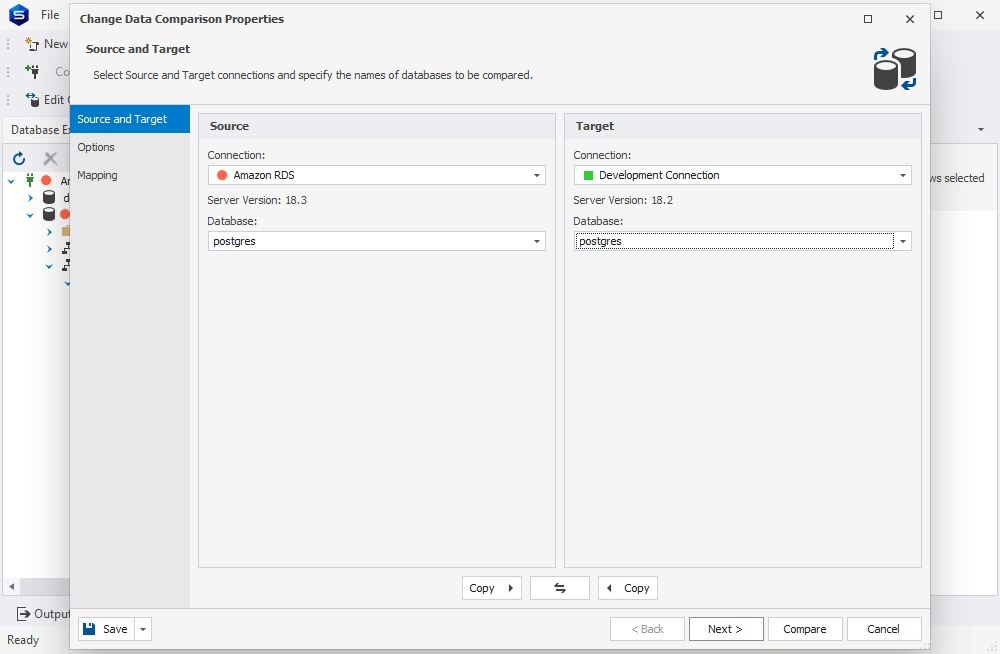
After the comparison, dbForge Studio can act as a PostgreSQL client for database sync and generate synchronization scripts that bring one environment in line with another. You can use them to automate database synchronization and to apply schema and data changes without writing SQL.
However, a generated synchronization script should not be treated as automatically safe to run in production. Before execution, review the script carefully to confirm that it performs only the intended operations and that the target database is correct. Pay particular attention to operations such as DROP, DELETE, TRUNCATE, and broad UPDATE statements. These operations can result in data loss or significant changes if generated or applied incorrectly. For production environments, such changes should require explicit review and approval before execution.
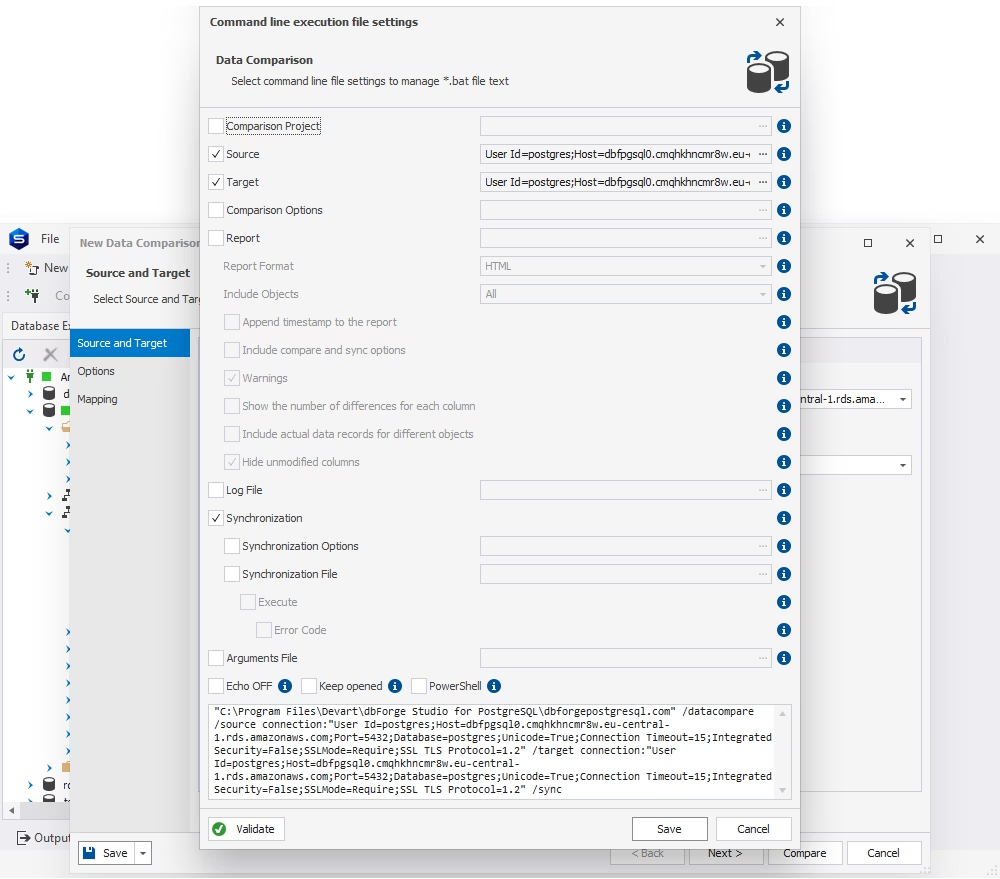
Working with Amazon RDS for PostgreSQL often involves migrating data between different sources and environments. Developers and DBAs may need to import test data, load records from CSV or Excel files, export query results for analysis, prepare data for reports, or move selected records between development, staging, and production environments. While Amazon RDS provides managed database infrastructure, tools such as dbForge Studio for PostgreSQL can simplify these everyday data movement tasks by providing a convenient interface for working with data directly in the database.
You can use dbForge Studio to load data from external files into tables in an RDS PostgreSQL database when you need to load reference or lookup data, migrate datasets from another source, or populate your development or test environment with sample data. Similarly, you can export data from your RDS PostgreSQL database to create reports, prepare data for analysis, or share data between teams. dbForge Studio for PostgreSQL enables data export and import directly in its GUI.
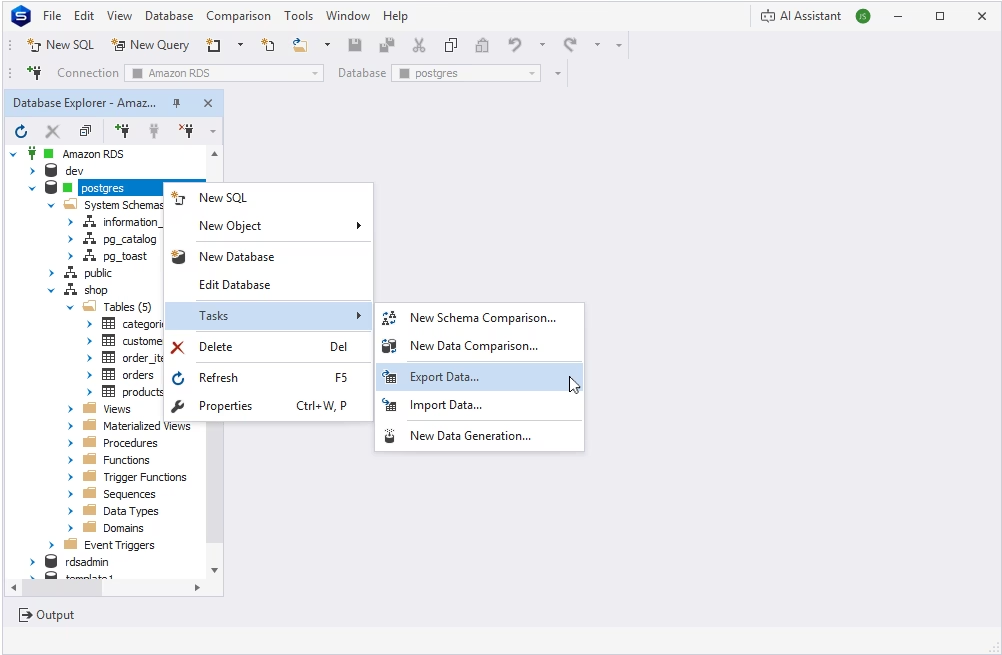
Data export is not a replacement for RDS backups. It may not preserve the complete database structure, indexes, constraints, permissions, functions, or other objects required to fully restore a database.
For disaster recovery, use Amazon RDS automated backups, manual snapshots, and other AWS-supported backup mechanisms. They are designed to protect the database and provide recovery capabilities if data is accidentally deleted, corrupted, or otherwise lost.
A basic connection tool can get you into a database on Amazon RDS for PostgreSQL, but it typically leaves SQL writing, formatting, profiling, data editing, schema comparison, data comparison, import and export, reporting, and AI-assisted SQL work spread across several disconnected tools. dbForge Studio brings all of it into one Amazon RDS for PostgreSQL management tool.
This integrated approach can be particularly valuable for teams that regularly manage multiple PostgreSQL environments or need to perform a broad range of development and administration tasks. Instead of switching between a SQL client, profiling tool, comparison utility, and separate data management applications, developers and DBAs can handle much of their daily work from a unified environment.
However, dbForge Studio isn't the only choice for every RDS for PostgreSQL workflow. Free tools such as psql, pgAdmin, or other basic database clients may be sufficient if you only need to connect to an instance, execute straightforward SQL, or perform occasional administrative tasks. As a PostgreSQL GUI for Amazon RDS, dbForge Studio is worth adopting when a team needs a complete, professional IDE that supports the entire database development and management lifecycle instead of a series of separate utilities.

A feature-rich and versatile IDE for database development, management, and administration, as well as data management, analysis, and reporting
Most Amazon RDS for PostgreSQL connection issues fall into a number of common categories: connection timeout, wrong endpoint, blocked security group, private subnet access, SSL certificate errors, authentication failures, expired IAM token, missing database name, or insufficient privileges. The table below summarizes what to check for each one.
| Problem | Possible cause | What to check |
|---|---|---|
| Connection timeout | Security group, subnet, routing, VPN, private endpoint | Inbound rules, VPC route, local network, bastion/SSM tunnel |
| Authentication failed | Wrong user/password, expired IAM token | Credentials, IAM token, rds_iam role |
| SSL error | Missing CA certificate or wrong SSL mode | RDS CA bundle, sslmode, certificate path |
| "SSL off" error | RDS requires SSL | Whether SSL is enabled in the client connection |
| Database not found | DB name was not created or entered incorrectly | RDS Configuration tab, database list |
| Permission denied | User lacks privileges | Grants, roles, schema/table permissions |
| Works in psql but not GUI | Different SSL, host, port, or token settings | Connection strings and GUI fields |
A graphical database tool such as dbForge Studio for PostgreSQL can make everyday work with Amazon RDS for PostgreSQL faster and more convenient, but convenience should never come at the expense of security. The best approach is to use the GUI as part of a controlled database management workflow, with access permissions, network security, encryption, and recovery mechanisms configured at the AWS and PostgreSQL levels.
Below are some core best practices that can help you make the most of using dbForge Studio for managing PostgreSQL databases in Amazon RDS.
Avoid using a single highly privileged database account for every task. Instead, create separate PostgreSQL users or roles based on responsibilities and grant each only the permissions required for their work. For example:
This approach follows the principle of least privilege and limits the potential impact of accidental or unauthorized changes. In dbForge Studio, maintaining separate connection profiles for these accounts can also make it easier to select the appropriate credentials for each task.
Treat every production database change as a controlled deployment rather than an ad hoc GUI operation. When working with schema or data comparison, use dbForge Studio to identify differences and generate a synchronization script, but review the resulting SQL before executing it.
Pay particular attention to destructive operations such as DROP, DELETE, TRUNCATE, and broad UPDATE statements. Make sure you understand exactly which objects or records will be affected before running them.
For critical databases, database changes should also be tracked through your organization's version control and deployment processes. A GUI can help generate and validate SQL, but it should complement—not replace—a controlled change-management workflow.
dbForge Studio should work within your organization's security architecture, not bypass it. For example, access to a private RDS instance may require a VPN, private network connection, SSH tunnel, or AWS Systems Manager port forwarding. Network-level access should still be controlled through appropriate AWS security groups and networking rules. Connections should use SSL/TLS where required, and authentication should follow your organization's policies, whether that involves database passwords or AWS IAM authentication.
Ultimately, the safest approach is to combine dbForge Studio's productivity features with strong AWS and PostgreSQL security practices. Use least-privilege accounts, separate environments and connections, prefer read-only access for analysis, protect connections with appropriate security controls, review generated SQL, and ensure backups or snapshots are available before risky operations. This allows teams to benefit from the convenience of a professional GUI while maintaining the security and governance expected in production Amazon RDS environments.
Amazon RDS for PostgreSQL takes much of the complexity out of managing database infrastructure, handling tasks such as backups, patching, and availability so developers and DBAs can focus on the database itself. However, day-to-day work still requires an efficient PostgreSQL GUI tool for writing and optimizing queries, managing database objects and data, troubleshooting performance issues, and keeping local, staging, and production environments in sync.
With dbForge Studio for PostgreSQL, you can connect to your databases on Amazon RDS for PostgreSQL and handle these essential tasks from a single, feature-rich GUI. From SQL development and data management to query profiling, schema and data comparison, and environment troubleshooting, dbForge Studio brings the tools you need into one convenient workspace. Try dbForge Studio for PostgreSQL and see how it can fit into your own Amazon RDS for PostgreSQL workflow.
To connect to Amazon RDS for PostgreSQL, create a new PostgreSQL connection in dbForge Studio, enter the RDS endpoint as the host, the port (5432 by default), the database name, and your username and password, configure SSL if your instance requires it, then test and save the connection. This is the core workflow for how to manage Amazon RDS for PostgreSQL from dbForge Studio.
Yes. As a PostgreSQL GUI for Amazon RDS, dbForge Studio covers connecting to the instance, browsing and editing objects and data, writing and profiling SQL, comparing schemas and data across environments, and importing or exporting data, all from a single interface.
Amazon RDS for PostgreSQL supports SSL/TLS encryption, and some parameter groups enforce it. Even when it is not strictly required, using SSL with certificate verification is recommended to protect credentials and query data in transit.
If your RDS instance is in a private subnet, connect through a VPN or private network path to the VPC, an SSH tunnel through a bastion host, or AWS Systems Manager port forwarding, and point dbForge Studio at the resulting private endpoint or forwarded local port.
Yes, though IAM authentication issues short-term tokens that expire, which suits centralized identity control better than long-running sessions. Regular password authentication remains simpler for most day-to-day GUI workflows.
The most common causes are a security group or network path that blocks the connection, wrong or expired credentials, a missing database, and SSL or certificate configuration mismatches. Check your connection settings and user permissions to locate and fix the issue.
Yes. Query Profiler analyzes execution plans and runtime statistics for queries run against your RDS PostgreSQL database, helping you find bottlenecks and compare query versions before and after a change.
Yes. dbForge Studio detects differences in tables, columns, indexes, constraints, views, and functions between a local database, a staging RDS instance, and a production RDS database. Then the Studio generates a synchronization script you can review before applying it.
Yes, dbForge Studio supports importing and exporting data in common formats for operational tasks such as loading test data or preparing reports. RDS backups and snapshots remain the proper mechanism for database recovery.