PostgreSQL object editors
Object editors rank among the key features of database design and management tools, each serving a different but complementary purpose. Database editors handle high-level administration tasks such as creating or altering databases, assigning tablespaces, and configuring database settings without writing SQL scripts manually. Schema editors focus on designing and modifying schemas, updating their properties, managing their owners, and adding comments—again, without any need to compose complex DDL statements. Table editors work at the data level, allowing you to create and modify tables, columns, constraints, indexes, and triggers.
Taken together, visual editors for these and other database objects (such as functions, stored procedures, and event triggers) deliver a coding-free way of designing and managing databases, suitable for beginners and pros alike. Whether you are a seasoned developer or a manager without a technical background, visual editors will make you more productive, reduce the risk of error, and make databases easier to handle.
dbForge Studio for PostgreSQL provides visual editors for multiple object types. Each of them features an intuitive interface that will help you manage these objects and apply changes with the convenience and efficiency you are looking for.
PostgreSQL object editors overview
Here is a concise comparison table showcasing the visual object editors available in dbForge Studio for PostgreSQL.
| PostgreSQL object |
Editor |
Main purpose |
| Database |
Database editor |
Create and modify databases and database settings |
| Schema |
Schema editor |
Create and configure PostgreSQL schemas |
| Table |
Table editor |
Manage columns, constraints, indexes, triggers, and data |
| Function |
Function editor |
Create and edit PostgreSQL functions |
| Stored procedure |
Procedure editor |
Create and edit PostgreSQL procedures |
| Event trigger |
Event trigger editor |
Configure database-level event triggers |
Database editor
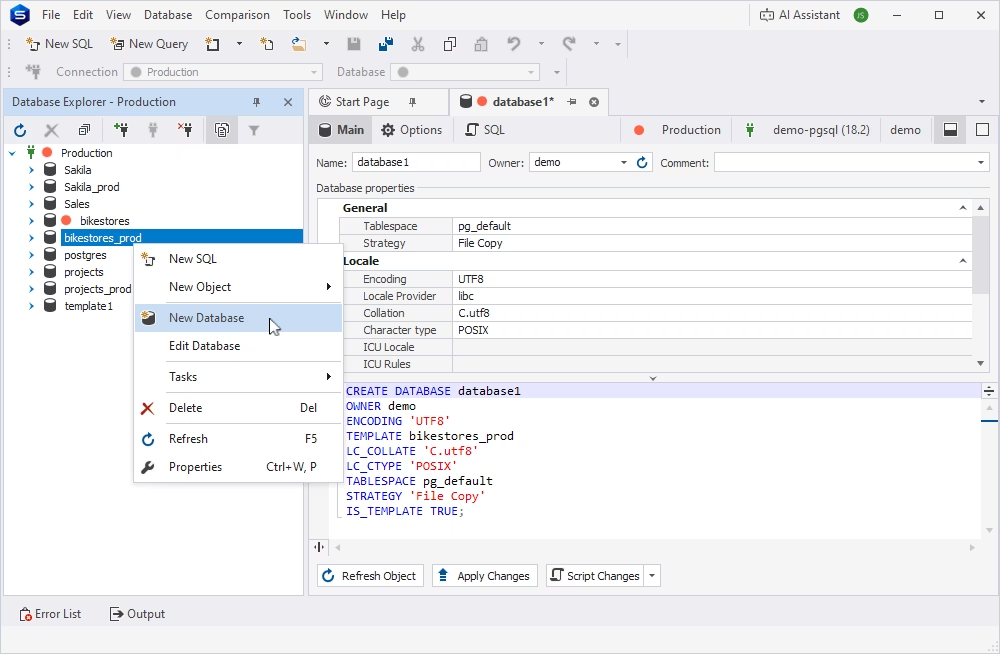
The database editor lets you create and modify a database without writing SQL manually. After you specify database details in the editor, a corresponding CREATE DATABASE or ALTER DATABASE statement is generated automatically.
On the Main tab, you can configure database properties that define the database structure, behavior, and basic settings. The Options tab allows you to set PostgreSQL parameters, while the SQL tab lets you preview the generated SQL script.
To open the database editor, right-click the required database or server connection in Database Explorer and select New Database or Edit Database. Alternatively, open the editor from the Database menu or the Database Design section on the Start Page.
Schema editor
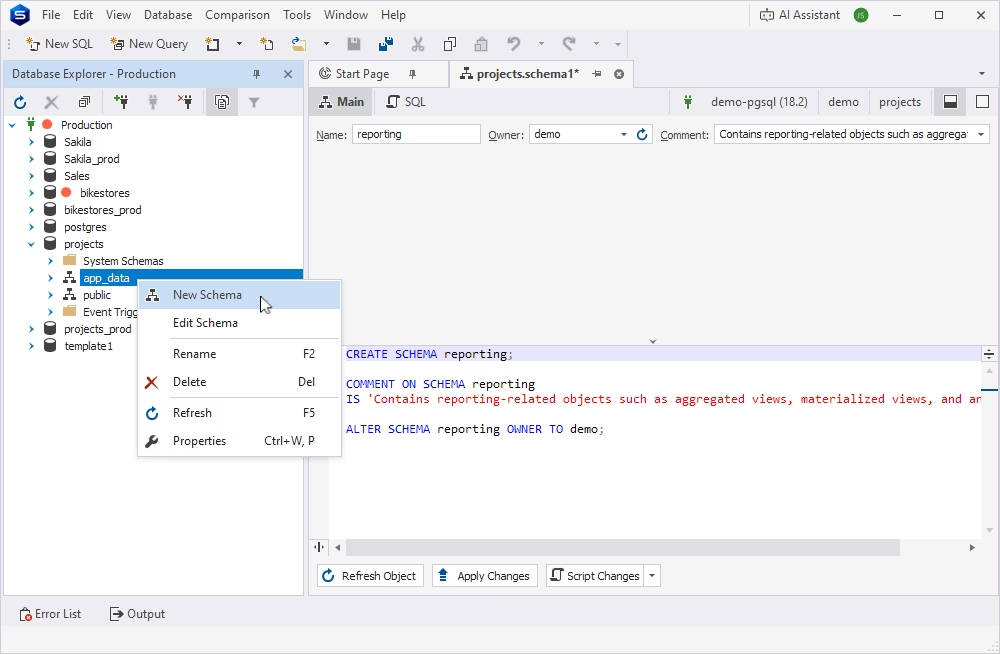
The schema editor provides a visual interface for creating and managing database schemas. Similarly, it automatically generates a corresponding CREATE SCHEMA or ALTER SCHEMA script, so you don't need to write DDL statements manually.
On the Main tab, you can define schema properties, such as name, owner, and comment. The SQL tab allows you to review and format the generated SQL script before you run it.
To open the schema editor, right-click an existing schema in Database Explorer and select New Schema or Edit Schema. You can also create a new schema from the Database menu, the New Database Object icon on the toolbar, or the Database Design section on the Start Page.
Table editor
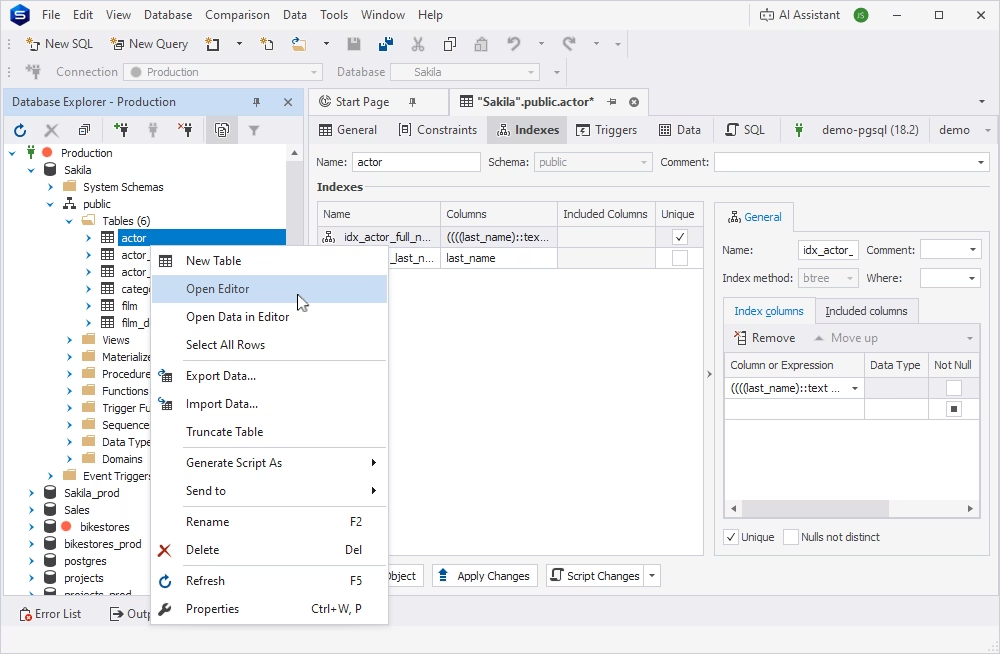
The table editor enables you to create and manage database tables visually. You can define and modify table columns, constraints, indexes, and triggers without writing DDL statements manually. The editor generates a corresponding CREATE TABLE or ALTER TABLE statement based on your changes.
The editor is organized into several tabs:
- The General tab lets you create and manage columns and their properties.
- The Constraints tab provides access to primary, foreign and unique keys, as well as check constraints.
- The Indexes tab allows you to create and configure indexes.
- The Triggers tab lets you manage DML triggers defined on the table.
- The Data tab lets you view and edit table data.
- The SQL tab displays the generated DDL script, which you can review before applying changes.
To open the table editor, right-click a table or the Tables node in Database Explorer and select New Table or Open Editor. You can also create a new table from the Database menu on the menu bar, the New Database Object icon on the toolbar, or the Database Design section on the Start Page.
Procedure editor
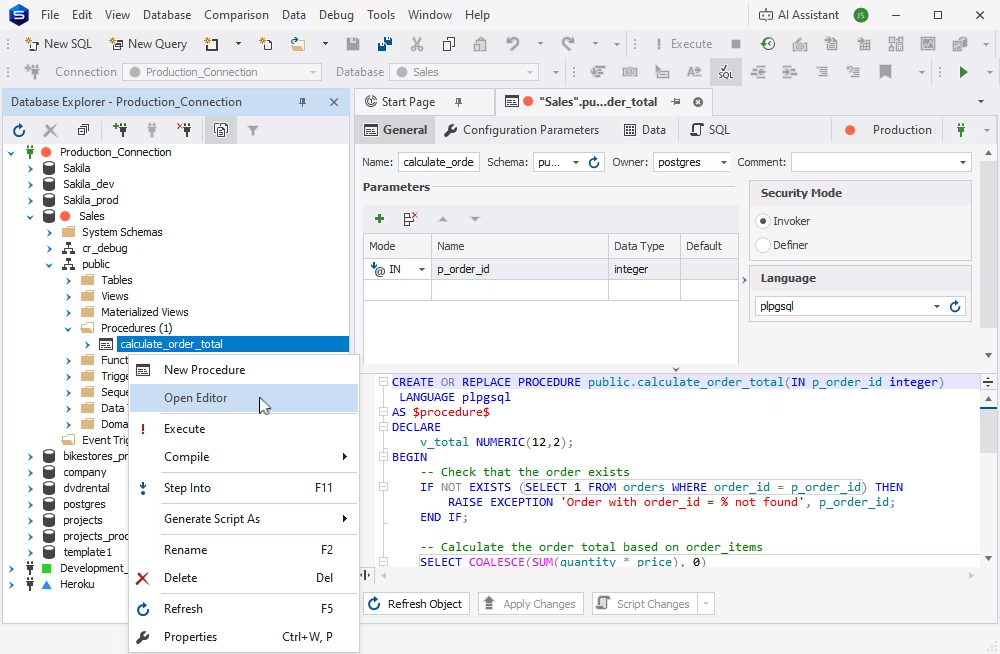
The PostgreSQL stored procedure editor provides you with tools that help create new procedures and modify existing ones.
It includes the following tabs:
- The General tab allows you to configure procedure parameters and execution settings.
- The Configuration Parameters tab helps you configure server parameters that apply only when the procedure is executed.
- The Data tab lets you view the data returned by the procedure.
- The SQL tab delivers the generated
CREATE PROCEDURE or ALTER PROCEDURE DDL script, which automatically updates according to the properties you configure in the visual editor.
To open the visual procedure editor, right-click an existing stored procedure or the Procedures node in Database Explorer and select New Procedure. You can also create PostgreSQL procedures from the Database menu on the menu bar, the New Database Object icon on the toolbar, or the Database Design section on the Start Page.
Function editor
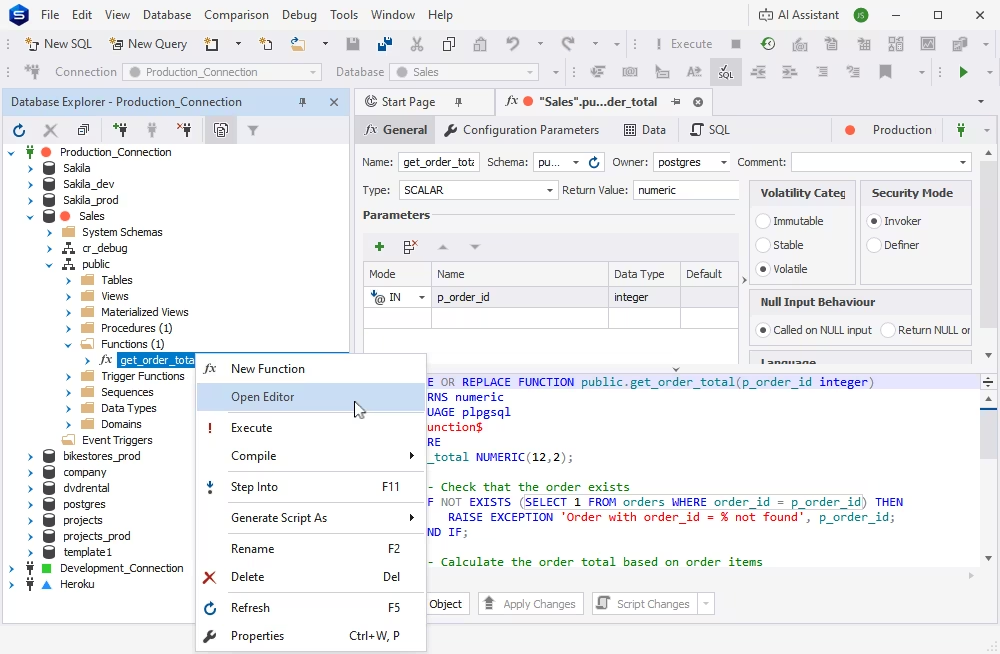
The visual PostgreSQL function editor enables you to create and manage functions and their properties.
It comprises the following tabs:
- The General tab allows you to configure function properties, its parameters, and execution settings.
- The Configuration Parameters tab helps you configure server parameters that apply only when the function is executed.
- The Data tab lets you view the data returned by the function.
- The SQL tab delivers the generated
CREATE FUNCTION DDL script, which automatically updates according to the properties you configure in the visual editor.
To open this editor, right-click a function or the Functions node in Database Explorer and select New Function. You can also create a PostgreSQL function from the Database menu on the menu bar, the New Database Object icon on the toolbar, or the Database Design section on the Start Page.
Event trigger editor
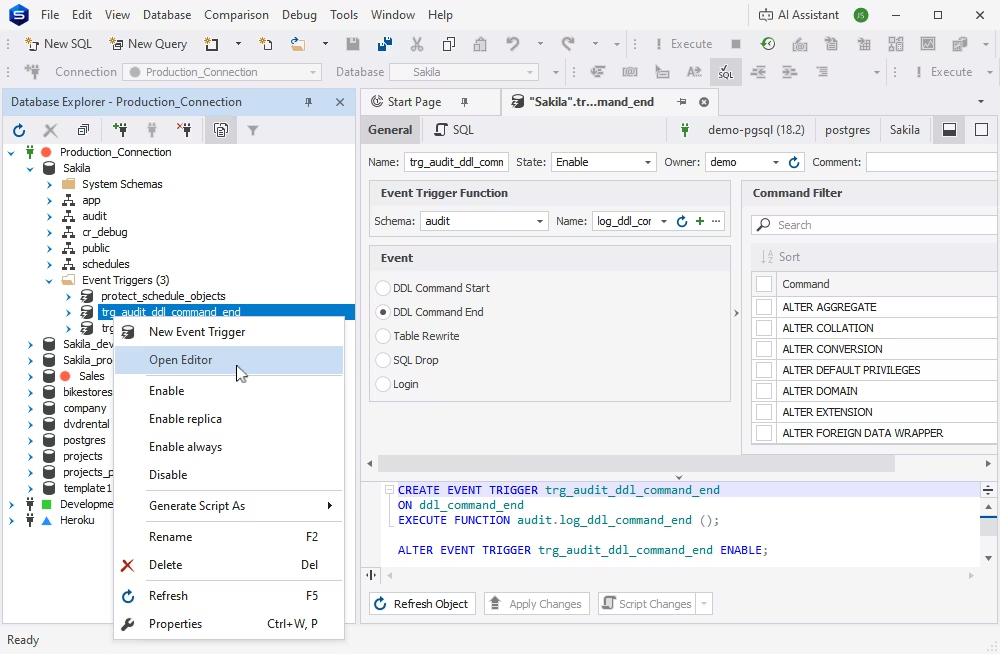
The PostgreSQL event trigger editor is the ultimate visual tool that helps you create and edit PostgreSQL event triggers with ease. The General tab allows you to specify an event trigger name and description, select an owner, and define trigger functions on database events. The SQL tab shows the auto-generated CREATE EVENT TRIGGER or ALTER EVENT TRIGGER script based on your configurations.
To open the event trigger editor, right-click a trigger or the Event Triggers node in Database Explorer and select New Event Trigger. You can also create event triggers in PostgreSQL from the Database menu on the menu bar, the New Database Object icon on the toolbar, or the Database Design section on the Start Page.
Each of these editors contributes a vital layer of functionality, from designing and managing the entire database environment to designing structured relationships and handling actual tables and records. What's also important is that they make database systems more accessible to both technical and non-technical users.
For some firsthand experience, get your free 30-day trial of dbForge Studio for PostgreSQL and explore how visual object editors help you configure all required settings through an intuitive interface. This will be a definite level up for your database management.