SQL Server Table Designer and Table Editor
Database design and development are continuous processes. Specialists regularly deal with new project launches, performance optimization, data growth, and compliance with regulatory requirements. Meeting these demands requires the ongoing creation and refinement of database structures, most of which center on working with database tables.
Routine tasks such as creating and modifying tables are essential, yet they can be time-consuming and resource-intensive. This makes optimization a priority. One effective way to improve efficiency is through visualization. dbForge Studio for SQL Server provides exceptional visualization capabilities for such tasks. For example, the SQL Table Editor simplifies the process of managing and modifying database table structures significantly.
This article explores how to use this feature to create, configure, and modify database tables in SQL Server—one of the most widely used platforms for enterprise-grade applications, both on-premises and in the cloud.
Table Designer in dbForge Studio for SQL Server
Table Designer is a visual tool that allows you to build and modify SQL tables easily. Instead of memorizing syntax or writing lengthy SQL statements, you can make changes with just a few clicks in the specialized SQL table creator. It is much easier to create and edit tables and view the entire structure in one place, rather than scanning the scripts.
Thus, dbForge Studio for SQL Server provides a grid interface where you can manage columns and their attributes, add constraints, define indexes, configure triggers, work with data, preview changes, and automatically generate SQL scripts based on your modifications.
Why use Table Designer instead of editing tables in T-SQL
Table Designer in dbForge Studio for SQL Server does not replace SQL entirely. Instead, it reduces the need for manual coding, minimizes errors, and speeds up routine tasks. Behind the scenes, it still relies on T-SQL, automatically generating the required code.
Visualization also enhances collaboration and onboarding by helping developers quickly understand database structures and the overall SQL table design specifics.
Now that we've covered the benefits of visualization and Table Designer, let's look at how to create and configure tables using the visual interface in dbForge Studio for SQL Server.
Create and edit SQL Server tables visually
To create a new table, open the Studio and connect to your target database. The Database Explorer pane appears on the left. If it's not visible, enable it from the View menu. Then, right-click the desired database and select New Table to open the SQL table builder.
Next, enter a name for your table and select the appropriate schema. You can also add an optional description. From there, define columns, configure their properties, and set up constraints, indexes, triggers, and more.
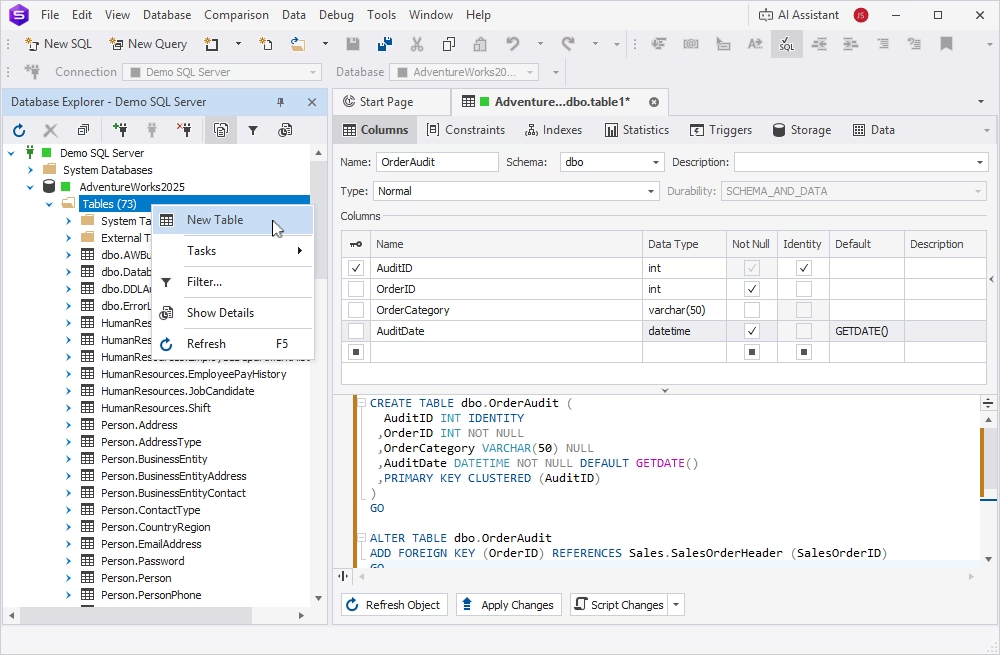
The table editor can also be used to modify existing tables. Simply expand the Tables node in your database, right-click the table you want to edit, and select Open Editor. This provides full access to the table structure for updates.
In the following sections, we'll walk through how to create and modify each key element of a table in detail.
Columns
Table Designer provides plenty of options for creating new SQL tables and editing existing ones directly within a grid. You can add new columns with a single click, rename them, and configure key properties without opening additional windows. Data types are automatically suggested based on column names, speeding up the setup process.
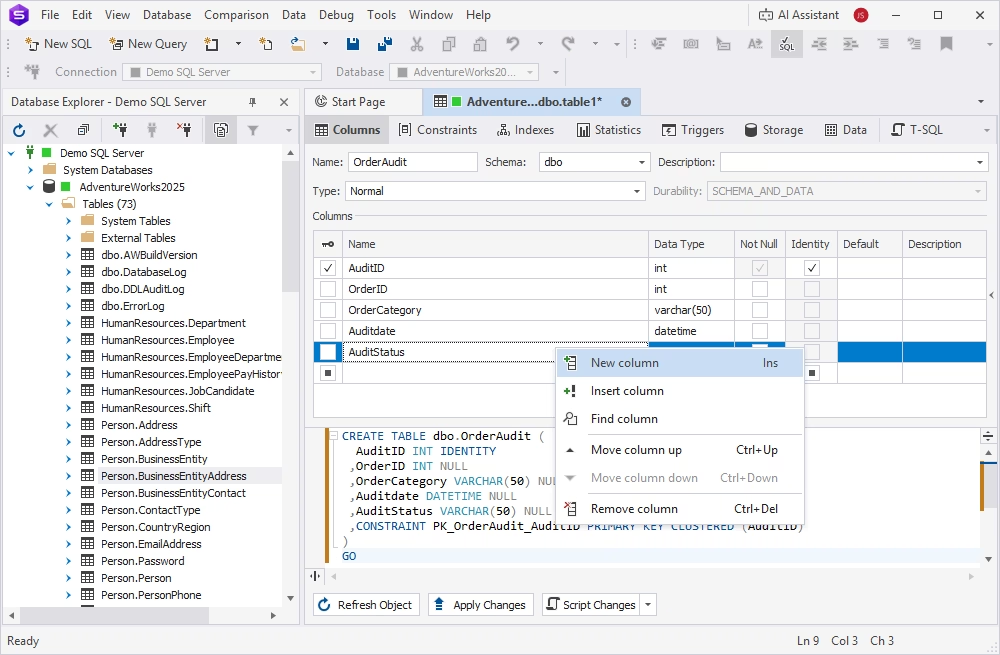
Primary keys can be easily assigned or removed using checkboxes. If needed, you can override the default database collation by specifying a custom collation for individual columns. The Comments field allows you to document table details or add notes for future reference.
All changes are instantly reflected in the DDL preview pane below the grid. If you prefer a cleaner workspace, you can adjust the layout and hide the script view.
Constraints
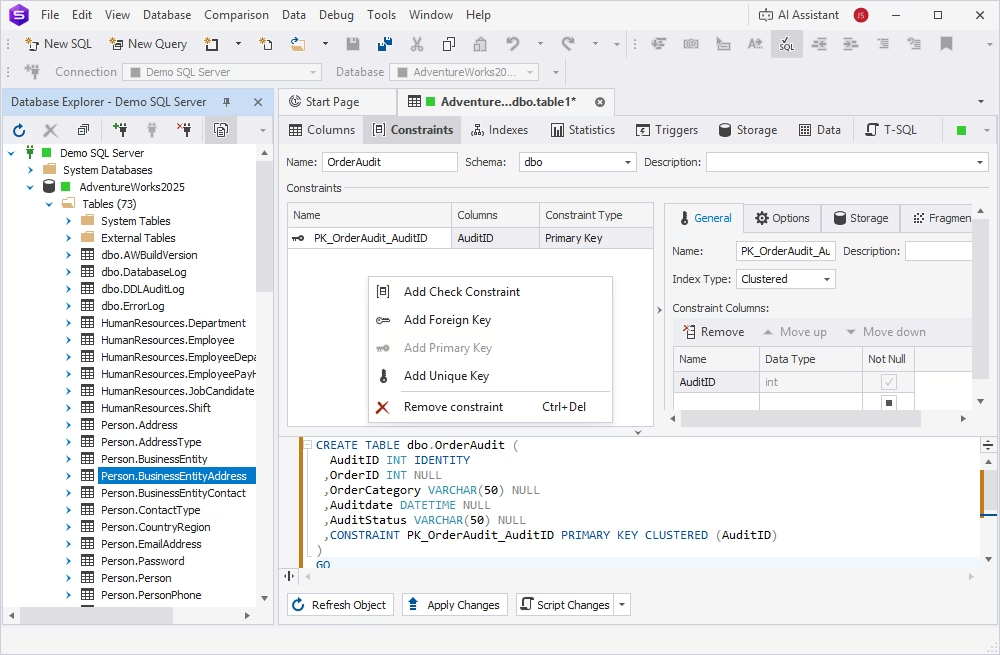
To maintain data integrity, Table Designer enables you to:
- Create or remove CHECK constraints and define their conditions
- Add or delete primary, foreign, and unique keys
- Control which values are allowed in a column
- Restrict the types of data that can be inserted into a table
Indexes
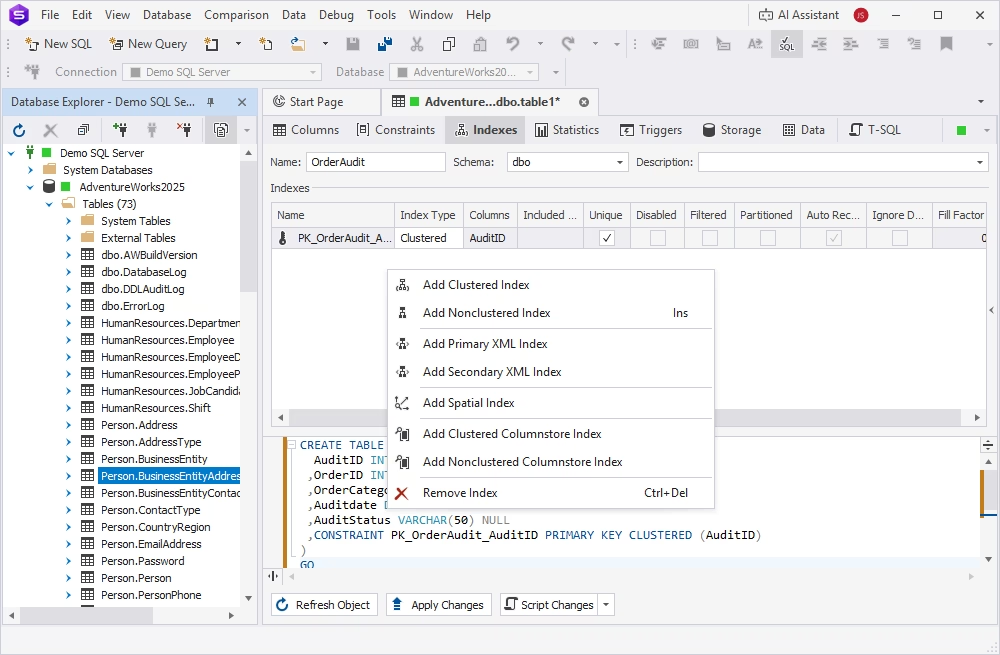
Indexes help optimize query performance and simplify operations like sorting and grouping. With the visual table editor, you can quickly add indexes to improve data retrieval without scanning every row.
On the Indexes tab, you can:
- Create or remove unique and non-unique indexes
- Define index types such as Clustered, XML, Columnstore (clustered or nonclustered), and Spatial
Statistics
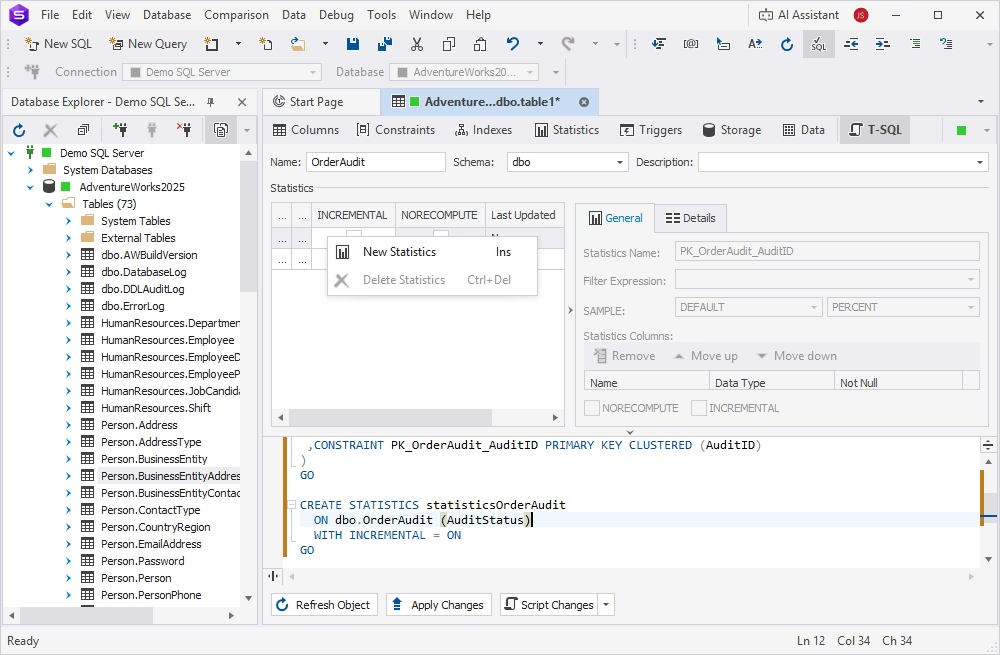
Statistics play a critical role in query optimization by providing the query optimizer with data distribution insights. Accurate statistics help estimate row counts and generate efficient execution plans. Outdated or incorrect statistics can lead to unnecessary operations, increased resource usage, and performance issues.
This SQL table maker includes a dedicated tab for creating and managing statistics, helping you keep them up to date and maintain optimal performance.
Triggers
The table editor allows you to easily create row-level triggers that respond to events such as INSERT, UPDATE, and DELETE operations. You can specify whether a trigger executes before or after an event.
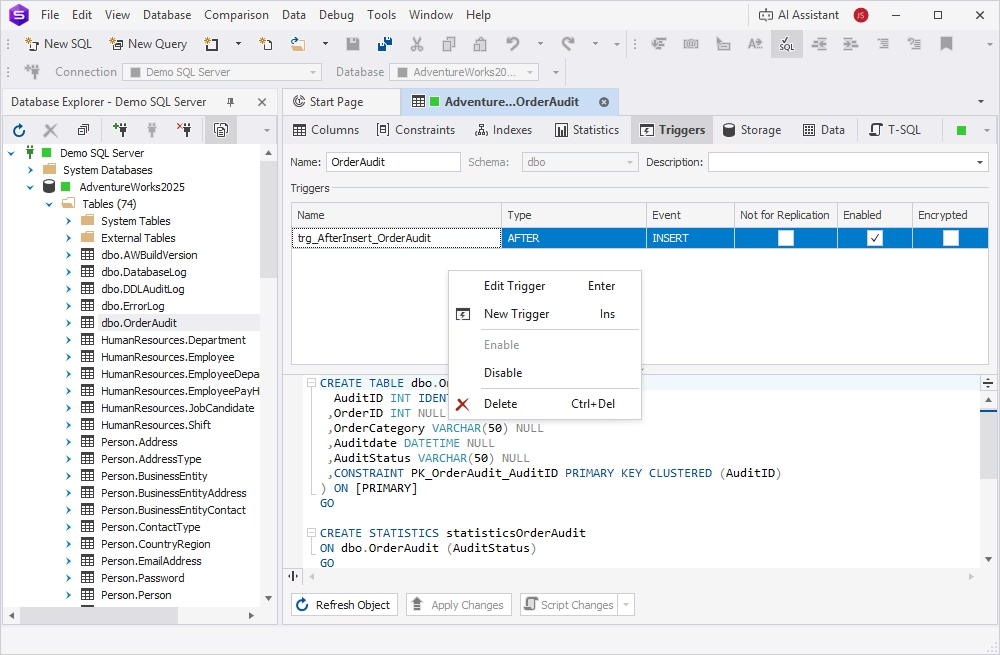
Triggers can also be generated using some previously saved SQL code snippets, making setup faster.
Storage
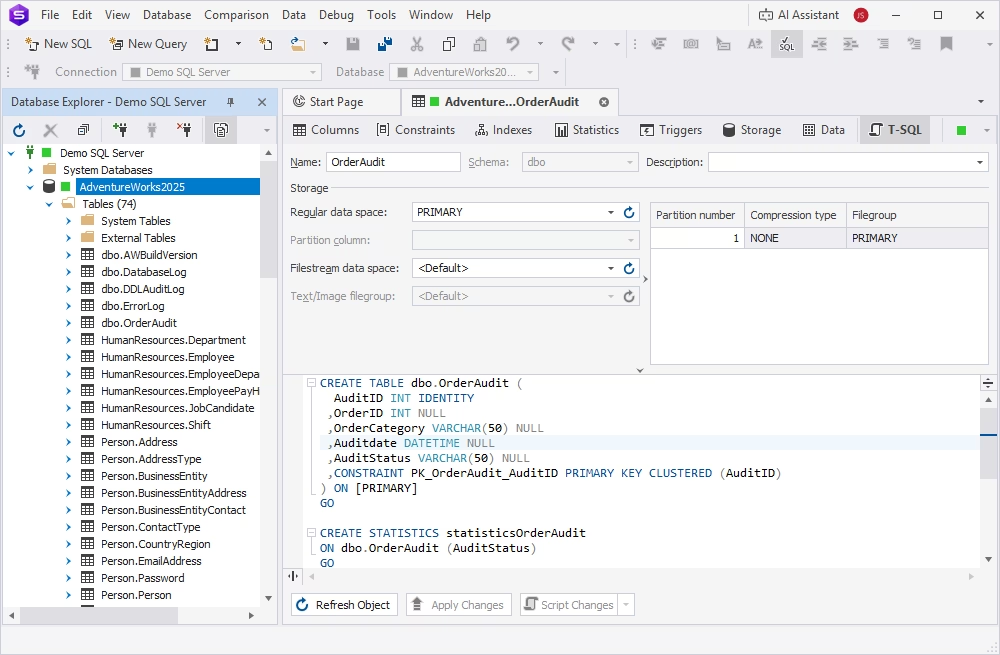
Proper storage configuration is essential for achieving optimal performance. On the Storage tab of this SQL table creator, you can define table storage properties, including standard and FILESTREAM data spaces.
Data editor
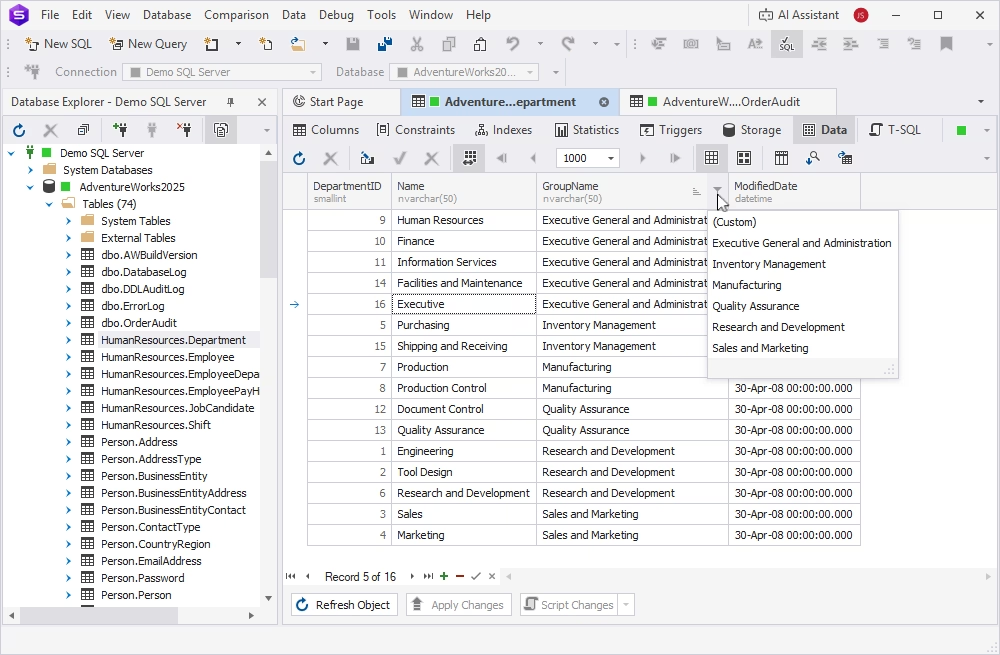
The built-in data editor lets you preview and manage table data instantly. It includes features such as:
- Filtering
- Grouping
- Sorting
- Switching between row and card views
- Viewing images stored in the table
- Auto-search functionality
In-place T-SQL editor
Table Designer includes an in-place T-SQL Editor that lets you manually edit any part of a CREATE TABLE statement. When you modify the code, the corresponding fields in the visual editor update automatically. Likewise, when you select a column in the visual editor, the related SQL syntax is highlighted in the T-SQL editor, making it easy to track changes.
This in-place T-SQL editor offers robust functionality to improve both the speed and accuracy of the output. Features such as IntelliSense-style autocompletion, context-aware suggestions, syntax validation, code formatting, and built-in T-SQL analysis help ensure higher-quality results.
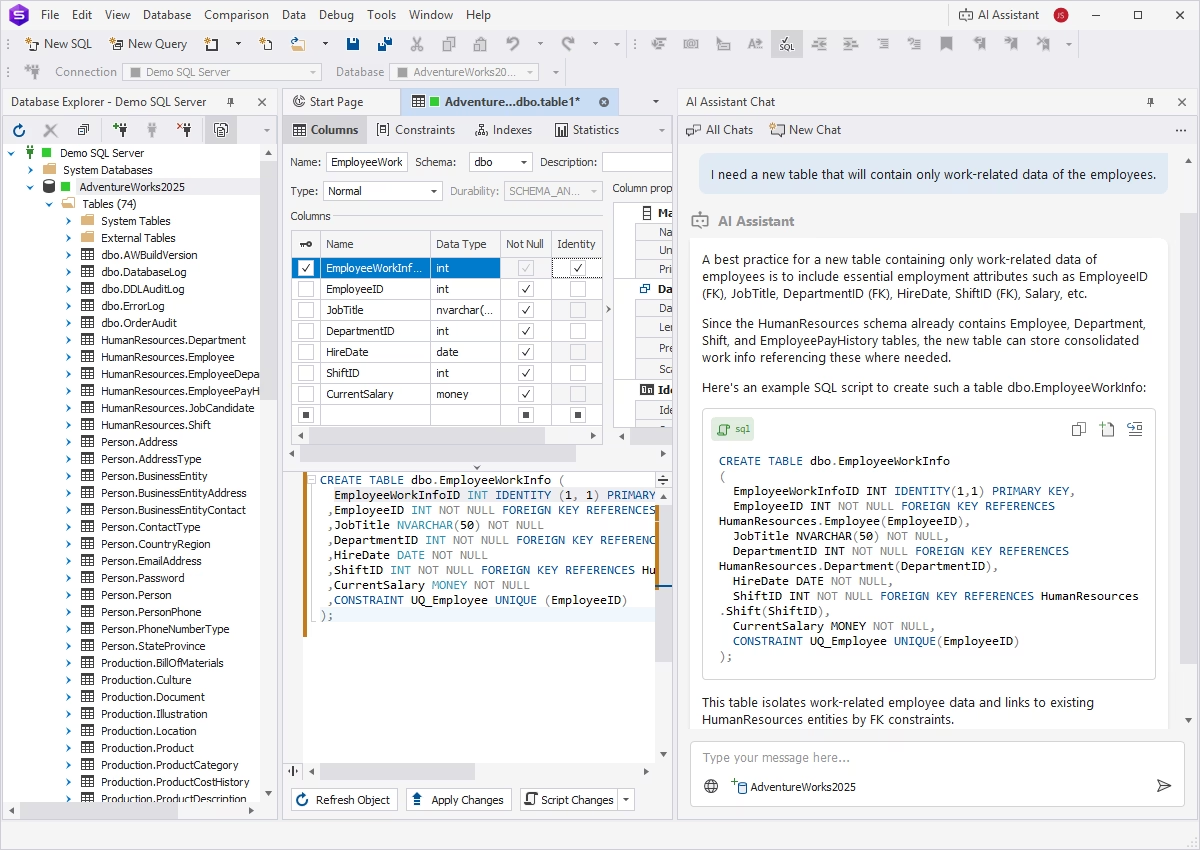
In addition, dbForge Studio also features a built-in dbForge AI Assistant for SQL code generation, analysis, troubleshooting, and optimization. It understands natural language requests and generates high-quality SQL queries in response. With it, you can quickly create new tables from scratch, receive recommendations for improving existing structures, generate queries to modify them, and handle any SQL-related task with minimal effort.
Scripting changes
When you create or modify a table, all changes are automatically reflected as a CREATE statement in the editor. You can generate a detailed script that includes server and client version information, the generation date, the connected database, and the full SQL definition of the table.
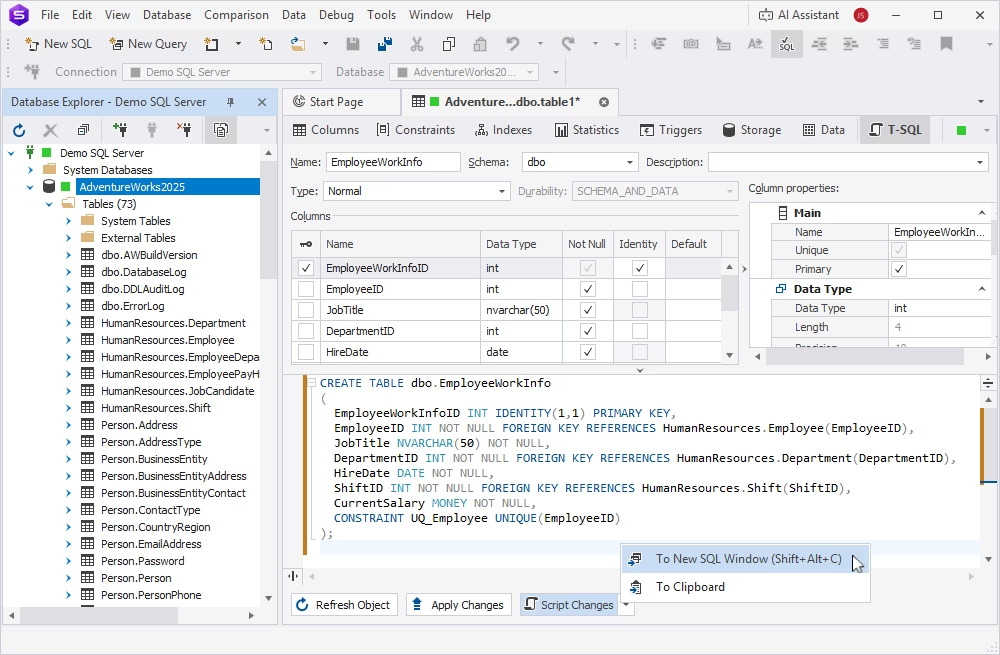
By default, clicking Script Changes opens the script in a new SQL document. Alternatively, you can copy the script directly to the clipboard using the dropdown options.
Conclusion
dbForge Studio for SQL Server is the most modern and intuitive IDE, especially for developers familiar with Microsoft's ecosystem. It supports the entire database lifecycle, from design and development to management, administration, and automation. With its advanced toolset and an integrated AI Assistant for faster SQL coding, it provides a unified environment where you can handle all SQL Server–related tasks efficiently within a single platform.
Get your free 30-day trial of dbForge Studio for SQL Server to see its value for yourself. All of its features, including Table Designer, were created to make work easy and enjoyable for you!
FAQ
A SQL Table Designer is a tool that lets you create and modify database tables without writing raw SQL code. It allows users to add and remove columns, set data types, configure constraints, and perform other basic operations in a visual mode.
Yes. Most modern database tools allow this. You can open existing tables, modify their structures visually, and save changes. These actions are translated into SQL behind the scenes and applied to the database.
SSMS provides its own table builder, which is functional but has certain limitations. Its interface is also less intuitive compared to more advanced tools. For example, dbForge Studio for SQL Server offers a cleaner UI and greater flexibility and precision when configuring table details, especially for complex schema changes.
Yes. Professional table editors support this functionality. While allowing users to create and modify table structures visually, these tools also generate CREATE TABLE and ALTER TABLE scripts. In dbForge Studio for SQL Server, these scripts are available within the same window, enabling a hybrid workflow that combines visual editing with precise SQL adjustments.
Professional database management tools provide this capability. dbForge Studio for SQL Server includes a dedicated Table Designer where you can manage indexes, constraints, and triggers in a centralized interface, with separate tabs for better organization and convenience.


